Try the New ImagineArt! 🎉 Smarter, Faster, Better!

Try now
HomeBlogsImagineart-1-0-prompt-guide

Prompt Guide for ImagineArt 1.0 AI Image Generator | ImagineArt

A detailed prompt guide for ImagineArt 1.0 covering features, refinement tips, templates, and prompt examples for better and realistic AI-generated images.

Tooba Siddiqui

Tooba Siddiqui

September 30, 2025 • Updated January 15, 2026

6 mins Read

On this page

With approximately 34 million AI images being generated daily, the key to creating a lifelike image lies in the art of AI prompting. Yet, generating truly hyperrealistic images isn’t just about using any tool; it requires the right model with correct prompting.

ImagineArt AI image generator brings you the most realistic AI image generation model, with incredible accuracy and speed. With ImagineArt 1.0, you can create close-up portraits, ultra-realistic landscapes, product mockups, scenes, and characters with unmatched realism.

Prompt Engineering Basics for ImagineArt 1.0

Let’s understand the basic components needed to craft a great prompt. Each component of your prompt has a certain purpose, from subject detailing to stylistic customization. Here are some of the key building blocks of a great prompt:

ComponentsPurposeTips/Examples
Subject / Main Object(s)What you want to see"An astronaut", "A vintage car", "A tiger in the jungle"
Attributes / DescriptorsQualities of the subject"Shimmering fur", "Matte black paint", "Sunlit foliage"
Context / EnvironmentWhere / in what surroundings"On a moonlit plain", "In a Japanese garden", "On a rainy street"
Lighting & Time / AtmosphereMood, lighting, ambiance"Golden hour", "Soft rim lighting", "Neon glow", "Foggy dawn"
Camera / Lens / FramingHelps realism & composition"85mm portrait lens, shallow depth of field", "Wide-angle", "Close-up macro"
Style / Artistic ReferenceVisual style or reference"Hyperrealistic", "Photojournalistic", "In the style of Annie Leibovitz"
Resolution / Quality KeywordsTo push for high detail"4K", "Ultra-detailed", "Super-resolution"
Negative / What to AvoidWhat you don’t want"No text", "No watermark", "No extra people"

Recommended read: ImagineArt 1.0 Features

Controls & Features to Use in Prompts

While using ImagineArt 1.0, there are some key factors and controls to add to your prompt for ultra-realistic results:

1. Negative Prompts

Adding ‘what not to add’ in your prompt helps the AI image generator understand and avoid unnecessary elements. For instance, you can add “no text” or “no filters” to avoid visual artefacts in the generated image.

3. Descriptors

Without a clear description of the scene, environment, characters, and objects, achieving realism wouldn’t be a possibility. Make your prompt concise but comprehensively descriptive for contextual understanding. Include color palette, surroundings, qualities of the main subject, lighting, tone, ambiance, and more.

4. Framing & Styles

ImagineArt 1.0 allows you to add camera positions, angles, and styles to improve visual compositions. Add stylistic preferences such as “photorealistic” or “Vogue-style aesthetic” to tailor the generated image to your requirements.

5. Aspect Ratio & Variations

After typing in the prompt, select the right aspect ratio (1:1, 3:4, 4:3, 9:16, 16:9) and number of images from the options. You can generate up to 4 images per generation. Turn on the prompt enhancer if you want to further refine the entered text.

Prompt Templates

Copy, paste, and edit these templates as per your image generation requirements for super-realistic outputs. Each template fulfills a different creative need:

Template A: Human Portrait

A (subject) with (distinctive attribute), standing (or posed) in (environment), bathed in (lighting/mood), shot with an (lens/framing) — hyperrealistic, ultra-detailed, 4K. Negative: (what to exclude)

Example:

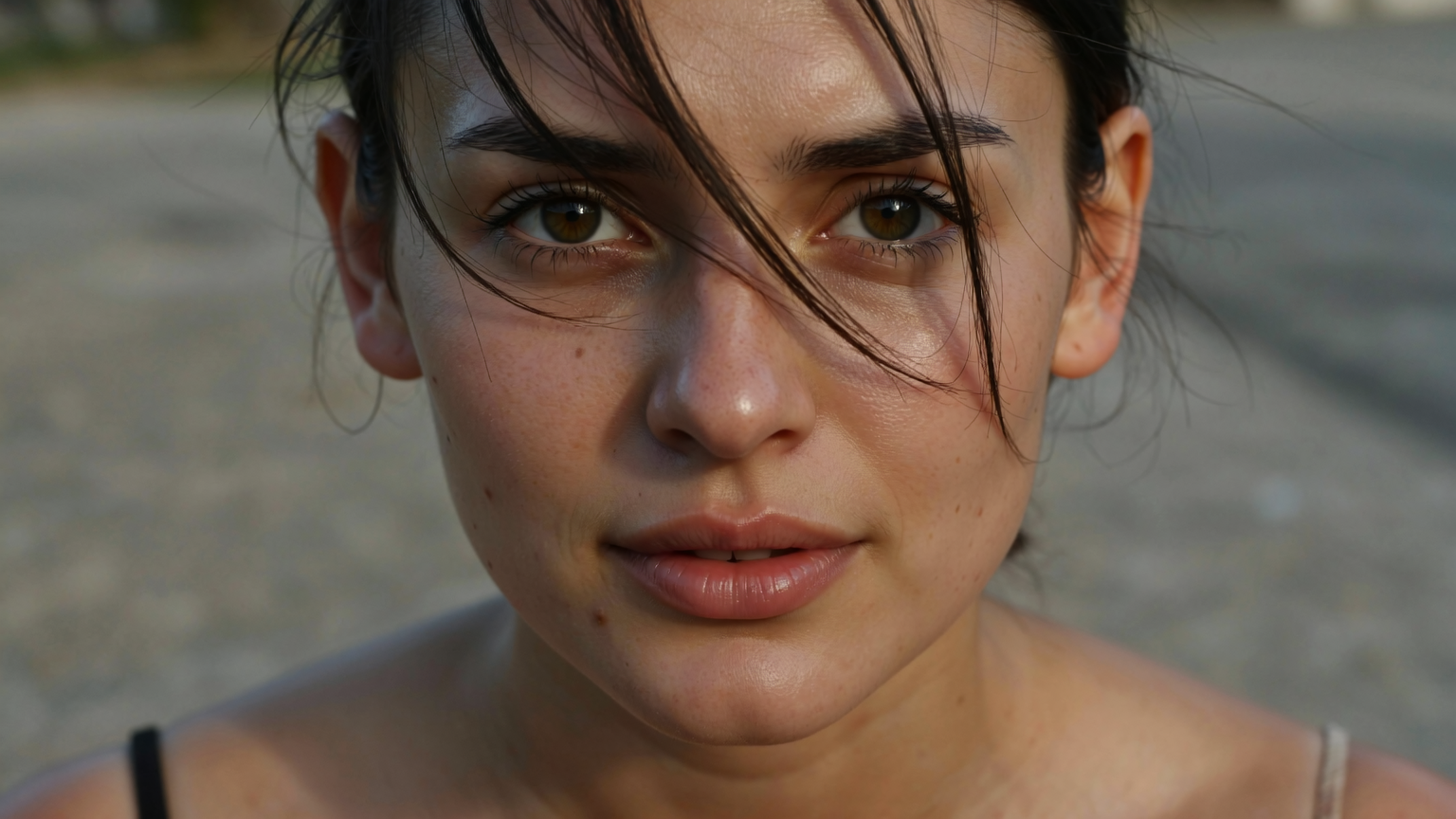
  • “A young woman with freckles and auburn hair, standing in a misty forest at dawn, soft backlight illuminating dew, shallow depth of field with 85mm lens — hyperrealistic, ultra-detailed, 4K. Negative: no text, no other people.”
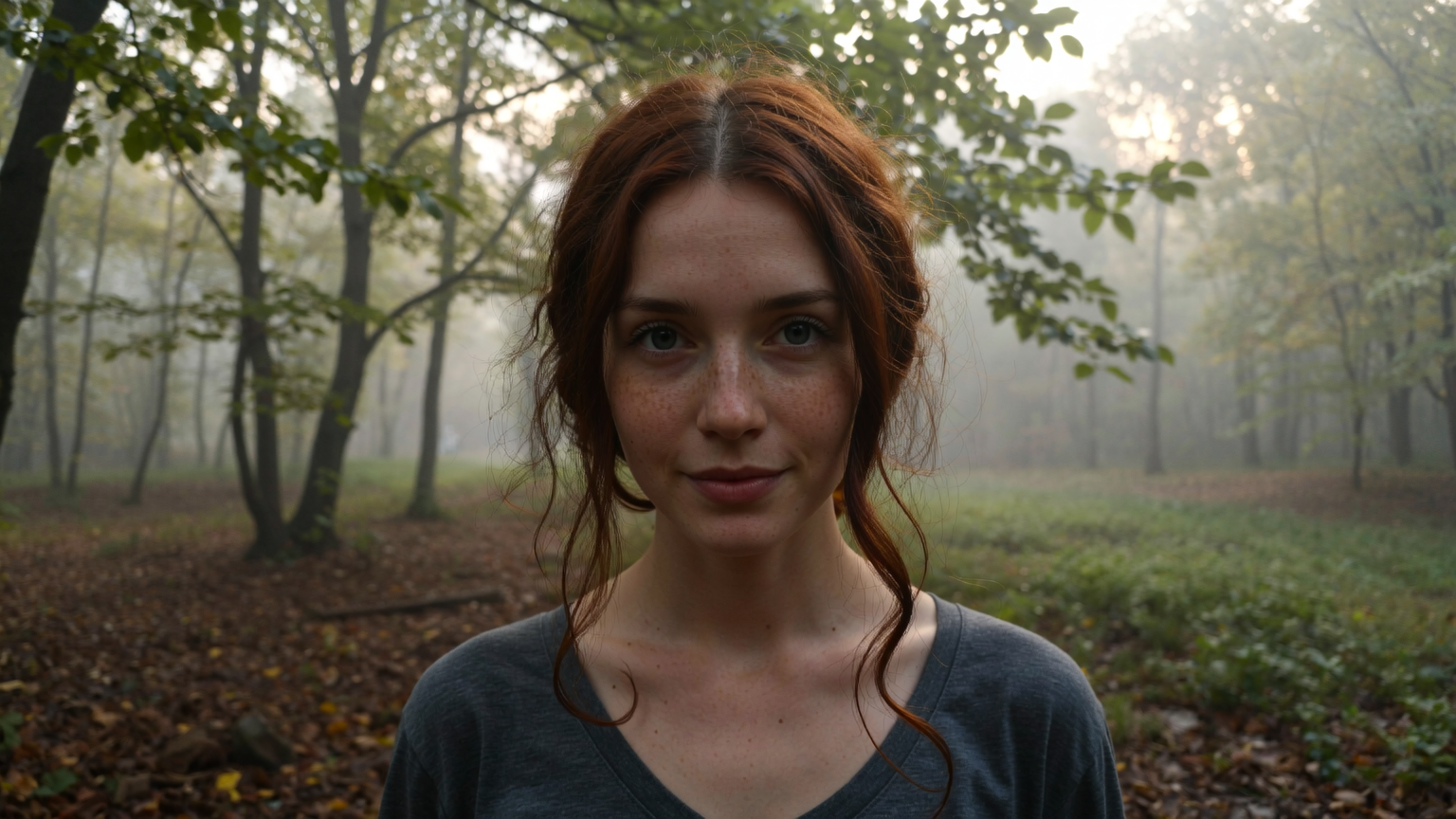
Generated by ImagineArt 1.0Generated by ImagineArt 1.0

Template B: Product Mockups

A (product/object) in (environment/setting), rendered with (material properties), under (lighting setup), with (style reference if any) — ultra-detailed, photorealistic. Negative: (exclude unwanted elements)

Example:

  • “A matte black mechanical wristwatch on a polished marble slab, subtle reflections, rim lighting from the top, soft shadows, high contrast — photorealistic, ultra-detailed. Negative: no props, no distracting background.”
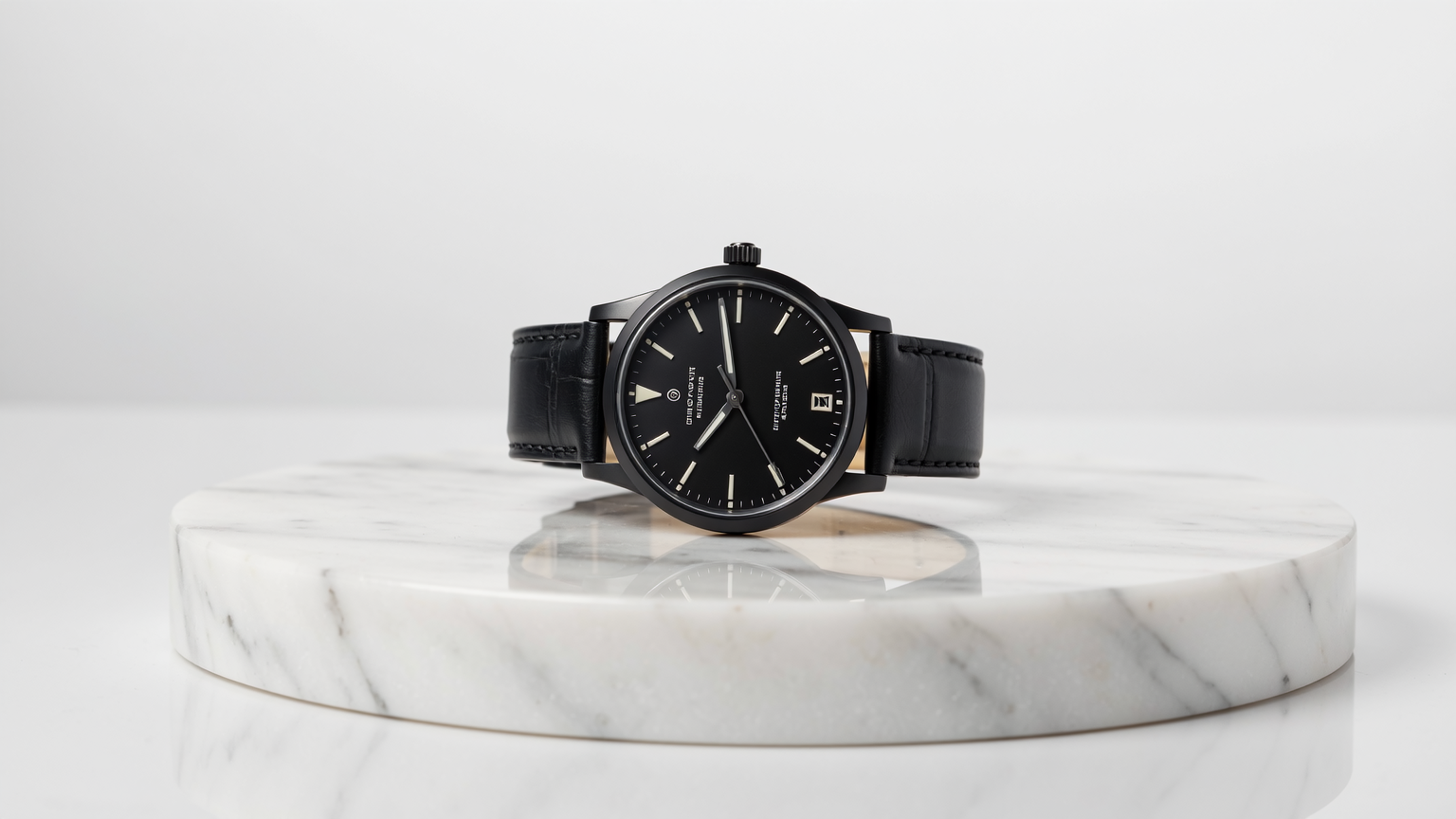
Generated by ImagineArt 1.0Generated by ImagineArt 1.0

Template C: Scenic Landscape

A sweeping (landscape/cityscape/fantasy scene) at (time of day), with (key features), in (style), with (lighting/atmosphere) — ultra-detailed, 4K. Negative: (if needed)

Example:

  • “An empty city at twilight, neon signs reflecting on wet streets, abandoned vehicles parked on the streets, towering architecture draped in vines — cinematic, photorealistic, ultra-detailed, 4K. Negative: no people.”
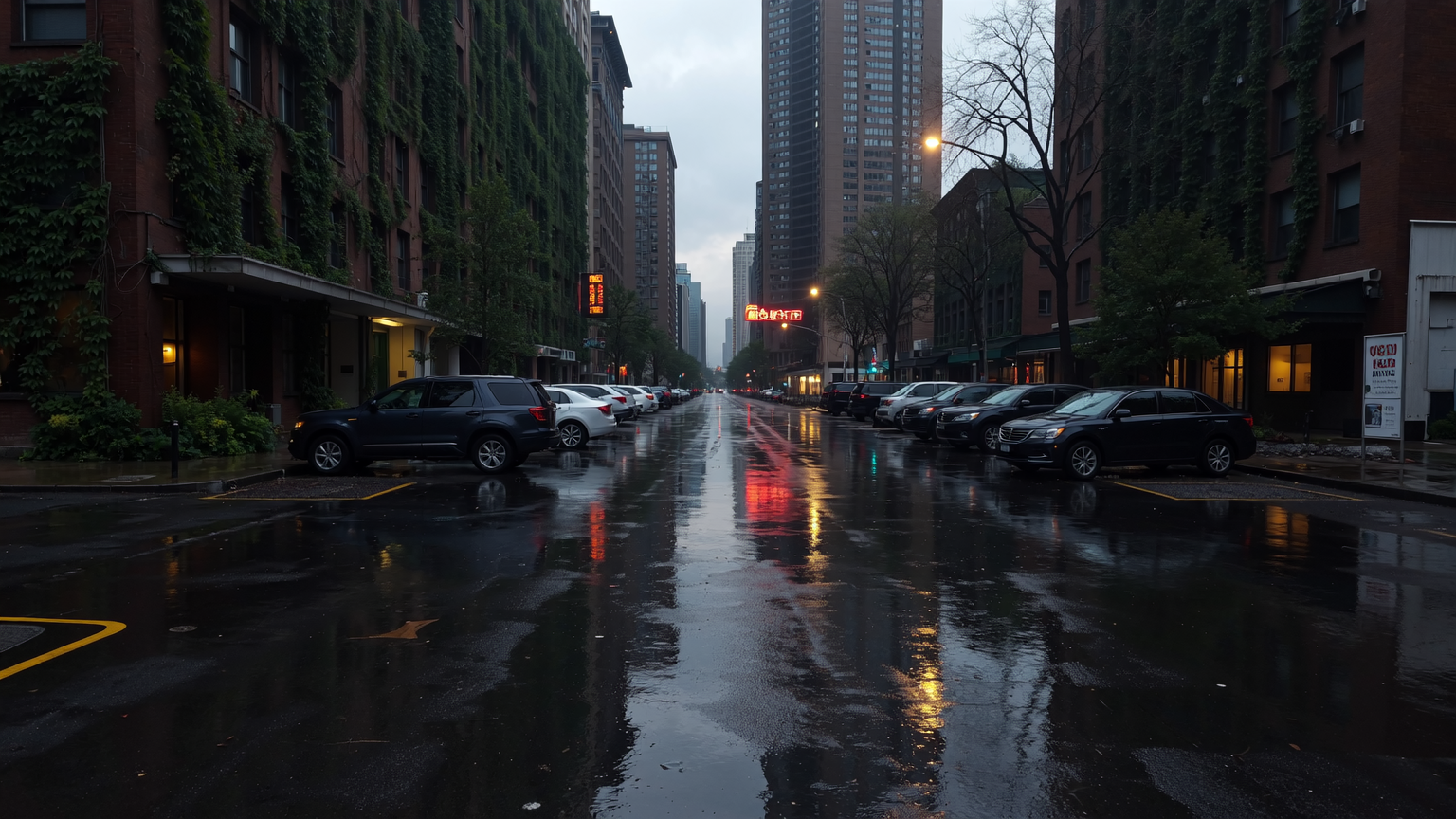
Generated by ImagineArt 1.0Generated by ImagineArt 1.0

Prompt Iteration & Refinement

Crafting an ultra-realistic image on ImagineArt 1.0 might require prompt refinement and reiteration. Here’s how you can fine-tune your prompt for improved realism:

1. Start Simple

If it is your first time testing out the model, start with a simple prompt including a subject and basic setting details. See what ImagineArt 1.0 creates from that simple prompt and then reiterate. However, don’t overcomplicate or lengthen the prompt too much.

2. Add Elements & Customization

Once you understand the image generation capabilities, refine your prompt with visual details such as lightning, camera movements, visual style, textures, character appearance, and more. Add more details to your prompt gradually.

3. Negative Prompting

In case you are pretty clear about what you don’t want in your image, add a negative prompt to exclude those elements.

4. Variant Comparison

It is better to create a couple or 4 images per generation to compare the visual quality, clarity, and composition. This allows you to make the right selection while giving you an idea of how to further refine your prompt.

5. Reuse Base Prompt

In case you want to generate a sequence of images with the same subject and settings, make sure to reuse the base prompt with added customization to maintain character consistency and visual coherence.

6. Refactor the Prompt

In case the generated image doesn’t quite meet your vision, edit your prompt and mention what needs to be changed. For instance, if the character’s face doesn’t fit your requirement, mention “add realistic face anatomy, smooth skin, and avoid unnatural expressions” for improved results.

Do’s and Don’ts of Prompting

Do’s:

  • Be specific since descriptive and clear prompts produce more realistic and high-quality results.
  • Use visual styles like photorealism, cinematic, or editorial-style to acquire the desired tone and look in the generated images.
  • Use camera vocabulary like "from the top" or "shallow depth of field" to enhance realism in your images.
  • Use negative prompts to refine your images and exclude the unnecessary visual elements
  • Reiterate and improve your prompt to get the desired images.

Don’ts:

  • Don’t use ambiguous terms such as “beautiful,” “pretty,” or “cool” without elaborating the context.
  • Don’t use contradicting phrases in the same prompt, as this might confuse the AI image generator. For instance, creating an image of “bright day with dark mood.”
  • Don’t add multiple, conflicting styles in a singular prompt, as it might result in chaotic images.
  • Don’t be discouraged if the results aren’t perfect on the first try. Reiterate, refine, and the model will create a realistic image you wish for.

Conclusion

ImagineArt 1.0 offers versatility and incredible accuracy when it comes to generating realistic visuals and even conceptual art. Unlock the full potential of this AI image generator by understanding prompt engineering and producing high-quality results.

Looking for more prompt guides? Read Runway Gen-4 Prompt Guide | Runway Act II Prompt Guide | Kling 2.1 Prompt Guide | PixVerse v5 Prompt Guide

Tooba Siddiqui

Tooba Siddiqui

Tooba Siddiqui is a content marketer with a strong focus on AI trends and product innovation. She explores generative AI with a keen eye. At ImagineArt, she develops marketing content that translates cutting-edge innovation into engaging, search-driven narratives for the right audience.
More topic you may like

Thumbnail

Prompt Guides

16 Camera Movements for Films and AI Videos

avatar

Saba Sohail

Thumbnail

AI Image Generation

Best AI Image Generators for Anime Style 2026 | ImagineArt

avatar

Tooba Siddiqui

Thumbnail

AI Image Generation

ImagineArt 1.0 Overview: The Most Realistic AI Image Generator Yet

avatar

Tooba Siddiqui

Thumbnail

AI Image Generation

ImagineArt 1.5 AI Image Generator Overview

avatar

Tooba Siddiqui

Thumbnail

AI Image Generation

Best AI Image Generators for Cinematic Visuals

avatar

Tooba Siddiqui

Thumbnail

AI Image Generation

ImagineArt 1.0: Use Cases and Creative Possibilities

avatar

Tooba Siddiqui

Thumbnail

AI Image Generation

Imagen 4 Pricing: Free vs Paid Plans

avatar

Tooba Siddiqui

Thumbnail

Prompt Guides

JSON Prompting for AI Image Generation – A Complete Guide with Examples | ImagineArt

avatar

Tooba Siddiqui

Thumbnail

AI Image Generation

Nano Banana Pro — What Can We Expect? | ImagineArt

avatar

Tooba Siddiqui

Thumbnail

AI Image Generation

Best AI Image Generators for Commercial Use | ImagineArt

avatar

Tooba Siddiqui

Thumbnail

AI Image Generation

Best AI Image Generators for Commercials | ImagineArt

avatar

Tooba Siddiqui

Thumbnail

AI Image Generation

Best AI Image Generators for Photorealistic Visuals

avatar

Tooba Siddiqui

Thumbnail

AI Image Generation

Google Imagen 4 Overview | ImagineArt

avatar

Tooba Siddiqui

Thumbnail

AI Image Generation

Character Consistency: The Secret Sauce Behind Compelling Storytelling

avatar

Sophia Felix

Thumbnail

AI Image Generation

Seedream 4.5 Guide For Image Generation | ImagineArt

avatar

Arooj Ishtiaq

Thumbnail

ImagineArt for Teams

AI Filmmaking | Ilnar Vafin x ImagineArt Casestudy

avatar

Zahida Misher

Thumbnail

AI Image Generation

Crafting Engaging Social Media Posts with Text-to-Image Conversion

avatar

Sophia Felix

Thumbnail

AI Image Generation

How to Use Imagen 4 AI Image Generator | ImagineArt

avatar

Tooba Siddiqui

Thumbnail

AI Image Generation

How Much Does AI Image Generation Cost?

avatar

Saba Sohail

Thumbnail

AI Image Generation

Exploring the World of Text-to-Image AI: Applications and Examples

avatar

Sophia Felix

Thumbnail

AI Image Generation

How to Prompt AI to Create an Image: The Key to Stunning Digital Art

avatar

Sophia Felix

Thumbnail

Prompt Guides

Seedream 5.0 Lite Prompt Guide with 30 Ready-to-Use Prompts

avatar

Arooj Ishtiaq

Thumbnail

AI Image Generation

8 Best AI Tools for Ecommerce in 2026

avatar

Faisal Saeed

Thumbnail

AI Image Generation

60 Vision Board Ideas to Spark Your 2026 Goals

avatar

Tooba Siddiqui

Thumbnail

AI Image Generation

How to Create Adorable Anime Characters with an AI Image Generator

avatar

Sophia Felix

Thumbnail

AI Image Generation

How to make a vision board - Guide 101 | ImagineArt

avatar

Tooba Siddiqui

Thumbnail

AI Image Generation

Painting without Limits: Ideate & Imagine AI Art Generator

avatar

Sophia Felix

Thumbnail

Marketing

How AI-Generated Product Photos Can Increase Your Sales and Improve Customer Engagement

avatar

Tooba Siddiqui

Thumbnail

AI Image Generation

Remixing Through Time: Exploring Historical and Contemporary Examples of Image Remixing

avatar

Sophia Felix

Thumbnail

AI Image Generation

15+ Vision Board Quotes | ImagineArt

avatar

Tooba Siddiqui

Thumbnail

AI Image Generation

2025 Vision Board – Design, Manifest, Repeat | ImagineArt

avatar

Tooba Siddiqui

Thumbnail

AI Image Generation

Our Favorite Settings to Generate the Best Anime Art in Imagine

avatar

Ryan Hayden

Thumbnail

AI Image Generation

Google Imagen 3: Full Review, Features & Use Cases | ImagineArt

avatar

Tooba Siddiqui

Thumbnail

AI Image Generation

Best AI Image Generators for Marketers in 2026

avatar

Tooba Siddiqui

Thumbnail

AI Image Generation

Transform Your Images: A Step-by-Step Guide to Imagine AI Image Remix

avatar

Ryan Hayden

Thumbnail

AI Image Generation

Ideogram AI Features | ImagineArt

avatar

Tooba Siddiqui

Thumbnail

AI Image Generation

How to Create Realistic AI Images with ImagineArt 1.0

avatar

Sophia Felix

Thumbnail

AI Image Generation

Harnessing the Creative Power of Imagine AI Art Generator in Visual Learning

avatar

Ryan Hayden

Thumbnail

AI Image Generation

How AI Transforms Text into Visual Art

avatar

Sophia Felix

Thumbnail

AI Image Generation

Best AI Image Generators for Artistic Visuals

avatar

Tooba Siddiqui

Thumbnail

AI Image Generation

A Guide to Using Our AI Image Generator for Concept Art

avatar

Ryan Hayden

Thumbnail

AI Image Generation

Qwen AI Image Generator: Full Review, Features & How to Use

avatar

Tooba Siddiqui

Thumbnail

AI Image Generation

How to Write a Good Prompt Using ImagineArt

avatar

Sophia Felix

Thumbnail

AI Image Generation

Types of AI Art: From Style Transfer to Generative Adversarial Networks (GANs)

avatar

Ryan Hayden

Thumbnail

AI Image Generation

ImagineArt 2.0 AI Image Generator Overview

avatar

Syed Anas Hussain

Thumbnail

AI Image Generation

Remixing Nature: Creating Surreal Landscapes through Image Remixing

avatar

Sophia Felix

Thumbnail

AI Image Generation

Mastering AI Artistry in Imagine: Your Creative Journey with Magical 'Seed'

avatar

Ryan Hayden

Thumbnail

AI Image Generation

Imagine AI Art Generator: All That You Need to Know Before You Start

avatar

Ryan Hayden

Thumbnail

AI Image Generation

Reviving the Past: AI-Powered Artistic Exploration of Ancient Civilizations

avatar

Ryan Hayden

Thumbnail

AI Image Generation

36 Studio Ghibli Art Stunts in Marketing with ImagineArt

avatar

Sophia Felix

Thumbnail

AI Image Generation

Ideogram vs. Midjourney vs. ImagineArt | ImagineArt

avatar

Tooba Siddiqui

Thumbnail

AI Image Generation

Imagine AI Art Generator: Your Guide to Creating Your Own Disney Character

avatar

Sophia Felix

Thumbnail

Design

Design Your Perfect New Year Party with ImagineArt

avatar

Thumbnail

AI Image Generation

The Future of Digital Art: Image Upscaler for High-Fidelity Graphics

avatar

Sophia Felix

Thumbnail

AI Image Generation

How to Create the AI Graffiti Effect

avatar

Sophia Felix

Thumbnail

AI Image Generation

Building a Character Universe: Establishing Consistent Design Rules for Diverse Characters

avatar

Sophia Felix

Thumbnail

AI Image Generation

Transforming Story Concepts into Visual Art: A Guide for Writers

avatar

Sophia Felix

Thumbnail

AI Image Generation

AI Image Enhancement: Bring your images to perfection with AI Image Upscaler

avatar

Ryan Hayden

Thumbnail

AI Image Generation

Beyond Upscaling: Creative Enhance - Your Personal AI Art Studio

avatar

Ryan Hayden

Thumbnail

AI Image Generation

The Evolution of Character Consistency: From Sketch to Screen in Visual Storytelling

avatar

Sophia Felix

Thumbnail

AI Image Generation

Marketing Magic: How Text-to-Image Tools Boost Branding Efforts

avatar

Sophia Felix

Thumbnail

AI Image Generation

Scaling New Heights: Exploring the Limitless Possibilities of AI Image Enhancement

avatar

Sophia Felix

Thumbnail

AI Image Generation

Collaborative Creativity: Ideate for Group Art Projects

avatar

Sophia Felix

Endless Possibilities. Just Imagine.
Product

  • Audio Studio
  • AI Film Studio
  • AI Ad Studio
  • Lipsync Studio
  • AI Workflows
  • Features
  • Enterprise
  • Apps
  • API Docs

Image

  • AI Image Generator
  • ImagineArt 1.5
  • ImagineArt 2.0
  • GPT Image 2
  • Nano Banana 2
  • Image Upscaler
  • Flux 2

Video

  • AI Video Generator
  • AI Video Editor
  • Seedance 2.0
  • Sora 2
  • Veo 3.1
  • Kling 3.0
  • Pixverse v6
  • Wan 2.6

Resources

  • Blogs
  • Enterprise Resources
  • Community
  • Pricing
  • Creator Program
  • Contact Sales

ImagineArt

  • Privacy Policy
  • Terms & Conditions
  • Help Center
  • About Us

All rights reserved.
Blog
Editing Tools

AI Video Editor

Create and edit videos with AI transitions and effects.

AI Image Editor

Edit, retouch, and transform images with AI tools.

Kling AI Motion Control

Add dynamic motion to static images with AI-powered animation controls.

AI Image Generator
BG Remover
AI Anime Generator
AI Image Combiner
AI Image Face Swap
AI Image Replace
AI Video Generator
AI Heygen Avatar
AI Animation Generator
AI Product Video Maker
AI Video Object Removal
AI Video Recolor
AI Video background Changer
AI Models
Seedance 2.0
Kling 3.0
Seedream 5.0
Recraft V4
Runway Gen 4.5
Imagen V3
Explore All
ConnectUnlock the future of creativity with our Generative AI community—where art, video, and images are born from the power of AI imagination!
Discord
Facebook
Instagram
Pinterest
Reddit
Snapchat
Twitter
YouTube
WhatsApp
AffiliateAPICreatorsPricing
Launch App