
Arooj Ishtiaq
February 18, 2026 • Updated August 3, 2026
9 mins Read
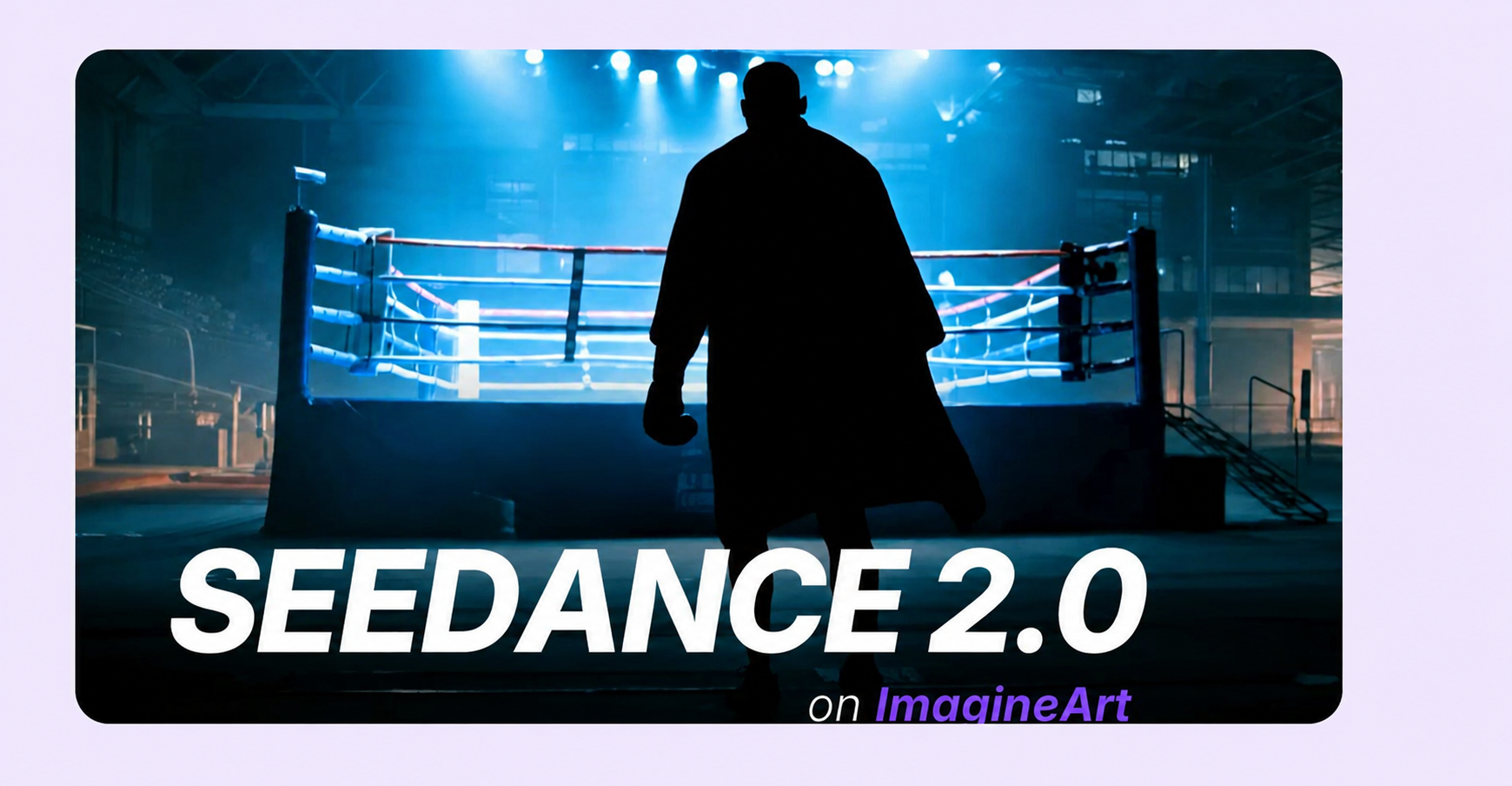
Most AI video generators make you write elaborate text prompts and cross your fingers so that the output matches what you had in mind. Seedance 2.0 flips that approach because you show the AI exactly what you want using reference images, videos, and audio clips all at once.
What is Seedance 2.0?
Seedance 2.0 has immediately caught every creator’s attention because it lets you upload up to 12 reference files in a single generation instead of relying on text prompts alone. It now also generates at native 4K resolution, meaning the output is production-ready without any upscaling step.
You can mix images, videos, audio clips, and text all at once.
- A dance video becomes choreography guidance.
- A product photo becomes your visual anchor.
- A music track sets the pacing.
This multimodal approach gives you actual control over what gets generated instead of endless prompt tweaking.
Built on ByteDance's Seedream 5.0 architecture, this model generates videos from 4 to 15 seconds at resolutions up to native 4K. It includes automatic multi-shot storytelling and native lip-synced dialogue in 8+ languages. For creators working on ads, short films, or music videos, this means consistent characters and faster iteration.
Looking for the newest model? Seedance 2.5 is ByteDance's current flagship, with native 30-second generation, 4K-ready output, and up to 50 multimodal references per pass.
How To Access Seedance 2.0?
Seedance 2.0 is available through different platforms depending on your location.
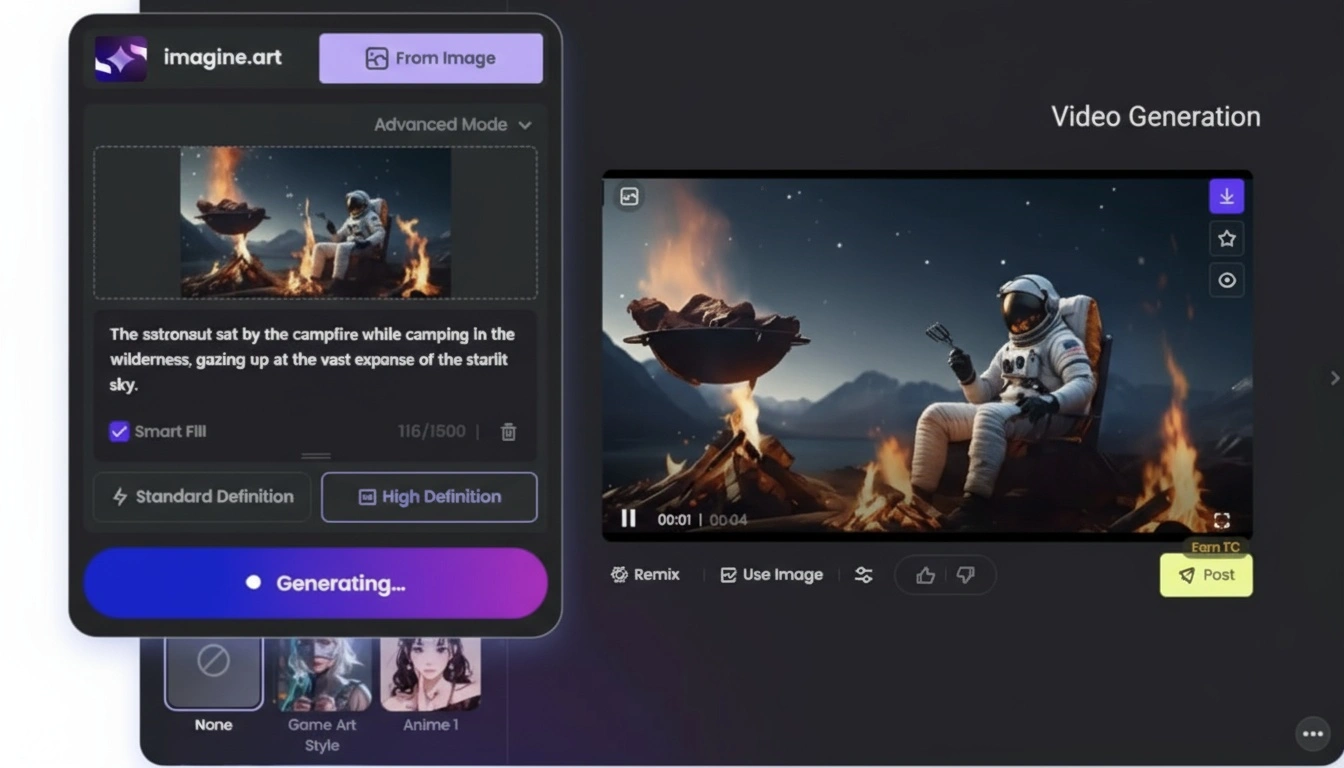
Access via ImagineArt
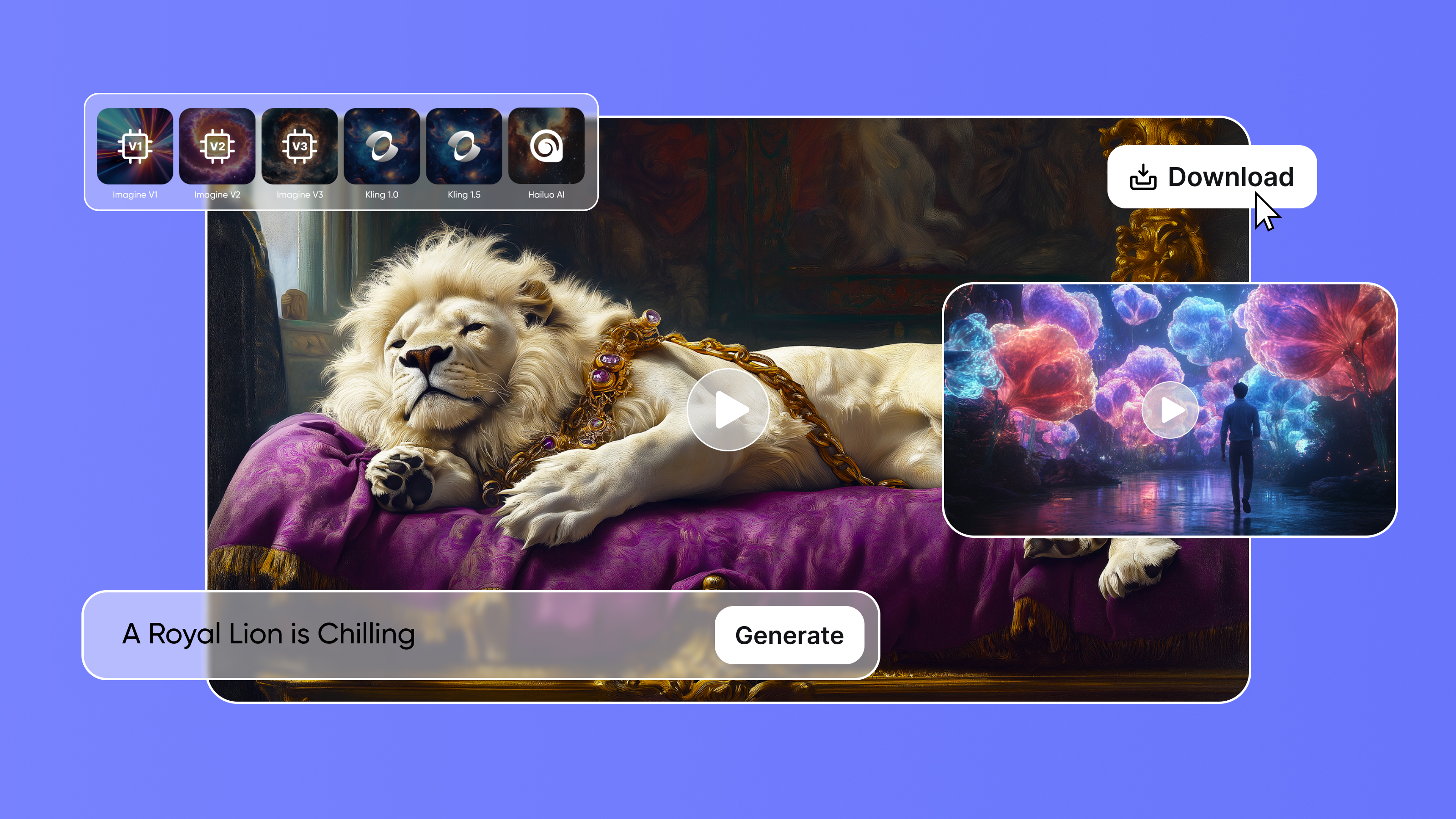
The simplest option is ImagineArt's AI video generator. The complete ImagineArt AI creative suite costs $10/month and brings in more than 3500 credits that you can use to create videos as well as images, using Seedance 2.0 as well as other AI video generation tools.
On ImagineArt:
- Credit-based system for flexible usage
- Full multimodal input support
- Generate videos from 4 to 15 seconds
- Available globally without verification requirements
In addition to ImagineArt, Seedance 2.0 is also available on its native platform, ByteDance.
Key Features of Seedance 2.0
Seedance 2.0 creates high-quality videos from text, images, audio, and video inputs. Below are its main features that make video creation faster and easier.
Unified Multimodal Input System
Seedance 2.0 accepts up to 12 reference files in one generation:
- 9 images for character faces, environments, style references, color palettes
- 3 videos for camera movement templates, action choreography, and editing rhythm
- 3 audio clips (up to 15 seconds each) for background music, sound effects, dialogue samples
- Text prompts for scene descriptions and creative direction
The AI automatically understands each file's role. You don't need to explain whether an image is a character reference or an environment guide. The model figures it out based on content and context. This is fundamentally different from tools like Runway Gen-4.5, where you generate clips separately and hope the style stays consistent.
Native 4K Resolution Output
Seedance 2.0 renders at true 4K — not upscaled from a lower resolution. This means fine detail in textures, faces, product surfaces, and environmental elements stays crisp across motion. For brand content, commercial production, and broadcast delivery, this removes a post-production step that previously required separate upscaling tools.
Native Audio-Video Joint Generation
Every video generation includes synchronized audio. This means:
- Environmental sounds include ambient noise, footsteps, and object interactions
- Dialogue with lip-sync across 8+ languages, including English, Mandarin, Japanese, Korean, Spanish, French, German, Portuguese
- Narration with natural cadence and proper timing
- Music integration through beat-sync mode that matches visual cuts to audio rhythm
The lip-sync feature works so well that when a character speaks, mouth movements match the dialogue syllable by syllable. It's not perfect on every word, but it's solid enough that you don't need to dub over it in post-production. The dialogue timing includes natural pauses and conversational rhythm.
Automatic Multi-Shot Storytelling
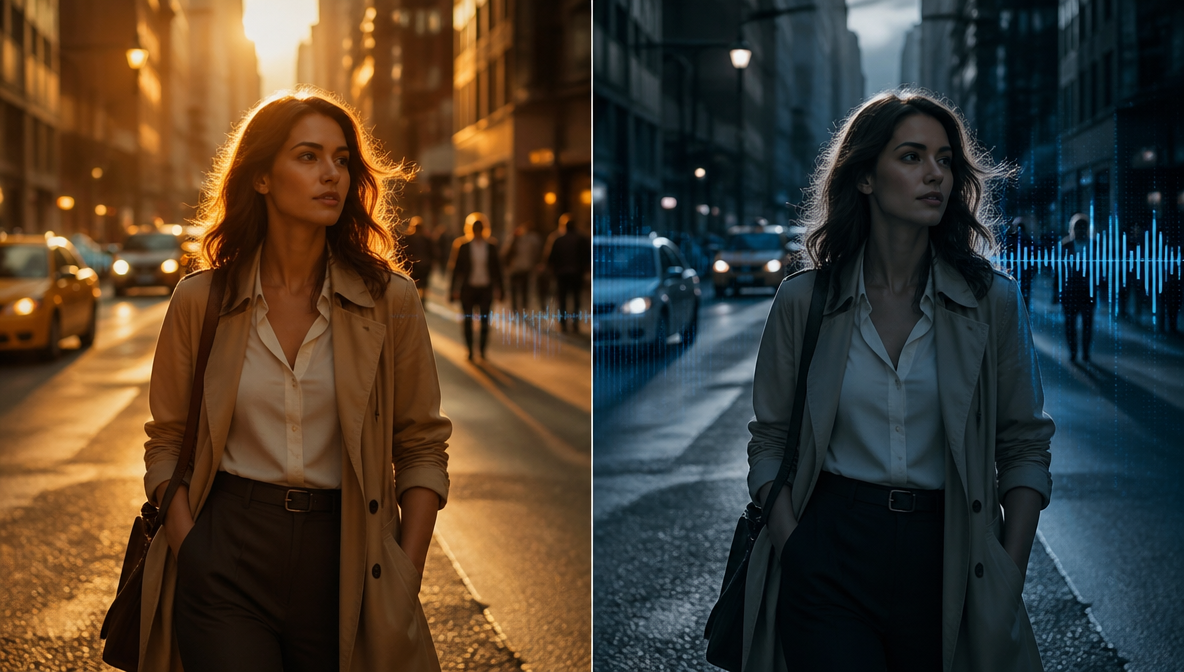
Seedance is already popular for multi-shot videos. Most AI video generators give you one continuous shot per generation, but Seedance was the first to render multiple scenes in one clip. Seedance 2.0 goes a step ahead: it automatically cuts between multiple camera angles within a single generation.
For example, describe a conversation between two people, and the model creates proper shot-reverse-shot coverage. It handles wide establishing shots, character close-ups, and medium shots on its own. Character details stay consistent across cuts, and lighting remains natural throughout different angles.
This feature saves time because you don't need to generate each camera angle separately and stitch them together. The model parses your narrative description and decides how to cover the scene cinematically.
Director-Level Creative Control
Seedance 2.0 gives you specific control over production elements:
- Performance details, including facial expressions, body language, and emotional timing
- Lighting behavior with shadows that fall naturally and realistic highlights
- Camera movement like pan, tilt, zoom, dolly, orbit, with adjustable intensity
- Scene composition, including character placement, depth of field, and focal points
- Editing style with control over cut timing, transition types, and pacing rhythm
Lighting behaves the way you'd expect in real environments, shadows fall naturally, highlights aren't blown out, motion physics feel grounded, walking doesn't look floaty, and object interactions follow believable physics.
Frame-Level Precision
Every character, object, and composition detail stays locked across your entire video. Control fonts, scene transitions, and screen rhythm down to individual frames for polished results.
This consistency matters for brand videos where logos need to stay recognizable, product showcases where the item can't morph between frames, and character-driven content where facial features must remain identical across shots.
How To Use Seedance 2.0?
Here's the complete AI Workflow for generating videos with Seedance 2.0's multimodal system.
1. Choose Your Generation Mode
Seedance 2.0 supports three primary workflows:
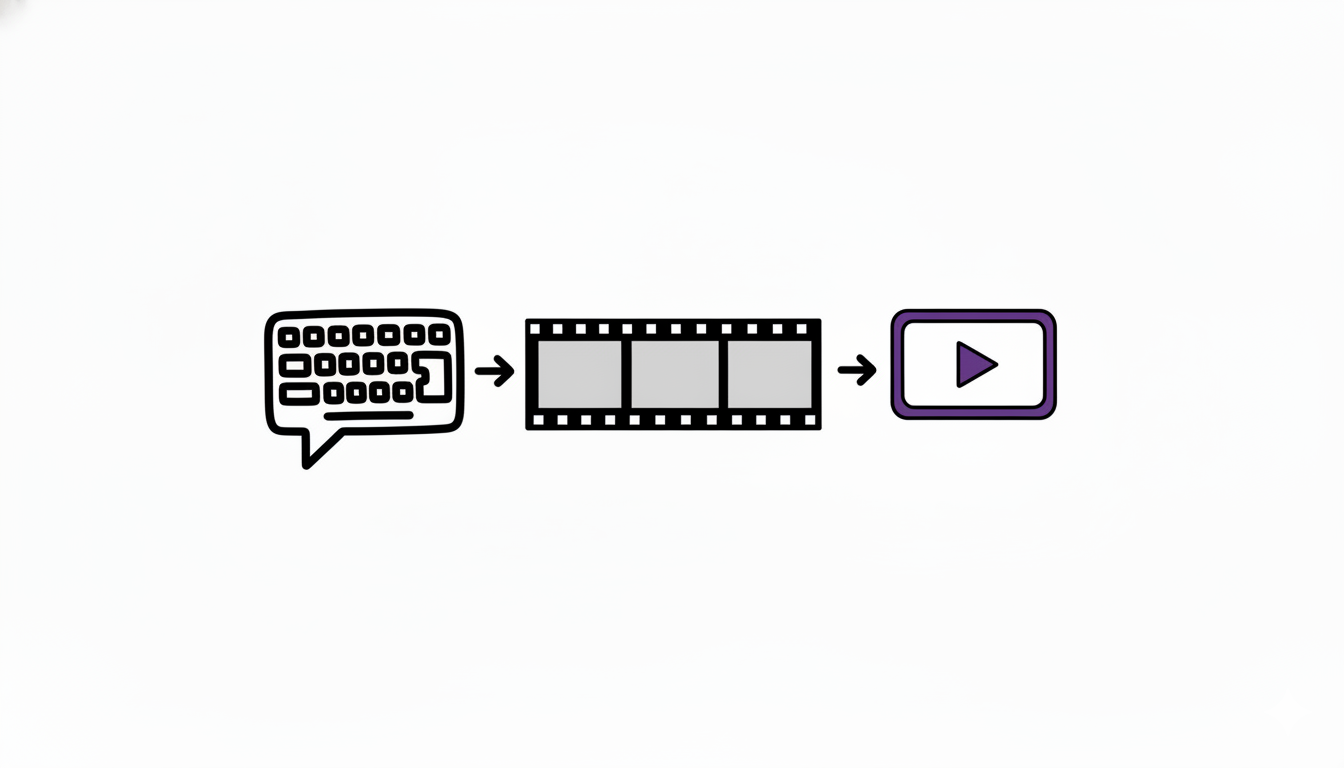
- Text-to-Video for generating from text prompts alone
- Image-to-Video to animate still images with motion
- Multimodal Generation combining images, videos, audio, and text
For maximum creative control, use the multimodal approach.
Note: All three modes now support 4K output. Select 4K in the resolution settings before generating. For the sharpest results in product and character-focused videos, 4K is the recommended setting.
2. Prepare Your Reference Assets
Get your files organized before starting:
For Images:
- Use high resolution, at least 1024×1024 pixels. For 4K output specifically, source images at 2K or higher to ensure the model has enough input detail to generate at full 4K quality.
- Ensure clear lighting and clean backgrounds
- Keep subjects in focus with distinct features
- Save as JPEG or PNG format
For Videos:
- Keep clips under 15 seconds
- Focus on one clear element per video (camera movement OR action OR style, not all three)
- Use MP4 or MOV format
- Ensure smooth playback without compression artifacts
For Audio:
- Use clean files without background noise
- Keep clips under 15 seconds each
- Save as MP3, WAV, or AAC format
- Match energy level to your desired visual output
Pro tip: Organize references by purpose. Keep character identity files separate from environment mood files and camera style references. This makes the workflow faster when you're generating multiple variations.
3. Set Up Your Generation Parameters
Choose your output specifications:
- Aspect Ratio: 16:9 for horizontal video, 9:16 for vertical (TikTok, Reels), 1:1 for square
- Duration: 4 seconds, 8 seconds, 12 seconds, or 15 seconds
- Resolution: 1080p is standard, 2K for higher quality when available
4. Enter Multimodal Reference Mode
Access the multimodal input interface. Reference each asset using the @AssetName syntax:
@Image1 as character face reference
@Video1 for camera movement style
@Audio1 as background music
@Image2 for environment lighting mood
@Image3 for color palette guide
This tagging system tells the AI exactly what role each file plays. You're not just uploading random references and hoping the model understands. You're explicitly defining what each file controls.
5. Write Your Prompt
Combine text instructions with your references. Be specific about what happens, how the camera behaves, and what emotional tone you want.
Example prompt structure:
"Using @Image1 character in @Image2 environment, camera movement from @Video1, paced to @Audio1 beat. Character turns slowly toward the camera, dramatic lighting with rim light from behind, cinematic depth of field, golden hour atmosphere."
What to include:
- Action that happens (e.g., "character walks forward confidently")
- Camera behavior (e.g., "steady dolly-in shot")
- Emotional tone (e.g., "mysterious atmosphere")
- Lighting preferences (e.g., "soft natural light")
- Timing cues (e.g., "begins with wide shot, ends on close-up")
6. Generate and Review
Click generate and wait for processing. Generation typically takes 60 to 90 seconds, depending on duration and resolution.
Review the output for:
- Character consistency across different shots
- Audio-video synchronization quality
- Smooth camera movement without jarring transitions
- Accurate lighting and color that matches references
7. Iterate if Needed
If the output doesn't match your vision:
- Adjust reference order (the AI weights earlier references more heavily)
- Add more specific descriptive language to your prompt
- Try alternative reference images with clearer examples
- Fine-tune timing cues for better audio sync
- Reduce the number of competing references if the results feel confusing
Recommended read: Seedance 1.0 vs. Google Veo 3 vs. ImagineArt
What Can You Create with Seedance 2.0?
With Seedance 2.0, you can generate videos, animations, and visual content from text, images, or multiple media inputs. Here’s a look at the types of creative projects you can produce.
Video Advertisements
Create polished commercials without expensive production shoots. Seedance 2.0 handles product positioning, lighting setup, and camera choreography automatically.
You can upload your product photo, define the environmental mood, add background music, and generate broadcast-quality footage. Seedance 2.0 understands how to showcase products attractively with proper lighting and camera angles.
Best for e-commerce brands, SaaS product demos, app showcases, and consumer goods marketing.
Short Films and Cinematic Content
Generate multi-shot narrative sequences with natural scene transitions. The automatic multi-shot feature means you describe the story, and Seedance 2.0 handles the coverage.
- Wide establishing shots set the scene.
- Character close-ups capture emotion.
- Medium shots show interactions.
All with consistent lighting and maintained character appearance across every angle.
Best for film students, indie filmmakers, YouTube creators, and festival submissions.
Music Videos
The beat-sync feature makes music video production straightforward. Upload your track, describe the visual aesthetic, and Seedance 2.0 generates a video with cuts, camera movements, and visual effects timed to your music's rhythm.
The model is best for musicians, record labels, content creators, and TikTok artists.
Character-Driven Content
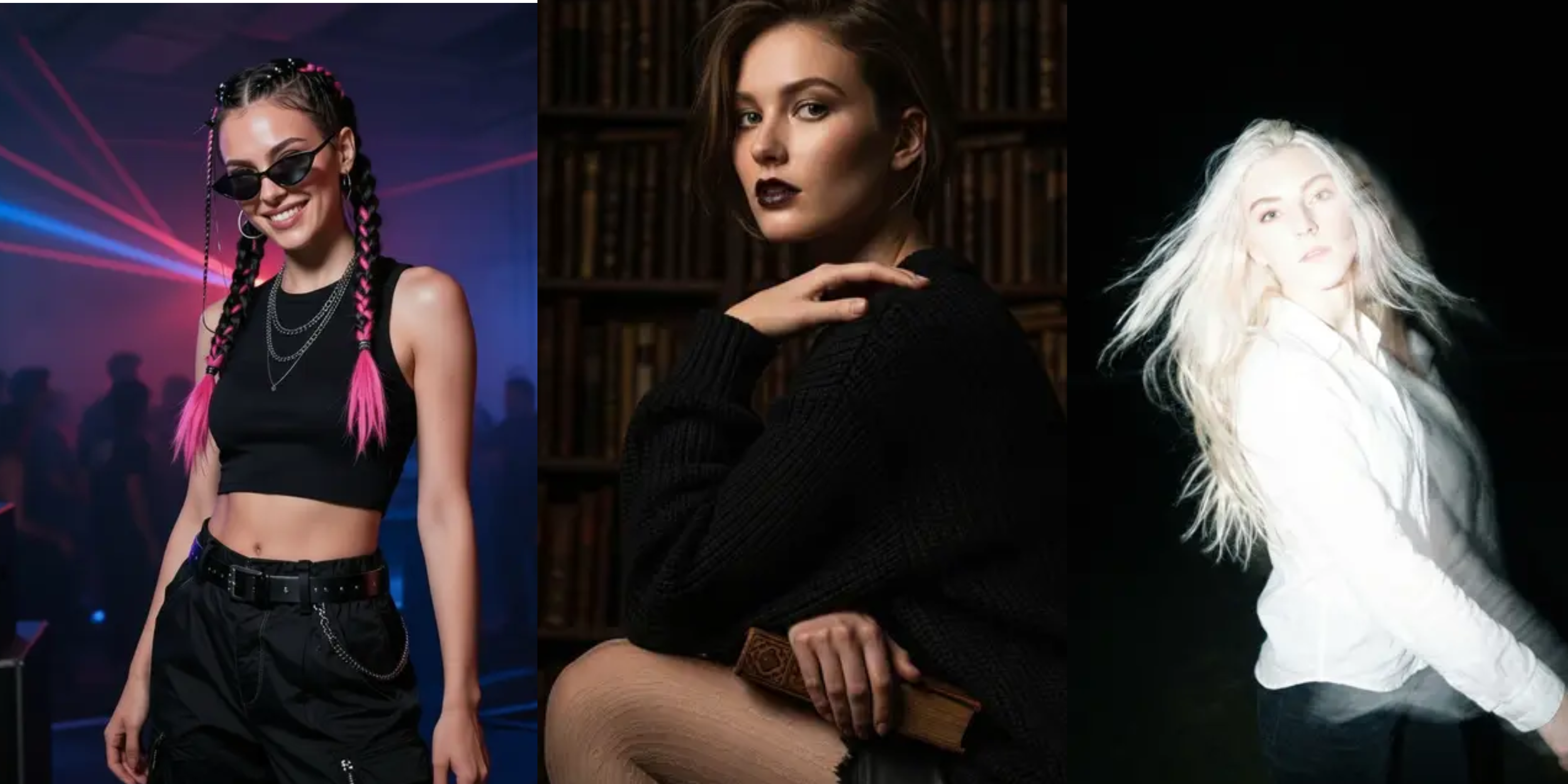
Maintain character consistency across multiple videos for serialized content. Upload a character reference once, then generate diverse scenarios while the AI preserves facial features, body proportions, and outfit details.
This consistency enables ongoing series, brand mascot content, and educational videos with recurring characters. Your digital avatar looks the same across every video you create.
Best for digital avatars, brand mascots, educational series, and social media influencers.
Training and Educational Videos
Create engaging educational content with synchronized narration. The dialogue generation with lip-sync means you can produce multilingual training videos without hiring voice actors or animators.
Seedance 2.0 handles presenter shots, screen recordings, product demonstrations, and explanatory visualizations. Audio stays synchronized with the visual content naturally.
Best for corporate training, online courses, software tutorials, and product walkthroughs.
Storyboards and Pre-Visualization
Test creative concepts before committing to full production. Generate multiple variations of a scene with different camera angles, lighting setups, and character blocking.
This pre-visualization helps directors and cinematographers find the best approach before spending time and budget on actual shoots. You can experiment with creative choices quickly.
Ready to Create with Seedance 2.0?
Seedance 2.0's reference-based approach changes how you work with AI video generation. Instead of endless prompt tweaking, you show the model what you want and let it handle the technical execution. Start with a few clear references, write a focused prompt, and iterate based on results. The learning curve is worth it when you see how much creative control you gain.
Arooj Ishtiaq
Arooj is a SaaS content writer specializing in AI models and applied technology. At ImagineArt, she creates sharp, product-focused content that helps creators and businesses understand, adopt, and get real value from AI tools.