Zahida Misher
November 17, 2026 • Updated November 17, 2026
18 mins Read
Most edit prompts say what to change and forget the other half: what has to stay. Type "Make it look better." under a dim diner photo and the model decides what better means. Ours chose more orange.
Below are 100 ChatGPT photo editing prompts sorted by job, from lighting fixes to sign text, each with a keep line that protects your subject. The same wording works in Gemini and in ImagineArt's AI image editor. You'll also see what changes between the three tools, and why some prompts fail.
Starting from zero? Our guide to edit photos with AI covers the basics first.
How do you write ChatGPT photo editing prompts that work?
Name one change, say what must stay, describe the light you want and add one concrete detail. That's the order ImagineArt's editor page recommends, and Black Forest Labs gives similar advice for Kontext: specific verbs, explicit lines about what to preserve, and quoted text when you replace words. Vague requests leave the model guessing, and it guesses big.
Good AI photo editing prompts follow four habits:
- Name the change first. "Change the T-shirt to a navy knit sweater" beats "make the outfit nicer".
- Say what stays. Black Forest Labs, maker of Flux Kontext, suggests in its prompting guide spelling it out: "while maintaining the same facial features and hairstyle".
- Describe the light and mood. "Soft side light" or "overcast" does more than "nice".
- Add one specific detail. A material, color or object: "dark slate", "mustard wool".
ImagineArt's editor page suggests one change per run, though it says several can share a prompt; one per run is the safer default. Google's Gemini help adds: start with a verb. Our AI image prompt guide covers wider prompt habits.
Our test: one vague prompt, one specific
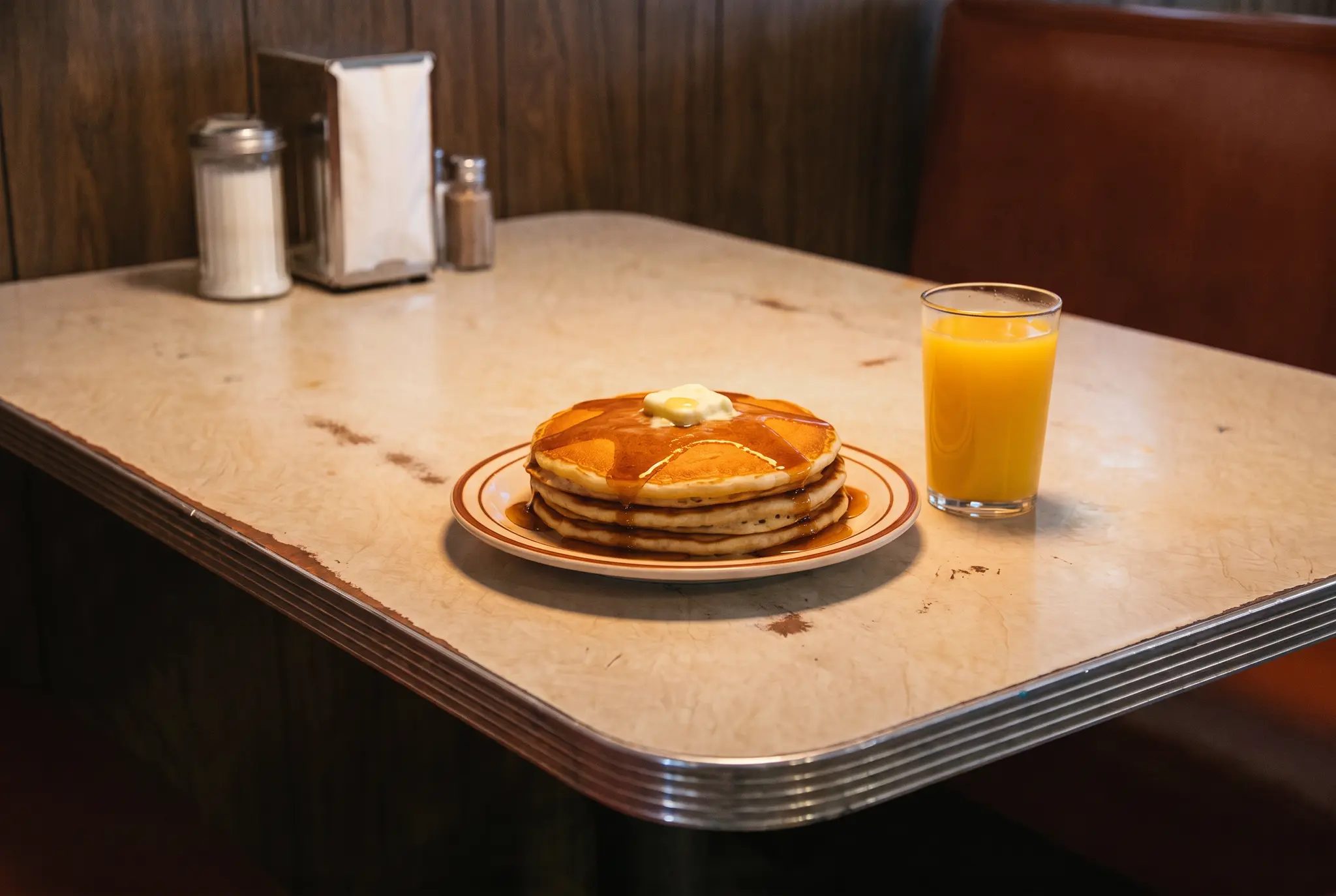
We ran this edit in ImagineArt twice on one generated snapshot: pancakes and orange juice on a diner table under dim tungsten light. Its average color measured 105/67/32 (red/green/blue).
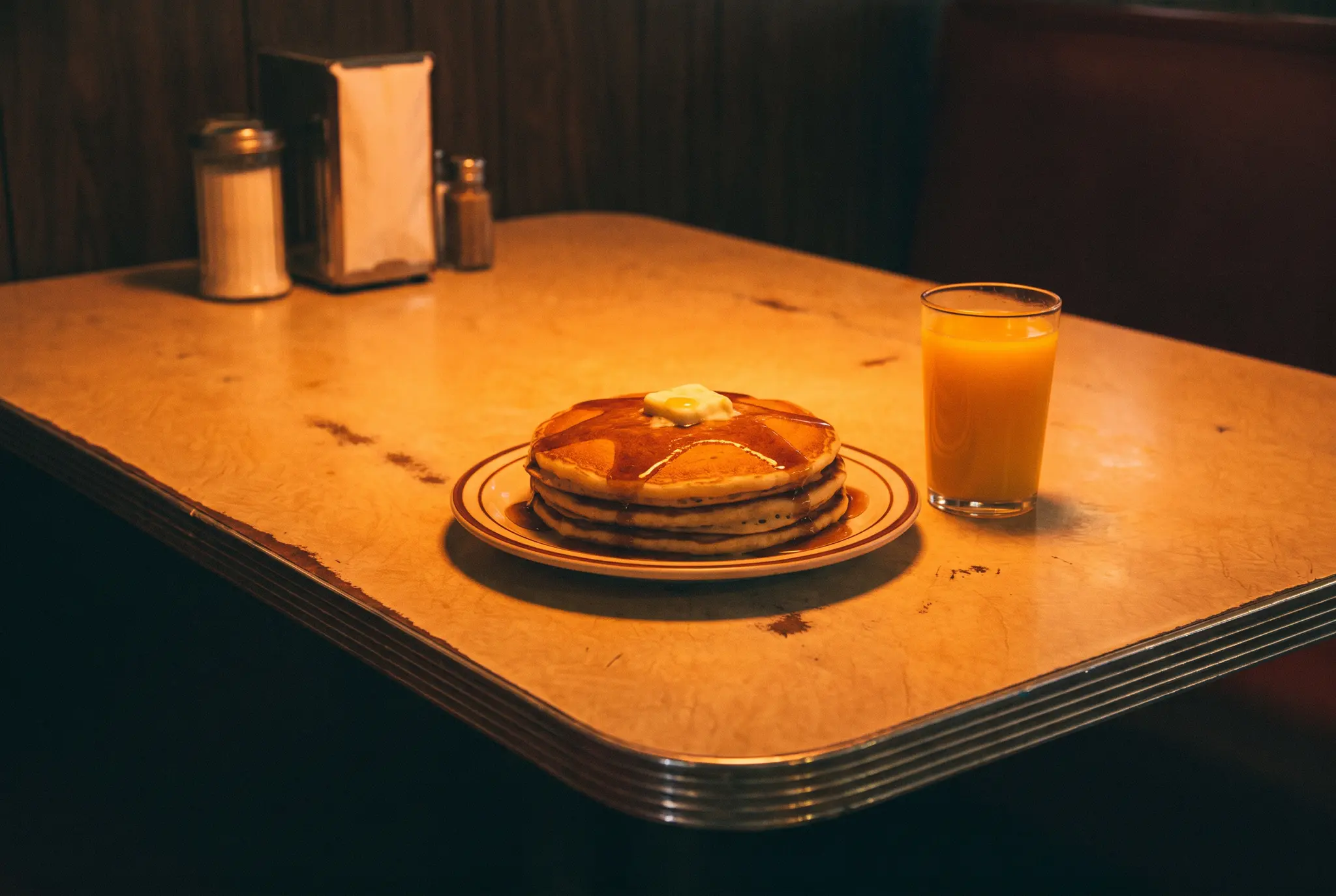 The source: tungsten orange.
The vague prompt, "Make it look better.", made it more orange and contrasty (average 114/62/23) and redrew the booth and table edge, so the framing changed. The model's idea of better was more diner.
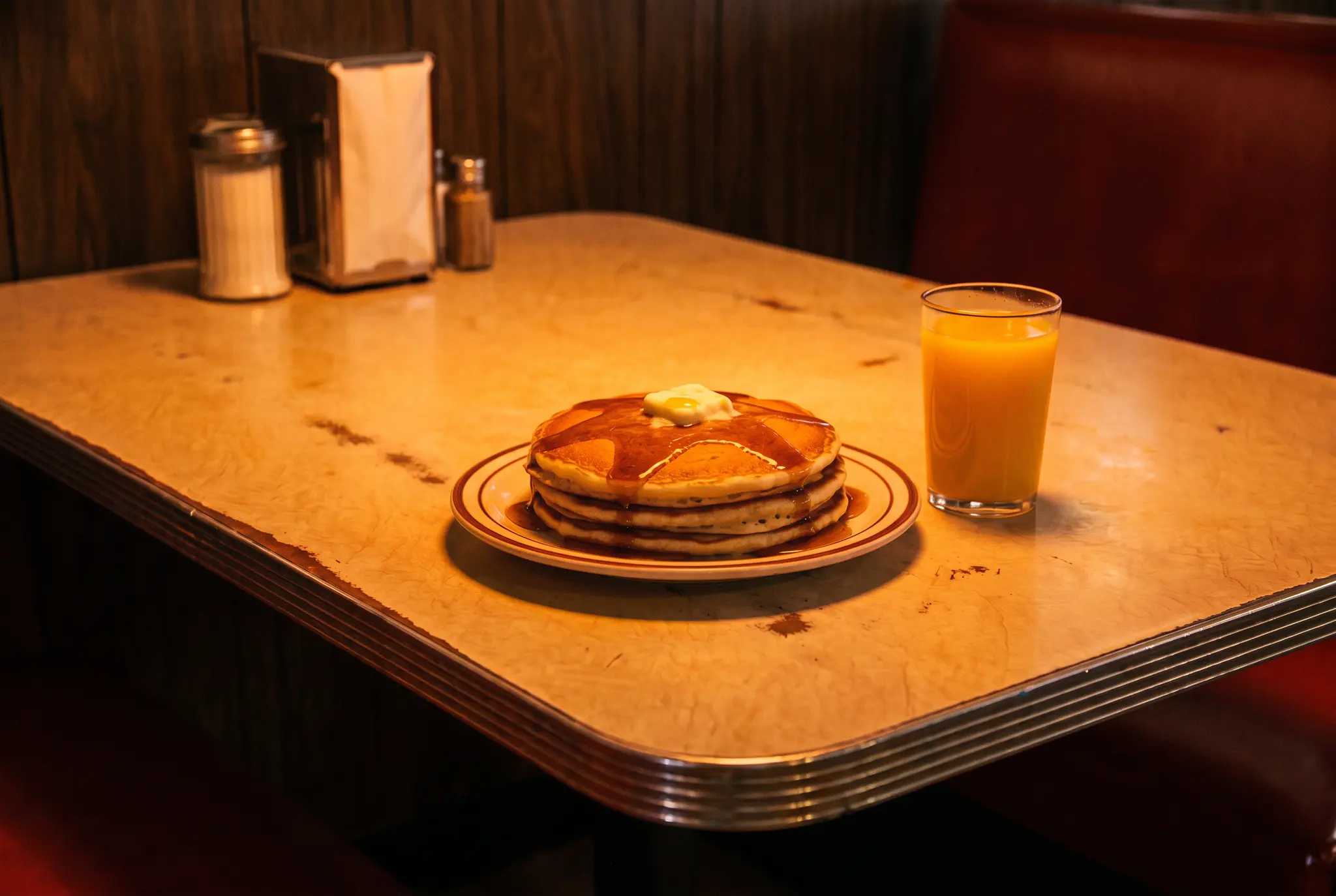 "Make it look better": more orange.
The specific prompt was "Brighten the photo by about one stop and neutralise the orange cast to daylight white. Keep the pancakes, glass and table exactly as they are." The average moved to 117/87/65: the table top reads cream, not orange, and pancakes, glass, table and framing stayed close to the source. It's still warmer than daylight white, so "a little cooler" is the next run.
 Specific prompt: cast mostly gone.
Lighting and color prompts
Give light prompts a direction, a time of day or a color temperature, and paste each prompt with its keep line as one message. Anything prompt 8 adds to a blown-out sky is invented, not recovered. For light direction alone, there's a tool to relight a photo.
| # | Prompt | Keep line |
|---|---|---|
| 1 | Warm the white balance slightly, like late-afternoon sun. | Keep every object and the framing unchanged. |
| 2 | Remove the green cast from the office lights. | Keep skin tones natural and faces unchanged. |
| 3 | Lift the shadows on the left side of the face. | Keep the background and expression. |
| 4 | Add low, warm golden-hour light from the right. | Keep the pose, clothes and background unchanged. |
| 5 | Make the overcast sky look like clear morning light. | Keep the buildings, people and framing the same. |
| 6 | Reduce the glare on the glasses lenses. | Keep the eyes, frames and face unchanged. |
| 7 | Lower the contrast and lift the blacks for a soft matte look. | Keep the colors and composition. |
| 8 | Bring back detail in the blown-out white sky. | Keep the foreground exposure unchanged. |
| 9 | Make the colors a little more vivid. | Keep skin tones as they are. |
| 10 | Convert to black and white with deep blacks and bright whites. | Keep the grain and framing unchanged. |
Try prompt 1 in ImagineArt's AI image editor.
Object removal and clean-up prompts
Name the object and its position, then describe only what belongs in the gap. Name a new object in the fill and the model may add it, and big gaps (prompt 16) get invented content. There's also a dedicated AI object remover.
| # | Prompt | Keep line |
|---|---|---|
| 11 | Remove the trash can on the left sidewalk. | Fill with matching pavement and change nothing else. |
| 12 | Remove the power lines crossing the sky. | Keep the trees and rooftops unchanged. |
| 13 | Remove the date stamp in the bottom-right corner. | Keep the rest of the photo untouched. |
| 14 | Erase the stain on the white tablecloth. | Keep the plates and cutlery in place. |
| 15 | Remove the cables and chargers from the desk. | Keep the laptop, lamp and plant unchanged. |
| 16 | Remove the crowd from the steps behind the fountain. | Keep the fountain, steps and light unchanged. |
| 17 | Remove the lens flare in the top-right corner. | Keep the sky color and subject unchanged. |
| 18 | Remove the stickers from the laptop lid. | Keep the laptop's shape, color and reflections. |
| 19 | Remove the dark dust spots in the sky. | Keep everything else unchanged. |
| 20 | Remove the parked car from the driveway. | Keep the house, lawn and shadows as they are. |
Try prompt 12 on a street photo.
Background swap prompts
A background swap is a big edit, so the keep list carries more weight, especially anything at the edge. For a backdrop-only job, use the AI background changer.
| # | Prompt | Keep line |
|---|---|---|
| 21 | Replace the background with a plain white backdrop. | Keep the subject, its edges and the shadow below it. |
| 22 | Put the person in a sunlit park with soft background blur. | Keep the face, clothes and pose unchanged. |
| 23 | Swap the messy bedroom behind them for a tidy bookshelf. | Keep the person and lighting unchanged. |
| 24 | Replace the sky with clear blue and a few small clouds. | Keep the horizon line and buildings. |
| 25 | Place the dog on a sandy beach at low tide. | Keep its fur color, collar and pose the same. |
| 26 | Change the office wall behind them to warm red brick. | Keep the person, desk and framing unchanged. |
| 27 | Replace the background with a soft gray gradient. | Keep the hair edges and expression unchanged. |
| 28 | Set the bicycle against a pastel wall on a quiet street. | Keep the bicycle's shape and color. |
| 29 | Move the two people into a cozy café with warm lamps. | Keep their clothes, poses and faces. |
| 30 | Replace the green screen with a city skyline at night. | Keep the subject and their shadow unchanged. |
Our test: garage to studio
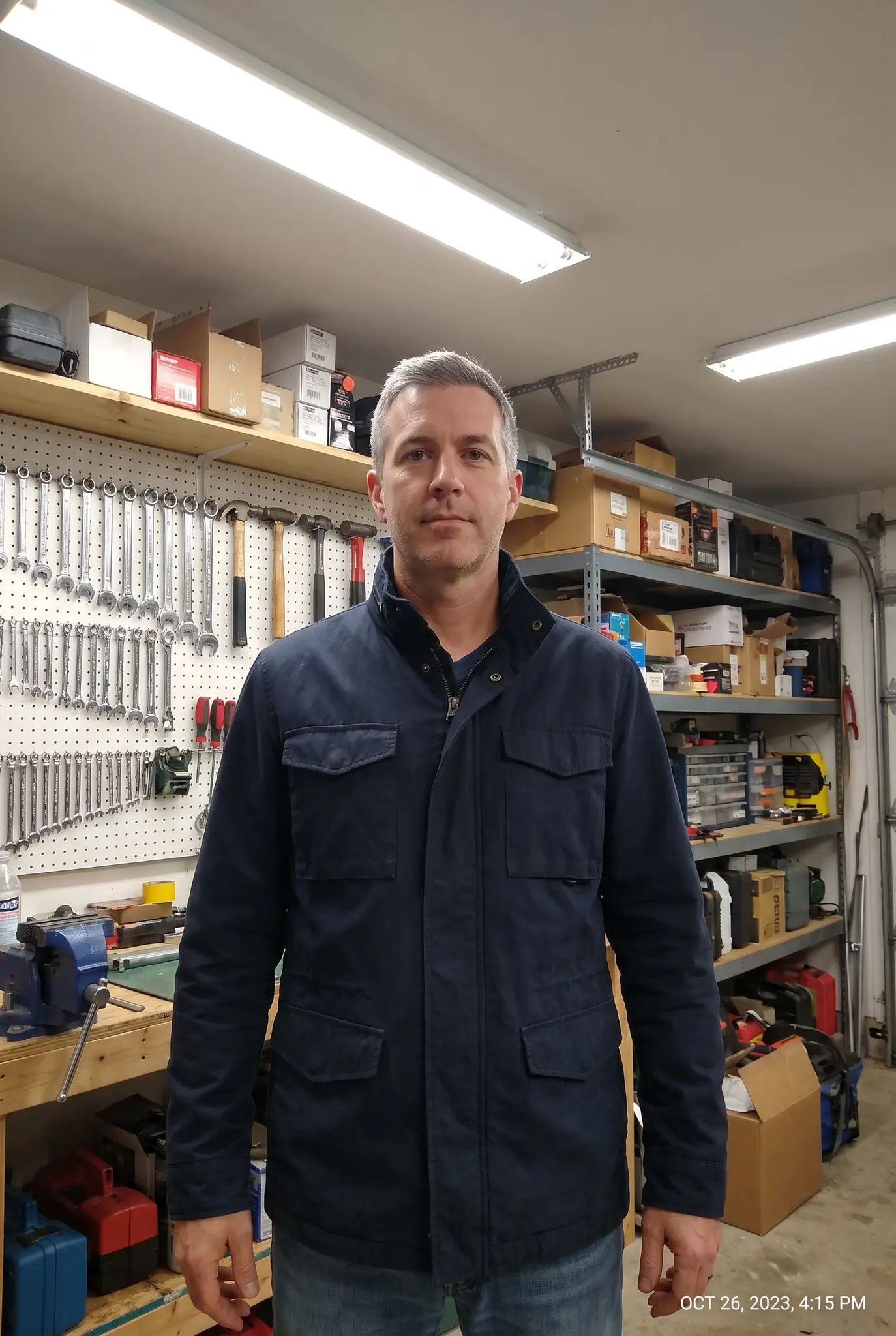
We ran this edit in ImagineArt on a generated photo of a fictional man in his 40s in a navy field jacket, standing in a cluttered garage. The source came with a fake date stamp, "OCT 26, 2023, 4:15 PM", that nobody asked for.
 The source, fake date stamp included.
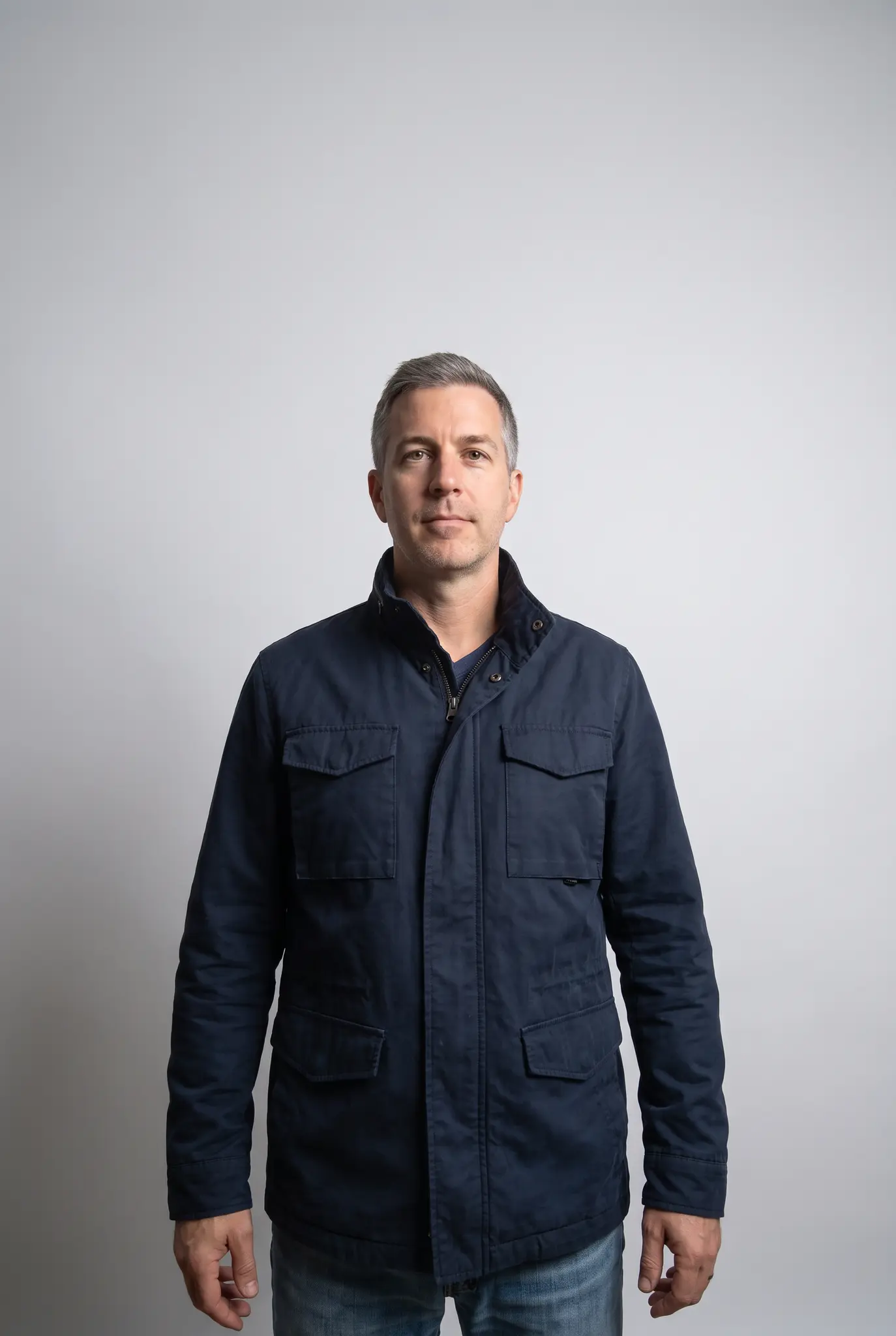
The prompt: "Replace the garage with a plain light-grey studio backdrop and soft key light from the left. Keep his face, hair, jacket and pose unchanged." It worked: all five checks were held (hairline, collar, zip, pocket flaps, expression) with no visible edge halo. The date stamp vanished too, and the framing pulled back slightly.
 Five of five details kept.
Try prompt 27 on a headshot.
Portrait retouching prompts that keep the face
Retouching prompts need restraint words: "slightly", "by about half", "reduce" rather than "remove". A blanket "makes the skin flawless" can erase freckles and moles with the blemish. Retouch only your own photos or people who agreed. For skin alone, there's a skin retouch tool.
| # | Prompt | Keep line |
|---|---|---|
| 31 | Reduce the redness on the cheeks by about half. | Keep freckles, pores and skin texture. |
| 32 | Soften the under-eye shadows slightly. | Keep the eye shape, lashes and expression unchanged. |
| 33 | Remove the single blemish on the chin. | Keep moles, freckles and skin texture. |
| 34 | Tame the flyaway hairs around the head. | Keep the hairstyle, color and volume unchanged. |
| 35 | Reduce the shine on the forehead and nose. | Keep the natural skin texture visible. |
| 36 | Whiten the teeth by one shade, no more. | Keep the smile and lips unchanged. |
| 37 | Fix the red-eye in both eyes. | Keep the iris color and catchlights. |
| 38 | Straighten the shirt collar and remove the lint from the jacket. | Keep the face and pose unchanged. |
| 39 | Even out the skin tone on the forehead slightly. | Keep the texture and natural color variation. |
| 40 | Brighten the eyes slightly without changing their color. | Keep the face shape and expression unchanged. |
Try prompt 31 on your own portrait.
Old photo restoration prompts
Old prints need two promises: keep every face, and keep it black and white unless you ask for color. Anything rebuilt (prompts 44 and 46) is a plausible guess, not recovered detail. For a guided route, try AI photo restoration.
| # | Prompt | Keep line |
|---|---|---|
| 41 | Remove the scratches and dust spots. | Keep every face and the black-and-white tone. |
| 42 | Repair the crease running across the middle. | Keep the faces, clothes and background unchanged. |
| 43 | Remove the yellow cast and restore neutral grays. | Keep the grain and composition. |
| 44 | Rebuild the torn bottom-left corner to match the wall. | Change nothing else. |
| 45 | Restore the faded contrast so the blacks look deep again. | Keep faces exactly as they are. |
| 46 | Sharpen the faces slightly without adding new features. | Keep each person's features and expressions. |
| 47 | Colorize with natural period colors: navy coat, red brick, green trees. | Keep every face and shape. |
| 48 | Crop away the white paper border. | Keep the photo itself unchanged. |
| 49 | Fill the water-stained patch with matching sky. | Keep the people and buildings unchanged. |
| 50 | Reduce the heavy grain slightly. | Keep facial detail and the period look. |
Scan the print, then try prompt 41.
Product photo prompts
Product edits live or die on the product staying identical: shape, label, stitching. Put those in every keep line. For full product scenes, there's also AI product photography.
| # | Prompt | Keep line |
|---|---|---|
| 51 | Put the bottle on a plain white background with a soft shadow. | Keep the label and cap unchanged. |
| 52 | Place the sneaker on a concrete step in the morning light. | Keep its laces, logo and stitching. |
| 53 | Add a soft reflection under the watch on glossy black. | Keep the dial and strap unchanged. |
| 54 | Put the candle on a wooden tray with a linen cloth beside it. | Keep the jar, label and flame unchanged. |
| 55 | Replace the kitchen counter with a light oak table. | Keep the mug's shape, glaze and handle. |
| 56 | Add fine water droplets to the glass bottle, as if chilled. | Keep the label text unchanged. |
| 57 | Remove the price sticker from the box. | Keep the box's print and edges unchanged. |
| 58 | Center the bag on a pale pink backdrop with even light. | Keep the stitching, handles and color. |
| 59 | Put the headphones on a desk with a laptop softly blurred behind. | Keep the headphones exactly as they are. |
| 60 | Brighten the white background to pure white. | Keep the product and its shadow unchanged. |
Our test: teapot restyle
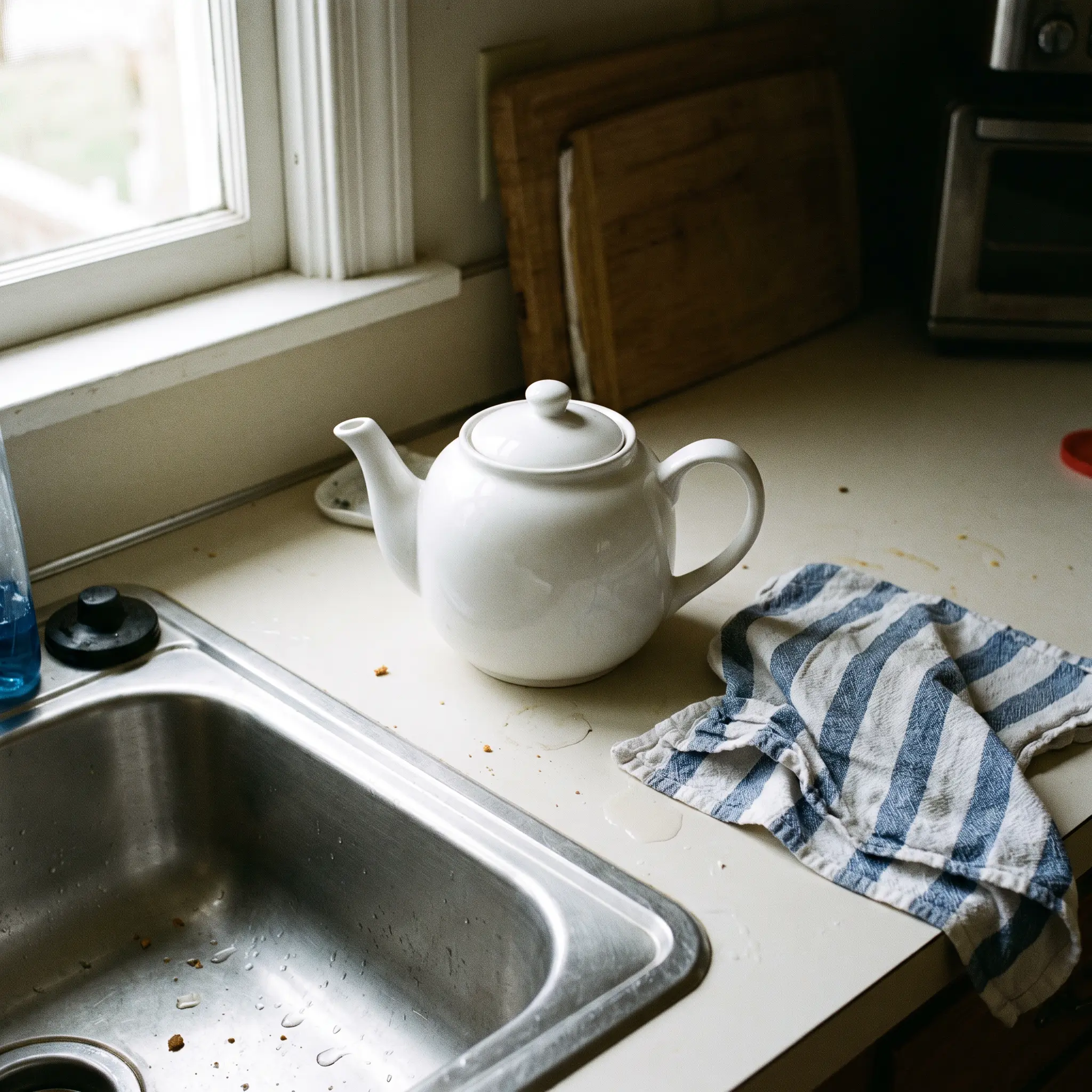
We ran this edit in ImagineArt on a generated snapshot of a white teapot on a kitchen counter beside a sink.
 The source: counter clutter.
The prompt: "Place the teapot on a dark slate surface with dried eucalyptus behind it and soft side light. Keep the teapot's shape, lid and handle exactly as they are." It worked the first time: shape, lid and handle all kept (three of three checks), with a plausible reflection on the slate. Nobody misses the sink.
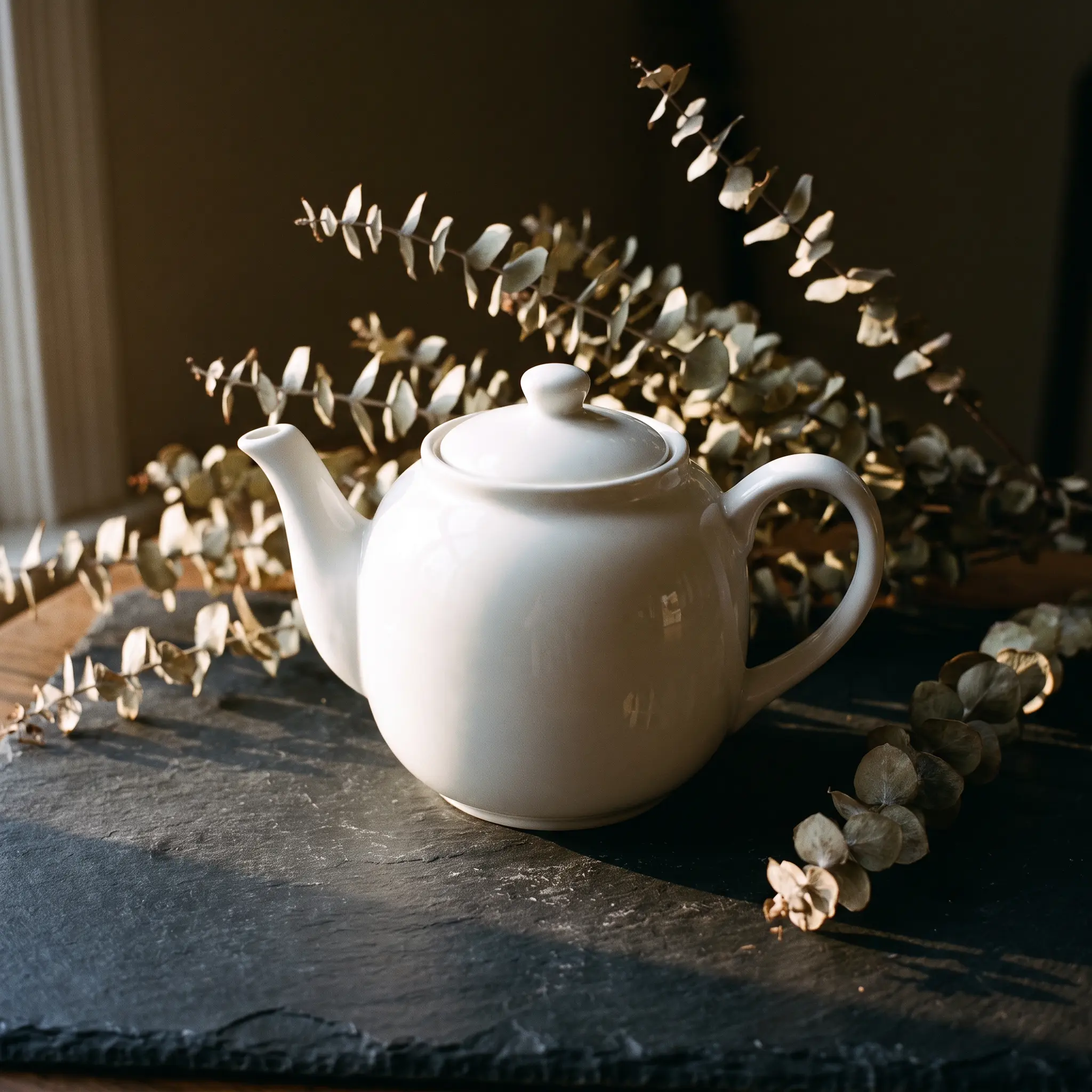 Shape, lid and handle kept.
Try prompt 60 on your own product shot.
Style and art effect prompts
Style prompts are redraws by nature, so the keep line protects layout rather than pixels. Expect faces to change more than in a lighting edit.
| # | Prompt | Keep line |
|---|---|---|
| 61 | Turn the photo into a loose watercolor painting. | Keep the pose and composition. |
| 62 | Make it look like a 1990s film snapshot with soft grain. | Keep the framing and people unchanged. |
| 63 | Redraw it as a thick-brush oil painting. | Keep the composition and colors close. |
| 64 | Turn it into a clean cartoon illustration with bold outlines. | Keep the poses and layout. |
| 65 | Make it a pencil sketch on cream paper. | Keep the proportions and composition. |
| 66 | Apply a teal-and-orange cinematic color grade. | Keep skin tones natural and the framing unchanged. |
| 67 | Turn the scene into a paper-cut collage. | Keep the layout of every main shape. |
| 68 | Make it a two-ink risograph print in blue and pink. | Keep the composition. |
| 69 | Render the photo as a pixel-art scene. | Keep the main subject's pose and position. |
| 70 | Give it a faded instant-film look with a white border. | Keep the subject and framing. |
Try prompt 66 first: a grade changes the least.
Outfit, season and scene prompts
These change what someone wears or the season. Name the garment, fabric and color.
| # | Prompt | Keep line |
|---|---|---|
| 71 | Change the T-shirt to a navy knit sweater. | Keep the face, pose and background the same. |
| 72 | Make it winter, with snow on the ground and bare trees. | Keep the people and their clothes unchanged. |
| 73 | Turn summer into autumn, with orange leaves on the trees. | Keep the path, bench and people unchanged. |
| 74 | Add gentle rain and wet pavement reflections. | Keep the people and framing unchanged. |
| 75 | Change the dress from red to emerald green. | Keep the fabric texture, pose and face. |
| 76 | Add a mustard-yellow wool scarf. | Keep the coat, face and hair unchanged. |
| 77 | Swap the sneakers for brown leather boots. | Keep the jeans, pose and floor unchanged. |
| 78 | Add morning fog over the lake. | Keep the dock, trees and boat unchanged. |
| 79 | Fill the garden with spring blossom. | Keep the house and fence the same. |
| 80 | Decorate the table for a birthday with a cake and balloons. | Keep the people and chairs unchanged. |
Try prompt 72 on a summer street photo.
Text and sign edit prompts
Put the old and new words in quotation marks, the way Black Forest Labs' Kontext guidance does, and end with "no other text". In our GPT Image 2.5 runs, the model added unrequested text to some posters and menus when that line was missing. For a model our sibling guide tests on sign text, see our Qwen Image Edit guide.
| # | Prompt | Keep line |
|---|---|---|
| 81 | Replace "OPEN" with "CLOSED" on the door sign. | Same font and color, no other text. |
| 82 | Change the price on the menu board from "$4" to "$5". | Keep the chalk style and add no other text. |
| 83 | Change "Congradulations" on the banner to "Congratulations". | Keep the font and colors. |
| 84 | Replace the shop name "Rosie's" with "Ivy Lane". | Keep the lettering style and sign shape. |
| 85 | Remove all text from the poster. | Keep the illustration and background unchanged. |
| 86 | Add "Sale ends Friday" to the empty banner in black sans-serif. | No other text. |
| 87 | Change the sign text "Exit" to "Salida". | Keep the sign's color and arrow. |
| 88 | Change the house number on the door from 12 to 21. | Keep the plaque and door unchanged. |
| 89 | Replace the jar label text with "Wildflower honey" in a serif font. | Keep the jar and lid unchanged. |
| 90 | Write "Happy 40th, Sam" on the cake in white icing. | Add no other text. |
Try prompt 81 on a door sign.
Multi-photo prompts: combine, match and re-angle
With several photos, refer to each by its order: "the teapot from image 1". In ImagineArt's image tool, Edit mode takes up to 14 reference images on Nano Banana Pro, 16 on GPT Image 2.5, 20 on Nano Banana 2.1 and 10 on Qwen Image 2.1. Our Flux Kontext image editing guide covers Flux Kontext, which Chris Green found tends to change only what you name.
| # | Prompt | Keep line |
|---|---|---|
| 91 | Put the teapot from image 1 on the table in image 2. | Keep the teapot's shape and the table's light. |
| 92 | Match the colors of image 1 to image 2. | Keep image 1's content unchanged. |
| 93 | Dress the person from image 1 in the jacket from image 2. | Keep their face and pose. |
| 94 | Place the logo from image 2 on the mug in image 1. | Keep the mug's shape and glaze. |
| 95 | Combine the three product photos into one flat lay on white. | Keep each product's shape and labels. |
| 96 | Show the chair from image 1 from a three-quarter side angle. | Keep its design and materials. |
| 97 | Light the portrait in image 1 like the window light in image 2. | Keep the face and pose unchanged. |
| 98 | Put the dog from image 1 beside the person in image 2. | Keep the dog's markings and the person's pose. |
| 99 | Replace the sky in image 1 with the sunset sky from image 2. | Keep image 1's buildings unchanged. |
| 100 | Put the sofa from image 1 into the empty room in image 2. | Keep the sofa's fabric and shape. |
To re-angle a single photo, the tool to change the camera angle is more direct.
Upload two photos and try prompt 91.
Do ChatGPT photo editing prompts also work in Gemini and ImagineArt?
Yes. ChatGPT photo editing prompts carry over word for word, because all three tools read a plain-English edit request. What changes is how you chain edits: ChatGPT keeps a chat thread, Gemini edits a photo you upload, and our free photo editor has no thread, so you load the last result back in as the reference for the next change.
ChatGPT prompts for photo editing behave a little differently in each place:
- ChatGPT. OpenAI's Images 2.5 announcement (September 8, 2026) says the model is "better at preserving the subjects in your reference photos" and follows edit instructions more reliably across turns, and you can comment directly on an image. OpenAI's guide to images in ChatGPT adds a select tool, noting edits can spill past the selection.
- Gemini. Google's Gemini image editing help says you can edit an upload or combine several photos into a new image. Nano Banana 2 takes multiple references; Nano Banana 2 Lite isn't designed for multiple references or repeated edits. Downloads are 2K with a Google AI plan, 1K without, and editing is 18+. That means Gemini AI photo editing prompts are the same sentences you'd paste into ChatGPT.
- ImagineArt. The editor defaults to Nano Banana Pro and lists others, including GPT Image 2.5 and GPT Image 2.6. Its page says "There are no masks to draw, layers to manage or selection tools to learn", and it takes JPG, PNG or WEBP up to 30MB, so convert RAW files first.
| ChatGPT | Gemini | ImagineArt AI image editor | |
|---|---|---|---|
| How edits chain | One chat, turn by turn | Upload, then ask | Load the last output back in as the reference |
| One area only | Select tool or comments | Say where in the prompt | Say where, or use Inpaint on the Edit page |
| Several photos | Reference photos | Several uploads; not on Lite | Image tool's Edit mode: up to 14 references on Nano Banana Pro, up to 20 by model |
For the ChatGPT side in depth, read how ChatGPT's photo editor works.
Google's help names Nano Banana 2 for Gemini edits, so our guide to Nano Banana image editing covers that route.
Why do some edit prompts fail?
Even well-written edit prompts fail when they ask for several changes at once, skip the keep line, or request something the model treats as a full redraw, such as a crop or a bare "colorize this". The fix is usually a narrower prompt, not a longer one.
- Too many changes in one run. Split them, so you can tell which line did what.
- No keep line. In Chris Green's side-by-side test (Diffusion Doodles, September 2025), he found Qwen Image Edit needs you to be very explicit about what to change and what not to, while Flux.1 Kontext tends to change only what you name.
- Naming new things in a fill. When we ran a removal in ImagineArt that asked to fill the gap with "the matching promenade, railing and boats", it added a railing that was never there. Describe only what was behind the object.
- Short commands that invite a redraw. We ran "Colorize this photo." in ImagineArt on a generated 1940s market photo, and it built a different scene. Naming each item's color kept the layout.
- Crops. In our GPT Image 2.5 runs, a 4:5 crop request came back re-rendered, with about four details changed. Use a basic editor.
- Surprise text. Add "no other text" to anything with signs, menus or posters.
Edits to skip
ImagineArt's editor blocks "sexual or explicit edits of real people, any content involving minors, and deceptive edits meant to mislead people about a real person". Beyond that, edit only your own photos, fictional people or people who agreed. If an edit changes what a photo seems to prove, label it. Our guide to content credentials and AI edits explains how edits get disclosed.
Pick one category and run one change
Three habits decide whether an edit prompt lands: one change per run, a keep line that names what matters, and a concrete word for light or material. The diner test showed the cost of skipping them; the garage and teapot tests showed the payoff, with every checked detail kept.
Run one prompt, check it at full size, then feed it back for the next change. If something drifts, add it to the keep line and run again.
Open our AI image editor, upload one photo, and paste prompt 1 or the one that fits your edit.
Frequently asked questions
What are the best photo editing prompts for ChatGPT?
The best ChatGPT photo editing prompts change one thing and name what stays. Prompt 12 beats "clean up this photo" because the model knows the job and the limits. Start from the category that matches your edit.
How do you prompt ChatGPT to edit a picture without changing the face?
Name the face in the keep line, with hair, expression and anything near the edit: "Keep her face, hair and expression unchanged." For small areas, ChatGPT's select tool lets you highlight the spot, though OpenAI notes changes can spread past it. Check the result at full size.
Do these prompts work in Gemini and other editors?
Yes, the sentences work as written. The routine differs: Gemini edits your uploads, and ImagineArt has no chat thread, so you reload the output for each change. That's why these photo editing prompts each aim to make one change.
Can you edit photos with AI for free?
Often, with limits. ImagineArt has a free plan; check its current plan limits. ChatGPT and Gemini limits vary by plan, and Google says Gemini downloads are 1K without a Google AI plan. Free allowances change, so check each tool's pages.
Zahida Misher
Exploring how AI transforms marketing, I help businesses unlock growth and future-proof their presence.
View all articlesRecent posts
The Best AI Avatar Generators In 2027: 11 Tools Compared And Ranked
50 Types of Art Styles: Definitions, Examples and AI Prompts
How to Edit Images With Ideogram 4.6: 38 Edits, Prompts and Results