
Tooba Siddiqui
September 22, 2026 • Updated September 22, 2026
14 mins Read
Two people can use the exact same AI image generator and get completely different results, and it has absolutely nothing to do with luck or the model used. One writes the image prompt like a wish list: vague and filled with some adjectives. The other writes it like a shot brief: clear, action-oriented, specific, and ordered. The AI image output differs because the input approach varies significantly.
This guide breaks down what actually separates a working image prompt from a wasted generation, with proper framework, the loop for fixing a prompt that didn't land instead of starting over, and real production data from teams using this approach at scale.
What Is an AI Image Prompt?
An AI image prompt is the written instruction that tells a text-to-image AI model what to generate. Text-to-image generation works by interpreting the prompt's language, subject, style, and any other described detail, and rendering pixels that match what the model has learned those words and their combinations typically look like.
Everything the image model needs to know has to be in the words. That is exactly why vague prompts produce vague results, as there was nothing specific for the model to aim at.
Why Most AI Image Prompts Fail
Prompt accuracy is the second most common frustration buyers report with AI image generation tools, right behind credit and pricing limits, according to G2's State of AI Image Generation report. Most failed AI image prompts share the same handful of problems, some of which are:
- Vague subjects. "A person in a city" gives the model almost nothing to commit to, so it defaults to the most statistically average version of both.
- No priority order. Mentioning style, lighting, and mood into one run-on sentence with no clear details of each leads the AI image model has to guess what matters most.
- Missing craft detail entirely. A prompt that only describes the subject, without mentioning lighting, composition, and color leaves the most important creative decisions up to chance.
- Treating the model like it can read intent. "Make it look professional" means nothing to an AI image model. The image generator has no way to know which version of "professional" a user has in mind.
The 3-Layer AI Image Prompt Framework
AI image generation based on prompt has five or six separate elements to cater to: subject, style, lighting, composition, color, technical, each treated as its own item to fill in. Intead of trying to remember to six different elements, a simpler three layer structure works just as well and is easier to use and remember.
The Subject Layer
What's in the frame, and what it's doing. This is the part the model weighs most heavily, and it's also the part people rush through most. Your subject shouldnt be a two or three-word phrase. liek "a woman." Instead mention all relevant details about your subject: "a woman in her thirties, mid-stride, laughing, carrying grocery bags.". The subject layer should read as one clear noun phrase with an action.
The Craft Layer
Style, lighting, composition, and color, treated as one integrated decision about how the subject is rendered, rather than four separate boxes to fill in sequence. A photorealistic product shot and an illustrated character both need a style decision, a light source and direction, a framing choice, and a color direction, and they all inform each other. Golden-hour lighting implies a warm color palette. A tight close-up shot implies a different composition than a full-body shot. Decide these together instead of adding one at a time to get more coherent AI images.
The Technical Layer
Resolution, aspect ratio, and quality modifiers, the settings that determine whether the output is actually usable. A stunning image at the wrong aspect ratio for its intended placement is still the wrong output.
This AI image prompt layer also covers what to exclude: older AI image tools relied on a separate negative-prompt field to keep out unwanted elements like extra limbs or watermarks. On most current AI image models, that constraint works just as well written directly into the main prompt, "a clean single subject on a plain background, no text or logos," rather than needing a dedicated field.
A complete example, built layer by layer:
Subject: "A woman in her thirties, mid-stride, laughing, carrying grocery bags."
Add craft: "...photographed in natural documentary style, golden-hour side lighting, medium shot at eye level, warm amber and cream color palette."
Add technicalities: "…4K resolution, 3:4 aspect ratio, sharp focus throughout, no text or watermark."
Full prompt: "A woman in her thirties, mid-stride, laughing, carrying grocery bags, photographed in natural documentary style, golden-hour side lighting, medium shot at eye level, warm amber and cream color palette, 4K resolution, 3:4 aspect ratio, sharp focus throughout, no text or watermark."
The order of layers in your image prompt also matters: lead with the Subject Layer before adding Craft and Technical detail to keep the sentence structure clear for the model to parse. AI image prompts that open with a style word or a technical spec before ever naming the subject tend to produce less consistent results, since the model has to work out what the style is even describing.
How the Image Prompt Framework Changes by Image Type
The three layers stay the same, but which one deserves the most attention shifts depending on what's actually being generated.
Photorealistic images, product shots, portraits, lifestyle photography, rely mostly on the Craft Layer. Lighting direction and quality determines the realism in AI generated images, since real cameras and real light are what the model is approximating. Getting the light source, direction, and softness specific is usually worth more than any other single change.
Wrong layer focused: "A woman drinking coffee at a cafe table, 8K resolution, 16:9 aspect ratio, ultra sharp focus, high detail."
 Heavy on technical specs, silent on light, the result tends to look generic and synthetic no matter how high the resolution is set
Right layer focused: "A woman drinking coffee at a cafe table, soft window light from the left casting gentle shadows across her face, warm afternoon glow, shallow depth of field with the background softly blurred, natural muted color palette."
 Same subject, same intent, but the lighting direction, quality, color selection enhances image photorealism
Illustrated or stylized images rely harder on naming a specific style reference than on lighting physics. "Flat vector illustration, two-color palette, minimal shading" does more work than a detailed lighting description would. The whole purpose is to nail a particular style than to simulate a camera.
Wrong layer focused: "A fox sitting in a forest, dramatic rim lighting from behind, soft directional key light from upper left, 4K resolution, 16:9 aspect ratio."
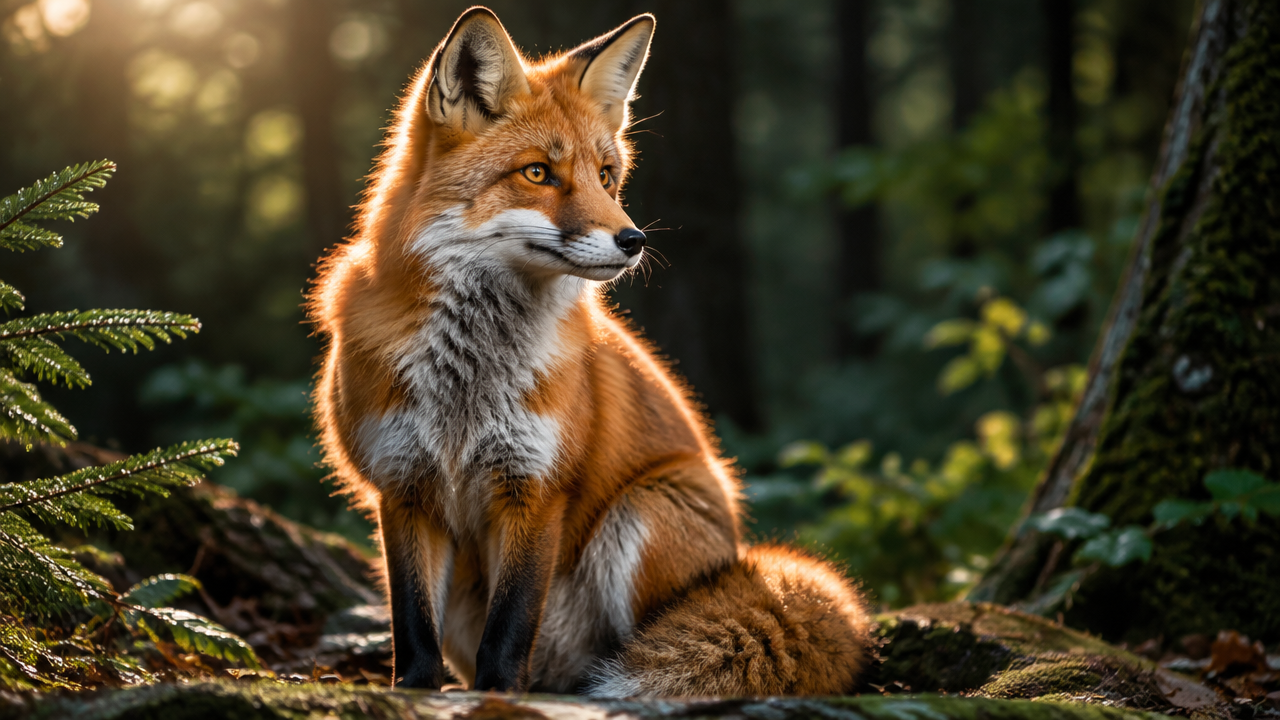 No named style, so the model will likely generate AI image that looks like a photograph
Right layer focused: "A fox sitting in a forest, flat vector illustration style, two-color palette of orange and deep green, minimal shading, clean bold outlines, geometric simplified shapes."
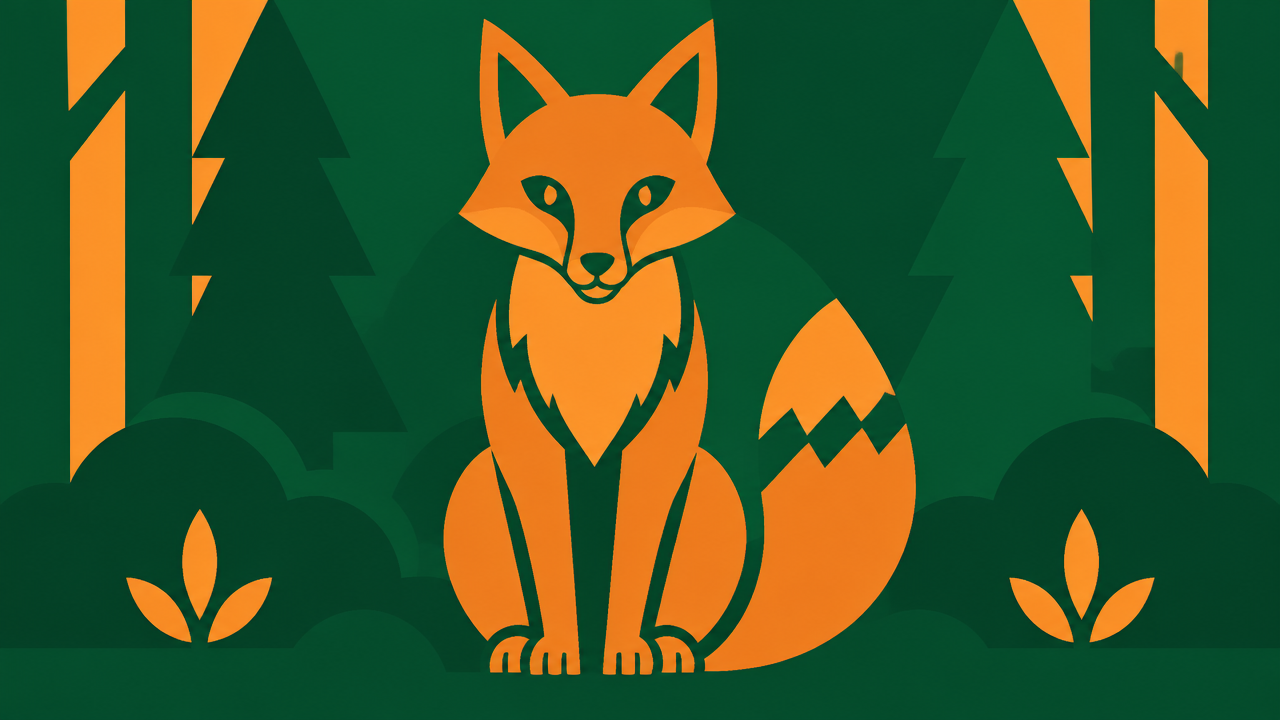 The style reference determines the look of an intended illustration
Product-only images, catalog shots, e-commerce listings, lean hardest on the Technical Laye. These AI generated images usually have to meet a specific spec, a plain background, a required aspect ratio, a minimum resolution, before anything else about them matters. A gorgeous product shot at the wrong resolution for a platform's upload requirements still fails the actual job.
When the deliverable needs motion and animation, the subject, craft, and technical specs still apply, just use ImagineArt AI video generator instead of Image Generator.
Wrong layer focused: "A pair of wireless headphones, dramatic cinematic lighting, moody dark background, artistic angle, rich saturated colors."
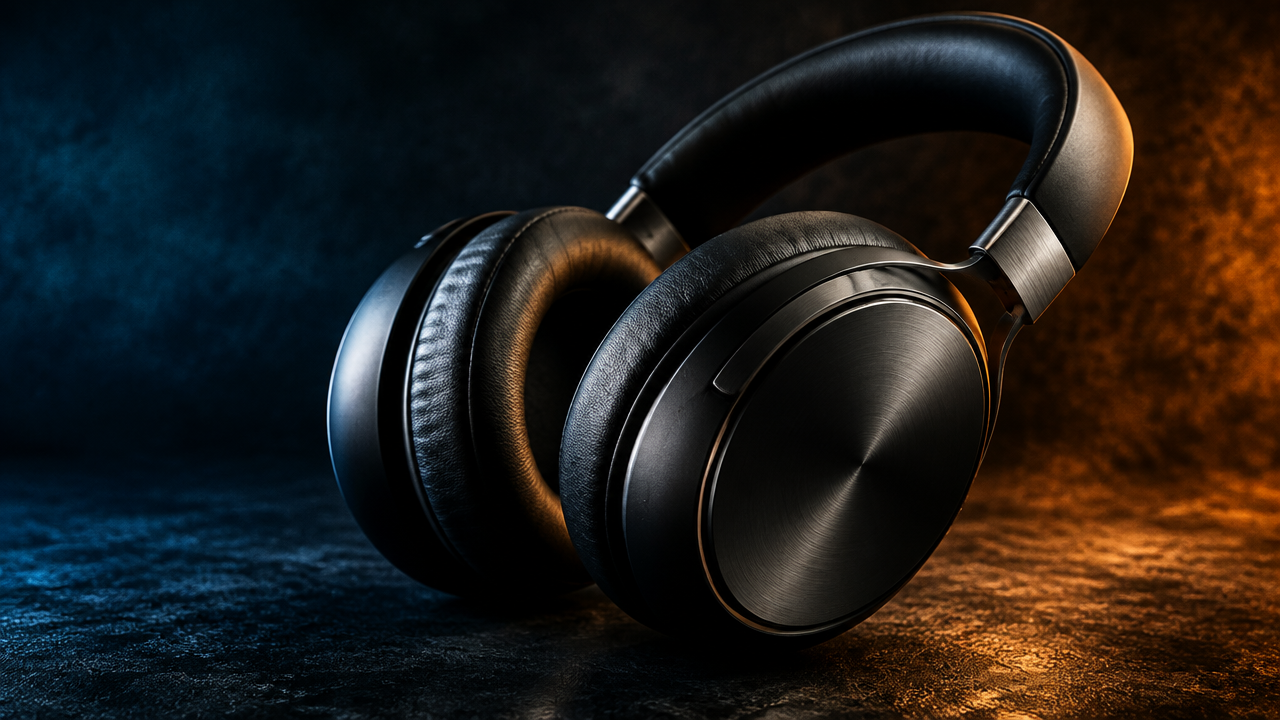 The image looks visually striking but is unusable as a listing image, as it doesn't have the plain background, straight-on angle, and resolution specs an actual catalog placement requires
Right layer focused: "A pair of wireless headphones on a pure white background, centered, straight-on product angle, even studio lighting with no harsh shadows, 4K resolution, 16:9 aspect ratio, no text or watermark."
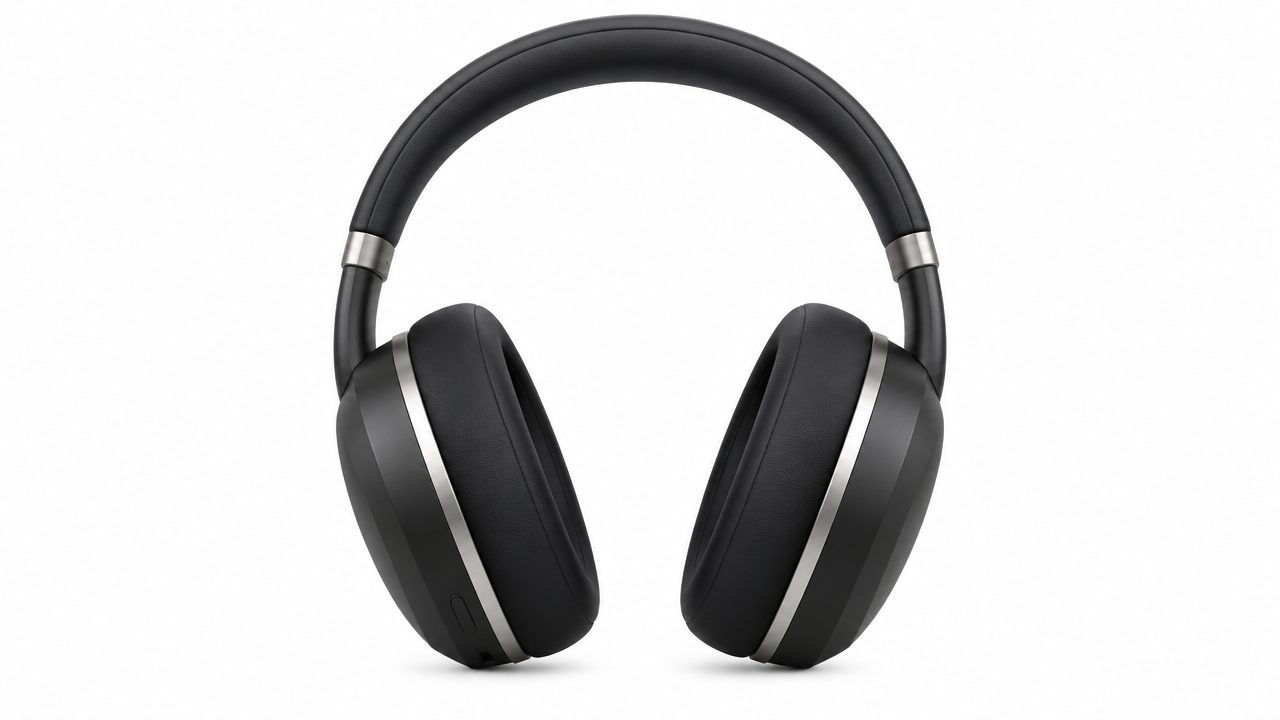 Less dramatic, but it's the version that actually meets image specs and gets used
Knowing which layer to spend the most time on for a given image type saves time that would otherwise go into over-describing the layer that mattered least.
The Iteration Loop: What to Change When the First AI Image Isn't Right
The first AI generated image is rarely the final one, and that's a prompting norm not a failure. What separates someone who gets good results consistently from someone who doesn't isn't writing a perfect prompt on the first attempt. It's knowing exactly what to change when the result misses.
The instinct most people have when a generation disappoints them is to erase the whole AI prompt and start over. That throws away everything that was already working along with the one thing that wasn't. A faster, more reliable approach: diagnose which single layer actually failed, then adjust only that layer.
- If the subject is right but the mood or lighting feels off, the Craft Layer needs adjusting, not the subject description.
- If the composition and style are working but the image can't be used at the required size or format, that's a Technical Layer fix.
- If the subject itself is wrong, an unintended pose, the wrong number of people, the wrong action, that's the only time the Subject Layer needs rework.
How to Write an AI Image Prompt Step by Step in ImagineArt
The three-layer framework maps directly onto ImagineArt AI Image Generator’s actual interface, so building a prompt and using the tool are the same motion, not two separate steps.
- Pick a model: AI Image Generator requires a model choice before generation. Different models render style and detail differently, so this choice sets the ceiling for what the Craft Layer can achieve.
- Write the Subject Layer in the prompt box. Lead with the clear noun phrase and action, who or what is in the frame, and what it's doing.
- Build the Craft Layer using the built-in references. Select from built-in style references, camera angles, and color palettes directly. Describe them from memory or upload a reference image when a specific look already exists somewhere and needs to be matched.
- Set the Technical Layer. Choose the aspect ratio the output needs to fit, image resolution, number of variations, and add any exclusion language ("no text," "no watermark") directly into the prompt itself.
- Generate, then run the iteration loop. Review the result against the three layers, identify which one didn't land, and adjust only that layer before regenerating.
AI Image Prompt Examples (Before and After)
The structure doesn't change from project to project, only the content inside each layer does.
Commercial Product Imagery
Before: "A nice photo of a bag."
After: "A leather crossbody bag on a matte concrete surface, studio softbox lighting from upper left, straight-on product angle, neutral beige and tan color palette, 4K resolution, 1:1 aspect ratio, no text or watermark."
The before version gives the model nothing to commit to. The after version specifies exactly what the model needs across all three layers. Framon Group, a manufacturing company, applied this kind of structured prompting across its own commercial catalog, and cut asset production from a full day down to a few hours with a 3-person marketing team, eliminating the need for external freelancers entirely. This example leans hardest on the Technical Layer, plain background, fixed ratio, consistent lighting, since catalog imagery has to meet a spec before it can look good.
Personalized Brand Campaign
Before: "A fun holiday image with a celebrity."
After: "A close-up portrait of [subject] smiling warmly, holding a branded product at chest height, festive string lights softly blurred in the background, warm golden lighting, shallow depth of field, red and gold color palette, 4K resolution, 4:5 aspect ratio."
The after version specifies pose, product placement, background treatment, and mood, the details a personalization campaign at scale actually depends on to stay consistent across thousands of variations. Unilever's Knorr campaign, built on this kind of structured, repeatable prompt template, generated personalized images for 586,000 unique users, with a 68% opt-in rate, three times the market average. This example leans hardest on the Craft Layer: pose, lighting, and mood all have to stay consistent across thousands of generated variations for the personalization to feel intentional rather than random.
Concept and Technical Visualization
Before: "A boat design idea."
After: "A side-profile concept render of a mid-size patrol vessel, matte grey hull, dramatic low-angle composition against an overcast sky, cool blue-grey color palette, high detail, 16:9 aspect ratio, no text overlays."
Concept visualization needs precision the same way a product shot does, just applied to a different subject. KND Naval Design, an engineering firm, used this level of prompt specificity to cut concept visual turnaround from 3 to 7 days down to 1 to 4 hours, producing marketing-grade imagery entirely in-house. This example leans on the Subject Layer more than most, since an inaccurate hull shape or proportion undermines a concept render regardless of how good the lighting looks.
Rapid On-Brand Variation
Before: "Something similar but different."
After: The same base prompt as a previous approved generation, with only the Craft Layer's color palette changed from "warm amber and cream" to "cool sage and cream," everything else held constant.
Holding the Subject and Technical layers fixed while deliberately varying only the Craft Layer is how a single approved concept turns into a consistent set of on-brand variations, rather than a collection of unrelated images that happen to share a subject. Noise2Signal, an agency juggling multiple scattered AI tools before consolidating onto one structured workflow, halved its comparable project timelines using exactly this approach. This example is a pure Craft Layer exercise: the subject and technical spec stay identical, only the craft decision changes, which is what makes the variations feel like a deliberate set rather than a grab bag.
Editing an Image with an AI Prompt vs. Generating From Scratch
Editing an existing image with a prompt follows a different rule than generating one from nothing: name the one thing that should change, and state that everything else should stay the same.
A generation prompt describes an entire scene while an image editing prompt describes a single, isolated change against a scene that already exists: "change the background to a plain white studio backdrop, keep the subject, pose, and lighting exactly as they are."
Without that second half, "keep everything else the same," an edit request behaves like a fresh generation and can shift details that were never meant to change.
Image editing is better and saves time whenever most of an image is already right. Regenerating from scratch means gambling the parts that were already working in exchange for fixing the one part that wasn't. An image edit prompt only risks the part actually named.
Common AI Image Prompt Mistakes and Fixes
- Overloading one prompt with multiple subjects. A promptwith multiple subjects and focal points usually produces a muddled composition.
Fix: one clear subject per generation, then combine results afterward if a composite is actually needed using ImagineArt AI Image Combiner.
- Describing a feeling instead of what produces it. "Make it feel luxurious" is not an instruction; "matte black surface, single dramatic side light, deep shadow, minimal negative space" is.
Fix: write the required image feel as a specific lighting, composition, and color choices that create it.
- Skipping the Technical Layer until after generation. Discovering the aspect ratio is wrong after the AI generated image looks perfect wastes the whole generation.
Fix: set aspect ratio and resolution before AI image generation, not after.
- Rewriting the entire prompt after one bad result. This is the iteration-loop mistake covered above, as it throws away what was working along with what wasn't.
Fix: change only the layer that actually failed.
- Assuming more adjectives mean more control. Stacking five style adjectives in a sentene often confuses the model.
Fix: pick the single most accurate word for each layer instead of multiple approximative phrases.
- Forgetting the prompt is reusable. Treating every generation as a one-off means rebuilding the same Craft Layer from scratch each time instead of saving what worked and reusing it as a template for the next similar subject.
Fix: save a working Craft Layer as a starting template using ImagineArt AI workflows, rather than rewriting it from memory every time.
- Skipping the model choice entirely. Using whatever model happens to be selected by default, regardless of whether it's suited to the requested style, undermines a well-written prompt before it even runs.
Fix: match the model to the style before writing anything else.
Try This Framework to Work in ImagineArt
The three-layer framework and the iteration loop aren't just a way to write a better prompt once. Applied consistently, they're a production method. Unilever's B&W division ran a full six-week creative pipeline through ImagineArt using this kind of structured approach, and increased output volume from a fixed team without adding staff. The real payoff is a repeatable approach to get good images every time, at whatever volume the work actually needs.
For anyone who wants to go beyond this framework, ImagineArt Academy covers prompting and the rest of the platform in more structured depth.
Frequently Asked Questions
What is a text-to-image AI prompt?
A text-to-image AI prompt is the written description used to generate an image from a text-to-image model. It works the same way as any other AI image prompt: the model interprets the words and renders an image matching that description.
How do I write an AI image prompt based on a given example?
Break the example down into its three layers, subject, craft, and technical details, before writing a new prompt. Matching an existing example means identifying what made it work layer by layer, not copying its wording directly onto a different subject.
Can I turn an image into a text prompt?
Yes, this is reverse prompting: uploading a reference image and using it to extract or approximate the prompt that would recreate its subject, style, and composition, rather than describing the image from memory.
Do I need negative prompts for AI image generation?
Not as a separate field on most current models. Writing the exclusion directly into the main prompt, "no text or watermark," "plain background," works as well or better than the older negative-prompt-field approach earlier diffusion models required.
How long should an AI image prompt be?
Long enough to cover all three layers with specific detail, and no longer. A prompt that names a clear subject, a deliberate craft direction, and the necessary technical settings is usually a few sentences, not a paragraph. Padding a prompt with redundant adjectives doesn't add control, it just adds noise.
Does prompt length affect image quality?
Only up to a point. A prompt that's too short leaves too much to chance. A prompt that's too long often contradicts itself or repeats the same instruction in different words, which can confuse the model as much as vagueness does. The right length is whatever it takes to cover all three layers clearly, not a fixed word count.
Tooba Siddiqui
Tooba Siddiqui is a content marketer with a strong focus on AI trends and product innovation. She explores generative AI with a keen eye. At ImagineArt, she develops marketing content that translates cutting-edge innovation into engaging, search-driven narratives for the right audience.