
Kamran Arshad
November 25, 2026 • Updated November 25, 2026
20 mins Read
Most AI edits fail the same way. You ask for one change, and the model quietly redraws the rest of the photo: the face shifts, the light moves, a new object appears. Ideogram 4.6 is built to stop that. Ideogram calls it its most precise editing model yet, with less pixel drift outside your edit and more accurate color than Ideogram 4.5.
We wanted to see that for ourselves, so we ran 38 edits (40 requests) through Ideogram 4.6 on ImagineArt: recolors, label rewrites, outfit changes, defect fixes, room restyles and multi-turn chains. This Ideogram 4.6 guide covers:
- How to edit an image with Ideogram 4.6, in five steps
- Ideogram 4.6 vs 4.5: every difference in one table
- The edit prompt formula behind every edit that worked
- 11 edit types with the exact Ideogram 4.6 prompts, before and after
- What went wrong and how to fix drift
- A copy-paste Ideogram 4.6 prompt cheat sheet
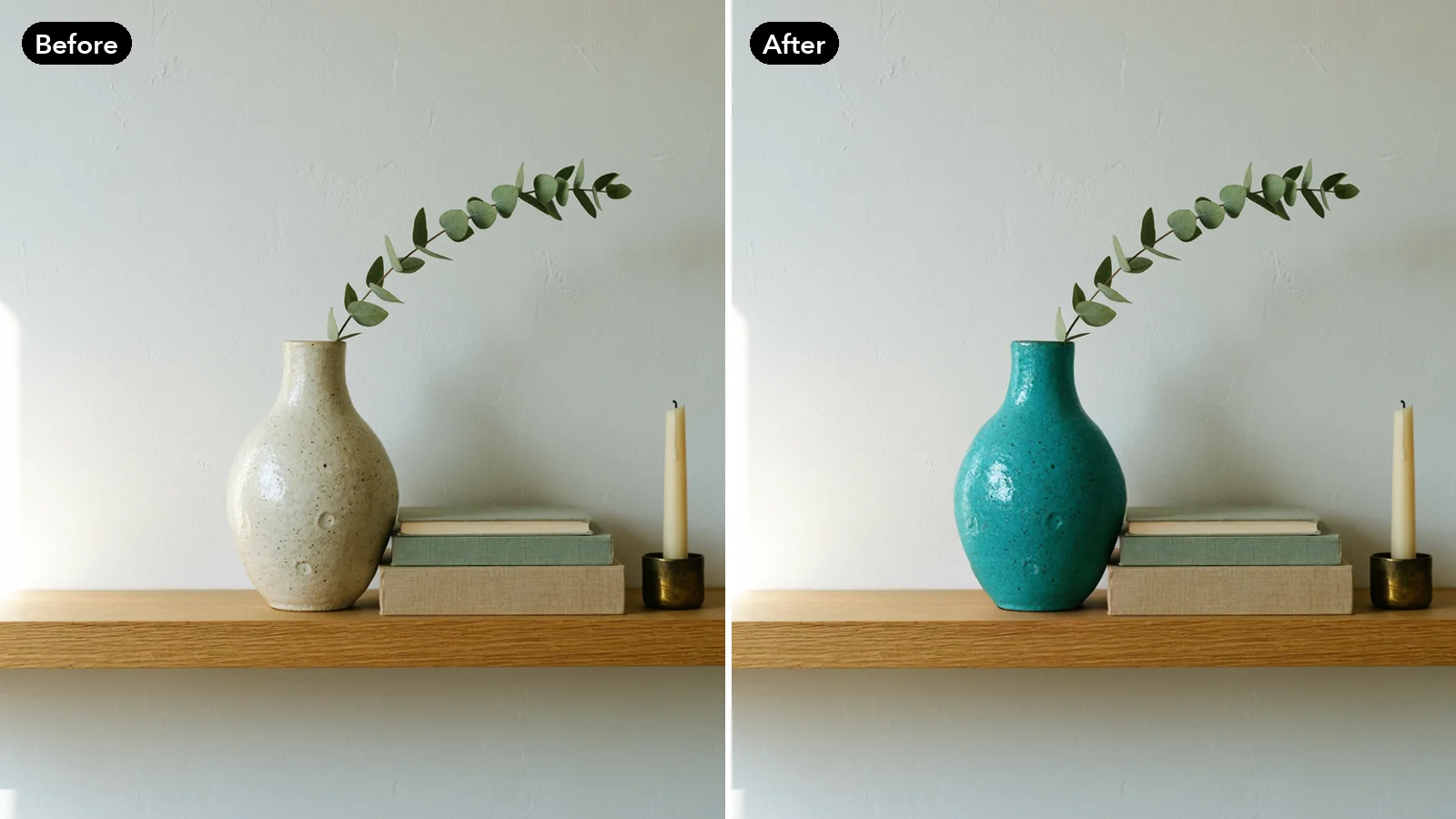
A speckled cream vase recolored to brand teal with Ideogram 4.6, shown before and after
Quick Answer: How to Edit an Image With Ideogram 4.6
- Upload your photo in ImagineArt's image studio and pick Ideogram 4.6.
- Write one change per prompt, in plain words.
- List what must stay the same: the face, the background, the light, the other objects.
- Be exact: give a hex code for color and put new text in quotes.
- Check the result, then feed it back in for the next change.
Ideogram recommends making one focused change per turn and starting each turn from the last result.
Ideogram 4.6 vs 4.5: The Differences
Ideogram 4.6 adds native 4K generation, holds the rest of the frame better while you edit, and matches exact colors far more often. Ideogram 4.5 is still a precise edit model, and Ideogram suggests keeping it for a workflow you've already tuned while you compare the two.
Ideogram released 4.5 on September 30, 2026, according to launch coverage, and 4.6 on November 19, 2026. Here is every difference that Ideogram has published, side by side:
| Ideogram 4.5 | Ideogram 4.6 | |
|---|---|---|
| Released | September 30, 2026 | November 19, 2026 |
| Built for | Precise edits, one change at a time | Precise edits across many turns, plus generation |
| Native 4K generation | No | Yes, up to 4096 x 4096 px |
| Pixel drift outside the edit | Baseline | Far less |
| Color accuracy | Baseline | More accurate |
| Realism and texture detail | Baseline | Most of any Ideogram model |
| Quality modes | Very low, Low, Medium, High | Same four modes |
| Reference images in Generate | Up to 4 | Up to 5 |
| Rapidata Multi-step Edit score (Nov 17) | 1,866 | 1,892 (ranked first) |
| Available on ImagineArt | Yes | Yes |
Ideogram also tested 4.6 against 4.5 on the same requests at High quality. These are Ideogram's own numbers, and it hasn't published how it judged a result as "usable":
| Edit task | Ideogram 4.5 | Ideogram 4.6 | Gain |
|---|---|---|---|
| Exact color matching | 46% | 83% | +37 pts |
| Small-defect repair | 61% | 86% | +25 pts |
| Product shots | 66% | 88% | +22 pts |
| Character consistency | 69% | 85% | +16 pts |
| Masked edits | 82% | 90% | +8 pts |
What the numbers mean in practice:
- Color is the biggest jump. If you recolor products to brand hex codes, 4.6 is the clear pick. Our hex recolors below landed on the first try.
- Defect repair and product shots improved by 20 points or more, which matters most for e-commerce and product photographers.
- The leaderboard gap is small. On Rapidata's Multi-step Image Edit board, 4.6 leads 4.5 by 26 points, and that lead sits inside the board's own margins. For chained edits the two are close.
- 4K only matters for generation. Precise Edit keeps your source image's dimensions, so 4.6 won't upscale a small photo while it edits. Use an AI image upscaler first if your source is small.
Which one should you use?
Pick Ideogram 4.6 for new work, color-critical edits, product shots and anything you need in 4K. Keep Ideogram 4.5 if you've already tuned a workflow around it, then run the same edit on both and compare. Both are available in ImagineArt, so you can switch per image.
How We Tested Ideogram 4.6 Editing
Every image in this guide is real Ideogram 4.6 output. Here's how we ran it:
- Source photos: we generated each "before" photo with Ideogram 4.6 itself, then edited it with Ideogram 4.6. Nothing was retouched by hand.
- Settings: High quality, the same aspect ratio as the source, on ImagineArt.
- Volume: 38 edits across 11 types of edit, including 6 second turns in multi-step chains, plus 2 reruns.
- Pass rule: an edit passed if the change landed and nothing else in the frame moved.
35 of 38 edits were clean on the first try. One request returned a generation error and one added an object we didn't ask for; both worked on a second run. The last one, a watch scratch, had too little to fix in the source. We cover both in What Went Wrong below.
The Ideogram 4.6 Edit Prompt Formula
Every prompt that worked for us had the same three parts:
[One change] + [exact spec] + [what stays the same]
- "Recolor the vase", "Change the label", "Put her in a navy blazer". One verb, one object.
- A hex code for color (#0F8B8D), the new text in quotes ("Casa Verde, Extra Virgin, 500 ml"), a named material (green velvet, satin olive, walnut).
- Name the things the model might be tempted to touch: "Keep the glaze highlights, the shadow under it and every other object on the shelf untouched."
The keep-list does more work than you'd expect. When we left it short, the model had room to improvise. When we named the shadows, reflections and nearby objects, they stayed put.
11 Types of Edit With the Exact Prompts We Used in Ideogream 4.6
1. Recolor One Object With a Hex Code
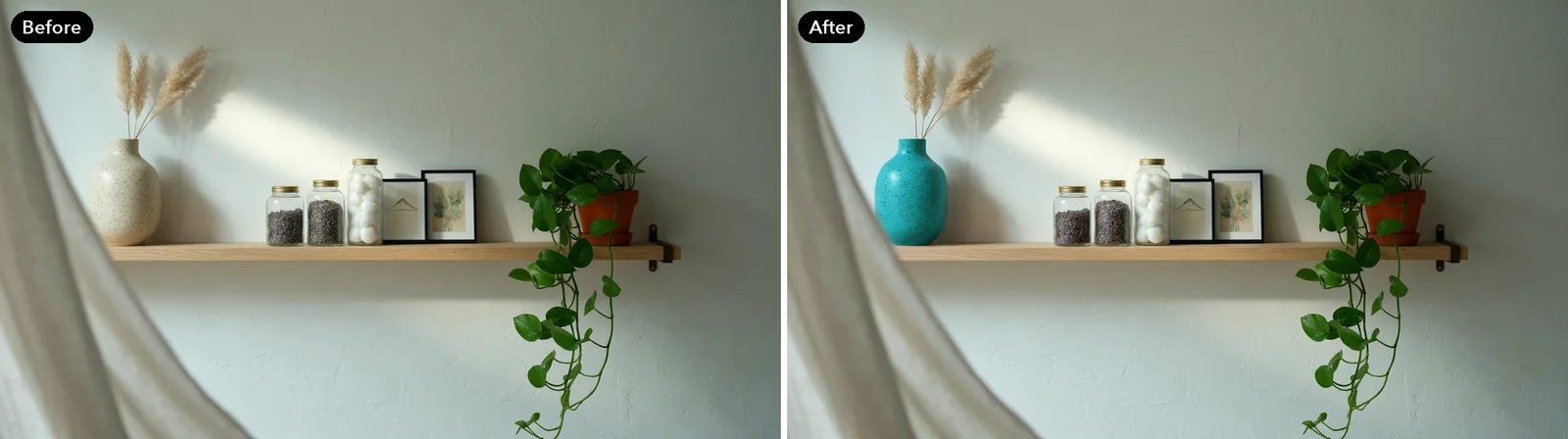
Color is where Ideogram says 4.6 improved most, so we started there. Name the object, give a hex code and protect the highlights and shadows, which carry the realism.
 A speckled cream vase on an oak shelf recolored to teal with Ideogram 4.6
Recolor the ceramic vase on the left shelf to brand teal, hex #0F8B8D. Keep the glaze highlights, the shadow under it and every other object on the shelf untouched.
We saw the vase changed and kept its speckles, glaze sheen and cast shadow. The jars, frames and plant didn't move.
2. Make Every Colorway From One Product Photo
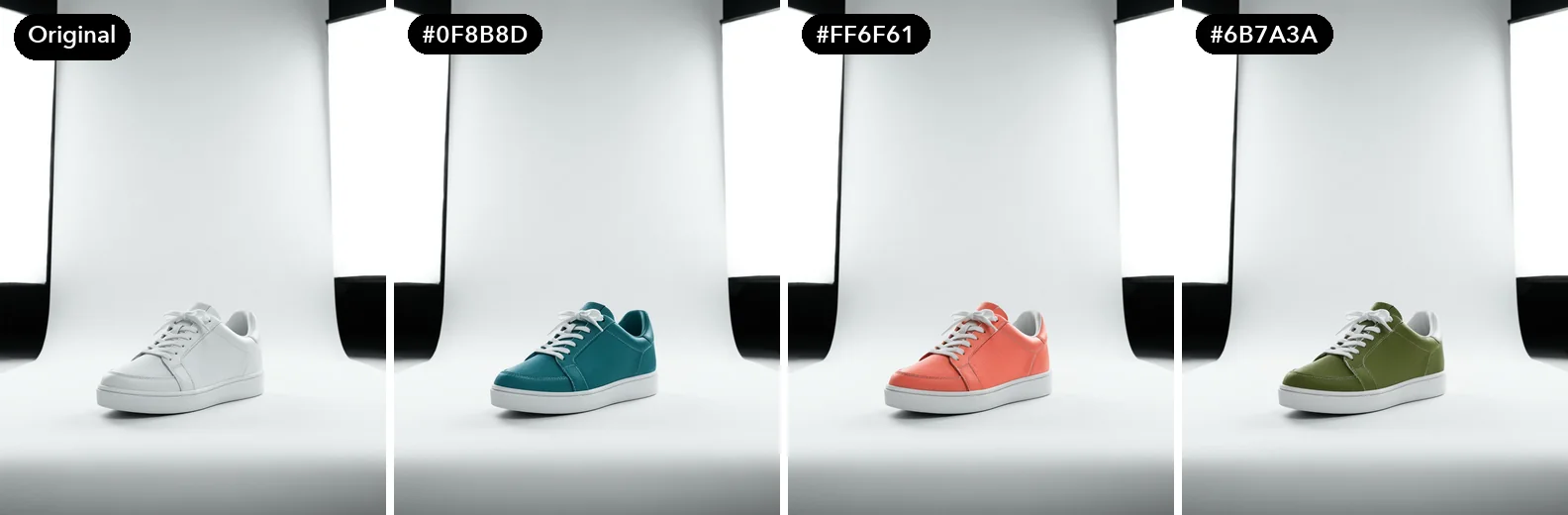
This is the e-commerce use case: shoot one hero image, then generate each colorway from it, so every variant shares the same angle, light and shadow. We ran three hex codes on the same white sneaker.
 One white sneaker recolored to teal, coral and olive with Ideogram 4.6
Recolor the sneaker's leather upper to brand teal, hex #0F8B8D. Keep the white sole, laces, stitching, angle, shadow and the studio sweep exactly as they are.
All three colorways kept the white sole, laces and stitching. Run each color from the original photo, not from the previous colorway, so small differences don't stack up.
3. Rewrite Labels, Signs and Packaging Text
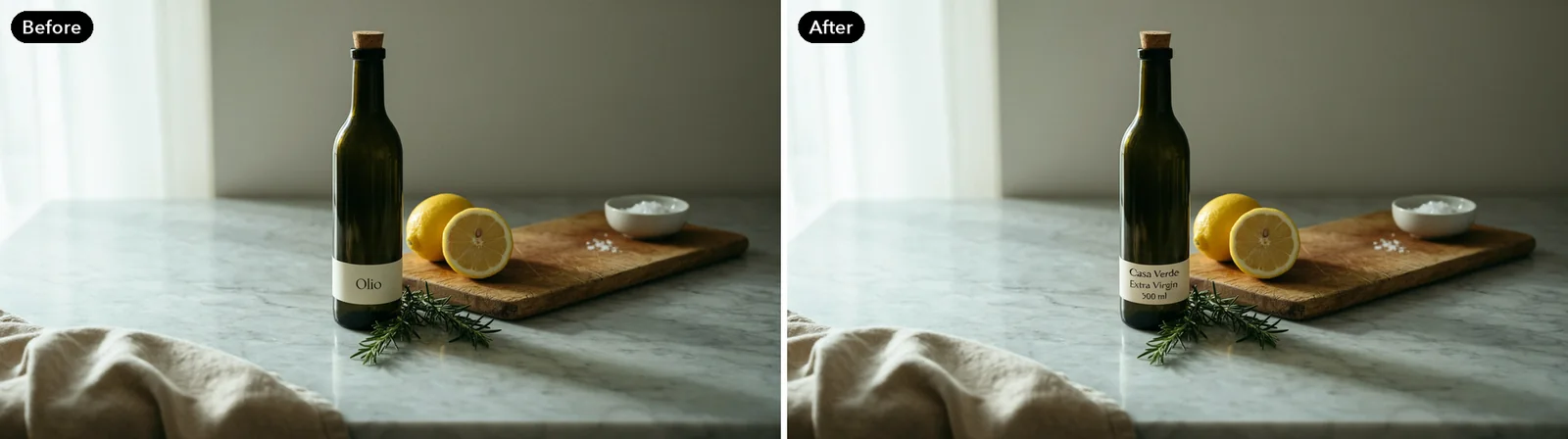
Text edits are where most models drift, because they redraw the whole label. Put the exact words in quotes and ask for "the same serif style" or "matching hand-painted letters" so the typeface carries over.
 An olive oil bottle label changed from Olio to Casa Verde with Ideogram 4.6
Change the label on the olive oil bottle to read "Casa Verde, Extra Virgin, 500 ml" in the same serif style. Keep the bottle shape, the cork and the kitchen counter as they are.
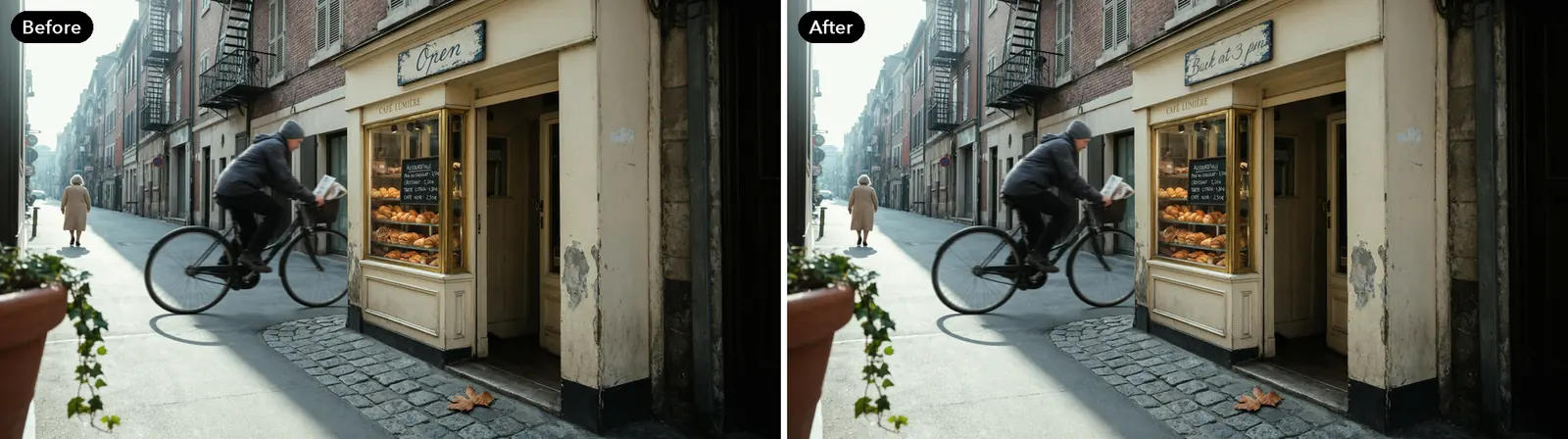 A café sign changed from Open to Back at 3 pm in matching hand-painted letters
Change the café sign above the door to read "Back at 3 pm" in matching hand-painted letters. Leave the door, the window display and the cyclist untouched.
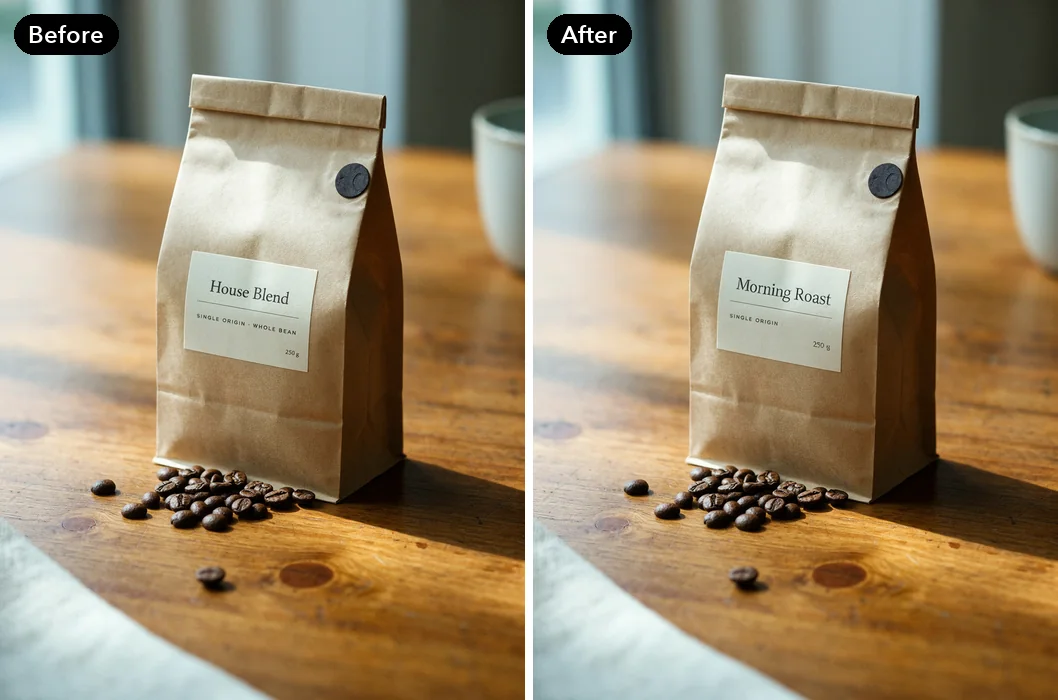 A kraft coffee bag relabeled from House Blend to Morning Roast with Ideogram 4.6
Change the label on the coffee bag to read "Morning Roast, Single Origin, 250 g" in the same serif style on the same cream label. Keep the kraft bag, the beans, the table and the light as they are.
The big words landed cleanly in all three, and the bottle, bag and storefront stayed put. Small print is harder: in our test of 9 AI image generators, Ideogram 4.6 made spelling errors on small labels. Keep label text short, and zoom in to check every word before it goes on a product page. For more on lettering, see our Ideogram prompts that spell text right.
4. Repair Small Defects Without a Reshoot
A frayed thread, a dust speck, a smudge: the kind of flaw that used to mean a reshoot or an hour of retouching. Ideogram reports 86% usable results on small-defect repairs, up from 61% on 4.5.
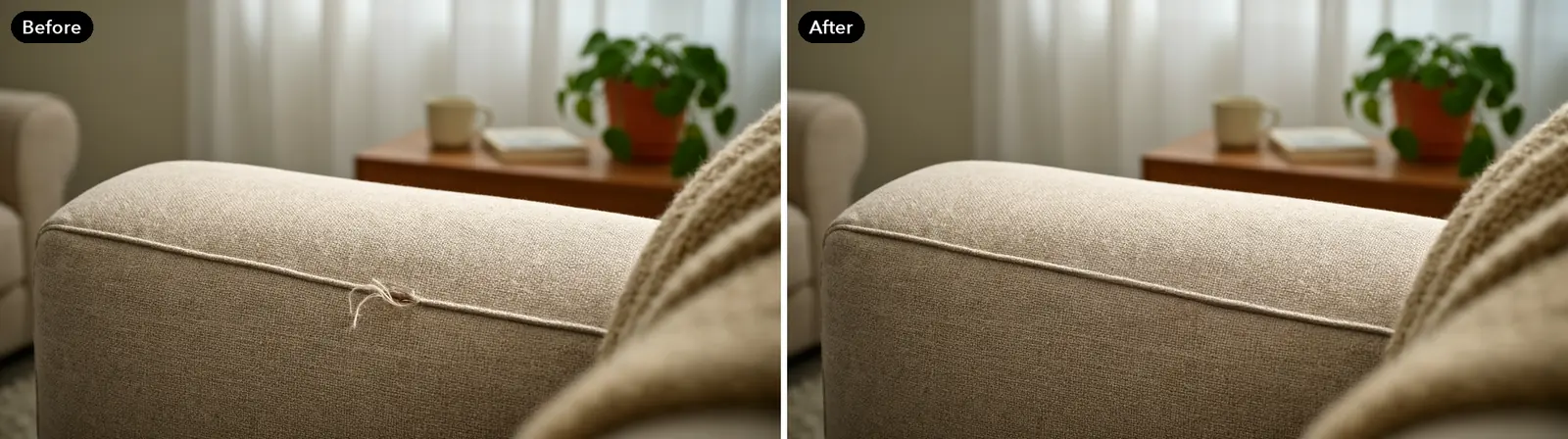 A frayed thread on a linen sofa seam repaired with Ideogram 4.6
Fix the frayed thread on the sofa cushion seam so the stitching looks factory-new. Nothing else in the living room should move.
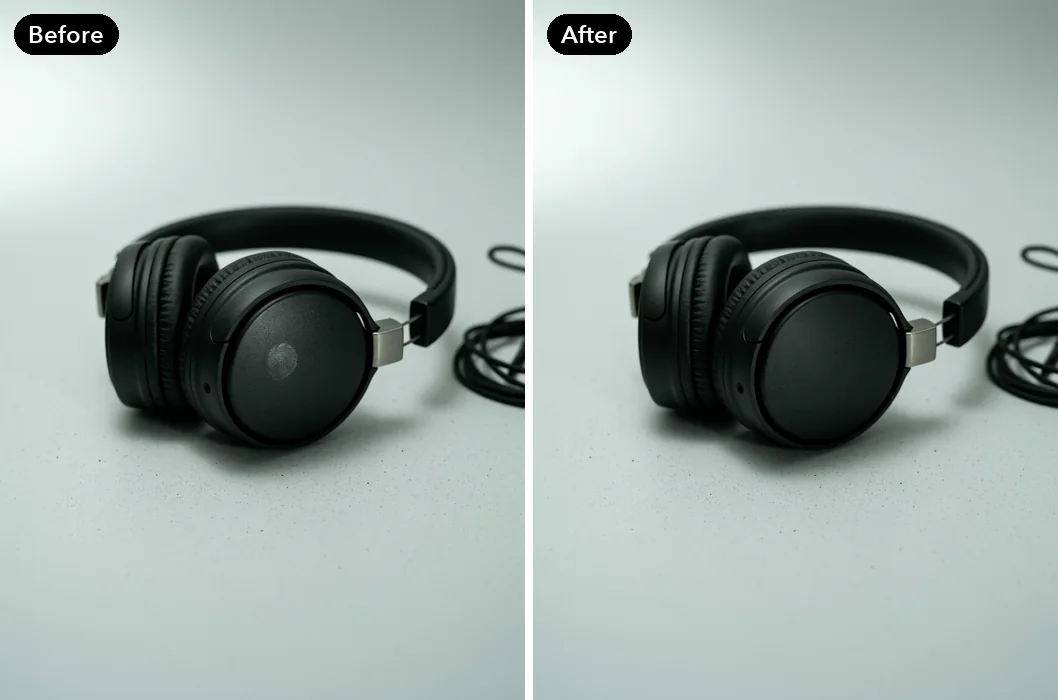 Dust specks and a smudge removed from black headphones with Ideogram 4.6
Remove every dust speck from the surface and the smudge on the ear cup so the headphones look freshly unboxed. Keep the headphones' shape, the cable, the shadows and the grey surface unchanged.
Both repairs were clean, and the fabric weave and surface texture survived. One lesson: we also asked it to remove a "small scratch" on a watch bezel, but the scratch was so faint in the source that there was almost nothing to remove. Describe where the defect is ("at the two o'clock position") and make sure it's actually visible.
5. Change an Outfit and Keep the Person
Wardrobe edits test identity: the clothes must change while the face, hair and pose stay recognizable. Ideogram measured 85% character consistency on 4.6, up from 69%.
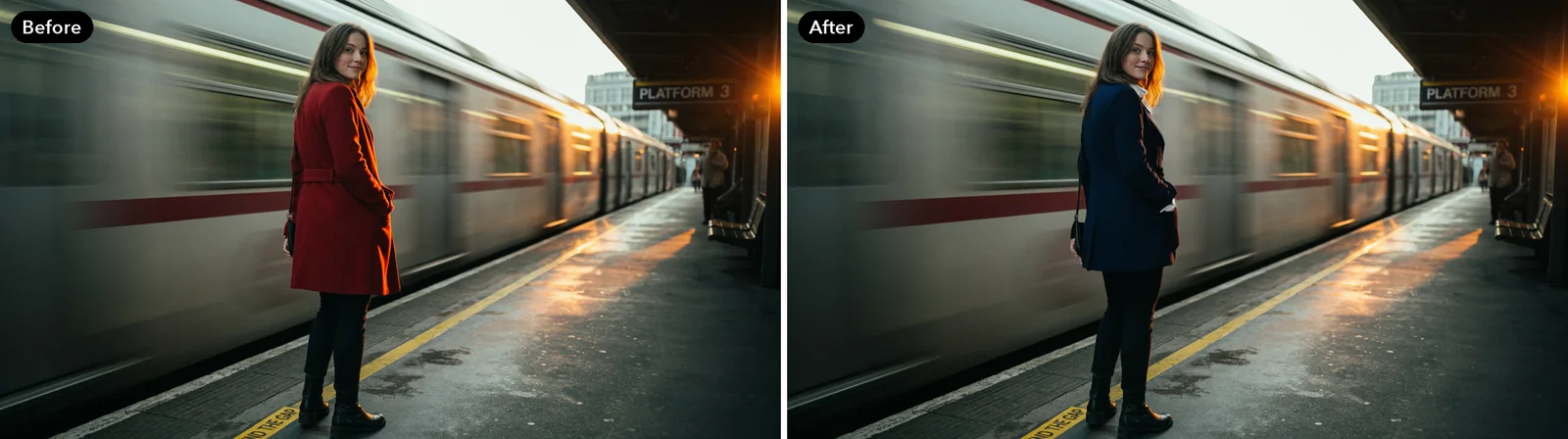 A woman's red coat changed to a navy blazer on a train platform with Ideogram 4.6
Put the woman in the red coat into a navy wool blazer and a white shirt. Her face, hair, pose and the train platform behind her stay exactly the same.
For a full look, build it in turns: the coat first, then the accessories on the result.
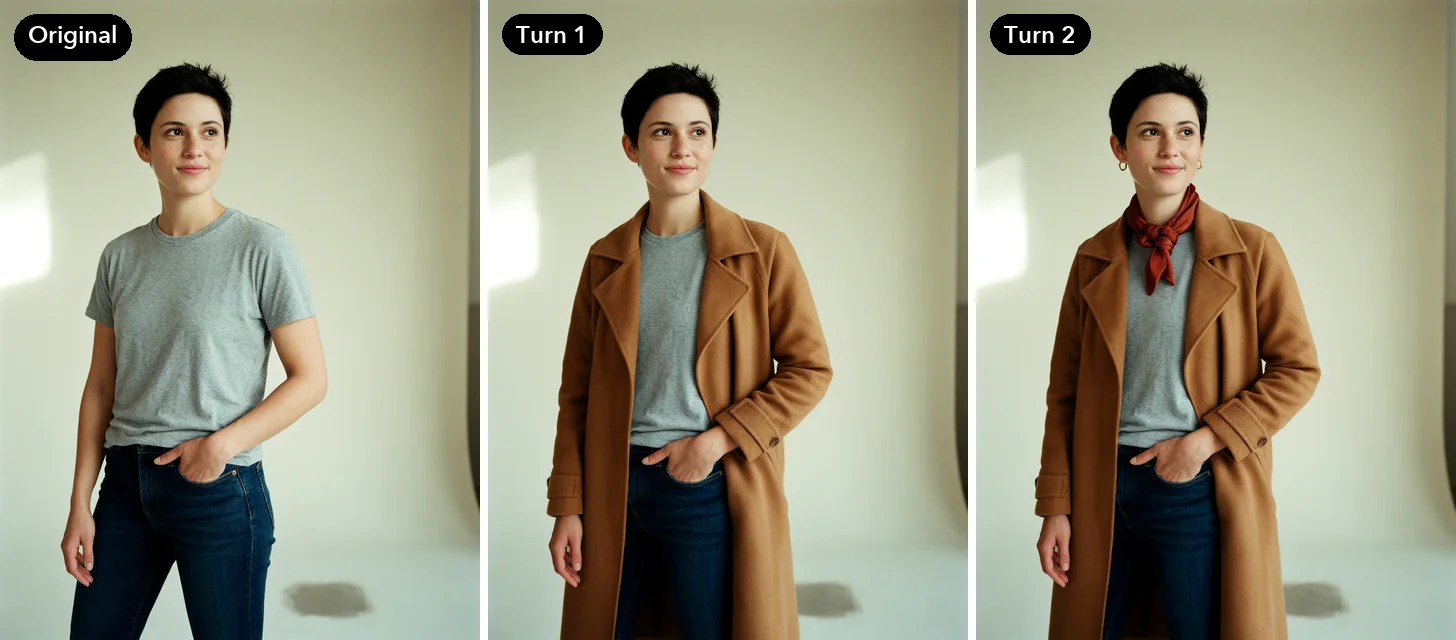 A grey t-shirt styled with a camel trench coat, then earrings and a scarf, across two Ideogram 4.6 turns
Turn 1: Dress the woman in a camel wool trench coat over the grey t-shirt. Her face, hair, pose, jeans and the studio wall stay exactly the same.
*> Turn 2: Add small gold hoop earrings and a silk scarf in rust red around her neck. Her face, hair, the camel trench coat, pose and the studio wall stay exactly the same.
The face held across both turns. Ideogram still advises checking the face after each turn, and so do we.
Editing one photo at a time works for a few looks. If you need a whole collection on model, with your real garments, the same AI model across every shot and catalog-ready output, use ImagineArt's AI Fashion Studio. It's built for casting, dressing and shooting full fashion campaigns.
6. Swap a Material or Finish
Material swaps are the industrial designer's version of a colorway: the same object, a different surface. Name the material precisely and keep the shape.
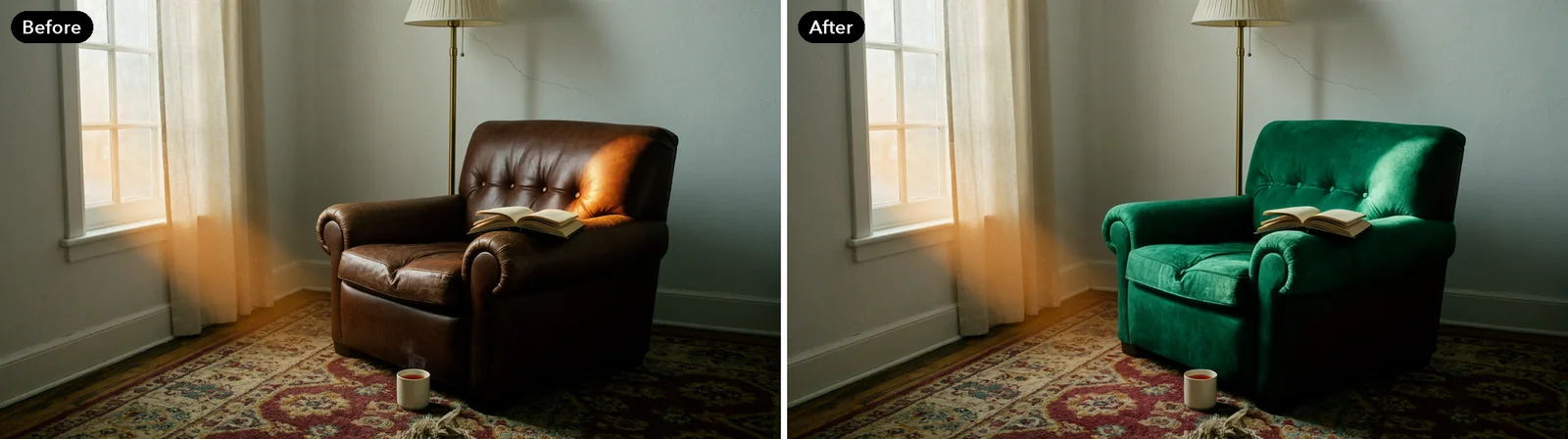 A brown leather armchair turned to green velvet with Ideogram 4.6
Turn the brown leather armchair into green velvet. Keep the open book on the arm, the room, the lamp, the rug, the mug and the window light exactly as they are now. Add nothing new.
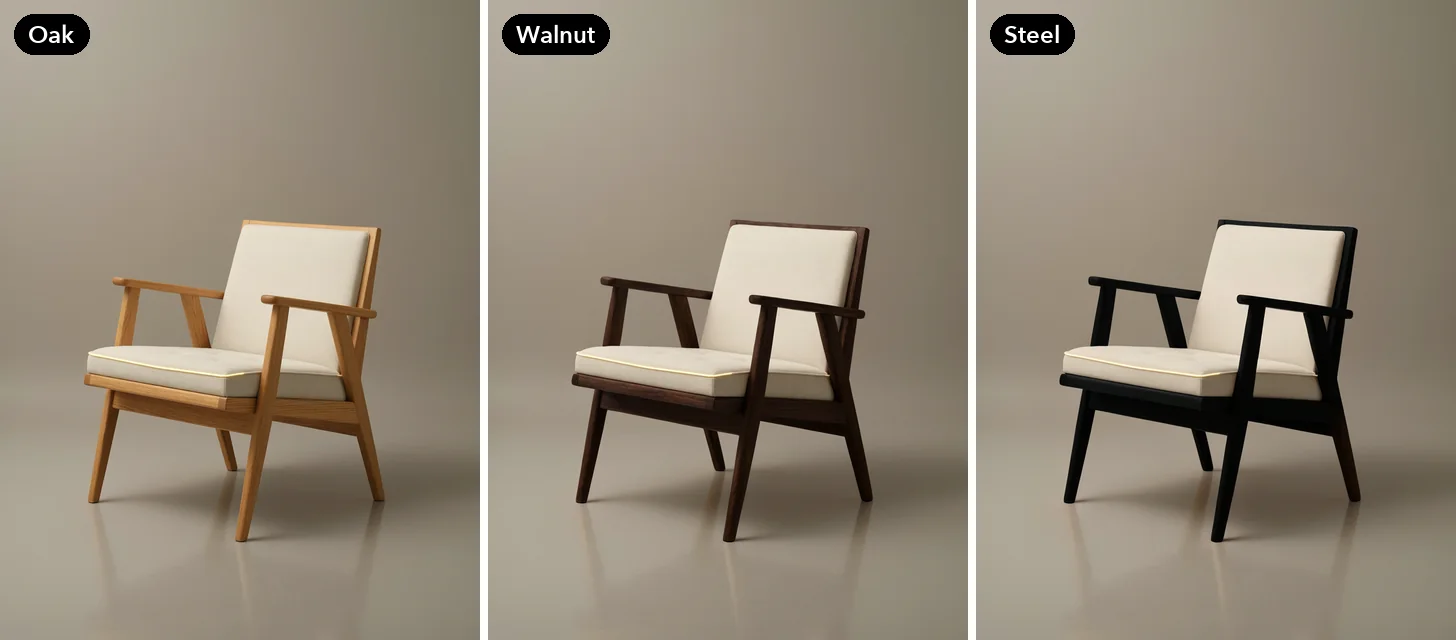 A lounge chair frame shown in oak, then walnut, then black powder-coated steel
Change the chair's light oak frame to dark walnut wood. Keep the cream upholstery, the chair's shape and angle, the shadow and the backdrop exactly as they are.
The velvet pile and the walnut grain both read as real materials, not color filters. That makes this useful for showing a client three finishes before a sample is made.
7. Move a Product to a New Background
Moving a product from a studio sweep into a lifestyle scene is the most common e-commerce edit. The risk is that the model redraws the product too, so tell it plainly that the product must not change.
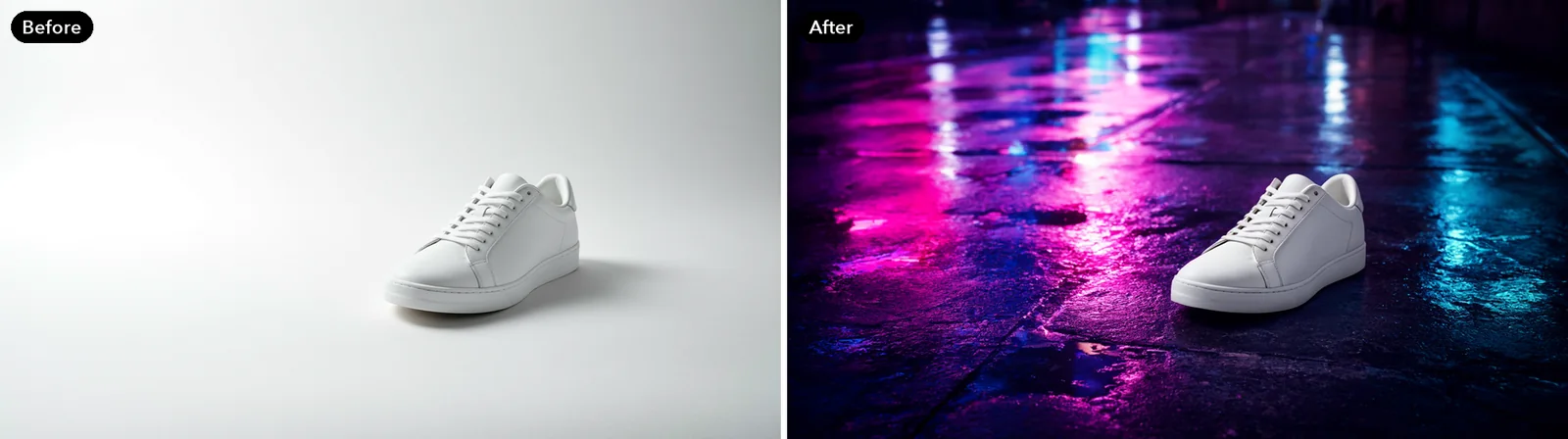 A white sneaker moved from a studio sweep to a wet neon city sidewalk with Ideogram 4.6
Move this sneaker product shot from the white studio sweep to a wet city sidewalk at night, with neon reflections on the ground. The shoe itself shouldn't change at all.
The shoe's shape and stitching held, and the scene added reflections under it. That small detail is what makes a background swap look shot rather than pasted.
8. Restyle an Interior
Real estate agents and interior studios can stage one listing photo several ways. Keep the architecture in the keep-list: walls, floor, window and light.
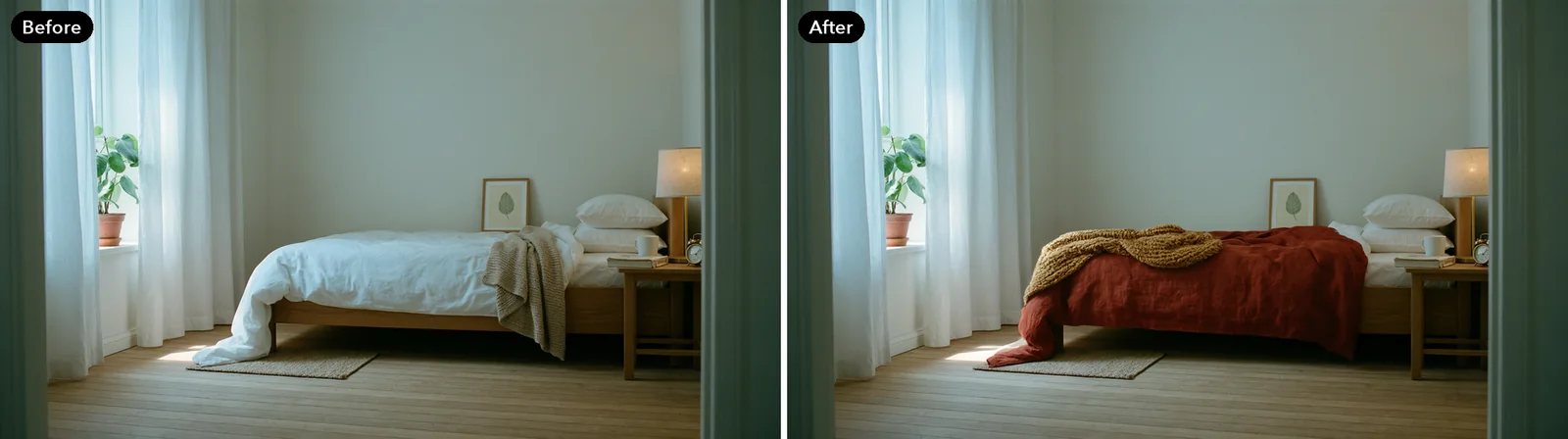 A white bedroom restyled for autumn with a rust duvet and knit throw
Restyle the bedroom for autumn: swap the white duvet for a rust linen one and add a knit throw at the foot of the bed. Walls, floor and window stay as photographed.
 One living room restyled twice, warm oak and linen for a family, then black leather and steel for a city buyer
Turn 1: Restyle this living room for a young family: warm oak furniture, a linen sofa in oatmeal, a jute rug and a few plants. Keep the walls, the floorboards, the window and the daylight exactly as photographed.
*> Turn 2: Restyle this living room for a city professional: a black leather sofa, a black steel coffee table and a dark wool rug. Keep the walls, the floorboards, the window, the plants and the daylight exactly as photographed.
The room's geometry and daylight stayed fixed across both turns, which is what makes the two versions comparable for a buyer.
9. Swap in a Product From a Second Image
Ideogram 4.6 can take reference images as well as the photo you're editing. It edits the first image using the others as references. On ImagineArt, edit mode takes up to 4 images.
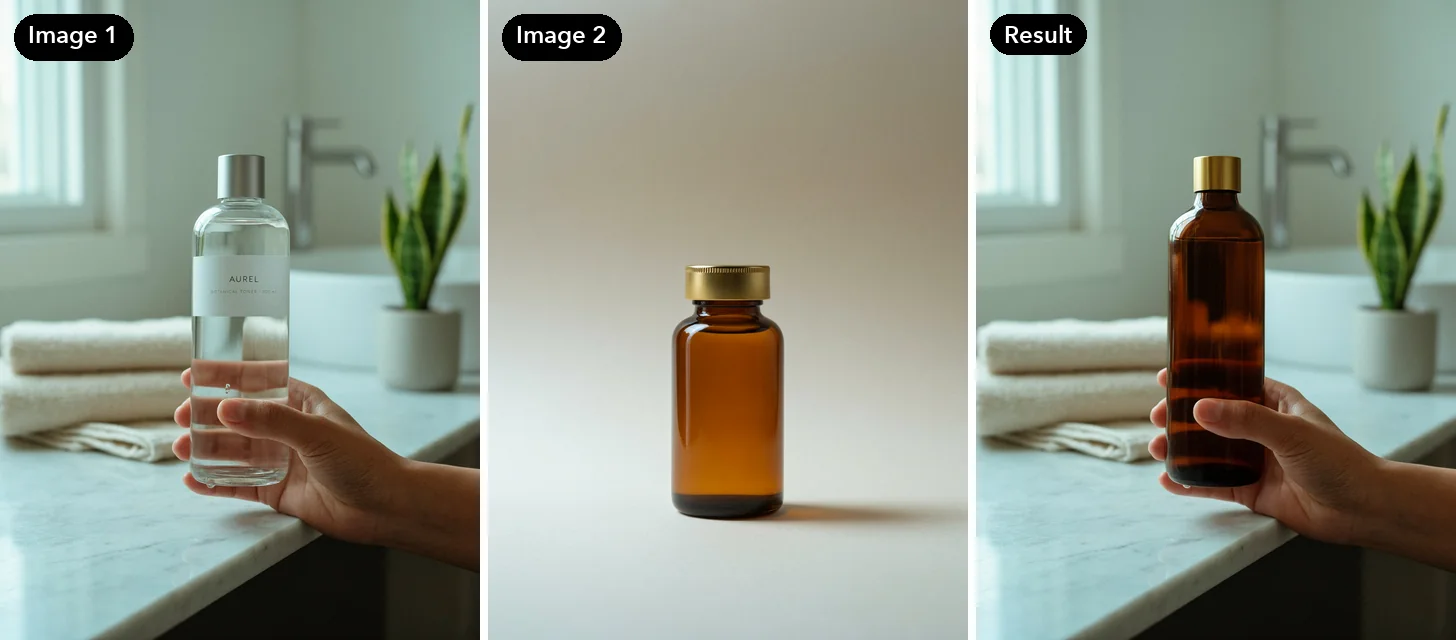 A plain glass bottle in a hand replaced with an amber bottle from a second reference image
Replace the plain glass bottle in the first image with the amber bottle and gold cap from the second image. Keep the hand holding it, the lighting and the bathroom shelf.
The amber bottle took on the scene's light and sat naturally in the hand. This is the fastest way to put a real product into a lifestyle photo you already like.
10. Change the Time of Day
Relighting a scene is a big change, so the keep-list has to cover everything structural. Name the light source you want switched on.
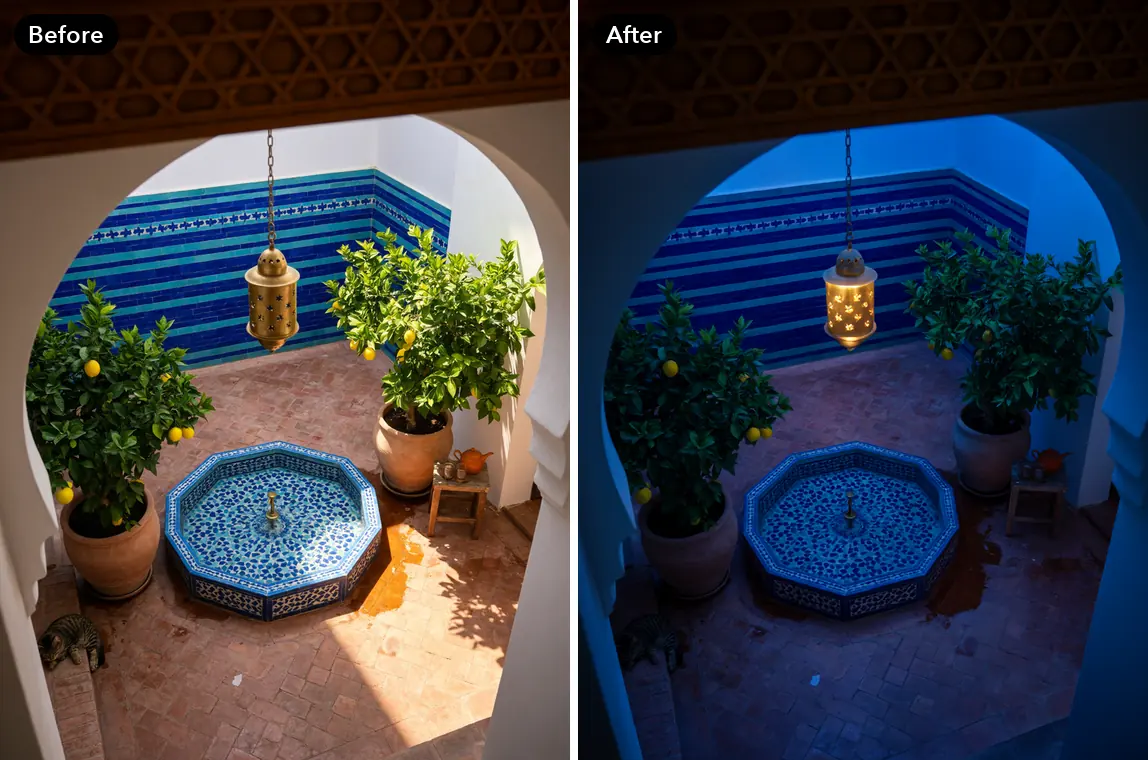 A Moroccan riad courtyard relit from sunny day to blue hour with the lantern lit
Change the time of day to blue hour with the brass lantern lit and glowing warm. Keep the zellige tiles, the fountain, the lemon trees, the pots and the exact framing unchanged.
The tile pattern, fountain and framing matched exactly, and the lantern became the warm accent. Ideogram's Precise Edit mode keeps the source image's dimensions, so a relit photo drops back into your layout without re-cropping.
11. Chain Several Edits, One Turn at a Time
This is the multi-step editing Ideogram 4.6 leads on. Instead of asking for three changes at once, make one, check it and feed the result into the next turn.
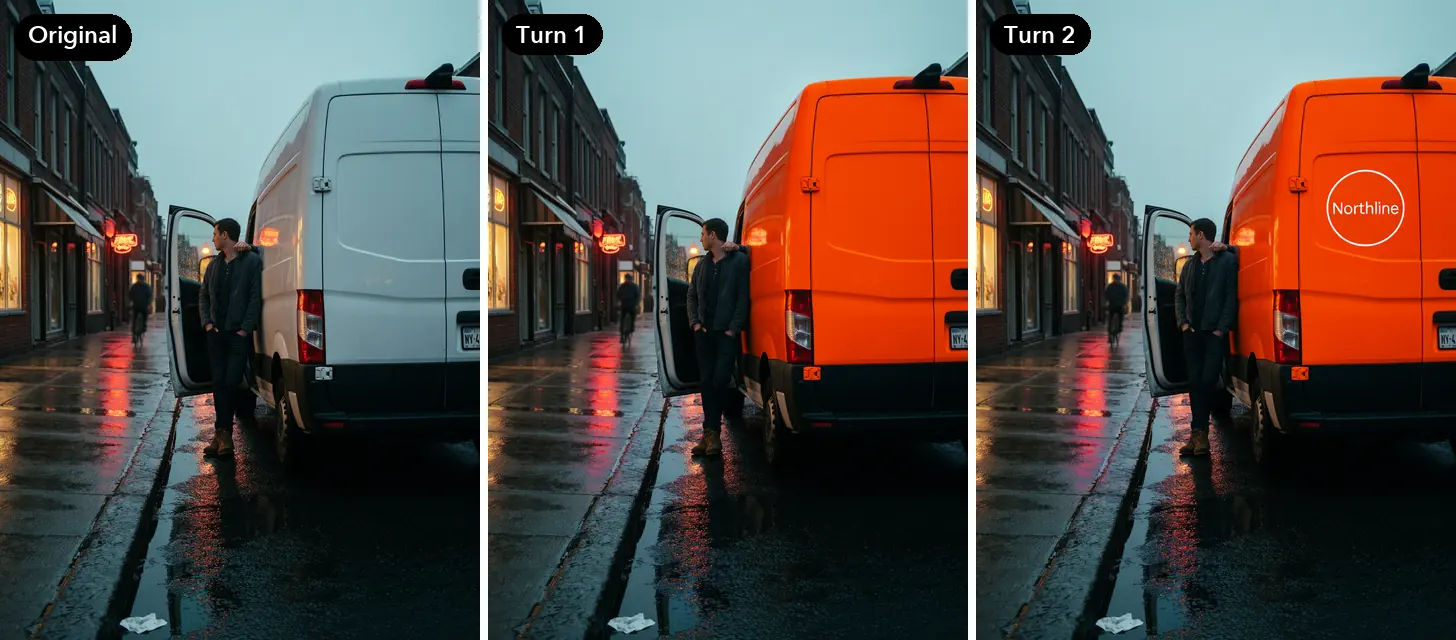 A white van turned orange, then given a door logo, across two Ideogram 4.6 turns
Turn 1: Change the delivery van's livery to brand orange, hex #F26B1D, across the whole body panels. Keep the street, the driver and the reflections on the windshield as they are.
*> Turn 2: Add a simple white circular logo with the word "Northline" on the van's side door. Keep the orange livery, the street, the driver and the reflections on the windshield as they are.
 A red bike turned satin olive, then given white pinstripes, across two turns
 A red tin robot given a chrome finish, then amber eyes, across two turns
None of the three chains drifted between turns. The street reflections, the brick wall and the workbench tools all survived two edits. Notice that each turn-2 prompt repeats the turn-1 change in its keep-list ("Keep the orange livery"), so the second edit can't undo the first.
What Went Wrong and How We Fixed It
Out of 38 edits, two needed a second run, and one taught us something about source photos.
1. An extra object appeared. Our first velvet armchair edit added a yellow cushion to the chair. The original prompt kept "the room, the lamp, the rug and the window light", but didn't mention the book on the arm or say "add nothing new". We reran it with a fuller keep-list and the words "Add nothing new", and it came back clean.
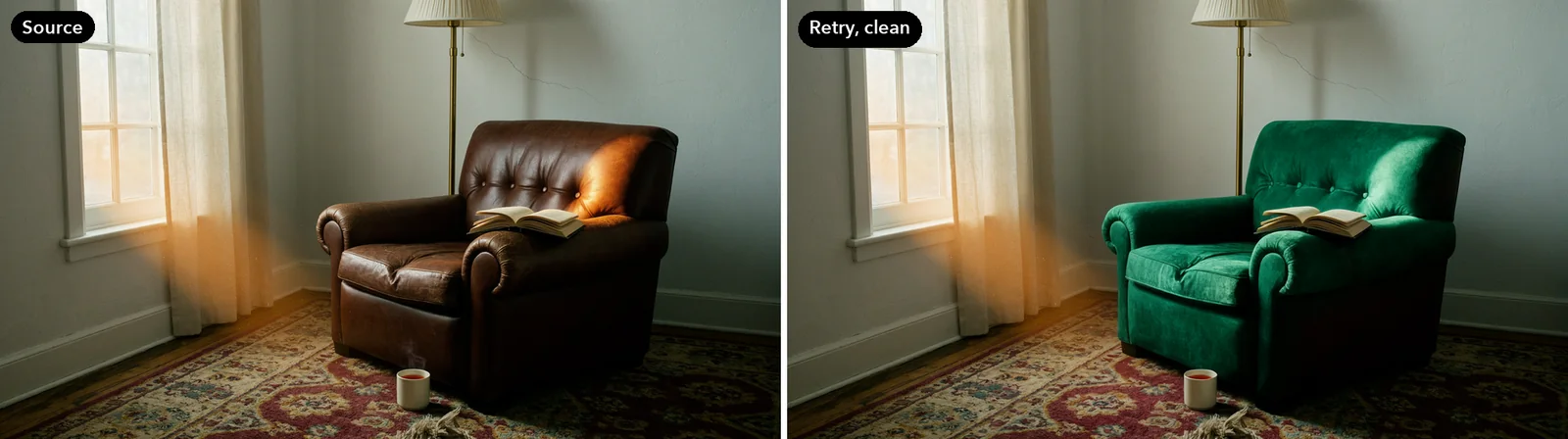 The leather armchair source and the clean velvet retry after adding Add nothing new to the prompt
2. A generation error.
One sneaker colorway returned an error. The same request with slightly reworded phrasing worked on the next run.
3. A defect that wasn't there.
The watch scratch was too faint in the source to see, so the "repair" changed almost nothing. That's not a model failure. The fix is a sharper source photo and a precise location for the flaw.
When an edit adds or moves something, don't rewrite the whole prompt. Add the thing that moved to the keep-list, add "Add nothing new", and run it again.
When to Use Ideogram 4.6 Edit & Generate?
Ideogram 4.6 edits and generates, but editing is where it stands out. Use it to edit when you already have an approved photo and need one thing changed. Use a generator when you're starting from nothing and want to compare looks.
| You have | You want | Use |
|---|---|---|
| An approved product photo | New colorways or a new background | Ideogram 4.6 edit |
| A photo with a flaw | The flaw gone, everything else intact | Ideogram 4.6 edit |
| A pack shot or sign | New text in the same type | Ideogram 4.6 edit, then check spelling |
| A garment collection | Every piece on a consistent model | AI Fashion Studio |
| Only an idea | A new image to start from | AI image generator, comparing models side by side |
| A small or old photo | A bigger file before you edit | AI image upscaler |
A common workflow: generate the base image with the model that suits the look in ImagineArt's AI image generator, then switch to Ideogram 4.6 for the precise fixes. If you're not sure which generator to start with, our AI image generator comparison scores 9 models on 10 real prompts.
Ideogram 4.6 Workflows by Team
One approved photo can do the work of a whole reshoot. Here's how each team gets the most out of Ideogram 4.6.
1. E-commerce Teams
Every Colorway From One Hero Shot
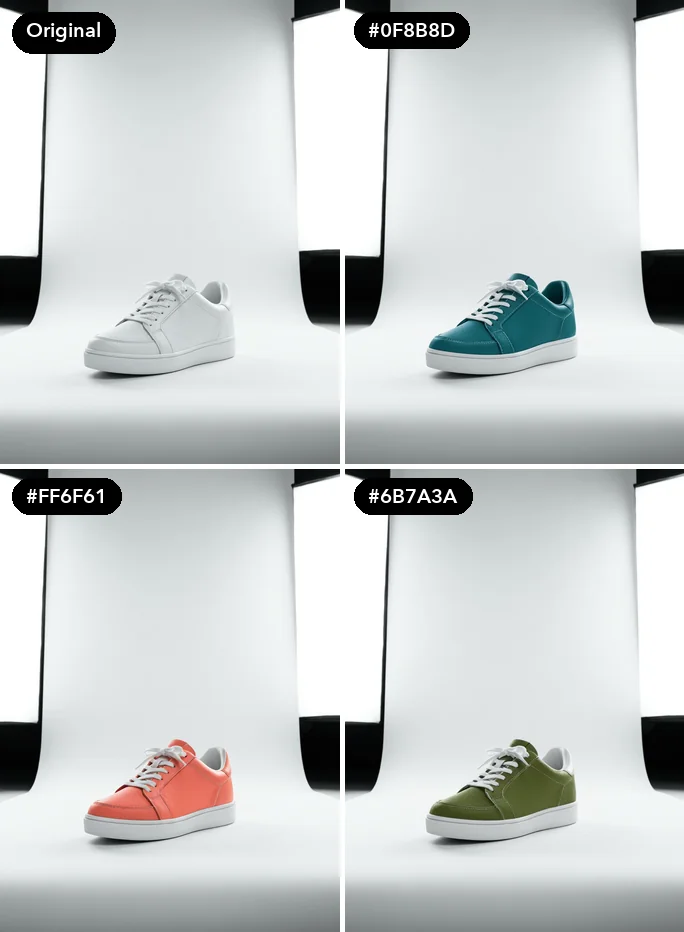 One sneaker shown in its original white and three hex-code colorways made with Ideogram 4.6
- Shoot one hero image per product.
- Generate each colorway from the original with a hex code.
- Move the product into lifestyle scenes for ads and listings.
- Every variant keeps the same angle, light and shadow.
2. Fashion Brands
New Looks on an Approved Campaign Photo
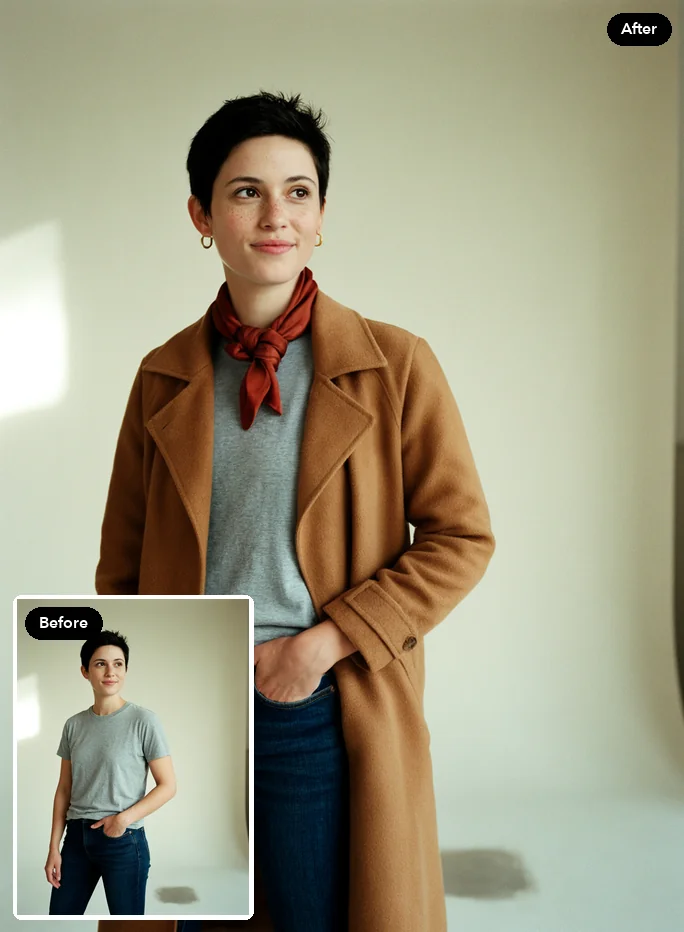 A model's outfit built up over two Ideogram 4.6 turns, a trench coat then earrings and a scarf
- Swap a jacket, add an accessory or recolor a bag.
- Build the look in turns and check the face each time.
- Keep the pose, background and light locked in the prompt.
- For full collections on model, use AI Fashion Studio.
3. Brand Designers
Relabel Packs and Signs Without a Reshoot
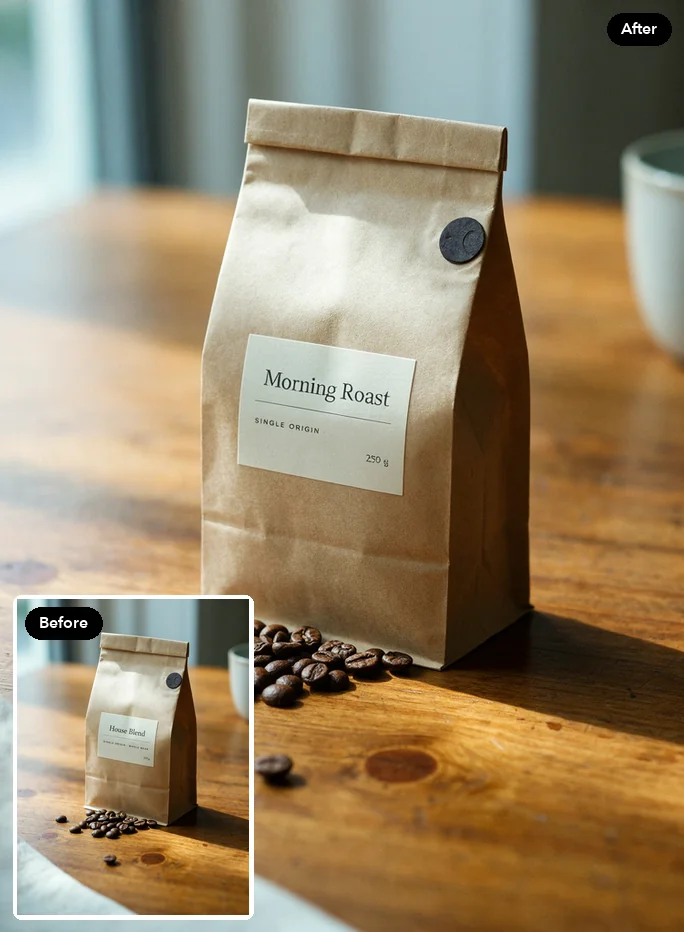 A kraft coffee bag relabeled from House Blend to Morning Roast with Ideogram 4.6
- Put the new copy in quotes and ask for the same type style.
- Update seasonal names, sizes and prices on pack shots.
- Keep labels short so the lettering stays clean.
- Zoom in and check every word before it ships.
4. Product Photography
Clean Up Shots After the Shoot
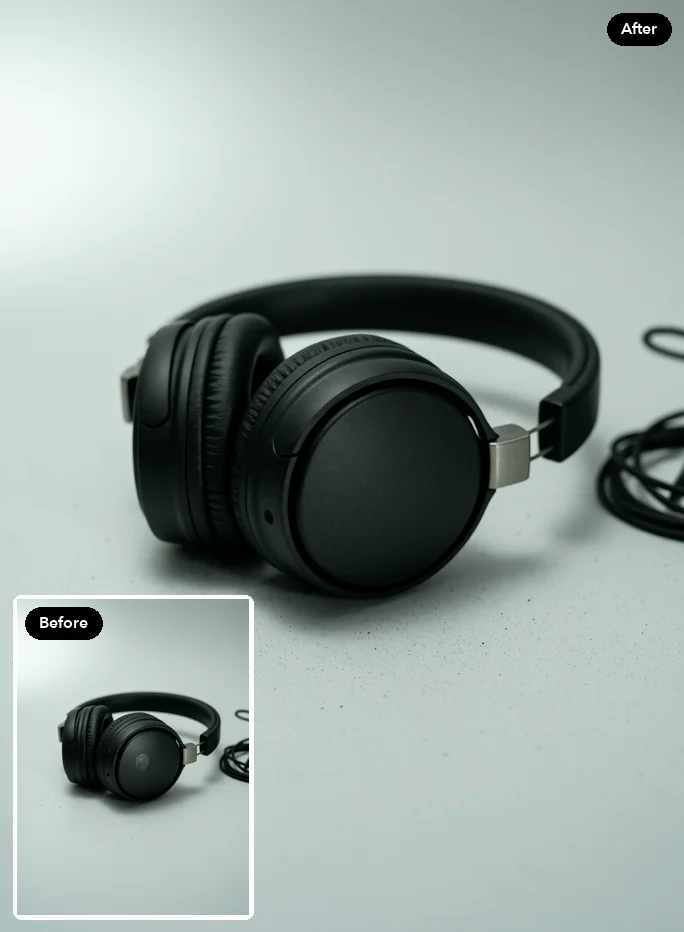 Black headphones with dust and a smudge removed using Ideogram 4.6
- Remove dust, scuffs, smudges and stray threads.
- Say exactly where the flaw is, like "at two o'clock".
- Protect reflections and texture in the keep-list.
- Upscale small originals before you edit them.
5. Real Estate and Interior Studios
Stage One Room for Every Buyer
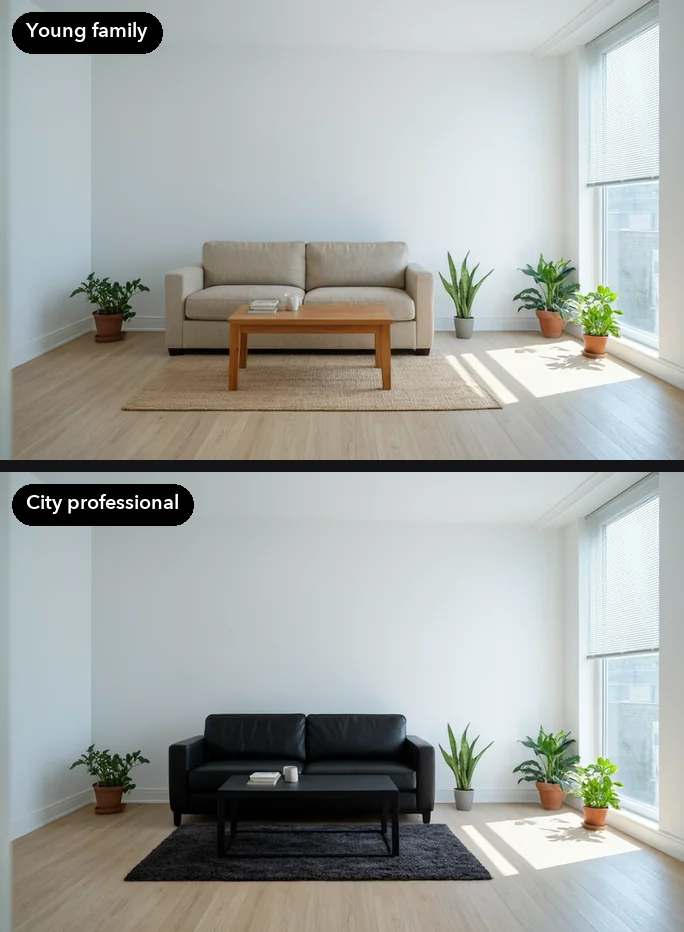 One living room staged twice with Ideogram 4.6, warm oak for a family and black leather for a city buyer
- Restyle one listing photo for different buyers.
- Keep the walls, floor, window and daylight fixed.
- Show clients two styles before anything is bought.
- Run each style as its own turn from the last result.
6. Marketing Teams
From Edited Still to Full Campaign
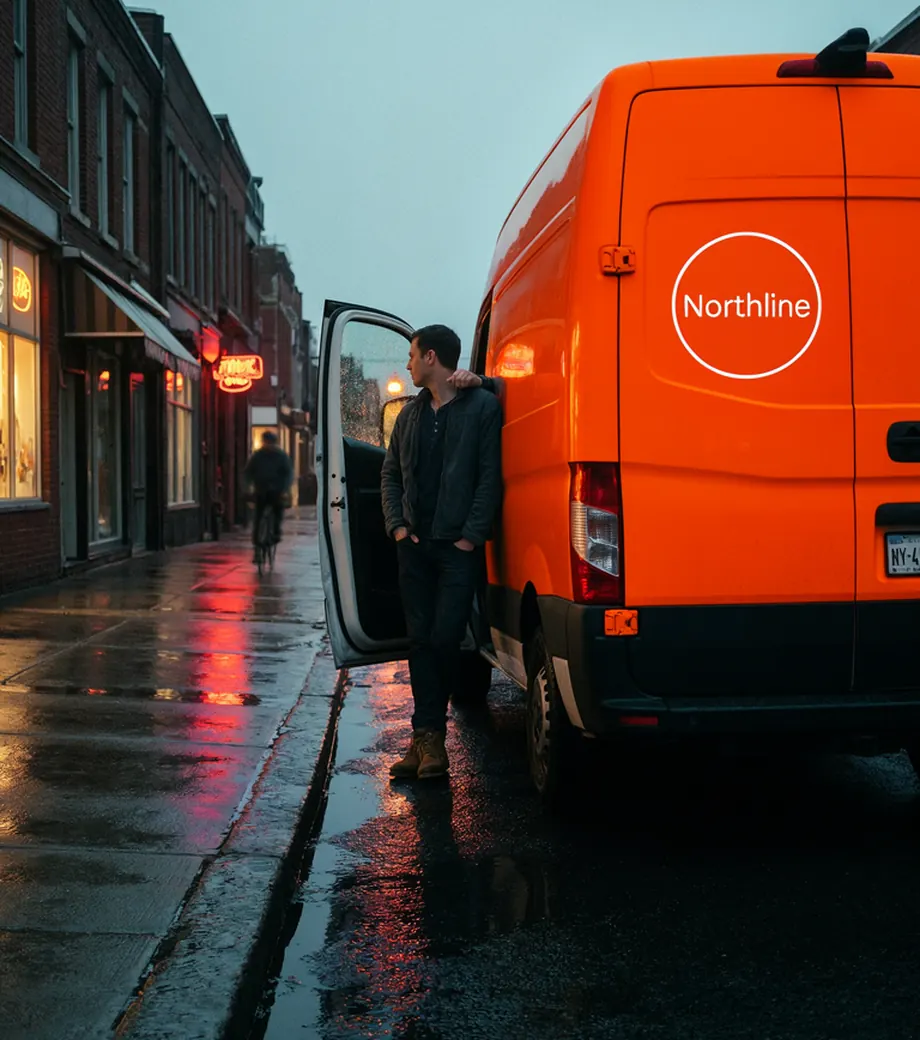 A delivery van with an orange livery and a Northline door logo added over two Ideogram 4.6 turns
- Apply brand colors and logos with hex codes.
- Localize signs and packaging for each market.
- Turn the final stills into ad sets in AI Ad Studio.
- Start new visuals from the AI image generator, then fix details in 4.6.
Ideogram 4.6 Prompt Cheat Sheet
Copy these and fill in the brackets.
| Edit | Prompt template |
|---|---|
| Recolor | Recolor the [object] to [color name], hex [#000000]. Keep the highlights, the shadow under it and every other object untouched. |
| Colorway | Recolor the [product]'s [part] to hex [#000000]. Keep the [other parts], angle, shadow and background exactly as they are. |
| Label text | Change the label on the [object] to read "[exact text]" in the same [style] style. Keep the [object shape] and the [surface] as they are. |
| Sign text | Change the sign above the [place] to read "[exact text]" in matching [lettering style]. Leave the [nearby things] untouched. |
| Defect repair | Remove the [defect] on the [object] at [location]. Don't change the [nearby details] or the background. |
| Outfit | Put the [person] into a [garment and color]. Their face, hair, pose and the [background] stay exactly the same. |
| Accessory | Add [accessory] to the [person]. Their face, hair, [current outfit], pose and the [background] stay exactly the same. |
| Material | Turn the [object] into [material]. Keep its shape, the room and the light as they are now. Add nothing new. |
| Background | Move this [product] from the [old setting] to a [new setting]. The [product] itself shouldn't change at all. |
| Interior | Restyle the [room] for [buyer or season]: [2 to 3 changes]. Walls, floor and window stay as photographed. |
| Reference swap | Replace the [object] in the first image with the [object] from the second image. Keep the [hand, light, surface]. |
| Time of day | Change the time of day to [time] with [light source] lit. Keep the [structures] and the exact framing unchanged. |
| Chain turn 2 | [New change]. Keep [turn-1 change], the [background] and the [details] as they are. |
Final Thoughts
Ideogram 4.6 does what its launch promised in the edits we ran: one change lands, and the rest of the frame stays where it was. The trick isn't a clever prompt. It's a disciplined one: one change, an exact spec, and a keep-list that names everything you care about. Chain your edits instead of stacking them, check text and faces after each turn, and rerun with a fuller keep-list when something moves.
Start with a photo you already like, and change one thing.
FAQs
Ideogram 4.6 adds native 4K generation, far less pixel drift outside your edit, more accurate color and more texture detail. On Ideogram's own tests it beat 4.5 on all five edit tasks it measured, with the biggest gain on exact color matching (83% vs 46% usable). On Rapidata's multi-step editing board the two are close, 1,892 vs 1,866.
Upload your photo in ImagineArt's image studio, choose Ideogram 4.6, and describe one change in plain words along with what must stay the same. Check the result, then use it as the source for your next edit.
Use one change, an exact spec and a keep-list: for example, recolor the vase to hex #0F8B8D and keep the highlights, the shadow and every other object untouched. Hex codes for color and quoted text for labels give the most precise results.
Yes. Put the new words in quotes and ask for the same type style, such as the same serif style or matching hand-painted letters. Large text landed cleanly in our tests, but small print can still contain spelling errors, so check every word.
On ImagineArt, Ideogram 4.6 edit mode accepts up to 4 images. It edits the first image and uses the others as references, for example to swap in a product from a second photo.
Use Ideogram 4.6 for new work, color-critical edits, product shots and anything you need in 4K. Ideogram suggests keeping 4.5 for a workflow you have already tuned while you compare, so run the same edit on both. Both are available on ImagineArt.
In our outfit tests the face, hair and pose held across two turns. Ideogram measured character consistency at 85% on 4.6 and advises checking the face after each turn. For full collections on a consistent model, AI Fashion Studio is built for that job.
Add the thing that moved to your keep-list, add the words Add nothing new, and run the same edit again. That fixed the one drift we saw in 38 edits.
No. Ideogram 4.6 is a premium model, so it needs a paid plan. ImagineArt's free plan covers its in-house models, and the subscription page shows which plan fits how often you edit.
Kamran Arshad
Kamran Arshad is a full-stack marketer and growth strategist for Gen AI and B2B SaaS companies.
View all articlesRecent posts
The Best AI Avatar Generators In 2027: 11 Tools Compared And Ranked
50 Types of Art Styles: Definitions, Examples and AI Prompts

Best time to post on Instagram and Reels: 4 studies compared