Tooba Siddiqui
May 11, 2026 • Updated May 11, 2026
14 mins Read
Most photographers already have a RAW processing tool for exposure, white balance, and colour correction. What they are missing is the creative editing layer: removing the cable running through the frame, replacing a flat background with something that matches the brief, fixing lighting that was inconsistent on the day, generating colour variants of a product shot without booking another studio session.
This is where most AI photo editors fall short. Standard RAW processors are not built for creative editing tasks — they are built for colour and tonal correction. Object removal, background replacement, post-shoot relighting, and colour variant generation require dedicated tools built specifically for those jobs.
ImagineArt is purpose-built for the creative editing layer. Ten dedicated tools covering every post-shoot task that traditional photo editing software cannot handle quickly, accurately, or at scale — working alongside your existing RAW workflow, not replacing it.
For a broader look at what is available in the AI photo editing space, see best photo editing apps.
What Do Photographers Actually Need From an AI Image Editor?
The answer depends on which part of the editing workflow you are talking about. Most conversations about AI image editors conflate two very different jobs.
RAW processing — exposure correction, white balance, colour grading, lens correction, noise reduction. Most professional photographers have this covered with their existing tools. This is not the problem.
Creative editing — removing unwanted elements, replacing backgrounds, correcting lighting after the shoot, generating product colour variants, restoring and colorising archive photographs, upscaling for large format print. This is where traditional photo editors are slow, manual, and in some cases incapable.
Here is what photographers actually need from an AI image editor:
- Fast object removal — with no manual brush masking per object
- Background replacement — subject extraction and environment swap in one step
- Post-shoot relighting — correcting flat or inconsistent lighting without reshooting
- Colour variant generation — product and fashion colour changes without a second shoot day
- Resolution enhancement — print-ready upscaling for heavily cropped or older files
- Photo restoration and colorisation — for archival and portrait restoration work
- Generative fill and inpainting — for complex creative replacements beyond simple removal
ImagineArt covers every one of these. Here is the full toolkit.
The Best AI Image Editor for Photographers
ImagineArt is the best AI photo editor for photographers in 2026 because it is the only platform that covers the full creative editing layer — ten dedicated tools, each purpose-built for a specific post-shoot task — with a free plan that lets you start immediately.
The workflow is straightforward: complete your RAW processing as usual, export at full resolution, and bring your images into ImagineArt for the creative editing layer. The two workflows complement each other cleanly.
Here is everything in the toolkit.
ImagineArt AI Photography Editing Toolkit
ImagineArt AI Object Remover
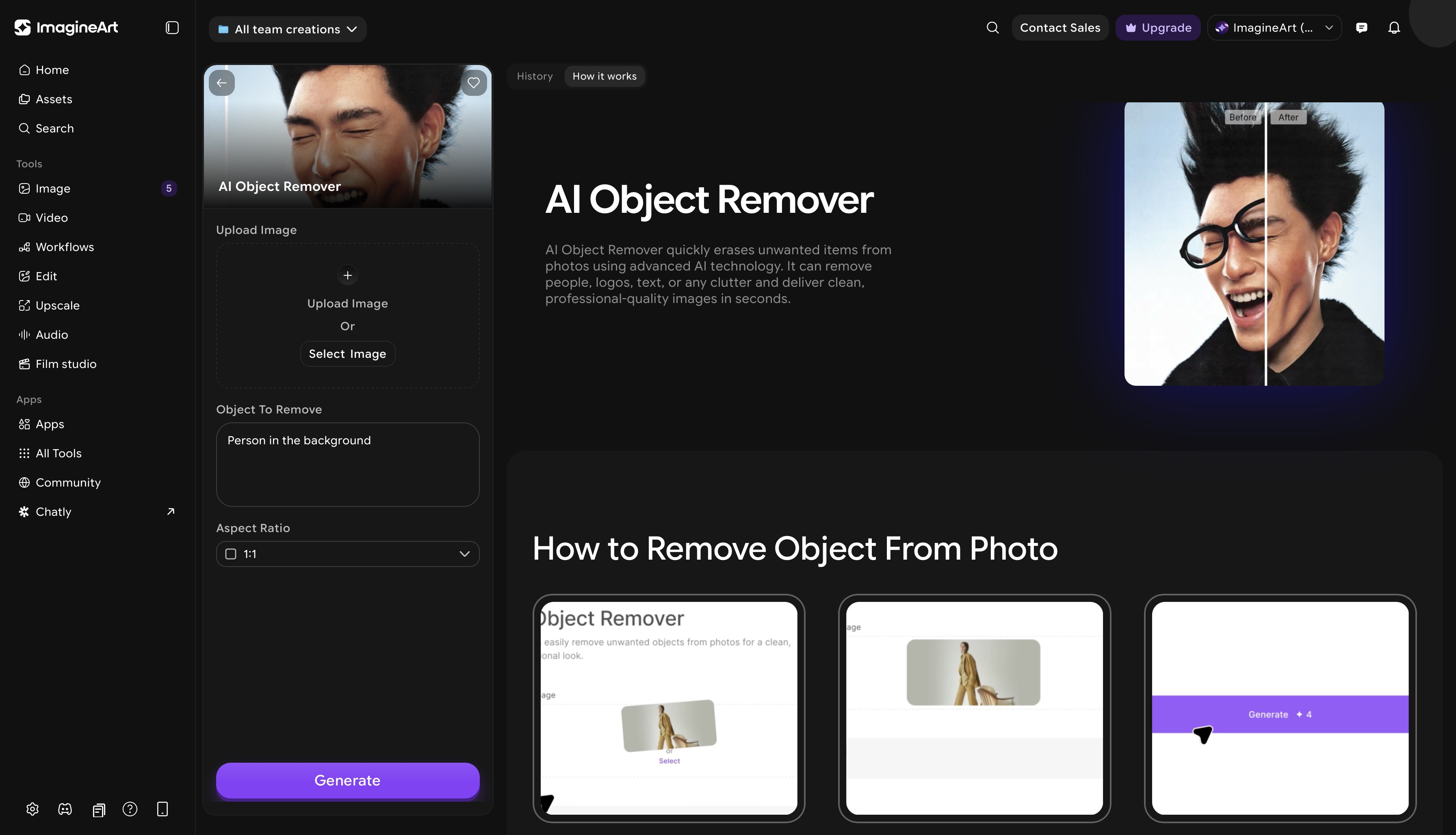 ImagineArt AI object remover dashboard
The distraction in the background. The power line cutting through the landscape. The stranger who walked into the frame at exactly the wrong moment.
ImagineArt AI Object Remover eliminates unwanted elements from any photograph using a text prompt — describe what needs to go, and it goes. No brush selection, no manual masking. Results arrive in seconds.
Best for: Removing photobombers and bystanders from travel and lifestyle photography, clearing cables and equipment from product and interior shots, eliminating distracting foreground elements, removing logos and labels from props in commercial photography.
For photographers clearing distractions across a large shoot, the text-prompt approach removes the per-object manual workflow entirely — type what needs to go and move on. For a full guide, see how to remove objects from images.
ImagineArt Inpaint
🎨 Introducing Inpaint
— ImagineArt (@ImagineArt_X) March 5, 2026
That one corner of your image that's almost perfect?
Fix it with words.
Remove objects. Add new elements. Transform your image with simple prompts.
💬 Comment "inpaint" for a chance to win 1,000 credits! pic.twitter.com/P1hdkqHhzR
Where the AI Object Remover handles removal, ImagineArt Inpaint handles replacement. You brush over the area you want to change, describe what should fill it, and the AI generates content that blends naturally with the surrounding image — matching lighting, texture, and perspective.
Best for: Filling removed areas with contextually appropriate generated content, repairing damaged or scratched areas in archival photographs, extending backgrounds for composition adjustments, complex creative compositing where a simple removal leaves an unnatural gap.
Inpaint gives you the most creative control of any tool in the toolkit. The brush-based approach means you define exactly which area is affected — useful for precise work on portraits, fine art prints, and commercial imagery where the fill needs to be seamless. See the complete guide on inpainting images with AI.
ImagineArt AI Image Replace
AI Image Replace swaps one specific element in a photograph for something entirely different — via a text prompt that describes both the target and the replacement. Rather than erasing an element or painting over it, it substitutes it with something new while preserving everything else in the frame.
Best for: Changing product colours and materials without reshooting, swapping props for seasonal or campaign-specific alternatives, replacing a surface or background element with a more appropriate option, testing different looks in fashion and portrait photography without a second shoot day.
When a product photographer needs ten colour variants of the same shot, AI Replace generates them from a single text instruction per variant. When a fashion photographer wants to preview a dress in four different colours before final selects go to the client, AI Replace handles each change in seconds.
ImagineArt Background Remover
Clean, precise subject extraction from any background — regardless of complexity. ImagineArt Background Remover handles hair, transparent fabrics, intricate product edges, and textured subjects that traditionally require manual masking.
Best for: Product photography cutouts for e-commerce, portrait isolation for composite work, preparing subjects for background replacement, creating transparent PNG assets for design deliverables.
The output is a clean, high-resolution cutout ready for the next step in the workflow — whether that is a new background, a design layout, or a catalogue deliverable. For a comparison of background removal tools, see best background removers.
ImagineArt Background Changer
Once the subject is isolated, ImagineArt Background Changer replaces the entire environment — via a text prompt describing the desired background, a custom uploaded image, or a selection from the stock gallery. Lighting and shadow are preserved automatically to maintain a natural, realistic composite.
Best for: Product photography that needs a studio look without a studio, portrait photography clients who want environmental options from a single shoot day, real estate photography where the exterior background needs to be consistent across a listing regardless of shoot-day weather.
"White marble surface, soft studio lighting" generates a professional product context from any raw product shot. "Golden hour outdoor background" transforms a studio portrait into a lifestyle image without a location shoot. For practical guidance, see how to change background of a photo.
ImagineArt Relight AI
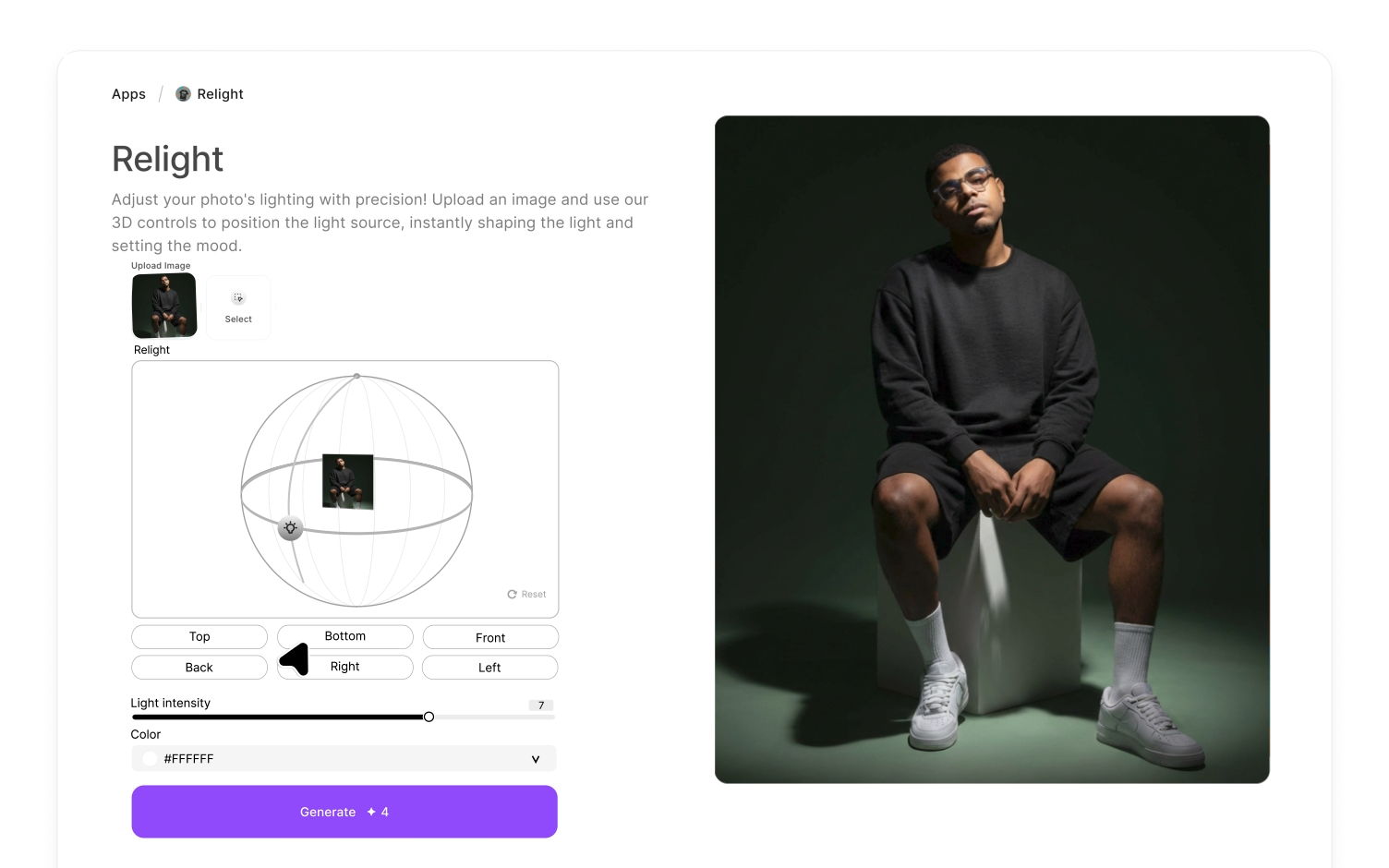 ImagineArt relight dashboard
Lighting is the most difficult element of photography to fix after the shoot. ImagineArt Relight AI adjusts lighting post-capture with 3D positioning controls — place a light source from six directions, set intensity, and choose colour temperature — to add depth and dimension that no standard adjustment panel can replicate.
Best for: Adding depth to portraits shot under flat lighting, correcting inconsistent lighting across a product series, creating mood variations from a single shot for client presentation, fixing ambient light problems in real estate and interior photography.
The 3D light positioning is what separates Relight AI from standard brightness adjustments. You are not brightening the image — you are repositioning the light source within the scene. For foundational lighting knowledge that informs how to use this tool effectively, see photography lighting basics.
ImagineArt AI Recolor
Generate colour variants of any photograph using a text prompt. ImagineArt AI Recolor changes specific colours in an image — a product, a garment, a surface, a background element — while preserving the original textures, shadows, and material quality.
Best for: Product photography colour variant generation for e-commerce catalogues, fashion photography previews for client approval, recolouring props and accessories for campaign consistency, aligning imagery to seasonal or brand palette requirements without reshooting.
For a product photographer delivering ten colourways of the same item, AI Recolor eliminates ten additional studio sessions. The instruction is as simple as "change the bag to forest green" — the tool handles the rest. See tool comparison for best aesthetic photo editing apps to create Insta-worthy photos.
ImagineArt AI Image Upscaler
Resolution enhancement for cropped images, older files, and any photograph that needs to reach print-quality dimensions. ImagineArt AI Image Upscaler increases image resolution while preserving and recovering fine detail — textures, edges, skin tones — rather than simply interpolating pixels.
Best for: Large format print preparation, recovering usable crops from images where the subject was not close enough, enhancing resolution on older digital files, preparing images for billboard or exhibition-scale output.
The most common use case: a strong composition exists inside a larger frame, but cropping to it drops the resolution below print threshold. AI Upscale recovers that image for delivery. For a full guide, see what is image upscaler and how it works.
ImagineArt AI Image Colorizer
Black and white or faded colour photographs restored to realistic, natural colour. The AI Image Colorizer analyses the image and applies contextually accurate colours — preserving original textures, shadows, and tonal relationships — to produce a convincing colorised result in seconds.
Best for: Portrait and wedding photographers offering archive restoration as a service, family photographers restoring client heirloom images, photographers working with historical or archival collections, converting black and white fine art photography into colour variants for commercial licensing.
Archive restoration is a growing service offering for portrait and wedding photographers. Clients with decades of family photographs in black and white represent a consistent source of additional work — and AI Colorizer makes that service deliverable at speed. For restoration techniques, see how to retouch old photos using AI.
ImagineArt AI Image Editor
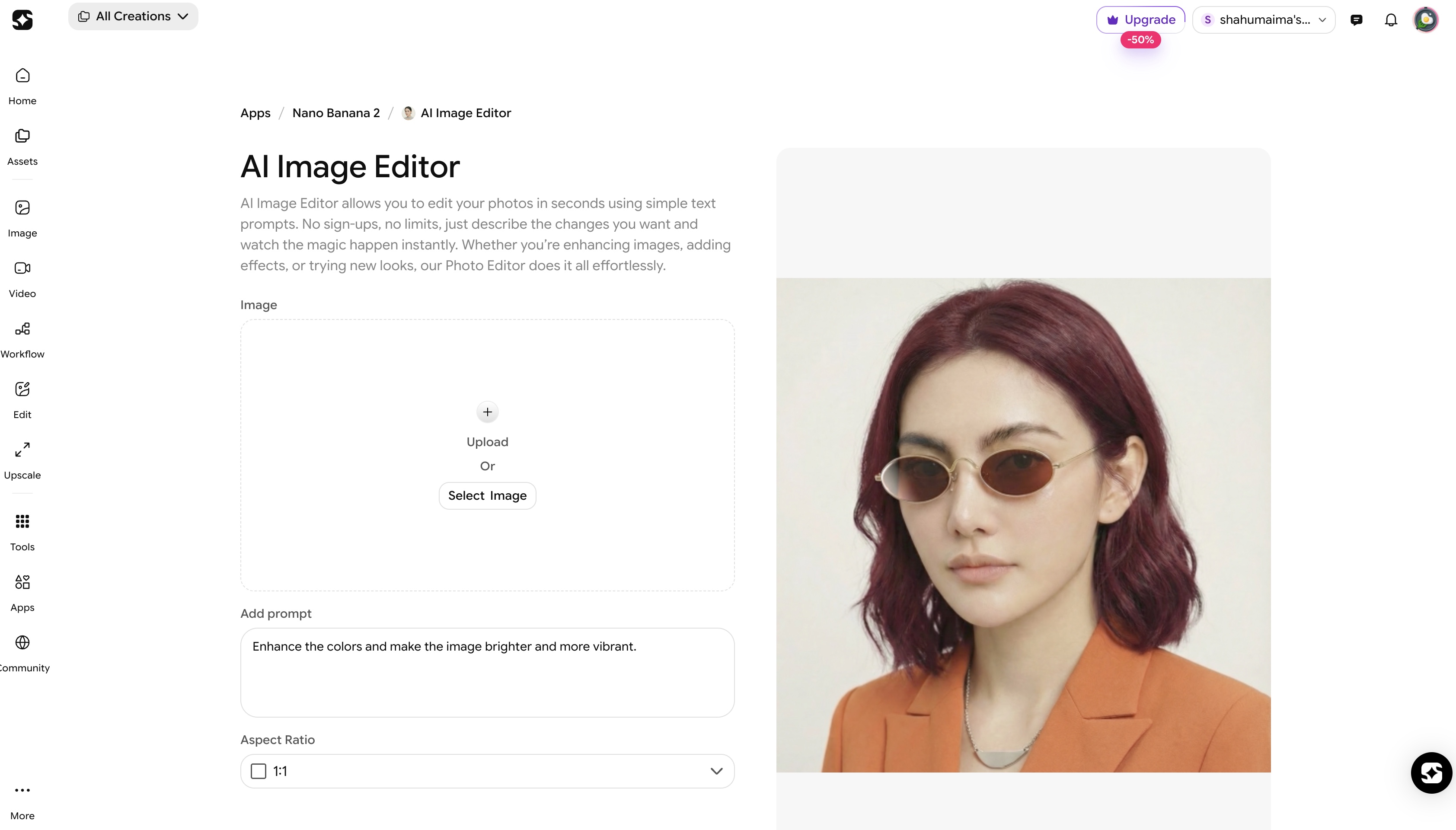 ImagineArt AI image editor dashboard
ImagineArt AI Image Editor offers core editing environment for general retouching, enhancement, skin smoothing, sharpening, and final image polish — the adjustments that fall between RAW processing and creative editing, the final layer before delivery.
Best for: Portrait retouching and skin refinement, general image enhancement and sharpening, final quality review before client delivery, photographers who want a single platform covering both creative editing and standard retouching in one workflow. See full comparison of best AI tools for image editing.
Which ImagineArt Tool Is Right for Your Photography Niche?
- Portrait photographers: use Relight AI to add depth to flat lighting, AI Image Editor for skin retouching and final polish, and Background Changer for clients who want environmental options. Use AI headshot maker for headshot-specific workflows.
- Product photographers: use AI Object Remover to clear distractions, AI Recolor to generate colour variants, Background Changer for studio-quality contexts without a studio, and AI Replace to swap materials and surface details between variations.
- Real estate photographers: use AI Object Remover to clear furniture, cables, and clutter from interiors, Background Changer to correct exterior backgrounds shot in poor weather, and Inpaint to fill complex areas that simple removal leaves incomplete. See real estate photo editing for the complete workflow.
- Wedding photographers: use AI Object Remover to remove photobombers and distractions, Inpaint to repair damaged or imperfect areas in heritage prints, and AI Upscale to deliver large format prints from heavily cropped compositions.
- Fashion photographers: use AI Recolor to preview garment colours for client approval, Relight AI to create mood variations from a single shot, and Background Changer to place subjects in editorial environments without location costs. See best AI tools for fashion photography.
- Restoration photographers: use AI Colorizer to bring black and white archives to life, AI Upscale to recover resolution from deteriorated originals, and Inpaint to repair physical damage, scratches, and fading.
How to Edit Photos with ImagineArt
ImagineArt works as the creative editing layer after your standard RAW workflow. Here is the process from shoot to delivery.
- Complete your RAW processing as usual. Handle exposure, white balance, colour grading, and lens correction in your existing tool. This step does not change.
- Export at full resolution. Export as JPEG or PNG at maximum quality.
- Open ImagineArt and select the relevant tool based on your first creative editing task.
- For object removal: Open AI Object Remover, upload your image, describe what to remove via text prompt. Download the clean result.
- For complex fill or repair: Use Inpaint, brush over the target area, describe the desired fill, and review the result.
- For element replacement: Use AI Replace with a text prompt describing the swap.
- For background work: Use Background Remover to isolate your subject, then Background Changer to apply the new environment.
- For lighting correction: Open Relight AI, set your light source position, intensity, and colour using the 3D controls.
- For colour variants: Use AI Recolor, describe the colour change via text prompt, generate multiple variants in sequence.
- For upscaling: Run the final image through AI Upscale before export for any file going to large format print.
- Download and deliver.
Common Mistakes When Using AI Image Editors as a Photographer
- Using AI editing to compensate for poor in-camera exposure. AI tools enhance well-exposed images — they do not recover badly underexposed files. Correct exposure in-camera remains the foundation of any workflow.
- Over-retouching portraits. AI skin smoothing applied at full intensity removes the natural texture that makes portrait photography look real. Reduce the effect intensity to preserve authenticity.
- Skipping the upscaling step before large format print. Exporting a standard resolution image to a large format printer without upscaling produces visibly soft output. Always run images through AI Upscale before any print above A3.
- Applying background replacement on images where the lighting does not match the new environment. A subject lit from the left placed on a background lit from the right reads as a fake composite immediately. Use Relight AI to match the subject's lighting to the new background before delivery.
- Applying AI colorisation without reviewing the result. AI Colorizer produces natural results but is not infallible on unusual subjects. Always review colorised outputs before delivering to clients — particularly on skin tones and clothing.
For flawless edits, see the photo editing tips for both beginner and professional editors.
Ready to Edit Photographs with ImagineArt?
Every photographer has a shoot-to-delivery gap — the work between exporting from your RAW editor and sending files to the client. For most, that gap is filled with slow manual edits, workarounds in tools that were not built for the job, or creative decisions left unmade because the production cost was too high.
ImagineArt closes that gap. Object removal in seconds, backgrounds replaced via a text prompt, lighting corrected after the fact, colour variants generated without a second shoot day, archives restored and brought to life. Ten tools. One platform. Free to start.
The photographers who move fastest from shoot to delivery in 2026 are the ones who stopped trying to make their RAW editor do everything.
Start with ImagineArt for free — and see how much changes when the right tool is doing the right job.
Frequently Asked Questions
ImagineArt is the best AI image editor for photographers in 2026 for the creative editing layer — object removal, background replacement, post-shoot relighting, colour variants, upscaling, and photo restoration. It works alongside your existing RAW processing workflow as a dedicated creative editing platform.
No — and it is not designed to. Your existing RAW processor handles exposure, colour grading, and library management. ImagineArt handles the creative editing layer that comes after: object removal at speed, background replacement, post-shoot lighting correction, and colour variant generation. The two workflows are complementary.
ImagineArt AI Object Remover is the fastest and most practical option for photographers. It uses a text prompt rather than manual brush selection, delivers results in seconds, and handles complex backgrounds including patterned surfaces, reflections, and shadows.
For portrait photographers, ImagineArt’s strongest tools are Relight AI for post-shoot lighting correction, AI Image Editor for final polish, and Background Changer for environmental options from a single shoot.
ImagineArt covers the full product photography editing workflow: AI Object Remover for clearing distractions, AI Recolor for colour variant generation, Background Changer for studio-quality contexts, and AI Replace for swapping materials and surface details between shot variations.
For wedding photographers, ImagineArt's most useful tools are AI Object Remover for clearing photobombers and distractions, AI Upscale for large format print preparation, AI Colorizer for heirloom archive restoration services, and Inpaint for repairing complex areas in heritage prints.
ImagineArt AI Object Remover, Background Changer, and Inpaint cover the three most common real estate editing tasks: clearing clutter and furniture, correcting weather-affected exteriors, and filling complex removed areas seamlessly.
Tooba Siddiqui
Tooba Siddiqui is a content marketer with a strong focus on AI trends and product innovation. She explores generative AI with a keen eye. At ImagineArt, she develops marketing content that translates cutting-edge innovation into engaging, search-driven narratives for the right audience.