Syed Anas Hussain
February 19, 2026 • Updated March 5, 2026
7 mins Read
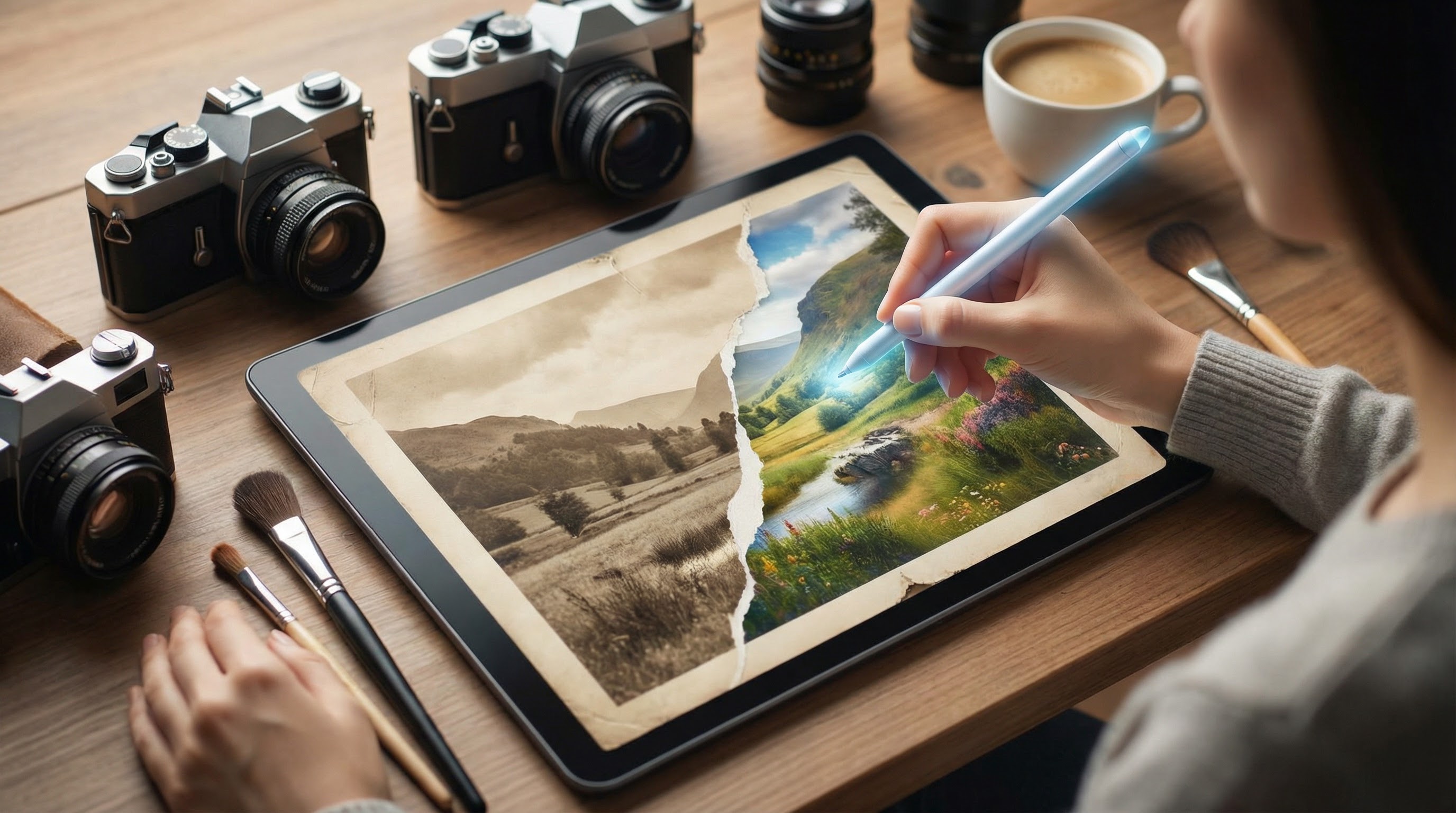
You are a creator stuck with an image, wondering if you had just taken another shot! But no more crying over fate because inpainting images with AI helps you fill, edit, reconstruct areas, remove and replace objects, under 2 minutes.
What Is Image Inpainting?
Image inpainting is the process of filling in a selected region of an image with new content. It works like a smart "patch", simply masking the desired area you want to change, and filling it in. While you can be super creative with inpainting, here are top reasons creators, photographers and marketers use it for:
- removing and replacing objects
- filling in specific areas of an image like empty street to busy street
- generative fill like manipulating image elements
How is image inpainting with AI different from traditional inpaiting?
Traditionally, inpainting images was a manual technique to restore damaged paintings or photographs. It :
- was painstaking and time-consuming
- required a high level of artistic skill.
Today, AI inpainting tools do that heavy lifting in seconds. Most people think this requires editing skills or photoshop experience. But with AI you don’t need any technical knowledge or the ability to learn complicated tools. All you need is the right AI inpainting tool, like ImagineArt. For example, with ImagineArt’s Inpaint Tool you can simply upload an image and inpaint it.
Step-by-Step Process to Inpaint an Image with AI
Here you start:
Step 1 - Open AI inpainting tool
Go to imagine.art and choose the ImagineArt's Image Editor.
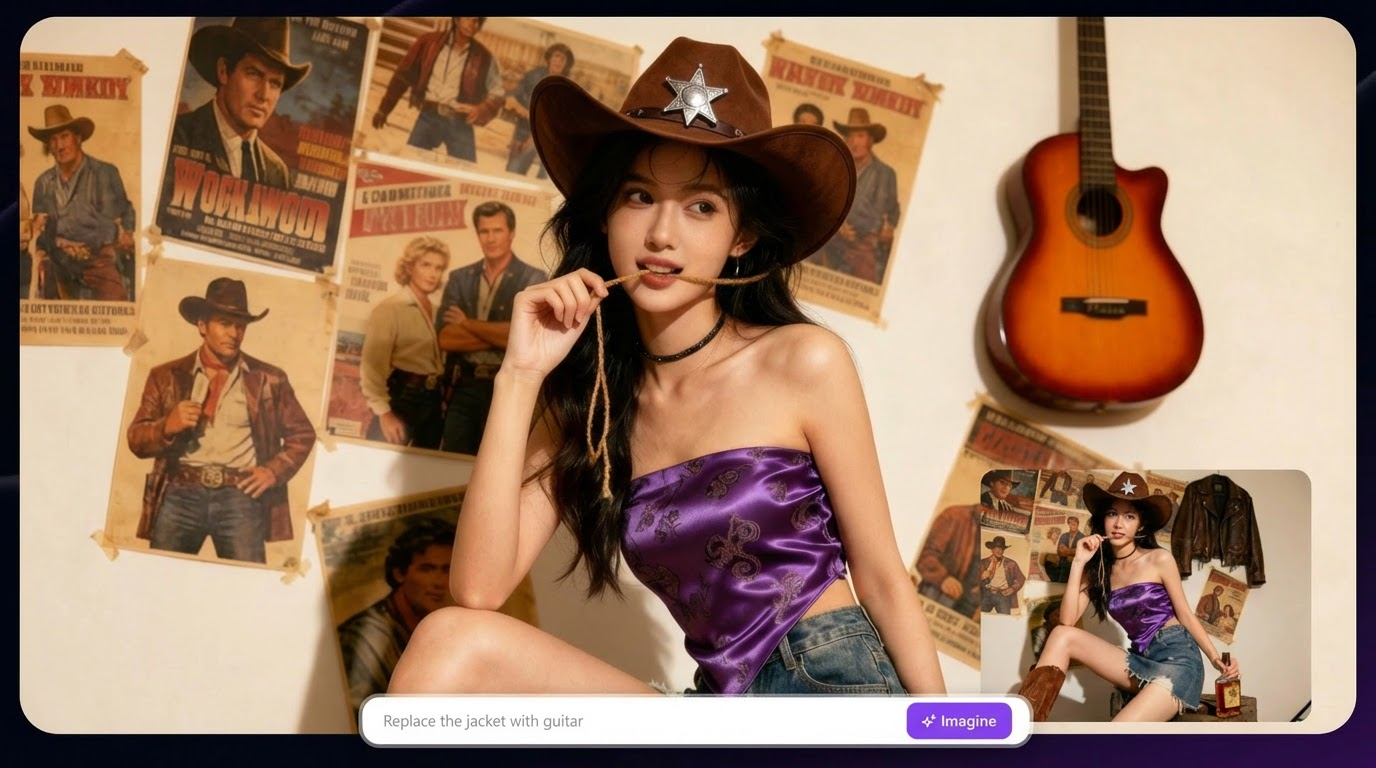
Step 2 - Upload Your Image
Upload the image you want to inpaint or choose from your generated assets.
Step 3 - Write your inpainting prompt
This is the most important step in the entire process, because this is where you tell your inpainting tool exactly what needs to change.
Simply write what you want to edit, remove or replace. It can be anything, a person in the background, or an unwanted object.
However, if the image is complex, don’t try to fix everything in one go. Do it step by step. This gives much better and cleaner results.
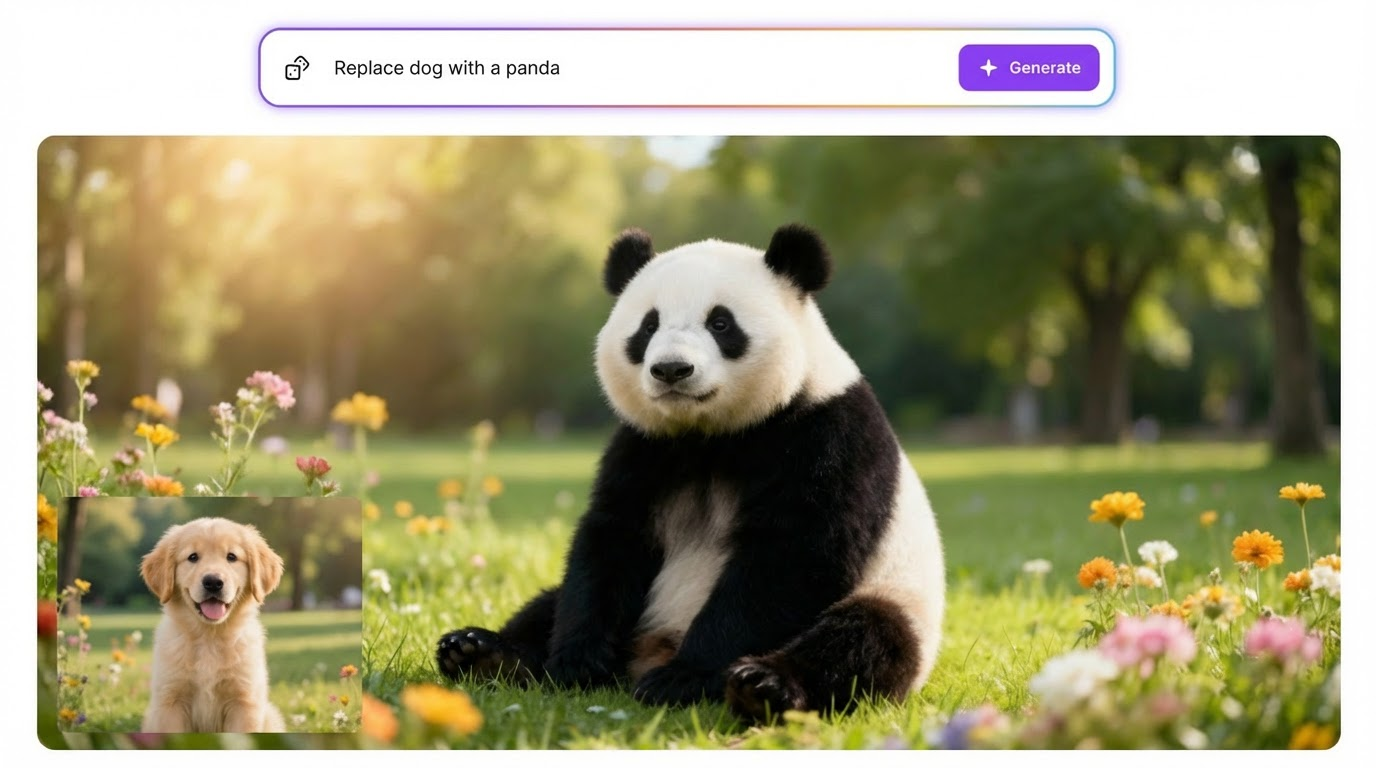
Step 4 - Generate and Export
Click generate and Review the Results. Once you like the output, export it in your desired format.
Imagine Inpainting: AI vs Traditional Methods
- Manual inpainting relied on an artist's eye and skill.
They would study the surrounding textures, colors, and patterns, then carefully recreate them in the damaged area. It worked, but it didn't scale. This was time-consuming and costly.
Today, traditional inpainting mainly happens on Photoshop where only skilled designers patch up objects and persons in images.
- AI inpainting takes your text prompt and 10 seconds to inpaint.
AI image editors use deep learning models trained on millions of images. These models understand context at a pixel level. They don't just fill in a blank, they analyze the edges, lighting, color palette, and surrounding details to generate content that feels like it was always there. This result is faster, more consistent, and accessible to anyone.
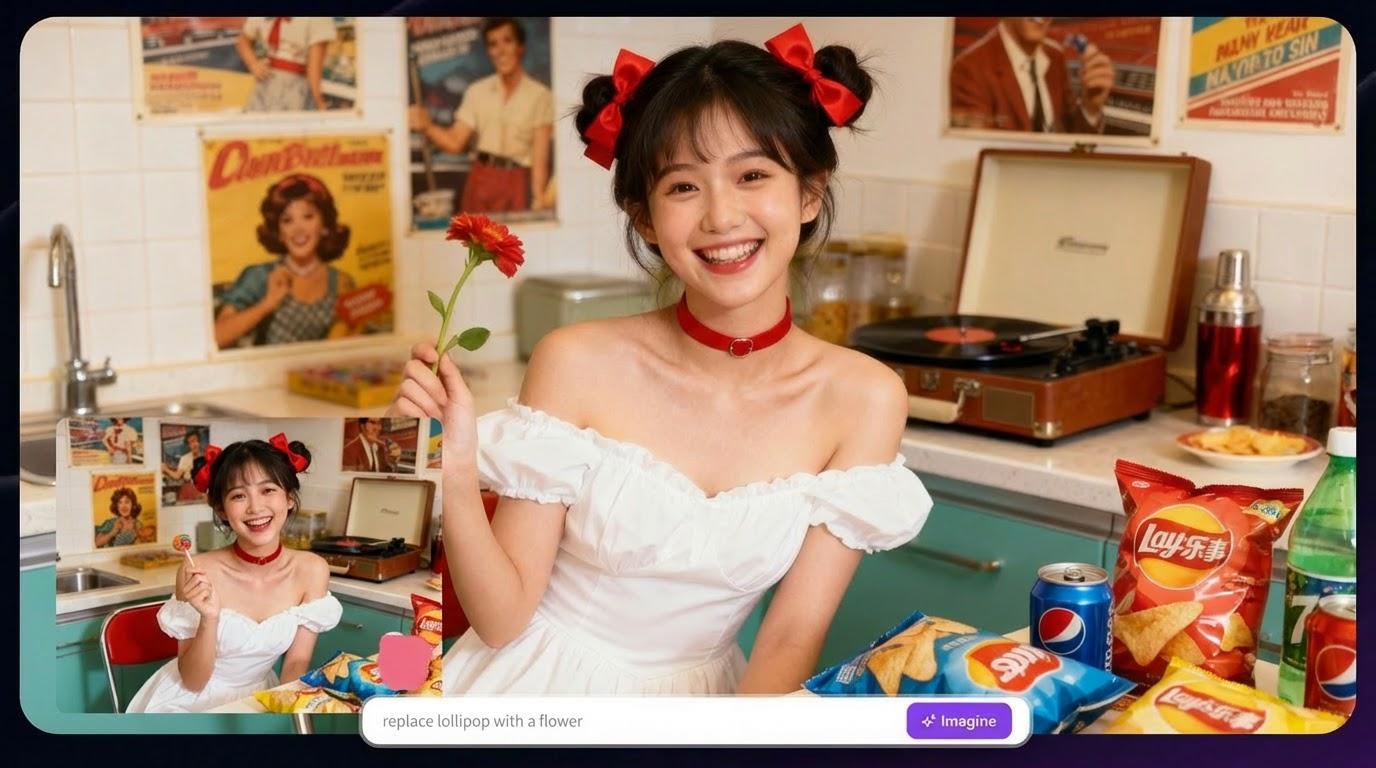
Why Use AI for Image Inpainting?
Now you might wonder, “Doesn’t AI have glitches and shouldn’t we hire professional editors with incredible editing skills to inpaint images?” Here is your quick answer:
1 - Speed
Using Photoshop to inpaint images takes hours. But with ImagineArt, you do it in seconds.
2 - Realism
AI models generate contextually aware fills that not just matches the surrounding but also lighting, giving it that real look and feel.
3 - Accessibility
Anyone can do it by just masking the area and giving a prompt. You don't need to be a designer anymore.
4 - Non-destructive editing
Your images are always kept save. So you will never lose your original file.
5 - Versatility
From product photography to personal portraits, AI inpainting works across virtually every image type.
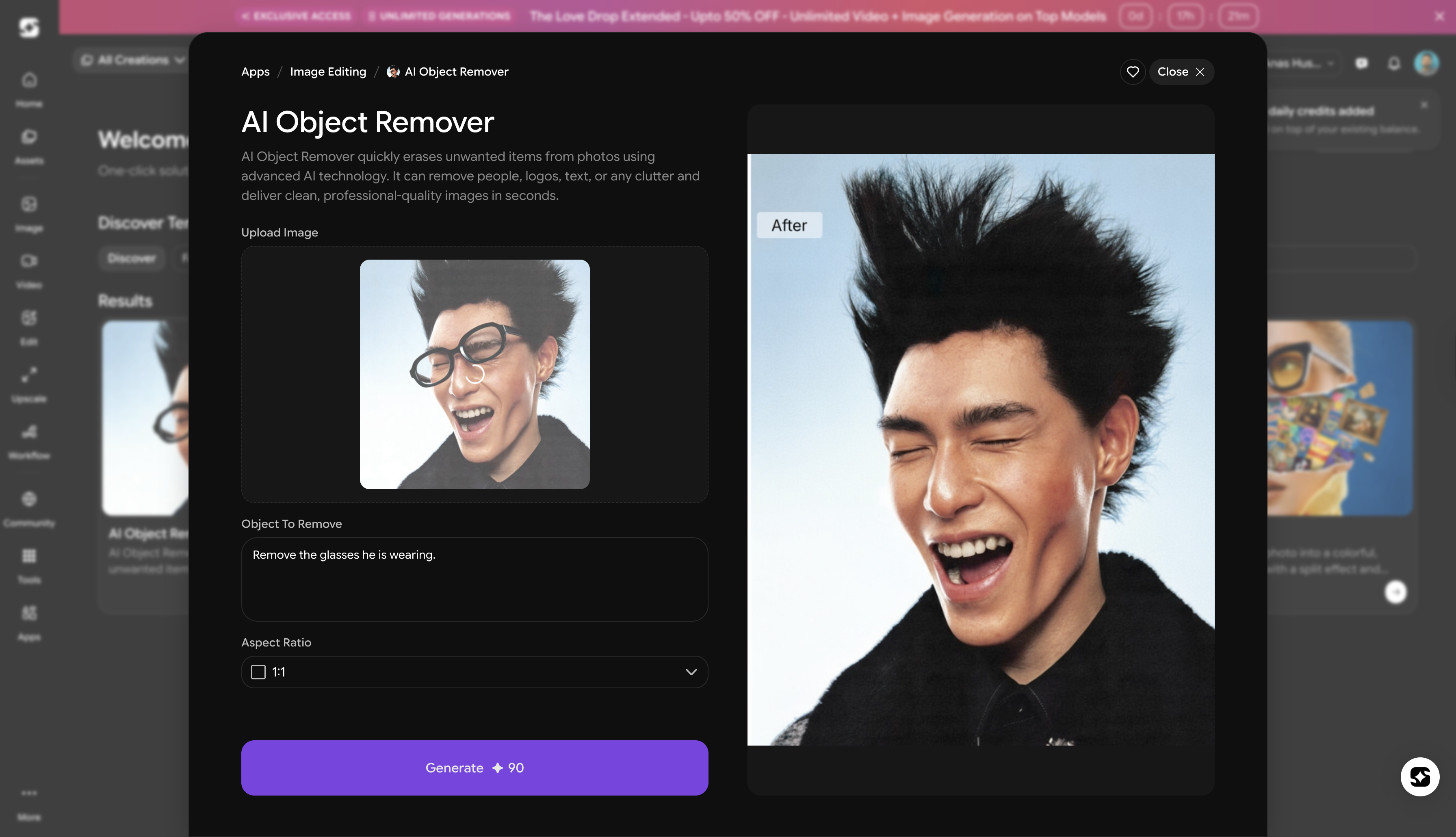
Common Use Cases for AI Image Inpainting
Before jumping into the how-to, it helps to know what kinds of tasks AI inpainting is actually built for. Here are some of the most popular use cases, I gathered. You might need it for two or more use cases.
Object Removal
The most common use case, when you just want to remove an object from the image. So, if you want to remove power lines, tourists in the background, trash cans, watermarks, or any object that doesn't belong in your shot, just inpaint your image with AI.
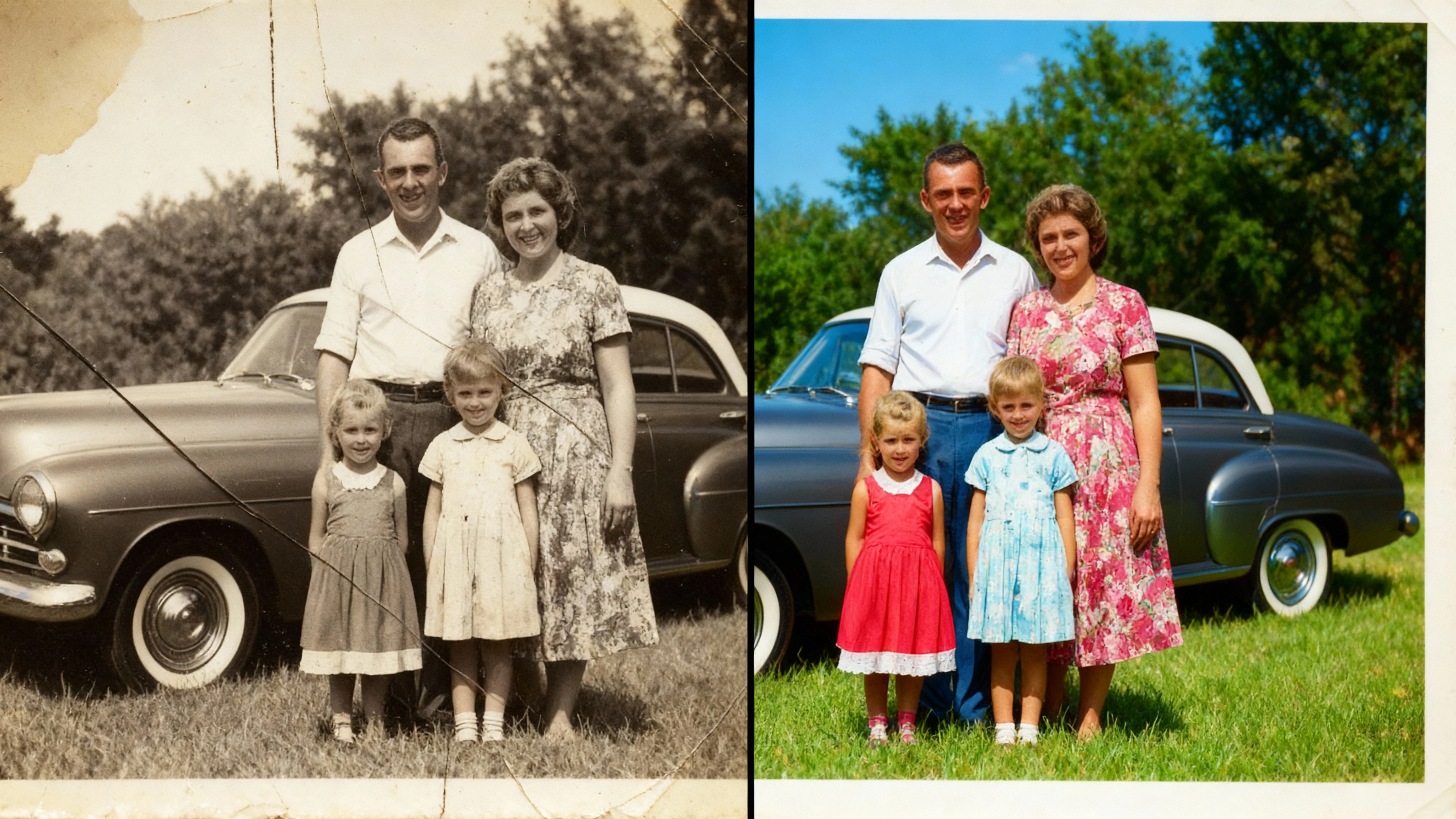
Photo Restoration
Old, damaged, or scanned photographs often have scratches, tears, or missing sections. Now, you can restore it in perfect condition using AI inpainting that can reconstruct those missing areas with impressive accuracy.
Background Replacement Elements
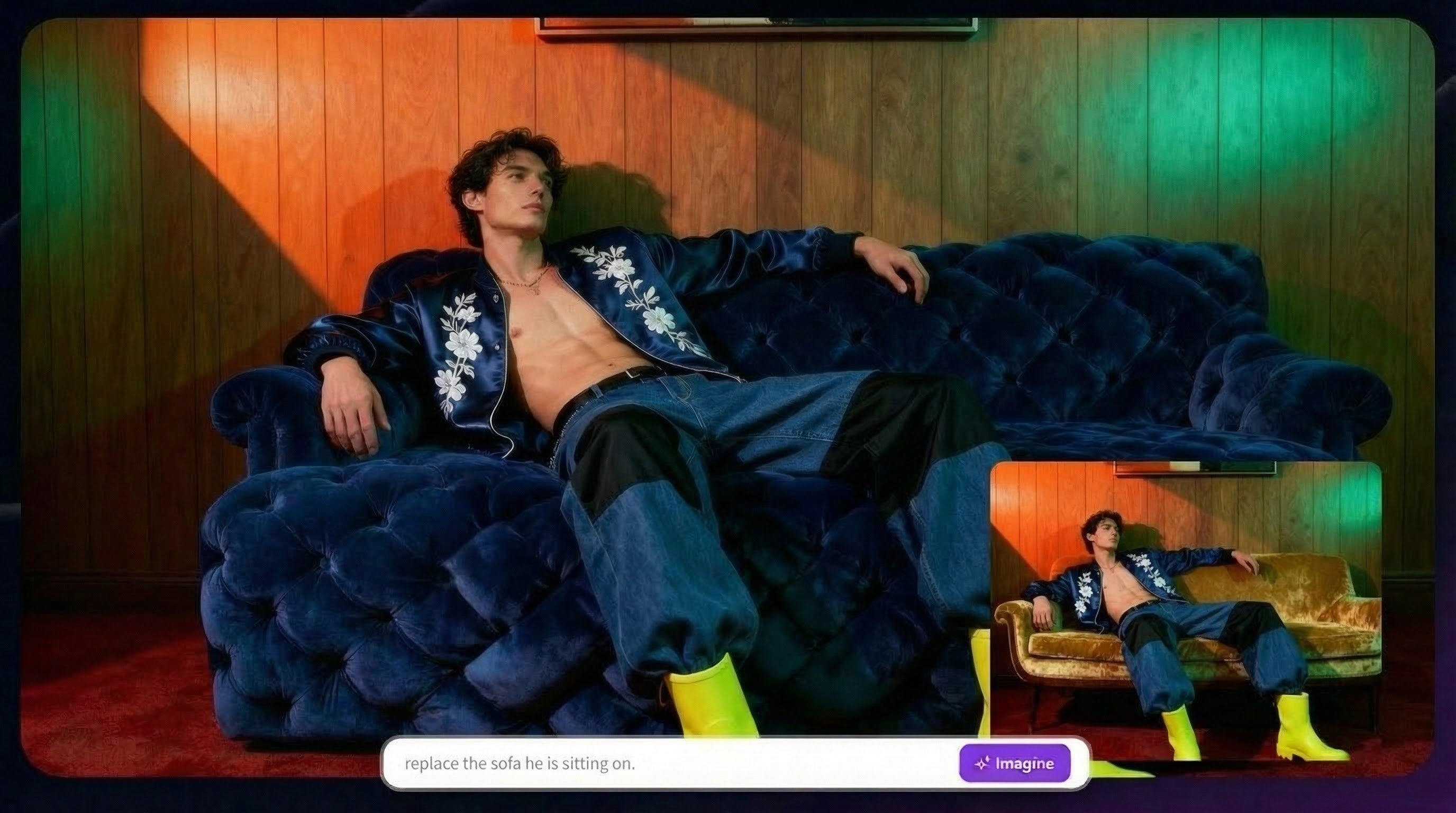
Sometimes you don’t need to replace the whole background. You just want to fix a certain part of it. For example, if there is a plain wall behind your subject, you can inpaint that section and replace it with something better like a window view. Or if a corner looks empty, you can add props there using AI inpainting. This way, the whole image changes without actually changing the whole background.
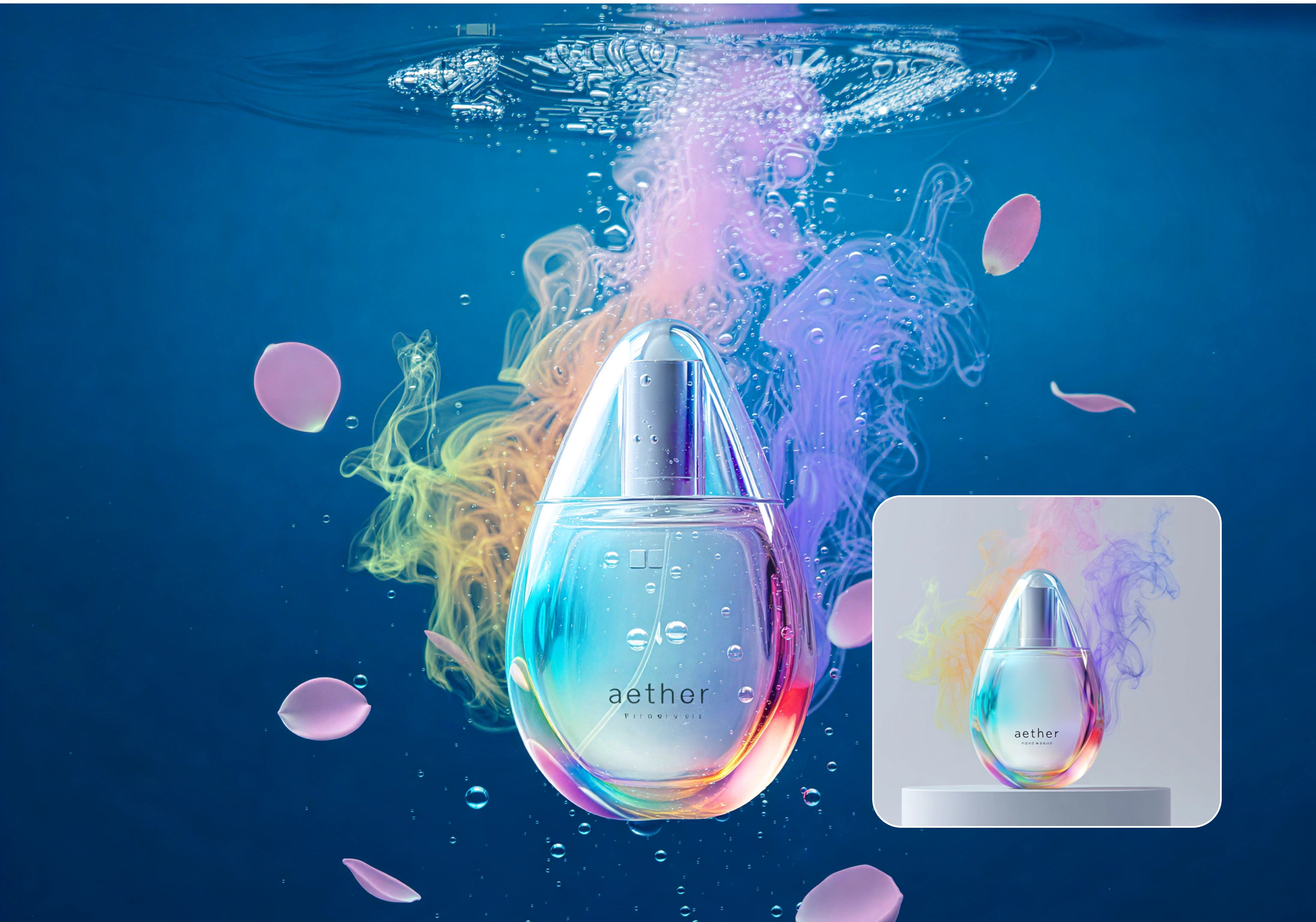
Product Photo Cleanup
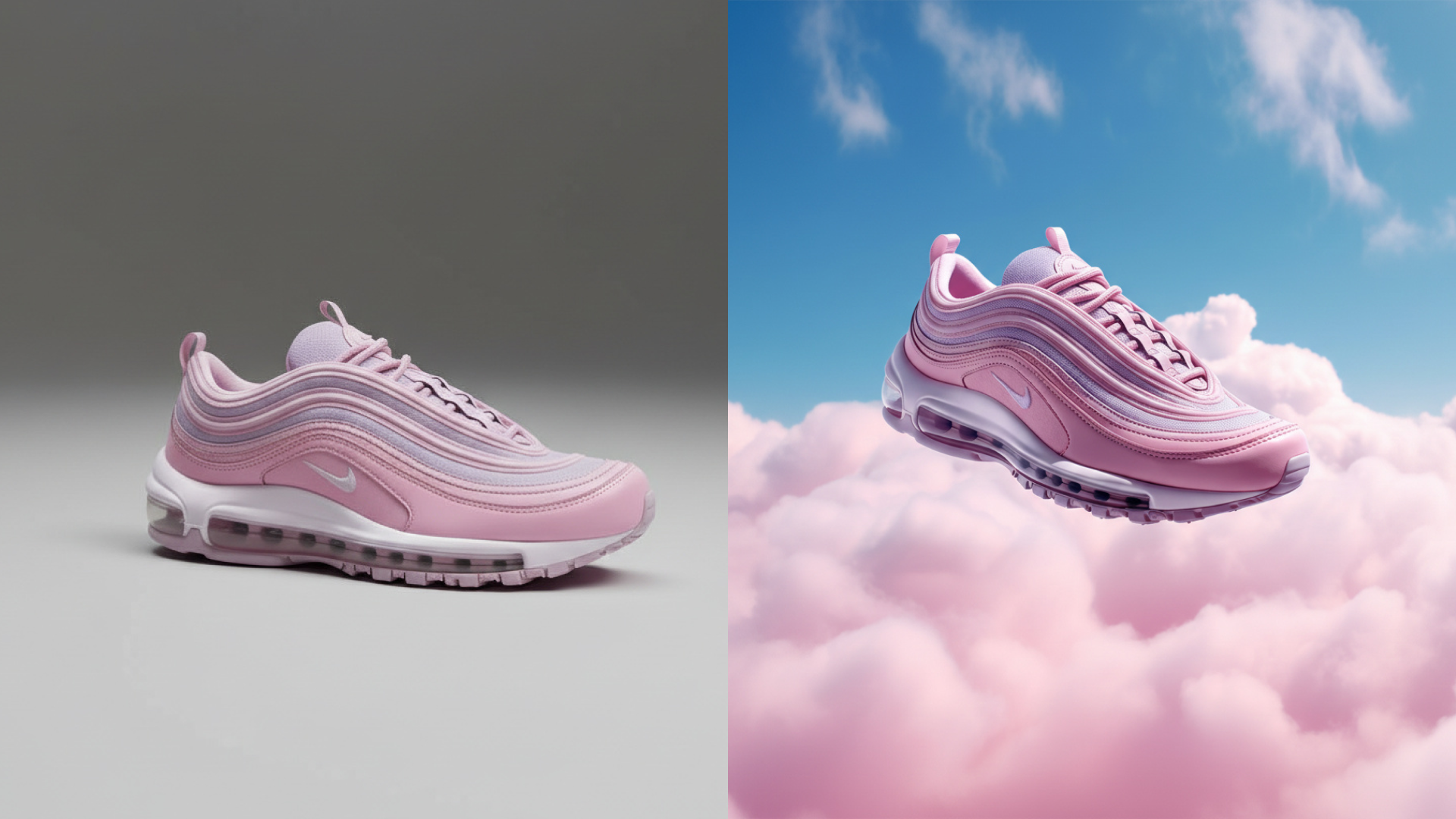
This is mostly used by ecommerce sellers. Because when you take product photos, there are always small issues. Maybe there is a shadow. Maybe there is reflection. Maybe something in the background that should not be there.
Instead of taking the photo again, you can just inpaint that part and clean it. Your product photo looks professional without doing another photoshoot.
Portrait Retouching
Portrait photos are never perfect straight out of the camera. There can be blemishes, uneven beard, distracting accessories, or small things that ruin the overall look.
With AI inpainting, you can fix only those parts. You don’t need to edit the whole image. Just mask the area and inpaint it. Everything else stays exactly the same.
Frame Adjustment
This happens a lot. Your image is perfect, but something at the edge ruins it. Maybe an object is cut off. Maybe something unwanted entered the frame.
Instead of cropping and losing part of the image, you can inpaint that edge. AI fills that area naturally and your image becomes complete without losing quality.
AI Image Inpainting Ideas and Examples
Once you understand how it works, you start realizing how many problems AI inpainting can solve. Here are some examples for inpainting image with AI.
1. Travel Photos
Travel photos almost always have something annoying in the background - random tourists, vehicles, signboards, or wires cutting across the sky. Instead of waiting for the perfect empty moment, you can simply remove those distractions afterward. With inpainting image with AI, your photo looks clean and peaceful, like you had the entire location to yourself. It saves the memory without the chaos.
2. Real Estate Images
Real Estate photography needs to look clean, spacious, and inviting. But in reality, there are often wires, clutter, stains, or small objects that ruin the visual appeal. AI inpainting helps you quickly remove those distractions without reshooting the property. The result looks polished and professional, which can directly impact buyer interest.
3. Fashion Photography
Fashion shoots don’t always go perfectly. Maybe there’s background clutter, uneven lighting spots, or small distractions near the model. Instead of organizing another shoot, you can fix those elements in seconds. AI inpainting lets you refine the composition while keeping the focus exactly where it belongs - on the outfit.
4. Wedding Shots
Wedding photos capture once-in-a-lifetime moments, but sometimes small distractions sneak into the frame. It could be an object on the floor, a photobomber, or something awkward in the background. With AI inpainting, you can remove only those unwanted details while preserving the emotional moment.
5. Product Photography
Product photography is one of the biggest and most practical use cases. Small shadows, reflections, tags, dust particles, or background objects can ruin an otherwise perfect shot. Instead of reshooting or spending hours in editing software, you can simply mask and fix the problem. Your product instantly looks clean, professional, and ready for ecommerce listings.
6. Social Media Content
Social media images need to look clean and intentional. Maybe there’s a messy corner, an unwanted object, or something that doesn’t match your aesthetic. Instead of deleting the photo, you can quickly refine it using AI inpainting. This helps creators maintain a consistent visual style without extra effort.
7. Old Photo Restoration
Old family photos often come with scratches, tears, faded patches, or missing sections. Traditionally, restoring them required skilled manual editing. Now, AI inpainting can reconstruct those damaged areas intelligently and bring memories back to life. It’s a simple way to preserve history with modern technology.
8. Background Enhancements
Sometimes you don’t want to remove something, you want to improve it. Maybe a wall looks too plain, a corner feels empty, or the sky appears dull. AI inpainting allows you to enhance specific areas without changing the entire image. It gives you creative control without starting from scratch.
Ready to inpaint images with AI?
What required hours of work, experience, skill, and attention to detail is now possible in seconds with ImagineArt AI image editor. But the best part is, it not just saves your time - but also helps you get the best output from every image.
Syed Anas Hussain
Syed Anas Hussain is a computer scientist blending technical knowledge with marketing expertise and a growing passion for AI innovation. Curious by nature, he dives into new AI sciences and emerging trends to produce thoughtful, research-led content. At ImagineArt, he helps audiences make sense of AI and unlock its value through clear, practical storytelling.