Zahida Misher
November 20, 2026 • Updated November 20, 2026
8 mins Read
Se7en opens on footage of the killer's hands and his plans, and Backstage credits it with setting the tense, frightening tone the rest of the film keeps. That sequence is B-roll: the footage an editor cuts to over or between the main shot.
Most guides stop at shooting it; this one also shows how to generate B-roll that matches your footage.
What does B roll mean?
B roll meaning, in one line: supplemental footage shot to support the main footage. That's No Film School's definition; the main footage is usually an interview or dialogue. You'll see it written B-roll, B roll or Broll. Three spellings, one idea.
Ask an editor what is B roll and you'll hear: cutaways and background shots that play while someone keeps talking, used to hide cuts and add context.
B-roll is generally shot without sound, as Epidemic Sound's guide points out. The audio belongs to the A-roll. B-roll's job is the pictures.
A-roll vs B-roll
Think of A-roll and B-roll as the voice and the pictures. A-roll carries the interviews, dialogue and primary audio; B-roll is what you cut to while it plays.
| A-roll | B-roll | |
|---|---|---|
| What it shows | The interview, dialogue or presenter | Cutaways, details, places, background action |
| Audio | Carries the main sound | Usually shot without sound; plays under the A-roll's audio or music |
| Why editors need it | Tells the story | Hides cuts, adds context, gives options |
| Who shoots it on a film | The main unit | Often the second unit (establishing shots, inserts) |
On a YouTube channel, the second unit is you, on a different afternoon.
Types of B roll footage
Most B roll footage falls into a handful of types. No Film School lists ten and Backstage's guide lists six. The ones you'll use most:
| Type | What it does | Example |
|---|---|---|
| Establishing shot | Places the scene before you cut inside | City shots before a sitcom cuts inside |
| Insert or object | Shows a detail up close | Hands at work during an interview |
| Cutaway | Cuts away from the main action | The dog-vs-rabbit cutaway in Snatch |
| Stock footage | Licensed clips you didn't shoot | Generic city skylines |
| Archival and stills | Old footage, photos, documents | Family photos in a documentary |
B roll examples in film, TV and YouTube
Four B roll examples, and what each one teaches:
- Citizen Kane's newspapers. Headlines do the exposition, as No Film School notes.
- Mad Max: Fury Road's second unit. On a feature, a separate crew shoots much of the B-roll; No Film School points to Fury Road's first- and second-unit footage.
- The Full House intro. The Golden Gate Bridge, Alamo Square and a cable car place the family in San Francisco without dialogue, as Backstage notes.
- Sitcom city shots. Seinfeld and 30 Rock show the city before cutting inside, as No Film School notes.
On TikTok, Reels and Shorts it's the same idea, shot vertical. On a long-form YouTube video it stays 16:9. A creator talks to camera; the edit cuts to what they describe: the product, the place, the hands.
Where does the name B-roll come from?
The name B-roll comes from 16mm film editing, where shots were split across two physical rolls, an A-roll and a B-roll, with black leader in the gaps so the splices didn't show in the final print. Backstage traces the term to 16mm, and Wikipedia's page on the 16mm A/B roll method calls the printing method checkerboard.
The rolls went digital. The job didn't: B-roll still hides the cut.
How to shoot B-roll
Start with the script. Adobe's shot-list advice is to build a B-roll list from the script, listing images that pair with each spoken line. Applied to a fictional bakery owner's interview:
| A-roll line (illustrative) | B-roll shot | Type | Shoot, stock or generate |
|---|---|---|---|
| "We open at 5 a.m. every day." | The shop front at dawn, lights on in the window | Establishing | Shoot |
| "Everything is shaped by hand." | Floured hands shaping a round loaf | Insert | Shoot or generate |
| "The first tray comes out at six." | Oven door opening, steam, a tray of loaves | Cutaway | Generate if you missed it on the day |
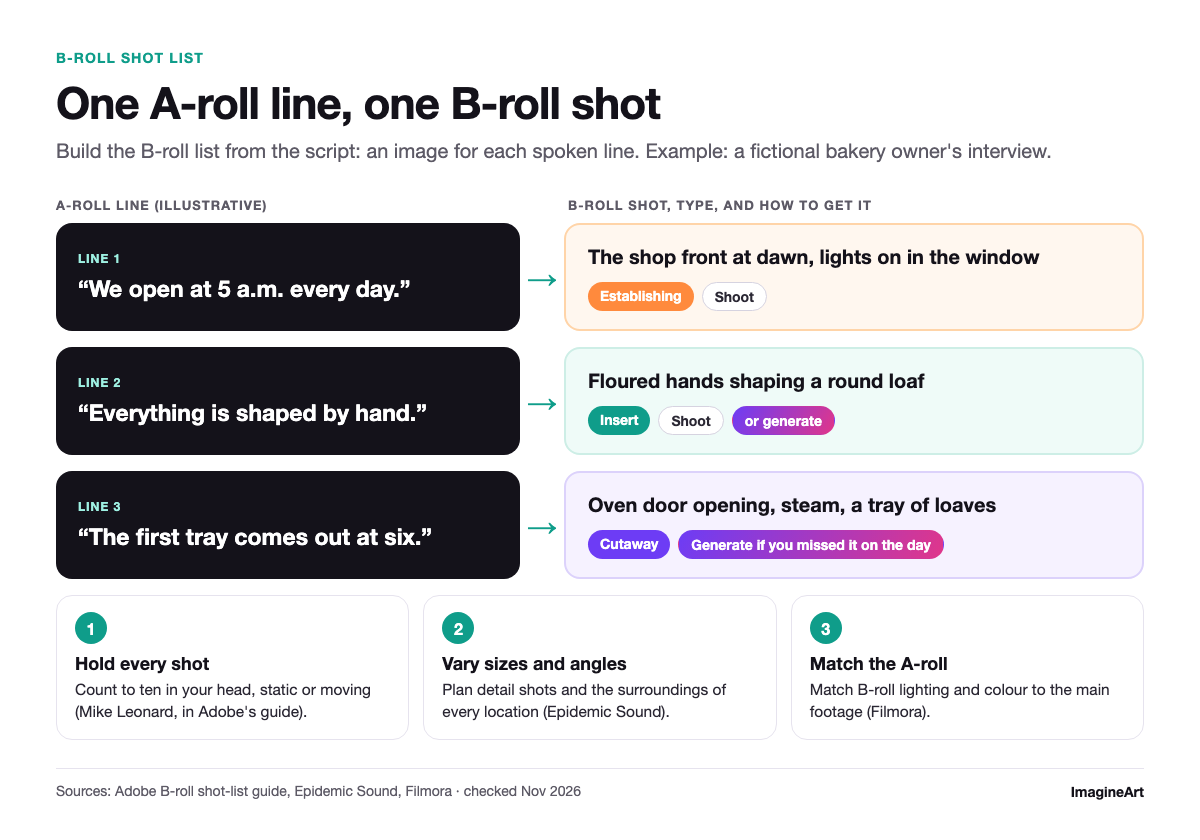 One A-roll line, one B-roll shot: building a B-roll list from a fictional bakery owner's interview
Then shoot the list with three habits:
- Hold every shot. Director Mike Leonard's advice in Adobe's guide: count to ten in your head, whether the shot is static or moving.
- Vary sizes and angles. Epidemic Sound's tips push for planned detail shots and the surroundings of every location. Keep rolling, too: Epidemic notes Peter Jackson shoots maximum coverage.
- Match the A-roll. Filmora's guide says to match B-roll lighting and colour to the main footage. Otherwise it looks borrowed.
Once the footage is in, our video editing tips cover the cut itself.
How do you make B-roll with AI?
You make B-roll with AI by writing each shot like a line on a shot list (shot size, subject, action, camera move) and ending every prompt with the same look line for light, colour and grain. In text to video, the repeated look line is the simplest thing you can hold constant across separate generations; Recipe 1 is built to check whether it holds.
ImagineArt's AI video generator turns text, images or existing clips into videos with sound, with models including Kling 4.0, Seedance 2.5 and Veo 3.1. Its prompt advice names overlapping slots: subject, action, scene, camera move, lighting, mood. Clip length depends on the model.
Write the look line from your A-roll, not from scratch: name the light source, color and grain you can see in your interview footage, then paste that line at the end of every prompt.
Got stills from the shoot? Image to video animates them, so the location and light come from your real footage.
Recipe 1: a matched bakery set
Try these in the AI video generator with Kling 4.0, 16:9, shortest duration. All three end on the same look line.
Establishing: "Wide establishing shot of a small corner bakery at dawn, warm light glowing in the windows, an empty rain-wet street, a delivery bike parked outside. Slow push-in. Warm tungsten tones, soft film grain. No text, no watermark."
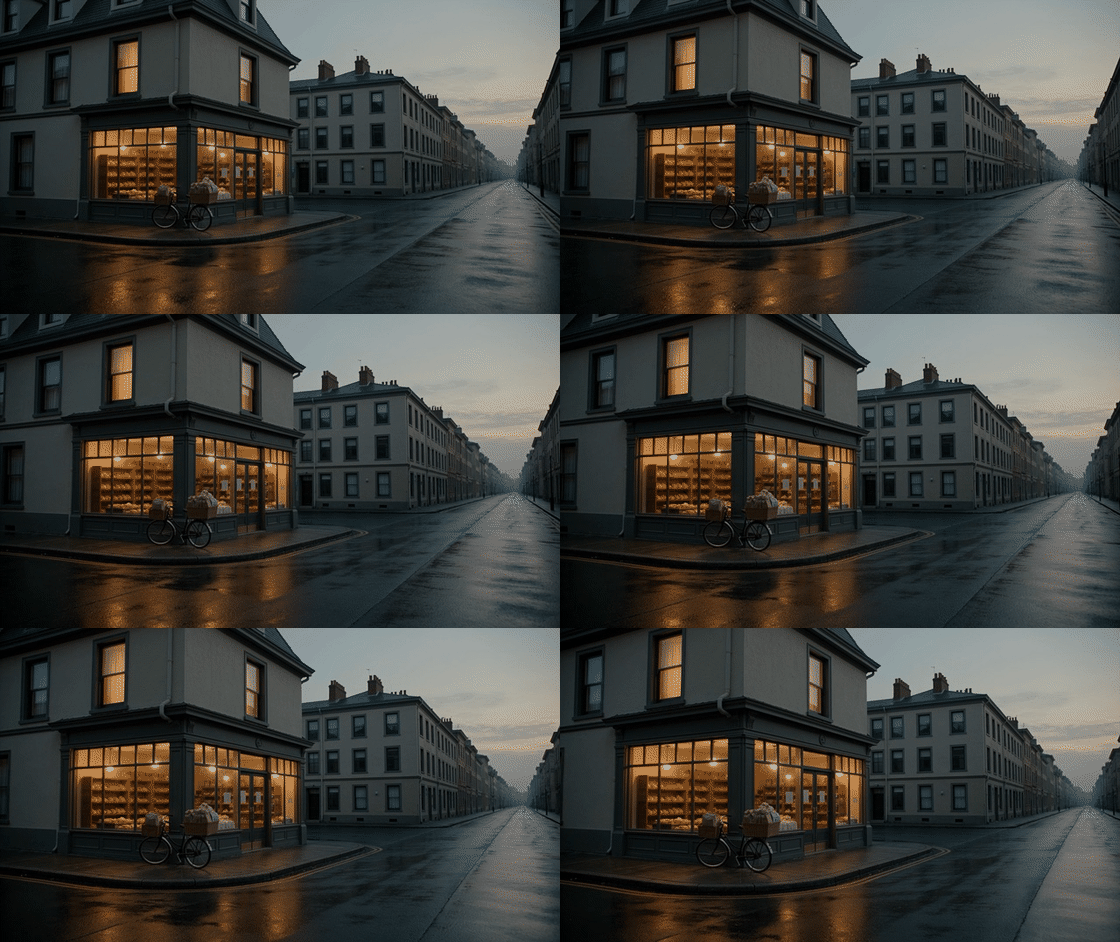 Establishing: the corner bakery at dawn
Insert: "Close-up of floured hands shaping a round loaf on a worn wooden bench, flour dust drifting through a shaft of morning light, shallow depth of field, gentle handheld movement. Warm tungsten tones, soft film grain. No text, no watermark."
 Insert: floured hands shaping a round loaf
Cutaway: "Medium shot of an oven door opening, steam rolling out as a baker in her fifties slides out a tray of golden loaves, slow pan right. Warm tungsten tones, soft film grain. No text, no watermark."
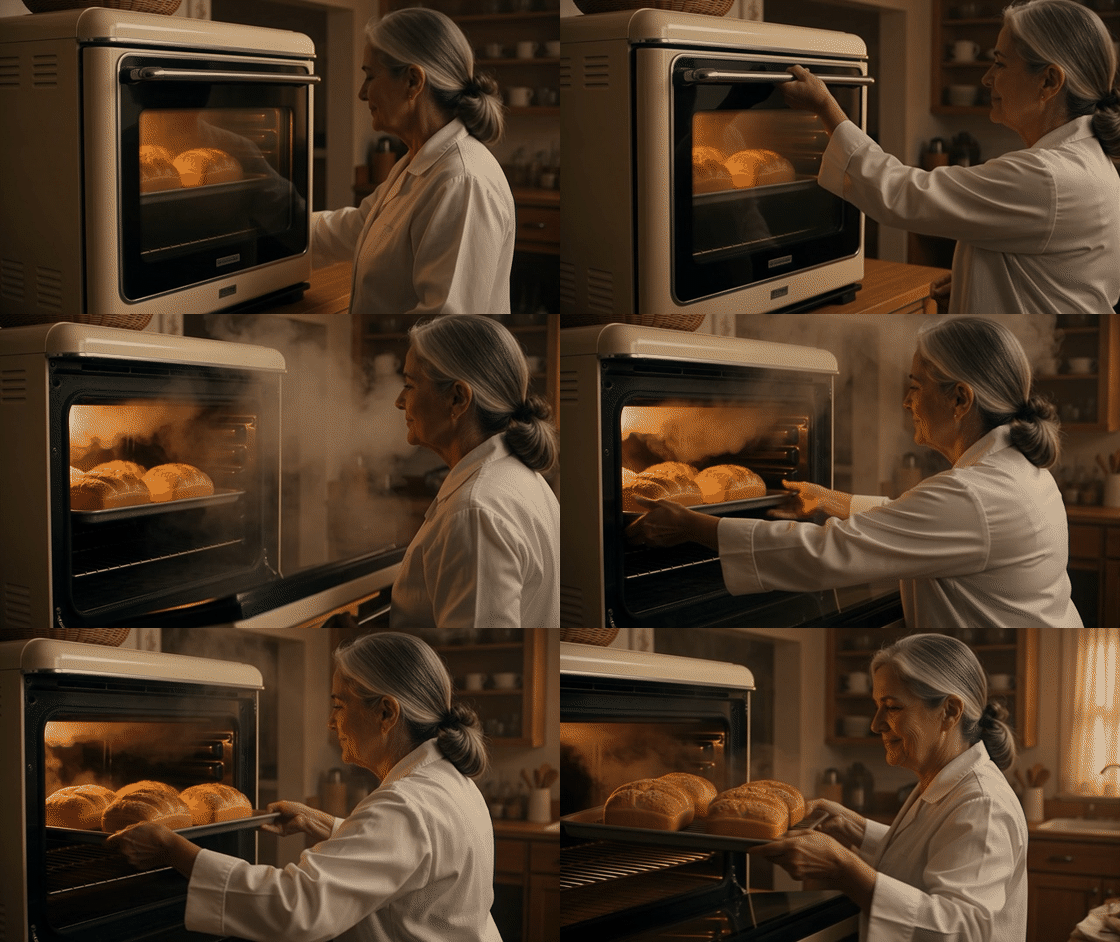 Cutaway: a tray of loaves coming out of the oven
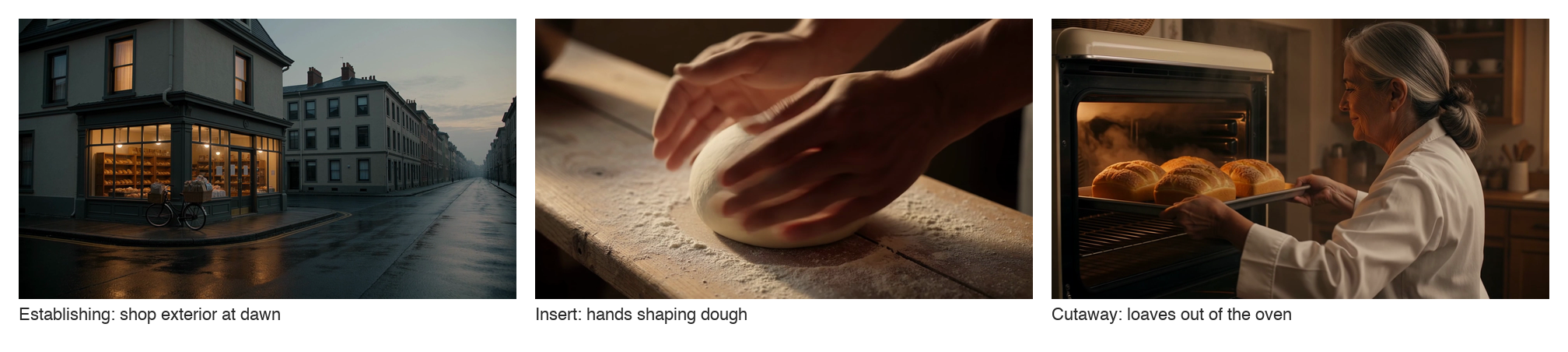 The three bakery shots side by side: establishing, insert and cutaway
Check whether tone and grain hold across all three, and whether any clip sneaks in text anyway. If a clip comes back with sound, mute it in the edit: the A-roll owns the audio.
Recipe 2: one vertical shot for short-form feeds
The generator page's own AI B-roll example uses this prompt:
"A rider in black leathers accelerates down an empty racetrack straight, the camera tracking alongside as low sun catches the fairing."
The page says you can output 9:16 for vertical feeds or 16:9 for YouTube. Run it at 9:16 and check how the framing changes and whether the tracking move survives.
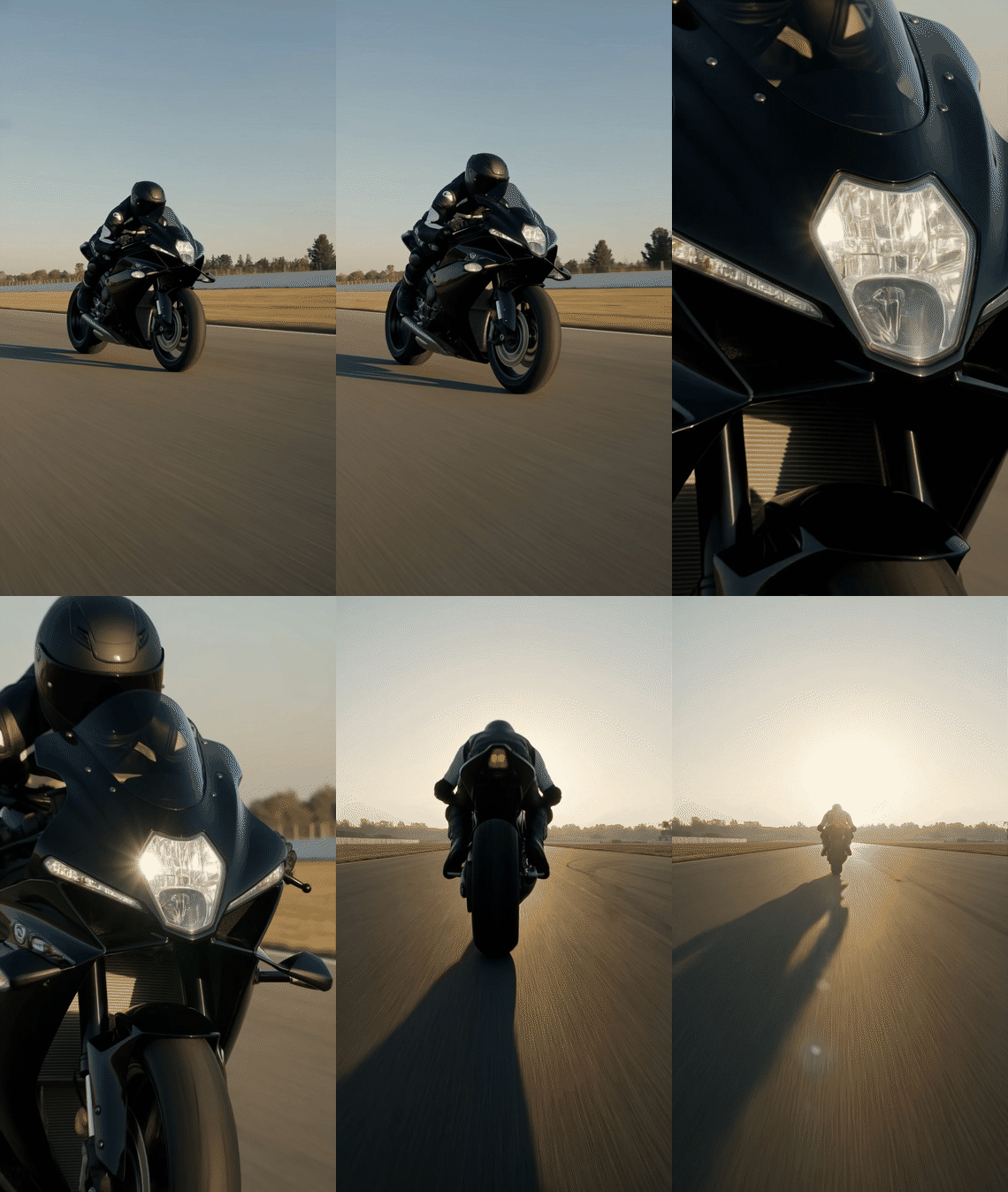 The racetrack rider prompt run at 9:16 for vertical feeds
Other ways in
For a short film, AI Film Studio lists B-roll (cutaways, inserts, environmental details) as an output, and its @ reference elements pin characters, props and locations across shots.
Cutting against 4K A-roll? On paid plans, the AI video upscaler takes clips to 4K.
More structures are in our AI video prompts guide.
Shoot, stock or generate?
Shoot B-roll when the footage has to be real, use stock when the shot is generic, and generate it when you need a specific look you can't film. Most edits mix all three. The deciding question: does the viewer need to trust that the place or person on screen actually exists?
| Situation | Best source | Why |
|---|---|---|
| Real people and places, documentary | Shoot, or use archival | Trust matters; Epidemic Sound points to Still: A Michael J. Fox Movie as non-fiction built on archival footage |
| Generic scenery: skylines, traffic, weather | Stock | Fast, and nobody checks which city's traffic it is |
| A look you can't film: a period set, a place you can't reach | Generate | Light, colour and camera move live in the prompt |
Frequently asked questions
The Full House opening: the Golden Gate Bridge, Alamo Square and a cable car place the family in San Francisco before anyone speaks.
Anything that isn't the main footage. Inserts, cutaways, establishing shots, stock clips, archival footage and stills all count, as long as they support the A-roll rather than carry the story.
It's the clips laid over a talking head or voiceover on Reels, TikTok and Shorts. Shoot or generate at 9:16 so nothing important gets cropped.
Usually not. It plays under the A-roll's audio or music, and Wikipedia notes that second units sometimes shoot it on MOS cameras, which record no sound at all.
There's a free ImagineArt plan, but read the current plan limits before you count on it for B-roll. Free credits cover ImagineArt's in-house models only, so Kling 4.0, the partner model in these recipes, may need a paid plan.
Plan the cutaways before you need them
B-roll lets an edit breathe: it hides cuts, places the viewer and gives a voice something to sit under. Build it from the script, one A-roll line at a time.
When a shot can't be filmed, generate it against a look line taken from your A-roll.
Start with the bakery set in ImagineArt's AI video generator and see whether the three clips cut together.
Zahida Misher
Exploring how AI transforms marketing, I help businesses unlock growth and future-proof their presence.
View all articlesRecent posts
The Best AI Avatar Generators In 2027: 11 Tools Compared And Ranked
50 Types of Art Styles: Definitions, Examples and AI Prompts
How to Edit Images With Ideogram 4.6: 38 Edits, Prompts and Results