
Tooba Siddiqui
September 4, 2025 • Updated September 28, 2026
16 mins Read
Spending hours editing a video only to end up with something that looks amateur? You're not alone. This blog breaks down the must-know video editing tips and tricks sans the technical criticalities and challenges. We will cover practical techniques and key elements you must know to create a worth-watching video.
Key Takeaways
- Organizing footage before you edit saves you more hours than any shortcut you'll learn
- Tight cuts and B-roll cutaways do more for a video's quality than transitions or effects
- Color correct videos before color grading, never the other way around
- Poor audio loses viewers faster than poor visuals, so balance dialogue and music carefully
- Each platform has its own format, length, aspect ratio, and hook requirements, so edit for that platform's requirements
How to Prepare for Video Editing: The Basics
Fundamentals of Video Editing:
The multitude of AI video editing guides, tools, options, and software available can make the whole video editing process a bit overwhelming for a beginner. The key to composing a high-quality video is to stick to the fundamental:
- Storytelling: Your goal as a video editor is to improve the story or narrative in such a way that it evokes audience’s emotions. In order to do that, you need to add seamless cuts and transitions, keeping the viewers absorbed enough to pay no heed to the cuts.
- Consistency: Make sure the visual details remain consistent within the frame while maintaining continuity and flow between consecutive frames. Your visuals shouldn’t flicker, bleed, or appear inconsistent in different frames.
- Rhythm: While editing the video, you need to be careful about the overall pace and mood of the content. Adjust the timing of each shot in such way that the audience have enough time to process the scene without getting bored.
- Transitions: Adding transitions and cuts should be a purposeful edit.
- Elements: Your video content needs audio, music, text, and image elements to enhance the narrative. Make sure the selected elements are in sync with the visuals and flow smoothly with the scenes.
Run and re-run to fine-tune the quality and narrative of your video content. Ensure message clarity, technical precision, and improved quality for better viewer attention and retention.
Planning and Recording:
In reality, the video editing process depends greatly on your ideation. Strategize and think ahead about what your final video will look like before you start shooting or composing. Jot down all the crucial shots, outline the scenes and transitions, and capture extra footage as coverage, so you don’t run out of shots and scenes.
Organize your shots and capture extra scenes so that you have sufficient room to trim, split, or cut while editing. If your video needs to be recorded at different locations, record and save the room tone (the background sound of any location or even the silent sounds) of every location to fill in audio gaps for smoother transitions while editing.
Video Editing Tips for Beginners and Professionals
There’s no one-solution-fits-all approach for video editing process. Whatever approach you adapt will determine your workflow and creative style you’ll use. Here are 12 fundamental and practical tips to fine-tune the video editing process:
1. Organize Footage
A disorganized editor will always find the video editing process more daunting than it already is. To avoid frustrating yourself with the process, keep your assets in different subfolders in one location for quick and easy access. Name the project folder and assets subfolders clearly. This helps you save time while piecing together your video content.
2. Shot and Clip Selection
A good editor is capable of making tough choices. If a shot is an awkward fit in the video, trim or cut it. Your goal is to create interesting video content, not a compilation of favorite shots or clips — no matter how difficult it was to capture or shoot. Add shots that add to the overall context. Close-up scenes might add to visual quality, but omit the context. Add broader views and zoomed-out scenes to give the viewers an idea of the environment and settings.
3. Cut Tightly
Dead air is one of the fastest ways to lose a viewer. Cut long pauses, false starts, repeated lines and anything that doesn't move the video forward. A useful test: if removing a line or a moment doesn't change what the viewer understands, it can probably go. Leave pauses in only when they're there on purpose, such as a beat before a punchline or a moment to let something land.
4. Keep Transitions Simple
The focus of video editing should be to keep the flow of the story smooth. Avoid adding flashy effects as they can distract the viewers from the main message of the video. Use subtle transitions such as wipe, fade, and dissolve to maintain the focus. Avoid unnecessary and overuse of transitions and effects.
5. Use Cutaways and B-Roll to Hide Your Cuts
When you trim a pause or a mistake from someone speaking, the jump in the picture is obvious. Cutting to related footage, such as a close-up of their hands, the product they're describing or the room around them, hides the edit while the audio carries on. This footage is called B-roll, and it's the most reliable way to make a tightly cut video still feel smooth. Shoot more of it than you think you'll need.
6. Manage Video Pacing
The pace of your video determines the rhythm of the scene and tone of the overall content. Fast pace creates suspense, excitement, and thrill. Slow pacing sets a more calming and relaxing tone. For fast-paced scenes, apply quick ad more cuts. For slow-paced scenes, utilize longer clips and shots.
7. Color Scheme Selection
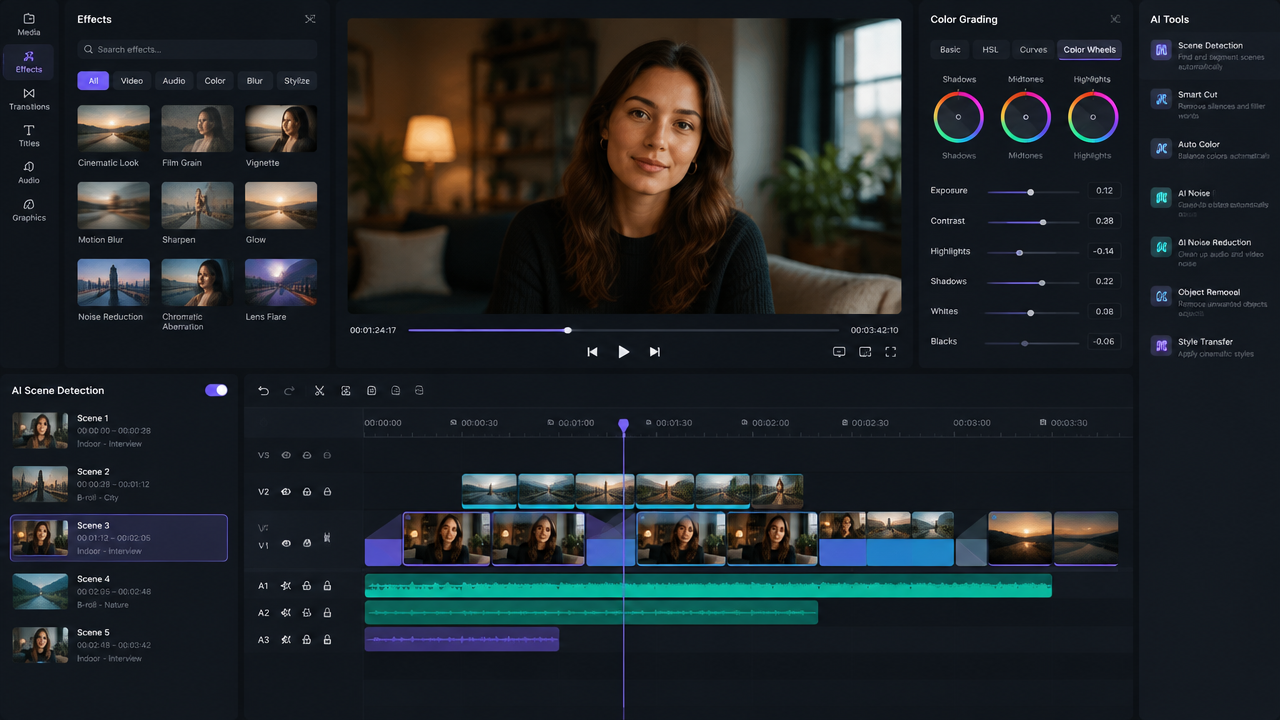
Color scheme and grading help you set the desired effect and feel of the video. Many tools come with built-in color correction tools that help you set color and contrast. A well-selected color scheme can give your video a cinematic feel and balance the lighting and brightness of the content.
With ImagineArt AI Video Color Correction app, you can:
- Automatically enhance color vibrancy, saturation, contrast, exposure, and balance.
- Adjust lighting and tone to unify the mood of your scenes.
- Improve the overall visual appeal without manual grading or technical skills.
8. Balance Audio & Music Quality
Videos with no sound have an actual audience base, but videos with poor-quality sound can drive away the audience regardless of high-quality visuals. Add different cuts to balance the audio, visuals, and dialogues. Make sure the sound effect or background music doesn’t overpower the dialogue. Generate audio with dialogue clarity, so it helps you maintain the audience’s attention.
- Keep dialogue on its own track. With dialogue separate from music and sound effects, you can clean and level it without affecting anything else.
- Balance your levels. Keep dialogue peaking between -12 and -6 dBFS, with music around -18 to -20 dBFS underneath it so it never competes with speech.
- Remove distracting sounds. Mute or trim loud breaths, mouth clicks and background noise, unless they're part of the scene, as in ASMR content.
- Choose music that fits. The track should match the mood of the video and be high quality, since cheap-sounding music makes the whole video feel cheaper.
- Record voiceovers cleanly. Use a good microphone in a quiet room, cut hesitations and filler words, and sync the voiceover with the visuals.
9. Add Captions, Text, and Branding Elements
34% of US adults regularly watch with subtitles on. Subtitles, captions, and annotations make your video content accessible to all. With social media content on the rise, most viewers watch videos on mute, and adding subtitles gives you an edge. Adding annotations helps drive or focus the viewer’s attention to the important parts and details included in the content.
ImagineArt Captions generates captions in 100+ languages, with style presets and position control. For a full walkthrough, see how to add subtitles to a video. On-screen text and annotations also help direct attention to key points.
Learn how to add captions and subtitles on ImagineArt Insights.
10. Fix or Replace Distracting Backgrounds
Backgrounds make and break the overall visual quality. If the background is weird, blurry, or pixelated, consider removing it for the sake of visual appeal. However, without background your character or subject might look like it is floating in the middle of the screen. To avoid such a case, consider using a dynamic background without needing to copy and paste the background image again and again. Simply, stretch the dynamic background to fit the extent of your video.
With ImagineArt Video Background Changer app, you can:
- Add any static image, solid color, or even a dynamic backdrop using a text prompt.
- Replace backgrounds without any green screen while preserving the subject and foreground.
11. Add Logos (optional)
If your video content is for branding purposes, make sure to add your brand logo. Incorporating a high-quality visual brand identity helps you build credibility and trust. Make sure your brand logo is visible but doesn’t overlap any other element. Resize it to appropriate dimensions so that it doesn’t distract the viewers from the video’s content. You can add your logo to one of the bottom or upper corners of the video.
12. Remove Breathing and Noises
Loud mouth noises and breathing might work in ASMR videos. For any other type of video content, consider muting or trimming out parts of scenes with distracting breathing and mouth noises. However, avoid cutting out those sounds if it is a requirement of the scene.
13. Remove or Replace Unnecessary Objects
Removing unnecessary elements and objects from the video lets you maintain video quality and visual fidelity. Less distractions in the video helps you rivet the audience attention
With ImagineArt AI Video Object Replace app, you can detect and replace objects or characters in your video using detailed text-based prompts. While the AI Video Object Remover helps you reconstruct background seamlessly while removing objects so that you don’t have to mask anything manually.
14. Keyframing and Masking
These are more advanced video editing tactics. Keyframing lets you animate elements and make motion graphics, effects, and transitions. Masking allows you to make finer adjustments to individual shots, text elements, and clips. You can to skip the manual keyframing altogether using AI Motion Control.
With ImagineArt Kling Motion Control app, you can:
- Add realistic movement to static visuals by transferring motion from a reference video.
- Improve motion dynamics while preserving body proportions, gestures, expressions, and timing.
- Define body movement and direct camera motion and style using a simple text prompt, without any manual keyframing or rigs.
Video Editing Pro Tips — What Separates Good Edits from Great Ones
- J-cuts and L-cuts: audio transitions where sound from the next scene starts before the cut, or sound from the current scene continues under the next visual. Prevents jarring audio breaks.
- Match cuts: cut on action or match visual geometry between two shots. Maintains continuity and makes transitions feel intentional.
- Color grading vs color correction: Color grading comes after color correction, not before. Correction normalizes the footage; grading sets the mood. Reversing the order creates inconsistent results.
- Audio ducking: lower background music volume when dialogue is present. The ratio most editors use is -18dB to -20dB for music under speech.
- The 80/20 rule in editing: 80% of your edit quality comes from 20% of your decisions — shot selection, pacing, and audio. Over-editing transitions and effects is the most common beginner mistake.
Video Editing Tips for TikTok, Reels & YouTube Shorts
The video content on social media platforms is slightly different from conventional formats. Each platform has a different set of video content requirements and audience. To ensure your video content gathers more attention, you must optimize your video content for each platform:
TikTok Video Editing Tips:
TikTok drives most of the social media trends, hashtags, and video content traffic and virality:
- Music and audio effects: The platform offers an infinite collection of songs and music tracks. Most of the viral videos on TikTok caught attention because of the music trends. Make sure to use the current trending music or sound effect in your TikTok video to increase the chances of your virality.
- Text and creative overlays: Adding text in your TikTok video can help the viewers focus on key points, add clarity to your message, and give your video global reach. Use appropriate text and overlays to maximize the visual appeal and impact.
- Concise and direct: TikTok allows for short-format videos. Since you have a few seconds to deliver your message, make sure your video is free of fluff and fillers. Use immediate cuts and fast transitions to keep your video short and dynamic.
- Hook rule: state the video's value proposition in the first 1.5 seconds — spoken or on-screen text, not just visual
- Cut dead air aggressively; any pause over 0.5 seconds that isn't intentional pacing loses view
Instagram Reels Video Editing Tips:
Next to TikTok are Instagram Reels, with 3 billion monthly active users scrolling and posting content every day:
- Interactive elements: Instagram Reels allow you to add interactive elements such as polls, quizzes, stickers, emojis, and question boxes, which promote direct viewer interaction. Make sure to add a few interactive elements in your video content to engage with the audience.
- Video speed: The platform lets you experiment with the pacing and speed of your video. You can add a slow-motion effect or speed up certain parts for a dramatic touch. Use different speed effects to gauge what type of content your audience prefers and consumes.
- Visual appeal: Instagram is known as a platform for uploading high-quality visuals. Make sure your video visuals are aesthetically pleasing with near-perfect lighting, filters, and effects. Give your visuals a final look-over before uploading your content on Instagram.
- Start with movement in frame static openers perform below average on Reels because the feed autoplays
YouTube Shorts Video Editing Tips:
As a competitive response to TikTok, YouTube released its own short-format video feature, with billions of daily views and engagement:
- Video orientation: YouTube Shorts allows videos of all sizes and aspect ratios, but it is recommended to use a 9:16 aspect ratio for better engagement and more views.
- Strong hook: YouTube tracks watch time and attention retention, which makes a compelling hook a must-have. The initial seconds of your video must capture the attention and rivet it till the end. You add a teaser, a quick reveal, or an intriguing question at the start of your video.
- Sound optimization: A poor-quality or unsynchronized sound can cause viewers to scroll past your video. Check your sound quality and clarity, and make sure it is in sync with the visuals.
- The first frame is your thumbnail — unlike long-form YouTube, Shorts don't allow custom thumbnails on mobile, so the first frame must function as the hook image
- Loop structure: end the video in a way that prompts a rewatch — Shorts' algorithm rewards loop completions
How to Apply These Tips in ImagineArt's Video Editor
The ImagineArt AI video generator includes a video editor for quick edits, plus image, text and audio tools. Here's how to get started:
- Navigate to side bar and under video tab, select 'video edit.'
- Upload or select the video you want to edit. The preferred video length for edit ranges from 3 seconds to 10 seconds
- Upload or select the reference images and elements. You can create reference images using ImagineArt AI image generator and upload up to 4 reference images and elements
- Select the AI video editing model from the dropdown menu. ImagineArt AI video editor features Kling 03 Edit, Kling 01 Edit, and Gemini Omni Flash
- Write a descriptive prompt using '@' tags to accurately add or adjust references/elements
- Select the required aspect ratio and resolution
- Generate a well-edited video under a minute
- Click on the selector right next to 'Edit Video' and scroll it to 'Video Extend,' if you want to extend the length of your edited video
- Scroll the same selector to ImagineArt Captions, if you want to add caption and subtitles in your video. ImagineArt Captions supports multilingual subtitles, featuring defined presets and caption positioning options. If you want to translate the audio as well, try ImagineArt AI video translator
- Navigate to ImagineArt Lipsync Studio to adjust lip movements, audio and music synchronization, and add your own recorded voiceovers.
- Watch the full edited video back and check the position and quality of every element.
- Upscale to 4K and download the video in your preferred format.
Try ready-to-use prompts and learn more about AI video prompting on ImagineArt Insights
How to Speed Up Your Video Editing Workflow
As a video editor, the task at hand is often challenging and usually comes with a tighter deadline. A streamlined workflow allows you to tackle and finish projects efficiently and on time, without compromising the quality.
- Most editing tools and software come with custom templates and presets that can help you save time on repeated tasks, including intro and outro sequences.
- In case the project requires various videos, apply batch editing and set the settings for different shots and clips. This can help you save extra efforts on each clip and speed up the whole process.
- Organization is crucial for every video editor. Keep your assets, clips, and visuals in separate folders with well-defined names. This can help you locate assets and clips while working on video compilation.
- Learn some keyboard shortcuts while using editing software to improve efficiency. This can help you focus better on the editing task.
Video Editing Mistakes to Avoid
Here are a few video editing pitfalls one must be careful about:
- Excessive transitions: Adding transitions require a careful approach. Too much of it can create distractions, and too little of it can disrupt the flow. Plan your transitions and use simple transitions for a smoother viewing experience.
- Neglecting sound: The sound quality impacts the overall experience. Poor-quality audio can flatten the otherwise great video content. Balance your audio and ensure audio clarity.
- Complicating the edit: Adding too many filters and effects can create distractions and reduce the video quality. Keep your filter and effects subtle.
- Ignoring the platform: All video-sharing platforms have their own guidelines and video content requirements. Make sure to review those and stick to them to create a platform-optimized video.
Video Editing Pre-Export Checklist
Before exporting any video, check:
- Audio levels balanced (dialogue at -12dB to -6dB, music at -18dB to -20dB)
- Color corrections applied before color grade
- Captions checked for sync and spelling
- Aspect ratio matches target platform (9:16 for TikTok/Reels, 16:9 for YouTube)
- Resolution set to 1080p minimum, 4K if source footage supports it
- No jump cuts with missing audio
- Intro hook under 3 seconds
- End card or CTA in final 3 seconds
Final Thoughts
Video editing is a crucial process, given the emerging trends and content consumption preferences of today’s audience. Understand the basics, experiment with different techniques, and try different tools. ImagineArt Video Editor lets you explore the key features of video editing while allowing you to generate professional-quality video.
Recommended read: Best AI Video Generation Models | AI Video Generation Cost
Frequently Asked Questions
When choosing a free AI video editor, consider what tasks you need to do — whether that's auto-captioning, noise removal, scene detection, or visual effects — and pick the tool that specializes in those features. ImagineArt is the best all-round free AI video editor for beginners and social media creators, offering professional-grade video editing features and dedicated apps.
You don't always need expensive equipment to produce high-quality videos. Start by color correcting your video first, then color grade it. Sharpen the footage with right filters and upscale video quality up to 1080p. Remove background noises to give your footage professional feel.
Even experienced editors fall into these traps. Knowing them in advance saves you hours of rework. The most damaging mistakes in video editing are poor audio, overused effects, and bad export settings, all of which are entirely avoidable with a structured editing workflow.
For most platforms, 1080p (Full HD) is standard. Use 4K if your footage supports it and your platform benefits from higher quality.
The '5 C's' usually refers to Joseph Mascelli's Five C's of Cinematography: camera angles, continuity, cutting, close-ups and composition. They were written as a filmmaking framework, but two of them, cutting and continuity, apply directly to editing.
80% of your edit's quality comes from 20% of your decisions: shot selection, pacing, and audio mix. Over-investing in transitions and effects returns diminishing value compared to getting these three fundamentals right.
Color correction normalizes footage — fixing white balance, exposure, and skin tones so every shot matches. Color grading is the creative step that follows: applying a look, mood, or tone to the final cut. Always correct before you grade.
Tooba Siddiqui
Tooba Siddiqui is a content marketer with a strong focus on AI trends and product innovation. She explores generative AI with a keen eye. At ImagineArt, she develops marketing content that translates cutting-edge innovation into engaging, search-driven narratives for the right audience.