Biggest Sale Ever! 50% OFF & Unlimited Free Generations on top models
Free AI Video Upscaler & Video Quality Enhancer
Low-quality videos ruin first impressions the moment they play. Topaz AI Video Upscaler fixes that instantly by turning blurry, pixelated footage into sharp, high-resolution video. Simply upload your clip and get clean details, smoother motion, and professional results without any editing experience or technical skills. Perfect for YouTube content, marketing videos, and any footage that needs to look sharp and credible.
How to Upscale Video to 4K in 3 Step
Upload Your Video
Add MP4, MOV, AVI, or MKV video files to the AI Video Upscaler. Make sure your clip is free of major corruption to maximize detail recovery and accurate AI video enhancement.
Upscale Video
Click "Upscale," and the AI Video Upscaler processes your footage instantly. It reconstructs detail, improves resolution up to 4K, and delivers crisp, hd video in seconds.
Download Upscaled Video
Save the video with improved quality directly from the video quality enhancer. Use it for social media, client delivery, presentations, or any project that demands 4K and hd video.
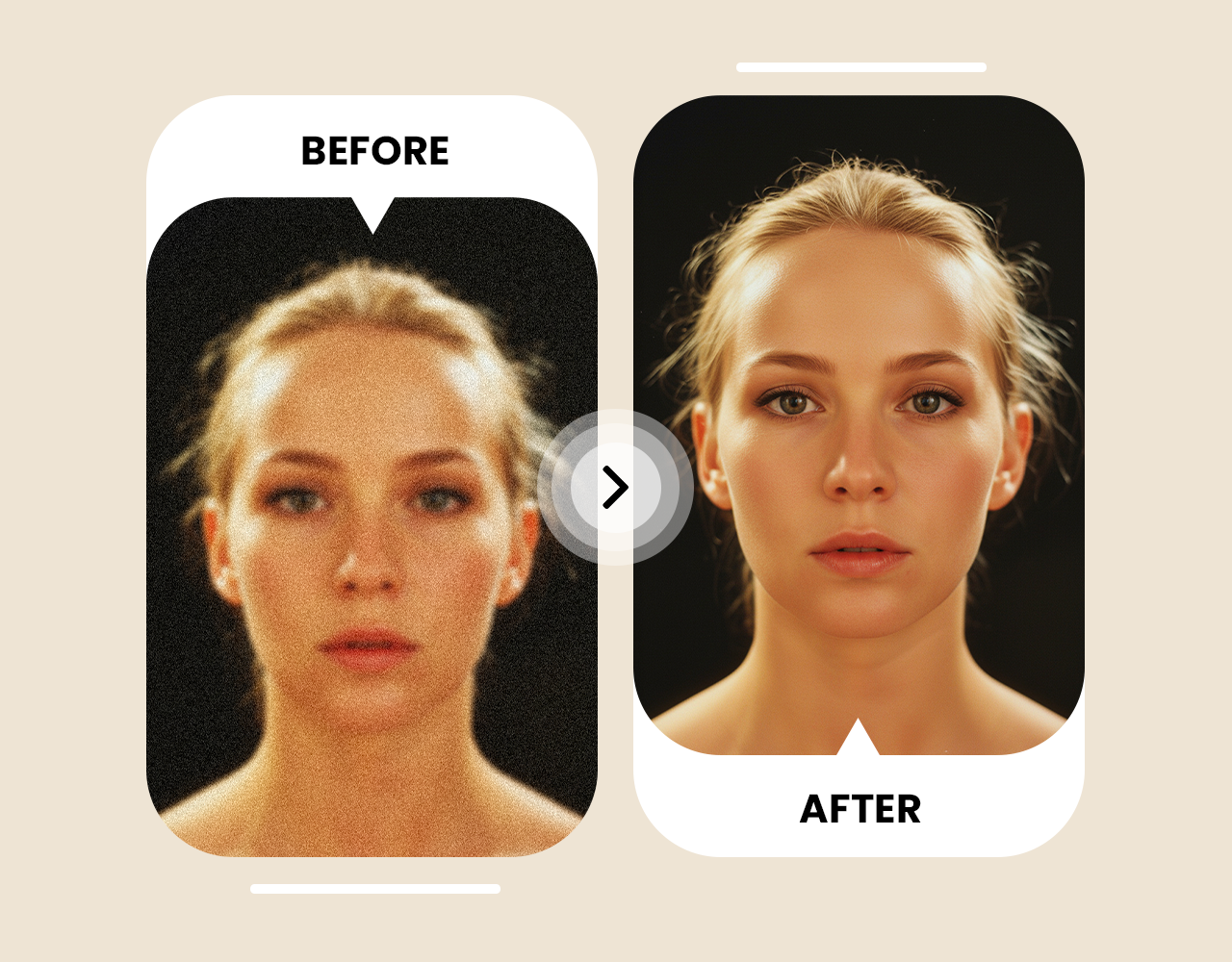
Upscale Any Video to Crystal-Clear 4K Quality
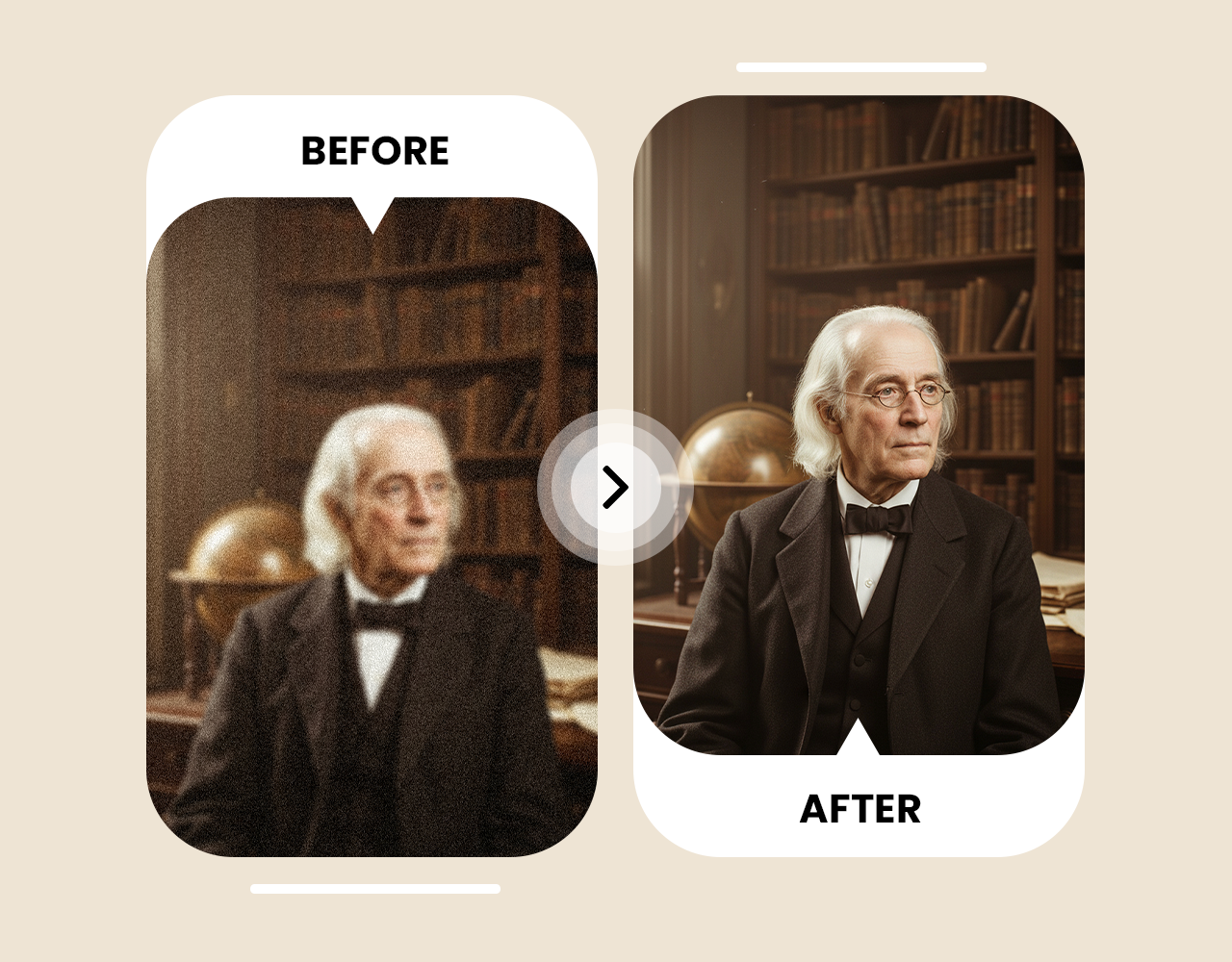
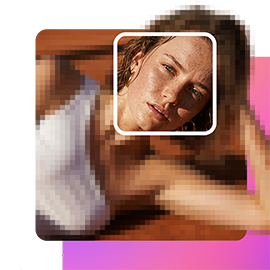
Remove Noise, Grain, and Compression Artifacts
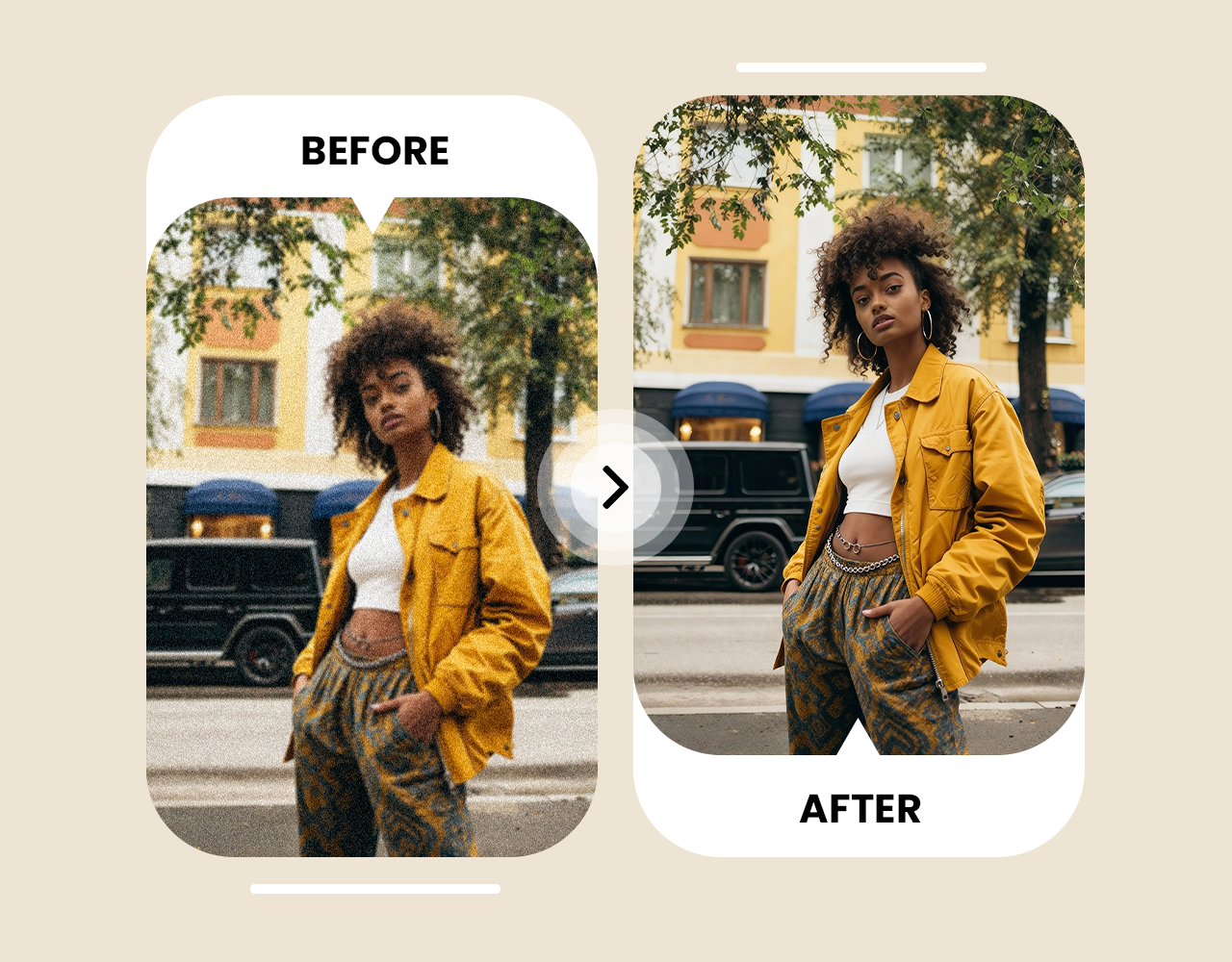
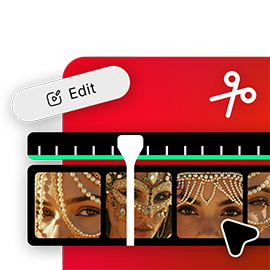
Sharp Motion, Consistent Detail Across Every Frame



Trusted by Professionals and Creators from top Brands and Companies
Hear From ImagineArt Users
I tried the AI Video Upscaler on some old camcorder footage from years ago, and honestly I was not expecting much. It came out sharp and watchable on my 4K TV — I could not believe how fast it worked.

Anya Petrova
For my YouTube channel, every video needs to look clean and professional. The AI Video Upscaler takes my older 720p clips and brings them up to 4K quality in seconds. It has saved me hours of post-production work.

Ben Harris

We use the AI Video Upscaler for client video campaigns. Footage that would have been unusable is now presentation-ready. The results are consistent, and it fits right into our existing workflow without any friction.

Isabelle Kim

I upscale drone footage from older projects, and the results look like it was shot on a modern camera. The detail recovery is impressive, and I never have to touch a setting to get a good result.

Michael Chenn

Answering Questions About AI Video Upscaler
You can use the AI Video Upscaler to convert low-resolution footage into 4K. Simply upload your video, select 4K as the output resolution, and the AI enhances detail and sharpness instantly. The resulting video is ready to download and share immediately.
The AI Video Upscaler works entirely in your browser. Upload any video file, choose your target resolution, and the AI enhances it automatically without any downloads or installation required. You can process files directly from any device with a browser.
Yes, the AI Video Upscaler supports MP4, MOV, AVI, MKV, and other common formats. It increases resolution while preserving motion, color accuracy, and texture so nothing looks stretched or over-processed. The enhanced video maintains its natural look at the new resolution.
The AI Video Upscaler detects soft or blurry frames and restores fine details across the entire clip. Your footage becomes crisp and clear without losing natural motion or introducing visual artifacts. It works on both static scenes and fast-moving content.
No, the AI Video Upscaler is designed to preserve the original look and feel of your footage while enhancing resolution and recovering detail. Results stay realistic and natural. The AI keeps motion, color, and texture consistent so the output never looks like it has been over-edited.
Upload your video to the AI Video Upscaler and select 1080p or 4K as your output. The AI improves resolution, sharpens detail, and cleans up compression artifacts, making your video look polished and platform-ready before it goes live. You can download and upload directly to YouTube after enhancement.
Yes, the AI Video Upscaler works very well on old camcorder and VHS-quality footage. It recovers lost detail, sharpens edges, and improves resolution so older clips look clear on modern screens. Results are especially strong when upscaling from 480p or 720p to 1080p.
ImagineArt AI Video Upscaler is a fast, browser-based tool that increases video resolution while preserving detail, color, and motion. Powered by Topaz AI, you can simply upload your video to upscale and enhance video quality up to HD 1080p or 4K.
Anyone can use ImagineArt AI Video Upscaler to enhance low-resolution footage, restore old clips, improve social media videos, or prepare content for professional delivery. It suits content creators, marketers, event videographers, and anyone who needs better-looking video without manual editing.
Upload your footage to the AI Video Upscaler. It sharpens pixelated areas, recovers edge detail, and improves overall resolution so your video looks clean and watchable. Enhanced files can be downloaded, shared or edited immediately.
Yes, the AI Video Upscaler works in mobile browsers, letting you enhance footage directly from your phone while keeping the output sharp and detailed. It is a convenient option for improving clips on the go without installing any app.
Upload your drone footage to the AI Video Upscaler. It recovers fine detail in landscape textures, sharpens edges, and improves resolution to bring older aerial clips up to modern quality standards. The results are suitable for client delivery, showreels, or social media.
Yes, the AI Video Upscaler handles animated content effectively. It sharpens line work, preserves flat color fills, and increases resolution without introducing unwanted texture or noise. You can use the enhanced output for streaming, archiving, or sharing high-resolution versions of animated clips.