

Arooj Ishtiaq
June 8, 2026 • Updated June 8, 2026
10 mins Read
Ideogram 4.0 is available on ImagineArt's image generator, the dedicated ImagineArt app page, and the Ideogram website. This guide covers the exact steps for all three. For model capabilities and prompting mechanics, the Ideogram 4.0 overview and Ideogram 4.0 prompt guide cover those separately.
Three Ways to Access Ideogram 4.0
Before getting into the steps, here is what each access point offers so you can pick the one that matches your workflow.
- ImagineArt AI image generator gives you Ideogram 4.0 inside the full ImagineArt model stack. You switch between 50+ models from the same interface, use reference images, adjust variations, and apply the Prompt Enhancer all without leaving the platform. Best for teams and creators who want to compare outputs across models in the same session.
- The ImagineArt Ideogram 4.0 app is a dedicated generation interface for the model, specifically. It includes a direct prompt field, resolution selector, aspect ratio picker, and the full editing suite on the right side. Best for creators who want a focused single-model environment with ImagineArt's post-generation tools attached.
- The Ideogram website is the native platform. It gives you the widest range of Ideogram-specific features, including Canvas editing, remix, private generation, and community browsing. Best for creators who want the full native Ideogram experience or who need Canvas for design-layer editing.
How to Use Ideogram 4.0 on ImagineArt (AI Image Generator)
ImagineArt's main image generator at imagine.art/image is where Ideogram 4.0 sits alongside every other leading model. The dashboard shown in the screenshots confirms the model is listed in the model selector as "Ideogram v4" with the following settings available at generation time.
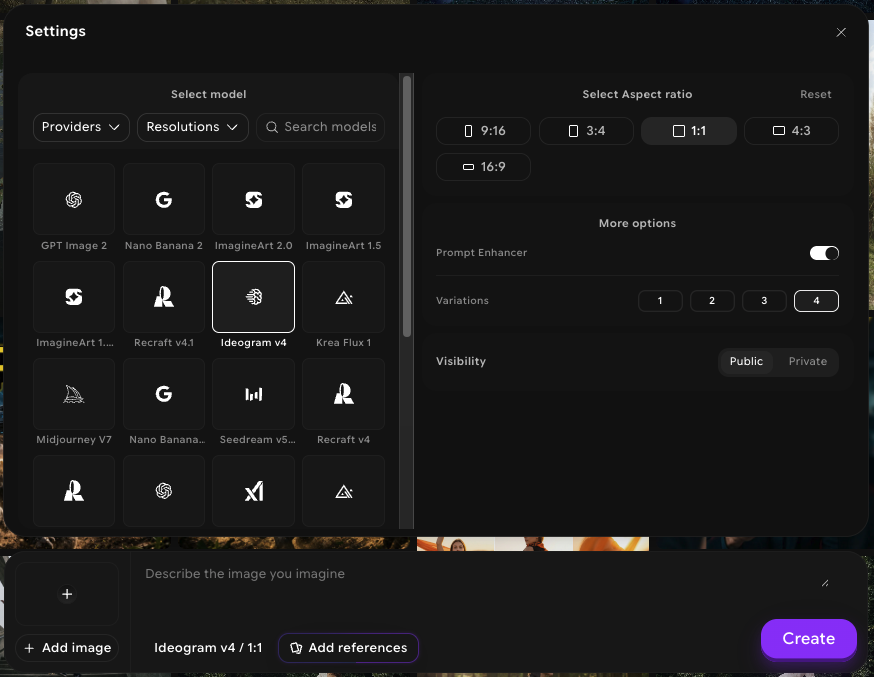 How to Use Ideogram 4.0 on ImagineArt (AI Image Generator)
Step 1: Open the AI Image Generator
Go to the ImagineArt AI image generator. The generation panel opens with the last-used model selected by default.
Step 2: Select Ideogram v4 from the Model Selector
Click the model selector at the top of the panel. A grid of available models appears organized by provider. Scroll to find Ideogram v4 or search for it using the search bar. Click to select it. The bottom bar confirms your selection as "Ideogram v4 / 1:1" (or whichever aspect ratio is currently active).
Step 3: Set Your Aspect Ratio
Five aspect ratios are available for Ideogram 4.0 on ImagineArt:
- 9:16 for vertical content (TikTok, Reels, Stories)
- 3:4 for portrait format (Pinterest, editorial)
- 1:1 for square format (Instagram feed, profile visuals)
- 4:3 for landscape content (presentations, banners)
- 16:9 for wide landscape (YouTube thumbnails, desktop headers)
Select your target aspect ratio before writing your prompt. The bottom bar updates to reflect the active ratio.
Step 4: Write Your Prompt
Type your prompt in the "Describe the image you imagine" field. For plain text prompts, describe the subject, medium, lighting, and color direction. For structured JSON prompts with bounding-box layout and hex color conditioning, the full schema and examples are in the Ideogram 4.0 prompt guide.
Prompt Enhancer: The toggle at the right of the settings panel applies automatic prompt optimization before the generation runs. Enable this for shorter or less detailed prompts to improve output quality without rewriting the prompt manually.
Step 5: Set Variations
The Variations selector lets you generate 1, 2, 3, or 4 outputs per run. Set to 4 for concept exploration, where you want to compare directions. Set to 1 when you have a precise prompt and want to iterate quickly.
Step 6: Set Visibility
The Visibility toggle sets outputs as Public or Private. Private generation keeps your output out of the ImagineArt community feed.
Step 7: Generate and Review
Click Create. Ideogram 4.0 generates at native 2K resolution. Review the outputs and select the strongest result for editing or downloading.
How to Use Ideogram 4.0 on the ImagineArt App
The dedicated Ideogram 4.0 app gives you a focused generation environment for Ideogram 4.0, specifically, with ImagineArt's full editing suite accessible immediately after generation.
Step 1: Open the App Page
Go to the Ideogram 4.0 on ImagineArt Apps. The left panel shows the generation interface. The right panel shows the "How it works" overview and sample outputs.
Step 2: Add Your Prompt
The Add prompt field is at the top of the left panel. Enter your description here. The interface supports both plain text and JSON prompts. For plain text, describe the subject, medium, and visual direction clearly. The Prompt Enhancer is available on this interface as well.
Step 3: Set Resolution
Ideogram 4.0 natively outputs at 2K regardless of the platform resolution setting.
Step 4: Set Aspect Ratio
The Aspect Ratio dropdown defaults to 1:1. Switch to your target format before generating. The same five ratios available in the main image generator are accessible here.
Step 5: Generate
Click the Generate button at the bottom of the panel. The output appears in the History tab on the right side.
Step 6: Edit and Export
After generation, ImagineArt's editing tools are available directly from the output:
- Edit for inpainting, background changes, and element adjustments
- Film Studio for converting a generated still into a video clip
- Ad Studio for adapting the output into a campaign-ready ad format
- AI image editor for layerizing text, removing backgrounds, and upscaling within a full editing environment
For product images specifically, the product photography background ideas guide covers background approaches that work well with Ideogram 4.0's native transparent background output.
For social media content, the best AI image generators for social media guide covers format and sizing considerations across platforms.
How to Use Ideogram 4.0 on the Ideogram website
The Ideogram website gives you access to Ideogram-specific features that are not available elsewhere, including Canvas, remix functionality, and the full community inspiration feed.
Step 1: Create an Account
Go to the Ideogram website and sign in or create a free account. The free tier provides a limited number of slow generations per month. Paid plans start at $8 per month on annual billing for 400 priority generations.
Step 2: Select Ideogram 4.0 as Your Model
From the generation panel, click the model selector and choose Ideogram 4.0. If you do not see it listed, check that your account tier includes access to the latest model. The free tier includes Ideogram 4.0 at a slow generation speed.
Step 3: Choose Your Generation Mode
Ideogram 4.0 on the native platform supports four generation modes:
- Generate: Standard text-to-image from a prompt
- Describe: Upload an existing image, and the platform generates an accurate text description of it, which you can then use as a generation prompt
- Canvas: Open a design canvas where you can place generated elements at specific positions, add text layers, and combine multiple generations in one layout
- Remix: Upload a reference image and generate variations that maintain its composition or style
After generating, you can open any output in Studio to layerize text, edit elements, remove backgrounds, and upscale images within a dedicated editing environment.
Step 4: Write Your Prompt
Type your prompt in the main prompt field. Text within quotation marks is treated as a priority instruction for in-image text rendering, meaning the quoted string is rendered as legible text inside the image. For example: A poster with the headline "SUMMER SALE" in bold serif renders the quoted text as actual typography in the output.
For JSON prompting with a bounding-box layout, paste the full JSON object directly into the prompt field. The platform validates the schema before generating and rejects inputs that do not parse correctly. Full schema guidance is in the Ideogram 4.0 prompt guide.
Step 5: Set Aspect Ratio, Generation Count, and Speed
Choose your aspect ratio from the available presets. Paid plans also support custom aspect ratios for non-standard output formats. Set the number of outputs from 1 to 4. Select your generation speed from three options:
- Turbo for the fastest output at the lowest credit cost
- Default for balanced speed and quality
- Quality for the highest fidelity output, recommended for finals
Step 6: Set Visibility
Toggle between Public and Private generation. Public generations appear in your profile and the community feed. Private generations are only visible to you and consume slightly more credits.
Step 7: Generate and Manage Outputs
Click Generate. Your outputs appear in the image grid. From here you can:
- Download individual outputs at full resolution
- Remix an output to generate variations
- Open in Canvas to add text layers, combine with other generations, or refine specific elements
- Share directly to social platforms
Choosing Between the Three Access Points
Each interface fits a different workflow. The table below summarizes the decision.
| ImagineArt Image Generator | ImagineArt App Page | Ideogram Website | |
|---|---|---|---|
| Model switching | Yes, 30+ models | No | No |
| Reference image input | No | No | Yes (Remix mode) |
| Canvas / design layers | No | No | Yes |
| Post-generation editing | Full suite | Full suite | Studio (layerize, remove BG, upscale) |
| Ad creative tools | Yes (Ad Studio) | Yes | No |
| Free tier | Yes | Yes | Yes (slow generation) |
| JSON prompting | Yes | Yes | Yes |
Use ImagineArt if you want editing, ad creative tools, or access to other models in the same session. Use the Ideogram website if you want Canvas for design-layer work or the remix workflow for style-consistent variations.
Settings Reference
These settings apply to ImagineArt's image generator and app page. The Ideogram website uses its own generation speed tiers (Turbo, Default, Quality) and supports custom aspect ratios on paid plans.
| Setting | Options | Recommendation |
|---|---|---|
| Aspect ratio | 9:16, 3:4, 1:1, 4:3, 16:9 | Match your target platform before generating |
| Resolution | 0.5K (draft), 2K | Use 2K for final output, 0.5K for concept testing |
| Variations | 1, 2, 3, 4 | 4 for exploration, 1 for precise iteration |
| Prompt Enhancer | On / Off | On for short prompts, Off for detailed JSON |
| Visibility | Public / Private | Private for client work and commercial projects |
Conclusion
Ideogram 4.0 works across all three platforms with the same underlying model quality. ImagineArt gives you the most complete production environment with editing, ad creative tools, and multi-model access in one place. The Ideogram website gives you Canvas and native remix for design-layer work.
Start generating through ImagineArt's Ideogram 4.0 app or the AI image generator directly.
Frequently Asked Questions
Which ImagineArt interface should I start with for Ideogram 4.0?
The ImagineArt AI image generator is the best starting point for most users. It gives you Ideogram 4.0 alongside every other model in the same session, so you can compare outputs without switching platforms.
Can I use reference images with Ideogram 4.0 on ImagineArt?
No. Reference image input is not supported on ImagineArt's image generator or the app page for Ideogram 4.0. For reference-guided generation, use the Remix mode on the Ideogram website, which accepts a reference image and generates variations maintaining its composition or style.
Does the Prompt Enhancer work with JSON prompts?
It is designed for plain-text prompts. For JSON prompts, disable the Prompt Enhancer and paste the structured caption directly. The JSON schema is validated before generation runs.
What is the difference between the Describe mode and Studio on the Ideogram website?
Describe mode is a generation tool and upload an image, and the platform generates an accurate, structured description of it, which you can then edit and use as a generation prompt. Studio is a post-generation editing environment where you can layerize text, remove backgrounds, upscale, and refine specific elements of any output.
Is Ideogram 4.0 available on the free tier?
Yes on both platforms. ImagineArt's free tier includes access to Ideogram 4.0 within the standard credit allocation. The Ideogram website's free tier includes Ideogram 4.0 at a slow generation speed with a monthly limit.
Where should I go for brand and marketing image generation with Ideogram 4.0?
ImagineArt is the more complete option for marketing workflows. The best AI image generators for marketers guide covers how Ideogram fits into marketing content pipelines alongside other tools. The best AI image generators for professionals guide covers professional workflows specifically.
Arooj Ishtiaq
Arooj is a SaaS content writer specializing in AI models and applied technology. At ImagineArt, she creates sharp, product-focused content that helps creators and businesses understand, adopt, and get real value from AI tools.