Tooba Siddiqui
June 24, 2026 • Updated July 3, 2026
13 mins Read
The difference between an animated picture that looks real and one that looks like an AI effect comes down to one decision: how much motion you ask for. Every time photo animation goes wrong — a face that warps mid-clip, a product that slides off its surface, a landscape that looks like a screensaver — the prompt asked for too much. The best animated pictures move just enough to feel alive. A breath. A blink. Clouds that shift almost imperceptibly. The goal is a moment, not a scene. That principle runs through every prompt and tip in this guide.
This guide covers how to animate any picture with AI using ImagineArt's video generator — portraits, product photos, landscapes, group shots, and artwork. You'll get the exact workflow, 20 copy-paste prompts organized by picture type, and the tips that separate natural-looking animated pictures from obvious AI effects.
What Is AI Photo Animation?
Photo animation AI adds realistic motion to a still image. The model reads the depth, structure, and scene context already in the photograph — a face, a product, a landscape — and generates a short video where the subject moves naturally.
You are not building an animation from scratch. You are not drawing frames. You upload one image, write a text prompt describing the motion, and the AI generates the movement from what is already there.
The result is a short animated picture, typically 3 to 15 seconds, where the motion fits the original scene rather than overriding it. A portrait shows natural breathing and eye movement. A product rotates on its surface. A landscape has wind and light shift. None of it requires editing software, design skills, or prior video experience.
This is different from traditional animation, which builds motion frame by frame, and different from video editing, which works with existing footage. Image to animation AI generates motion from a still — that is the technology behind every workflow in this guide. For video creation beyond photo animation, including audio integration and cinematic camera motion, the image-to-video guide covers the full workflow.
What Pictures Can You Animate?
Almost any still image works. The results vary by picture type — here is what to expect from each:
| Picture Type | What Animates Well | Motion Approach |
|---|---|---|
| Portrait / face | Breathing, eye movement, smile, head turn | Subtle and slow |
| Product photo | Rotation, float, liquid effects, sparkle | Dynamic and controlled |
| Landscape / nature | Clouds, water, wind in trees, light shift | Environmental motion |
| Group photo | Collective breathing, gentle depth motion | Very slow, minimal |
| Old / vintage photo | Blink, head turn, nostalgic motion | Minimal, preserve aesthetic |
| Artwork / illustration | Style-matched movement, idle animation | Creative interpretation |
The one consistent rule across every picture type: the simpler the motion prompt, the more natural the result. Over-prompting, asking for too many things to move at once, produces output that looks generated rather than real.
If you don't have an existing photo to start with, generate one first, the AI photography prompts guide covers prompts for creating photorealistic images that animate well.
How to Animate a Picture on ImagineArt
Step 1 — Go to the Video Generator
Open ImagineArt and navigate to the Video Generator. This is the dedicated tool for turning still images into animated clips, separate from AI image generation.
Step 2 — Select Reference I2V
Click on Reference I2V. The ImagineArt's image-to-video generation feature lets you animate pictures using uploaded image references. This is where your photo becomes the input for the animation.
Step 3 — Upload your image
You can upload up to four images and references in a single generation. Use this for multiple product angles, a subject plus a background reference, or a style reference alongside your main image. For most portrait and single-subject animations, one image is sufficient.
Step 4 — Write your motion prompt
Describe what moves, how it moves, and the mood. Use the @ symbol to reference specific elements from your uploaded images. For example, @portrait to direct facial motion, @product to anchor movement to a specific uploaded reference, or @background to animate the scene independently from the subject.
Prompt formula: [Subject from @reference] + [specific motion] + [speed] + [mood]
Example: "@portrait subtle natural breathing and slow eye blink, warm and gentle, very slow motion."
Step 5 — Select your video model
Different models suit different picture types and styles. For the highest quality output across all picture types, select Seedance 2. It produces 4K animated pictures with natural motion for portraits, products, and landscapes. The prompts section below notes where style-specific models are recommended — use Seedance 2 as your default for final exports.
Step 6 — Use the Prompt Enhancer (Optional)
Before generating, run your prompt through ImagineArt prompt enhancer. It refines the motion description for the selected model, catching specifics that improve output quality without changing your core intent. Worth using on every generation.
Step 7 — Select aspect ratio
Match to where you're publishing:
- 9:16 — Instagram Reels, TikTok, YouTube Shorts
- 1:1 — Instagram feed, social sharing
- 16:9 — YouTube, presentations, desktop
Step 8 — Set duration
ImagineArt AI Video Generator supports up to 15 seconds. Recommended by picture type:
- Portraits: 4–6 seconds
- Products: 5–8 seconds
- Landscapes: 6–10 seconds
- Looping social content: 3–4 seconds
Step 9 — Select video quality
For final exports and anything going on a product page, presentation, or high-visibility post — select 4K with Seedance 2. Standard quality works for quick iterations and prompt testing.
Step 10 — Generate and review
Run 2–3 variations. Motion generation has natural variance between outputs — the third is often the strongest. Check that the motion feels natural, matches the mood of the original, and loops cleanly if you're using it for social media. Edit and refine your photo animation on ImagineArt AI Video Editor.
For a comparison of AI tools, the top free AI image-to-video tools guide covers the full landscape.
Prompts for Every Picture Type
Twenty prompts organized by picture type. All work directly in ImagineArt AI image-to-video generator. Copy, adjust the @ reference to match your upload, and generate.
Portraits and Face Photos
Goal: natural, believable facial motion — not video effects
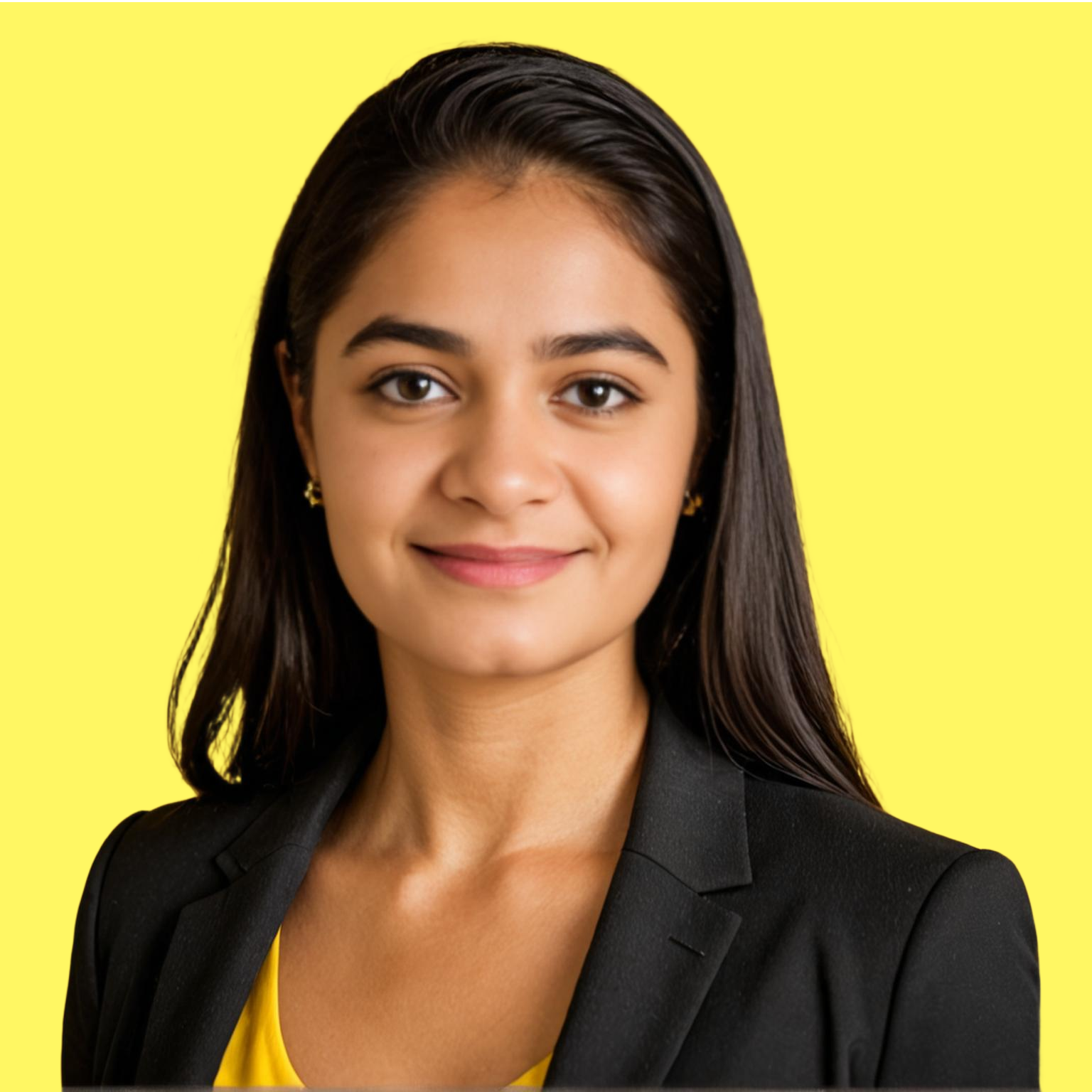
 Animate portrait pictures on ImagineArt image-to-video generator
"@portrait subtle natural breathing and warm smile forming, gentle eye movement, soft light, very slow and smooth."
"@face slow confident head turn toward camera, direct eye contact, cinematic portrait mood, natural motion."
"@portrait emotional expression shift, eyes glistening, raw and authentic, slow and deliberate."
"@portrait natural blink and slight smile, peaceful and warm, minimal motion."
Product Photos
Goal: movement that highlights the product and holds attention.
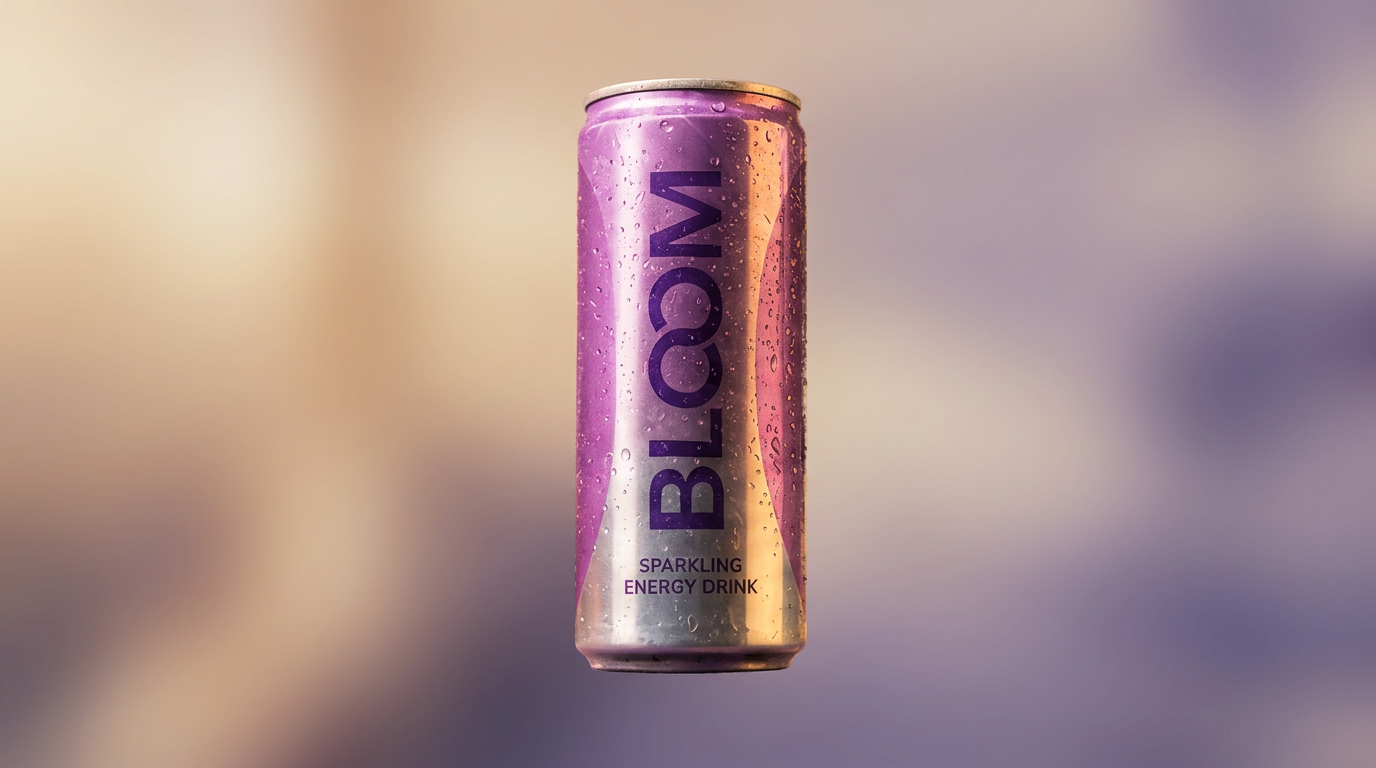 Animate product photos on ImagineArt image-to-video generator
"@product slow 360-degree rotation on clean white surface, soft studio lighting maintained, smooth and premium."
"@skincare single droplet falling and splashing on product surface, slow motion, clean background, premium feel."
"@product gentle float upward with soft shadow below, minimalist background, product stays centered."
"@drink condensation forming on glass surface, steam rising slowly, warm atmospheric light, slow motion."
For product photography compositions worth animating — flat-lays, hero shots, lifestyle setups, the product photography ideas guide covers styles that work well as animation inputs.
Landscape and Nature
Goal: environmental motion — the scene breathes
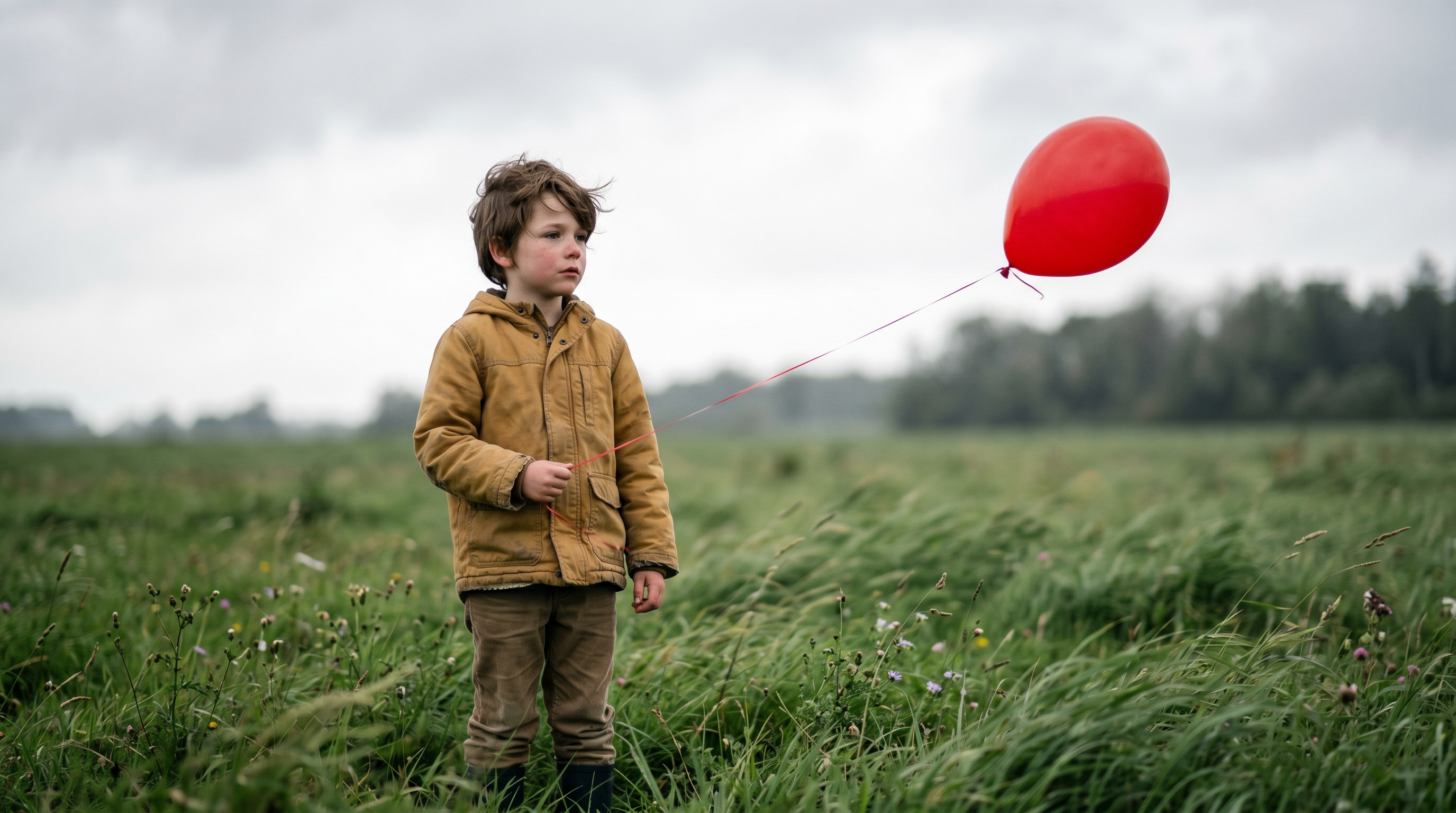 Animate landscape pictures on ImagineArt image-to-video generator
"@landscape clouds drifting slowly across sky, light shifting across terrain, horizon stable, cinematic and calm."
"@ocean realistic wave motion, water surface moving naturally, horizon line stable, atmospheric depth."
"@forest gentle wind through trees, dappled light effect, leaves moving softly, slow and peaceful."
"@sunset sky color shifting slowly from orange to deep red, water reflection moving below, cinematic wide."
Group Photos
Goal: subtle collective motion — natural and unobtrusive
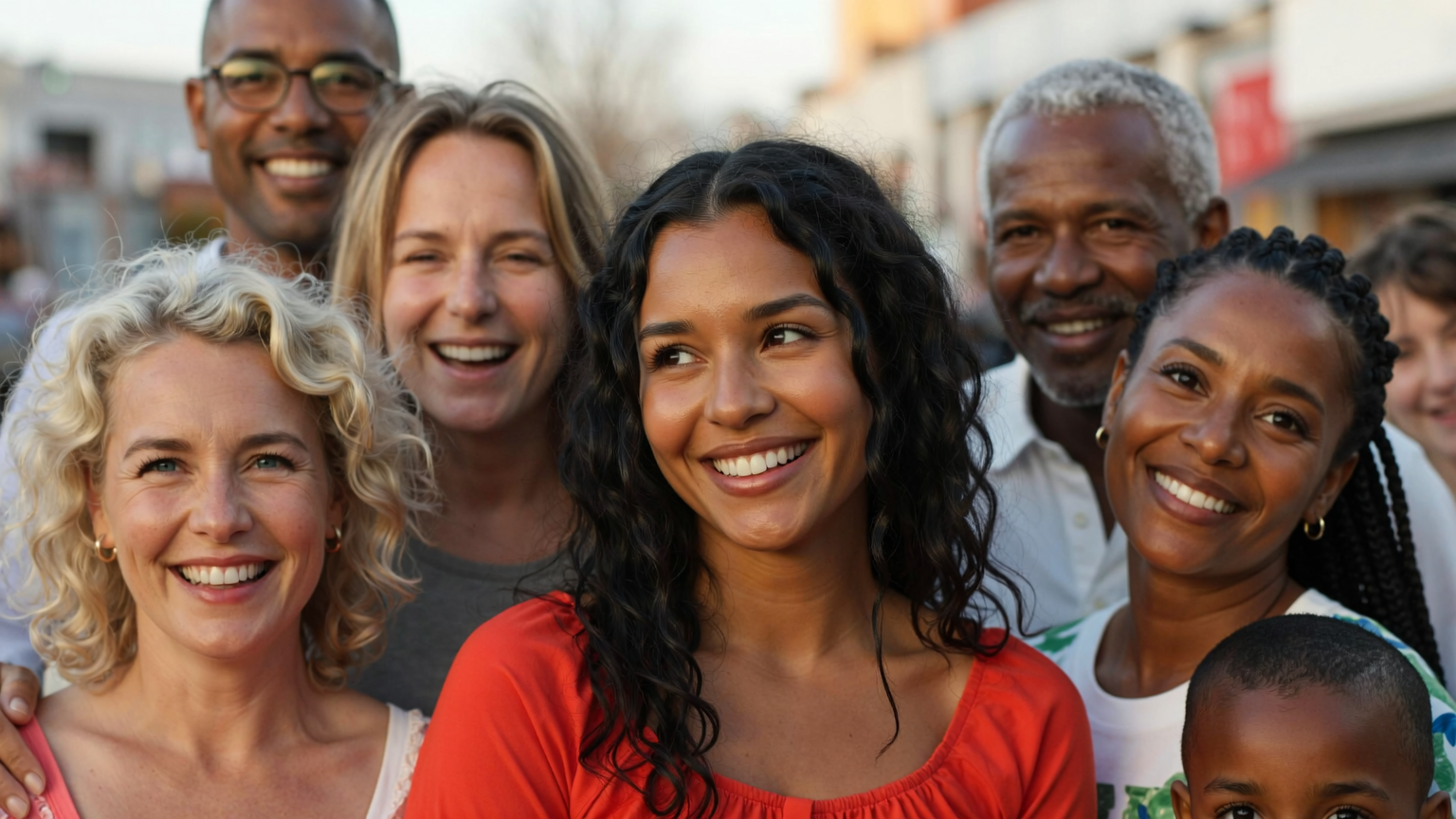 Animate group photos on ImagineArt image-to-video generator
"@group gentle collective breathing and weight shift, background depth motion, warm and natural, very slow."
"@team very subtle shoulder and chest movement, group stays composed, natural and dignified, slow."
"@family minimal breathing motion, warm lighting preserved, nostalgic and gentle, very slow."
"@wedding group slow natural motion, elegant and soft, background slightly animated, aesthetic preserved."
Artwork and Illustrations
Goal: style-aware motion that respects the original art
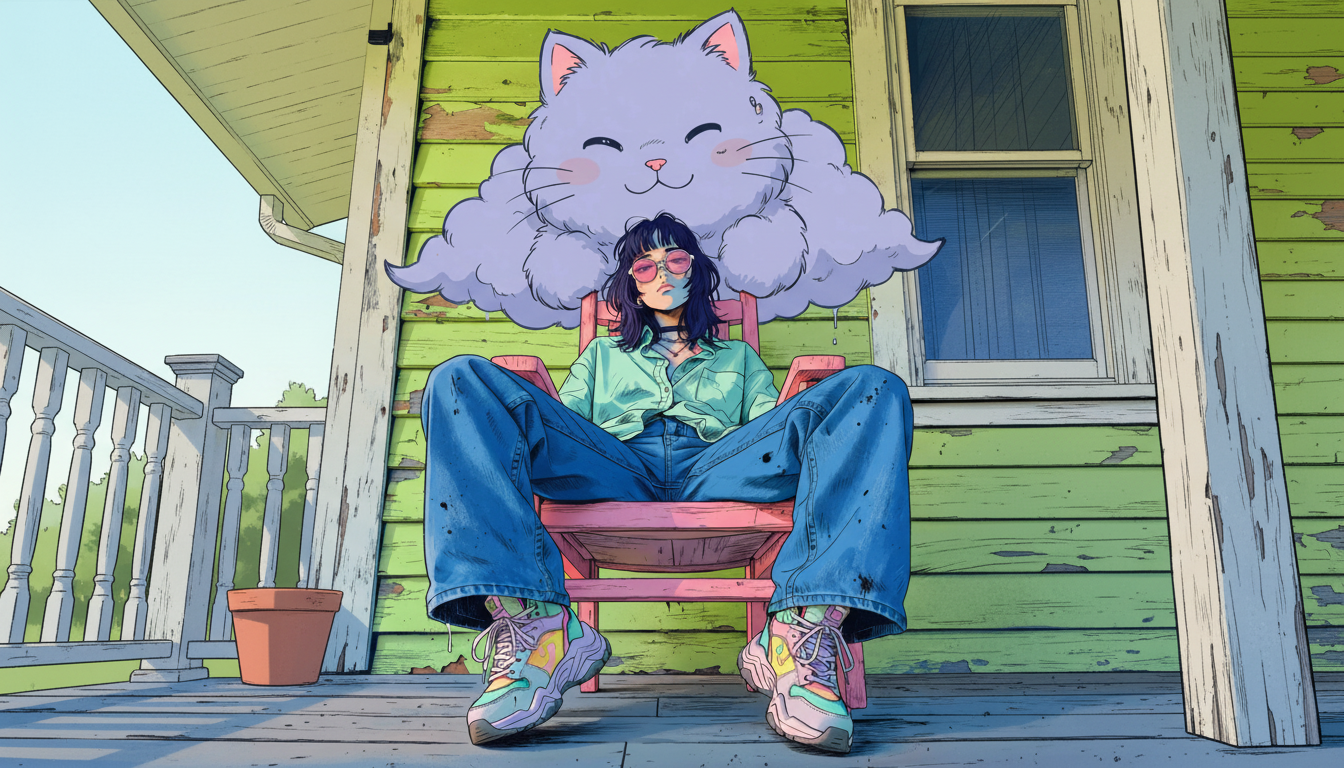 Animate artwork on ImagineArt image-to-video generator
Model note: Nano Banana Pro for creative AI art or illustrated and stylized artwork — preserves art style better than Seedance 2 for non-photographic images
"@illustration painterly hair and clothing movement in gentle breeze, art style fully preserved, slow idle animation."
"@painting clouds and water moving in the style of the original artwork, brushstroke texture maintained."
"@character subtle idle animation — breathing and eye blink — style-matched motion, original aesthetic preserved."
"@abstract gentle color shift and organic form movement, mood of original artwork maintained, slow and fluid."
The prompts above are motion-specific — written for animating an existing image. For text-to-video prompts where you're generating video from scratch across cinematic, product, UGC ads, and social media formats, the AI video prompts guide has 80+ prompts across 14+ categories
How to Use Multiple Image References
ImagineArt AI image-to-video generator accepts up to four image references per generation. Most people upload one image and prompt from there. Using multiple references gives the AI more context — and produces significantly more controlled, accurate animation.
Subject + background reference
Upload your main subject as the first reference and a separate background as the second. The AI animates the subject against the referenced background — useful when your original photo has a plain or distracting background you want to replace.
Multiple angles of a product
Upload two or three angles of the same product. The AI builds a more complete spatial understanding of the object before generating the rotation or float. Single-angle product animations often drift — multi-angle references keep the product stable and accurate.
Style reference + main image
Upload a visual style reference alongside your main image. If you want your portrait animation to have a specific cinematic look — a film grade, a lighting mood — a style reference communicates that faster and more accurately than text alone.
Using @ element references in your prompt
The @ symbol targets motion toward a specific uploaded reference instead of letting the model decide:
- '@portrait breathe naturally and blink slowly' — motion targets the portrait reference
- '@product rotate 360 degrees on surface' — motion targets the product reference
- '@background clouds drift left slowly' — motion targets the background independently
For multi-reference uploads especially, @ targeting prevents the model from animating the wrong element.
Practical example:
Upload a front-facing product shot as @product and a lifestyle background as @background. Prompt: "@product float gently upward with soft shadow below, @background subtle depth motion, premium studio feel, slow and smooth." The product and background animate independently — controlled and intentional.
Where to Use Your Animated Pictures
Animated pictures work anywhere a static image currently lives — and performs better in most of them.
Product pages
An animated product photo holds attention longer than a still image and answers the "what does this look like in motion?" question before the customer asks. A rotating product, a liquid effect, a float animation — embed the MP4 directly as the hero visual on a product page or in a product gallery.
Social media
Animated pictures are natively shareable on Instagram Reels, TikTok, and YouTube Shorts in 9:16, and on Instagram feed and X in 1:1. The motion stops the scroll without requiring a full video production. Portrait animations and product floats perform well as organic content because they feel curated rather than produced.
Email campaigns
Export as GIF for email clients that don't support video, or embed as video in modern platforms. An animated product or portrait in an email header consistently outperforms a static image on click-through rate — without the production overhead of a full video.
Presentations and pitch decks
A slide with an animated product photo or a breathing portrait holds attention in a way static images don't. Embed the clip directly into PowerPoint, Keynote, or Google Slides. Works especially well for product launches, investor decks, and brand presentations.
Digital ads
Animated pictures work as Meta ad creatives, Google Display ads, and LinkedIn sponsored content. Motion drives higher CTR than static images across most ad formats — without the production cost of a full video ad. For AI-generated ad formats and performance workflows, the best AI video generators for YouTube guide covers video-first ad approaches.
Animate old photos
Animated portraits of family members, tribute videos, genealogy presentations, memorial and family project. Add slower, more minimal motion to preserve and animate old photos with original feel. Seeing an old photograph move carries emotional weight no other use case matches.
If you want to fix an existing old photo, start with learning how to retouch old photos with AI and finding the right app to restore old photos.
Tips for Better Animated Pictures
- Specify speed in every prompt. "Slow," "very slow," "gentle," "smooth," "dynamic" — the model responds to pacing instructions. Without a speed instruction, outputs default to medium motion, which often looks wrong on portraits and delicate subjects.
- Use @ references intentionally. The @ element reference targets motion toward a specific uploaded image. For multi-image uploads, this prevents the model from applying motion to the wrong subject in the scene.
- Run the prompt enhancer before every final generation. One click, consistently better output — especially for complex scenes with multiple motion elements.
- Generate short clips for social. A 3–4 second animated picture loops invisibly on Instagram Reels and TikTok. Anything beyond 6 seconds risks motion drift near the end.
- Preserve aesthetics explicitly. For black and white photos, illustrations, or vintage images — add "original aesthetic preserved," "black and white maintained," or "art style unchanged." Without this, models can colorize or modernize the original.
- Check the first frame. The first frame of your animated picture is used as the preview thumbnail across platforms. Make sure it reads well as a still — not mid-motion or blurred.
Ready to Animate Your Pictures?
The workflow is the same regardless of what you're animating — a portrait, a product, a landscape, or a piece of artwork. Upload to Reference I2V, write a motion prompt using @ to target your references, run the prompt enhancer, select Seedance 2 for 4K, and generate.
Twenty prompts above. Every picture type covered. Start with the one that matches what you have.
Frequently Asked Questions
Go to ImagineArt's video generator, select Reference I2V, upload your image, write a motion prompt using @ to reference your uploaded image, run the prompt enhancer, select Seedance 2 for 4K quality, and generate.
Upload the portrait to Reference I2V, use @portrait in your prompt, and ask for subtle facial motion — breathing, eye movement, slow head turn. Select Seedance 2. Keep the motion slow: 'very slow natural breathing and gentle eye blink' produces more believable results than anything more dramatic.
ImagineArt's Reference I2V with Seedance 2 produces 4K animated pictures with natural motion across portrait, product, and landscape types.
ImagineArt supports up to 15 seconds. For social media loops, 3–4 seconds is optimal. For product demos and presentations, 6–10 seconds works well.
A GIF loops a short sequence of frames — usually low resolution with limited color. An AI-animated picture is a full video clip generated from a still image — higher resolution, natural motion, shareable as MP4 across all platforms.
ImagineArt's Reference I2V accepts up to four image references per generation — useful for multi-angle product shots, subject plus background combinations, or style references alongside your main image.
No. ImagineArt's Reference I2V requires only an image and a text prompt. No timeline editing, no keyframes, no software installation.
9:16 for Instagram Reels, TikTok, and YouTube Shorts. 1:1 for Instagram feed. 16:9 for YouTube, presentations, and desktop. Set the aspect ratio in ImagineArt before generating.
Tooba Siddiqui
Tooba Siddiqui is a content marketer with a strong focus on AI trends and product innovation. She explores generative AI with a keen eye. At ImagineArt, she develops marketing content that translates cutting-edge innovation into engaging, search-driven narratives for the right audience.