
Zahida Misher
November 20, 2026 • Updated November 20, 2026
7 mins Read
How to animate a picture depends on what you want the picture to do. Wiggle for three seconds on your phone? Carry moving text and stickers? Pan slowly across a slideshow? Or actually come alive, with water that ripples and a camera that pushes in?
Those are four different jobs, and most guides treat them as one. Below: a table to pick your method, sourced steps for iPhone, Google Photos, Adobe Express, PowerPoint and iMovie, and an AI route with exact prompts.
How to animate a picture: which way fits your photo?
Pick by the motion you want: your phone's built-in effects for a quick wiggle, a design app for moving text or shapes, a Ken Burns effect for a slow slideshow pan, and an AI image-to-video tool for real movement inside the scene. All four animate a photo; they just move different things.
| You want | Method | Where | What you need | Free? |
|---|---|---|---|---|
| A short loop or bounce | Live Photo effects | iPhone | A photo shot as a Live Photo | Yes, built in |
| Subtle AI motion, one tap | Google Photos Photo to video | Android, iOS | Personal Google Account, US | Yes, with a daily limit |
| Text or effects moving on top | Adobe Express or PowerPoint | Browser, desktop | An Adobe account or PowerPoint | Adobe's free plan; PowerPoint needs a licence |
| A slow pan and zoom | Ken Burns effect in iMovie | iPhone | iMovie | Yes, free on the App Store |
| Waves, wind, a camera move | AI image to video | Browser | An AI video tool and a motion prompt | ImagineArt free plan with daily credits; partner models need a paid plan |
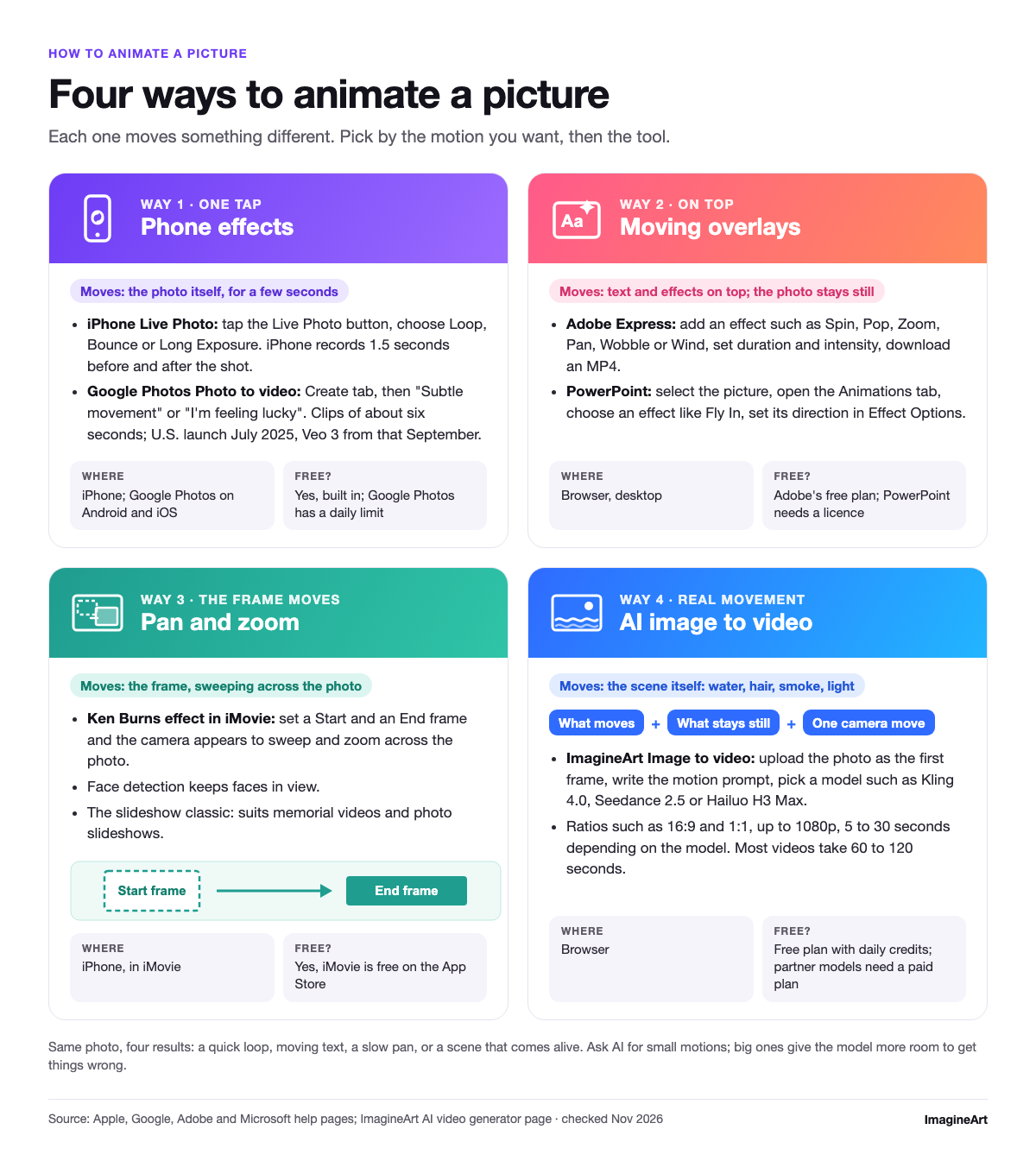 Four ways to animate a picture: Live Photo effects, design app overlays, Ken Burns pan and zoom, and AI image to video
1. Animate a photo on your phone in one tap
On an iPhone, with Live Photo effects
A Live Photo already has motion in it. Per Apple's Live Photos guide, iPhone records 1.5 seconds before and after you take the picture.
- Open a Live Photo in Photos.
- Tap the Live Photo button near the top.
- Choose Loop, Bounce or Long Exposure.
The catch: it only works on photos shot as Live Photos, and editing in a third-party app may lose the effect.
In the Google Photos app, with Photo to video
Google Photos' Photo to video lives in the Create tab. Pick a photo, then choose "Subtle movement" or "I'm feeling lucky." It launched in the U.S. on Android and iOS in July 2025, making short clips of about six seconds per Google's launch post, and moved to Veo 3 that September.
Google Photos Help lists the limits: a set number of generations per day, a personal Google Account, age 13 or older (18 or older, initially, for the text-prompt option), and results that "may give unexpected or inaccurate results." It works on iPhone too: install Google Photos from the App Store.
2. Add moving effects in a design app
Here you animate a picture by moving things on top of it while the photo stays still. That's the right call for a social post with animated text, and the wrong one if you want the sea to move.
Adobe Express animated images let you pick an image, add an effect such as Spin, Pop, Zoom, Pan, Wobble or Wind, set its duration and intensity, and download an MP4. Adobe says its free plan includes core features. Canva also has a photo animation tool.
For slides, PowerPoint's picture animations work the same way: select the picture, open the Animations tab, choose an effect like Fly In, set its direction in Effect Options and preview in Slide Show. The picture itself won't blink, though.
3. Pan and zoom across the picture
The slideshow classic still works. In iMovie's Ken Burns controls, Apple describes how "the camera appears to sweep across and zoom in and out on the photo." You set a Start and End frame, and face detection keeps faces in view.
4. How do you make an AI video from a photo?
How to make an AI video from a photo: upload it to an image-to-video tool as the first frame, write a short prompt saying what should move and what should stay still, pick a model, and generate. The model invents the motion, so water, hair, smoke and light can move, not just the frame around them.
Per the generator page, Image to video "turns any photo into video using depth, light, and motion cues." Settings cover ratios such as 16:9 and 1:1, up to 1080p and 5 to 30 seconds depending on the model, and most videos take 60 to 120 seconds. Here's the route:
- Open the AI video generator and choose Image to video.
- Upload your photo. No photo yet? Make one in the AI image generator and use it as the first frame.
- Pick a model, such as Kling 4.0, Seedance 2.5 or Hailuo H3 Max. These are partner models, so they need a paid plan; see the plans page.
- Write the motion prompt.
- Set aspect ratio, resolution and length.
- Generate.
The prompt formula is three parts: what moves, what stays still, one camera move. Our guide to AI video prompts has more patterns.
Want a test image before using your own photo? Make one with this prompt (Nano Banana Pro, paid plan, 3:2): "A small fishing harbour at dusk, three wooden boats moored on calm water, string lights on the pier, low clouds lit orange, realistic photo, no people, no text, no watermark, no date stamp."
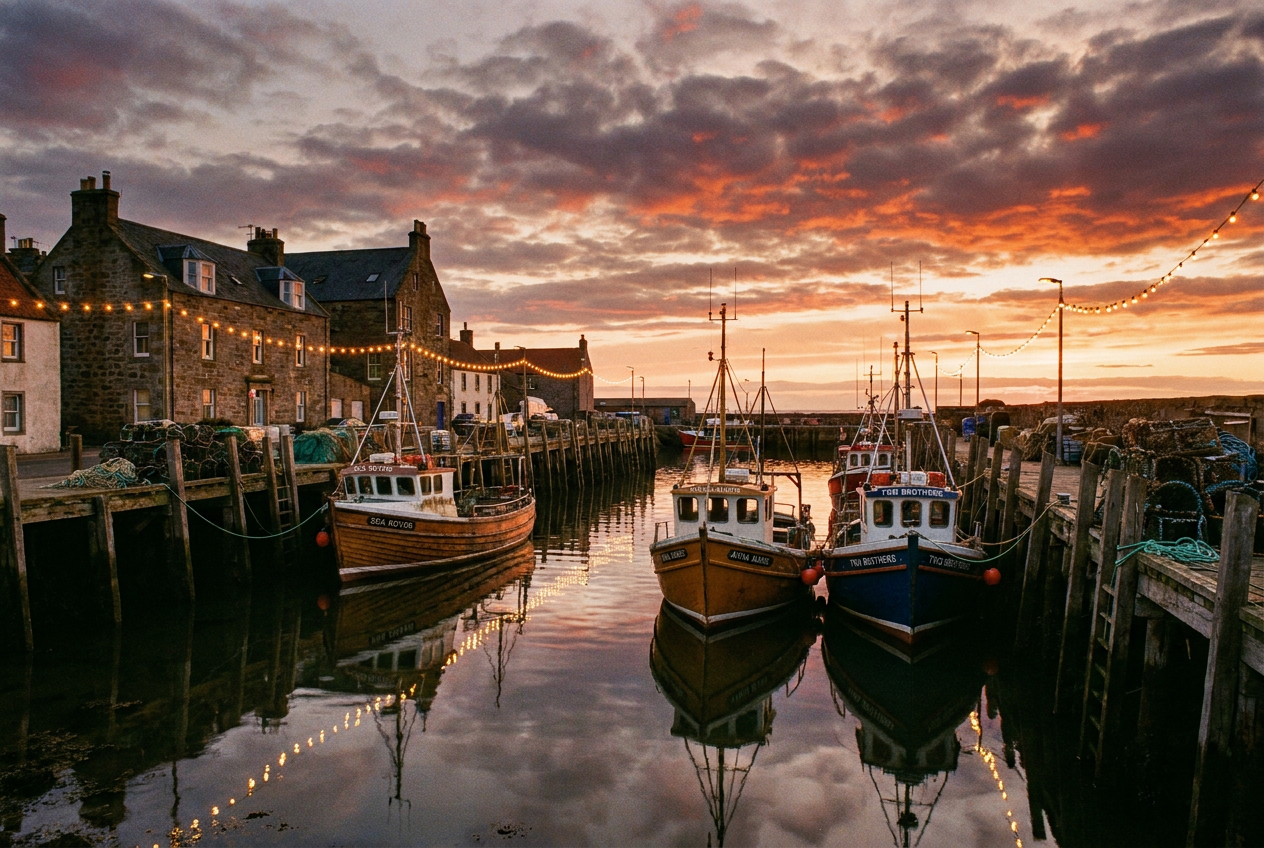 The test still: a fishing harbour at dusk with three boats and string lights
Try this prompt in Image to video with Kling 4.0, 16:9, shortest length: "Gentle waves rock the boats, string lights flicker softly, clouds drift slowly left, slow push-in toward the pier, everything else stays still."
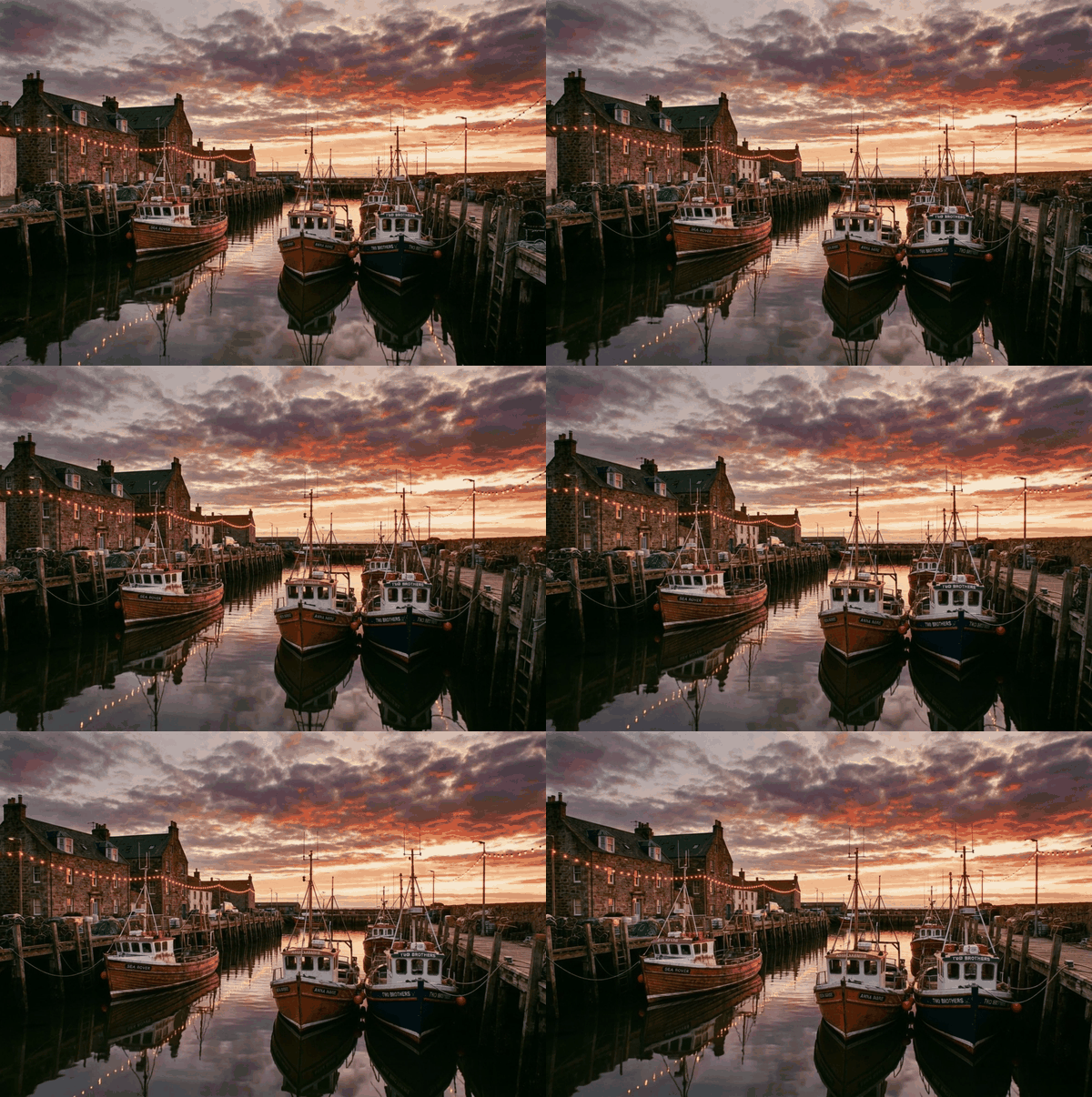 The harbour still animated with Kling 4.0
Run the same still and prompt on Seedance 2.5 and compare. Look at whether the boats stay the same shape, whether the lights flicker or smear, and whether the pier holds still while the camera moves.
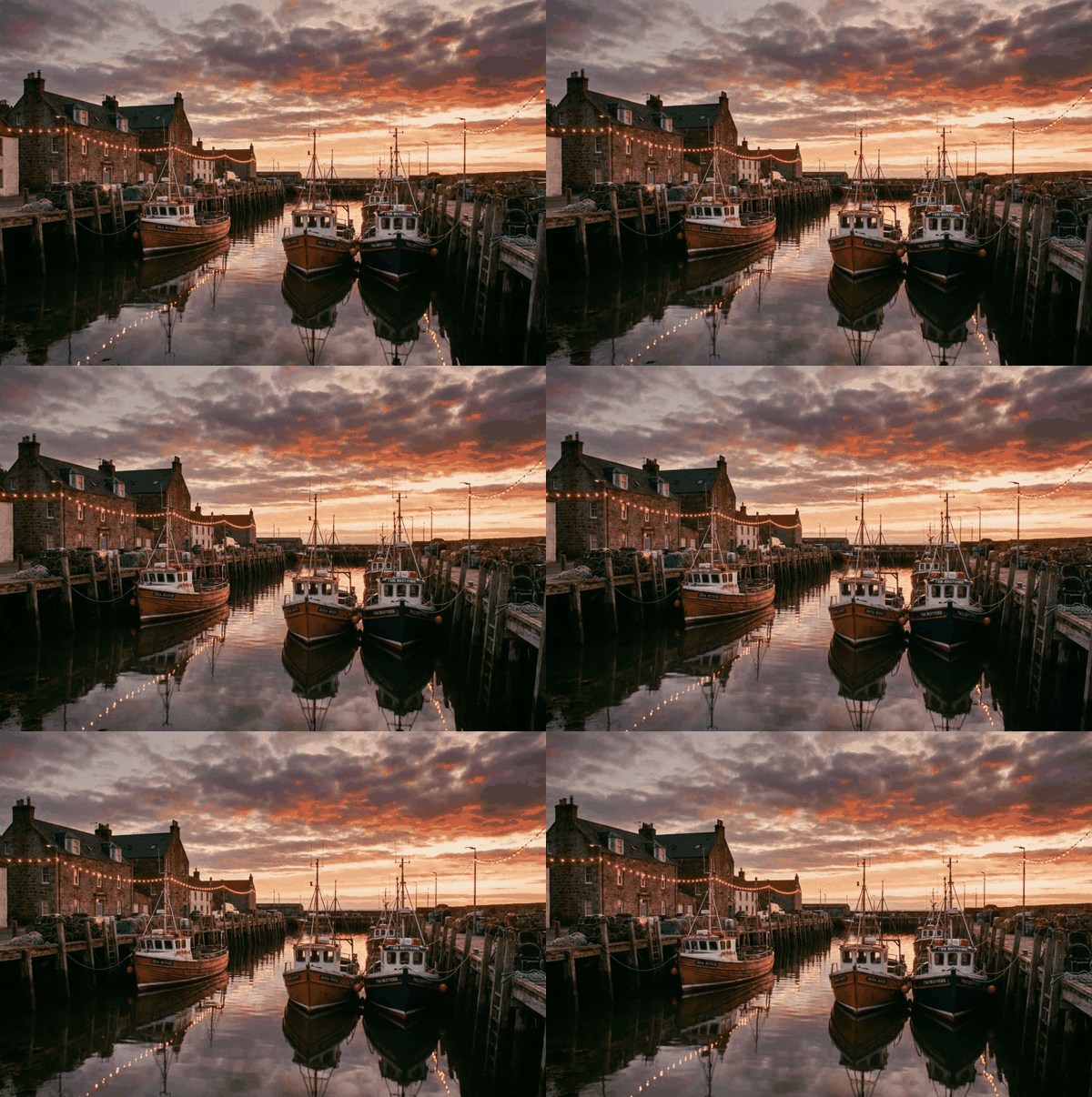 The same still and prompt on Seedance 2.5
Already pay for Google AI? Gemini's photo to video launched in July 2025 making eight-second clips with sound using Veo 3, for Google AI Pro and Ultra subscribers in select countries, with a visible watermark and an invisible SynthID one.
How to animate a photo without it looking weird
The less you ask for, the better it looks. Google's own help page warns that photo-to-video "may give unexpected or inaccurate results." Big motions give the model more room to get things wrong.
- Ask for small movements: a breeze, a ripple, a blink of light.
- Keep faces still or out of the frame; small shifts in a face are easy to notice.
- Use one camera move per clip, so the model has one thing to get right.
- Say what stays still. That photo has held still for years. It can cope with one breeze.
Photos of real people need care. Don't animate someone into doing something they didn't, and if a realistic clip could pass as real footage, YouTube asks you to label it.
Frequently asked questions
Yes. Live Photo effects are built into iPhone, Google Photos' Photo to video runs within a daily limit, and Adobe Express has a free plan. ImagineArt has a free plan with daily credits; check current limits on the plans page.
If it's a Live Photo, open it, tap the Live Photo button and choose Loop or Bounce. For any other photo, use Google Photos' Photo to video on iOS (U.S.), or upload it to an AI image-to-video tool.
Decide whether things should move on top of the picture or inside it. Overlay effects in Adobe Express or PowerPoint do the first. AI image to video does the second.
Yes, but ask for small movements like a blink or a breeze in the hair, and keep the face itself steady. Only animate people who'd be fine with it, and label realistic results where the platform asks, as YouTube does.
Per ImagineArt's generator page, most videos take 60 to 120 seconds, depending on the model and prompt.
Pick the motion, then the tool
Animating a picture is four jobs. Phone effects give you a quick loop, design apps move things on top, Ken Burns pans across, and AI image to video makes the scene itself move.
For that last one, upload your photo to ImagineArt's AI video generator, choose Image to video and start with a breeze rather than a storm.
Zahida Misher
Exploring how AI transforms marketing, I help businesses unlock growth and future-proof their presence.
View all articlesRecent posts
The Best AI Avatar Generators In 2027: 11 Tools Compared And Ranked
50 Types of Art Styles: Definitions, Examples and AI Prompts
How to Edit Images With Ideogram 4.6: 38 Edits, Prompts and Results