
Syed Anas Hussain
June 16, 2026 • Updated July 13, 2026
11 mins Read
Movie recap channels are one of the fastest-growing content formats on YouTube right now — and for good reason. A well-made recap video racks up millions of views, builds loyal audiences, and can be produced without a camera, an actor, or a film crew. The catch? Most creators are doing it wrong, using actual movie clips that put their channels one Content ID strike away from deletion. This guide shows you how to make a movie recap video with AI the right way — generating completely original visuals so you own everything you publish.
What Is an AI Movie Recap Video (and Why Creators Are Making Them)
An AI movie recap video is a video that retells a film's story using AI-generated visuals, AI narration, and original scripting — without using any footage from the movie itself. Every scene is generated by AI, every voiceover is synthesized, and every frame is original content the creator owns outright. This approach to creating an AI video recap solves the biggest problem in the recap niche: copyright exposure.
Traditional recaps use real movie clips and run into YouTube's Content ID system constantly. AI-generated recaps don't.
Creators use ImagineArt's Film Studio to generate cinematic scenes, ImagineArt's Audio Studio for professional narration, and a simple video editor to assemble the final cut. The result: a full-production recap video made entirely from scratch.
Why Movie Recap Channels Are Blowing Up Right Now
Three forces are colliding in 2026:
- AI video generation has matured. Tools like ImagineArt can now generate cinematic scenes that look like film stills, not obvious CGI — with controls for genre, camera movement, and lighting built in.
- Short-form audiences are hungry for story. People want narrative content they can consume quickly.
- The barrier to entry is near zero. A single creator, a laptop, and the right tools can produce professional-quality recap content daily.
The result: recap channels are launching at a pace that would've been impossible two years ago.
The Copyright Problem No One Talks About
Most "how to make movie recap videos" guides gloss over the legal reality. The short version: using actual movie clips on YouTube is copyright infringement — whether it's 10 seconds or 10 minutes. Fair use is a legal defense, not a permission.
Why Traditional Recap Videos Get Struck
YouTube's Content ID system scans every upload for copyrighted audio and video. A recap video using clips from a studio film will almost always trigger a Content ID match. At best, the studio monetizes your video instead of you. At worst, your channel gets a copyright strike — or gets taken down entirely. Three strikes means channel deletion, and studios don't negotiate.
The AI-Generated Solution: Original Visuals, Zero Risk
Here's what other guides aren't telling you: you don't need real movie footage to make a great recap video. Using ImagineArt's AI Film Studio to generate original cinematic scenes means every frame in your video is content you created — with no copyrighted material anywhere in your timeline. Your narration is AI-generated through Audio Studio. Your visuals are AI-generated through Film Studio. You own it all, and no Content ID system can claim otherwise.
This isn't a workaround. It's a fundamentally better way to build a recap channel.
How to Make a Movie Recap Video with AI: 6-Step Workflow
Making a movie recap video with AI involves six steps: choose your movie and angle, write a commentary-driven script, generate scenes in ImagineArt Film Studio, add AI narration in Audio Studio, assemble and polish in a video editor, and optimize for YouTube. The full process takes 3–6 hours for a first video and under 90 minutes once you have a repeatable workflow.
Step 1 — Choose Your Movie and Find Your Angle
Don't just pick a popular film. Pick a film with a story worth recapping — clear character arcs, plot twists, and moments audiences want to relive or discover. Then choose your angle.
High-performing recap angles:
- "The ending explained" — works for films with ambiguous or twist endings
- "Things you missed" — detail-oriented, rewards rewatchers
- "The full story in [X] minutes" — pure summarization, high-volume appeal
- "Why it's a masterpiece" — opinion + recap, stronger commentary signal
Your angle shapes your script and determines which scenes you'll generate. Nail the angle before you write a word.
Step 2 — Write a Recap Script (Commentary, Not Just Summary)
A recap script is not a Wikipedia plot summary — it's a narrative with voice, pace, and hooks. The commentary transforms your video from a re-upload to original creative work.
Script structure:
- Hook (30 seconds): Drop into the most gripping moment
- Setup (2–3 minutes): Characters, stakes, world
- Conflict escalation (4–6 minutes): Turning points, scene by scene
- Climax and resolution (2–3 minutes): Payoff and meaning
- Outro/opinion (30–60 seconds): Your take
Write your script as a numbered shot list as you go. Each paragraph = one scene to generate in Film Studio. This saves significant time in Step 3.
Step 3 — Generate Your Scenes in ImagineArt Film Studio
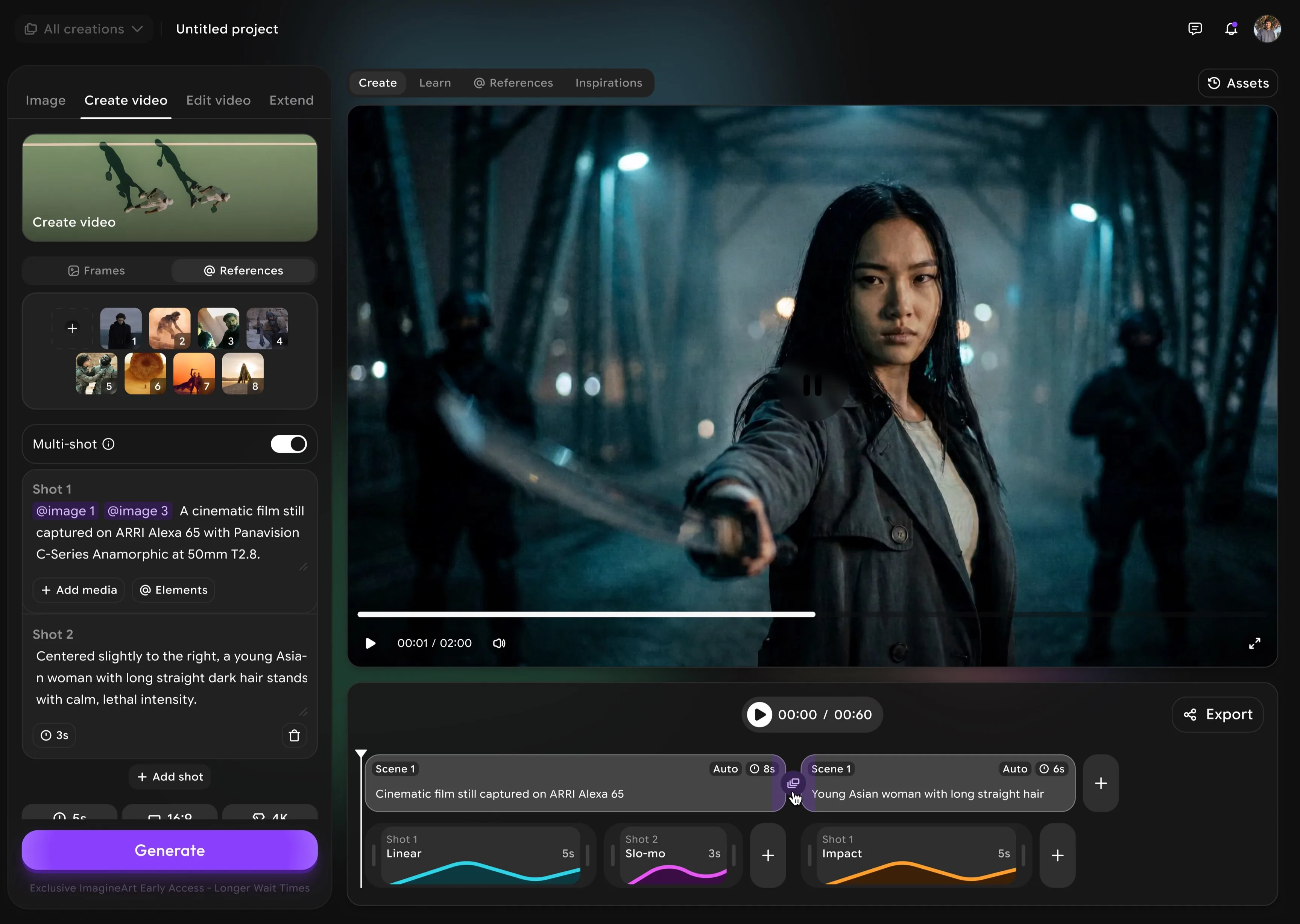
Open ImagineArt's AI Film Studio and create a new project. Work through your shot list scene by scene.
- Use the Image tab for establishing shots — a location, a mood frame, a character archetype
- Open the Create Video tab for action scenes — input your scene description as a prompt, set the Genre (Drama, Thriller, Action) to match the film's tone, adjust Movement to control shot energy
- Toggle Storyboard on to sequence multi-shot scenes without losing the narrative thread
- Use the References panel to lock in consistent character appearance across all scenes — critical for viewer recognition in a 10-minute video
- Generate, review, regenerate — iterate until each scene matches your script beat precisely
Effective scene prompts for recap videos:
"Dramatic confrontation between two men in a dimly lit office, one pointing accusingly, rain outside the window, film noir style, cinematic lighting, 4K"
"High-speed car chase through narrow city streets at night, motion blur, tension, action movie style, aerial tracking shot"
The more specific your prompt — location, character dynamic, lighting, camera angle — the closer the output matches your vision. ImagineArt's Genre and Movement controls let you dial in cinematic quality without prompt engineering expertise.
Step 4 — Add AI Narration with Audio Studio
Once your scenes are generated and sequenced, open ImagineArt's Audio Studio and paste in your script.
Choose a voice that matches your channel's tone:
- Deep, authoritative voices for thrillers and dramas
- Energetic voices for action and horror
- Measured, documentary-style voices for slow-burn psychological films
One option worth knowing about: ImagineArt's AI Voice Cloning lets you clone any voice from a short audio sample — including the voice of a celebrity narrator or film critic whose delivery fits your channel's brand. Clone the voice once, and every future recap you produce can use it consistently without re-recording. The cloned voice can go straight into Audio Studio for narration, or into Lipsync Studio if you want an on-screen avatar whose lips sync automatically to your dialogue.
Sync each narration segment to its corresponding scene. If a generated scene runs short, use Film Studio's Extend tab to add seconds to a shot without regenerating the full clip.
Quick win: Narrate your first 60 seconds before committing to a full voice-over. Adjusting pacing and energy at the start is far easier than re-recording everything.
Step 5 — Add Captions, Music, and Final Edits
Export your generated scenes from Film Studio. Bring them into a video editor alongside your Audio Studio narration track.
Generate your own original soundtrack: Instead of searching for royalty-free music, use ImagineArt's AI Music Generator to compose a custom score that matches your recap's tone exactly. Describe the mood, tempo, and instrumentation — "tense orchestral underscore, building strings, no vocals, cinematic thriller" — and the generator produces an original track cleared for commercial use. No attribution, no licensing headaches.
For dialogue-heavy recaps: If your recap involves characters speaking or reacting on screen, ImagineArt Lipsync Studio automatically syncs dialogue audio to any on-screen avatar or character. Upload the face, add the audio, and the lip movement is generated to match — giving your AI-generated characters realistic dialogue delivery without manual animation.
For editing: ImagineArt's AI Video Editor lets you trim, sequence, and layer your Film Studio exports and Audio Studio tracks in one place without switching to a third-party tool.
Final polish checklist:
- Burned-in captions (a large share of viewers watch without sound)
- Original soundtrack generated in AI Music Generator at ~15–20% volume under narration
- Title cards for major scene transitions
- Color grade matching the film's aesthetic (warm for drama, cool for sci-fi)
- Intro + outro channel branding
Export at 1080p minimum, 4K where possible.
Step 6 — Optimize and Publish
Use ImagineArt's AI image generator to create a thumbnail. Strong recap thumbnails combine a dramatic AI-generated scene, bold text with the film name or hook phrase, and high contrast.
YouTube upload optimization:
- Title: Film name + "explained" or "recap" + year
- Description: First 3 lines should be hook + keyword-rich summary
- Tags: Film name, "movie recap," "AI movie recap," genre + "movie explained"
- Chapters: Add timestamps for every act — retention improves significantly with chapters
Note: Thumbnail sizes differ on devices. Review the complete guide on Youtube Thumbnail Size to get the best results for your efforts.
What Makes a Movie Recap Hook Worth Watching?
A great movie recap hook makes the viewer feel they'll miss something crucial if they stop watching. The most effective hooks open mid-scene — dropping the audience into a high-stakes moment before any context is given, then pulling back to build the story from the beginning.
Hook formats that perform best:
- Mid-scene cold open: Start at the climax. Rewind. Build.
- Unanswered question: "This movie has a plot hole nobody has explained — until now."
- Counterintuitive claim: "Most people hated this ending. They were wrong."
- Stakes-first: "In 12 minutes, I'll show you exactly how this film broke every genre rule and still became a classic."
Your hook is the first 20–30 seconds. Script it last, after you know what the full video delivers.
How to Scale a Movie Recap Channel with AI in 2026
Once your first video is live, the goal is volume — consistently producing recap videos without quality dropping.
ImagineArt's AI workflow builder lets you create reusable production pipelines. Map out your standard process — prompt templates for your most-used scene types, voice presets saved in Audio Studio, export settings standardized — and production time per video drops to under 60 minutes.
Scaling tips for your ImagineArt recap workflow:
- Batch by genre. Three thrillers in a row means tighter prompts and consistent tone.
- Build a prompt library. Save your 20 best scene prompts by category. Reuse and vary.
- Schedule releases. Two videos a week beats one a month for algorithm performance.
- Cross-promote. Each recap builds equity for the next.
The best recap channels in 2026 are content machines. ImagineArt makes that achievable for a single creator.
Ready to create your Movie Recap Channel?
With all the advancements in AI, creating a scalable and successful Movie Recap Channel has never been this easy. Leverage the power of AI with ImagineArt to get the best output with one platform.
Frequently Asked Questions
Yes. By generating original AI visuals instead of using real movie footage, every frame in your video is original content you created. ImagineArt's Film Studio produces cinematic scenes from text prompts — no copyrighted footage, no Content ID exposure. Combine that with AI-generated narration from ImagineArt's Audio Studio, and you have a fully original production.
You need three core components: an AI video generator for scene creation (ImagineArt Film Studio), an AI voiceover tool for narration (ImagineArt Audio Studio), and a video editor for final assembly. ImagineArt provides the first two in a single platform. For editing, free tools like DaVinci Resolve or CapCut work well.
A first video takes 3–6 hours. Once you've built a workflow — saved prompt templates, voice presets, a reliable editing process — production time drops to 60–90 minutes per video. Batching multiple recaps in a single session reduces that further.
Not necessarily. Detailed plot synopses on Wikipedia and IMDb provide accurate story summaries. Your value is the script's angle, commentary, and structure. That said, watching the film always produces sharper commentary, so it's worth the time for higher-production recaps.
Three elements drive viral performance: a compelling hook in the first 20–30 seconds, a film with strong audience familiarity (recent releases or cult classics outperform obscure films), and a specific angle rather than a straight summary. Thumbnails and titles determine click-through rate before a single second plays.
Yes. YouTube AdSense RPM for movie content tends to be high because advertisers target film audiences. Recap channels with 100K+ subscribers frequently combine AdSense, sponsorships, and affiliate deals for streaming platforms.
Films with twist endings, complex plots, or emotional payoffs generate the most engagement — psychological thrillers, sci-fi films with ambiguous endings, and acclaimed dramas. Older classics that newer audiences haven't seen also perform well, with less recap competition.
Start Making Your AI Movie Recap Channel Today
The recap format is one of the most scalable content businesses on YouTube, and AI has removed every barrier that used to make it difficult. No footage. No licensing. No copyright exposure. Just a story worth telling and the right tools to tell it with original, cinematic visuals.
ImagineArt gives you AI-generated scenes, professional narration, voice cloning, an original music generator, lipsync studio, and a video editor in a single platform — everything you need to publish your first recap video this week.
Also worth reading:
- How to Make an AI Movie Trailer — the same visual production skills applied to trailers
- AI Film Studio Guide — the complete walkthrough of ImagineArt Film Studio for serious production work
- Best AI Movie Makers in 2026 — how Film Studio compares to every major alternative
Syed Anas Hussain
Syed Anas Hussain is a computer scientist blending technical knowledge with marketing expertise and a growing passion for AI innovation. Curious by nature, he dives into new AI sciences and emerging trends to produce thoughtful, research-led content. At ImagineArt, he helps audiences make sense of AI and unlock its value through clear, practical storytelling.