
Tooba Siddiqui
May 14, 2026 • Updated July 20, 2026
20 mins Read
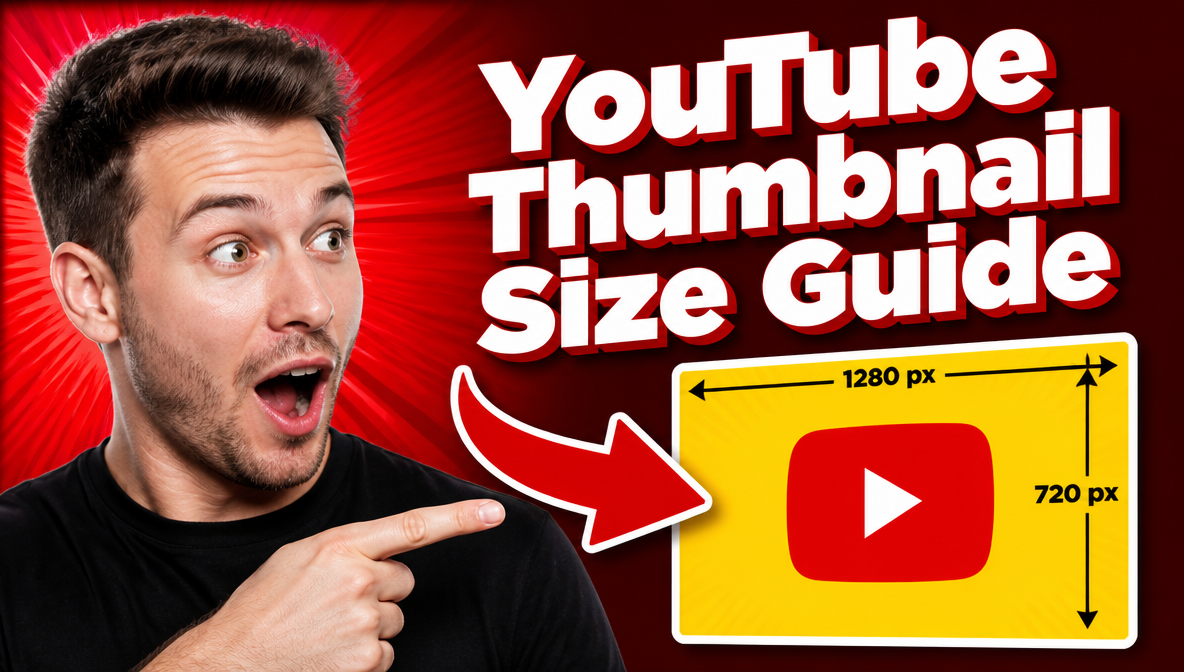
YouTube updated its official thumbnail guidance. The recommended YouTube thumbnail resolution is now 3840x2160 px, full 4K, at a 16:9 aspect ratio, with a minimum width of 640 px. The 1280x720 px size that has been the standard answer for years is still a fully valid baseline. It is not wrong. It simply is not the ceiling anymore.
File size limits now depend on the device you upload from: 2MB on mobile for video thumbnails, 10MB on mobile for podcast thumbnails, and 50MB on desktop for both. If you have seen conflicting numbers across different guides recently, this is why, and it explains exactly what size a YouTube thumbnail needs to be depending on your situation.
For a full overview of image dimensions across other social platforms, see social media image sizes.
YouTube Thumbnail Size: Full Specifications (2026)
| Spec | Value |
|---|---|
| Recommended YouTube Thumbnail Resolution | 3840 × 2160 px (4K) |
| Still-Valid Baseline Resolution | 1280 × 720 px |
| Minimum Width | 640 px |
| YouTube Thumbnail Aspect Ratio | 16:9 (1:1 for podcast playlist thumbnails) |
| Maximum File Size (Mobile) | 2 MB for video thumbnails; 10 MB for podcast thumbnails |
| Maximum File Size (Desktop) | 50 MB |
| Accepted File Formats | JPG, PNG, GIF |
| Requirement | Verified YouTube account |
These specifications come directly from YouTube's official thumbnail help documentation, cross-checked against the platform's own creator guidance rather than secondary blog summaries.
Why YouTube Updated the Recommended Resolution to 4K
The reason behind the update is screens, not search rankings. A growing share of YouTube watch time now happens on smart TVs. A thumbnail exported at 1280x720 and stretched across a 65-inch 4K screen shows visible softness that a 3840x2160 source avoids. Raising the desktop file size limit to 50MB exists specifically to make room for that larger 4K file without forcing creators into aggressive compression that would undo the quality gain.
This does not change the fundamentals of the YouTube thumbnail ratio requirement. 16:9 is still the shape YouTube's players and previews are built around, and a mismatched ratio still gets automatic black bars added by YouTube to fill the frame. What changed is the resolution ceiling and the file size limit, not the shape of the image.
The practical answer for most creators: if your audience mostly watches on mobile and desktop, 1280x720 still looks correct at nearly every size YouTube actually renders it. If a meaningful share of your audience watches on a TV, or you simply want to future-proof against how YouTube's display technology keeps evolving, upload at the full 3840x2160 YouTube thumbnail resolution instead. Both meet the current YouTube thumbnail size requirements. The 4K option raises the quality ceiling. It does not replace the existing rule.
The compression reality most creators still miss, regardless of which resolution they upload, is that YouTube compresses every thumbnail before displaying it, and the thumbnail is then rendered at roughly 246x138 px in search results and the homepage feed. That is the actual size competing for a viewer's attention on a typical day. Detailed backgrounds, small text, and subtle colour differences that look fine on a large canvas often disappear completely at that size.
Design decisions like large text, strong contrast, and a single dominant visual element are not stylistic preferences. They are functional requirements for a thumbnail that has to work at the size YouTube actually shows it, not the size you designed it at.
If your source photo does not have enough real detail to justify uploading at the full 4K recommendation, the Image Upscaler adds genuine resolution rather than just stretching existing pixels, which matters if you are aiming for the new ceiling rather than the 1280x720 baseline.
Where YouTube Displays Your Thumbnail
Understanding exactly where and how large your thumbnail appears changes how you should design it. A thumbnail built for a large canvas and never tested at real display size is one of the most common reasons a channel's click-through rate underperforms its content quality.
YouTube Homepage & Search Results
Rendered at approximately 246x138 px, the smallest display size and the one that decides most clicks. A viewer scrolling through search results sees your thumbnail at roughly the size of a playing card held at arm's length. Small text is unreadable at this size. Busy backgrounds collapse into visual noise. Weak contrast disappears entirely against the thumbnails sitting next to it.
The practical test: shrink your finished thumbnail design down to 246x138 px before you publish. If the main text is still readable and the focal point is still clear at that size, the thumbnail will work in search. If it is not clear, redesign before uploading rather than finding out after the video is live. ImagineArt's AI Thumbnail Maker previews your design at this exact size before you download anything, which removes the guesswork from this step.
Watch Page (Desktop)
Displayed at approximately 480x270 px before the video starts playing, the largest standard display surface outside of a TV. More detail becomes legible here: facial expressions, secondary text, background elements a viewer would never notice at 246 px. Viewers who arrive at the watch page directly, from a shared link or a subscription notification, tend to spend more time looking at the thumbnail before pressing play.
It still needs to be compelling, but you have more visual information working in your favour at this size. This is also where a well-produced video itself, not just the thumbnail, keeps a viewer past the first few seconds, which is what the AI Video Generator is built to help with on the content side.
Mobile
Most YouTube viewing happens here, and YouTube's own reporting consistently shows mobile as the dominant platform by watch time. Text needs to be larger than feels intuitive when you are designing at full size on a desktop monitor. Contrast needs to be stronger than it looks in your design tool. Faces need to be closer to the frame and more visibly expressive.
A thumbnail that reads clearly on a desktop screen but feels cluttered on a phone is a mobile problem specifically, and mobile is where most of your audience actually lives. The ImagineArt YouTube Video Editor includes preset crop ratios built around exactly this kind of platform-specific formatting.
YouTube Shorts
A common point of confusion worth clearing up directly: Shorts thumbnails use the same 16:9, 1280x720 container as long-form video thumbnails, not a 9:16 vertical frame matching the Short itself. Uploading a 9:16 vertical image as a Shorts thumbnail gets it cropped rather than displayed as designed.
One nuance worth knowing on top of that: a vertical video that keeps a 16:9 custom thumbnail gets that thumbnail replaced by an auto-generated 4:5 crop specifically on the home, explore, and subscription pages. Your original custom thumbnail still appears on the watch feed, watch history, and non-mobile platforms. If your Short is getting less traction from those particular surfaces than expected, this auto-crop behaviour is worth checking before assuming the content itself is underperforming. The AI Video Editor can crop and reformat a clip between vertical and widescreen without starting the edit over from scratch.
Suggested Videos Sidebar
Rendered small in a vertical list, sitting directly next to thumbnails from competing channels covering the same topic. The challenge here is differentiation, not just legibility. A distinctive colour palette, one strong focal point, and high contrast give your thumbnail the best chance of pulling attention away from a sidebar that is, by design, trying to pull the viewer's attention toward something else entirely. Keeping that palette consistent with your YouTube banner is part of what makes a channel recognisable at a glance in this kind of layout.
YouTube Thumbnail Design Best Practices
Getting the dimensions right is the starting point, not the finish line. A thumbnail at the correct size still fails if it is not designed for how YouTube actually displays it: heavily compressed, rendered small, and competing with dozens of other thumbnails in the same feed.
The Safe Zone
Keep the elements that matter, text, faces, logos, inside a safe zone of roughly 1100x620 px within your frame. The outer edges of a thumbnail can get clipped or obscured depending on the display context, most often along the far left edge in the Shorts shelf and along the top edge in certain mobile playlist views. Treat anything outside that inner margin as background only, never as a place to put information the viewer actually needs to see.
What Makes a High-Click Thumbnail
A single clear focal point matters more than almost any other design decision. One face, one object, one visual moment. Thumbnails that try to show the whole story of the video usually end up showing nothing clearly, because every element is competing for the same small amount of visual space.
Bold, legible text works best at two to three words maximum, sized large enough to read at 246 px wide. The video title already appears directly below the thumbnail, so your thumbnail text should add something the title does not already say: a hook, an emotion, a number. Repeating the title word for word wastes space that could be doing more work.
High contrast separates a thumbnail that gets noticed from one that blends into the feed around it. A light subject against a dark background, or the reverse, reads clearly at small sizes. Mid-tones against mid-tones become nearly invisible once compressed down to search-result size.
Emotional expression consistently outperforms object-only thumbnails across most content categories. Faces with strong, visible emotion, surprise, excitement, concern, disbelief, register before text does and give a viewer an immediate emotional reason to want to know more.
Colour that stands out in context beats colour that simply looks good in isolation. Open a YouTube search for your specific topic and look at what is already sitting in that results feed. Design your thumbnail to contrast with that particular visual environment, not just to look polished on its own.
Text on Thumbnails
Keep thumbnail text to three words or fewer. Font weight matters more than font choice: thin, elegant typefaces that look refined in a design tool become invisible once compressed down to 246 px. Use the boldest weight available. If your text sits over a busy or complex background, add a drop shadow or a solid colour block behind the letters, anything that separates the text visually from what is behind it and keeps it legible after compression. ImagineArt's AI Thumbnail Maker generates the drop shadow or colour block treatment automatically as part of the design, rather than requiring you to add it manually afterward.
Branding Consistency
A consistent thumbnail style is what turns a collection of individual videos into a recognisable channel. A viewer who sees your thumbnail sitting in a sidebar or a recommended feed should recognise it as yours before they even read the title.
In practice, that means picking one colour palette and using it across every thumbnail, using the same font family every time, and positioning your channel name or logo in the same corner consistently. These small choices compound. A channel with fifty thumbnails that all look related to each other feels established and trustworthy. A channel where every thumbnail looks different feels disjointed, regardless of how good any individual video actually is.
Match your thumbnail style to your YouTube banner, since viewers who click through to your channel page see both together at once, and a mismatch between the two undercuts the consistency you have built elsewhere. For a broader, consistent visual identity across every channel asset at once, see how to build a brand kit with AI.
YouTube Thumbnail Examples — What High-Performing Thumbnails Have in Common
The Face-Forward Thumbnail
 Generated by ImagineArt AI image generator
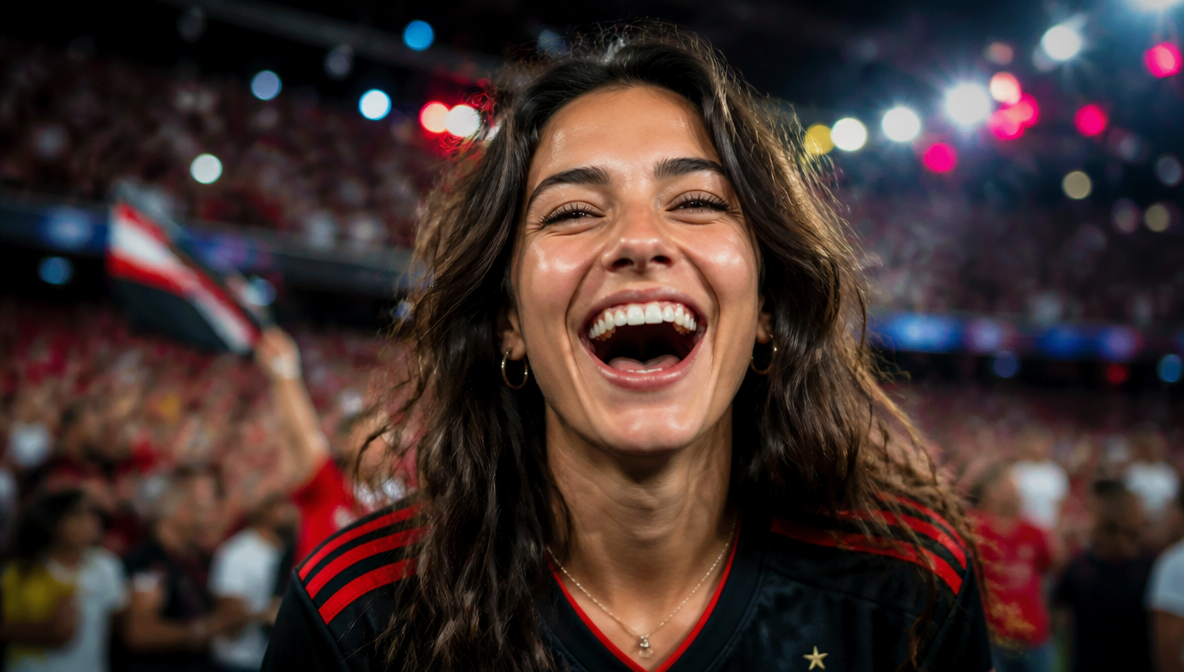
A tight crop on a face with a strong, visible expression, surprise, disbelief, excitement, works across almost every content niche because human faces register faster than text or objects at small sizes. No complex background, no competing elements. The expression does the emotional work, and the title underneath does the explanatory work. Together, the two give a viewer everything they need to decide whether to click, without needing to read anything else first.
For maximum impact, crop close enough that the expression fills the frame. A face that is too small in the composition loses the emotional signal almost entirely once the thumbnail is compressed down to search size. If your original photo has a distracting background behind the face, the BG Remover isolates the subject cleanly before you build the rest of the composition around it.
The Text-Dominant Thumbnail
 Generated by ImagineArt AI image generator
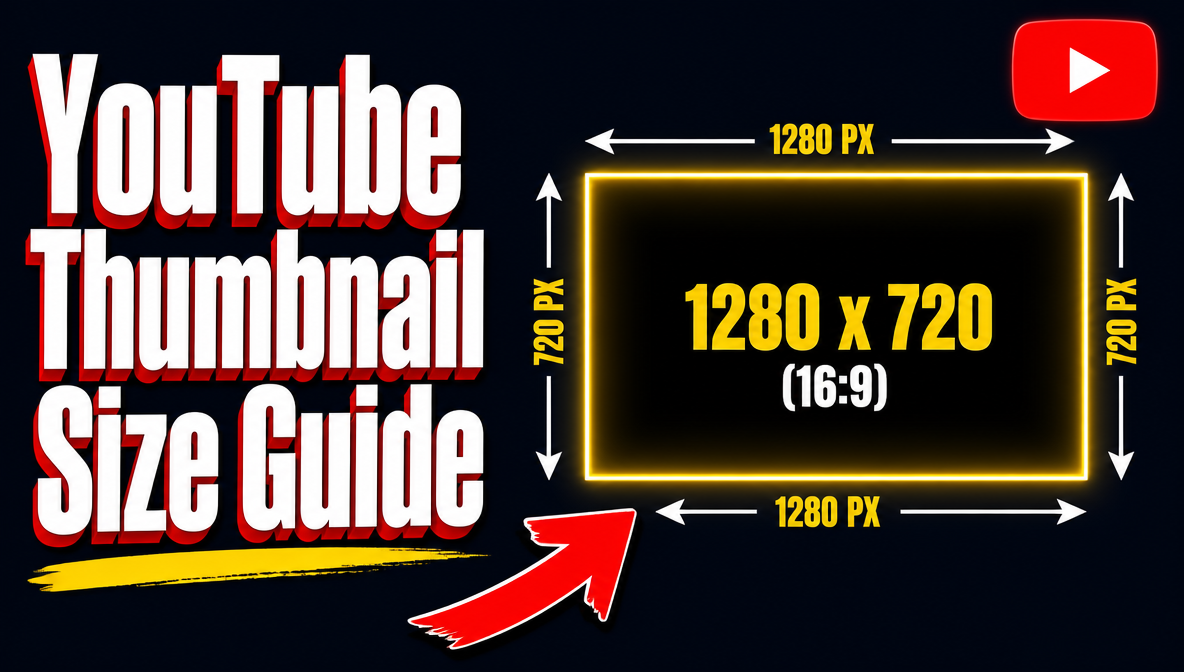
A minimal visual paired with one bold statement in large text works well for opinion pieces, commentary, educational content, and anything where the idea itself is the hook rather than a specific visual moment.
The risk with text-dominant thumbnails is legibility. At 246x138 px, even large text can become unreadable if the contrast is not extreme. White or yellow text on a dark background is the safest starting point. Test the design at actual display size before committing to it, since what reads clearly on a full-size canvas does not always survive the compression YouTube applies. The AI Image Editor makes it quick to swap a background colour or adjust contrast if an early version does not test well.
The Before/After Thumbnail
 Generated by ImagineArt AI image generator
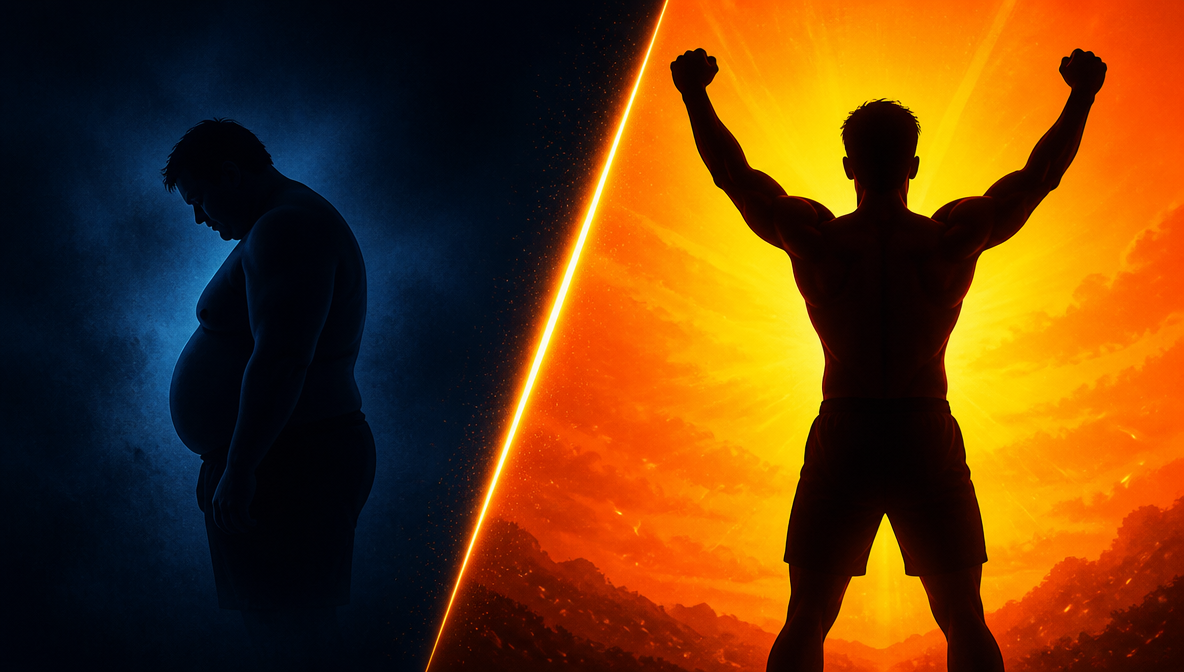
A two-panel split showing a transformation, a space redesigned, a skill acquired, a result achieved communicates the value of the video instantly, without requiring the viewer to read the title at all.
This format works best when the contrast between the two panels is dramatic and clearly visible even at small sizes. A subtle transformation that only registers at full resolution does not work as a thumbnail concept, because the difference needs to be obvious the moment someone glances at it. If your before and after images come from different sources or aspect ratios, the AI Image Combiner merges them into one clean, evenly proportioned composition before you bring the result into a thumbnail design.
The Curiosity Gap Thumbnail
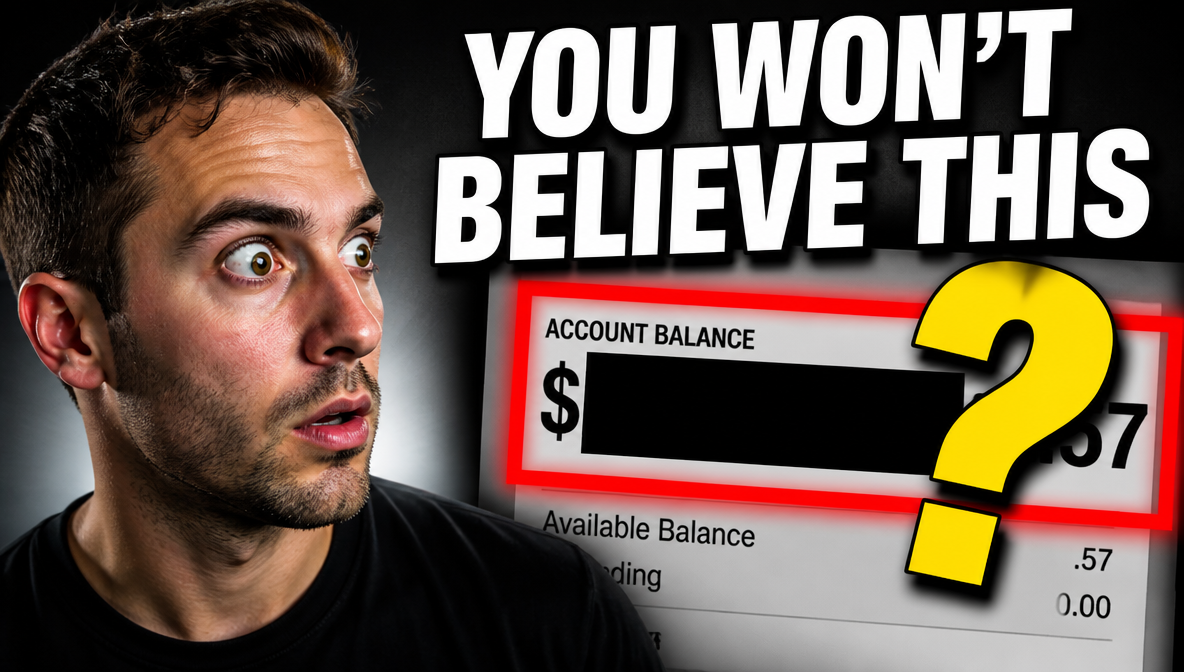 Generated by ImagineArt AI image generator
Showing a reaction to something off-screen, a partially revealed result, or a question the thumbnail raises but does not answer creates a gap the viewer has to click to close.
This format performs strongly when the curiosity is genuine, when the gap between what the thumbnail shows and what the video actually reveals is real and worth the click. It loses a viewer's trust quickly when the reveal does not match the setup. Used honestly, it builds click-through rate over time. Used as pure clickbait, it drives up bounce rate and damages long-term channel performance, since YouTube's own recommendation system reads viewer drop-off as a negative signal. Pulling the exact frame that captures the reaction, rather than a generic stock moment, is easiest when you can trim precisely, which is what the ImagineArt YouTube Video Editor is built for.
How to Make a YouTube Thumbnail with ImagineArt
Along with an AI image generator, ImagineArt has a dedicated AI Thumbnail Maker built specifically around how YouTube actually displays thumbnails: compressed, small, and competing in a crowded feed, rather than a generic design tool where you start from a blank canvas or a one-size-fits-all template.
YouTube's own Studio now includes a built-in AI suggestion tool called AskStudio, which reads a video's transcript and themes and generates thumbnail suggestions from that. It is a useful starting point, but it works from a fixed set of suggestions tied to what is already in your video. ImagineArt's tool gives you open-ended creative control and multiple distinct variants built from your own direction, useful when you want to test an angle or emotional hook that is not necessarily reflected in the raw footage itself.
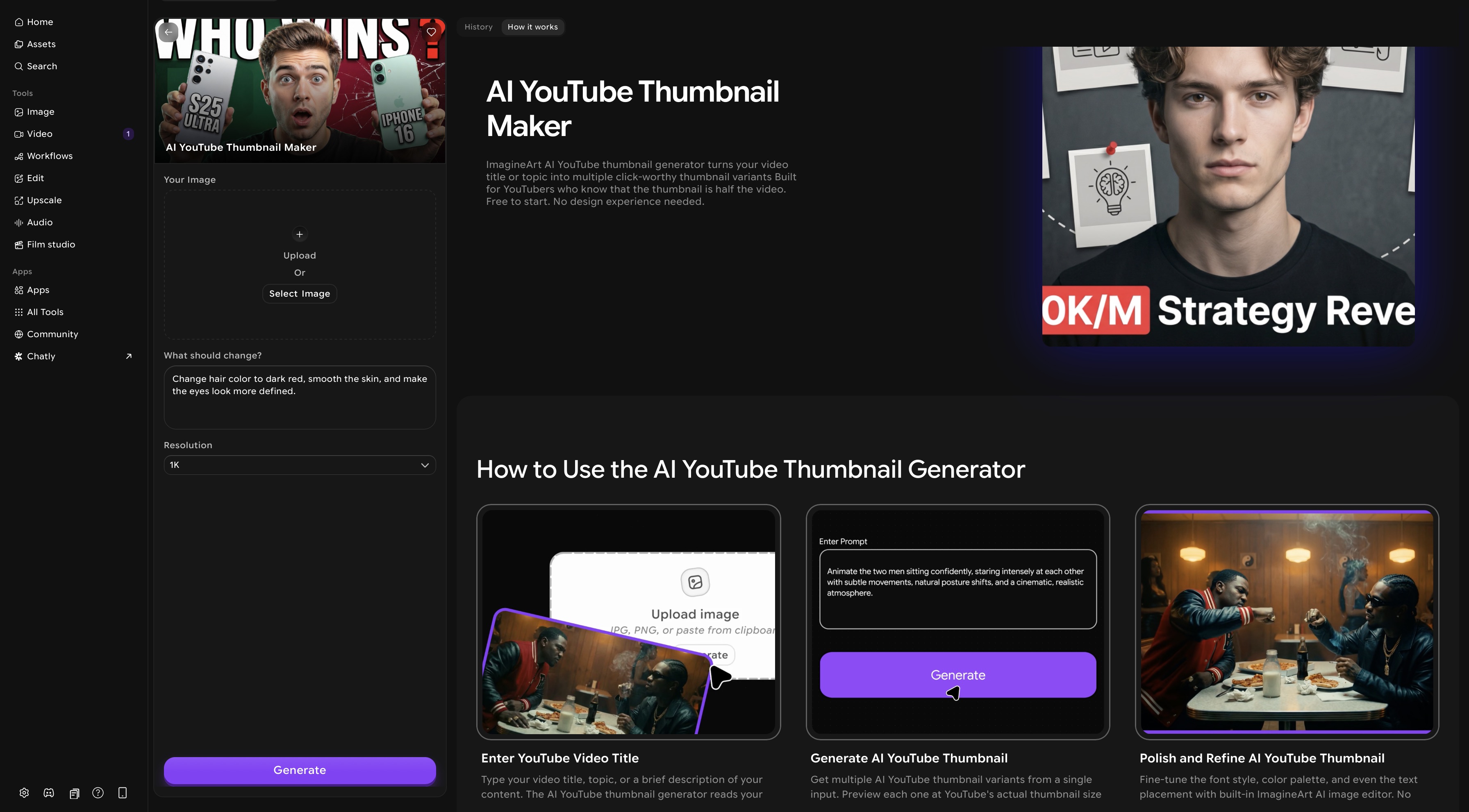 ImagineArt AI YouTube thumbnail generator dashboard
Step 1: Open ImagineArt AI Thumbnail Maker
Go to AI Thumbnail Maker. No design experience or external software is required. The entire workflow, from generation to download, happens inside the tool.
Step 2: Upload Your Image
Upload the image you want as the base for your thumbnail: a product photo, a screenshot, a portrait, a scene. This is the visual foundation the AI works from. If your source photo is low-resolution, or you are specifically targeting the new 4K recommendation, run it through the Image Upscaler first so the extra resolution actually holds real detail rather than just scaling up existing blur. If your image has a cluttered background, the BG Remover isolates the subject first, so the AI can build the thumbnail composition cleanly around it instead of fighting a busy backdrop.
Step 3: Enter Your Video Title or Describe the Edits You Want
Type your video title, or describe what you want the thumbnail to communicate: the topic, the emotion, the hook. Specific direction produces more targeted output than a vague description. "Frustrated person looking at laptop, text saying I wasted 3 years" gives the AI far more to work with than "tech video thumbnail." The more context you provide about the video's angle and intended emotion, the closer the first generation lands to what you actually need.
Step 4: Generate Multiple Thumbnail Variants
The AI generates several distinct thumbnail options from your input, each applying YouTube-specific design principles: bold, legible text, high contrast between subject and background, a strong single focal point, and a colour palette built to stand out in a search feed.
You get multiple directions to choose from rather than committing to a single output, which is particularly useful early in a channel's life, while you are still figuring out which thumbnail style your specific audience responds to.
Step 5: Preview at Actual YouTube Display Size
Before selecting a variant, preview it at the size YouTube actually renders it, roughly 246x138 px in search results. This is the step most design tools skip entirely. A thumbnail that looks polished on a large canvas can have unreadable text or a cluttered composition once it is shrunk to real display size. ImagineArt shows you exactly what viewers will see in search before you download anything. If a variant reads clearly at that size, it works. If it does not, generate another rather than publishing something you have not actually tested.
Step 6: Fine-Tune in the Built-In Editor
Once you have a variant worth developing further, refine it using the built-in AI Image Editor. Adjust font style and weight, shift the colour palette to better match your channel's existing branding, reposition text so it sits more clearly within the composition, or swap background elements entirely. You are not locked into the AI's first output. The editor gives you full control over the final result without needing to move the file into a separate design tool.
Step 7: Generate Additional Variants for A/B Testing
If you want to test which thumbnail drives a higher click-through rate, generate two or three distinct variants of the same concept: different text wording, a different colour palette, a different composition. YouTube allows you to swap thumbnails after publishing, which makes it straightforward to run informal A/B tests across your actual audience rather than guessing which version performs better.
If your underlying video itself needs a quick trim or adjustment before you finalise which moment becomes the thumbnail, the AI Video Editor handles that directly, without needing a separate app for the video and another for the thumbnail.
Step 8: Download and Upload
Download your final thumbnail at your chosen resolution, 1280x720 for the standard baseline or 3840x2160 for the newer 4K recommendation, in JPG or PNG. The file is ready to upload directly to YouTube Studio. No resizing, no format conversion, no additional steps in between.
How to Upload a YouTube Thumbnail
Once you have a finished file at the right size, uploading it takes only a few clicks, whether you already have a video published or you are about to publish one for the first time.
For an existing video:
- Go to YouTube Studio
- Select Content from the left-hand menu
- Click the video you want to update
- Under Thumbnail, select Upload thumbnail
- Choose your file, JPG or PNG, within the size limit for the device you are uploading from
- Click Save
For a video you are currently uploading:
The thumbnail option appears on the Details step of the upload flow. Select Custom thumbnail and upload your file before publishing the video.
Note: custom thumbnail upload requires a verified YouTube account. If the option is not visible in YouTube Studio, verify your account at youtube.com/verify, which typically takes about 24 hours to process. YouTube also caps how many custom thumbnails a channel can upload each day. If you see an error about reaching that daily limit, try again after 24 hours.
Thumbnails are subject to YouTube's Community Guidelines as well: content involving nudity, hate speech, violence, or other harmful material can be rejected outright, and repeat violations can lead to losing custom thumbnail privileges for 30 days or, in serious cases, account termination. Files exported from ImagineArt's AI Thumbnail Maker already come in at the correct dimensions and an accepted format, so this step is usually just the upload itself.
Common YouTube Thumbnail Size Mistakes
Most of the underperformance blamed on "the algorithm" traces back to one of these avoidable mistakes instead.
- Assuming 1280x720 is now the wrong size. It is not. The 4K update raises the resolution ceiling. It does not invalidate the existing baseline, and most creators do not need to change anything if their audience is primarily on mobile and desktop.
- Wrong aspect ratio. Non-16:9 thumbnails get automatic black bars added by YouTube to fill the frame, which reads as unpolished in a feed full of correctly formatted thumbnails. Always confirm your canvas is set to 16:9 before you start designing, not after.
- Text too small to read at search size. The single most common design mistake. Text that reads clearly on a full 1280x720 canvas can be completely illegible once compressed down to 246x138 px in search. Always test at actual display size before uploading, which is exactly what previewing inside ImagineArt's AI Thumbnail Maker is built to catch before you download anything.
- Too many elements. A thumbnail trying to show three faces, a title, a logo, and a full background scene communicates nothing clearly once it is small. One dominant element does the job. Everything else becomes visual noise.
- Exceeding the file size limit for your device. 2MB on mobile, 50MB on desktop. Know which limit applies to how you are actually uploading, since assuming the more generous desktop limit while uploading from a phone will get your file rejected.
- Treating Shorts thumbnails as vertical. They use the same 16:9 container as long-form video, not a 9:16 frame matching the Short's own aspect ratio.
- Inconsistent style across videos. Each individual thumbnail might look fine, but the channel as a whole looks unplanned, and viewers cannot recognise it at a glance. Consistent colour, font, and composition across every thumbnail builds the visual identity that turns casual viewers into subscribers over time.
- Using the auto-generated YouTube thumbnail. YouTube's automatic frame capture from a video is almost always a blurry, mid-motion still that does not represent the content well. Custom thumbnails consistently outperform auto-generated ones on click-through rate. Always upload a custom thumbnail rather than leaving this to chance
Ready to Create YouTube Thumbnail with ImagineArt?
Every video you publish needs a thumbnail that earns the click. You now know the current dimensions, the file size limits by device, and the design principles that separate thumbnails that get scrolled past from ones that actually get clicked.
Stop leaving click-through rate on the table with an auto-generated frame. Use ImagineArt's AI Thumbnail Maker to generate multiple custom variants, preview them at real YouTube display size, and upload something that works, starting with your next video.
Frequently Asked Questions
What is the correct YouTube thumbnail size?
The current recommended YouTube thumbnail resolution is 3840x2160 px, full 4K, at a 16:9 aspect ratio, with 1280x720 px still a fully valid baseline. Minimum width is 640 px.
What are the YouTube thumbnail size requirements for file size?
2MB on mobile for video thumbnails, 10MB on mobile for podcast thumbnails, and 50MB on desktop for both video and podcast thumbnails.
What is the YouTube thumbnail ratio?
16:9 for standard video thumbnails and Shorts thumbnails alike. Podcast playlist thumbnails are the one documented exception, at a 1:1 square ratio.
What size does a YouTube thumbnail need to be for Shorts?
The same 16:9, 1280x720 container used for long-form video, not a 9:16 vertical frame. Uploading a 9:16 image as a Shorts thumbnail gets it cropped rather than displayed as designed.
Why do my YouTube thumbnails look blurry?
Usually from uploading below 1280x720 resolution, or from over-compressing a design that has text or sharp edges. Uploading at 1280x720, or up to 3840x2160 for the newer 4K recommendation, gives YouTube more source detail to work with before its own compression is applied on top.
Can I use PNG for YouTube thumbnails?
Yes, and it is the recommended format for thumbnails with text, logos, or sharp geometric elements, since PNG preserves edges that JPEG compression tends to soften.
Do I need a verified account to upload custom thumbnails?
Yes. Verify your account at youtube.com/verify. Verification typically takes about 24 hours.
How do I make a YouTube thumbnail for free?
Use ImagineArt's AI Thumbnail Maker. Enter your video title, generate multiple variants, preview at actual YouTube display size, and download at either 1280x720 or 3840x2160; no design experience or paid software required.
Setting up your full YouTube channel? See YouTube profile picture size, YouTube banner size, and how to start a YouTube channel for business.
For channel content ideas and best tools, see faceless YouTube channel ideas and best AI video generators for YouTube.
Tooba Siddiqui
Tooba Siddiqui is a content marketer with a strong focus on AI trends and product innovation. She explores generative AI with a keen eye. At ImagineArt, she develops marketing content that translates cutting-edge innovation into engaging, search-driven narratives for the right audience.