Zahida Misher
November 11, 2026 • Updated November 12, 2026
9 mins Read
Here's how to make AI videos in five steps: plan the shot, pick an input mode, write the prompt, generate and fix, then edit and export. The first and last steps are the ones tool pages skip, and skipping them is how clips end up looking like a half-remembered dream.
The middle three happen inside a tool like ImagineArt's AI video generator, which turns text, images or existing clips into video with sound and lists 40+ models (as of November 10, 2026).
Below, one example runs start to finish: a 15-second vertical coffee ad built from three shots, with every prompt and the fix for what usually breaks. ImagineArt is our product, so the tool route shown is ours. The example is a recipe from desk research, not a logged test, and the model limits come from each maker's own pages as of November 2026.
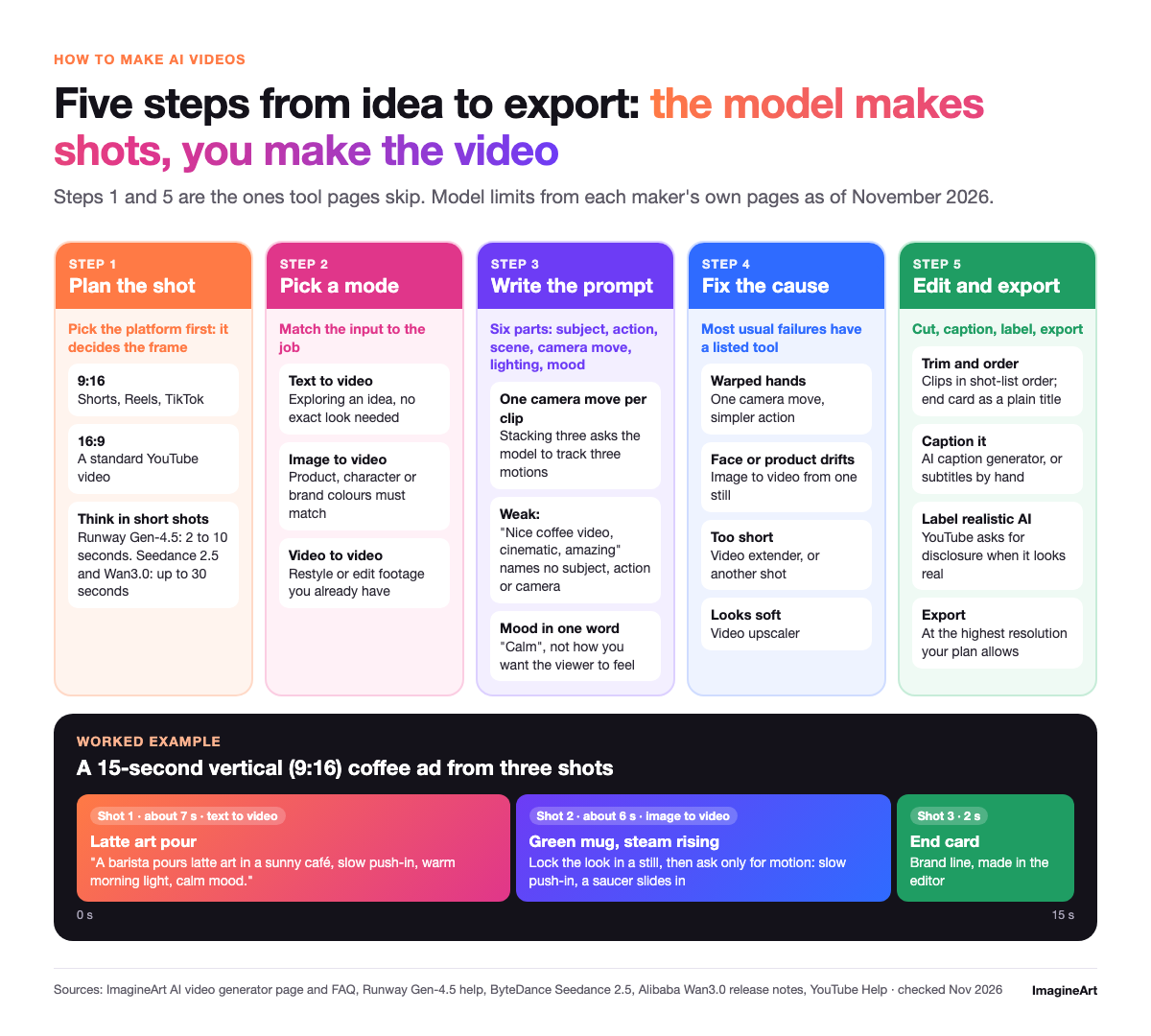 Five steps from idea to an exported AI video
How do I create a video with AI?
You give an AI video model a text prompt, a still image or an existing clip, and it generates a short clip, usually with sound. Then you cut those clips together, caption them and export. That's the short answer to how do I create a video with AI: the model makes shots, and you make the video.
ImagineArt's generator page lists three input modes, and each suits a different job.
| Input mode | What you give it | Use it when |
|---|---|---|
| Text to video | A written prompt | You're exploring an idea and don't need an exact look |
| Image to video | A still plus a prompt | The product, character or brand colours must match |
| Video to video | An existing clip plus instructions | You want to restyle or edit footage you already have |
Step 1: plan the shot before you prompt
Pick the platform first, because it decides the frame. Shorts, Reels and TikTok want 9:16. A standard YouTube video wants 16:9.
Then think in short shots, not one long take. Clip limits differ by model. Runway's Gen-4.5 help page lists 2 to 10 seconds per clip. ByteDance says Seedance 2.5 makes up to 30 seconds in one generation on its Seedance 2.5 page. Alibaba puts Wan3.0 at up to 30 seconds too, up from a 2 to 15 second window on Wan2.7, per Alibaba's Wan3.0 release notes.
Our 15-second ad needs a three-line shot list:
- Latte art being poured in a sunny café (text to video, about 7 s).
- A green ceramic mug on an oak counter, steam rising, a saucer sliding in (image to video, about 6 s).
- An end card with the brand line (2 s).
If you want frames on paper first, here's how to storyboard your shots. Or draft it in ImagineArt's AI Film Studio, which builds storyboards from one prompt.
Step 2: how to make an AI video from text or an image
Here's how to make an AI video on ImagineArt, and the same order applies to most tools:
- Choose the mode: text to video or image to video.
- Pick a model (our roundup of AI video models compares them). The page lists Seedance 2.5, Wan 3.0, Hailuo 3.0, Gemini Omni and more.
- Set the aspect ratio (9:16 for our ad), the resolution (the page lists 480p, 720p and 1080p) and the duration. The page shows durations of 5 to 30 seconds, and what you get depends on the model.
- Paste the prompt and generate. ImagineArt's FAQ says most videos take 60 to 120 seconds, depending on the model and prompt.
For shot 1, we ran this prompt in text to video (Seedance 2.5, 9:16, 720p, 4 seconds, the shortest it offered): "A barista pours latte art in a sunny café, slow push-in, warm morning light, calm mood." Check the milk stream and the barista's fingers first.
Both passed: the fingers stayed whole on the jug handle, the milk left from the spout and a swirl pattern formed in the cup. The camera didn't get the memo about "slow", though. It travelled from a waist-up shot of the barista to a tight close-up of the cup in four seconds, cutting her face out by the halfway mark.
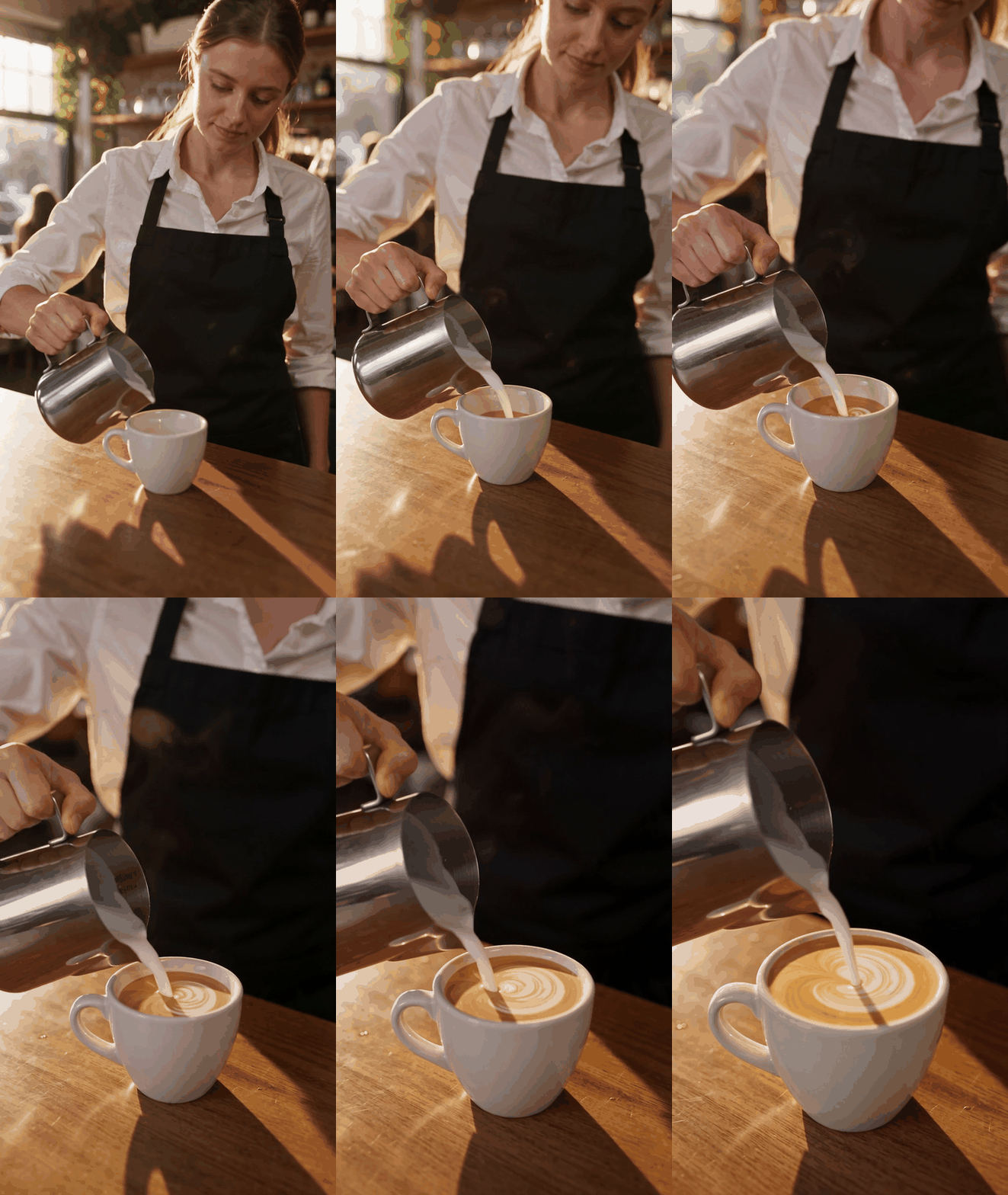 Shot 1: clean hands, a fast push-in
Shot 2 is where image to video earns its place. Start from a product still; we didn't have one, so we generated it with Nano Banana Pro first: "Product photo of a matte green ceramic coffee mug on a light oak counter beside a window, soft morning light, steam rising, shallow depth of field, no text, no logos, 9:16." Then we animated it in image to video with Kling 4.0 (9:16, 720p, 5 seconds): "Slow push-in on the mug, steam curls upward, a hand slides a saucer into frame from the right, warm morning light, calm mood." Check the mug keeps its shape and colour as the camera moves.
The still came back as asked: a sage green mug on an oak sill by a garden window, steam rising, a linen cloth in the corner and no text anywhere.
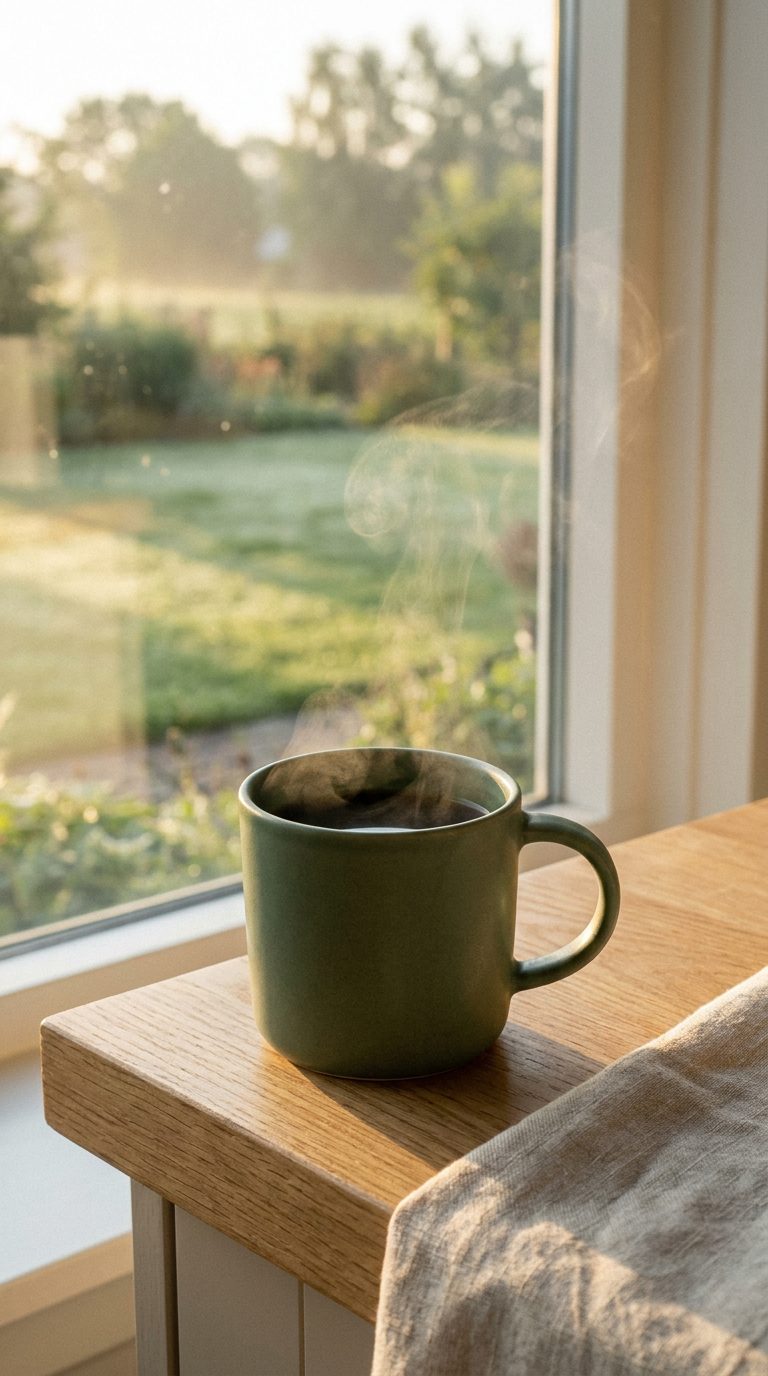 The source still for shot 2
Kling kept the mug's shape and colour through a smooth push-in, and the steam curls upward. The saucer is the giveaway: it glides in from the right for a beat with no hand attached, and the fingertips only show up after it lands.
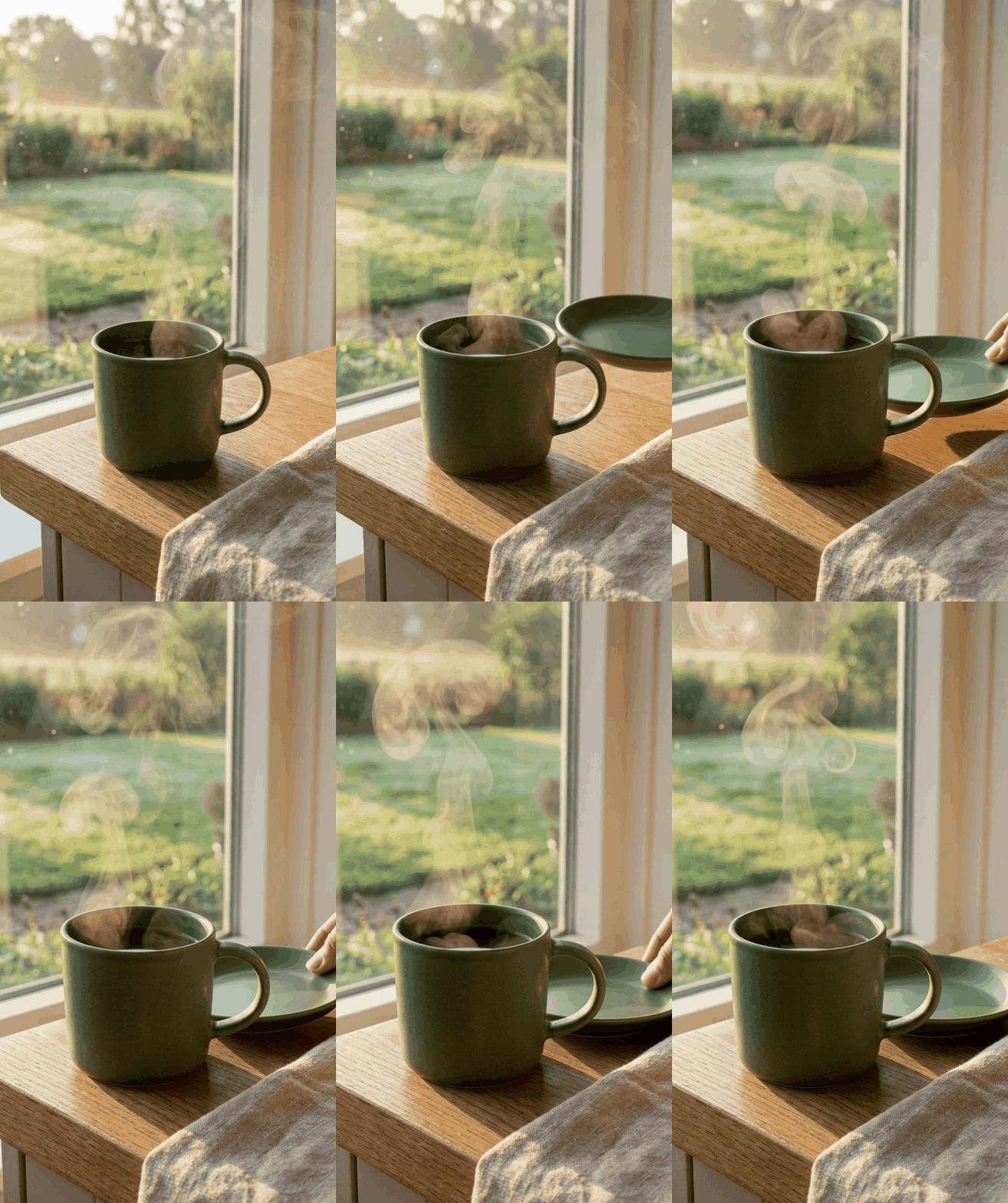 Shot 2: the mug holds, the saucer arrives early
If you're working out how to create AI video that keeps a fixed look, lock the look in a still, then ask only for motion.
Step 3: write a prompt the model can follow
ImagineArt's own prompt advice names six parts: subject, action, scene, camera move, lighting and mood. Our shot 1 prompt splits cleanly into them.
| Part | Shot 1 |
|---|---|
| Subject | A barista |
| Action | Pours latte art |
| Scene | A sunny café |
| Camera move | Slow push-in |
| Lighting | Warm morning light |
| Mood | Calm |
Compare a weak version: "Nice coffee video, cinematic, amazing." It names no subject, action or camera, so the model guesses all three.
Two rules keep a clip simple enough for the model to follow. Give each clip one camera move, because stacking a push-in, an orbit and a crane in one clip asks the model to track three motions at once. And describe what the camera sees; keep mood to one word, like "calm", rather than how you want the viewer to feel.
Borrow starting points from these AI video prompts that work.
Step 4: fix what went wrong
When a generation misses, fix the cause, not the symptom. ImagineArt's generator page lists a tool for most of the usual failures.
| Problem | Fix |
|---|---|
| Warped hands or melting objects | Re-prompt with one camera move and a simpler action |
| Face or product drifts between shots | Use image to video from one still, or Character Consistency |
| Clip is too short | AI Video Extender, or plan another shot |
| Image looks soft | AI Video Upscaler |
| Sound doesn't match the action | Try AI Audio Sync (listed on the generator page) |
| One wrong detail in a good clip | Edit Video With AI, using text instructions |
Our shot 1 failed on the camera, not the hands: "slow push-in" became a rush to the cup. We re-prompted with the same settings, fixing the framing and limiting the move: "Medium shot from the waist up: a barista pours latte art into a white cup on a wooden counter in a sunny café, the camera pushes in slowly a short distance and stays on the barista and cup, warm morning light, calm mood." It half worked. The cup was in frame from the first second, but the camera still ended on a close-up of the cup with the barista's face out of shot. Our next try would drop the push-in for a "locked-off camera".
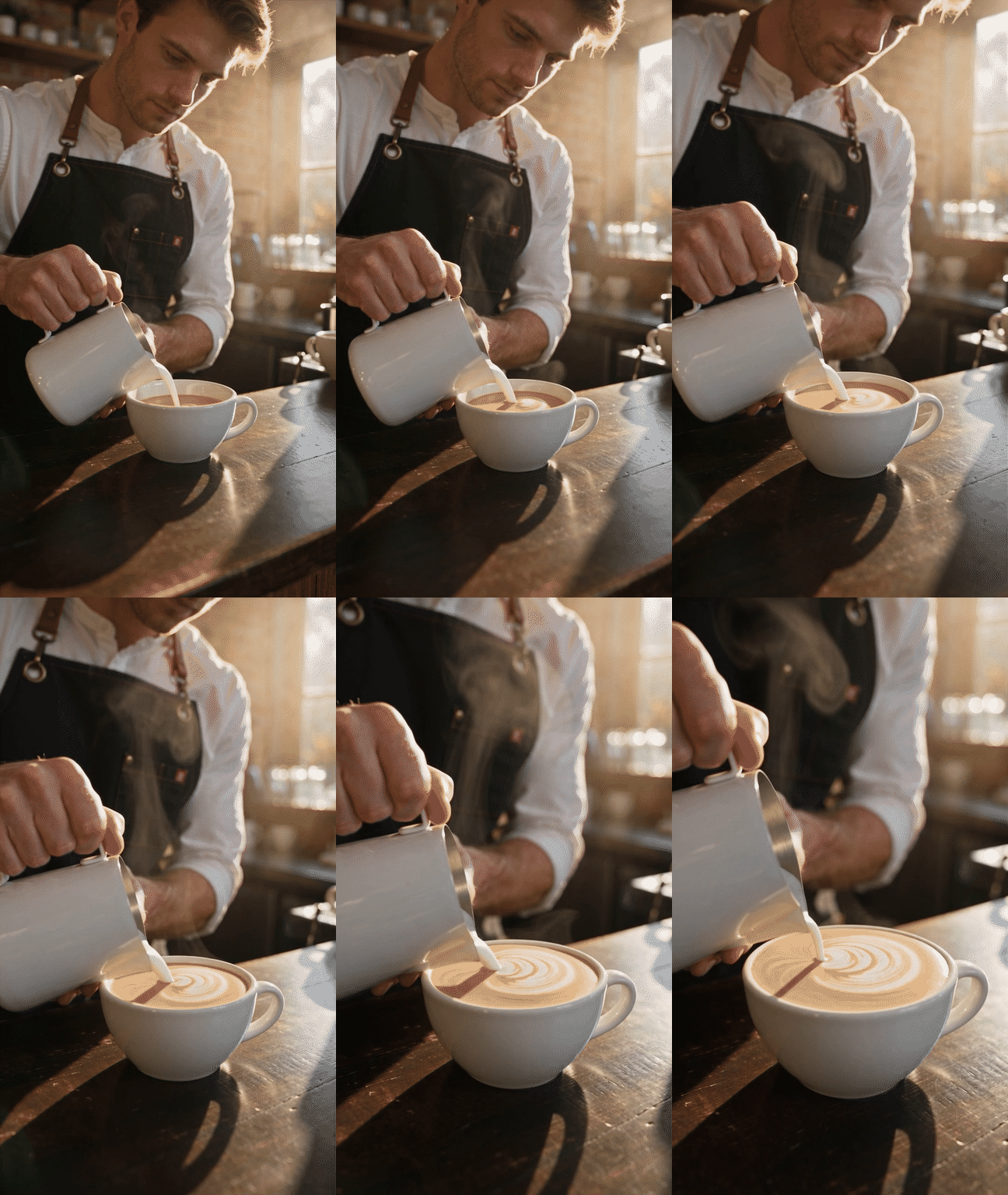 The re-prompt: the cup is in frame from the start, but the camera still ends on it
Step 5: edit, caption and export
Generate each at the shortest duration offered and trim to length. Put the clips in shot-list order. Make the end card as a plain title in the editor rather than generating it. You can edit the clips together in ImagineArt's AI video editor.
Then caption it. ImagineArt lists an AI Caption Generator, and here's how to add subtitles by hand if you prefer.
Export at the highest resolution your plan allows. ImagineArt's FAQ says paid plans export up to 1080p and can upscale to 4K with the AI video upscaler. The same FAQ says paid plans carry commercial use rights, which you need before an ad goes live.
Do you have to label AI videos?
On YouTube, yes, when the video looks real. YouTube asks creators to disclose realistic AI-generated or altered content, such as a realistic scene that never happened. Clearly unreal content, like someone riding a unicorn through a fantasy world, and beauty or colour filters don't need a label.
The rules sit in YouTube's AI disclosure rules. The label appears in the expanded description, and for photorealistic content it may also show in the player. Our latte ad is realistic, so disclose it.
How to make AI videos for free
Most generators have a capped free tier, so you can practice how to make AI videos for free first. Expect limits on credits, clip length or resolution, and often a watermark or a ban on commercial use.
Frequently asked questions
ImagineArt has a free plan with daily credits; check the current plan limits for which video models it covers.
Not through Sora anymore. The Sora web and app closed on April 26, 2026, per OpenAI's Sora discontinuation note. Our guide to Sora alternatives covers where people moved.
Yes. Image to video from your own photo is the simplest route, and ImagineArt also lists AI Lip Sync for talking shots. Only use your own face or someone's with their consent, and label realistic results on YouTube.
A video model turns your prompt or still into a few seconds of frames, and some models make the sound in the same pass (ByteDance says Seedance 2.5 generates audio and video jointly). You then edit those clips like any other footage.
It depends on the model: Runway lists 2 to 10 seconds for Gen-4.5, while ByteDance and Alibaba say Seedance 2.5 and Wan3.0 reach 30 seconds per generation. Longer videos are assembled from clips or extended.
Recap: from idea to export
Plan the shot before you open a tool. Write prompts with a subject, an action and one camera move. Fix the cause when a clip breaks, then cut, caption and label it if it looks real. Other platforms set their own disclosure rules, so check each before posting.
If a shot misses, Step 4 lists the fix. Take the three-shot coffee ad above, swap in your own product, and build it in ImagineArt's video generator this afternoon.
Zahida Misher
Exploring how AI transforms marketing, I help businesses unlock growth and future-proof their presence.