
Arooj Ishtiaq
June 22, 2026 • Updated June 22, 2026
12 mins Read
Kling 3.0 Turbo is available on ImagineArt, which gives you access to the model alongside the rest of the current AI video landscape, and Kling AI, the native platform built specifically for Kling models. The two platforms have different interfaces, different feature sets, and different use cases. ImagineArt suits creators who want to use Kling 3.0 Turbo as part of a broader multi-model workflow. Kling AI suits creators who want Kling-specific features like its multi-prompt dialogue interface and native start-and-end frame controls.
This guide walks through both platforms step by step, covering text-to-video, image-to-video, and multi-shot prompting on each.
What Kling 3.0 Turbo Can Do
Before getting into the platform-specific steps, it helps to understand what Kling 3.0 Turbo generates and what settings are available across both platforms.
Kling 3.0 Turbo generates video from a text prompt or a reference image, with native audio included in the output. It is the speed-optimised variant of the Kling 3.0 generation, which means it produces output faster than Kling 3.0 Standard and Pro while maintaining strong prompt adherence, stable motion, and consistent frame-to-frame quality.
| Spec | Kling 3.0 Turbo Pro | Kling 3.0 Turbo Standard |
|---|---|---|
| Resolution | 1080p | 720p |
| Duration | 5 to 15 seconds | 5 to 15 seconds |
| Native Audio | Yes | Yes |
| Aspect Ratios | 16:9, 1:1, 9:16 | 16:9, 1:1, 9:16 |
| Text-to-Video | Yes | Yes |
| Image-to-Video | Yes | Yes |
| Multi-Shot Prompting | Yes | Yes |
For a detailed overview of the model's technical capabilities and where it fits in the Kling family, the Kling 3.0 Turbo overview has the full spec comparison. For pricing across platforms before you start, the Kling AI pricing guide has the complete breakdown.
How to Use Kling 3.0 Turbo on ImagineArt
ImagineArt gives you access to both Kling 3.0 Turbo Pro and Kling 3.0 Turbo Standard through a single interface alongside every other current-generation video model. The workflow is the same regardless of which Turbo variant you select.
 How to Use Kling 3.0 Turbo on ImagineArt
Step 1: Open the AI Video Generator
Go to ImagineArt's AI video generator and sign in or create a free account. New users receive 100 daily credits and a 7-day free trial with full access to all models, including Kling 3.0 Turbo Pro.
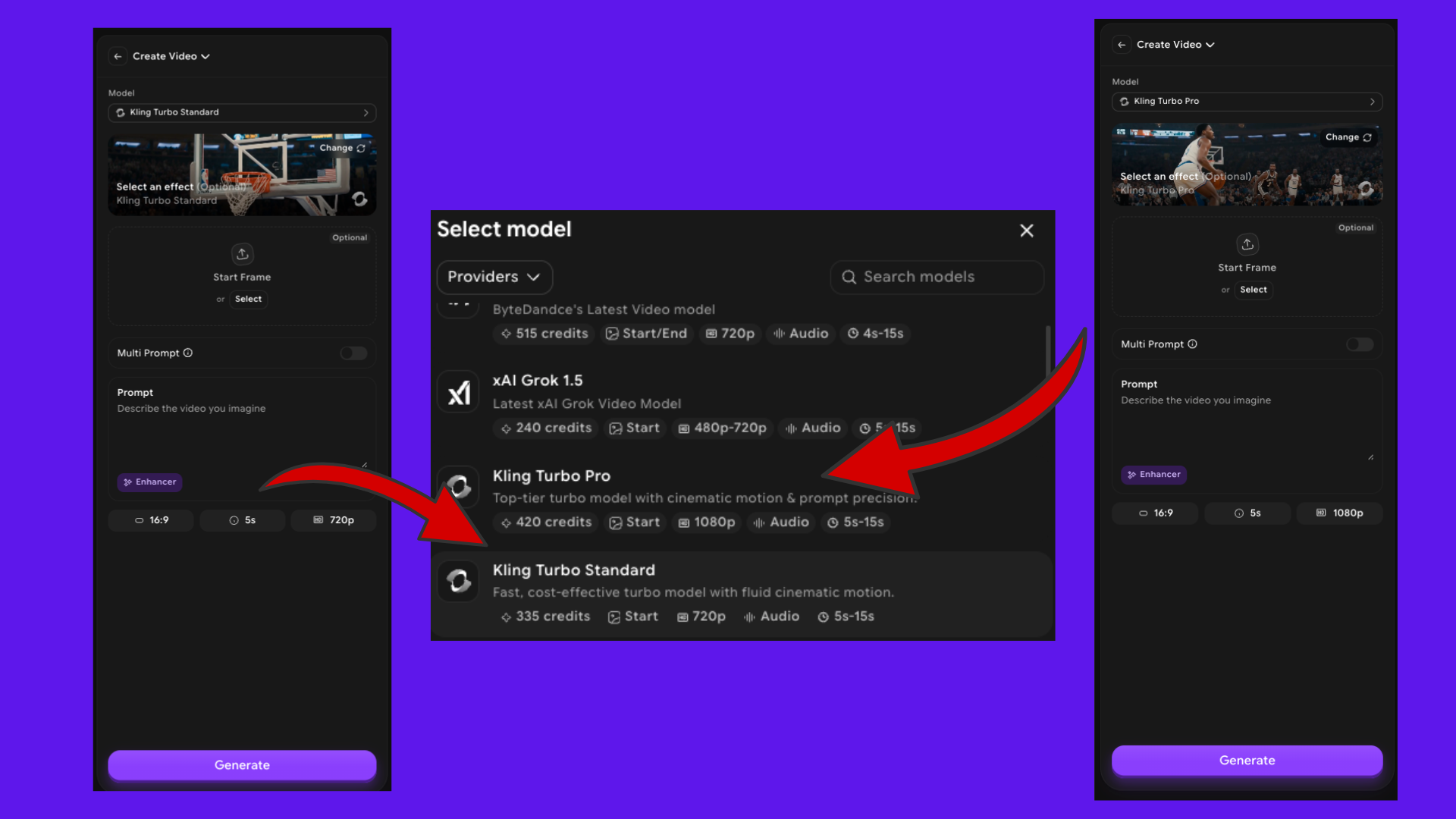
Step 2: Select Kling 3.0 Turbo Pro or Standard
From the Create Video screen, tap the Model field at the top. The model selector shows all available video models on the platform. Scroll to the Kling Turbo section to find:
- Kling Turbo Pro: 420 credits, 1080p, audio, 5s-15s. Best for final output, client deliverables, and content that will be displayed at full screen size.
- Kling Turbo Standard: 335 credits, 720p, audio, 5s-15s. Best for iterative testing, social media, and high-volume workflows where 720p is sufficient.
Select the variant you need. The interface updates to reflect the selected model's default settings: 16:9 aspect ratio
- 5-second duration
- The appropriate resolution
Step 3: Choose Your Generation Mode
ImagineArt supports two generation modes for Kling 3.0 Turbo text-to-video and image-to-video.
- Text-to-video: Write a scene description in the Prompt field. Leave the Start Frame section empty. The model generates a clip from your text description alone.
- Image-to-video: Upload a reference image using the Start Frame section. Tap the upload icon or select an existing image from your assets. The model uses the uploaded image as the first frame and animates forward based on your text prompt. Accepted formats: JPG, JPEG, PNG, WEBP, GIF, AVIF.
Step 4: Write Your Prompt
The Prompt field accepts up to 3,072 characters for a single scene. Write a scene description, not a category. The model executes specific directions better than general descriptions.
A weak prompt: "a woman walking in a city."
A strong prompt: "a woman in a dark red coat walks quickly down a rain-wet narrow street in Edinburgh at dusk, tracking shot from behind, shallow depth of field, neon signs reflecting in the puddles, cinematic."
Tap the Enhancer button before generating. The prompt enhancer automatically expands and sharpens your scene description for better composition, motion accuracy, and visual specificity without changing your intent. It takes a few seconds and consistently improves output on short or under-specified prompts.
Step 5: Enable Multi Prompt for Multi-Shot Video
Toggle the Multi Prompt switch to on if you want to generate a multi-shot video with scene changes within a single clip. Multi-shot prompting lets you define up to 6 individual shots, each with its own scene description, duration, and camera direction. The model generates them as a single continuous video with handled transitions.
Use the multi-shot prompt format by writing each shot as a separate prompt entry. Each entry can contain up to 512 characters, and the combined duration of all shots must equal the clip length you selected.
For a complete guide to writing multi-shot prompts and camera direction syntax, the Kling 3.0 prompt guide has 16 ready-to-use prompt examples covering cinematic scenes, product reveals, and presenter-led formats.
Step 6: Set Duration, Aspect Ratio, and Resolution
Below the prompt field, three settings control the output format:
- Aspect ratio: 16:9 for YouTube and horizontal screens, 9:16 for TikTok and Reels, 1:1 for Instagram feed
- Duration: 5 seconds to 15 seconds in 1-second increments
- Resolution: Determined by the variant you selected (1080p for Pro, 720p for Standard)
Set these before generating. Changing the aspect ratio after generation requires re-generating the full clip.
Step 7: Generate and Review
Tap Generate. Kling 3.0 Turbo typically completes a 5-second clip in 3 to 5 minutes, depending on server load. Longer clips and 1080p output take slightly longer.
When the clip completes, watch it at full playback before downloading. Check for morphing artefacts at hair and clothing edges, lighting consistency across the duration, and whether the scene matches your prompt intent. If a specific section underperforms, use ImagineArt's AI video editor to regenerate that section without rebuilding the full clip.
How to Use Kling 3.0 Turbo on Kling AI
Kling AI is Kuaishou's native platform for Kling models. The interface is built around Kling's specific capabilities, which means it exposes features like start-and-end frame control, a dedicated speaking content syntax, and the VIDEO 3.0 Turbo generation mode with its own UI.
Step 1: Go to Kling AI and Sign In
Visit Kling AI and sign in or create an account. Plans start from $6.99/month. Kling AI also gives free users 66 daily credits that refresh every 24 hours, though the watermark policy on free exports varies by region.
Step 2: Navigate to Video Generation
From the left navigation, select Generate, then tap the Video Generation tab at the top of the screen. The model selector at the top of the generation panel shows the available models. Select VIDEO 3.0 Turbo, which is labelled as "Stable, High-Quality Results with Faster..." in the model picker. The interface defaults to 720p, 5 seconds, 16:9 format, and 1 generation.
Step 3: Add Start and End Frames (Optional)
Kling AI's native interface supports both a start frame and an end frame. This is a feature not available through the standard ImagineArt interface.
- Start frame: Upload an image that the model uses as the first frame of the clip
- End frame: Upload a second image that the model uses as the final frame
When both frames are provided, Kling 3.0 Turbo generates the video that bridges between them according to your text prompt. This is particularly useful for product transitions, character position changes, and controlled environmental shifts where you know both the opening and closing visual state.
Step 4: Write Your Prompt
The Kling AI prompt field uses the same scene description format as ImagineArt. Write specific subject, environment, lighting, camera direction, and motion in a single description.
Speaking content syntax: If you need the subject in the video to speak dialogue, wrap the spoken content in quotation marks within the prompt. For example: "A news anchor sits behind a desk, looks directly to the camera and says, "Welcome to today's broadcast.", warm studio lighting, static camera, photorealistic." Kling 3.0 Turbo supports multiple languages, dialects, and accents for spoken content.
Step 5: Enable Multi Prompt for Multi-Shot Sequences
The Multi Prompt toggle on Kling AI works identically to ImagineArt. Toggle it on, then add individual shot prompts using the Add Item button. Each shot entry has its own prompt field. Define the scene, action, and camera for each shot in sequence. The model handles transitions between shots automatically.
Step 6: Configure Settings and Generate
The settings bar at the bottom of the Kling AI interface shows: resolution (720p default), duration (5 seconds default), aspect ratio (16:9 default), and generation count (1 default). Adjust these before tapping Generate.
Tap the green Generate button. Kling AI queues the generation and notifies you when it completes. Free-tier generations queue behind paid users, so generation times on the free tier can extend to 10 to 30 minutes during peak hours.
Recommended read: Kling 3.0 Turbo Overview
ImagineArt vs Kling AI: Which Platform to Use
The right platform depends on your workflow, not on which one has better output quality. Both use the same underlying Kling 3.0 Turbo model.
| Use Case | Better Platform |
|---|---|
| Multi-model workflow (Kling + Seedance + Veo + PixVerse in same session) | ImagineArt |
| Testing multiple AI video styles before committing to one | ImagineArt |
| Start-and-end frame control for precise visual bridging | Kling AI |
| Speaking content with multilingual dialogue syntax | Kling AI (more direct interface) |
| Fastest path to the first Kling generation with no subscription | ImagineArt (7-day trial, no credit card) |
| Kling-only workflow with dedicated model controls | Kling AI |
| Access to Kling alongside image, audio, and editing tools | ImagineArt |
For creators who primarily use Kling and want the deepest access to Kling-specific features, Kling AI is the natural choice. For creators who use Kling as one of several models in a broader creative workflow, ImagineArt is more efficient because the same credits cover every tool on the platform.
ImagineArt's AI video generator gives access to Kling 3.0 Turbo alongside Kling 3.0, PixVerse V6, Seedance 2.0, WAN 2.6, Veo 3.1, and the full current model family. Switching between models during a session does not require a separate account or credit system.
Tips for Better Output from Kling 3.0 Turbo
Regardless of which platform you use, these prompt and workflow practices produce better output consistently.
- Write the environment before the action. Establish the setting first, then describe what is happening in it. "A candlelit restaurant table in a narrow Parisian side street, late evening, a couple leans in to speak quietly, slow push-in, 16:9, photorealistic" works better than "two people talking in a restaurant."
- Specify camera movement in every prompt. Kling 3.0 Turbo responds accurately to camera direction. Adding "slow dolly-in," "tracking shot," "handheld micro-movement," or "static camera with subject moving toward frame" produces more cinematically distinctive output than leaving the camera unspecified, which defaults to a static centred shot.
- Use the Enhancer before generating. Both ImagineArt and Kling AI have a prompt enhancer feature. On short or under-specified prompts, the enhancer consistently produces better first-generation output than submitting the raw prompt. Use it on every generation.
- Use Standard for testing, Pro for finals. The Standard variant at 720p costs fewer credits and generates faster than Pro. For any creative exploration, style testing, or iterative prompt refinement, run Standard. Once you have a prompt producing the result you want, switch to Pro for the final 1080p output.
- Keep multi-shot entries under 512 characters each. The multi-shot mode accepts up to 6 shot entries. Keeping each entry focused on one scene, one action, and one camera direction produces more coherent multi-shot sequences than trying to include too much detail per shot.
Conclusion
Kling 3.0 Turbo on ImagineArt and Kling AI covers the same generation quality from two different interface philosophies. ImagineArt is the faster path to a first generation, the more efficient option for multi-model creative workflows, and the platform where the same credits cover image generation, editing, and audio alongside video.
Start with ImagineArt's AI video generator if you want to test Kling 3.0 Turbo alongside other models in one session. Go to Kling AI if you are building a Kling-specific production workflow and want the deepest access to model-level controls.
Frequently Asked Questions
What is the difference between using Kling 3.0 Turbo on ImagineArt vs Kling AI?
Both platforms use the same Kling 3.0 Turbo model. ImagineArt gives access to Kling alongside 11 other models under one credit system, with the same credits also covering image generation, audio, and editing tools. Kling AI is built specifically for Kling models and offers features including dedicated start-and-end frame bridging and a native speaking content syntax. For multi-model creators, ImagineArt is more efficient. For Kling-focused workflows, Kling AI offers more model-specific control.
Can I use Kling 3.0 Turbo for free?
On ImagineArt, new users get a 7-day free premium trial with full access to Kling 3.0 Turbo Pro and Standard. After the trial, the model costs 420 credits (Pro) or 335 credits (Standard) per generation, which exceeds the 100 daily free credit balance. On Kling AI, free users receive 66 daily credits that refresh every 24 hours, though the watermark policy on free exports varies by region.
How long does Kling 3.0 Turbo take to generate?
On ImagineArt, a 5-second clip typically takes 3 to 5 minutes. Longer clips and 1080p output take slightly longer. On Kling AI, paid users experience similar generation times. Free-tier users on Kling AI may experience longer queues during peak hours.
What is the best prompt length for Kling 3.0 Turbo?
A single-scene prompt of 60 to 150 words with subject, environment, lighting, camera direction, and a style reference produces reliable first-generation output. Very short prompts (under 20 words) produce average, generic results. Very long prompts (over 300 words for a single scene) can confuse the model's scene interpretation. For multi-shot prompts, keep each shot entry under 512 characters.
Can I upload an image and add a text prompt at the same time?
Yes. Both ImagineArt and Kling AI support image-to-video generation with a text prompt. The image becomes the first frame, and the text prompt directs the motion, environment, and camera from that starting point. On Kling AI, you can also add an end frame image to define both the opening and closing visual state.
How do I use Kling 3.0 Turbo for speaking content?
On Kling AI, wrap spoken dialogue in quotation marks within your prompt. The syntax is: describe the scene and subject, then include the spoken content in quotes: "A presenter looks to the camera and says, "Here is what you need to know.'" On ImagineArt, dialogue generation through the standard prompt field also works, though Kling AI's dedicated syntax gives more precise control over the speaking behaviour.
Arooj Ishtiaq
Arooj is a SaaS content writer specializing in AI models and applied technology. At ImagineArt, she creates sharp, product-focused content that helps creators and businesses understand, adopt, and get real value from AI tools.