

Arooj Ishtiaq
June 3, 2026 • Updated September 1, 2026
7 mins Read
Grok Imagine Video 1.5 is xAI's current image-to-video model and is at the top of the independent Arena leaderboard as of May 2026. You can run it through xAI's native platform or through ImagineArt's AI video generator, where it sits alongside Seedance 2.0, Kling 3.0, and the rest of the model stack. This guide walks through the exact steps for both.
Two Ways to Access Grok Imagine Video 1.5
Before getting into the steps, it is worth knowing what each platform offers so you can choose the right starting point for your workflow.
- xAI (grok) is the native platform where the model lives. It gives you the cleanest access to all five generation modes and is where xAI rolls out updates first. Free accounts get 5 credits per day. SuperGrok paid subscribers have a higher daily allocation.
- ImagineArt runs the same Grok 1.5 model inside a broader production environment. It costs 240 ImagineArt credits per generation and adds a full editing and export layer on top of the generation workflow. The key advantage is that everything else in the platform, including a built-in AI video editor and AI video extender, lets you edit and extend videos without switching to third-party tools, keeping the entire workflow in one place.
If you just want to test the model quickly, start on xAI. If you are building content for publication and need editing, captions, and export tools alongside generation, ImagineArt is the more practical choice.
For more details, read: xAI Grok Imagine Video 1.5 Guide
How to Use Grok Imagine Video 1.5 on xAI
xAI's native interface is the most direct way to access the model. The steps below cover the complete workflow from account access to final export.
Step 1: Access the Video Generator
Go to Grok and sign in. From the left navigation, select Imagine. The interface opens on image generation by default. Switch to the Video tab to reach Grok Imagine Video 1.5. Free accounts receive 5 credits per day. SuperGrok subscribers have a higher daily allocation.
Step 2: Write Your Prompt
Structure your prompt in this order:
- Subject and action
- Camera movement
- Environment and lighting
- Restrictions (for example: no text, preserve product label)
For image-to-video, describe only the motion. The model carries composition, lighting, and subject identity from the source image. Your prompt only needs to specify what changes.
Step 3: Configure Settings
Set these three parameters before generating:
- Resolution: 480p for rapid drafts, 720p for final output
- Aspect ratio: 1:1, 9:16, 16:9, 2:3, and 3:2 supported
- Duration: 5 to 15 seconds. Longer clips use more credits.
Step 4: Generate and Iterate
Click Generate. The clip is produced in 10 to 30 seconds with audio included. If the output needs adjustment, change one variable at a time before regenerating so you can identify what moved the needle.
Step 5: Extend the Clip (Optional)
To continue the clip beyond the initial duration, select the final frame and write a motion prompt that continues the action from that point. The model adds a new 6 to 10-second segment while preserving scene consistency at the join.
How to Use Grok Imagine Video 1.5 on ImagineArt
ImagineArt runs the same Grok 1.5 model within a broader production environment, adding a full editing and export layer that the native xAI interface lacks.
Step 1: Open the Video Creator
Go to ImagineArt's Grok Imagine Video 1.5 or directly to the AI video generator.
Step 2: Select xAI Grok 1.5 from the Model Selector
Click the model dropdown at the top of the panel. The selector lists all available models with their credit cost, resolution, audio capability, and duration. Grok 1.5 shows as:
- 240 credits per generation
- Start frame support for image-to-video
- 480p and 720p resolution
- Audio included natively
- 5 to 15 seconds duration
For comparison, other models in the same selector: Seedance 2 Fast (515 credits, 720p), Kling 3.0 4K (755 credits, 4K), LTX 2.3 (215 credits, 1080p to 2160p).
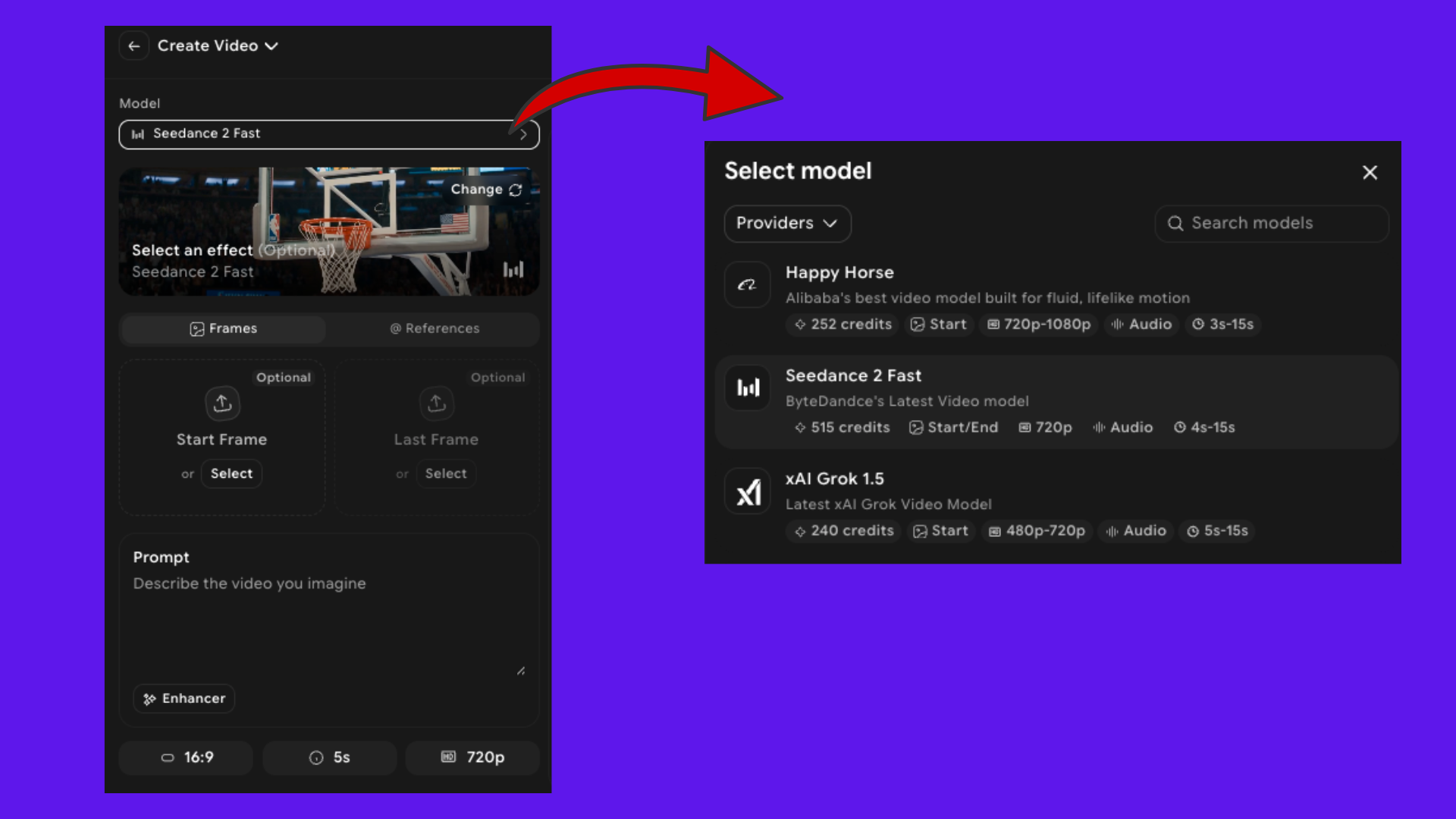 How to Use Grok Imagine Video 1.5 on ImagineArt
Step 3: Upload Your Start Frame (Image-to-Video)
The panel shows a Start Frame slot below the model selector. Upload your source image here for image-to-video generation. The Last Frame slot is also available if you want to define both the opening and closing composition. Both slots are optional for text-to-video.
Step 4: Write Your Prompt and Enable Enhancer
Enter your prompt in the Prompt field using the same structure as on xAI: subject and action first, then camera and lighting. The Enhancer toggle below the prompt field applies automatic prompt optimization before generation runs, which helps with shorter or less detailed prompts.
Step 5: Set Aspect Ratio, Duration, and Resolution
Three settings sit at the bottom of the panel:
- Aspect ratio: 16:9 by default. Supported ratios include 9:16, 1:1, 4:3, 3:4, 2:3, and 3:2.
- Duration: Set in seconds, up to 15 seconds.
- Resolution: 720p by default.
Step 6: Generate
Click Generate. The clip appears in the History tab with synchronized audio. Generation takes 5 to 30 seconds.
Step 7: Edit and Export
After generation, ImagineArt's built-in tools handle the full post-production layer without leaving the platform:
- Video editor for trimming, captions, and assembly
- Video reframe to adapt the clip to a different platform aspect ratio
- Video effects for visual treatment
- Add text to video for captions and overlays
- AI video enhancer to sharpen output before export
- AI audio studio for dedicated voiceover or music alongside the video
Which Platform Should You Use?
Both run the same model. The choice depends on what you need after generation.
| xAI Native | ImagineArt | |
|---|---|---|
| Model access | Full, updated first | Via model selector |
| Credit system | xAI credits (free: 5/day) | 240 ImagineArt credits per gen |
| Post-generation editing | Download and edit elsewhere | Full suite built in |
| Other models in same workflow | No | Seedance 2.0, Kling 3.0, and more |
| Team collaboration | Limited | Teams plan available |
Use xAI directly if you want the simplest access to the model and receive feature updates first. Use ImagineArt if you need generation, editing, and export in one place, or if you want to switch between Grok 1.5 and other models like Seedance 2.0 or Kling 3.0 within the same session.
Conclusion
The workflow on both platforms follows the same core steps: choose a mode, upload a reference if needed, write a focused prompt, set resolution and aspect ratio, and generate. ImagineArt adds a built-in editing and export layer that makes it a more complete production environment for teams.
Start at ImagineArt's Grok Imagine Video 1.5 to run your first generation and access the full model comparison in one place.
Frequently Asked Questions
Is Grok Imagine Video 1.5 free?
On xAI, free users get 5 credits per day. SuperGrok paid subscribers have higher daily limits. On ImagineArt, each generation costs 240 credits from your subscription allocation.
Can I use Grok Imagine Video 1.5 for commercial content?
On xAI, commercial rights depend on your SuperGrok subscription tier and xAI's terms. On ImagineArt, commercial rights are included in paid plans. Check your specific plan terms before using outputs in paid advertising or client work.
Which is better for product video Grok 1.5 or Seedance 2.0?
For frame-accurate product detail consistency, Seedance 2.0 is more reliable. For concept testing, cinematic teasers, and fast iteration, Grok 1.5 is the stronger choice. Both are accessible from the same ImagineArt interface, so you can use each for what it does best in the same workflow.
What post-production tools are available after generating on ImagineArt?
Trimming, captions, effects, aspect ratio adjustment, video enhancement, and voiceover are all available through ImagineArt's built-in tools without leaving the platform.
Arooj Ishtiaq
Arooj is a SaaS content writer specializing in AI models and applied technology. At ImagineArt, she creates sharp, product-focused content that helps creators and businesses understand, adopt, and get real value from AI tools.