Arooj Ishtiaq
March 27, 2026 • Updated July 17, 2026
10 mins Read
Many creators are currently exploring GPT Image 1.5, noting that it offers a fresh way to turn descriptive ideas into visuals that actually match what you had in mind. If you are wondering how to use GPT Image 1.5 to get the most out of those longer prompts, here is how you can start putting it to work today.
If you want to try the latest model, you can review GPT Image 2 — OpenAI's newest image generation model, available on ImagineArt with similar usage steps.
How to Access GPT Image 1.5?
GPT Image 1.5 is accessible through several platforms, depending on your workflow and technical requirements. Here is a comparison of the available access routes:
| Platform | Access Method | Cost | Best For |
|---|---|---|---|
| ImagineArt | Credit-based, no API setup | 35 credits per generation | Creators and teams wanting a no-configuration environment |
| fal.ai | API or playground | $0.009 (low quality) to $0.200 (high quality) | Developers needing API integration and control |
How To Use GPT Image 1.5 on ImagineArt?
ImagineArt is the most accessible entry point for creators who want to use GPT Image 1.5. To get started:
- Create a free account at imagine.art — you receive 100 free credits on signup, refreshed every 24 hours
- Open the AI image generator and select GPT Image 1.5 from the model selection
- Enter your prompt, choose your aspect ratio, and generate — each generation consumes 35 credits
- For editing workflows, use the AI image editor alongside GPT Image 1.5 to refine outputs without leaving the platform
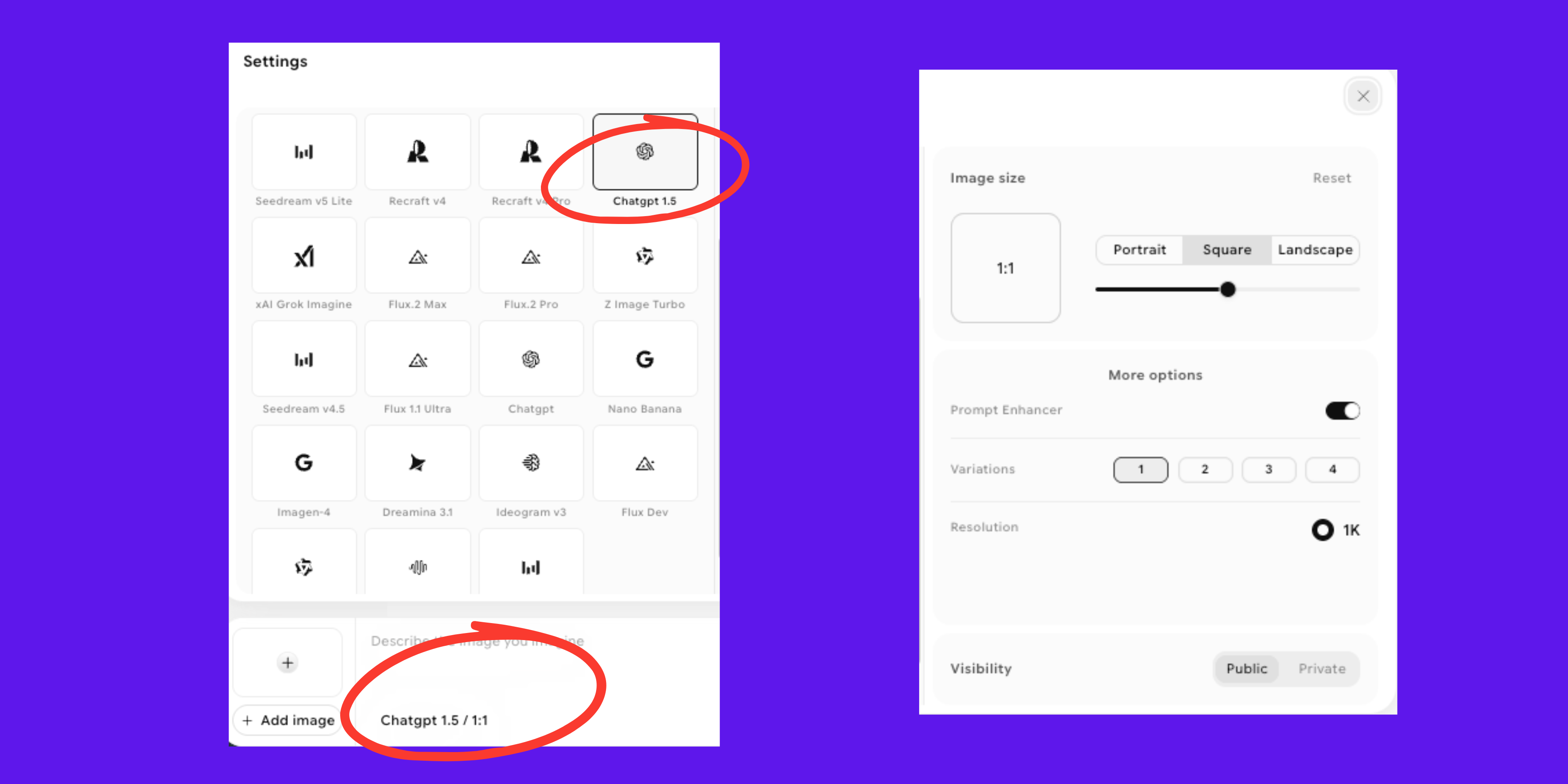 How To Use GPT Image 1.5 on ImagineArt?
For teams managing shared production budgets, ImagineArt's paid plans start at $9 per month (Basic, 2,000 credits) and scale up to $250 per month (Creator, 100,000 credits), with quarterly and yearly discounts available.
How to Prompt GPT Image 1.5: Text-to-Image?
GPT Image 1.5 processes prompts differently from diffusion-based models. Because it uses a multimodal reasoning engine, it responds to context and intent rather than just visual descriptors. The following prompting principles will help you get more accurate outputs from the model.
Be Specific About Context, Not Just Appearance
GPT Image 1.5 understands the world, e.g., cultural contexts, historical periods, physical environments, and domain-specific settings. Rather than describing what something should look like, describe what it is and where it exists, and let the model's reasoning handle the visual interpretation.
| Less Effective Prompt | More Effective Prompt |
|---|---|
| A realistic photo of a person in a professional setting | A professional headshot of a marketing director in her mid-thirties, shot in a bright modern office with large windows, soft natural light from the left, navy blazer, neutral expression |
| A product image of a perfume bottle | A luxury fragrance product shot of a rectangular amber glass bottle with a gold cap, placed on a dark slate surface with soft overhead studio lighting and a subtle reflection below the bottle |
| An infographic about climate change | A clean data infographic showing global average temperature increase from 1880 to 2024, displayed as a line chart with decade markers on the x-axis, temperature in Celsius on the y-axis, a bold title at the top, and three annotated data points marking 1950, 1990, and 2020 |
Describe Spatial Relationships Explicitly
GPT Image 1.5 handles spatial reasoning well, but it performs best when spatial relationships are stated explicitly rather than left to interpretation. When composing a scene with multiple elements, describe where each element is positioned relative to the others.
- State the primary subject and its position in the frame first — centre frame, left third, foreground, background
- Describe secondary elements in relation to the primary subject — to the left of, behind, in the lower right corner of
- Specify camera perspective where relevant — eye level, looking up from below, overhead bird's-eye view, three-quarter angle
Recommended read: GPT 1.5 Prompt Guide
Include Lighting and Atmosphere Deliberately
GPT Image 1.5 understands physical lighting accurately and will render it correctly when specified. Lighting descriptions improve output quality significantly for commercial and professional photography styles:
- Specify light source and direction — soft window light from the left, overhead studio strobe, warm golden hour backlight
- Describe the quality of light — hard shadows, soft diffused light, dramatic contrast, flat, even lighting
- Include atmospheric context where relevant — hazy morning mist, clear noon sunlight, overcast diffused daylight
Prompts for Text Rendering
GPT Image 1.5 generates legible, correctly spelled text within images. When your prompt requires text to appear in the image, include the exact text in quotation marks within the prompt description:
- "A minimalist poster with the headline 'Less is More' in large black sans-serif type on a white background, with a single thin horizontal rule below the headline and a small subtitle reading 'Annual Design Conference 2026' in 12pt grey font."
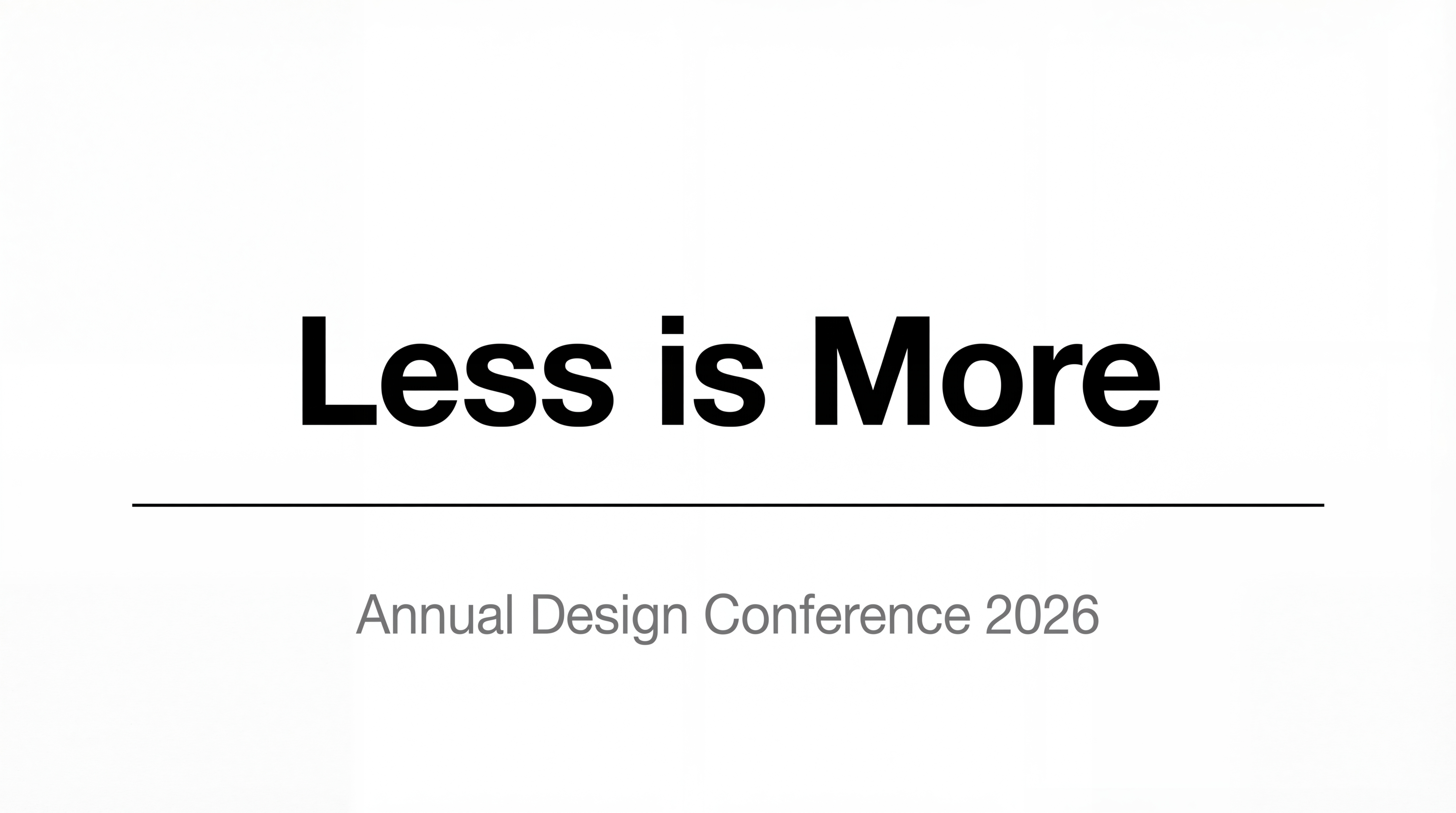 Minimalist Poster With 'Less is More'
- "A product label for an artisan coffee bag reading 'Dark Roast Single Origin Ethiopia' in a clean serif font at the top, with tasting notes listed below in two lines: 'Notes of dark chocolate, dried cherry, and brown sugar' in smaller body copy"
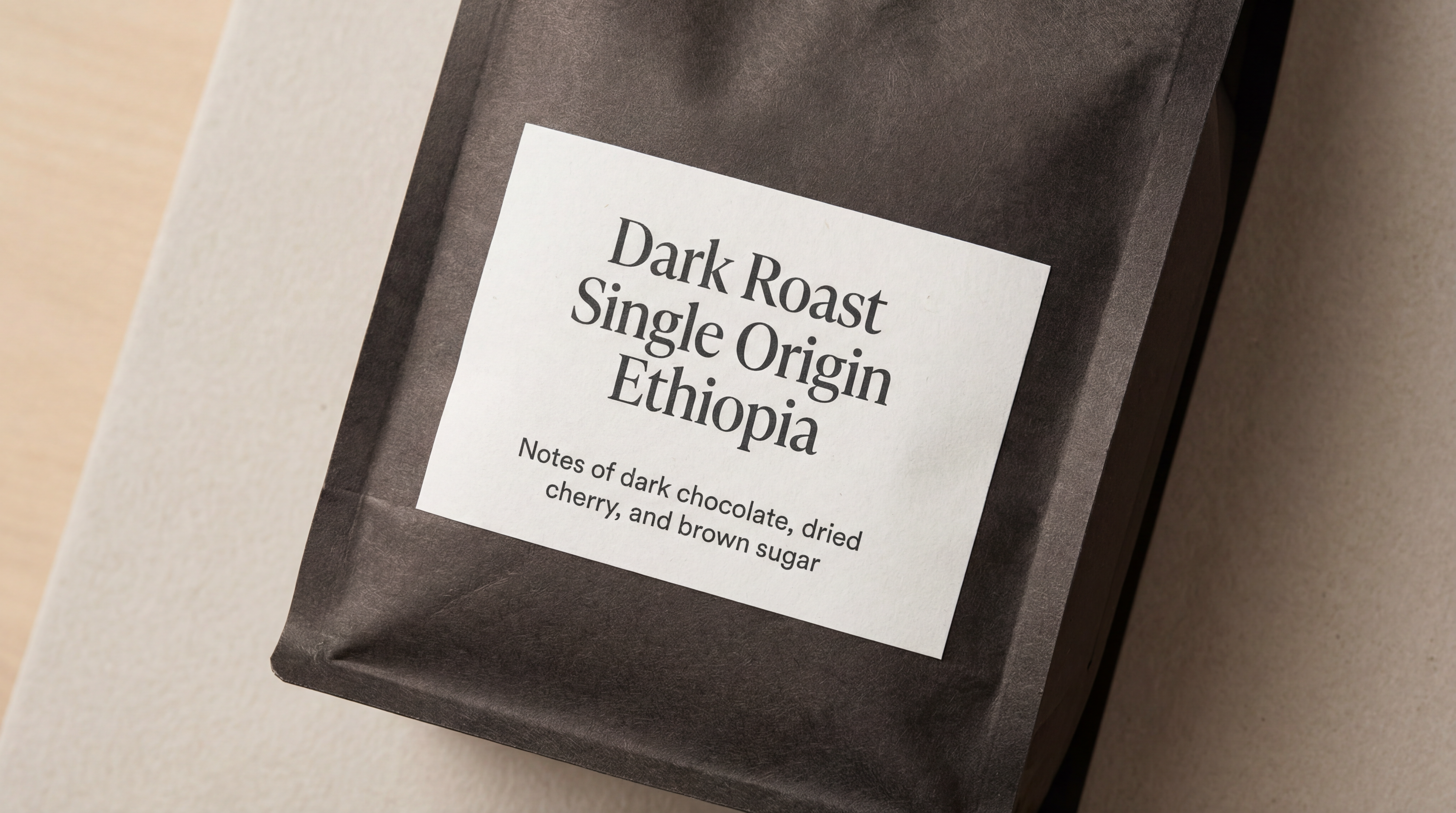 Dark Roast Single Origin Ethiopia
- "A UI card component showing a user profile with the name 'Sarah Chen' in bold, the title 'Product Designer' below in grey, and three stat labels reading Followers: 2.4k, Projects: 18, and Reviews: 94 in small caps"
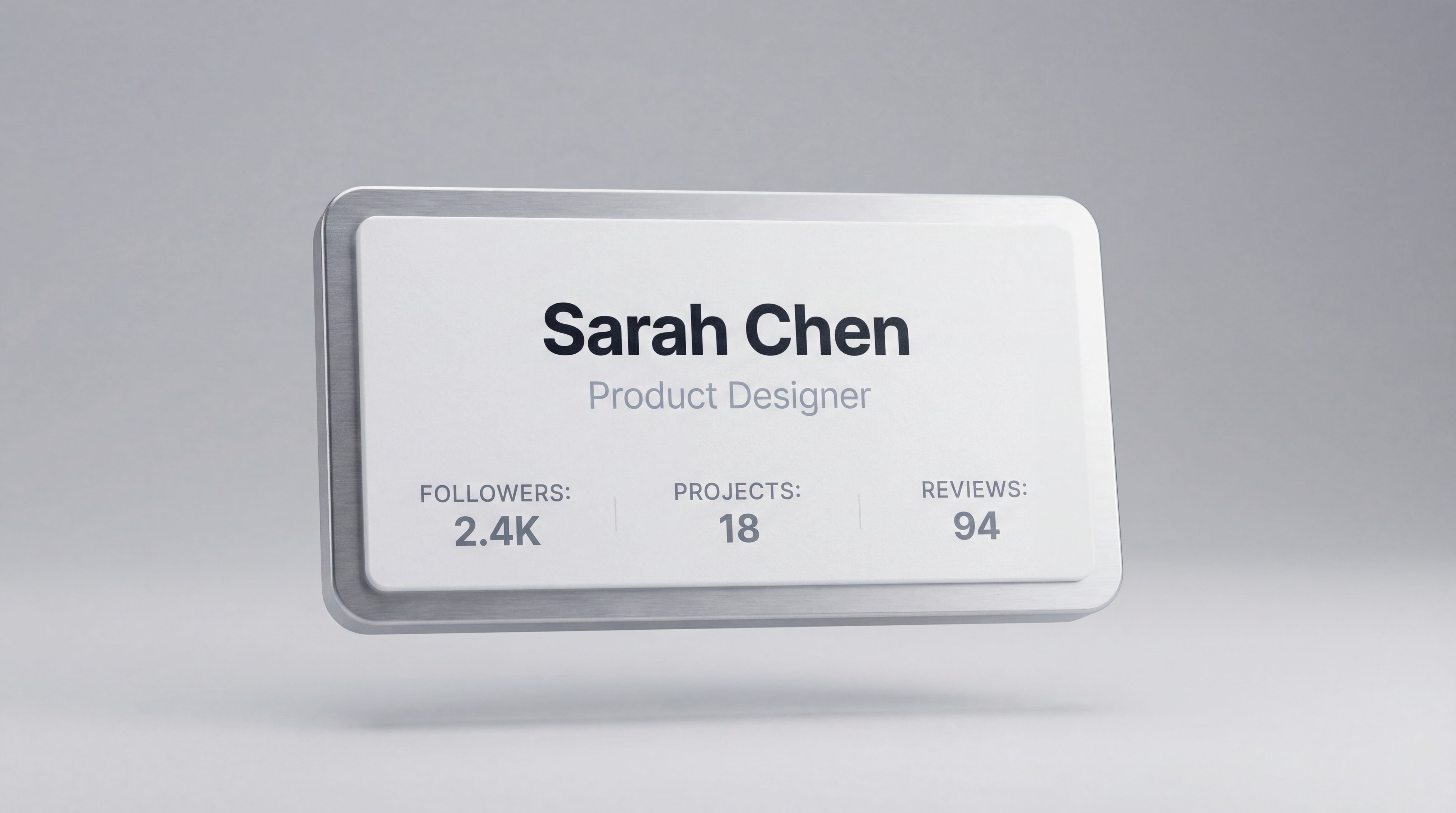 UI card Of Sarah Chen
How to Use GPT Image 1.5 for Image Editing?
GPT Image 1.5's image-to-image editing capability helps you to modify specific elements of an existing image using natural language instructions while preserving everything else. This is one of the model's strongest features and produces meaningfully different results from models that regenerate the entire scene when an edit is applied.
Writing Effective Edit Instructions
Edit instructions for GPT Image 1.5 work best when they are specific about what is being changed and clear about what must remain unchanged. The model preserves composition, lighting, and style by default, but explicitly stating what to keep helps anchor the edit to the right region:
| Edit Goal | Effective Instruction |
|---|---|
| Change a clothing item's colour | "Change the jacket from navy blue to burnt orange. Keep the model's pose, face, and the background unchanged." |
| Replace a background | "Replace the white studio background with a warm-toned marble showroom interior. Maintain all foreground elements, lighting on the subject, and shadows." |
| Add an object to a scene | "Add a steaming coffee cup in the bottom left corner of the desk surface. Match the lighting direction and colour temperature of the existing scene." |
| Remove an element | "Remove the umbrella in the background. Fill the area with the surrounding wall texture and maintain consistent lighting across the image." |
| Update in-image text | "Change the text on the product label from 'Summer Edition' to 'Limited Edition 2026'. Keep the same font, size, and colour." |
How To Use GPT Image 1.5 for Multi-Turn Editing Workflow?
GPT Image 1.5 supports multi-turn editing, where successive edits are applied to the same image across multiple instructions. The model maintains visual quality and coherence across turns, making it suitable for iterative refinement workflows where a final output is reached through a series of incremental changes rather than a single large edit.
A practical multi-turn editing workflow for a product photography use case might look like this:
- Start with the base product image and instruct: "Place the product on a light oak wood surface with soft diffused studio lighting from above."
- Review the output and refine: "Slightly warm the colour temperature of the lighting. Add a subtle reflection of the product on the wood surface."
- Final polish: "Sharpen the product label detail and slightly increase the contrast on the product surface to make the material texture more visible."
For teams building multi-turn editing into a structured production workflow, the ImagineArt AI Workflow system supports node-based pipelines that chain generation and editing steps into a repeatable, automated sequence.
How to Use GPT Image 1.5 for Inpainting?
Inpainting allows you to modify a specific region of an image through a natural language instruction while leaving everything outside that region completely unchanged. This is more targeted than image-to-image editing and is particularly useful for precise single-element changes within a complex composition.
On ImagineArt, the inpaint tool is accessible through the edit suite. Upload your image, identify the region you want to modify, and provide a clear instruction describing what the modified region should contain. GPT Image 1.5 executes the inpaint while maintaining the style, lighting, and visual consistency of the surrounding area.
The most common inpainting use cases where GPT Image 1.5 performs reliably include replacing a product background in an e-commerce image, removing a specific unwanted element from a scene without affecting adjacent elements, adding an object that integrates naturally into the existing lighting environment, and updating text or label elements within a product or packaging visual.
Start Creating Like a Pro with GPT Image 1.5
GPT Image 1.5 gives you the power to turn ideas into professional visuals quickly and confidently. It’s designed for creators who want fast results, precise control, and a smooth workflow from concept to final image. Begin experimenting today and see your creative vision come to life.
Frequently Asked Questions: GPT Image 1.5
What is GPT Image 1.5?
GPT Image 1.5 is OpenAI's AI image generation model released December 16, 2025. It uses a multimodal reasoning engine to generate images from text prompts and edit existing images with precise instruction-following. Its key improvements over previous OpenAI models are: edit consistency (changing only what you specify while preserving everything else), significantly improved text rendering inside images, and ~4× faster generation speed.
Is GPT Image 1.5 free to use?
GPT Image 1.5 is available free through ChatGPT's free tier with limited daily generations. Paid ChatGPT plans (Plus, Team, Enterprise) include higher generation limits. Developers can access it via the OpenAI API at $0.01 (low), $0.04 (medium), or $0.17 (high) per image. On ImagineArt, it costs 35 credits per generation — free accounts receive 100 credits refreshed every 24 hours; paid plans start at $9/month.
What's the difference between GPT Image 1.5 and GPT Image 2?
GPT Image 2 is OpenAI's current flagship model and offers higher output quality — improved anatomy, composition, and fine detail. GPT Image 1.5 remains the better choice for high-volume generation workflows due to its lower API cost (approximately 2× cheaper at medium quality) and comparable speed. For final-quality client deliverables, GPT Image 2 is the stronger choice.
How is GPT Image 1.5 different from DALL-E 3?
GPT Image 1.5 represents a significant upgrade from DALL-E 3 across three dimensions: edit consistency (DALL-E 3 would often re-render entire images on edits; GPT Image 1.5 preserves unchanged elements), text rendering (DALL-E 3 produced frequent spelling errors in image text; GPT Image 1.5 handles dense, small text accurately), and instruction following (GPT Image 1.5 uses a reasoning engine that interprets intent rather than matching keywords).
Can GPT Image 1.5 edit existing photos?
Yes. GPT Image 1.5 supports image-to-image editing where you upload a photo and describe what to change in plain text — no selection masks or manual region marking required. It also supports inpainting (targeted region modification) and multi-turn editing, where each prompt builds on the previous output while preserving what you haven't asked to change.
What is multi-turn editing in GPT Image 1.5?
Multi-turn editing means you can refine an image across multiple sequential prompts — each edit builds on the last without resetting the image. Example: generate a product photo, then add "change the background to a café setting," then add "adjust the lighting to be warmer," with each edit applied on top of the previous without altering unchanged elements. This is GPT Image 1.5's most practical workflow advantage for production work.
What is GPT Image 1.5 best used for?
GPT Image 1.5 is strongest for: text-heavy graphics (social media, posters, labels) where spelling accuracy in image text matters; e-commerce product photography with multi-variation generation; brand asset iteration from a reference image; and social media content where speed and volume matter more than absolute quality ceiling. For the highest quality output (client deliverables, editorial), GPT Image 2 is the more appropriate choice.
Arooj Ishtiaq
Arooj is a SaaS content writer specializing in AI models and applied technology. At ImagineArt, she creates sharp, product-focused content that helps creators and businesses understand, adopt, and get real value from AI tools.