
Syed Anas Hussain
June 12, 2026 • Updated July 9, 2026
14 mins Read
Before AI, making a custom movie poster meant hiring a designer for a week or spending three hours in Photoshop locked in a battle with layer masks. Last week I made five different movie poster concepts in about forty minutes — three of them looked like they came out of a real production design brief, and I'm genuinely using one as a profile banner. Here's exactly how I did it, and how you can do the same for any genre with no design experience.
What is an AI movie poster generator? An AI movie poster generator is a tool that creates cinematic-quality film poster images from a text prompt or uploaded photo, applying genre-specific lighting, composition, and color grading automatically. ImagineArt's AI movie poster generator is built around a photo-first workflow — upload your image and the AI applies a cinematic treatment while maintaining your subject's likeness.
What Makes a Great Movie Poster?
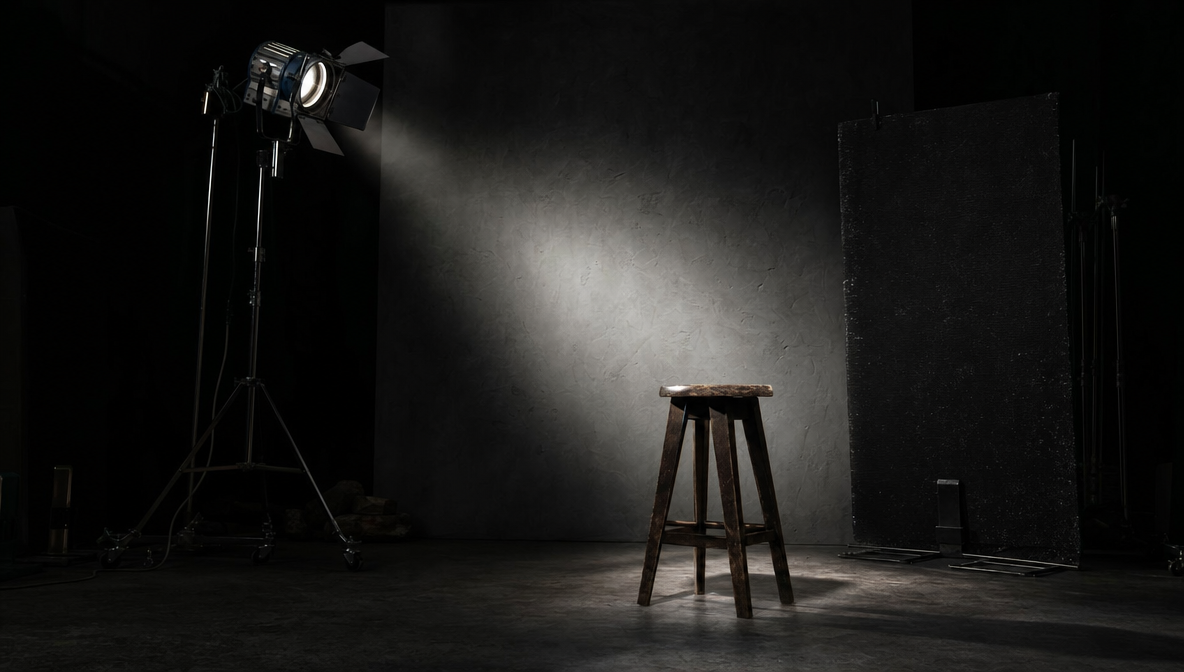
Before generating anything, it's worth understanding what the AI is working toward. Movie poster design follows visual rules refined over 80 years of cinema marketing — and the best AI generators are trained on exactly this language.
Cinematic Lighting and Color Grading
The first thing I look at when evaluating a poster is the lighting — it's the most immediate signal that separates a movie poster from a photo. Professional posters use dramatic, directional light: strong shadows, selective highlights, and a single dominant color temperature. Action films use cool blues with orange heat accents; horror isolates warm tones against deep shadow; romance goes golden hour with soft diffusion. When you write your prompt, you're giving the AI a lighting direction — the more specific, the more intentional the output.
Composition and the Rule of Thirds
When I started analyzing real movie posters, one pattern showed up consistently: almost all of them use the rule of thirds for subject placement. Lead characters sit at one of the four intersection points — never dead center unless that centering is intentional and architectural. Empty sky or environmental negative space fills the remaining frame and creates room for title treatment. Specify composition in your prompt — "low-angle shot, subject in lower left third, cityscape in upper right" produces dramatically different results than "person in a city."
Typography Hierarchy
Typography is where most AI poster generators fall short — text looks fine at thumbnail size and breaks down at full scale. Real posters have a clear hierarchy: a dominant title anchoring the upper half of the frame, a secondary tagline, and a credits block. My workflow now is to generate the visual without text, then add typography in a second step using ImagineArt Magic Text or the AI Image Editor — both let you edit, place, layer, and refine typography directly on the generated image without leaving ImagineArt. Magic Text is best when you want to drop in a title and adjust font treatment quickly; the AI Image Editor gives you more control for full poster layout with multiple text elements. This two-step approach consistently produces cleaner results than prompting for text in the generation itself.
Aspect Ratios — Know Your Format Before Generating
Before generating, know which format you're targeting — the aspect ratio affects how the composition should be framed:
| Format | Dimensions | Use Case |
|---|---|---|
| Theatrical one-sheet | 27×40 in — 2:3 portrait | Standard movie poster print |
| Streaming thumbnail | 16:9 landscape | Netflix, Prime, YouTube |
| Instagram post | 4:5 or 1:1 | Social media sharing |
| Story / Reel | 9:16 vertical | Instagram, TikTok |
| Print at full resolution | 300 DPI minimum | Physical poster printing |
How to Make an AI Movie Poster with ImagineArt (Step-by-Step)
This is the exact workflow I use. On a first attempt it takes about fifteen minutes; after a few sessions it's closer to five.
Step 1 — Open ImagineArt's AI Movie Poster Generator
Go to ImagineArt AI Movie Poster Generator. No account required to start — the free tier provides 100 credits daily with no credit card needed. The interface presents two paths: upload a photo or start from a text prompt. Choose based on whether you have a specific subject in mind or are working from a conceptual starting point.
If you want to go deeper into generating cinematic visuals beyond poster stills — actual scenes, character shots, and full sequences — the AI Image Generator gives you access to 50+ models including ImagineArt 2.0, Flux 2, and Imagen 3 for generating production-quality frames. The ImagineArt AI Film Studio extends this further into full video production if your poster concept is part of a larger film project.
Step 2 — Upload Your Photo (or Start from a Text Prompt)
ImagineArt's photo-first workflow is the key differentiator from most AI movie poster generators. Upload a clear, well-lit reference image — your own face, a friend, a character reference — and the AI uses it as a compositional anchor, applying the cinematic treatment around it while maintaining the subject's recognizable features. For best results, use a front-facing photo with a neutral expression and minimal dramatic lighting in the reference (the AI adds the cinematic lighting — you don't want double treatment applied). If you're working with no specific subject, the text prompt path works equally well for fictional or conceptual posters.
Step 3 — Choose Your Genre and Style
The app offers genre presets: Action, Horror, Sci-Fi, Romance/Drama, Comedy, Anime/Animation, Documentary, Thriller.
Each preset applies a different color grade, lighting model, and compositional bias calibrated to that genre's visual conventions.
My recommendation: choose the genre first, then customize via prompt. The presets are well-calibrated — working with them produces better results than writing a prompt that fights the default treatment.
Understanding how cinematic lighting, camera angles, and genre visual codes work is what separates a strong poster prompt from a generic one — the How AI Cinema Works guide covers the model and camera control principles behind cinematic generation.
Step 4 — Write (or Refine) Your Prompt
A prompt like "action movie poster" gets you something generic. A layered prompt gets you something specific.
Write in five layers: → subject (who or what is in the frame) → lighting (direction, quality, color temperature) → composition (angle, framing, negative space) → mood/genre (emotional register) → technical specs (aspect ratio, film aesthetic).
Change one layer at a time when iterating — this makes it clear what's working and prevents chasing the wrong variable.
Step 5 — Generate Multiple Variations and Download
Generate at minimum four variations before selecting. The first output is rarely the strongest — the model explores before settling, and variation three or four is usually where it clicks. Once you have a keeper, download at the highest available resolution. For digital and social, the native output is sufficient. For large-format print, run the output through Topaz Gigapixel AI or Magnific AI to reach 300 DPI at your print dimensions. Add title treatment and typography using ImagineArt Magic Text or the AI Image Editor as a final step — both let you edit, place, and layer text directly on the generated image without leaving the ImagineArt ecosystem.
If your poster is part of a larger production — a short film, a trailer, a full AI movie — the Complete AI Filmmaking Guide and the How to Use ImagineArt Film Studio step-by-step walkthrough cover the full production pipeline that starts where poster generation ends.
AI Movie Poster Prompts by Genre (Copy-Paste Templates)
These are the prompt structures I've refined across dozens of poster generations. Swap the bracketed variables for your specifics while keeping the structural elements intact.
Action / Thriller
Cinematic action movie poster, [character description] in tactical gear against [burning city / industrial complex / mountain terrain], dramatic orange backlight, cool blue shadows, heavy atmospheric haze, low-angle heroic composition with subject in lower-center frame, lens flare, 2:3 portrait format, IMAX epic scale, photorealistic, high contrast
Color note: The blue/orange split is the dominant action palette — teal and orange contrast is deeply embedded in the genre's visual language.
Horror
Classic horror movie poster, isolated [figure / object] in [dark forest / abandoned house / corridor], single practical light source casting deep shadows, desaturated palette with selective warm highlight on subject, fine film grain, 2:3 portrait format, vintage poster texture, unsettling negative space in upper frame, psychological tension
Color note: Deep shadow, muted palette, isolated warm source. Avoid oversaturated red — it reads cheap rather than frightening.
Sci-Fi
Sci-fi epic movie poster, [character / spacecraft / structure] against [deep space / alien landscape / megacity skyline], bioluminescent blue-purple accents, deep blue-black background, dramatic scale contrast between human figure and environment, hard rim lighting, lens flare, 2:3 portrait format, photorealistic, inspired by Arrival / Dune aesthetic
Color note: Cool blues, purples, and electric whites. A single warm amber accent against a cold dark field creates immediate depth.
Romance / Drama
Romantic drama movie poster, [one or two figures], golden hour warm light, soft diffusion and bokeh, shallow depth of field with subject sharp and background blurred, emotional warm color grade, rule of thirds composition with clear negative sky space, cinematic 35mm film look, 2:3 portrait
Color note: Golden hour amber, warm skin tones, desaturated backgrounds with warm foreground subjects.
Comedy
Comedy movie poster, bright high-key studio lighting, warm saturated colors, [character] with exaggerated expression against [colorful urban setting / office / kitchen], playful dynamic pose, vibrant complementary color scheme, clean white highlight on subject, 2:3 portrait, professional editorial photography style
Color note: High brightness, warm yellows and oranges, clean whites. Comedy posters are anti-shadow — everything is well-lit and readable.
Anime / Animation
Anime-style movie poster, [character description], [Studio Ghibli / Makoto Shinkai / Trigger] visual inspiration, soft gradient sky with [color] tones, detailed hand-painted environmental background, cel-shading with smooth gradients, golden hour atmosphere, 2:3 portrait composition
Color note: Specify your animation style reference. Ghibli (soft, painterly, warm), Shinkai (hyper-saturated blue-gold skies), Trigger (sharp, high-contrast) — each is a distinct visual system.
AI Movie Poster Generator Comparison
| Tool | Free Tier | Photo Upload | Genre Styles | Max Resolution | Commercial Use | Best For |
|---|---|---|---|---|---|---|
| ImagineArt | Yes (100/day) | Yes (core feature) | Yes (8 genres) | High-res | Yes (paid plans) | Photo-first generation, multi-model |
| Canva | Yes | Yes (with editing) | Limited | Standard | Yes (Pro) | Template-based, easy design editing |
| Midjourney | No | Partial (--cref flag) | No (prompt-based) | High-res | Yes (paid) | Highest artistic ceiling, prompt-heavy |
| NightCafe | Yes (daily credits) | No | No | Standard | Verify terms | Free experimentation, community styles |
| Adobe Firefly | Yes | Limited | No | High-res | Yes (indemnified) | Commercially safe, Creative Cloud users |
| Melies AI | Limited | Yes | Limited | High-res | Yes | Filmmaker-focused studio ecosystem |
The gap that matters for most people: photo upload as a first-class feature. ImagineArt is built around photo-first poster generation — it's the core workflow, not an add-on. Midjourney and Canva treat photo reference as optional. For a broader comparison of AI design tools beyond movie poster use cases, see best AI tools for poster design.
Pro Tips for Better AI Movie Posters
Prompt Iteration: Change One Layer at a Time
The biggest improvement in my own results came from treating prompts as layered systems rather than single sentences. When your first output is off, identify which layer is wrong — composition, lighting, mood, or subject — and change only that. Changing everything at once makes it impossible to understand what was working.
Example progression: start with "thriller movie poster, woman in the rain, dark and moody." Add lighting: "...harsh side lighting from screen left, blue-cold fill, heavy shadow on the right." Add composition: "...low-angle shot, subject in lower left third, city reflections in wet pavement." Each addition gets you a meaningfully more specific result without losing what was already working.
Getting Consistent Characters Across Variations
The most reliable way to maintain a consistent character across multiple variations is the photo upload feature. Use a clear, well-lit reference image with a neutral expression and minimal dramatic makeup — give the model a stable anchor to work from. Front-facing photos produce more consistent results than three-quarter angles on first generations. Keep the same reference photo across all generations for the same character.
Resolution and Print Specifications
For print, resolution matters significantly:
- Standard theatrical one-sheet (27×40 in): 8,100×12,000 pixels at 300 DPI
- A2 print (common studio/home print): ~4,961×7,008 pixels at 300 DPI
- Social and digital: Native ImagineArt output resolution is sufficient
Most AI generators output in the 1024–2048 pixel range at standard quality. For large-format print, use Topaz Gigapixel AI or Magnific AI as a final step — both handle AI-generated images without the blurring artifacts that standard upscaling produces.
Exporting for Social vs. Print
For social media: export at native resolution — platforms compress everything regardless of source quality. For print: export at the highest available resolution, then upscale if needed. Keep the original file at your target aspect ratio before upscaling — don't crop after upscaling, as this discards the resolution you've added.
Can You Use AI Movie Posters Commercially?
Before I used any of these outputs commercially, I looked into the licensing terms across the main platforms. Here's what I found.
The legal baseline (US Copyright Office guidance, January 2025): AI-generated images produced without meaningful human creative input are not copyrightable — the AI tool company doesn't own your output, but you may not have full IP protection either. Works where a human author makes creative selections — writing a specific prompt, choosing from variations, incorporating a personal photo reference, adding typography — may qualify for copyright protection on those human-authored elements. The more human creative input you contribute, the stronger your IP position.
The key risk areas: Using copyrighted characters or real people's likenesses in prompts without authorization, and publishing commercially without verifying your platform's current terms.
Commercial use by platform:
- ImagineArt: Commercial use permitted on paid plans — verify current terms at imagine.art/subscription
- Adobe Firefly: IP indemnification on paid plans — strongest commercial protection available
- Canva: Commercial use permitted on Pro plan with enhanced license
- Midjourney: Commercial use permitted on all paid plans; no IP indemnification
For personal projects and social sharing, the terms are generally permissive. For commercial use in paid marketing, film promotion, or print sales, verify the current terms of your platform before publishing at scale.
Frequently Asked Questions
ImagineArt is the best free AI movie poster generator in 2026 for users who need photo-upload-based generation with multiple AI models and genre-specific styles. The free tier provides 100 credits daily with no credit card required. Canva also offers a solid free tier for template-based poster creation.
Yes — ImagineArt's AI movie poster generator is specifically built around a photo-upload workflow. Upload your reference image, choose a genre preset, and the AI applies a cinematic poster treatment while maintaining your subject's recognizable features. This makes it the strongest choice for personalized or character-specific movie posters.
Write in layers: subject description first, then lighting (direction, color temperature), then composition (angle, framing, negative space), then mood and genre register, then technical specs (aspect ratio, film aesthetic). Change one layer at a time when iterating — this makes it clear what's working and prevents changing the wrong variable.
ChatGPT (via GPT-4o native image generation) can generate movie poster-style images and handles in-image typography better than most AI generators. However, it lacks a dedicated photo-upload workflow for consistent character generation and produces lower maximum resolution than purpose-built tools like ImagineArt's movie poster generator.
For a standard theatrical one-sheet (27×40 inches): 8,100×12,000 pixels at 300 DPI. For A2 print: approximately 4,961×7,008 pixels at 300 DPI. Most AI generators output in the 1024–2048 pixel range — use an AI upscaler such as Topaz Gigapixel AI or Magnific AI for large-format print.
Generally yes, depending on the platform and how the image was created. The US Copyright Office (January 2025 guidance) holds that AI-only outputs without meaningful human creative input are not copyrightable, but works with significant human creative contribution may qualify for protection on those elements. ImagineArt and Canva permit commercial use on paid plans; Adobe Firefly provides IP indemnification.
No. ImagineArt's poster generator is designed for users without design backgrounds — upload a photo, choose a genre, optionally write a prompt, and generate. Typography can be added in Canva without design experience. The full workflow from starting to a finished poster concept is achievable in under fifteen minutes on a first attempt.
ImagineArt generates each image in 15–45 seconds. A complete workflow — from uploading a reference photo through iterating on variations to downloading a finished high-resolution poster — typically takes 10–20 minutes on a first attempt, and closer to 5–10 minutes once you have a prompt structure that works for your subject and genre.
Try It Yourself
The whole workflow from photo upload to finished movie poster concept takes under twenty minutes on a first attempt and closer to ten after a few sessions. The part that surprised me most was how quickly you develop an instinct for what makes a prompt work. After five posters, I started understanding what "dramatic directional lighting" or "low-angle heroic composition" actually produces — and the results improved noticeably with each iteration.
ImagineArt's AI movie poster generator is the tool I keep coming back to because the photo-upload workflow solves the consistency problem most generators struggle with, and the genre presets do most of the heavy lifting on color and lighting. The free tier is enough to run through the full workflow.
Read next: Best AI Tools for Poster Design | Best AI Movie Makers in 2026 | Complete AI Filmmaking Guide
Syed Anas Hussain
Syed Anas Hussain is a computer scientist blending technical knowledge with marketing expertise and a growing passion for AI innovation. Curious by nature, he dives into new AI sciences and emerging trends to produce thoughtful, research-led content. At ImagineArt, he helps audiences make sense of AI and unlock its value through clear, practical storytelling.