
Tooba Siddiqui
March 12, 2026 • Updated July 13, 2026
10 mins Read
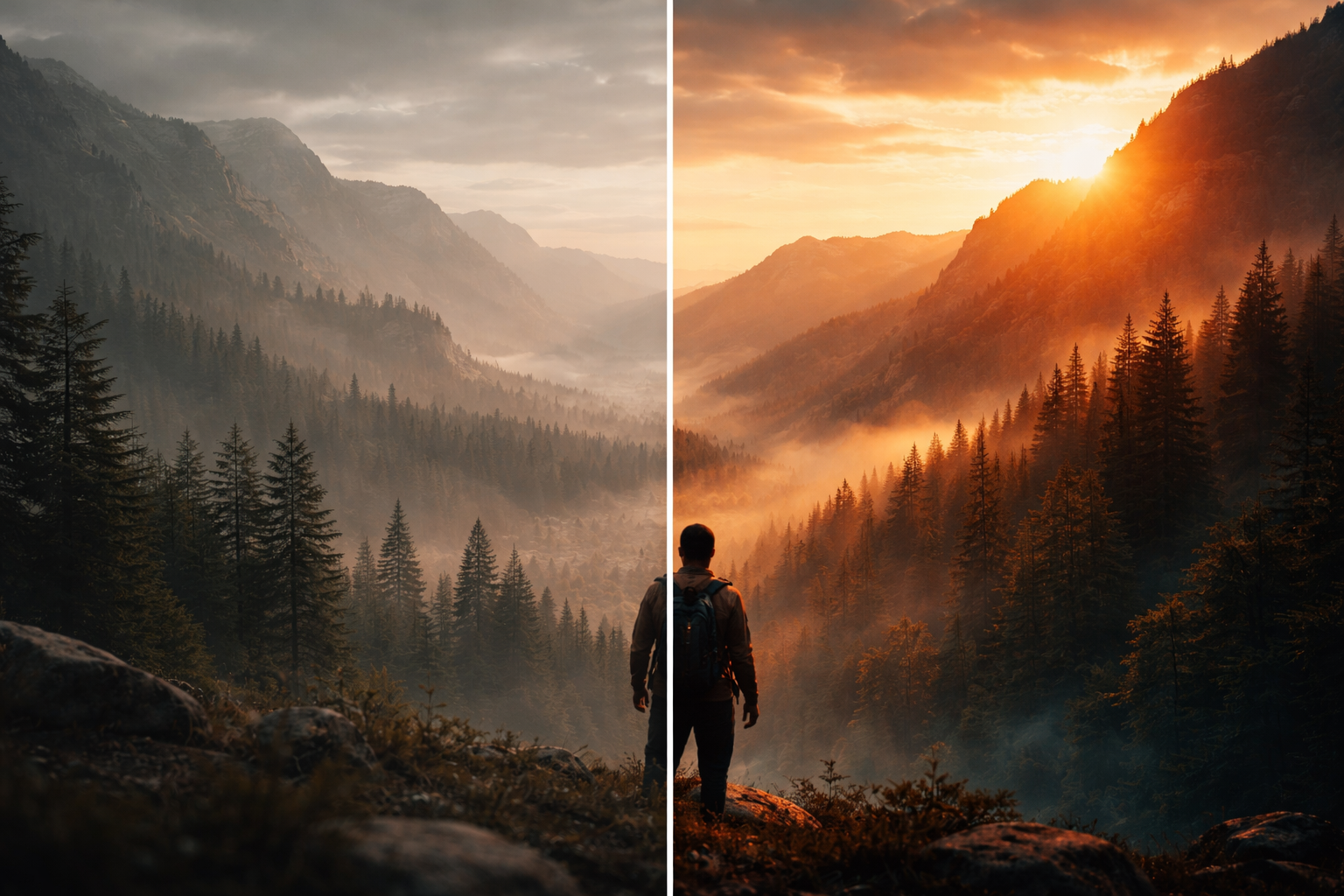
Video footage is only as good as the story it narrates, and nothing enhances a story like the right color palette. Take “The Matrix” as an example; its iconic greenish tint became the standout aspect of the whole movie. The saturated green color could have looked jarring on screen if it weren’t for precise video color correction. The filmmakers were able to achieve that futuristic aesthetic with careful color correction, balanced exposure and hues, and perfect lighting. Video color correction allows creators and storytellers to set the emotional tone of their visuals, subtly directing the viewer’s experience and influencing the overall mood.
What Is Color Correction in Video Editing
Video color correction is one of the most significant post-production editing tasks and is often regarded as a tough skill to master. As the name suggests, it involves fixing the color inconsistencies and setting the right exposure and lighting throughout the video. The goal is to ensure a consistent look across the video to achieve professional and polished video content.
By balancing the hues, shadows, highlights, and contrast, color correction can make a sunlit scene feel warm and inviting, a suspenseful moment tense and foreboding, or a dramatic showdown visually striking and immersive. If one scene appears to be subtly overexposed while another is underexposed, it compromises the color fidelity and visual continuity.
While video color correction helps improve the video aesthetics, it also affects the mood and storytelling. Viewers subconsciously respond to visual cues, and consistent, accurate color helps your story resonate.
Understanding The Basics of Video Color Correction
Without fixing the exposure, white balance, lighting, and color, even the most professionally captured shot can feel off. It guarantees that your video content maintains a cohesive look from one scene to the next, allowing your viewers to stay immersed in the story.
Key elements of color correction include:
- Exposure: Adjusting highlights, shadows, and midtones to make sure your footage isn’t too dark or too bright.
- Brightness: Tweaking the level of light in your video so that the video isn’t too black or white and looks naturalistic.
- White Balance: Correcting color temperature so whites appear neutral and skin tones look natural.
- Contrast: Enhancing the difference between light and dark areas to add depth and dimension.
- Saturation: Controlling color intensity to ensure colors appear vibrant but not exaggerated.
A note on LUTs: A LUT (Look-Up Table) is a preset file that maps one set of colors to another — essentially a saved color grade you can apply instantly. Professional colorists use LUTs to replicate the look of specific film stocks, maintain brand color consistency across a series, or apply a studio-approved look to raw footage. AI color correction tools like ImagineArt replicate the LUT workflow through prompt-based style matching — instead of loading a .cube file, you describe the look in text and the AI generates the corresponding color transformation. The practical result is the same: a consistent, repeatable color treatment applied across your footage.
How AI Simplifies Video Color Correction
Traditionally, video color correction would take hours and even days to perfect a single scene using complex video editing software. However, with AI video color correction tools, these adjustments can be automated. It allows creators to spend less time on technical fixes and more time on storytelling, while still ensuring every clip looks polished and professional.
Here’s how AI streamlines the video color correction process:
- Automatic Color Analysis – The AI scans your video content and identifies and isolates inconsistencies in lighting, exposure, and color balance. Then, it automatically applies fixes, reducing manual work.
- Scene Detection – The AI video color correction tool recognizes different scenes and ensures consistent color correction across each segment.
- Tone Mapping – It lets you balance the shadows, brightness, contrast, midtones, and highlights to ensure cinematic-quality visuals.
- Color Matching – With an AI color corrector, you can match colors across multiple clips, ensuring brand consistency for marketing videos or a cohesive narrative for films.
The result is professional-grade color correction without the steep learning curve of traditional software. Creators can focus on storytelling and creative choices, while AI handles technical adjustments.
Step-by-Step Guide: Video Color Correction with ImagineArt
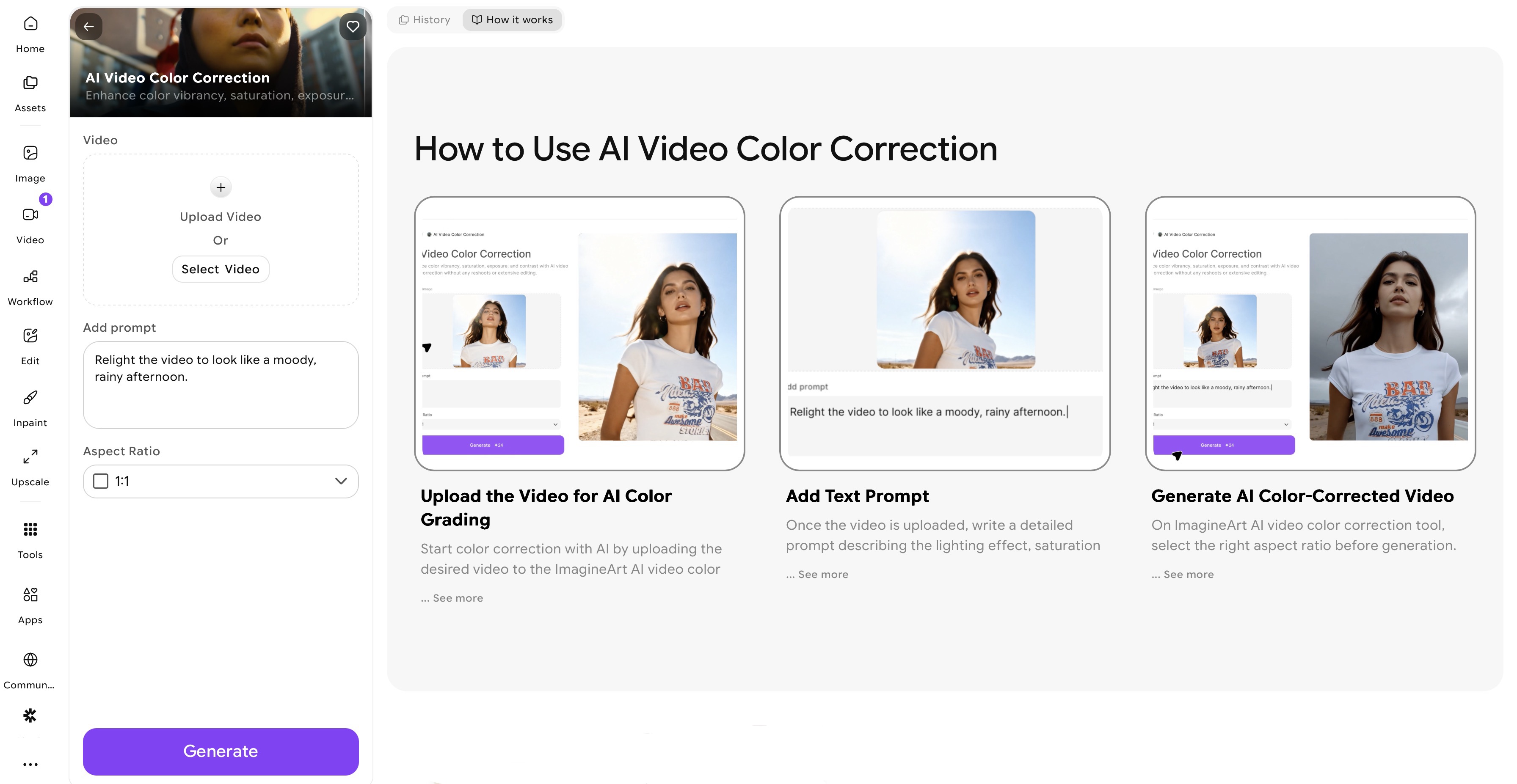 ImagineArt AI Video Color Correction app dashboard
Here’s a practical workflow for using ImagineArt AI Video Color Correction app to achieve cinematic color grading:
Step 1 – Log into ImagineArt
Open ImagineArt’s website and create an account. Once you sign up, ImagineArt will give you 100 free daily credits that are refreshed every 24 hours. Once on the homepage, navigate to the side bar and click on the ImagineArt Apps icon. From the different app categories, select the video editing category and then the ‘AI Video Color Correction’ app.
Step 2 – Import Your Footage
Start by uploading your raw footage to the platform. ImagineArt AI Video Color Correction app supports various video formats and resolutions, ensuring compatibility with different video sharing and social media platforms. Make sure to upload high-quality video content for precise and cinematic color grading.
Step 3 – Write Prompt for Video Color Correction
Once your video content is imported, write a detailed text prompt to guide AI about color inconsistencies and required fixes. Use natural language to describe the corrections or adjustments you want. For example:
- Enhance warm tones and boost contrast.
- Fix underexposed shadows and make colors vibrant.
- Apply cinematic teal-orange grading.
- Correct skin tones and add warm cinematic lighting.
The AI interprets your prompt and adjusts the video accordingly.
Step 4 – Select Aspect Ratio
After adding a detailed prompt, the next step is to select the right aspect ratio for your video. The color corrector lets you select from a variety of formats depending on your required social media platform or preferred style:
- Social Media: Select vertical or square ratios like 9:16 or 1:1, if you want to create Instagram Stories, Reels, TikTok, or YouTube Shorts.
- Cinematic / Widescreen: Select a horizontal aspect ratio like 16:9, if you want to add cinematic color grading to your short-film or movie trailers/teasers.
Selecting the right aspect ratio ensures that your edited video looks optimized and visually appealing across all devices and platforms. It also saves you from manually reformatting or cropping the video to fit a platform’s requirements.
Step 6 – Generate and Review
Click generate and review your edited video content to ensure color consistency and cinematic color grading across all scenes. Once satisfied, export your video in your preferred resolution and format. In case you want to further refine your color-corrected video, you can edit it on ImagineArt AI video editor.
Pro Tip: Watch the final video on multiple devices to check for color accuracy across screens.
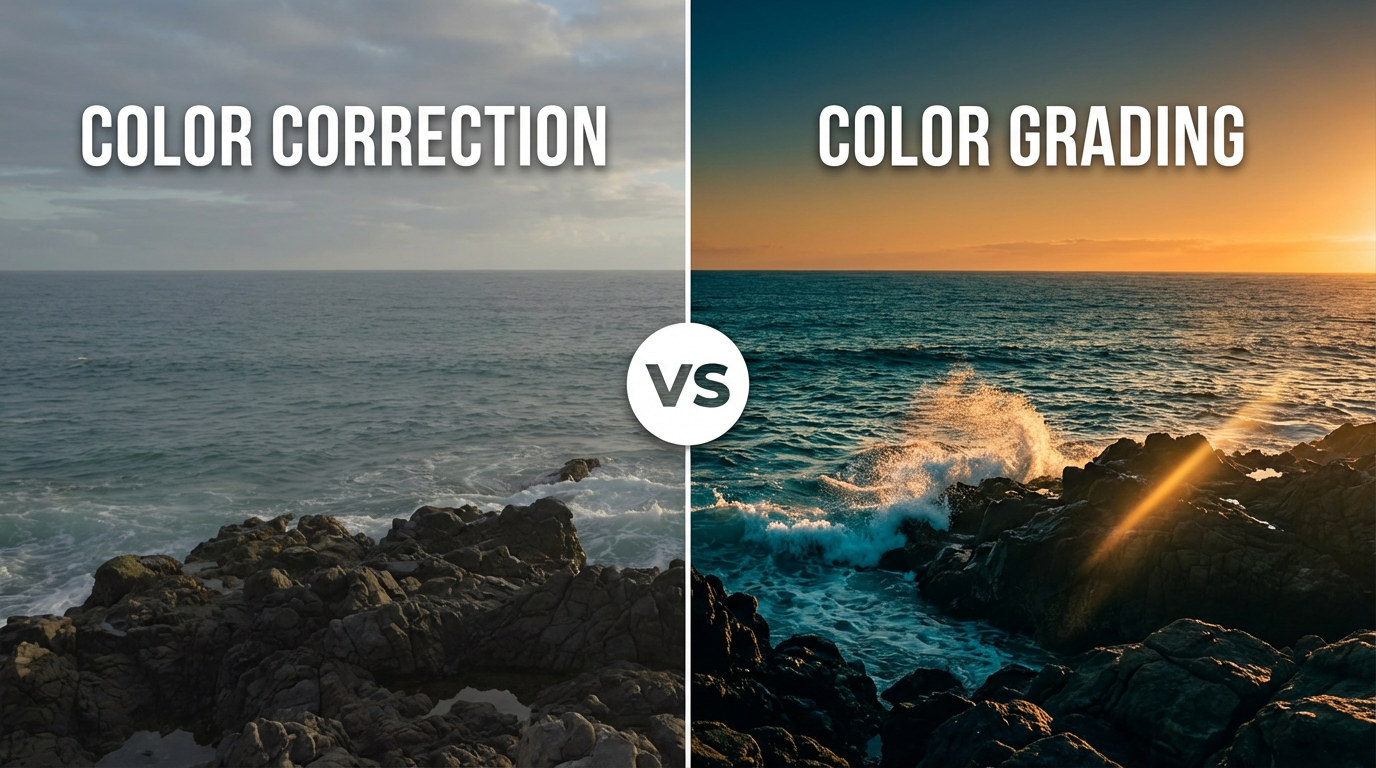
Color Correction vs. Color Grading: What's the Difference?
These two terms describe two different stages in post-production, and doing them in the wrong order produces worse results.
| Color Correction | Color Grading | |
|---|---|---|
| Purpose | Fix technical problems | Add mood and style |
| What it adjusts | White balance, exposure, skin tones | Tone, contrast, color palette |
| Output | Footage looks natural and consistent | Footage looks intentional and cinematic |
| When to do it | First — before any grading | Second — after correction is complete |
| Is it visible? | Ideally not — it should look untouched | Yes — it defines the visual identity |
Color correction is cleanup. Color grading is craft. Skipping correction and jumping straight to grading is the most common mistake beginner editors make — you end up grading on top of inconsistencies instead of clean footage.
For a deeper breakdown of both processes, see Color Grading vs. Color Correction.
Key Color Grading Styles to Enhance Your Video Content
Different visual styles require different color grading styles. To help you achieve the required tone and moods, here are some of the most common color grading styles you can apply with ImagineArt color corrector:
- Cinematic / Film Look
Cinematic color grading uses classic warm and cool tones to accomplish a professional feel. This style helps evoke strong emotions while adding depth and consistency to cinematic video content. Think of golden hour lighting or teal-orange contrasts often seen in Hollywood productions.
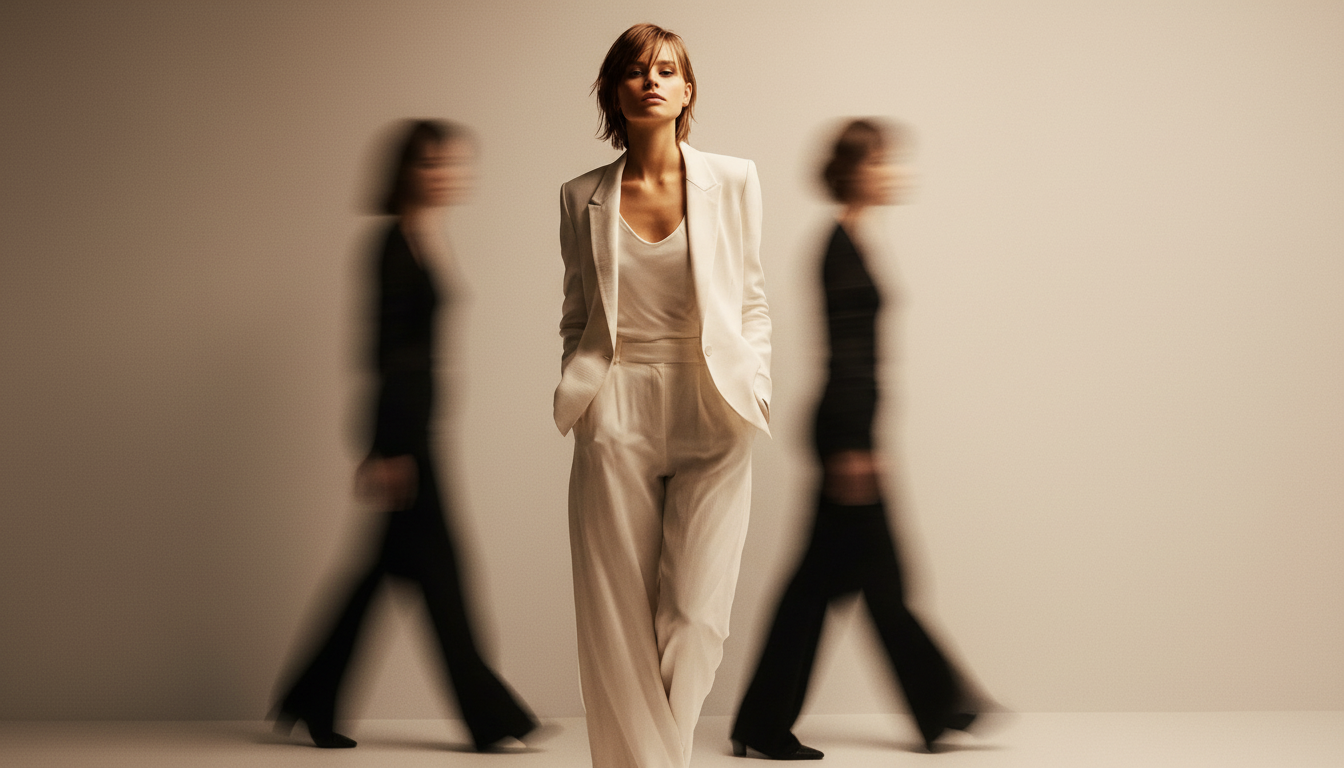
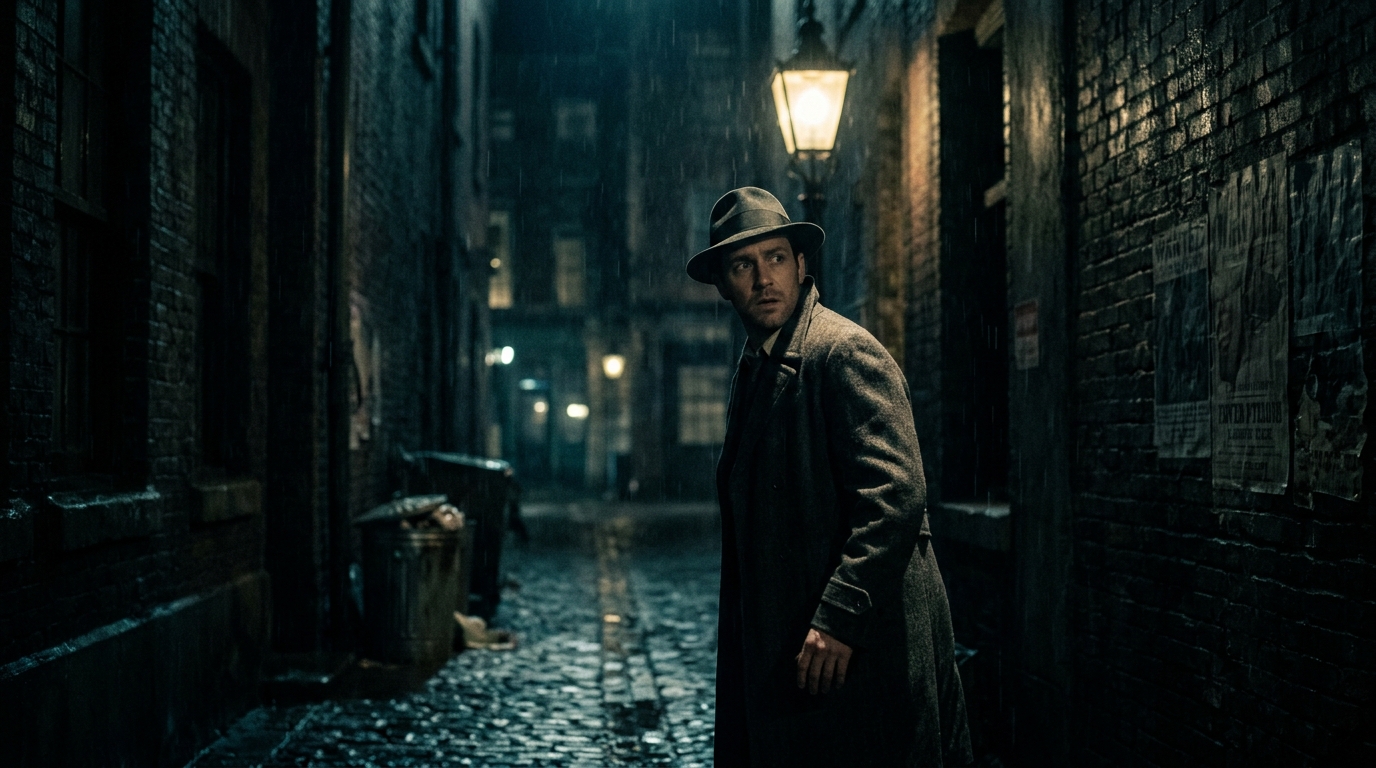
- High Contrast / Moody
This color grading style focuses on shadows, highlights, and deep contrasts to elevate the dramatic feel and add tension to scenes. It can make scenes feel more cinematic by drawing attention to subject details while keeping backgrounds mysterious or dark. It works well for scenes that need visual intensity like horror films and thrillers.
 Generated by ImagineArt AI Image Generator
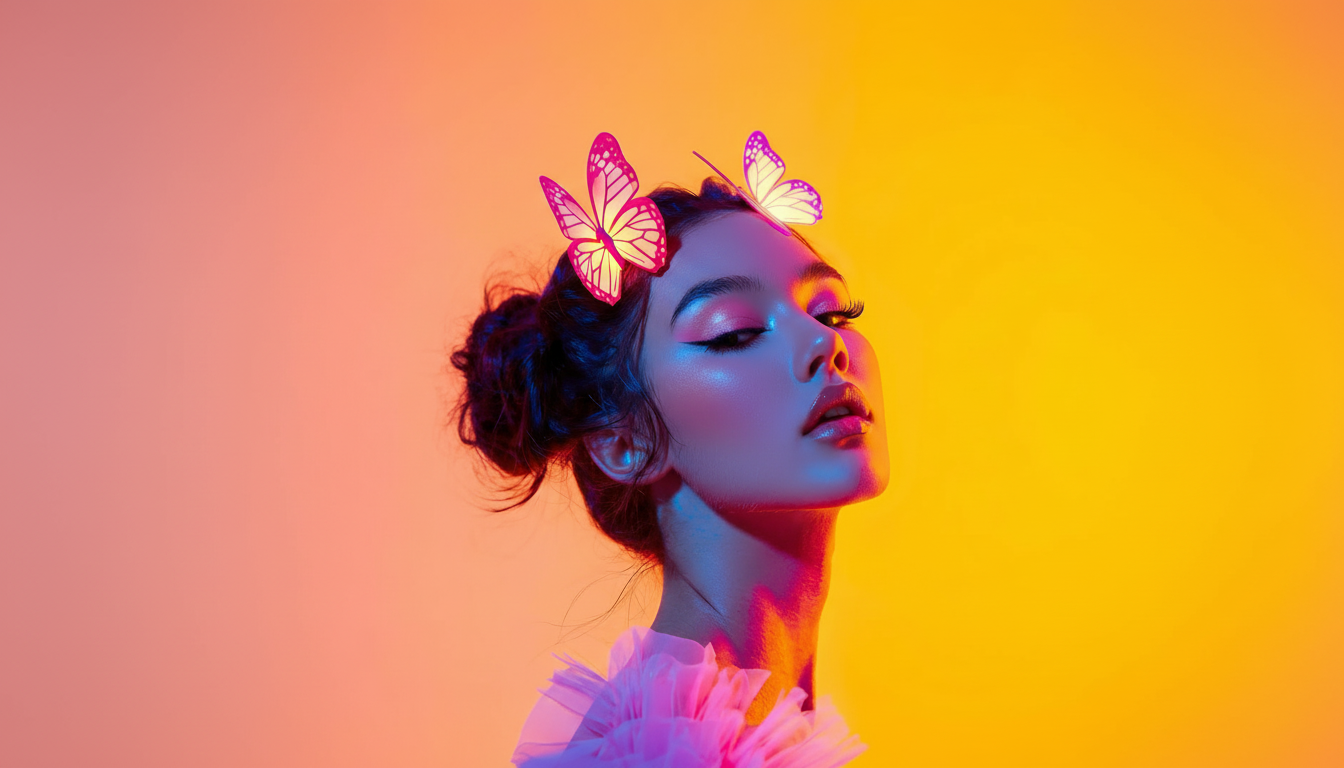
- Vibrant / Pop
In this color grading style, the colors look bold and punchy with boosted saturation and increased color intensity for attention-capturing visuals. It works well for video content required to build excitement and energy, such as social media content, marketing videos, and travel content.
 Generated by ImagineArt AI Image Generator
- Muted / Desaturated
Muted color grading makes sure the focus remains on the main story and characters, while enhancing the reflective mood with lower saturation and subtle tones. Instead of adding flashy effects to grab attention, this style helps build emotional depth and works well for documentaries.
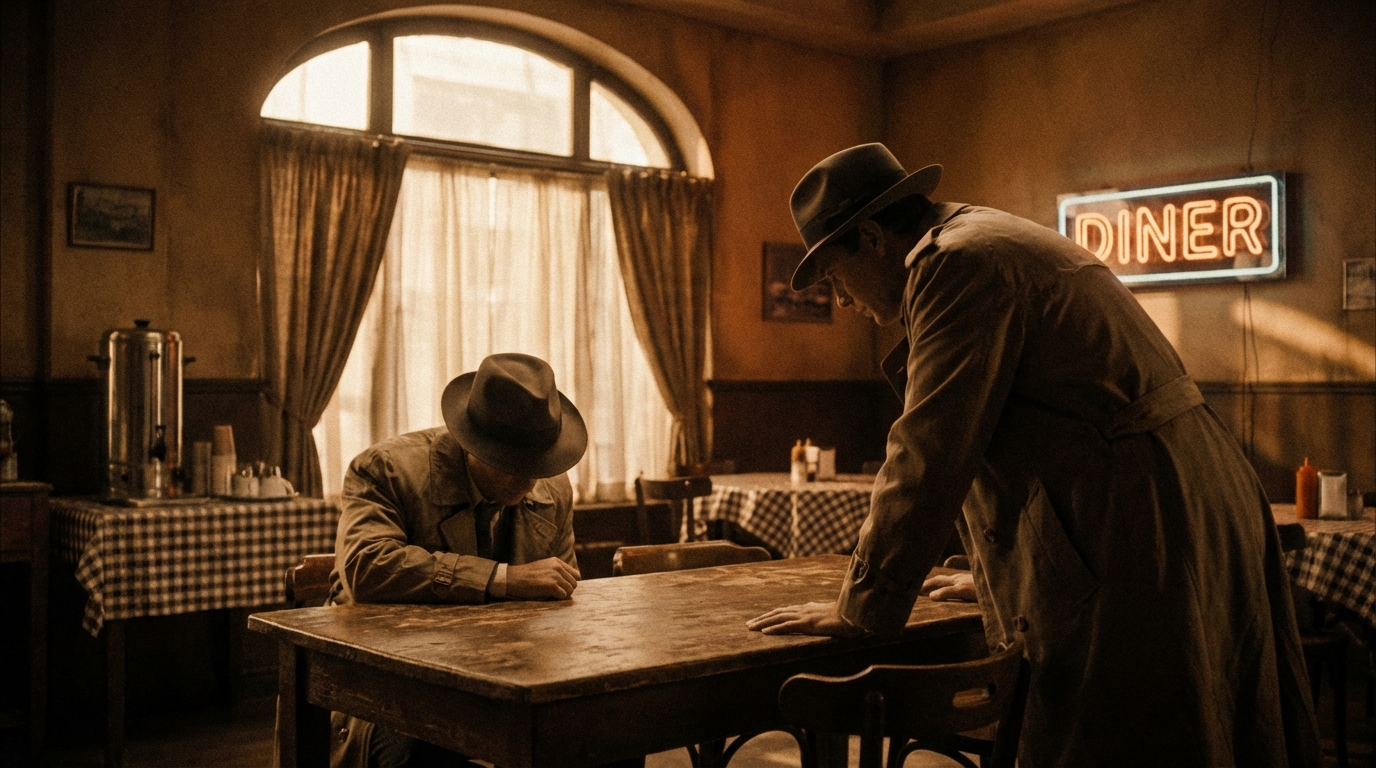
- Vintage / Retro
Vintage color grading includes faded and washed-out tones and warm hues reminiscent of retro films and classic cinema. It adds nostalgia, period authenticity, and artistic flair to your footage. Vintage/retro color grading works well for historical storytelling, creative projects, or social media content that wants to evoke a timeless or cinematic feel.
 Generated by ImagineArt AI Image Generator
Common Mistakes in AI Video Color Correction
Even though AI video correction tools have simplified the post-production video editing process, mistakes can still happen. Here are common pitfalls while color correcting videos:
- Skipping Review: While AI can automate adjustments, manual review ensures creative intent and narrative flow are preserved.
- Ignoring Lighting Inconsistencies: Scenes shot under different lighting need subtle tweaks that require manual fixing and are beyond the capabilities of most AI color correctors.
- Inappropriate Presets: Using a preset that doesn’t match the story or brand can break immersion. With ImagineArt AI Video Color Correction app, you can define and customize your own presets using prompts.
- Oversaturation: Overly bright colors can look unnatural. Experiment with subtle adjustments to maintain cinematic color grading.
Recommened read: Video Editing Tips
Ready to Color Correct Video Content?
AI color correctors have made video editing faster, simpler, and more accessible. With tools like ImagineArt AI Video Color Correction app, creators can apply cinematic color grading, maintain color consistency, and automatically fix inconsistencies without sacrificing control. Try it now on ImagineArt Apps.
Frequently Asked Questions
Video color correction fixes technical issues, while color grading adds mood, style, and cinematic flair.
AI accelerates workflow and handles technical adjustments, but manual tweaks may still be needed for creative control.
With ImagineArt AI Video Color Correction app, you can add a detailed prompt to adjust tone, contrast, and highlights and fine-tune it to match your story or brand aesthetic.
Yes, ImagineArt AI Video Color Correction app matches colors and tones across clips for cohesive storytelling or brand videos.
A LUT (Look-Up Table) is a preset color profile that remaps the colors in your footage — shifting hues, tones, and contrast to match a specific look. Professional colorists use LUTs for film stock emulation, brand consistency, and replicating cinematographic styles. In AI-powered tools like ImagineArt, you describe the desired look in a text prompt and the AI generates an equivalent color transformation without needing to load a LUT file manually.
Yes. ImagineArt's AI video color correction tool runs entirely in the browser — no software download required. New accounts receive 100 free daily credits, which refresh every 24 hours. For ongoing use, paid plans start at $13/month. Other free browser-based options include Kapwing and Media.io, though neither supports prompt-based color intent.
Tooba Siddiqui
Tooba Siddiqui is a content marketer with a strong focus on AI trends and product innovation. She explores generative AI with a keen eye. At ImagineArt, she develops marketing content that translates cutting-edge innovation into engaging, search-driven narratives for the right audience.