
Tooba Siddiqui
March 12, 2026 • Updated April 27, 2026
9 mins Read
Here’s the truth that most amateur content creators aren’t ready to face: your room isn’t Instagram-worthy. No offence to anyone, but that pile of laundry in the corner, empty coffee mugs on your desk, and your pet that keeps peeking into the frame don’t really compose a good video background. In fact, they are more like a distraction, stealing away the spotlight from your content. That’s why learning how to change video background is a skill every content creator must know.
What is Video Background Removal?
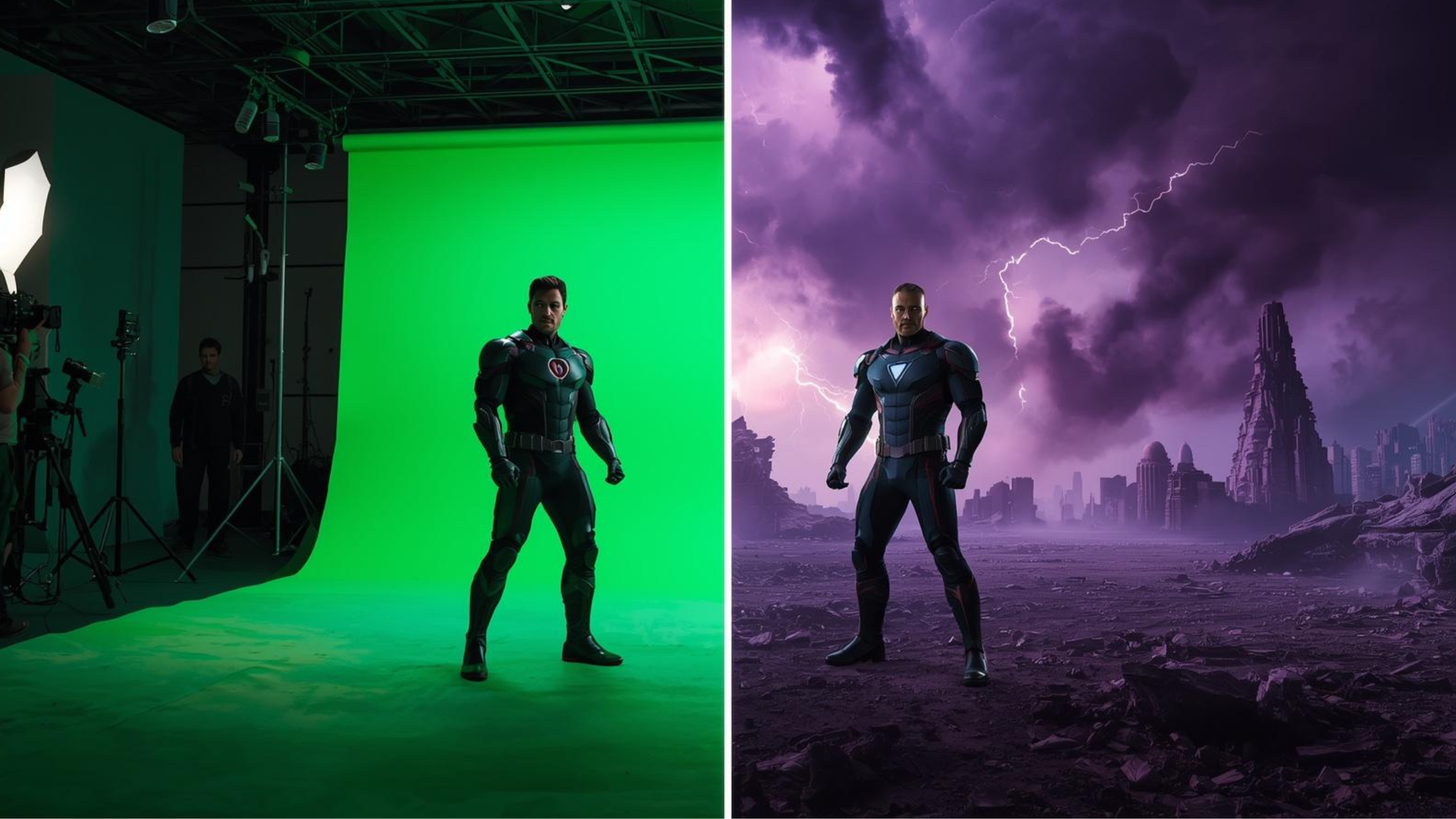
Video background removal is the process of removing, replacing, and enhancing the video background to improve the visual appeal and make your video content look more polished and professional. Traditionally, a green screen was required to remove background from video, which involved purchasing expensive and complex video editing tools and hours of manual work. Now, with the AI video background changer, you can achieve professional-grade results in a fraction of the time.
A video background changer app:
- Removes video background: These apps erase video background from the clip, isolate the subjects, and edit the subject in the video without a backdrop .
- Replaces video background: It swaps out the existing video background for a new image, solid color, or a different video.
- Removes green screen: These apps work as a green screen remover, isolating a subject filmed against a green or blue screen.
These video background removal tools let content creators change TikTok background, enhance marketing campaigns, edit vlogs, and more without needing any advanced video editing skills or tools.
Methods to Change Video Background
There are several ways to change video background, and each method comes with its own set of advantages and challenges.
1. The Green Screen Method
The traditional way to replace video background is to film yourself or the desired subject in front of a green screen. Then, once the filming is completed, use a green screen remover to isolate the subject and remove video background. It allows you to place any video backdrop behind your subject.
Pros:
- Precise and professional results.
- Works well for complex edits when lighting is controlled.
Cons:
- Requires proper lighting and setup.
- Time-consuming and less flexible for on-the-go content.
2. AI Video Background Changer
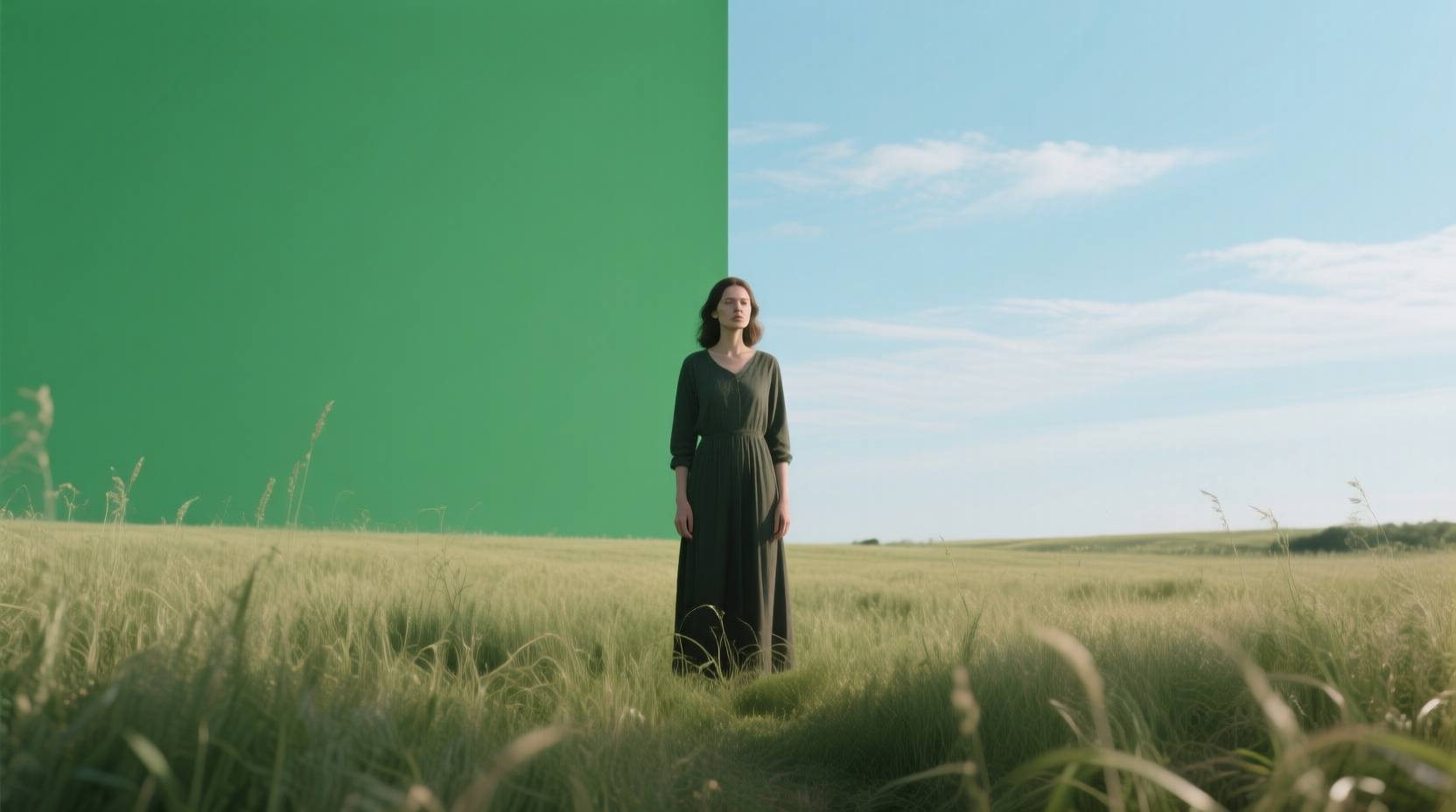
AI video background changer can automatically detect and remove video background without a green screen. These tools let you replace video backgrounds with images, videos, solid colors, or motion graphics using either a text-based prompt or stock images.
Pros:
- No green screen or studio required.
- Handles moving subjects, hair, shadows, and complex backgrounds.
- Fast and accessible for beginners.
Cons:
- May require high-quality footage for best results.
- Some AI video background removers can be expensive.
Step-by-Step Guide to Change Video Background with ImagineArt
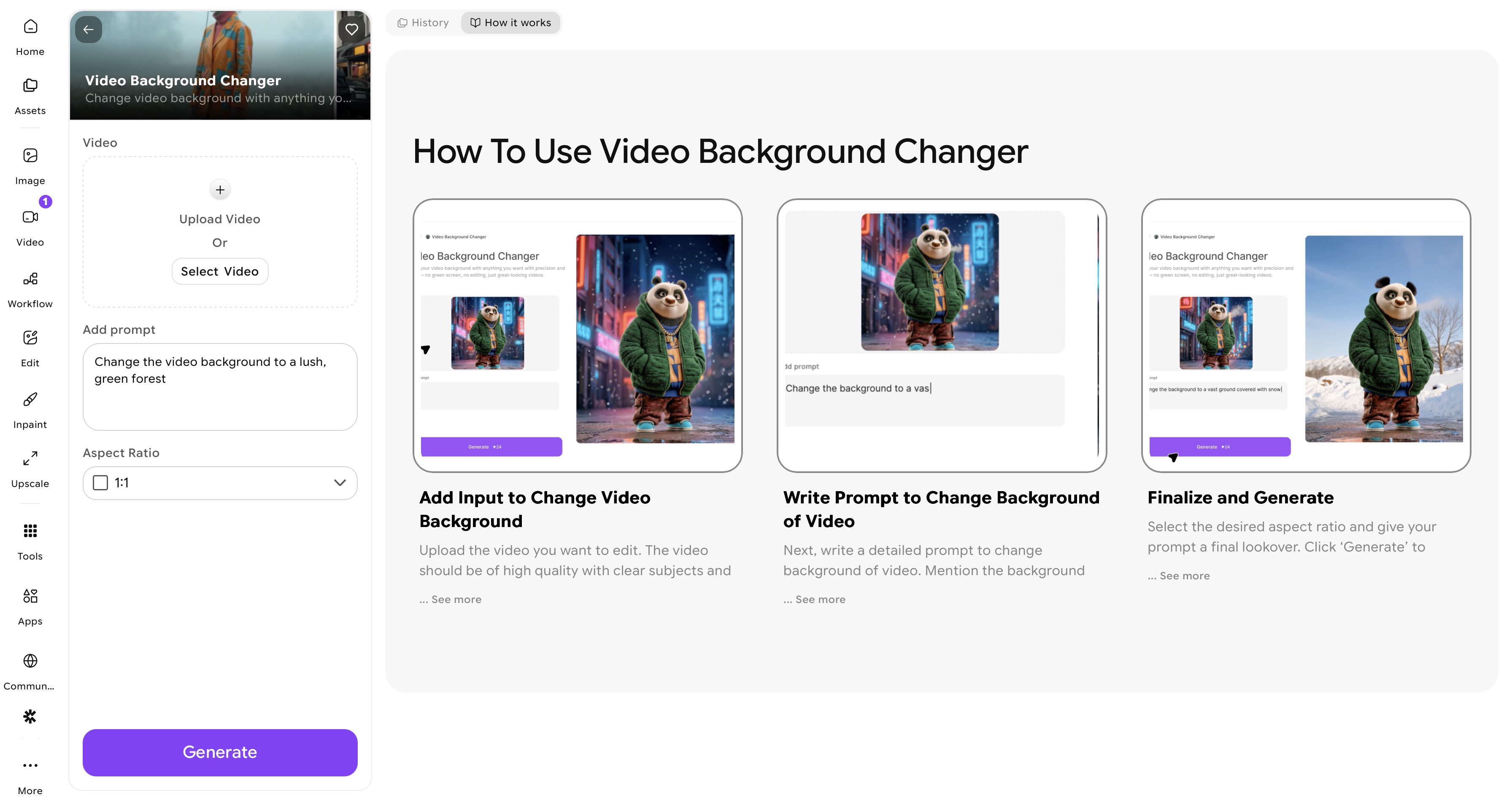 ImagineArt Video Background Changer app dashboard
ImagineArt AI Video Background Changer app gives you complete creative control over video background change and removal. Here’s how you can do it:
Step 1: Upload Your Video
Open ImagineArt’s website and create an account. Once you sign up, ImagineArt AI Video Generator will give you 100 free daily credits that are refreshed every 24 hours. Once on the homepage, navigate to the sidebar and click on the ImagineArt Apps icon. From the different app categories, select the video editing category and then the ‘Video background Changer’ app.
Step 2 – Import Your Footage
Start by uploading your video content to the platform. ImagineArt Video Background Changer app supports various video formats and resolutions, ensuring compatibility with different video sharing and social media platforms. Make sure to upload high-quality video content for precise video background change and removal.
Step 3 – Write Prompt to Change Video Background
Once your video content is imported, write a detailed text prompt to guide AI about video background removal and replacement. Use natural language to instruct AI about video background changes and adjustments. You can use static images, videos, solid colors, or dynamic motion backgrounds. The AI video background removal tool will automatically blend lighting and perspective for a natural look.
Step 4 – Select Aspect Ratio
Once you have added the prompt, pick the desired aspect ratio. With this video background changer app, you can select a variety of aspect ratios, ranging from 1:1 and 9:16 to 16:9. Make sure the selected aspect ratio is compatible with video-sharing or social media platform where you’ll upload your video.
Step 5: Video Background Removal
Give your prompt a look over and click the ‘generate’ button. The AI will detect the edges, motion, and finer details like hair and props, and isolate the main subject. It helps eliminate the need for manual masking or tools to remove green screen.
Step 6: Fine-Tune the Video Content (Optional)
With ImagineArt apps, you can:
- Use Video Camera Angle Changer to virtually shift the camera view.
- Apply AI Video Color Correction to harmonize the subject with the new background.
- Replace objects and remove unwanted elements to fix any artefacts and achieve a polished result.
- Add motion and dynamic movement to static footage.
- Add text, stickers, or transitions without affecting the background or subject using the built-in ImagineArt AI video editor.
Step 7: Preview and Export
Preview your video to ensure seamless edits. Once satisfied, export it in HD or 4K, optimized for TikTok, Instagram, YouTube, or custom resolutions.
Recommended read: How to Add Background to Video
Tips for Accurate Video Background Change
Even with AI video background changer, you need certain practices to make your video edits look more professional:
Proper Lighting
Consistent and clear lighting is pivotal in video composition. AI video editing tools rely on contrast between the main subject and the video background to detect edges accurately. Avoid harsh shadows or overexposed areas, as they can confuse the AI and add visual artefacts. Make sure to use soft, diffused lighting from multiple angles, preferably natural daylight or ring lights, to get consistent results.
High-Quality Footage
The resolution and quality of video content impact the video background removal and replacement. Compressed videos or video content with lower resolution can produce unwanted glitches upon video background removal. Make sure to use high-definition videos and avoid adding heavy filters or visual effects before processing with the video background changer.
Experiment with Video Backgrounds
Don’t settle for a single background. Experiment with different backdrops, camera angles, and color schemes to see what complements your subject best. Some video backgrounds may require slight adjustments to the subject’s position, lighting, or shadowing for maximum realism. Try both neutral and creative backgrounds, like studio-style setups, cityscapes, or abstract environments, to match your content’s tone.
Match Perspective and Color
At times, after video background removal, the generated video often feels unnatural and awkward. This happens when the subject and video background don’t blend well. It is essential to match the lighting, color, and perspective to create a unified scene. Adjust the color grading, shadows, and highlights to make the subject a part of the replaced video background. You can even add subtle reflections to enhance realism.
Recommended read: Video Editing Tips
Creative Use Cases for Video Background Changer
AI video background changer isn’t just for professional video editors; it allows creators from different industries to simplify their video editing workflows. Here are some of the popular use cases for the video background changer:
Social Media Content
Replace your dull and cluttered backdrops with dynamic video backgrounds to make your content stand out on fast-scrolling platforms like TikTok, Instagram Reels, and YouTube Shorts. Swap out green screen with animated backgrounds to make short-form videos more visually exciting.
Business & Marketing
Video background removal and replacement lets businesses create polished marketing content without investing in studio setups. Brands can edit and upgrade their product demos, ads, and presentations with new video backgrounds while maintaining consistency across campaigns. AI video background changer lets you use corporate environments and branded or thematic backgrounds in sales pitches and promotional content to ensure visual identity.
Storytelling & Vlogs
Vloggers and content creators can expand their storytelling capabilities with AI video background changer. It lets you create and clean out the clutter from your original background while creating eye-catching virtual environments. Use consistent camera angles and lighting to make the subject naturally blend with the new video background.
Educational Videos
Teachers, coaches, and online educators can make learning more engaging by removing distracting backgrounds and adding thematic visuals. It helps improve the students’ comprehension and keeps their attention focused on the core lesson. With the video background changer, you can add interactive elements like animations, diagrams, or maps while explaining complex topics.
Creative Applications
With video background changer, you can create dynamic backdrops for music videos that are in-sync with the beat. It lets you experiment with thematic backdrops for webinars and fitness videos. You can create an immersive environment with a video background change for your tutorials.
Common Mistakes to Avoid
Even with AI-powered tools, creators sometimes make mistakes that affect video quality:
- Poor Lighting or Low-Quality Footage: AI struggles to separate the subject from the background.
- Cluttered Backgrounds: Highly detailed backgrounds can confuse AI detection.
- Ignoring Motion: Subjects that move too fast may create artifacts.
- Overcomplicating Edits: Sometimes less is more—keep backgrounds simple for maximum impact.
Ready to Change Video Background?
Changing your video background is no longer a complicated process reserved for professionals. With ImagineArt Video Background Changer, you can remove, replace, or enhance your backgrounds in minutes, generating studio-quality videos. So, stop struggling with green screen and manual edits and experiment with different backdrops using a single prompt!
Frequently Asked Questions
You can replace and remove video background using ImagineArt Video Background Changer app. Simply upload your video, add a prompt for video background removal and replacement, and the AI will automatically isolate your subject, even handling hair, edges, and movement.
Yes, you can replace the video background without a green screen using ImagineArt Video Background Changer app. The app detects the subject and separates it from the video background automatically. You can then add an image, video, or animated backdrop of your choice, making your content look professional with minimal effort.
While there are many apps available, ImagineArt Video Background Changer stands out. It combines video background removal and replacement, making the workflow easier and faster for beginners and pros alike to produce professional-quality videos quickly.
Yes, you can use ImagineArt Video Background Changer for social media video content. It allows you to export videos in formats and aspect ratios optimized for TikTok, Instagram Reels, and YouTube Shorts. You can remove or replace video background, add dynamic effects, and ensure your videos look polished and scroll-stopping on social media platforms.
Tooba Siddiqui
Tooba Siddiqui is a content marketer with a strong focus on AI trends and product innovation. She explores generative AI with a keen eye. At ImagineArt, she develops marketing content that translates cutting-edge innovation into engaging, search-driven narratives for the right audience.