
Syed Anas Hussain
June 5, 2026 • Updated June 5, 2026
9 mins Read
Adding AI visual effects to your videos used to mean opening After Effects, building composite layers, and spending days on something that still looked like it was made by someone who just learned compositing. I went through that phase before I found a better approach. With ImagineArt AI Film Studio, you bake visual effects directly into the footage through creative direction, no plugins, no keyframes, no technical overhead required. This guide covers the main effect types, the two workflows that matter, and the specific approach that gets cinematic results.
Quick Summary
- AI visual effects are effects generated or applied through AI rather than manual compositing
- Two workflows: bake effects into generation from the start, or apply them to existing clips via Edit Video
- ImagineArt AI Film Studio handles both through Genre controls, Movement settings, and prompt direction
- Five main effect categories: atmospheric, motion, cinematic grade, stylized, and particle effects
- The key shift: describe atmosphere, not technical effect parameters
What Are AI Visual Effects?
AI visual effects, also called AI VFX, are effects created or applied through artificial intelligence rather than manual compositing. You describe what you want and the AI generates it, either as part of the original footage or as a modification to existing clips. Traditional VFX requires understanding compositing, rotoscoping, motion tracking, and color science. AI visual effects require understanding what you want and how to communicate it. That shift opened film-quality effects to creators who were previously locked out by the technical barrier, not the creative one.
What Types of AI Visual Effects Can You Create?
Knowing what is achievable saves a lot of trial and error. These are the five categories of AI Video Effects I use most:
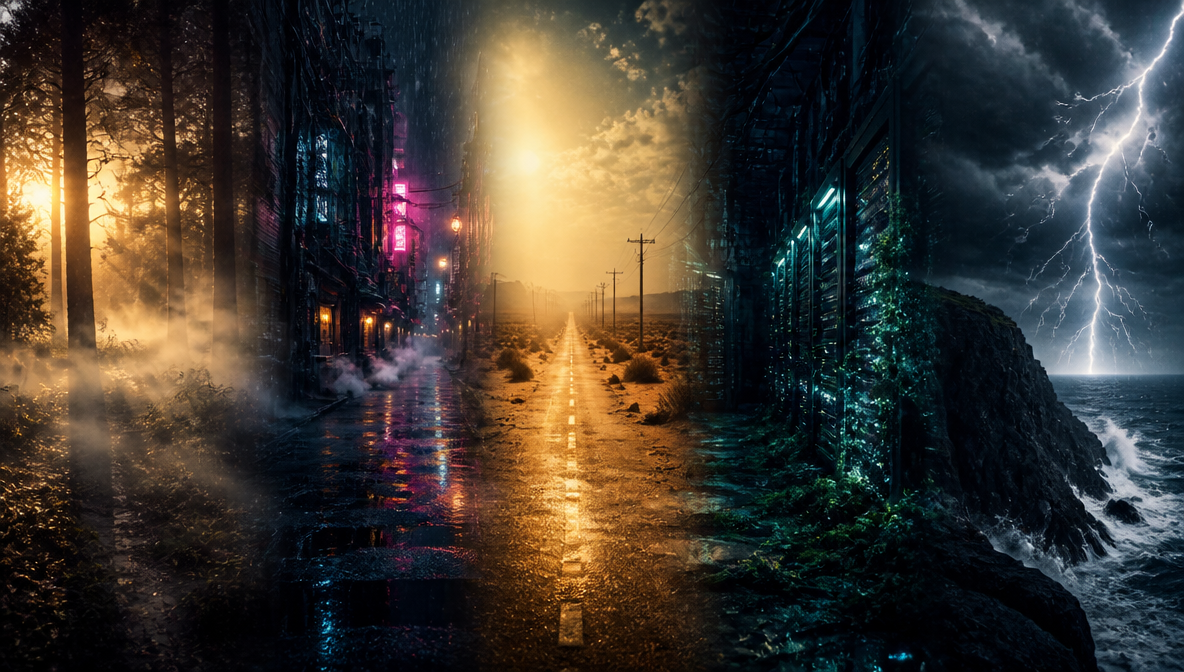 Types of AI Visual Effects
Atmospheric effects:
Fog, rain, volumetric light shafts, dust particles, smoke. These respond naturally to descriptive language. "Dense low-lying fog rolling across a forest floor at dawn, backlit by diffused light filtering through the canopy" produces exactly that without compositing.
Motion effects:
Camera shake, speed ramps, slow motion, motion blur. Film Studio's Speedramp control manages pacing within each clip. Movement settings like handheld drift and slow push-in add the kind of kinetic quality that traditional editors achieve through stabilization and speed tools in post.
Cinematic grade:
Desaturated palettes, film grain, teal-and-orange grading, high-contrast noir. Setting Genre applies consistent visual treatment across every clip without manual color work on each shot. This was the single biggest quality jump I experienced once I understood how Genre worked.
Stylized effects:
Graphic novel treatment, anime rendering, glitch effects, neon-lit cyberpunk color. These work through a combination of Genre setting and prompt language describing the visual style alongside the scene.
Particle and light effects:
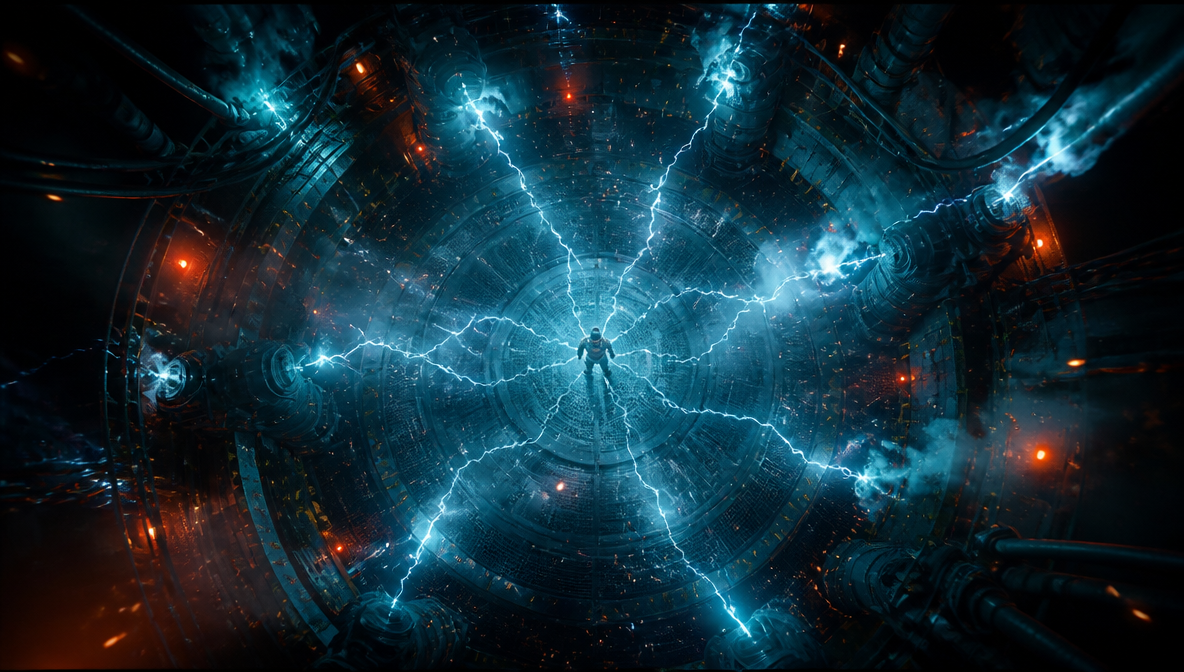
Lens flares, light leaks, bioluminescent glow, floating embers, electrical arcs. These work best when described as environmental phenomena rather than applied effects. "The reactor chamber fills with crackling blue electrical arcs as the containment field begins to fail" produces more convincing results than asking for electrical effects to be added afterward.
Two Approaches to AI Visual Effects
Understanding which workflow fits your project is worth doing before you start, because they produce different results.
Generate with effects built in. This is the approach for original projects where you are creating footage through AI generation. You describe the scene including the desired effects in the prompt, and the AI renders video where effects are integrated into the footage itself. This produces the most cohesive results because the effects are part of the same rendering pass as the scene content.
Apply effects to existing clips. If you have footage already and want to modify or enhance it, Film Studio's Edit Video tab lets you apply new visual direction through prompt adjustment. You provide the clip and describe what needs to change: different atmosphere, adjusted lighting, modified motion quality.
Both approaches live in the same tool. The difference is your starting point.
How to Add AI Visual Effects: Step by Step
- Write atmosphere-first prompts, describing what the environment feels like rather than what objects are in it
- Set Genre in AI Film Studio before generating any clips
- Select Movement settings to add motion effects for each individual shot
- Layer specific effects through descriptive prompt language in scene, atmosphere, effect order
- Use the Edit Video tab to refine or adjust effects on existing clips
That is the process. The difference between clips that look like AI video and clips that look like cinema almost always comes down to step one.
Step 1: Write Atmosphere-First Prompts
This is the most important thing I learned, and I learned it by making generic clips first. My early prompts described what was in the frame: a city skyline, a character walking, a forest path. Technically correct. Completely flat.
The shift was describing the atmosphere the effects need to create rather than the objects filling the frame. "A city skyline" becomes "a city skyline shrouded in a perpetual orange haze, towers dissolving into smog, distant lights diffused and ghosted through layers of polluted air, the horizon indistinct." The AI builds the atmospheric visual effects into the scene because you gave it atmospheric language, not a subject list.
Step 2: Set Genre to Lock in Visual Treatment
Before writing any prompts, open AI Film Studio and set your Genre. This is the fastest way to apply consistent cinematic effects across an entire project.
For horror or psychological tension: Atmospheric genre gives desaturated color, deep shadow, and visual weight that unsettles without being explicit. For science fiction: a cool, blue-tinted, clinical tone. For action: high contrast and saturated tones that feel kinetic. For historical drama: warm, slightly washed film-stock quality.
The how AI cinema works guide breaks down exactly how Genre is interpreted during generation if you want to understand the model behavior behind it.
Step 3: Use Movement for Motion Effects
Film Studio's Movement dropdown controls how camera and subject behave within each generated clip. This is where you direct motion effects that traditional editors would apply in post-production.
A slow push-in combined with a cinematic grade prompt creates the deliberate, weighted shot that characterizes prestige drama. A handheld drift creates documentary tension. An aerial pull-back gives locations scale that makes them feel enormous rather than staged. I assign movement style to every shot in my shot list before generating, the same discipline a cinematographer would apply on set.
Step 4: Layer Specific Effects Through Prompts
For effects beyond Genre and Movement, the prompt is where you direct them. The pattern I use is: scene description first, atmosphere second, specific effect third.
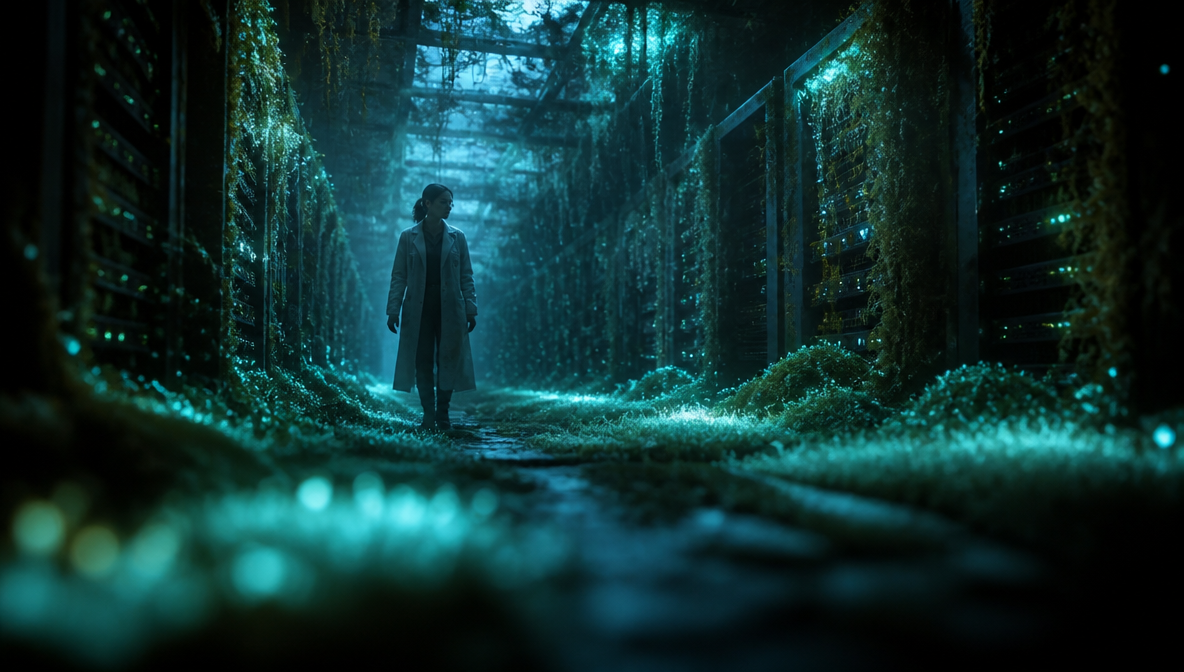
"A lone researcher walks through an overgrown server room" sets the scene. "Bioluminescent moss covers every surface, casting soft blue-green light that pulses with biological rhythm" sets the atmosphere. "Faint luminescent particles drift upward from the disturbed air as she moves" adds the specific particle effect. That order gives the AI context for what the effect is doing in the scene rather than applying it arbitrarily.
 Layered Effects Through Prompts
Step 5: Modify Clips with Edit Video
If a generated clip needs an effect adjusted, the Edit Video tab lets you redirect the visual treatment through a new prompt. I use this when a clip has the right composition but needs atmosphere pushed further: more fog, lighter grain, warmer color temperature.
Write the adjustment directionally. "Increase fog density throughout the scene, keep the existing lighting and composition" works. Technical compositing specifications do not translate. Keep the instruction descriptive and the model will apply it accurately.
What Makes AI Visual Effects Look Cinematic?
The clips that looked flat shared the same three problems. I went through all of them.
Writing prompts like After Effects instructions. Specific opacity values and blend modes do not translate into the model's language. Descriptive atmospheric language does.
Not using the References Panel for consistency. If you are applying effects across multiple clips and want them to feel like one film, store a reference image capturing the target look before starting. Prompt language alone cannot guarantee that level of visual coherence across shots.
Reviewing only still frames, not motion. A particle effect that looks clean in a generated still can feel overwhelming when the clip is playing. Generate and watch before committing to a style across the full project.
The seven mistakes guide covers all the quality problems that make AI footage look generic in detail, with direct fixes for each one.
What Can You Use AI Visual Effects For?
AI VFX works for any project where you want cinematic production quality without the traditional post-production infrastructure. Short films, game trailers, brand videos, social content, concept pitches, music videos. The practical benefit is that you can achieve atmospheric and visual effect quality that would previously have required either a large VFX budget or significant technical expertise. For creators building entirely in AI Film Studio, the effects are native to the footage rather than applied on top, which is what makes them hold up at export.
Frequently Asked Questions
AI visual effects are effects created or applied using artificial intelligence instead of manual compositing techniques. By describing the desired atmosphere or visual style in a prompt, AI can generate or apply effects such as fog, rain, cinematic lighting, stylized rendering, motion enhancements, and particle effects directly to video footage.
No. AI Film Studio includes built-in tools for generating videos with effects and modifying existing footage through the Edit Video tab. You can create cinematic visual effects without using compositing software, layers, masks, or advanced editing workflows.
You can create atmospheric effects such as fog, rain, smoke, and light shafts; motion effects like camera movement, speed ramps, and motion blur; cinematic color grading; stylized looks including anime, noir, cyberpunk, and film grain; as well as particle effects such as embers, electrical arcs, and bioluminescent glows.
Focus on describing atmosphere and mood instead of technical settings. Explain how the environment feels and what natural phenomena create the desired visual quality. Setting a Genre before generating footage helps maintain a consistent visual treatment, while References help preserve stylistic continuity across multiple shots.
Yes. AI Film Studio's Edit Video tab allows you to transform existing footage using prompt-driven visual direction. The quality of the results improves when prompts clearly describe the atmosphere, lighting, and visual characteristics you want to achieve.
Video filters apply predefined transformations uniformly across an entire clip regardless of scene content. AI visual effects adapt to the actual environment within the footage. For example, AI-generated fog behaves differently in a forest than in an urban street because the AI understands the scene context rather than simply overlaying a preset effect.
Start Adding AI Visual Effects to Your Work
The gap between what you can imagine and what you can actually produce has narrowed significantly. Understanding atmosphere-first prompting, Genre and Movement controls, and the Edit Video tab gives you a complete AI VFX toolkit without any compositing background.
Syed Anas Hussain
Syed Anas Hussain is a computer scientist blending technical knowledge with marketing expertise and a growing passion for AI innovation. Curious by nature, he dives into new AI sciences and emerging trends to produce thoughtful, research-led content. At ImagineArt, he helps audiences make sense of AI and unlock its value through clear, practical storytelling.