
Syed Anas Hussain
May 25, 2026 • Updated July 10, 2026
9 mins Read
I have been using ImagineArt Film Studio for a few months now and I was generating clips that were technically fine - correct exposure, decent motion, clean output. But they all had this quality I couldn’t name at first: they looked like AI video. Generic. Flat. Like footage from a stock library that happened to be generated rather than shot. It took me a while to realize that every single one of these problems traced back to specific controls I was either ignoring or leaving at default.
Mistake 1: Skipping Genre Setup
This was my first and most persistent mistake. I was writing detailed prompts and generating clips without touching the Genre dropdown — and the output was technically accurate but emotionally empty.
Genre is not a stylistic suggestion. It is the primary instruction the generation engine uses to set the entire cinematic register of a clip. Documentary produces naturalistic, observational motion. Atmospheric produces slow, mood-saturated footage. Action produces kinetic energy. When Genre is left at default, the engine picks a middle ground that satisfies no specific aesthetic. The result is the visual equivalent of a shrug.
I now set Genre before I write my first prompt on any new scene. Not after. The Genre you choose shapes what everything else does — Movement, Camera framing, even how the engine interprets atmospheric language in the prompt.
Mistake 2: Ignoring Camera Controls in the Image Tab
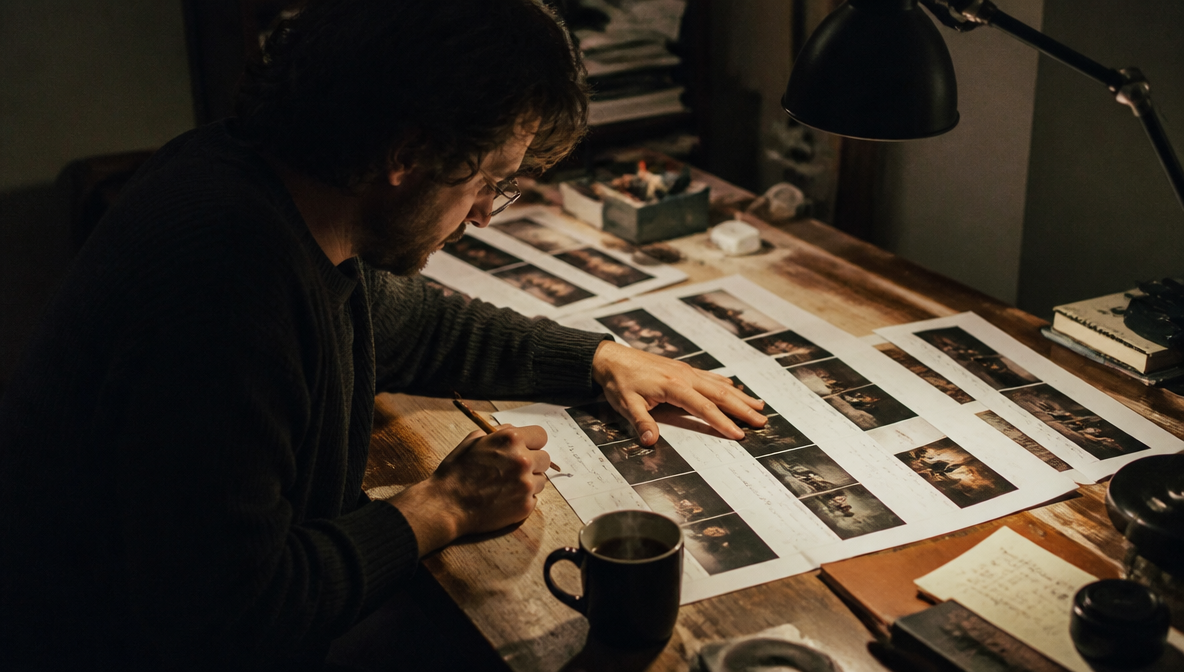
I spent months generating reference images without touching the Camera section in the Image tab. I did not understand that those settings — Select Camera, Select Lens, Focal Length, Aperture — were doing something real.
They are doing real cinematography. Aperture controls depth of field. Wide aperture at 85mm gives you the shallow background blur that makes a character feel isolated from their environment — the same optical logic as a cinema lens on a physical camera. Wide Focal Length at a smaller aperture gives you everything in focus, the observational documentary look.
Once I started treating the Camera controls as creative decisions instead of technical defaults, the visual quality of my reference images changed immediately — and because those images became my Start Frames, the video output changed with them. Every Film Studio project I run now, I consciously set the Camera controls before generating a single reference image.
Mistake 3: Leaving Movement at Default
The Movement dropdown in the Create Video tab controls how the camera and subjects move within a clip. Left at default, the engine produces safe, nondescript motion — something technically present but cinematically invisible.
The clips I am proud of almost always have a deliberate Movement choice behind them. A slow, drifting movement for a contemplative scene. A motivated push-in during a moment of emotional weight. A static lock-off for something that needs to feel still and heavy.
Movement applies at the Shot level, which means every clip can have a different character. I use this intentionally: Scene 1 might have gentle floating movement, Scene 3 might switch to something more kinetic to signal a shift in stakes. Movement is one of the fastest ways to give your film emotional direction without rewriting the prompt.
Mistake 4: Writing Appearance Prompts Instead of Motion Prompts
This one took me the longest to understand. My early prompts were mostly visual descriptions: what the character looks like, what the environment looks like, what time of day it is. The engine read them and produced technically accurate stills that happened to have some motion in them.
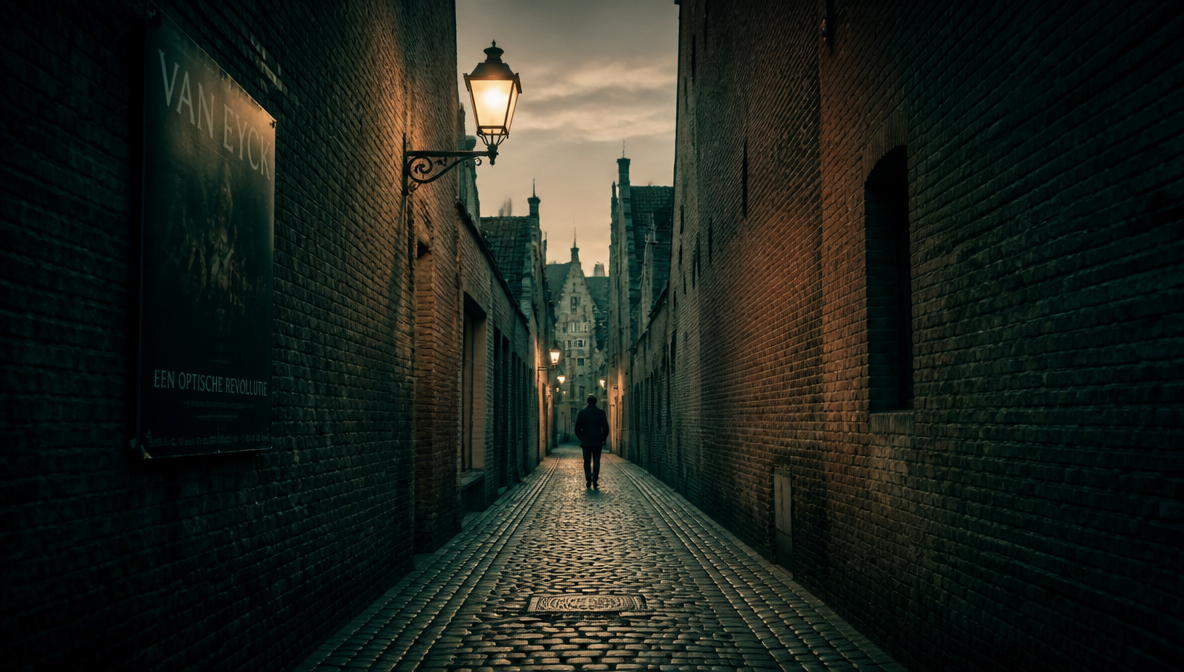
AI film prompts work best when they describe what is happening, not what things look like. “A woman walks through a rain-slicked alley” is a motion description. “A woman in a grey coat, dark hair, standing in an alley, it is raining” is an appearance description. The first one gives the engine direction for movement. The second gives it a still image with rain added.
Appearance is handled by the Start Frame reference. The prompt should be dedicated to motion — what moves, how it moves, where the camera is going, what the shot is trying to feel like. The AI film prompts guide covers exactly this framework with genre-specific examples.
Mistake 5: Generating Video Without a Reference Image First
I used to go straight to the Create Video tab and generate from a text prompt alone. The outputs were variable in ways I could not predict or control. Some clips were excellent. Most were not. I could not reproduce results I liked.
The Image tab → Start Frame sequence changed this completely. Generate your reference frame first. Use it as the Start Frame in Create Video. The engine now has a concrete visual target for the opening of the clip — not a text interpretation, but an actual image to work toward.
ImagineArt Film Studio is built around this workflow. The Image tab exists specifically so that every video clip you generate is anchored to a visual reference rather than generated from scratch. Skipping it means starting blind every time.
Mistake 6: Accepting the First Output
This sounds obvious but I was doing it constantly in the beginning. The engine produces the best output it can for the direction you give it — but “best” on the first pass is not always “final.” I was treating every first-generation clip as either a pass or a full regeneration when really the answer was almost always: generate 2–3 variants and select the strongest.
The second or third variant of a hero shot is often meaningfully better than the first. The prompt, the Genre, the Movement, the Start Frame are all identical — the engine just finds slightly different interpretations on each pass. For key shots, I now budget 2–3 generation runs and select from the batch rather than accepting whatever comes first.
The how to use Film Studio guide has this in the tips section — generate variants for hero shots. It applies to every shot that matters.
Mistake 7: Skipping Storyboard Mode
Storyboard mode in the Image tab lets you generate multiple sequential frames in a single pass — up to four scene compositions from one prompt run. I ignored it for months because I did not understand what it was for.
What it is for: pre-visualization. Before committing to video generation on a scene, Storyboard mode lets you see how the scene wants to be composed. You can test shot count, evaluate framing options, and identify which composition works before spending generation credits on video.
Now I run Storyboard mode on every scene I am not confident about compositionally. It is the fastest way to test whether a scene idea works visually before going into video production. The how AI cinema works guide explains how the generation engine reads these composition inputs and why pre-visualization changes the quality of the video output that follows.
What Every Mistake Has in Common
Every mistake on this list is the same mistake at root: treating Film Studio controls as optional instead of directorial. Genre is not a filter you add afterward. Movement is not a setting you leave at default. Camera controls are not technical configuration. They are the actual decisions that make a film look like a film rather than a collection of generated clips.
The more intentionally you use them — and the more you learn what each one does to the output — the faster the quality of your work improves. The controls do not make the creative decisions for you. They execute the decisions you make with precision.
The Fix Is Always in the Controls
Film Studio’s controls are not complexity for their own sake. Genre, Movement, Camera settings, Start Frame, Storyboard mode — each one exists because each one solves a specific problem with AI video output. Skipping any of them is not saving time. It is removing the directions that make the output cinematic rather than generic.
Once you treat every setting as a decision instead of a default, the quality gap between AI video and cinematically directed footage closes fast. The complete AI filmmaking guide covers how these controls connect across the full production pipeline from concept to finished film.
Frequently Asked Questions
The most common cause is leaving Genre and Movement at default in ImagineArt Film Studio's Create Video tab. Genre sets the entire cinematic register of the clip — Documentary, Atmospheric, Action each produce meaningfully different output. Movement controls how the camera and subjects move. Both need to be set deliberately before generating.
Use the Camera controls in the Image tab to set focal length and aperture before generating reference images. Wide aperture at a longer focal length produces the shallow background blur associated with cinematic footage. Use that reference image as a Start Frame in Create Video to carry the optical signature into your clips.
The Genre dropdown in the Create Video tab sets the cinematic aesthetic register of a generated clip. Documentary produces naturalistic, observational motion. Atmospheric produces slow, mood-driven footage. Action produces kinetic, high-energy output. Genre is the fastest lever for changing the emotional character of a scene — set it before generating, not after.
Motion, not appearance. Describe what is happening, how the camera moves, and what the shot is trying to feel like. Appearance is handled by the Start Frame reference image. Prompts like 'slow push-in as she reads the letter, shallow focus, warm ambient light' give the engine directional information. Prompts that describe what a character looks like give it a still image with motion added.
The Movement dropdown in the Create Video tab controls camera and subject motion within a clip. Each shot can have a different Movement setting — use slow drifting movement for contemplative scenes, motivated push-ins for emotional moments, lock-offs for stillness. Movement applies at the Shot level so you can vary it intentionally across a scene.
Yes, for hero shots. The generation engine produces the best output it can for the direction you give it, but the second or third variant often lands better than the first. Keep Genre, Movement, and Start Frame identical across variants — you're letting the engine find different interpretations of the same brief. Select the strongest and discard the rest.
Storyboard mode is a toggle in the Image tab that generates multiple sequential reference frames from one prompt pass — up to four scene compositions. Use it before committing to video generation on a scene to test framing and composition. It's the fastest way to pre-visualize a scene without spending video generation credits.
Generating from text alone gives the engine no concrete visual target, so results are inconsistent and hard to reproduce. Generate a reference image in the Image tab first, then use it as the Start Frame in Create Video. The engine then has an actual image to work from instead of interpreting your description from scratch, which is what makes output consistent across a project rather than variable from clip to clip.
A good prompt isn't enough on its own. Genre, Movement, and Camera settings are directorial decisions, not optional configuration layered on top of the prompt. Left at default, the engine picks a generic middle ground regardless of how detailed the prompt is. Setting these controls deliberately is what turns technically correct output into something that actually looks directed.
Syed Anas Hussain
Syed Anas Hussain is a computer scientist blending technical knowledge with marketing expertise and a growing passion for AI innovation. Curious by nature, he dives into new AI sciences and emerging trends to produce thoughtful, research-led content. At ImagineArt, he helps audiences make sense of AI and unlock its value through clear, practical storytelling.