
Tooba Siddiqui
May 14, 2026 • Updated May 14, 2026
16 mins Read
The recommended YouTube profile picture size is 800×800 pixels. YouTube displays all profile pictures as a circle — you upload a square image and YouTube crops it into a circular frame automatically.
Most guides stop there. But the creators with clean, professional channel pages know two things most don't: the circular crop cuts your corners whether you designed for it or not, and your profile picture appears at sizes as small as 32 pixels in comment sections — where most of the detail you designed at 800×800 becomes completely invisible. This guide covers the exact YouTube profile picture dimensions, how to design safely for the circular crop, where your picture appears across the platform, and how to create one that works at every size.
For a complete overview of social media image dimensions beyond YouTube, see social media image sizes.
YouTube Profile Picture Size — Full Specifications
| Spec | Value |
|---|---|
| Recommended YouTube profile picture size | 800×800 px |
| Minimum YouTube profile picture size | 98×98 px |
| Aspect ratio | 1:1 (square) |
| Display shape | Circle (cropped by YouTube) |
| Max file size | 4MB |
| Accepted formats | JPG, PNG, GIF, BMP |
| Applies to | YouTube + Google account |
All YouTube profile picture size specifications based on YouTube's official profile picture guidelines.
Your YouTube Profile Picture Is Your Google Account Picture
This is the detail most profile picture guides skip entirely — and it matters practically.
Your YouTube profile picture and your Google account profile picture are the same image. They are not two separate uploads that happen to look the same. They are one image linked across the entire Google ecosystem.
What this means in practice: when you update your profile picture on YouTube, it updates automatically across Gmail, Google Meet, Google Drive, Google Docs, and every other Google product you use. The reverse is also true — update your Google account photo and your YouTube channel icon changes with it.
Before uploading, choose an image that works as a professional identity across all Google services — not just as a YouTube channel icon. A gaming avatar that fits perfectly on a YouTube channel page may look out of place in a professional Gmail thread. If you use your Google account for both personal and professional purposes, factor that into your profile picture decision before publishing.
The Circular Crop — What Gets Cut and How to Design for It
The circular crop is the most commonly misunderstood aspect of YouTube profile picture design. Understanding it properly changes how you approach the entire design.
YouTube requires a square upload. It then displays that square as a circle by masking everything outside the inscribed circular boundary. The circle touches the midpoint of each side of the square — meaning every corner of your 800×800 image is hidden. Always.
Visualising the safe area: draw a circle that touches the centre of the top edge, the centre of the right edge, the centre of the bottom edge, and the centre of the left edge of your 800×800 canvas. That circle is your entire visible area. Everything outside it — all four corners — is cut off before the image is ever displayed.
What this means for different image types:
- For logos:
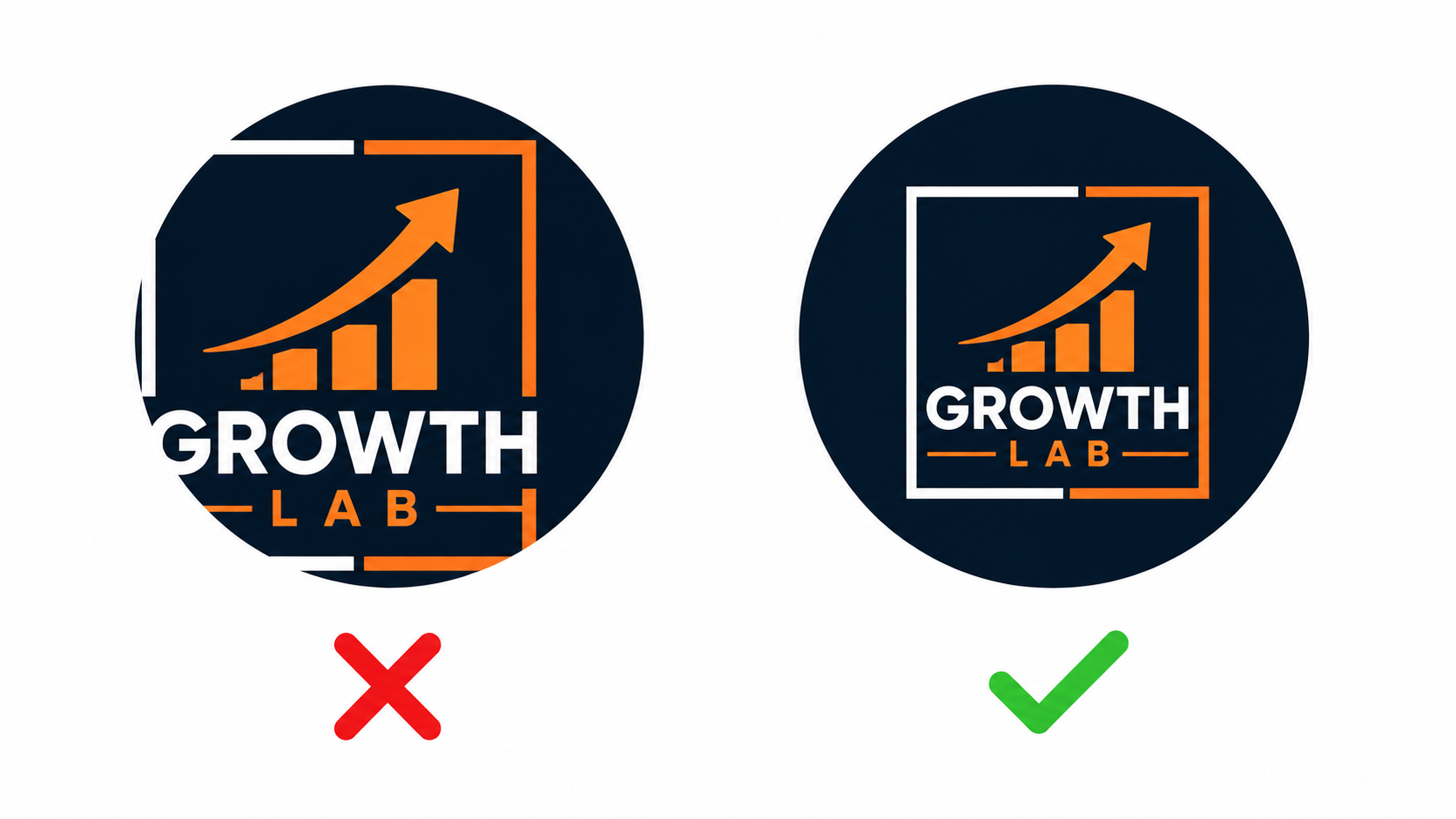 Generated by ImagineArt AI Image Generator
A square logo with icon elements or brand marks positioned in the corners will have those elements clipped. This is one of the most common YouTube profile picture mistakes — a logo that looks complete and balanced as a square becomes broken and asymmetrical once the circular crop is applied. Before uploading any logo, recentre all elements within the circular boundary and check the circular preview.
- For photos and headshots:
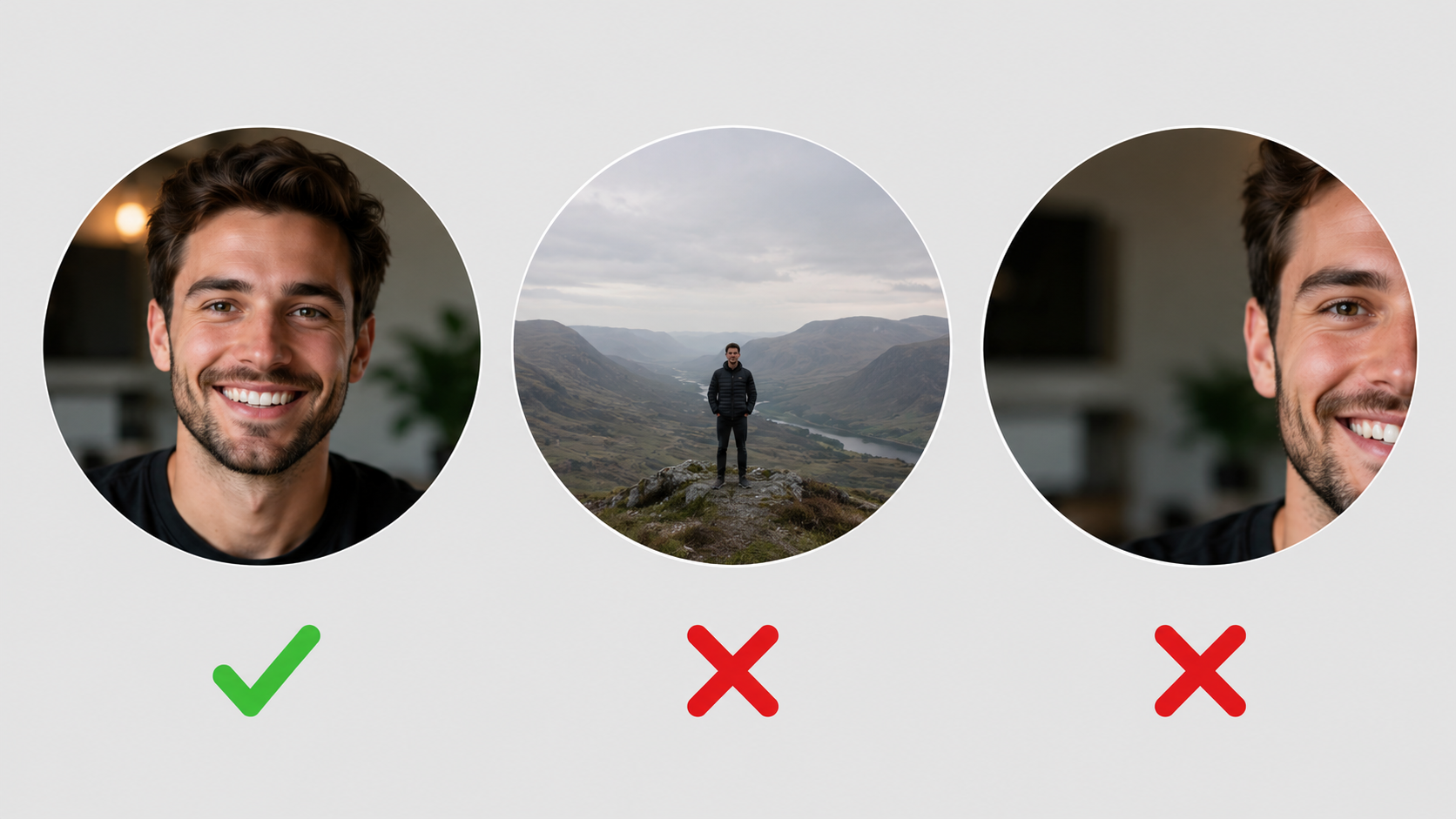 Generated by ImagineArt AI Image Generator
A close-cropped portrait with the face centred sits naturally within the circular frame. The circular crop is almost invisible on a well-framed headshot because faces are naturally round and centred. Avoid full-body shots or wide compositions — the subject gets too small within the circular frame.
- For illustrated avatars and characters:
Keep the character centred with clear margin from the edges. Arms raised wide, wide-brimmed hats, and any design element that extends toward the corners will be clipped.
- For text:
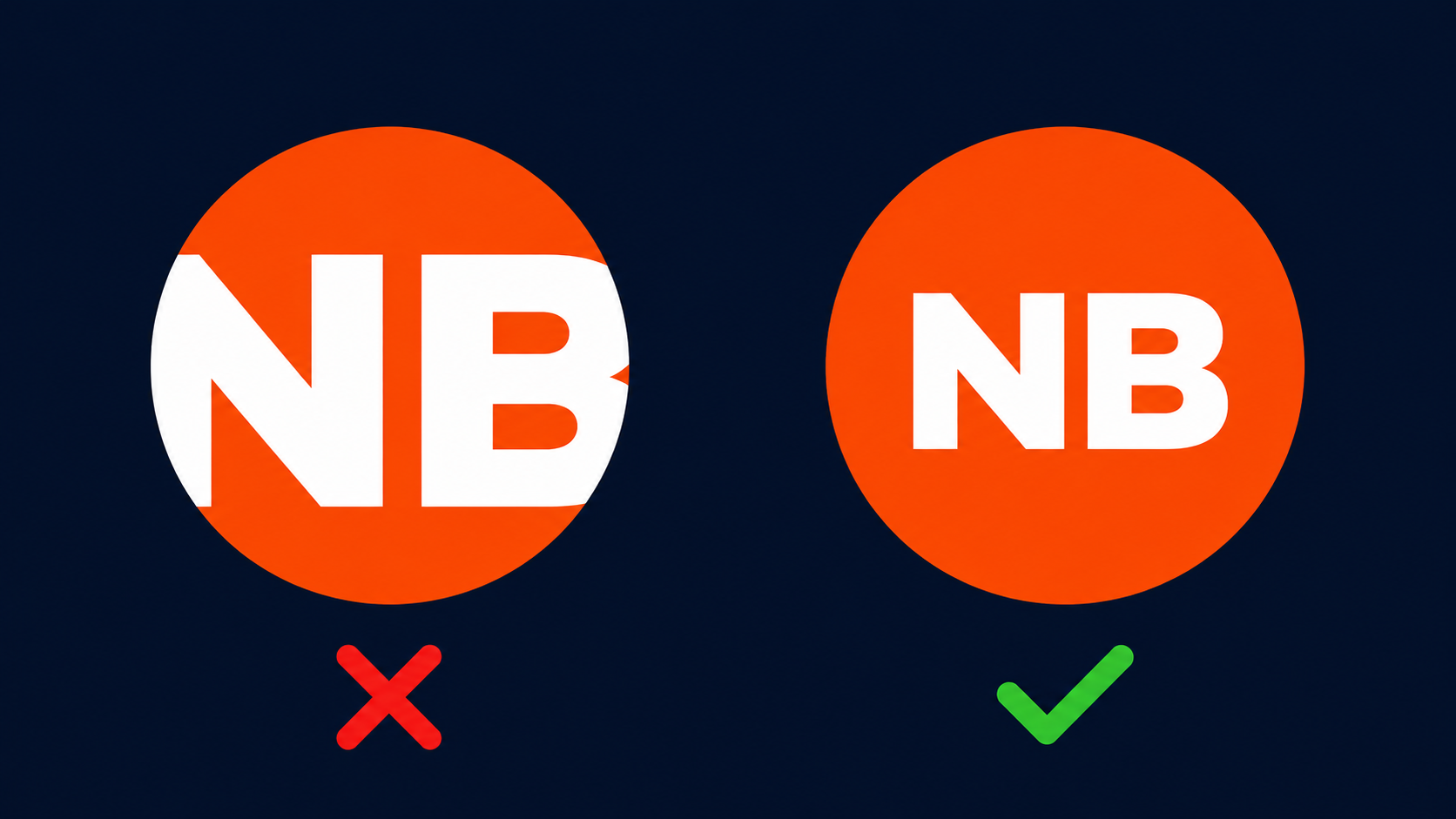 Generated by ImagineArt AI Image Generator
Any text near the edges of your canvas will be cut by the circular crop. If your profile picture includes a brand name or initials, keep them centred with significant padding from the edges. Better still — test the circular crop before uploading by previewing your image with a circle overlay.
The practical test: before uploading, overlay a circle on your design at the exact inscribed dimensions. If everything important sits comfortably within that circle, the crop will look intentional. If anything meaningful touches the corners, redesign before uploading.
Where Your YouTube Profile Picture Appears
Your profile picture does not live only on your channel page. It follows you across every YouTube interaction — and the size it displays at varies enormously depending on context.
Channel Page Header
The largest and most prominent display of your profile picture. It appears alongside your channel name and banner at the top of your channel page — the first place new visitors look when deciding whether to subscribe. This is where detail, colour, and composition matter most. At this size, facial features read clearly, logo marks are legible, and the overall design registers fully.
Comment Sections
Displayed at approximately 32×40 pixels — the smallest display context on the platform by a significant margin.
At 32px, fine detail disappears entirely. Text becomes a blur. Complex illustrations collapse into an unreadable shape. The only thing that survives at this size is a strong, simple silhouette with clear contrast between the subject and the background.
This is the most important display context to design for, not the least important. Comment sections are where viewers encounter your profile picture most frequently — not on your channel page, but next to your replies, your community posts, and your responses to other creators' content. A profile picture that reads as a clear, recognisable icon at 32px performs across the entire platform. One that requires zoom to understand does not.
YouTube Search Results
Appears beside your channel name in channel search results at approximately 48×48 pixels. Slightly larger than comment size but still small enough that simplicity and contrast determine whether it reads clearly or disappears.
Live Streams
Displayed in the live chat panel alongside every comment made during a stream — same small size as comment sections. For creators who stream regularly, this context is as important as the channel page. A distinctive, high-contrast profile picture makes your comments stand out in a fast-moving live chat.
YouTube Notifications
Appears in subscribers' notification feeds when you upload a new video, post a community update, or go live. Another small-format context where a simple, bold image outperforms a detailed one.
The pattern across all five contexts is consistent: design for the smallest display surface. A profile picture that works at 32px works everywhere. A profile picture designed only for the channel page header fails in every other context.
YouTube Profile Picture Design Best Practices
Keep It Simple
The effective range of a YouTube profile picture is 32px to the channel page header. The only design approach that holds up across that entire range is simplicity — one subject, one background, maximum contrast between them.
A face, a logo mark, a single illustrated character. Not a scene, not a group composition, not a design with multiple competing elements. The profile picture is an icon, not a banner. Treat it like one.
Face vs Logo — Which Works Better
Personal channels and individual creators: a close-cropped headshot with a clear, expressive face performs best. Faces are the fastest-processing visual for the human brain — a well-lit, well-framed portrait is recognisable at 32px in a way that most other images are not. Crop tight enough that your face fills the circular frame.
Brand and business channels: a simple logo mark or icon — not a full wordmark. Text-based logos that read clearly at 800×800 become completely unreadable at comment size. If your brand identity relies on a wordmark, create a simplified icon version specifically for profile picture use.
The test before committing: shrink your profile picture to 32×32 pixels and look at it. Can you tell what it is? Is it distinct enough to be recognisable alongside dozens of other small profile pictures in a comment section? If not, simplify.
Consistency Across Platforms
Use the same profile picture across YouTube, Instagram, TikTok, and X. Cross-platform visual consistency means viewers who follow you on one platform immediately recognise you on another — no searching, no confusion about whether it is the same creator.
Your profile picture and YouTube banner appear on your channel page simultaneously. Design them as a pair — shared colour palette, shared visual identity, complementary rather than competing. For a full approach to consistent channel branding, see how to build a brand kit with AI.
File Format
PNG: recommended for logos, illustrated avatars, graphic marks, and any image with flat colour, sharp edges, or text. PNG preserves edge quality that JPG compression softens — particularly noticeable on circular crops where the edge of the circle itself can look jagged on compressed JPGs.
JPG: suitable for photographic portraits where file size is a concern and compression artefacts blend into the natural texture of the image.
GIF: accepted by YouTube but animated GIFs do not animate in the profile picture display. Upload a static PNG or JPG instead of relying on animation that will not play.
How to Make a YouTube Profile Picture with ImagineArt
ImagineArt AI Image Generator lets you generate a custom profile picture from a text prompt — a stylised portrait, an illustrated avatar, a brand mascot, or a logo mark — at the correct 800×800 px dimensions. No design software, no stock photos, no generic templates. You describe what you want and generate something original that represents your channel's identity.
Step 1: Open ImagineArt Image Generator
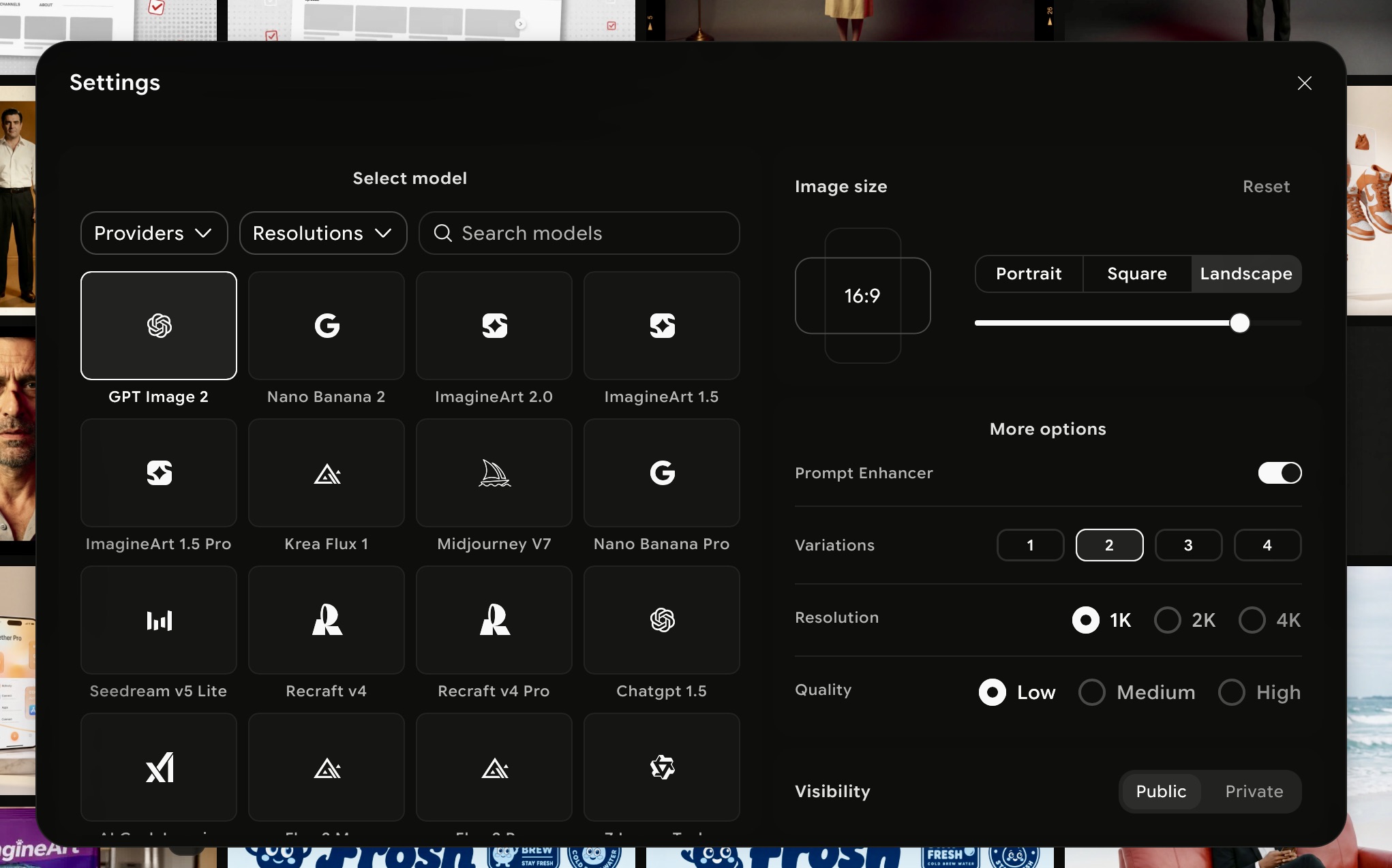 ImagineArt AI image generator settings
Open ImagineArt Image Generator, select the AI image model, and set the dimensions to 800×800 px — a 1:1 square aspect ratio. Starting at the correct dimensions means your output is profile-picture-ready from the first generation. Do not generate at a larger size and resize down — resizing introduces quality loss and can shift the composition in ways that affect the circular crop.
Step 2: Decide on Your Profile Picture Style
 ImagineArt AI image generator prompt box
Before writing your prompt, decide which type of profile picture fits your channel:
- Photorealistic portrait — best for personal creators, vloggers, and anyone building a personal brand around their identity. Generates a realistic headshot-style image when you do not want to use an actual photograph.
- Illustrated avatar — a stylised, illustrated version of a person or character. Works across most content niches and gives personal channels a distinctive visual identity without requiring a real photo.
- Brand mark or logo icon — a simple graphic symbol for business, brand, or faceless channels. Must be a mark, not a wordmark — text logos do not survive at small display sizes.
- Character or mascot — an original illustrated character representing the channel. Common for gaming, entertainment, and educational channels that want a visual identity not tied to a real person.
Your channel type should drive this decision. A finance education channel and a gaming channel need completely different profile picture approaches — the same prompt style will not serve both.
Step 3: Write a Prompt Built for the Circular Crop
This is where most AI-generated profile pictures go wrong. A prompt that does not account for the circular crop produces an image with important elements in the corners — elements that will be hidden the moment YouTube applies its circular mask.
A strong profile picture prompt includes:
- Subject type — face, icon, character, mascot
- Centred composition — explicitly state that the subject should be centred
- Simple background — avoids visual competition with the subject at small sizes
- Colour direction — specific colours or palette that match your channel's visual identity
- Style — illustrated, photorealistic, minimal, bold, flat design
- Format context — "YouTube profile picture, circular safe composition"
Prompt examples by channel type:
Personal creator / vlogger: "Stylised portrait illustration of a young woman, warm skin tones, centred composition, soft gradient background in muted blue and grey, bold confident expression, clean circular-safe design, YouTube profile picture format, illustrated style"
Gaming channel: "Illustrated gaming character with a helmet, bold neon cyan and purple colour palette, dark background, strong centred silhouette, high contrast, minimal background detail, YouTube channel icon style, circular-safe composition"
Business / brand channel: "Minimal geometric logo mark, single abstract symbol centred on a deep navy background, clean lines, professional and modern, no text, circular safe area, square format, flat design style"
Educational channel: "Friendly illustrated character with glasses and an open expression, warm yellow and white colour palette, simple light background, centred face filling most of the frame, approachable and clear, YouTube profile picture format"
Fitness / wellness channel: "Bold illustrated figure in a dynamic pose, strong silhouette, vibrant orange against a dark background, centred within circular frame, high contrast, energetic mood, YouTube channel icon style"
Food / cooking channel: "Illustrated chef character, warm earthy tones, simple cream background, centred smiling face, clean circular-safe composition, YouTube profile picture style"
Travel channel: "Illustrated portrait of a person with a backpack, adventurous expression, warm golden tones, simple outdoor-inspired background, centred composition, YouTube channel icon format"
Step 4: Generate and Evaluate for Circular Crop Safety
ImagineArt generates multiple variants from your prompt. When reviewing outputs, evaluate each specifically for profile picture use — not general image quality:
- Is the subject centred? The main element should sit in the middle of the frame, not offset to one side
- Are there elements in the corners? Anything in the corners will be hidden — if the output has important detail in the corners, it is not profile-picture-safe
- Does it read as a clear shape? Shrink the image mentally — does the subject have a clear, recognisable silhouette at small sizes?
- Is the contrast strong enough? Subject and background should be clearly differentiated — mid-tones against mid-tones disappear at 32px
If a variant is close but not quite right — the subject is slightly off-centre, the background is too busy, the colours are not matching your channel palette — adjust one element of the prompt and regenerate rather than rewriting from scratch. Or edit using ImagineArt AI image editor.
Step 5: Check the Circular Crop Before Downloading
Before downloading your selected image, overlay a circle on it to verify the circular crop. The circle should touch the midpoint of each side of the square canvas. Confirm that:
- Your subject's key features (face, logo mark, character detail) sit comfortably within the circle
- Nothing important is in the corners
- The circular composition looks intentional — not like an image that had its corners removed
This step takes thirty seconds and prevents uploading a profile picture that looks broken on the channel page.
Step 6: Download as PNG at 800×800 px
Export your final image as PNG. PNG preserves sharp edges — particularly important for the circular crop boundary, which can show jagged edges on heavily compressed JPG files. Download at 800×800 px — the correct dimensions, ready to upload directly to YouTube Studio or your Google account.
How to Upload a YouTube Profile Picture
Via Google Account (recommended):
- Go to myaccount.google.com
- Click your current profile picture
- Select Change or Upload a photo
- Upload your 800×800 px file
- Adjust the circular crop preview — confirm all key elements are visible within the circle
- Save — the update applies to YouTube and all Google products within minutes
Via YouTube Studio:
- Go to YouTube Studio
- Select Customisation from the left menu
- Click Branding
- Under Picture, select Upload
- Upload your file and confirm the circular crop preview
- Click Publish
Note: Both methods update the same image. Changes typically appear across YouTube within a few minutes and across all Google products shortly after.
Common YouTube Profile Picture Mistakes
- Uploading a non-square image. YouTube requires a 1:1 square aspect ratio. A rectangular image gets stretched or squashed before the circular crop is applied, distorting the subject.
- Logo elements in the corners. The most common mistake for brand channels. A logo that looks balanced as a square becomes broken after the circular crop removes the corners. Always preview with a circle overlay before uploading.
- Including text in the profile picture. Unreadable at 32–48px in comments and search results. If your brand relies on a wordmark, create a simplified icon mark for profile picture use.
- Uploading at minimum resolution. A 98×98 px upload is technically accepted but displays with visible blur at channel page size. Always upload at 800×800 px.
- Busy or detailed backgrounds. The subject disappears at small sizes when the background competes for visual attention. Simple, solid, or gradient backgrounds keep the subject clear at every display size.
- Forgetting the Google account connection. Updating your YouTube profile picture updates it everywhere — Gmail, Meet, Drive. Make sure the image you upload is appropriate for all professional Google contexts, not just YouTube.
- Using an animated GIF expecting it to animate. YouTube accepts GIF files but does not animate them in the profile picture display. Upload a static PNG or JPG.
Ready to Create YouTube Profile Picture with ImagineArt?
Your YouTube profile picture is the one asset that follows you across every interaction on the platform — your channel page, every comment you leave, every live chat, every notification in your subscribers' feeds. Getting it right means one thing above everything else: it has to work at 32 pixels.
Design for the comment section, not the channel page. Keep it simple, keep it centred, keep it within the circular safe area. Do that and it will work everywhere else automatically.
ImagineArt makes it straightforward to generate a custom avatar, illustrated profile, or brand mark at the exact right dimensions — no design tools, no templates, no compromise on originality.
Frequently Asked Questions
The recommended YouTube profile picture size is 800×800 pixels at a 1:1 square aspect ratio. The maximum file size is 4MB. Accepted formats are JPG, PNG, GIF, and BMP.
YouTube applies a circular mask to all profile pictures automatically. You upload a square image and YouTube displays it as a circle. The circular crop removes all four corners of your image — always design with the inscribed circle as your safe area.
The safe area is the circle inscribed within your 800×800 px square — touching the midpoint of each side. Any element outside this circle will be hidden by the circular crop. Keep all key content — face, logo mark, text — well within this boundary.
Yes. Your YouTube profile picture and Google account profile picture are the same image. Updating one updates the other across all Google products including Gmail, Google Meet, and Google Drive.
PNG is recommended for logos, illustrated avatars, and graphic designs with sharp edges — it preserves edge quality that JPG compression softens. JPG is suitable for photographic portraits. Avoid uploading animated GIFs — they will not animate in the profile picture display.
In YouTube comment sections, profile pictures display at approximately 32×40 pixels. This is the smallest display context on the platform. Design your profile picture to be immediately recognisable as a simple, high-contrast icon at this size — not just at full resolution on the channel page.
Yes, but only if the logo is a simple icon or mark — not a wordmark. Text-based logos become unreadable at comment and search display sizes. If your brand identity is primarily text-based, create a simplified icon version of your logo specifically for profile picture use.
You can update it via myaccount.google.com or directly in YouTube Studio under Customisation → Branding → Picture. Both methods update the same image across YouTube and all connected Google products.
Setting up your full YouTube channel? See YouTube banner size, YouTube thumbnail size, and how to start a YouTube channel for business.
For channel content ideas and best tools, see faceless YouTube channel ideas and best AI video generators for YouTube.
Tooba Siddiqui
Tooba Siddiqui is a content marketer with a strong focus on AI trends and product innovation. She explores generative AI with a keen eye. At ImagineArt, she develops marketing content that translates cutting-edge innovation into engaging, search-driven narratives for the right audience.