Tooba Siddiqui
May 14, 2026 • Updated August 4, 2026
15 mins Read
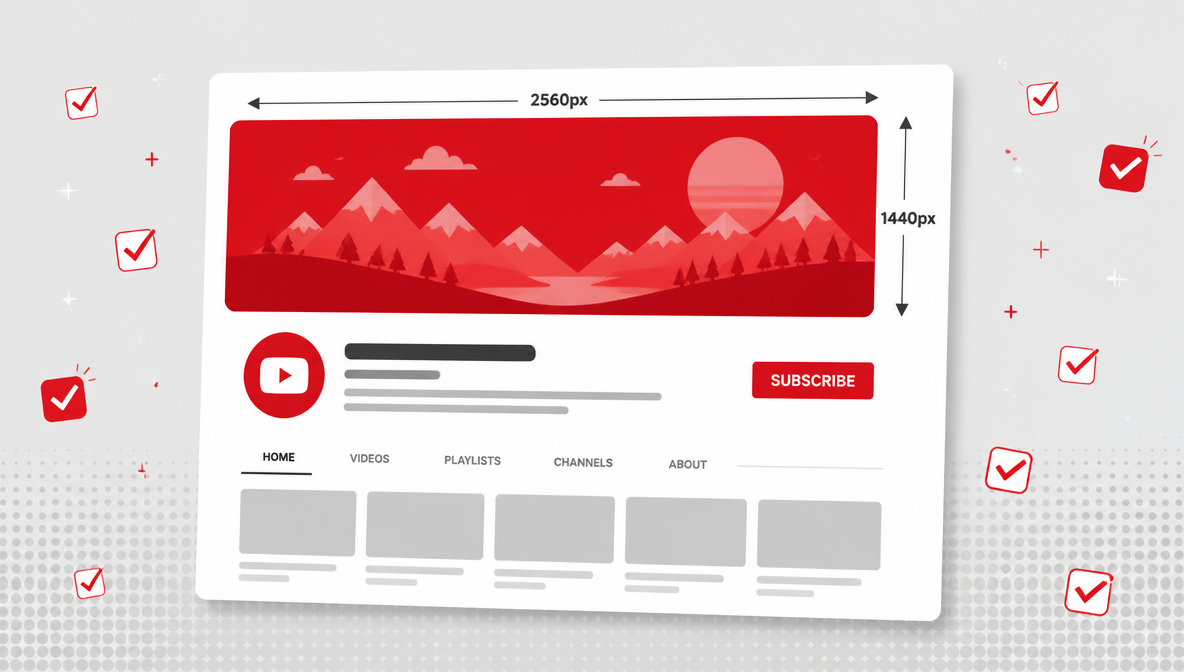
The recommended YouTube banner size is 2560×1440 pixels with a maximum file size of 6MB. The safe zone — the only area guaranteed to be visible on every device — is 1546×423 px, centred within the full image.
Most creators upload a banner and assume it looks the same everywhere. It does not. YouTube displays different portions of your channel art depending on the device — and if your channel name, logo, or key information sits outside the safe zone, mobile viewers will never see it. This guide covers the exact dimensions for every device, what actually gets cropped and why, and how to design a banner that works across all of them.
As of 2026, the correct YouTube banner size is 2560×1440 pixels, with a maximum file size of 6MB and a universal safe zone of 1546×423 pixels — the only area guaranteed to be visible on every device, including mobile. YouTube's minimum accepted size is 2048×1152 pixels; anything below this will be stretched and visually degraded.
For a full overview of social media image dimensions beyond the YouTube, see social media image sizes.
YouTube Banner Size — Full Specifications
| Spec | Value |
|---|---|
| Recommended YouTube banner size | 2560×1440 px |
| Minimum YouTube banner size | 2048×1152 px |
| Max file size for YouTube banner | 6MB |
| Accepted formats | JPG, PNG, GIF, BMP |
| Safe zone (all devices) | 1546×423 px (centred) |
| Mobile display | 1546×423 px |
| Tablet display | 1855×423 px |
| Desktop display | 2560×423 px |
| TV display | 2560×1440 px (full image) |
All YouTube banner size specifications above are based on YouTube's official channel art guidelines.
Always design the YouTube banner at the full 2560×1440 px even if your primary audience is on mobile. Uploading below the recommended size causes YouTube to stretch the image, resulting in visible blur at banner width.
The YouTube Banner Safe Zone Explained
The safe zone is the most important concept in YouTube banner design — and the most commonly ignored.
YouTube does not display your banner the same way across devices. On mobile, it shows only the central 1546×423 px strip of your full image. On desktop, it widens to 2560×423 px. On TV, it shows the complete 2560×1440 px canvas. Every device is working from the same uploaded file — YouTube simply crops it differently depending on the screen.
The safe zone is the area that survives every crop. At 1546×423 px, centred within the full 2560×1440 canvas, it is the only region that will be visible to every viewer regardless of how they access your channel.
Think of it as three nested rectangles:
- Outer rectangle (TV): the full 2560×1440 px image — only TV viewers see this entire area
- Middle rectangle (desktop): 2560×423 px horizontal strip — desktop viewers see the full width but only the centre height
- Inner rectangle (safe zone/mobile): 1546×423 px centred — mobile viewers see only this
The practical rule: every piece of critical information — channel name, logo, upload schedule, social handles — must sit inside the 1546×423 safe zone. Anything placed outside it is invisible to mobile viewers, who make up the majority of YouTube's audience.
Decorative elements — background patterns, gradient edges, visual texture — can extend into the outer regions because losing them on mobile does not affect how the channel communicates. Losing your channel name does.
YouTube Banner Size on Each Device
Mobile
Mobile displays the safe zone only: 1546×423 px.
This is the most constrained view and the one most of your audience will see. The banner on mobile is narrow — roughly the proportions of a business card in landscape. Everything outside the central strip disappears completely. If you design your banner at full canvas size without accounting for mobile, the result is a channel page where the name and logo are cut off and a decorative background is all that remains.
On mobile, your banner renders at roughly the proportions of a business card in landscape — one line of text, one logo, nothing else competing for attention at that size.
Tablet
Tablet displays 1855×423 px — wider than mobile but still a horizontal strip.
The safe zone content remains fully visible. Some of the side regions that are hidden on mobile become visible on tablet. This is a useful area for secondary visual elements — extended background design, subtle branding touches — but not for any text or information you need viewers to see. On tablet, the extra width on each side of the safe zone is decorative space — use it to extend background patterns or color fields outward, but keep all text and logos within the 1546×423 px center.
Desktop
Desktop displays 2560×423 px — the full width of the banner but still cropped to the centre height.
The entire horizontal span is visible, making the left and right edges of your banner appear. Viewers on desktop get a wider, more cinematic view of your channel art. Side elements, extended patterns, and visual framing placed in the outer regions become visible here. Still a horizontal strip — the top and bottom of the full canvas remain hidden. Avoid placing anything important within 100px of the top or bottom edges of the canvas — desktop clips that area entirely, and what looks intentional in your design file will simply be missing on screen.
TV
TV displays the complete 2560×1440 px image — the only device where your entire banner is shown.
TV viewers see everything: the full background, the top and bottom regions, the complete visual composition. This is where background art, full illustrations, and vertical design elements matter. Design the outer areas with TV in mind, but never put essential information there — most viewers are not on TV. TV is the only device showing the full 2560×1440 canvas. If your channel has a significant TV audience — common for gaming, film, and educational channels — invest in the full background image rather than leaving the upper and lower thirds empty.
YouTube Banner Design Best Practices
What to Include in Your Banner
- Channel name or logo — centred within the safe zone, large enough to read at a glance
- Upload schedule — "New videos every Tuesday" builds subscriber expectation and gives viewers a reason to return
- Social handles — placed within the safe zone if they are part of your channel identity
- Short value proposition — "Weekly finance tips," "Daily tech reviews" — one line that tells a new visitor exactly what the channel is
What to Avoid
- Text outside the safe zone — hidden on mobile, which accounts for the majority of views
- Overly busy backgrounds — visual noise behind your channel name reduces readability at the sizes YouTube renders the banner
- Low-resolution source images — at 2560px wide, any image below the recommended dimensions will show visible compression or blur
- Too much text — banners are glanced at for two seconds, not read. One channel name, one value line, one optional schedule. That is enough.
- Dark text on dark backgrounds — contrast that looks fine at design size often collapses when the banner is rendered small on mobile
Branding Consistency
Your YouTube banner does not exist in isolation — it sits alongside your profile picture and your thumbnail grid. Viewers who land on your channel page see all three at once.
- Match your banner colour palette to your thumbnail style. Channels where the banner and thumbnails share a visual language look intentional and professional
- Use the same font family across your banner and thumbnails. Consistency across both builds recognizable brand identity
- Design your banner and profile picture as a pair; they appear together in the page header and should complement rather than compete with each other
For building a consistent visual identity across your YouTube channel, see how to build a brand kit with AI and best AI logo makers.
How to Make a YouTube Banner with ImagineArt
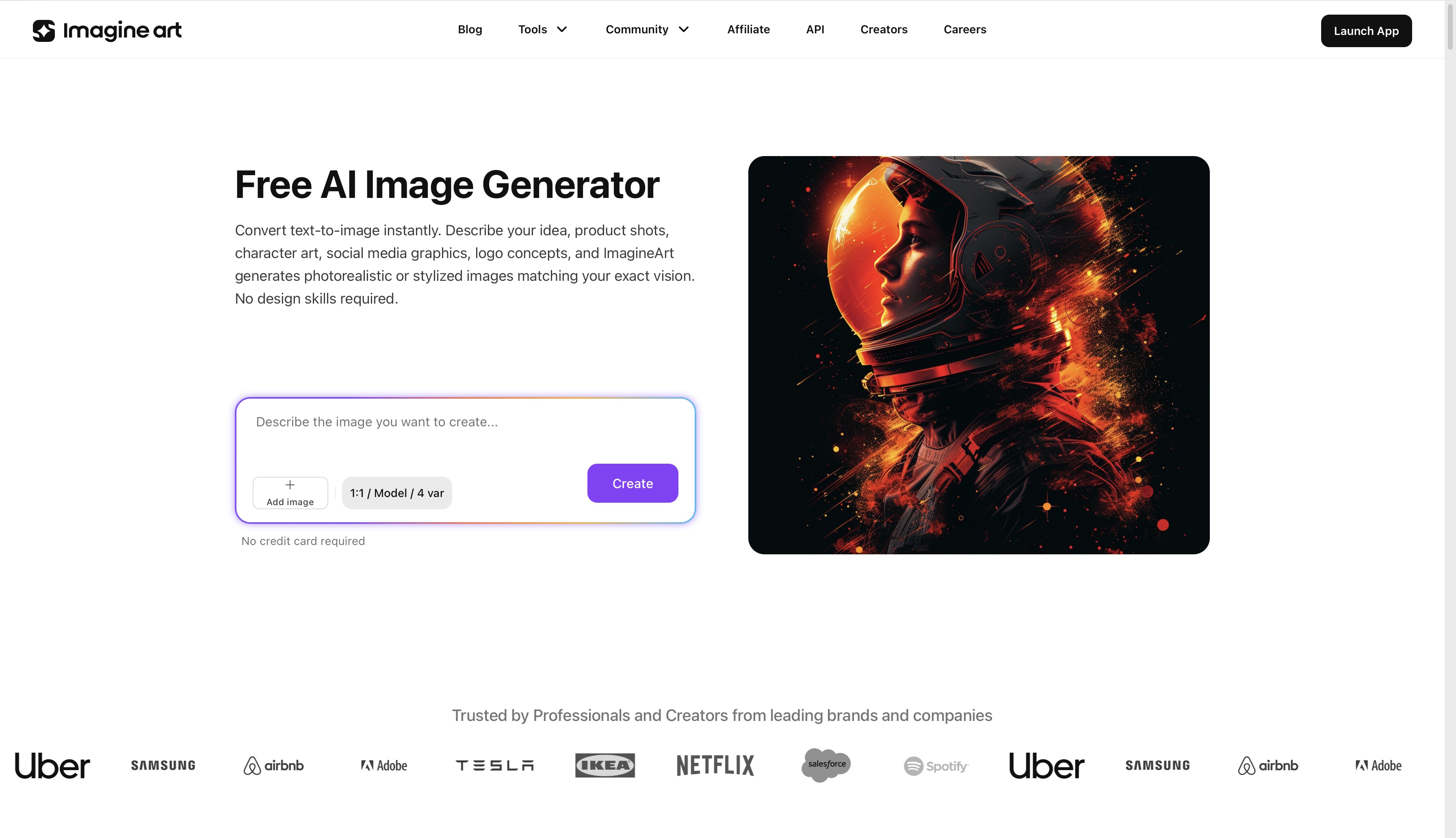 ImagineArt AI image generator
ImagineArt AI Image Generator lets you generate a custom banner background from a text prompt — no design templates, no stock images, no generic gradients. You describe the visual style you want and generate something original that matches your channel's identity.
Step 1: Set Your Dimensions
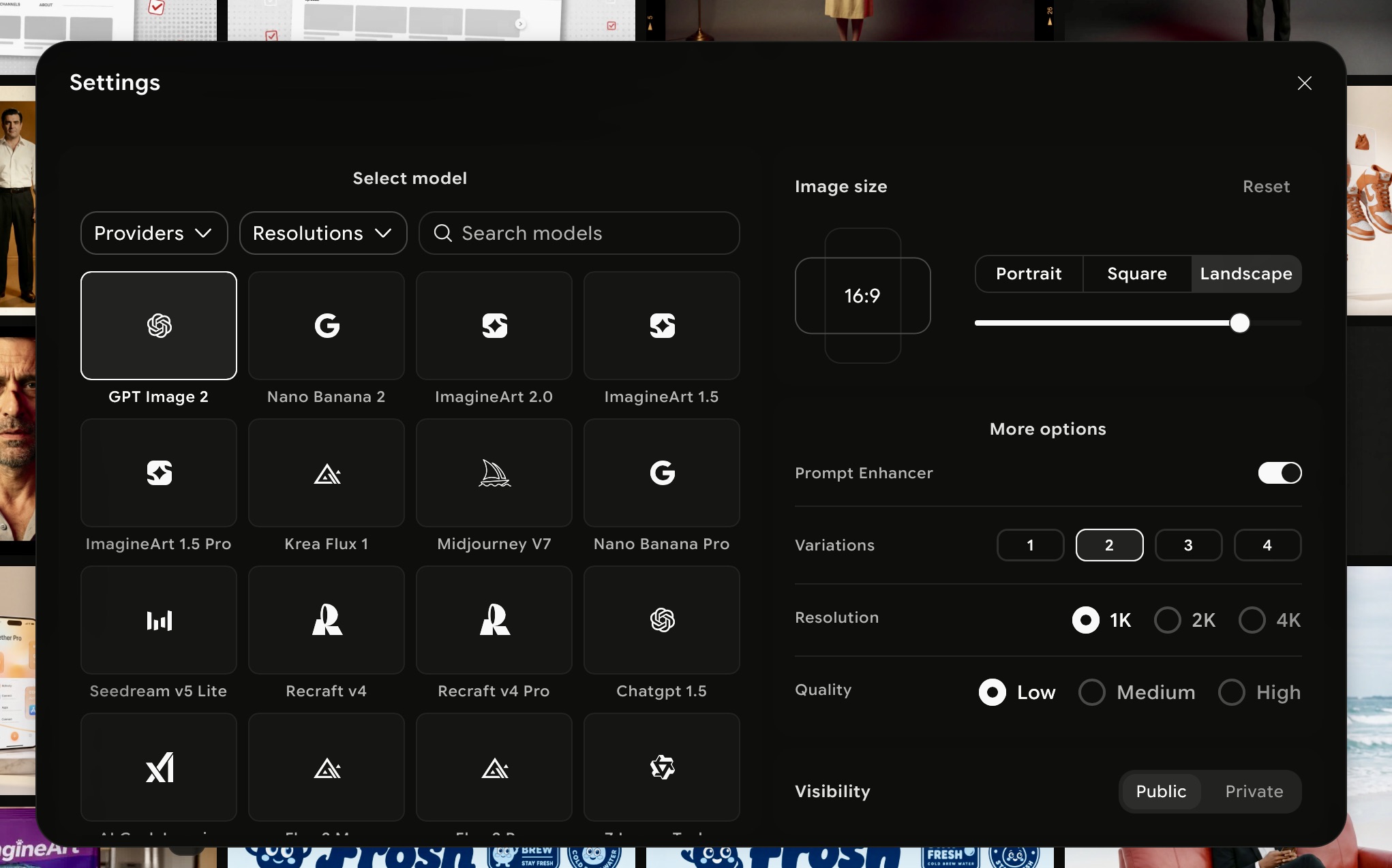 ImagineArt AI image generator settings
Open ImagineArt Image Generator, select the preferred AI image model, and set the YouTube banner size to 2560×1440 px or 16:9 aspect ratio before generating. Starting at the correct size means your output is banner-ready from the first generation — no resizing, no quality loss from upscaling.
Step 2: Write a Prompt That Describes Your Channel's Visual Identity
 ImagineArt AI image generator prompt box
This is the step most creators rush. A vague prompt produces a generic background. A specific prompt produces something that actually represents the channel.
A strong YouTube banner prompt includes:
- Visual style — minimal, bold, cinematic, abstract, illustrated
- Colour palette — specific colours or tones, not just "dark" or "bright"
- Mood — professional, energetic, calm, creative
- Channel niche — what the channel is about, so the aesthetic fits the content
- Format context — "YouTube channel banner, wide horizontal format"
Sample YouTube Banner:
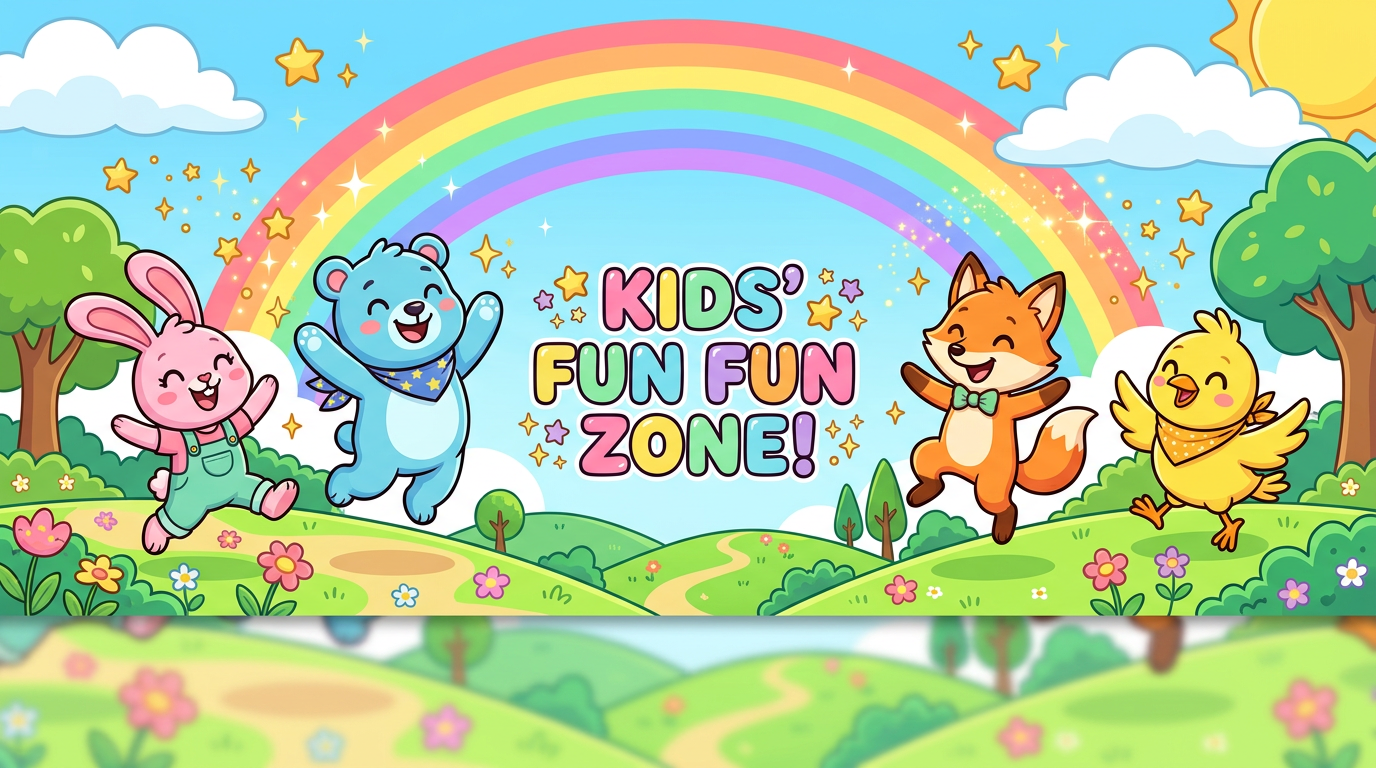 Generated by ImagineArt AI image generator
Step 3: Generate and Evaluate Your Output
ImagineArt generates multiple variations from a single prompt. When reviewing outputs, assess them specifically for banner use:
- Does the centre hold up? The safe zone (1546×423 px centre strip) is where your channel name will sit — the background in this area should be clean enough that text remains readable over it
- Does it work horizontally? Banner backgrounds need to feel balanced across a wide, shallow crop — not just look good as a square image
- Is there visual weight at the edges? Strong edge detail is visible on desktop and TV but hidden on mobile — decorative complexity works well here
- Is the overall tone consistent with your thumbnails? Your banner and thumbnail grid will appear on the same page — they should share a visual language
If the first generation is close but not right, adjust one element of the prompt. Try changing the colour, shifting the mood descriptor, or adding a texture reference and regenerate. Iteration produces better results than rewriting from scratch.
Step 4: Download as PNG
Export your selected background as PNG. PNG preserves sharp edges and colour accuracy — important for a file that will be displayed at 2560px wide. Use JPG only for purely photographic backgrounds with no geometric elements, where file size is a concern.
Step 5: Add YouTube Channel Name and Safe Zone Content
Now open ImagineArt AI image editor and select the YouTube banner from the library. Add a prompt, mentioning the complete YouTube channel name and its placement. Move elements and centre all of this vertically to ensure every element remains within the 1546×423 safe zone.
Step 6: Upload to YouTube Studio
Go to YouTube Studio → Customization → Branding → Banner image and upload your completed file. YouTube will show a preview of how the banner appears on TV, desktop, tablet, and mobile before you confirm. Check each view — particularly mobile — before publishing.
YouTube Banner Templates — Specs and Starting Points by Channel Type
A YouTube banner template is not just a Canva file. It is a repeatable set of decisions: the right canvas dimensions (2560×1440 px), what belongs inside the safe zone (1546×423 px), which colors carry your channel's identity, and what visual mood fits your content. Get these four things consistent and your banner works on every device without rethinking it each time.
The seven templates below are structured around channel type. Each one includes a color palette, safe zone content guide, style direction, and a ready-to-use ImagineArt prompt. Take the prompt as-is or adjust one element — color, mood, or niche detail — to match your channel.
Tech and Business
-
Color palette: Dark navy (#0A1628), mid-grey (#8A9BB0), white text
-
Safe zone content (1546×423 px center): Channel name in a clean sans-serif at a size readable on a phone screen. One line below it stating what the channel covers — "Weekly product reviews | Tech breakdowns" or "AI tools, tested weekly." Nothing else. Tech audiences respond to restraint.
-
Style: Minimal, structured, professional. No gradients, no textures that compete with the text.
YouTube banner prompt by channel type:
Minimal dark navy background with subtle circuit board line patterns, clean geometric shapes, professional and modern aesthetic, wide YouTube channel banner format
Lifestyle and Travel
-
Color palette: Warm amber (#E8A84A), soft cream (#FAF3E0), light sky blue (#B8D4E8)
-
Safe zone content: Channel name in a rounded or soft serif font. A short tagline works well here — "Travel stories, honest guides" or "Slow travel, real places." Keep the text light so it floats over the warm background rather than competes with it.
-
Style: Warm, airy, unhurried. The visual tone should feel like the first frame of a well-shot travel vlog.
YouTube banner prompt by channel type:
Warm golden hour tones, soft bokeh light effects, airy and wanderlust mood, lifestyle YouTube channel art, wide horizontal format
Gaming
-
Color palette: Deep black (#0D0D0D), electric purple (#8B2FC9), neon cyan (#00F5FF)
-
Safe zone content: Channel name in a bold display font — thick weight, possibly with a subtle glow or outline. Below it, a single genre tag if the channel has a specific focus: "FPS | Strategy | Ranked Gameplay." On mobile, gaming banners get scanned quickly, so the name needs to be immediately legible against the dark background.
-
Style: High energy, neon-lit, dark. The background should feel like a loading screen, not a poster.
YouTube banner prompt by channel type:
Bold neon purple and cyan colour scheme, dynamic abstract energy lines, dark background, high-energy gaming aesthetic, YouTube banner format
Finance and Education
-
Color palette: Clean white (#FFFFFF), deep forest green (#1A5C3A), light grey (#F2F2F2)
-
Safe zone content: Channel name in an authoritative font — clean sans-serif or a restrained serif. A credibility line works well here if you have one: "Certified CFP | Weekly money breakdowns" or "MBA | Corporate finance explained simply." Finance audiences respond to credentials in the banner.
-
Style: Trustworthy, clean, professional. No busy textures. Green reads as growth and stability in financial contexts — use it deliberately.
YouTube banner prompt by channel type:
Clean white and deep green background, minimal geometric grid lines, professional and trustworthy tone, educational YouTube channel banner
Fitness and Wellness
-
Color palette: Burnt orange (#E85D04), jet black (#0A0A0A), off-white (#F5F5F5)
-
Safe zone content: Channel name in a bold condensed font — the kind that works at large sizes and small. A motivational one-liner below it is optional but common in this niche: "Train harder. Live better." or "Home workouts, no excuses." Keep text white on the dark background for maximum contrast at mobile sizes.
-
Style: Bold, direct, no-fuss. The banner should communicate effort without decoration.
YouTube banner prompt by channel type:
Energetic orange and black gradient, dynamic motion blur effect, bold and motivating mood, fitness YouTube channel art, wide format
Beauty and Fashion
-
Color palette: Rose gold (#C9956C), blush pink (#F4C2C2), warm white (#FFF8F5)
-
Safe zone content: Channel name in an elegant script or refined thin sans-serif. An optional tagline at smaller text: "Beauty tips | Honest reviews" or "Skincare, makeup, and what actually works." The text should feel placed, not dropped — centered with room to breathe on both sides.
-
Style: Soft, elegant, editorial. The banner should look like a mood board, not a product ad.
YouTube banner prompt by channel type:
Soft rose gold tones, blurred floral bokeh background, elegant and feminine aesthetic, beauty YouTube channel banner
Food and Cooking
-
Color palette: Terracotta (#C1603A), warm cream (#F5ECD7), sage green (#8FA67C)
-
Safe zone content: Channel name in a warm, approachable font — a friendly sans-serif or a slightly rounded display style. One line below for niche clarity: "Home cooking, real ingredients" or "Restaurant recipes, home kitchen." Food banners tend to work best when the typography feels as inviting as the content.
-
Style: Warm, editorial, tactile. Think cookbook cover rather than food delivery app.
YouTube banner prompt by channel type:
Warm terracotta and cream tones, soft overhead kitchen texture, inviting and appetising mood, food YouTube channel art
Common YouTube Banner Size Mistakes
- Designing at 1920×1080. This is the most common mistake — 1920×1080 is standard video resolution, not banner size. It looks fine on desktop but gets stretched on TV, causing visible quality loss.
- Placing the logo or channel name outside the safe zone. Looks perfect on your design canvas. Cut off entirely on mobile. Always place critical content inside the 1546×423 safe zone before finalising.
- Uploading below 2560×1440 px. YouTube stretches undersized banners to fill the display area. At banner width, the blur is noticeable. Always start at the full recommended resolution.
- Exceeding the 6MB file limit. YouTube rejects uploads over 6MB, sometimes without a clear error message. Export at appropriate compression — PNG for sharp designs, JPG at high quality for photographic backgrounds.
- Using heavy JPEG compression on text-heavy banners. JPEG compression creates artefacts around sharp edges — particularly noticeable on text at banner dimensions. Use PNG for any banner that includes lettering or a logo.
- Designing only for desktop. The banner looks wide and expansive in your design tool. On mobile, three-quarters of it disappears. Always check your design with a mobile crop overlay before uploading.
Ready to Create YouTube Channel Art with ImagineArt?
Your channel's first impression is set before a single video plays. Get the dimensions right, keep everything that matters inside the safe zone, and design a banner that represents your channel across every device — from the mobile screen most visitors arrive from to the TV screen that shows every pixel.
ImagineArt makes it straightforward. Generate a custom banner background from a text prompt, download at the correct 2560×1440 px, and publish a channel page that looks intentional from day one.
Frequently Asked Questions About YouTube Banner Size
The correct YouTube banner size is 2560×1440 pixels. This is the full canvas size that displays on TV screens. The maximum file size is 6MB and accepted formats include JPG, PNG, GIF, and BMP.
The YouTube banner safe zone is the central 1546×423 px area of the full 2560×1440 canvas. It is the only region visible on every device — TV, desktop, tablet, and mobile. All essential content such as channel name, logo, and upload schedule should be placed within this zone.
YouTube crops the banner differently on each device. Mobile displays only the central 1546×423 px strip. Desktop shows 2560×423 px. TV shows the full 2560×1440 image. The same file is used for all devices — YouTube adjusts the crop automatically.
On desktop, YouTube displays the banner at 2560×423 px — the full width of the canvas cropped to a horizontal strip at the centre height.
Yes. PNG is the recommended format for YouTube banners, particularly for designs that include text, logos, or sharp geometric elements. PNG preserves edge quality that JPEG compression can soften at banner dimensions.
Yes. YouTube channel art and YouTube banner refer to the same element — the large image displayed at the top of your YouTube channel page. The terms are interchangeable. The correct size for YouTube channel art is 2560×1440 px.
You can generate a custom YouTube banner background for free using ImagineArt AI Image Generator. Set the canvas to 2560×1440 px, describe your channel's visual style in a prompt, generate, and download. Add your channel name and logo within the safe zone before uploading to YouTube Studio.
The maximum file size for a YouTube banner is 6MB. Uploads exceeding this limit will be rejected. If your banner file is too large, export it at a lower compression setting or switch from PNG to high-quality JPG for photographic backgrounds.
Setting up your full YouTube channel? See YouTube profile picture size, YouTube thumbnail size, and how to start a YouTube channel for business.
For channel content ideas and best tools, see faceless YouTube channel ideas and best AI video generators for YouTube.
Tooba Siddiqui
Tooba Siddiqui is a content marketer with a strong focus on AI trends and product innovation. She explores generative AI with a keen eye. At ImagineArt, she develops marketing content that translates cutting-edge innovation into engaging, search-driven narratives for the right audience.