
Syed Anas Hussain
April 24, 2026 • Updated April 29, 2026
7 mins Read
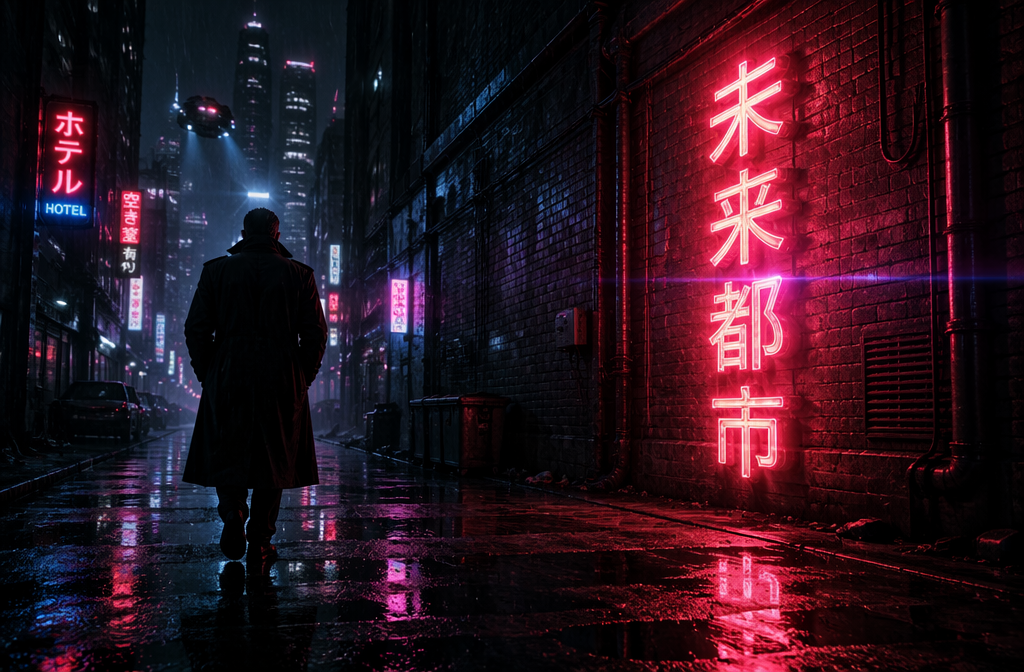
GPT Image 2 is OpenAI's most powerful image generation model — with near-perfect text rendering, 2K resolution, multilingual support, and production-grade prompt following. It is now available on ImagineArt alongside 50+ other AI models.
This guide walks you through everything you need to start generating with GPT Image 2 today — from account setup to your first production-ready image.
How to Access GPT Image 2 on ImagineArt
GPT Image 2 is available on ImagineArt through multiple access points:
| Platform | Access Method | Best For |
|---|---|---|
| ImagineArt Web | Credit-based, no setup required | Creators and teams wanting instant access |
| GPT Image 2 App Page | Direct generation with reference image support | Quick single-image generation with GPT Image 2 |
| ImagineArt Workflows | Node-based pipelines with GPT Image 2 | Teams building reusable creative pipelines |
Step-by-Step: Generate Your First Image with GPT Image 2
Step 1: Create Your Account
Create a free account at imagine.art. You receive 100 free credits daily, so you can start generating with GPT Image 2 immediately without any payment.
Step 2: Open the GPT Image 2 Generator
Navigate to the GPT Image 2 app page or open the Image Creator and select GPT Image 2 from the model dropdown.
Step 3: Upload a Reference Image (Optional)
If you want to guide the visual style, character design, or background of your output, upload a reference image. This is optional but helpful for brand consistency and style matching.
Step 4: Write Your Prompt
Describe what you need in the text field. GPT Image 2 excels with structured, detailed prompts. The more specific you are about subject, composition, lighting, text content, and style, the better the output.
Example:
"A premium craft coffee bag on a wooden table reading 'Blackstone Roasters', 'Single Origin — Ethiopian Yirgacheffe', tasting notes 'Blueberry / Dark Chocolate / Citrus', weight '340g / 12oz', 'Certified Organic' badge. Matte kraft paper, soft morning light, shallow depth of field."
For complete prompting techniques, see our GPT Image 2 Overview which covers all 7 key capabilities.
Step 5: Configure Settings
- Aspect Ratio: Choose your aspect ratio from 1:1 to 16:9 — covering banners, slides, mobile screens, posters, and social formats
- Quality: Higher quality tiers produce finer detail, sharper text, and better surface rendering
Step 6: Generate
Hit generate. GPT Image 2 typically produces results in under 3 seconds.
Step 7: Download or Iterate
Download your production-ready image, or refine with an adjusted prompt. For further editing like background removal or object changes, use ImagineArt's AI Image Editor.
How to Use GPT Image 2 for Image Editing
GPT Image 2 supports targeted image editing through natural language instructions. Upload an existing image and describe the specific changes you want — the model modifies only what you ask for while preserving everything else.
This is different from regenerating an entire scene. GPT Image 2 understands the context of the original image and applies edits with precision, making it useful for quick refinements without starting over.
What You Can Edit
| Edit Type | Example Instruction |
|---|---|
| Change colors | "Change the jacket from navy to burnt orange. Keep the pose, face, and background unchanged." |
| Swap backgrounds | "Replace the white studio background with a warm marble showroom. Maintain all foreground elements and lighting." |
| Add objects | "Add a steaming coffee cup on the desk in the bottom left. Match the existing lighting and color temperature." |
| Remove elements | "Remove the umbrella in the background. Fill the area with the surrounding wall texture." |
| Update text in image | "Change the label from 'Summer Edition' to 'Limited Edition 2026'. Keep the same font, size, and color." |
| Adjust lighting | "Make the lighting warmer and add a soft golden hour glow from the right. Keep the subject unchanged." |
Tips for Better Edits
- Be specific about what stays and what changes. Always include "keep everything else unchanged" so the model does not modify unintended elements.
- Describe the edit, not the full scene. You do not need to re-describe the entire image — just describe the change.
- Match the existing scene. When adding objects or changing backgrounds, include instructions to match lighting, color temperature, and perspective.
For more advanced editing like inpainting with mask controls, outpainting, and batch object removal, use ImagineArt's dedicated AI Image Editor alongside your GPT Image 2 generations. Read complete pricing overview of GPT Image 2 on ImagineArt blog to choose the right option for your image generation needs.
Prompt Blueprint for GPT Image 2
GPT Image 2 follows complex, multi-part prompts far more reliably than any previous OpenAI model. Here is the blueprint that gets the best results:
Subject → Text Content → Composition → Lighting → Style → Format
Example:
"A concert poster for 'NEON NIGHTS MUSIC FESTIVAL' in bold neon-glow sans-serif. Date 'AUGUST 15-17, 2026', location 'Riverside Park, Austin TX', lineup 'The Midnight / ODESZA / Bonobo', cityscape silhouette at bottom, neon gradient sky (pink to purple), 'Tickets from $129', 24x36 poster format."
Breaking it down:
- Subject — What is in the image: poster, product shot, UI screen, character, scene
- Text Content — Exact words in quotation marks: headlines, labels, prices, CTAs. GPT Image 2 renders these with 99%+ accuracy
- Composition — Layout and spatial relationships: centered, rule-of-thirds, split layout, grid
- Lighting — Light source, direction, mood: neon glow, soft studio, golden hour backlight, dramatic rim
- Style — Visual language: photorealistic, editorial, cinematic, manga, flat design, claymation
- Format — Aspect ratio and output size: 1:1, 16:9, 9:16, 3:1, poster format, mobile screen
For Prompt Ideas, read GPT Image 2 Prompt Guide + 70 Prompts
Best Practices for GPT Image 2
For Text-Heavy Images
GPT Image 2's text rendering is its strongest differentiator. To get the best results:
- Always put exact text in quotation marks within your prompt
- Specify font style (serif, sans-serif, gothic, hand-lettered) and size relationship (large headline, small body copy)
- Include placement instructions (centered at top, bottom left corner, across full width)
- For multilingual text, specify the language and script explicitly
For Photorealistic Output
- Include camera metadata: lens focal length (85mm), aperture (f/1.8), ISO (100)
- Describe lighting source and direction specifically
- Add material and texture details: skin pores, fabric weave, glass reflections
- Specify color palette and mood
For UI and Screenshot Generation
- Name the specific software (Figma, VS Code, After Effects) for authentic interface chrome
- Describe panel layouts, sidebar content, and toolbar elements explicitly
- Include specific text for labels, data values, and menu items
- Specify theme (dark/light) and accent colors
GPT Image 2 vs Other Models on ImagineArt
ImagineArt gives you access to 50+ AI image models. Here is how GPT Image 2 compares for different use cases:
| Use Case | Best Model | Why |
|---|---|---|
| Text-heavy designs (posters, menus, labels) | GPT Image 2 | 99%+ text accuracy, unmatched by any other model |
| UI screenshots and software mockups | GPT Image 2 | Exceeds Nano Banana 2 in UI fidelity (VentureBeat) |
| Multilingual content | GPT Image 2 | Accurate CJK, Hindi, Bengali rendering |
| Photorealistic portraits and products | ImagineArt 2.0 or GPT Image 2 | Both deliver 97%+ realism; ImagineArt 2.0 has camera-level control |
| Rapid 4K scene composition | Nano Banana Pro | Faster generation with strong scene composition |
| Artistic styles (oil, watercolor, anime) | ImagineArt 2.0 or Flux | Broader style range and more expressive control |
The advantage of ImagineArt is that you do not have to choose just one model. Switch between GPT Image 2, ImagineArt 2.0, Nano Banana Pro, Flux, and 50+ others in one workspace. To see what GPT Image 2 can produce across real-world scenarios, check out our GPT Image 2 use cases with prompts.
Frequently Asked Questions
Yes. You get 100 free credits daily to generate images with GPT Image 2. Premium plans offer higher limits and additional features.
Go to the GPT Image 2 app page at imagine.art/apps/gpt-image-2, or open the AI image generator and select GPT Image 2 from the model dropdown.
GPT Image 2 excels at text rendering (99%+ accuracy), UI screenshot generation, and multilingual content. For photorealistic portraits, ImagineArt 2.0 offers comparable quality with camera-level control. For fast 4K generation, Nano Banana Pro is the go-to.
Yes. GPT Image 2 accurately renders Japanese, Korean, Hindi, Bengali, and other non-Latin scripts. This is confirmed by OpenAI and independently verified.
GPT Image 2 supports aspect ratios from 3:1 (ultra-wide) to 1:3 (ultra-tall), covering banners, presentation slides, mobile screens, posters, and social media formats.
GPT Image 2 typically generates images in under 3 seconds for standard quality. Complex prompts with thinking mode enabled may take longer.
Syed Anas Hussain
Syed Anas Hussain is a computer scientist blending technical knowledge with marketing expertise and a growing passion for AI innovation. Curious by nature, he dives into new AI sciences and emerging trends to produce thoughtful, research-led content. At ImagineArt, he helps audiences make sense of AI and unlock its value through clear, practical storytelling.