
Tooba Siddiqui
May 25, 2026 • Updated May 25, 2026
13 mins Read
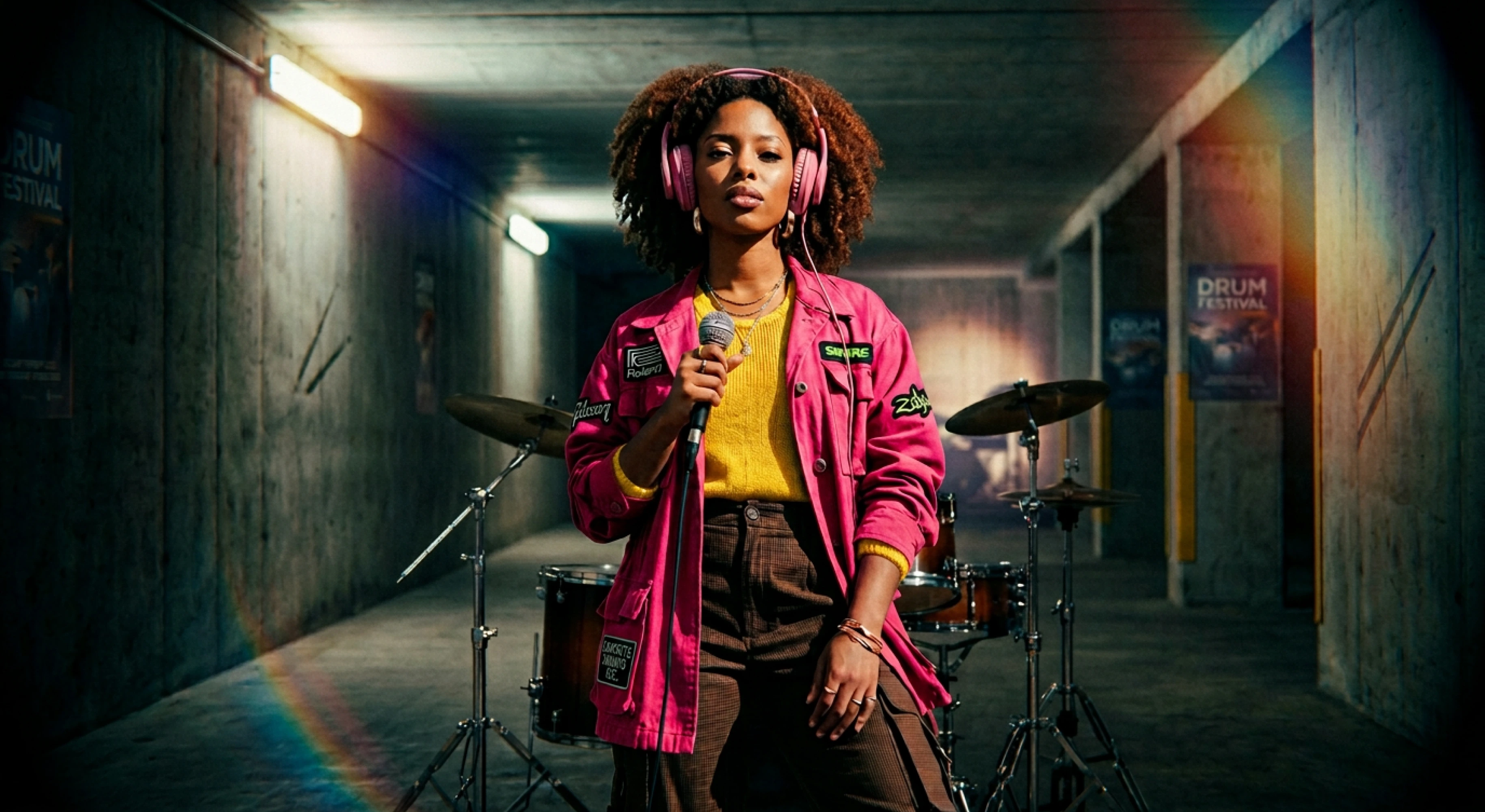
Learning how to make an AI music video is one of the highest-leverage skills an independent creator can have in 2026. YouTube is the world's number one music discovery platform with over 2 billion logged-in users visiting monthly — and music videos are its most-watched content category. Yet for most independent artists, producing a music video has historically meant hiring a director, renting locations, booking a crew, and spending weeks in post-production.
AI changes that equation entirely. You can now go from a generated or uploaded audio track to a finished, publish-ready music video in hours — no crew, no budget, no production timeline. This guide covers the complete workflow: concept to export, genre-to-visual matching, ImagineArt's full toolkit, and every mistake worth avoiding.
Not sure what AI music generation is or how it works? Read the guide on what AI music is before starting.
What Is an AI Music Video?
An AI music video is a video production created using artificial intelligence tools — where the visuals, scenes, motion, and style are generated from text prompts, audio input, or both, without requiring a camera, actors, or a physical shoot. The AI synthesizes video that matches the mood, genre, and energy of the music based on the creative direction you describe.
The music video format was established as a commercial standard when MTV launched in August 1981 — the first channel built entirely around the format. For four decades, producing one required professional equipment and production budgets that most independent artists couldn't access. AI music video generators make that standard accessible to anyone with a concept and a prompt.
AI Music Video vs Traditional Production
| Factor | AI Music Video | Traditional Production |
|---|---|---|
| Cost | Free to low monthly fee | $500 to $50,000+ |
| Time to finish | Hours | Days to weeks |
| Crew required | None | Director, DP, editor, crew |
| Creative control | Full — you direct via prompts | Shared with production team |
| Revision speed | Regenerate in seconds | Reshoot or re-edit |
| Licensing clarity | Commercially cleared on paid plans | Requires clearance per element |
| Scalability | One workflow, unlimited releases | New production per video |
The core advantage of AI is not just cost — it is speed of iteration. You can regenerate a scene that doesn't match the music's energy in seconds. In traditional production, that means a reshoot.
Why Make an AI Music Video? Benefits for Independent Creators
- No production budget required — generate professional-quality visuals from a text description
- Full creative control — you direct every scene, color, mood, and motion through prompts
- Genre-accurate visuals — AI models trained on cinematic and music video conventions understand genre aesthetics
- Faster release cadence — produce a new video for every track without adding weeks to your timeline
- Repeatable workflow — build a production template once, reuse it across releases
- Commercially cleared output — ImagineArt's paid plans produce royalty-free video ready for YouTube, Instagram, and TikTok
- No watermarks on paid plans — publish without platform branding over your work
According to Luminate's music industry research, 91% of music fans say a music video influences whether they stream or share a song. For independent artists without label marketing budgets, a music video is the single highest-impact content investment available.
What You Need Before You Start
Before generating your first scene, have these three things ready:
- Your audio track — generated or uploaded. If you don't have one yet, read how to make AI music first, or go directly to the ImagineArt AI Music Generator to build one.
- A visual concept — decide whether your video is narrative, performance, abstract, or lyric-based before generating anything. Concept determines tool, model, and prompt language.
- An understanding of your genre's visual conventions — the most common mistake in AI music video production is mismatching visual style to musical genre. The genre-to-visual guide below covers this in full.
How to Make an AI Music Video — Step by Step
Step 1 — Generate or Prepare Your Track
 ImagineArt AI music generator
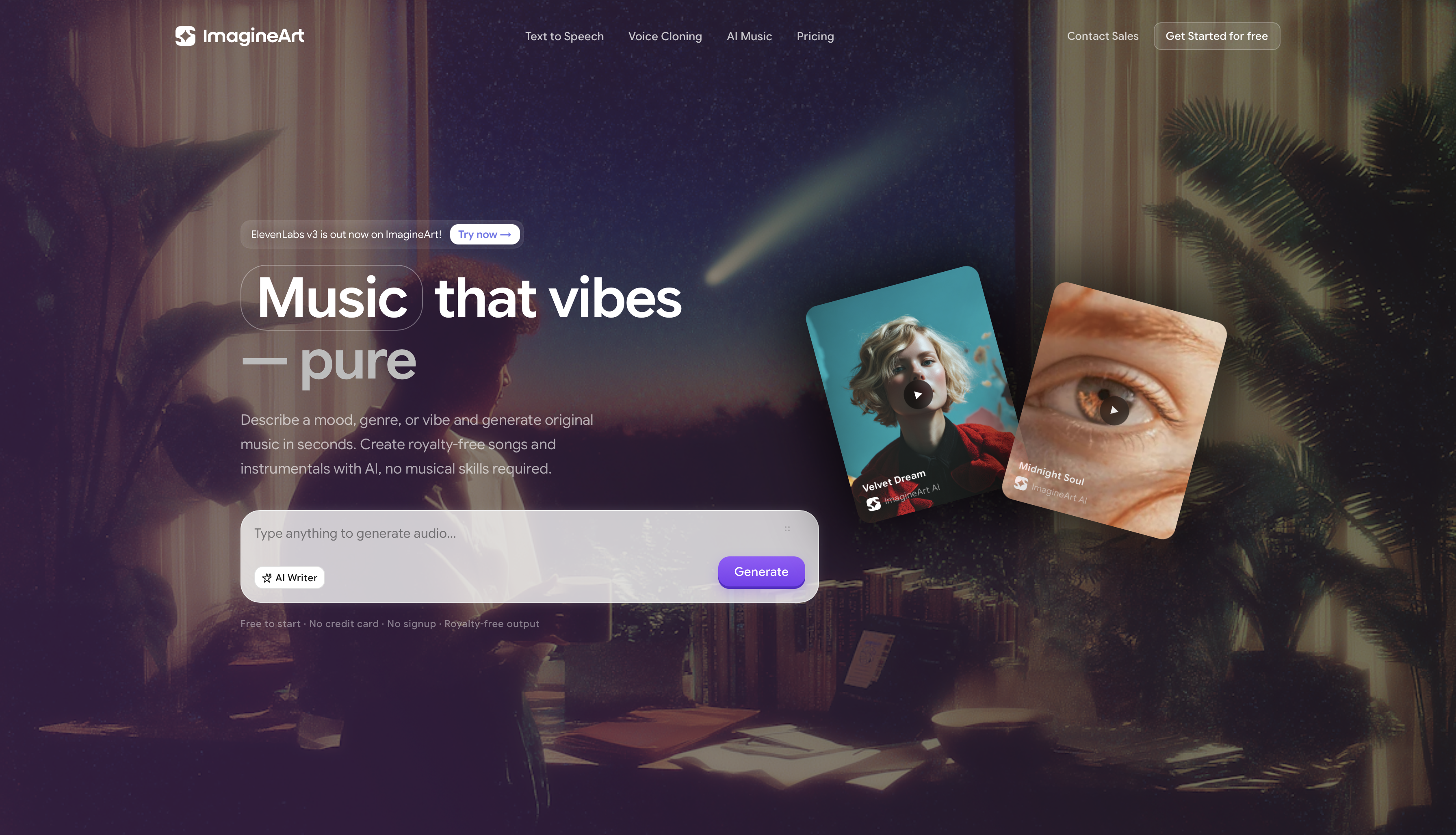
Your music comes first. Every visual decision downstream — color palette, motion speed, scene energy, model choice — flows from the audio. Generate your track using the ImagineArt AI Music Generator with a detailed prompt of up to 5,000 characters, or upload an existing track you want to visualize.
The more specific your music prompt, the more clearly you will be able to describe the visual style later. A track described as "melancholic indie folk ballad, fingerpicked acoustic guitar, soft female vocals, slow tempo" gives you immediate visual direction — golden hour lighting, sparse natural landscapes, intimate framing. Read the AI music prompts guide for prompt templates by genre.
Step 2 — Define Your Visual Style by Genre
Before writing a single scene prompt, match your genre to its visual conventions. AI video models produce significantly stronger output when prompts use genre-accurate visual language.
| Genre | Visual Direction | Key Prompt Language |
|---|---|---|
| Hip-hop / Trap | Urban, high contrast, night scenes | "neon lights, concrete, cinematic, dramatic shadows" |
| Folk / Indie | Natural light, landscapes, intimate | "golden hour, rural, handheld feel, warm grain" |
| EDM / Phonk | Abstract, neon, fast motion | "glitch, strobes, hyperspeed, digital distortion" |
| Pop | Clean, colourful, high energy | "studio setting, vibrant palette, sharp focus" |
| Cinematic / Orchestral | Wide establishing shots, dramatic lighting | "epic landscape, slow motion, sweeping camera" |
| Lo-fi | Warm, grainy, cosy interiors | "soft light, vintage filter, still frames, nostalgic" |
| Reggaeton | Bold colour, urban energy, movement | "saturated colour, street setting, kinetic motion" |
See the full breakdown in the popular music genres guide for genre-specific characteristics that sharpen your visual direction.
Step 3 — Define Your Concept
Choose one of four music video formats before generating anything:
- Narrative — story-driven scenes synced to lyrics, with a beginning, middle, and end
- Performance — artist or avatar in a staged setting, energy-driven cuts
- Abstract / visualiser — generative motion synced to beat, no narrative logic required
- Lyric video — text-forward with animated or generated backgrounds
Your concept determines which ImagineArt tool you use in the next step. Mixing concepts mid-production produces inconsistent output — commit to one format per video.
Step 4 — Choose Your Tool and Model
ImagineArt offers three primary tools for AI music video generation:
- AI Film Studio — structured multi-scene narrative production with scene-by-scene control. Best for narrative music videos.
- AI Video Generator — flexible scene-by-scene generation. Best for performance and abstract formats.
- Motion Control — character movement, dance performance, and avatar videos. Best for performance videos requiring specific motion.
Matching video models to genre:
- Kling — strong on realistic motion and character performance. Best for hip-hop, pop, and performance videos.
- Veo — cinematic quality with strong scene composition. Best for orchestral, cinematic, and indie styles.
- Seedance — dynamic motion, high energy. Best for EDM, phonk, and fast-cut abstract videos.
- Hailuo — detailed environments and lighting. Best for narrative and atmospheric scenes.
- LUMA RAY2 — photorealistic output. Best for lo-fi, folk, and intimate visual styles.
- Runway Gen-4.5 — consistent character and scene fidelity across clips. Best for narrative continuity.
For a full comparison of AI music video tools and generators, read the best AI music video generator guide.
Step 5 — Write Your Scene Prompts
A strong scene prompt has five elements: setting + lighting + mood + motion + colour palette. Every element you leave unspecified is a decision the model makes for you — and those decisions are rarely as accurate as your own.
Weak prompt: "artist performing on a stage"
Strong prompt: "solo female artist performing on a minimalist stage, dramatic side lighting in deep blue and amber, slow deliberate movement, medium close-up, cinematic grain, melancholic atmosphere"
Keep your prompt language consistent across all scenes in the same video. Switching from "warm golden tones" in scene one to "cool blue palette" in scene three produces a video that looks like three separate productions stitched together. Define your visual language once — before writing your first scene prompt — and hold it across every clip.
For prompt structure and advanced techniques, read how to write prompts for AI music.
Step 6 — Generate and Review Your Clips
Generate each scene and review it immediately against two criteria: does it match the music's energy, and does it match the visual language you defined in Step 2?
What to flag for regeneration:
- Motion that doesn't match the tempo — fast cuts in a slow ballad, or static scenes in a high-energy track
- Lighting that contradicts your colour palette
- Character or environment inconsistency between scenes
Iterate one variable at a time. If a clip's motion is wrong but the environment is right, adjust only the motion descriptor in your prompt and regenerate. Rewriting the entire prompt for one issue loses the elements that were already working.
Step 7 — Apply Color Grading and Swap Backgrounds
Before editing, lock your colour language using ImagineArt AI Video Color Correction app. Apply a consistent palette across all scenes — this single step has more impact on visual cohesion than any other post-generation decision.
Use ImagineArt Video Background Changer to place scenes in the right environments after generation. This is particularly useful when a generated clip has strong character motion but a background that doesn't match your concept — swap the background rather than regenerating the entire scene.
Define the colour grade before you start editing. Trying to match color across clips during the edit adds hours to the process. Get every clip graded first, then assemble.
Step 8 — Edit, Sync to Audio, and Export
Sequence your clips in the ImagineArt AI Video Editor. Sync cuts to the beat — not to timestamps. Let the music tell you where the edits go: cut on kick drums, hold on sustained notes, transition on chord changes.
Export specifications by platform:
| Platform | Resolution | Aspect Ratio | Max Length |
|---|---|---|---|
| YouTube | 1080p or 4K | 16:9 | Unlimited |
| Instagram Feed | 1080p | 1:1 or 4:5 | 60 seconds |
| Instagram Reels | 1080p | 9:16 | 90 seconds |
| TikTok | 1080p | 9:16 | 10 minutes |
Paid ImagineArt plans export without watermarks — commercially cleared for publishing across all platforms.
Step 9 — Automate for Future Releases
Once your workflow is confirmed — model choice, colour palette, prompt language, export settings — build it into ImagineArt Workflows. Your next music video starts from a tested production template rather than from scratch. For artists releasing regularly, this turns a multi-hour production process into a streamlined system that runs consistently across every release.
AI Music Video Styles You Can Create with ImagineArt
ImagineArt supports every major music video format and genre aesthetic. Here is what the platform produces across format types and genres.
Video Formats
- Narrative music video: story-driven scenes synced to lyrics, with a defined arc. ImagineArt's Film Studio handles multi-scene narrative production with scene-to-scene consistency managed through consistent prompting and Runway Gen-4.5's character fidelity.
- Performance video: artist or avatar in a staged environment with energy-driven editing. Motion Control handles character and dance performance with precise movement generation. Best paired with Kling for realistic human motion.
- Abstract / visualiser: generative motion graphics and visual effects synced to beat rather than narrative. No character required. Seedance and LUMA RAY2 produce the strongest abstract output for EDM, phonk, and experimental genres.
- Lyric video: text-forward format with animated or AI-generated backgrounds. Combine the Video Editor's text overlay tools with generated background footage for a clean lyric video without a motion graphics background.
- Cinematic short: film-quality footage with colour grading, wide establishing shots, and dramatic lighting. Veo produces the highest-quality cinematic output on the platform — best for orchestral, indie, and atmospheric genres.
Visual Styles by Genre
- Hip-hop and Trap
Urban environments, dramatic artificial lighting, high contrast colour grading, and kinetic cutting define the genre's visual language. ImagineArt generates night-time street scenes, concrete architecture, and neon-lit interiors with strong motion. Use Kling for character performance, Seedance for fast-cut abstract sequences.
- Folk and Indie
Natural light, outdoor landscapes, warm colour temperatures, and an intimate handheld aesthetic. ImagineArt's LUMA RAY2 produces photorealistic natural environments — golden hour fields, rural roads, and window-lit interiors — that match the acoustic warmth of the genre. Slow motion and still-frame techniques reinforce the introspective tone.
- EDM and Phonk
Abstract motion graphics, digital distortion, strobing effects, and hypersaturated colour palettes. Seedance handles fast motion and glitch effects with the highest accuracy. Phonk specifically benefits from high-contrast monochrome palettes with single accent colours — ImagineArt's Video Recolor makes this consistent across scenes.
- Pop
Clean, vibrant, high-energy production with strong lighting and sharp focus. Pop music videos lean commercial — structured settings, polished colour grades, and performance-forward framing. ImagineArt's Film Studio handles multi-scene pop production with consistent visual quality across takes.
- Cinematic and Orchestral
Wide establishing shots, sweeping camera movement, dramatic natural lighting, and epic scale. Veo produces the strongest cinematic output — it handles depth of field, atmospheric lighting, and environmental scale better than any other model on the platform. Match 18th century classical with period-appropriate environments; modern cinematic scores with contemporary landscape photography.
- Lo-fi
Warm grain, soft focus, cosy interior environments, and a nostalgic colour palette that references VHS and Super 8 film. LUMA RAY2's photorealistic texture generation produces the warm imperfection that defines lo-fi aesthetics — study spaces, rain-streaked windows, and still-life environments that complement the genre's unhurried tempo.
- Reggaeton and Latin
Bold saturated colour, urban energy, movement-forward performance, and high production polish. ImagineArt handles street and studio settings with kinetic motion and vivid colour. Pair with Kling for performance videos and Motion Control for dance-forward productions.
Common Mistakes When Making AI Music Videos
- Mismatching visual style to genre: generating urban night scenes for a folk track, or soft pastoral footage for a phonk instrumental. Define your genre's visual language before writing a single prompt.
- Writing one-line scene prompts: "person walking down a street" produces generic output. Specify lighting, mood, colour, motion, and environment in every prompt.
- Skipping clip review before editing: assembling clips without reviewing each one against the music produces an edit that requires complete rebuilding. Review every clip before opening the editor.
- Cutting on timestamps instead of beats: let the music determine your edit points. Cuts on kick drums, transitions on chord changes, and holds on sustained notes make a video feel intentional. Cutting to a timer makes it feel mechanical.
- Inconsistent colour grading across scenes: the single most common reason AI music videos look unprofessional. Apply Video Recolor before editing, not during.
- Exporting at the wrong resolution: a 16:9 video posted to Instagram Reels appears cropped. Check the export specifications for each platform before final export.
- Skipping the licensing check: free tier output and paid tier output have different commercial licensing terms. Verify your plan covers the intended use before publishing to monetised channels.
Ready to Create Music Video with ImagineArt?
Making a music video used to require a production budget that most independent artists didn't have. In 2026, the entire pipeline — music generation, scene production, color grading, sync, and export — runs on one platform in a single afternoon.
Spotify's 2024 Loud & Clear report recorded over 100,000 AI-assisted tracks uploaded by independent creators in one year alone. The artists building release systems around AI — not just using it once — are the ones building sustainable content output. A repeatable music video workflow is the logical next step after a repeatable music workflow.
FAQs
Yes. ImagineArt offers a free tier that includes access to video generation tools. Free tier output may include a watermark and limited commercial licensing. Paid plans remove watermarks and unlock full commercial rights.
No. You can generate an original track using the ImagineArt AI Music Generator and build your video around it entirely within the platform. You can also upload an existing track and generate visuals to match it.
ImagineArt is the strongest option for creators who need both music generation and video production in one platform. It supports six video models, three production tools, genre-specific workflows, and royalty-free commercial output — without requiring separate tools for audio and video.
Use the ImagineArt AI Video Editor to sequence your clips and align cuts to the beat of your track. Cut on kick drums, transition on chord changes, and hold on sustained or melodic moments. The editor allows precise timeline control for beat-accurate editing.
Yes, on paid ImagineArt plans. Paid tier output is commercially cleared and royalty-free — suitable for YouTube monetisation, brand campaigns, and social media publishing. Always verify your specific plan's licensing terms before distributing commercially.
ImagineArt doesn’t include a watermark for both free and paid plan. For higher-quality ans bulk creation, paid plan is necessary.
Tooba Siddiqui
Tooba Siddiqui is a content marketer with a strong focus on AI trends and product innovation. She explores generative AI with a keen eye. At ImagineArt, she develops marketing content that translates cutting-edge innovation into engaging, search-driven narratives for the right audience.