
Tooba Siddiqui
August 20, 2026 • Updated August 21, 2026
12 mins Read
[Phone. Sound off.]
[Video autoplays in feed]
"Okay so this actually changed how I edit."
[cut to face, close-up]
"This is the step everyone skips.”
You just read that as a subtitle. There was no video, no audio, no dialogue being spoken. Your brain saw and recognized the format and did what it always does: it read. The viewer reading along in silence is no longer the exception.
A New York Post poll found that 34% of US adults regularly watch TV shows and videos with subtitles enabled. For most people watching content today, captions are part of how video works, not a separate accessibility track they decide to turn on.
This guide covers how to add subtitles to a video using AI caption generation, manual SRT file upload, and platform-native tools, with step-by-step instructions for YouTube, TikTok, and Instagram Reels.
Subtitles vs. Captions: What's the Difference?
Subtitles are text overlays that display the spoken dialogue in a video. They are intended for viewers who can hear the audio but need text support. Mostly, the actual video content is in a second language, the environment makes audio difficult, or the viewer is watching without sound.
Captions include spoken dialogue alongside descriptions of non-speech audio: background music, sound effects, and speaker identification. They are designed for viewers who are deaf or hard of hearing and serve as the accessibility standard for broadcast and web content.
In practice, most video editing tools use both terms to describe the same function. The distinction matters most when publishing to platforms with formal accessibility requirements or when working on broadcast content.
Difference Between Open Captions and Closed Captions
Open captions are burned directly into the video file. They are permanently visible and cannot be turned off by the viewer. Because they are part of the video itself, they display consistently across every platform — Instagram, TikTok, YouTube, any embedded player — regardless of whether that platform supports a separate caption track.
Closed captions are stored as a separate file (SRT, VTT, or similar) and delivered alongside the video. The viewer can toggle them on or off. YouTube, Netflix, and most streaming platforms use closed captions. They require platform support to display, and a viewer who downloads the video file without the caption track gets no subtitles.
When to use open captions: Social media content where consistent subtitle visibility matters more than viewer control. TikTok, Instagram Reels, and LinkedIn favor open captions because the platform's native closed caption systems are unreliable or inconsistently displayed.
When to use closed captions: YouTube, streaming platforms, corporate training systems, and any context where accessibility compliance requires a toggleable caption track.
Why Add Subtitles to Videos?
The case for subtitles extends well beyond accessibility, though that alone is a sufficient reason for most publishers.
- 50% of Americans watch videos with subtitles turned on not because of hearing difficulties, but as a default viewing behavior.
- 80% of Netflix users activate subtitles at least once a month; 40% keep them on constantly, according to Netflix platform data.
- Subtitles increase average viewership by up to 40%, because viewers who would have dropped off when audio was unavailable continue watching with captions present.
- 1 in 8 people in the United States have some degree of hearing loss (National Institute on Deafness and Other Communication Disorders). For this audience, captions are not an optional feature.
- YouTube and Google index subtitle text. A closed caption file added to a YouTube video makes every word of the spoken content searchable, which contributes directly to how the video surfaces in search results.
- Translated subtitles allow one video to reach audiences across language markets without re-filming.
- The global AI subtitle market was valued at $1.03 billion in 2023 and is projected to reach $7.42 billion by 2032 at a 24.5% annual growth rate, reflecting how broadly the production industry has shifted toward automated subtitle generation.
How to Add Subtitles to a Video Automatically Using AI
AI caption tools generate subtitles from a video's audio in under a minute, with no manual timing or typing. ImagineArt's AI Captions feature handles the full workflow in one place: auto-generation from your reference video, multilingual translation, visual caption style presets, and position control.
Step 1: Navigate to the AI Captions Feature
Go to the ImagineArt dashboard and open the Edit tool from the sidebar. Select the video editing tool; this opens in a new tab. From the dropdown menu at the top, scroll through the options and select Captions.
Step 2: Upload or Select Your Video
Upload your video file or select a reference video already in your library. ImagineArt uses the uploaded video as the source for transcription, so the audio quality of this file directly affects subtitle accuracy.
Step 3: Select Your Source Language
Choose the language your video was recorded in. This tells the transcription engine which language model to apply, which improves accuracy.
Step 4: Choose a Caption Style
Browse the preset library and select a caption style. Each preset displays a visual preview showing exactly how the captions will appear in the video, including font, color, size, and layout. It removes the manual formatting work that most editors handle on third-party AI video editors separately.
Step 5: Set the Caption Position
Choose where the captions appear in the frame: bottom, center, or top. Bottom is the standard for most video formats. Top placement is useful when a lower-third graphic, product, or important visual sits at the base of the frame.
Step 6: Review the Transcript
Read through the generated transcript. Proper nouns, brand names, and technical terms are the most common mistakes.
Step 8: Export
Export the video with captions and publish
How to Translate Video Subtitles Into Multiple Languages
Once the source-language transcript is reviewed and corrected, translating into additional languages takes only a few extra steps within the same workflow.
Step 1: Select a Target Language
Expand the advanced option and scroll to the language selector. Choose the language you want to translate into. ImagineArt AI caption generator translates the full transcript automatically and supports more than 100 languages and dialects.
Step 2: Review the Translated Transcript
Read through the translated output before exporting. Check for idiomatic expressions that did not translate cleanly, brand-specific terminology, and any phrasing that sounds unnatural in the target language.
Step 3: Add More Languages (If Needed)
To distribute across multiple language markets, return to the language selector and choose the next target language. Each selection generates its own subtitle track, and you can repeat this process for as many languages as your distribution requires.
Step 4: Export by Language
Export each translated version for your distribution and publishing platforms.
Common translation use cases:
- English subtitles for Japanese, Korean, or Portuguese content
- Spanish subtitles for English-language videos targeting Latin American audiences
- French or German subtitles for European market distribution
If you want to translate the whole voiceover in a different language with AI instead of just subtitles, try ImagineArt AI video translator app.
How Accurate Are AI-Generated Subtitles?
AI subtitle tools now achieve 90 to 98% accuracy on clear audio in common languages, based on benchmarks for Whisper-based transcription models. Accuracy drops with:
- Heavy background music or competing ambient noise
- Multiple speakers talking simultaneously
- Strong regional accents or non-standard pronunciation
- Low-resource languages with limited training data
For studio-quality or clean voice recordings, AI caption generator typically need only minor corrections. For live event footage, interviews with significant background noise, or multi-speaker panels, budget 10 to 20 minutes of review per hour of content.
Automatic Subtitles vs. Manual Subtitles: Which Is Better for Accessibility?
For most social media content, AI-generated subtitles are accurate enough. For content where accessibility compliance is a legal or institutional requirement, manual review is the standard.
AI auto-generated subtitles:
- Generated in seconds from the video's audio
- 90 to 98% accurate on clear audio in common languages
- May misread proper nouns, brand names, homophones, and heavily accented speech
- Sufficient for social media, YouTube, and general audience content
- Best practice: use AI to generate, then review before publishing
Manually produced or human-reviewed subtitles:
- Higher accuracy, particularly for names, technical terms, and specialized vocabulary
- Required for WCAG 2.1 AA compliance and FCC broadcast captioning standards
- Required for ADA-compliant workplace training content
- Slower to produce and more expensive at scale
- The appropriate standard for legal, medical, compliance, and public sector content
The most practical approach for creators working on long videos is a hybrid: use AI to generate the transcript, then review and correct the output before publishing. That process takes a fraction of the time manual captioning requires and reaches accuracy levels that meet most accessibility guidelines outside of regulated industries.
How to Add Subtitles by Platform
How to Add Subtitles to YouTube Videos
 YouTube Video Captions
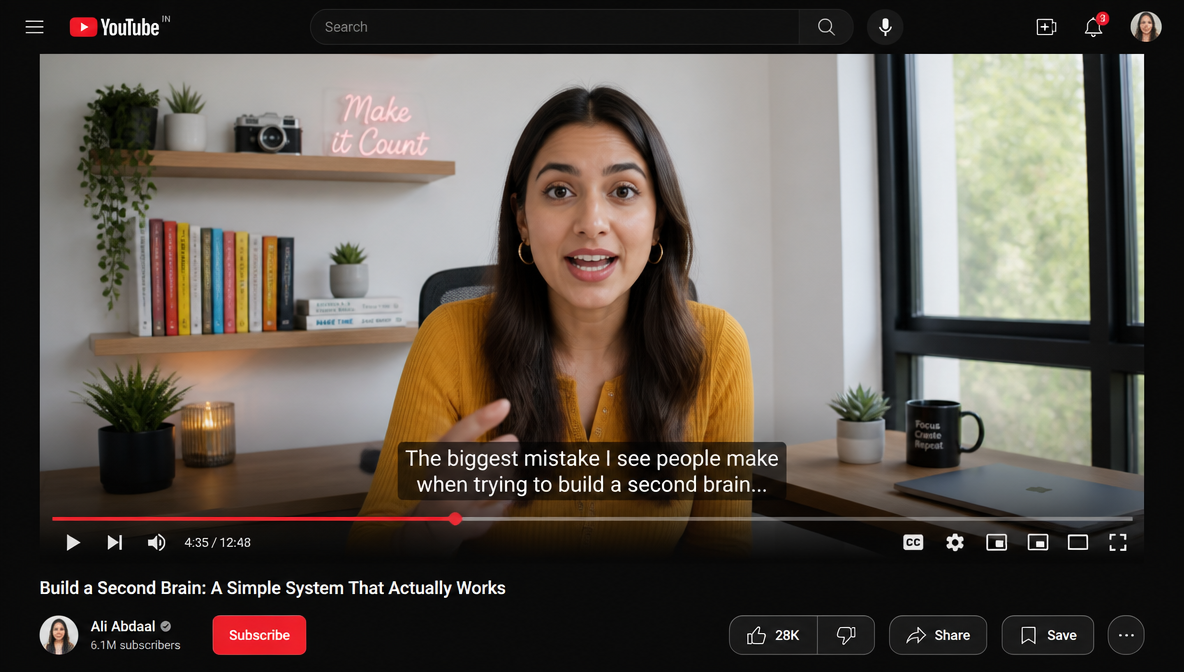
YouTube generates auto-captions after a video is processed, but accuracy is lower than dedicated AI caption tools, particularly for videos with background audio or non-native English speakers. The two options are editing the auto-generated captions or uploading your own SRT file.
Option A: Edit YouTube's auto-generated captions
- Open YouTube Studio and select the video
- Click Subtitles in the left menu
- Under the video's language, click Edit next to the auto-generated captions
- Correct any errors in the transcript using the editor
- Save
Option B: Upload your own SRT file
- In YouTube Studio, open the video and go to Subtitles
- Click Add Language, then select the caption language
- Click Add under the Subtitles column, then choose Upload file
- Select your SRT or VTT file and upload
- YouTube maps the timecodes automatically
YouTube's native system only supports closed captions. If you want captions burned permanently into the video as open captions — visible to every viewer, with no toggle required — add them using an AI caption tool before uploading to YouTube.
Key YouTube caption style specs:
- Font: Clean sans-serif, medium weight
- Positioning: Lower third, left-aligned or centered
- Animation: Full sentence or phrase-level
- Size: Moderate; readable at arm's length on a monitor
- Color: White with shadow or semi-transparent background bar
- Role: Accessibility and comprehension, not a primary visual element
How to Add Subtitles to TikTok Videos
 TikTok Video Captions
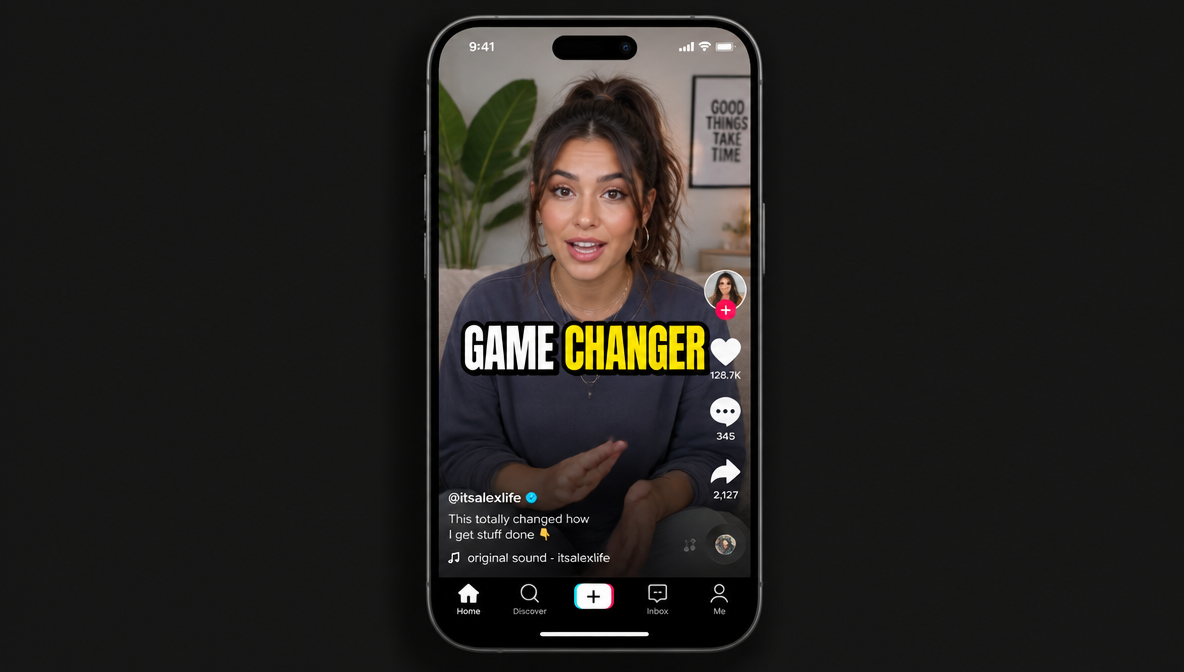
- Upload your clip in TikTok's editor and tap Captions in the editing toolbar
- TikTok auto-generates captions from the audio
- Tap individual words in the caption timeline to correct mistakes
- At the publish screen, toggle captions on or off
Key TikTok caption style specs:
- Font: Bold or extra-bold sans-serif
- Positioning: Center frame
- Animation: Word-by-word or 2–3 word phrases
- Size: Large; at least 8–10% of frame height
- Color: High-contrast against the footage
- Outline or shadow: Always
How to Add Subtitles to Instagram Reels
 Tooba_siddiqui_Instagram_Reels_mobile_video_interface_displayed_on_a_soft_dark_b_3dfd6fb7-efa3-429c-8c98-9e768bdc4b05.png
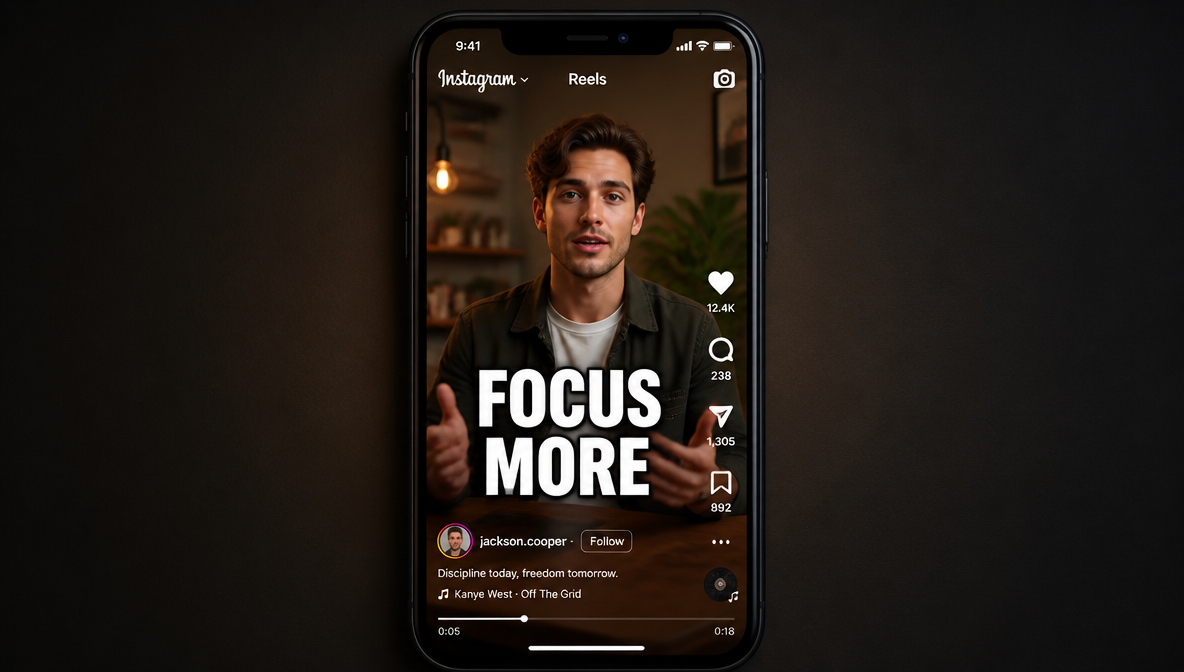
- In the Reels editor after uploading your clip, tap the Captions sticker from the sticker tray
- Instagram auto-generates captions from the audio
- Tap individual words to edit the text
- Publish with captions on
Key Instagram caption style specs:
- Font: Bold sans-serif
- Positioning: Center frame or lower center
- Animation: 2–3 word phrases
- Size: Large
- Color: High-contrast against the footage
- Outline or shadow: Always
Subtitle Formatting Guidelines
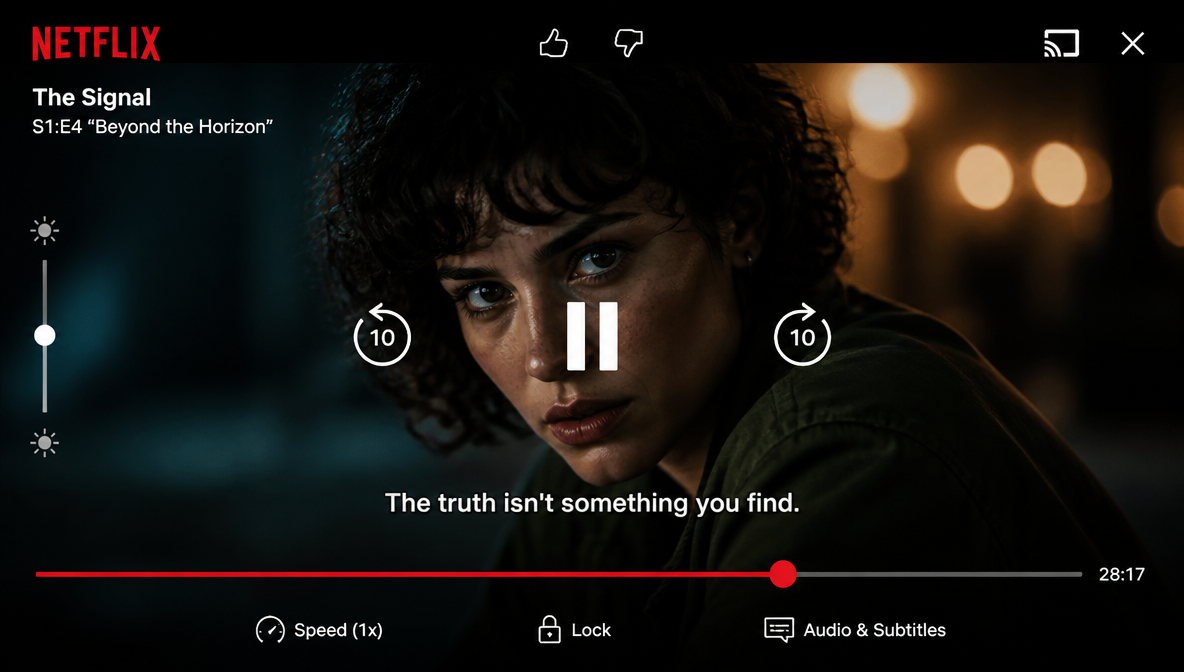 Netflix-style captions
Readable subtitles follow a consistent set of rules around line length, reading speed, and display time. This is most widely referenced subtitle style standard in the industry, and its rules apply equally to Netflix, broadcast, streaming, and social media content.
- Maximum 42 characters per line. Lines longer than this force the viewer to read too quickly or require the subtitle to occupy too much of the frame.
- Maximum 2 lines on screen at once. More than two lines covers too large a portion of the video.
- Minimum display time: 5/6 of a second (0.833 seconds). Shorter display times flash too quickly for most viewers to read.
- Maximum reading speed: 17 characters per second for adult content; 13 characters per second for children's programming.
- Split lines at natural breaks: at a conjunction, at a comma, or between clauses. Never split a phrase mid-word or cut a name across two lines.
- Italics for off-screen voices, foreign language dialogue within a primarily same-language video, song lyrics, and titles.
- White text on a semi-transparent dark background. This maintains readability against both light and dark footage without covering the visual content underneath.
- Default position: bottom-center of frame. Move captions to the top when a speaker or key visual element is at the bottom.
AI caption tools that offer preset styles apply most of these rules by default. When you select a preset in ImagineArt Captions, the character limits, contrast ratio, and default positioning are configured automatically, which removes the manual formatting step from the process.
Ready to Add Subtitles to Video?
Adding subtitles used to mean leaving the video editor, working in a separate transcription or captioning tool, and re-importing the finished file. ImagineArt Captions keeps that entire process in one place: auto-transcription from your reference video, translated subtitles in multiple languages, preset styles with a visual preview, and position control are all part of the same editing workflow. For creators adding captions to social media content at any regular volume, that reduction in steps is where the actual time saving comes from.
Frequently Asked Questions
What is the easiest way to add subtitles to a video?
The easiest method is an AI caption generator that add subtitles automatically from the video's audio. Upload the video, select a style preset and position, review the transcript for any errors, and export. ImagineArt's Captions feature covers this in one workflow, with multilingual support and visual style previews included.
How do I add subtitles to a video automatically?
Upload your video to an AI caption tool and select the source language. The tool transcribes the audio and generates a timed subtitle track. Review the transcript to correct any proper nouns or technical terms before exporting.
How do I add subtitles to a video for free?
Most AI video editors offer a free tier with AI caption generation. ImagineArt's free plan includes 100 daily credits, CapCut is free, YouTube Studio generates closed captions automatically for free on YouTube uploads.
How do I add subtitles to a video for free without a watermark?
ImagineArt and CapCut is free with no watermark on most exports. YouTube Studio is free for YouTube uploads. DaVinci Resolve is free for desktop editing with manual SRT file import.
How do I add multilingual subtitles in a video?
ImagineArt AI caption generator handles translation within the Captions workflow. You select the target language and the translated subtitle track is generated in the same step. For most social media content and common language pairs, machine translation accuracy is sufficient, though human review is recommended for brand-sensitive or compliance content.
What is the best subtitle file format — SRT, VTT, or ASS?
SRT is the right choice for most use cases. It is supported by every major editing tool and platform. VTT is required for HTML5 web players and certain platform accessibility compliance standards. ASS supports advanced styling for specialized workflows but is not necessary for standard video production.
Tooba Siddiqui
Tooba Siddiqui is a content marketer with a strong focus on AI trends and product innovation. She explores generative AI with a keen eye. At ImagineArt, she develops marketing content that translates cutting-edge innovation into engaging, search-driven narratives for the right audience.