
Syed Anas Hussain
June 11, 2026 • Updated July 8, 2026
7 mins Read
The ImagineArt MCP server is one command away from being live inside Claude Code or Codex CLI — but the exact transport flag, the right verification step, and the three places things commonly break are scattered across different documentation pages. I've set this up on both agents, hit the errors people don't warn you about, and this is the guide I wish I'd had the first time.
For Claude Code: claude mcp add imagine --transport http https://mcp.imagine.art.
For Codex CLI: add [[mcp_servers]] with name = "imagine" and url = "https://mcp.imagine.art" to ~/.codex/config.toml.
Both connect to the same server — same tools, same credit balance across either agent.
What the ImagineArt MCP Server Actually Does
The ImagineArt MCP is a hosted HTTP server at https://mcp.imagine.art. Connect it to your agent and you get six tools that become native agent capabilities: text-to-image generation, text-to-video (up to 10-second clips), background removal, 4x upscaling, music generation, and balance inquiry.
The practical difference: instead of switching to a browser tab to generate a hero image mid-session, you ask your agent directly. The generation happens inline, a URL comes back in the conversation, and you keep working. No context switch, no app hopping, no flow interruption.
The AI Image Generator is one of the core capabilities the MCP exposes — what you're doing when you connect this server is making that generation accessible from inside any agent session, without opening a browser.
If you want a deeper explanation of the MCP protocol itself before diving into setup, What Is an MCP Server? covers the concept from a creator's perspective. This guide skips that background and gets straight to the connection steps.
What You Need Before You Start
There's almost nothing to prepare:
- Claude Code (free at claude.ai/code) — or Codex CLI (free at openai.com/codex). You don't need both; set up whichever you're using now
- An ImagineArt account — free tier gives you 100 credits per day with no credit card required
- Node.js 20+ if you're running Claude Code locally (most install packages handle this automatically)
- That's it. ImagineArt MCP uses OAuth, so there's no API key to generate, no header configuration, and no separate billing setup
One note before you start: if you eventually use both Claude Code and Codex CLI, the same ImagineArt account connects to both. Your daily credit balance is shared — not doubled.
How to Add ImagineArt MCP to Claude Code
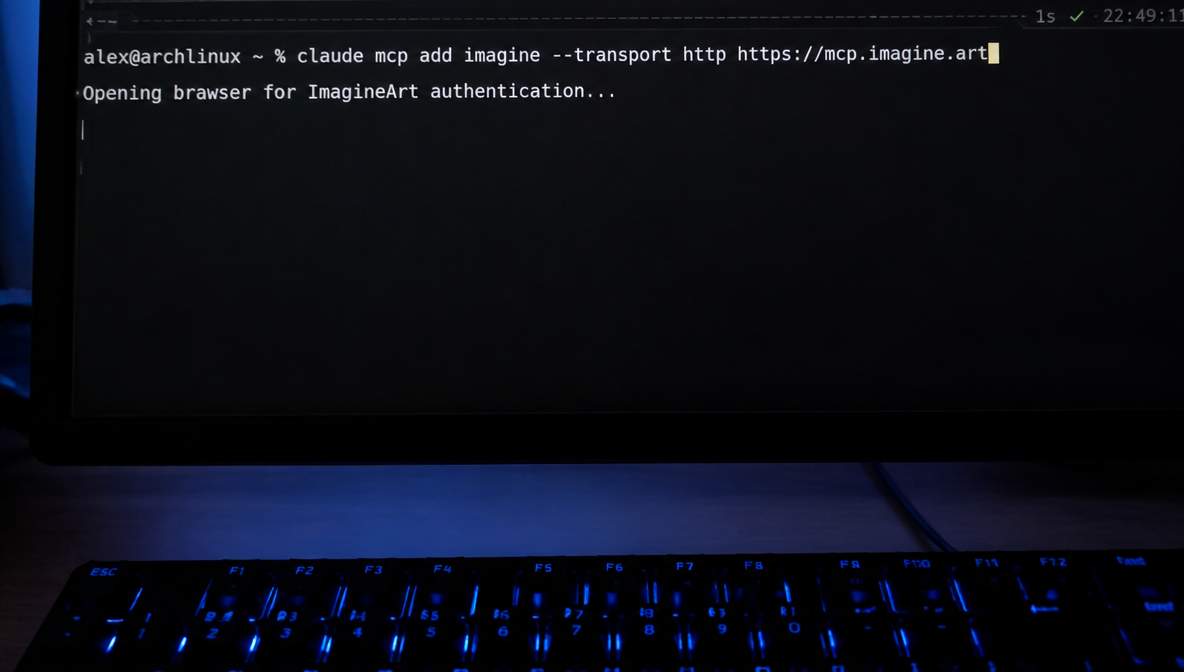
Open your terminal and run this single command:
claude mcp add imagine --transport http https://mcp.imagine.art
What each part does:
claude mcp add— Claude Code's CLI command for registering a new MCP serverimagine— the local name you're assigning to this server--transport http— specifies HTTP transport, required for any remote hosted MCP serverhttps://mcp.imagine.art— the server endpoint, exact URL with no trailing slash
After running the command, Claude Code opens an OAuth prompt in your browser. Sign in with your existing ImagineArt account. The token is stored locally — you won't re-authenticate each session.
Verify the connection:
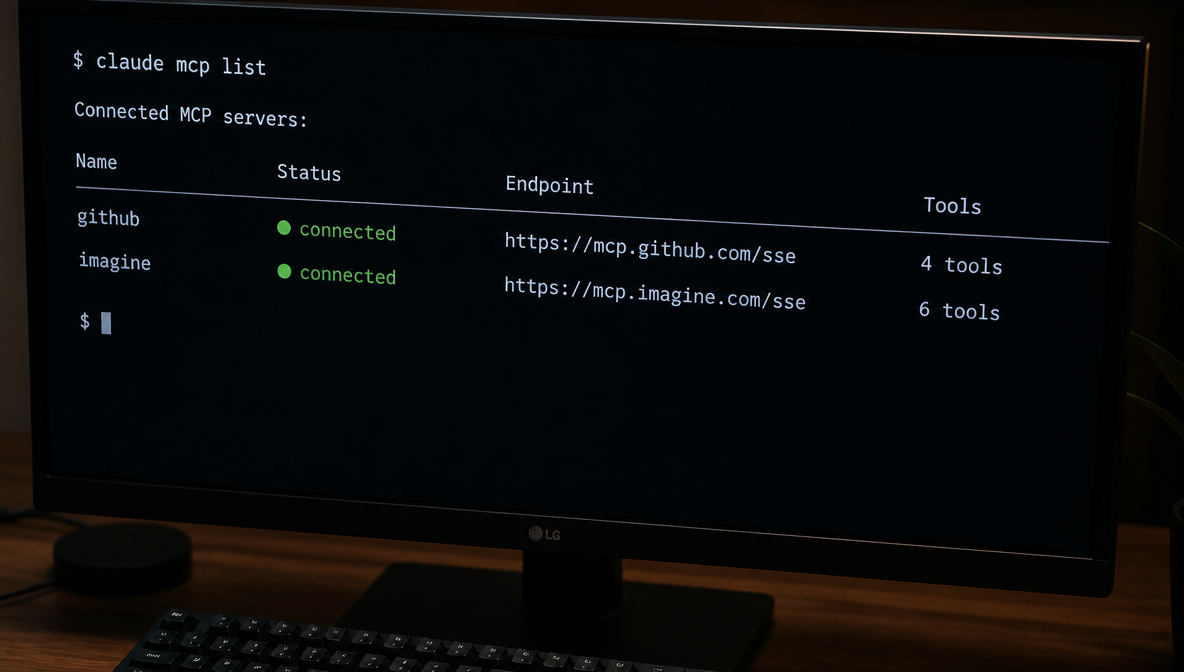
claude mcp list
You should see imagine listed with a connected status and the endpoint URL. If you see a yellow or red status, jump to the troubleshooting section below.
Set the scope (optional but worth knowing):
By default, claude mcp add registers the server at the user level — available across all your Claude Code sessions everywhere. To scope it to a specific project only:
claude mcp add imagine --transport http https://mcp.imagine.art --scope project
This writes the configuration to your project's local settings file rather than the global ~/.claude/settings.json. Useful if you want creative generation tools active in some projects but not others.
For a deeper look at how Claude Code handles MCP configuration across scopes — including CLAUDE.md and 26 lifecycle hooks — Claude Code vs Codex: How MCP Support Compares covers the architectural difference.
How to Add ImagineArt MCP to Codex CLI
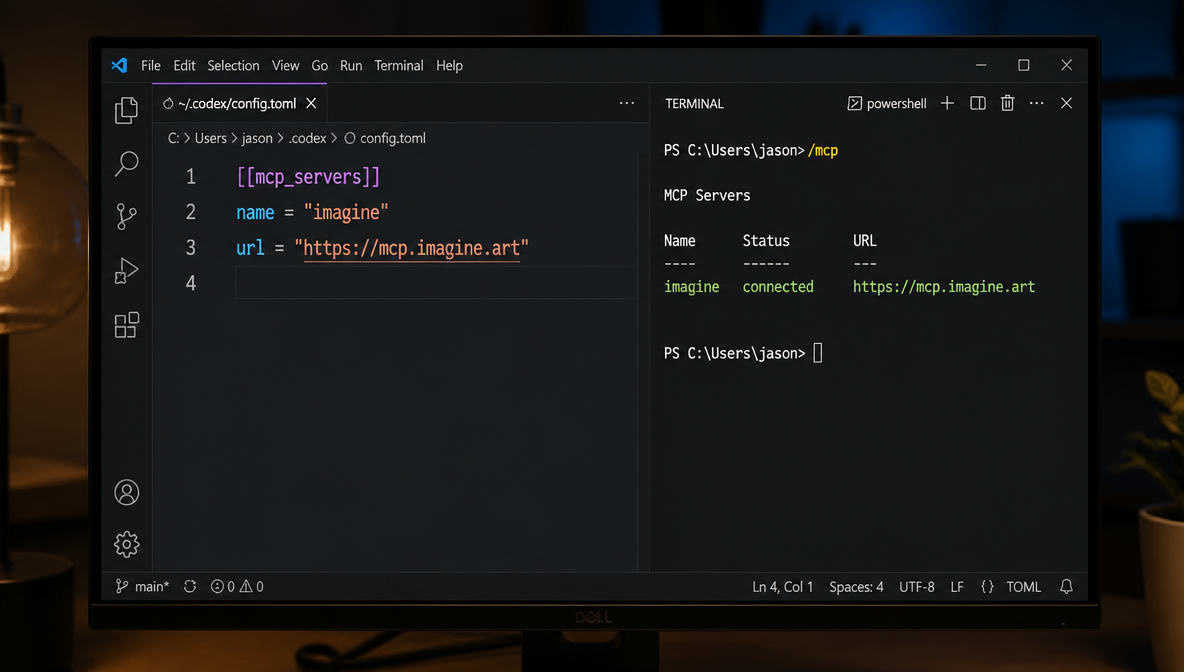
Codex CLI stores MCP configuration in a TOML file. Open ~/.codex/config.toml (create it if it doesn't exist) and add:
1[[mcp_servers]]
2name = "imagine"
3url = "https://mcp.imagine.art"
Save the file and start a new Codex CLI session.
Verify the connection:
In an active session, run:
/mcp
The terminal interface will show your connected servers. imagine should appear with a connected status and the tool list below it.
If you're using the Codex web/app interface rather than the CLI, the process is different: search "ImagineArt" in the plugin marketplace and install with one click. The same https://mcp.imagine.art endpoint connects behind the scenes.
A note on credit balance: whether you connect via Claude Code or Codex CLI, you're hitting the same ImagineArt MCP server with the same account. Your 100 free daily credits are shared across both agents — not separate pools.
Your First Generation — Verifying the Connection Works
claude mcp list tells you the server is registered. The real test is a successful generation.
In Claude Code, start a new session and type:
Generate a clean product photo of a white coffee mug on a marble surface.
Studio lighting. Square format. Minimal.
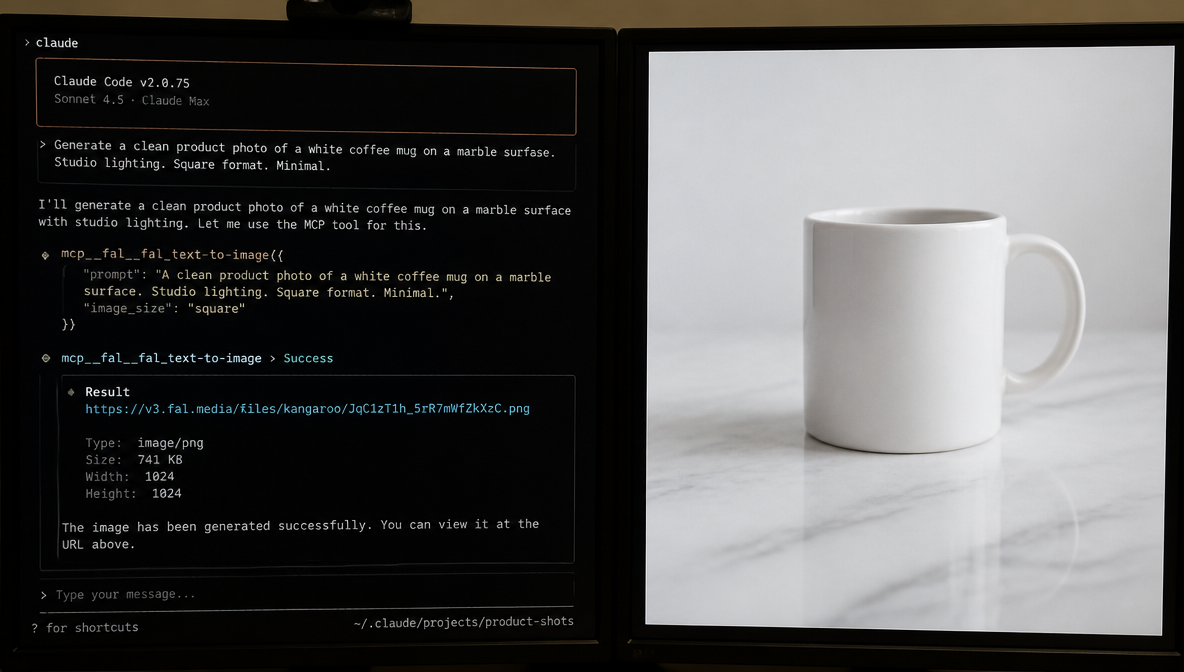
If the MCP is connected, Claude Code will recognize this as an image generation request, route it to the imagine server automatically, and return a URL or embedded image in the session.
What you should NOT see: Claude responding with text that describes an image rather than generating one. If Claude writes a description instead of returning a URL, the MCP connection isn't active. Run claude mcp list again and check the server status.
The same prompt works in Codex CLI — same server, same output. Once you've confirmed the connection is live, how to generate images in Claude Code covers prompting technique, aspect ratios, style modifiers, and real use cases in depth.
Troubleshooting Common MCP Connection Issues
Server not appearing in claude mcp list:
Almost always a URL error. The correct endpoint is https://mcp.imagine.art — no trailing slash, no path segment. Run claude mcp remove imagine and re-add with the exact URL.
Transport type error:
Check that --transport http is in your command. Without it, Claude Code defaults to stdio, which doesn't work for a remote HTTP server.
OAuth loop without completing:
Clear your browser cookies for imagine.art and try again in a private window.
Codex config.toml not recognized:
Check: (1) file is at ~/.codex/config.toml exactly, (2) syntax uses double brackets [[mcp_servers]], (3) no tabs — TOML uses spaces.
Generation returns a description instead of an image:
The MCP is connected, but the agent isn't routing to it. Be explicit on your first call: "Use the ImagineArt MCP to generate: [prompt]" or "Call the imagine tool to create: [prompt]." Once the agent learns the routing pattern, it handles subsequent requests automatically.
Using MCP Inspector:
Run claude mcp dev to open the built-in inspector, select the imagine server, and call tools directly to see raw request/response output. The fastest way to isolate whether the issue is the connection, authentication, or agent routing.
FAQs
Run: claude mcp add imagine --transport http https://mcp.imagine.art. After the command executes, authenticate via OAuth with your existing ImagineArt account. Confirm the connection with claude mcp list — the 'imagine' server should show a connected status with the endpoint URL.
Open ~/.codex/config.toml (create it if it doesn't exist) and add: [[mcp_servers]] on the first line, then name = "imagine" and url = "https://mcp.imagine.art" on the following lines. Save, restart your Codex CLI session, and verify with /mcp in the session terminal interface.
Yes. The ImagineArt MCP server has a free tier with 100 credits per day — no credit card required. You authenticate using your existing ImagineArt account. The free tier is enough for meaningful creative sessions, and the credit balance is shared across Claude Code, Codex CLI, and any other connected agents.
Yes. Both agents connect to the same ImagineArt MCP server and the same account. Your daily credit balance is shared across both — not doubled. You can authenticate on multiple agents at the same time without conflict.
The most common causes: (1) URL typo — the correct endpoint is https://mcp.imagine.art with no trailing slash, (2) missing --transport http flag in the add command, (3) incomplete OAuth flow. Remove and re-add: run claude mcp remove imagine, then claude mcp add imagine --transport http https://mcp.imagine.art and authenticate again.
The ImagineArt MCP server exposes six tools: text-to-image generation, text-to-video (up to 10-second clips), background removal, 4x image upscaling, music generation, and balance inquiry. All six tools are available in both Claude Code and Codex CLI after setup.
No. Once registered with claude mcp add, the server persists in your Claude Code configuration. At the user scope, it's available across all future sessions automatically. At the project scope, it's available whenever you open that project. You only need to re-authenticate if your OAuth token expires, which is rare.
Syed Anas Hussain
Syed Anas Hussain is a computer scientist blending technical knowledge with marketing expertise and a growing passion for AI innovation. Curious by nature, he dives into new AI sciences and emerging trends to produce thoughtful, research-led content. At ImagineArt, he helps audiences make sense of AI and unlock its value through clear, practical storytelling.