
Tooba Siddiqui
February 10, 2026 • Updated July 10, 2026
14 mins Read
You capture the perfect shot: the framing is right, the camera angle is perfect, and then you notice a random person just walked into your frame. Frustrating, right? The good news is you can remove any object/person from your videos in just a few clicks and turn your chaotic video into an Insta-worthy post. It’s magic, but with an AI charm to it.
What Is AI Video Object Removal?
The name says it all: employing AI techniques to remove object from video. However, AI doesn’t simply erase an object; it reconstructs the background and intelligently fills in the space to ensure perfect scene composition and high quality. Unlike the conventional rotoscoping approach, AI video object removal apps analyze the frames completely and isolate the object to ensure smooth deletion.
With AI video object removal apps, you can:
- Make anyone disappear from your video, be it a photobomber or a random stranger ruining the shot.
- Remove watermark from video and even logos and text overlays.
- Clean up background clutter.
- Reconstruct scenic backgrounds and improve composition.
Explore more about how to remove object from video on the ImagineArt blogs.
Two Ways AI Removes Objects from Video
Not all AI object removal tools work the same way. Understanding the method matters because each has different trade-offs for accuracy, speed, and control.
- Brush-based selection
You manually paint over the object you want removed — frame by frame or via tracking. The AI then reconstructs the background in the selected areas. More precise for complex scenes, overlapping subjects, or objects that are hard to describe. Used by: CapCut, RunwayML, Fotor, AniEraser, Filmora, DaVinci Resolve.
- Prompt-based removal
You describe the object in text ("the microphone in the upper right corner," "the logo on the white shirt") and the AI detects, tracks, and removes it across the full video without manual selection. Faster for clearly defined objects, requires less manual work, but depends on how well the AI interprets the description. Used by: ImagineArt.
Which to choose:
Use brush-based when you need pixel-level precision or the object is visually ambiguous. Use prompt-based when the object is clearly identifiable and you want to process the full clip without frame-by-frame work.
Quick Comparison: AI Object Removal Tools
| Tool | Method | Free Tier | Starting Price | Video | Batch | Best For |
|---|---|---|---|---|---|---|
| ImagineArt | Prompt-based | Yes | $9/month | Yes | No | Fast removal of defined objects |
| CapCut | Brush-based | Yes | $19.99/month | Yes | No | Mobile, social content |
| RunwayML | Brush + keyframe | Yes (watermarked) | $12/month | Yes | No | Complex scenes, moving camera |
| Fotor | Brush-based | Yes (limited) | $8.99/month | Yes | No | Multi-platform content |
| AniEraser | Brush-based | Yes (3 credits/day) | $7.99/month | Yes | Yes | Subtitles, batch processing |
| Adobe Premiere Pro | Mask + Content-Aware Fill | No | $22.99/month | Yes | No | Studio-quality professional work |
| DaVinci Resolve | IntelliTrack + Patch Replacer | Yes (free version) | $295 one-time | Yes | No | Color + VFX professional pipeline |
| Filmora | Smart Brush + Magic Box | No | $49.99/year | Yes | No | Beginners, short clips |
| Unscreen | Automated foreground isolation | No | $4.99/min | Yes | Yes (API) | Background-only removal |
| HitPaw | Magic Selection Brush | No | Verify pricing | Yes | No | Quick single-clip edits |
Top 10 AI Tools to Remove Object From Video
If a passerby, background clutter, or misplaced prop is ruining your video quality, try one of these AI video object removal tools and speed up your video production workflow. I have tried and tested a couple of these apps to remove object from video and found them to be incredibly useful for both beginner-level and professional video editors.
1. CapCut (AI Object Remover)
This is one of the most famous AI video editing tools. CapCut comes with an intuitive interface, allowing you to remove objects, people, text, and logos while retaining the video quality and background inpainting. It is best for social media creators, quick edits, and beginner-level video editors. The AI video editing app is available for both mobile and desktop users.
Key Features
- The ‘AI Remove’ tool fills in the empty space and creates a seamless and cohesive background by analyzing the surrounding pixels.
- CapCut lets you experiment with manual masking and cloning as well. It lets you duplicate your video, apply a mask over the clean area, and place it over the unwanted object.
- The AI Video Object Removal tool comes with customizable brush sizes for the precise selection of unwanted objects.
- It retains the visual sharpness and quality without compromising the video resolution.
Pros
- Intuitive interface
- No downloads or technical skills
- Free access offers multiple video editing features.
Cons
- Lacks features to support advanced VFX editing
- Processing a longer or more complex video might take more time on the mobile app than the desktop software.
Pricing
- The monthly plan costs around $19.99 for individual users.
- The team plan costs around $24.99 per month, designed for collaborative work.
2. ImagineArt Video Object Removal App
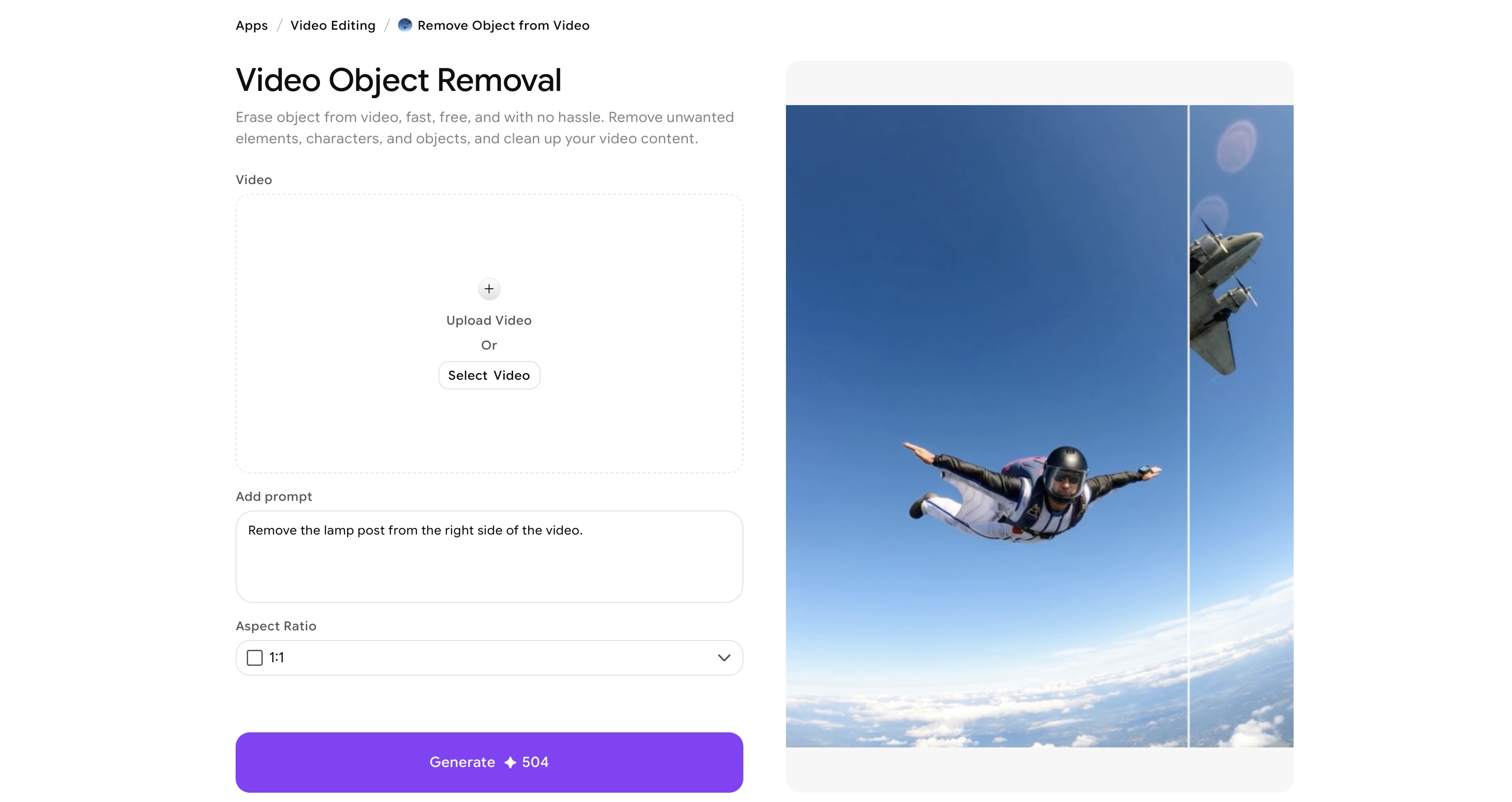 ImagineArt Video Object Removal app
ImagineArt Video Object Removal app offers a user-friendly interface. To remove object from video, you simply upload your video and add a prompt to guide the AI about the object to erase. You can prompt to remove watermark from video, a logo, or even a moving object. It makes video cleanup effortless, while preserving video quality.
Key Features
- ImagineArt Video Object Removal app features intelligent background and scene reconstruction, retaining context, style, texture, and lighting as the object is removed.
- The tool supports multiple video formats, orientations, aspect ratios, and video lengths and resolutions.
- The AI tool analyzes the frames to detect the object and predict motion, which reduces ghosting and visual artefacts, particularly when dealing with objects in motion.
- ImagineArt offers a built-in AI video editor that lets you further refine the generated video and edit multiple elements.
- Beyond AI object removal, the platform also offers ImagineArt Video Object Replace app to remove unwanted elements and add different ones.
Pros
- Available upon free access with daily free credits
- Prompt-based editing for more creative control
- No learning curve
Cons
- Requires a comprehensive prompt description for accurate results
- Requires a stable internet connection
Pricing
- The basic plan costs around $10/month with 18k credits per year.
- The professional plan costs around $41/month with 180k credits per year.
- The creator plan costs around $80/month with extensive credits and advanced access.
3. Fotor
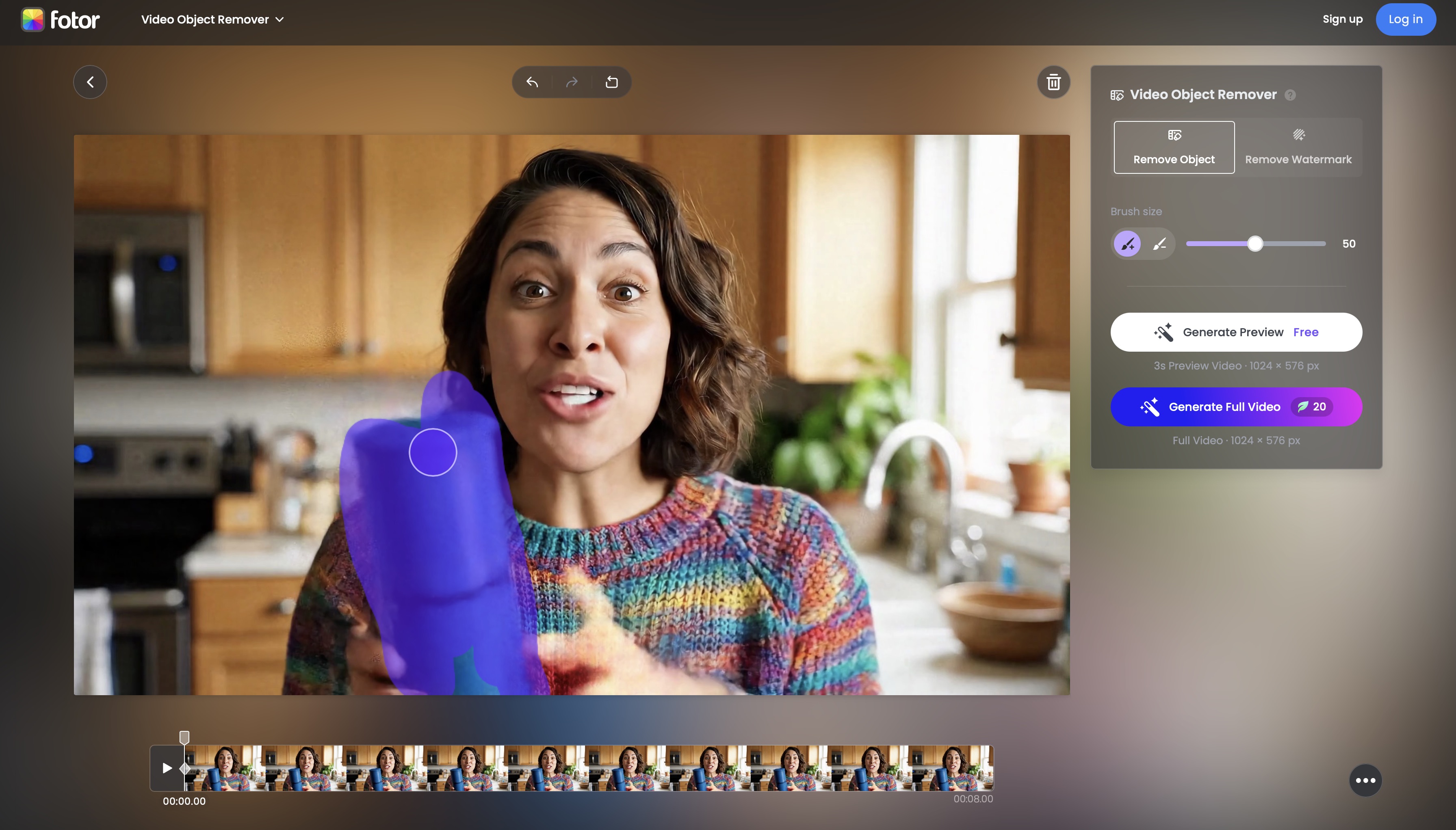 Fotor Video Object Removal tool
Primarily popular for video editing features, Fotor lets you erase distractions by brushing over the unwanted elements. It is a browser-based AI video editing tool to clean footage for creators and beginner-level users who want quick and quality results.
Key Features
- Fotor comes with a ‘brush’ tool to remove object from video. You can even mark the subtle shadows to clean up your video.
- The ‘AI Replace’ feature lets you remove and add different object in place of the existing ones using a simple text-based description.
- Fotor video object removal tool supports 4K resolution and MP4 file formats.
- It comes with an easy-to-use interface.
Pros
- Great for multi-platform content
- Has workflow automation
Cons
- Requires a stable internet connection
- Requires a learning curve for full capabilities
Pricing
- The pro plan costs around $8.99/month.
- The pro+ plan costs around $19.99/month.
- AI video object removal requires 20 credits per video processing.
4. AniEraser
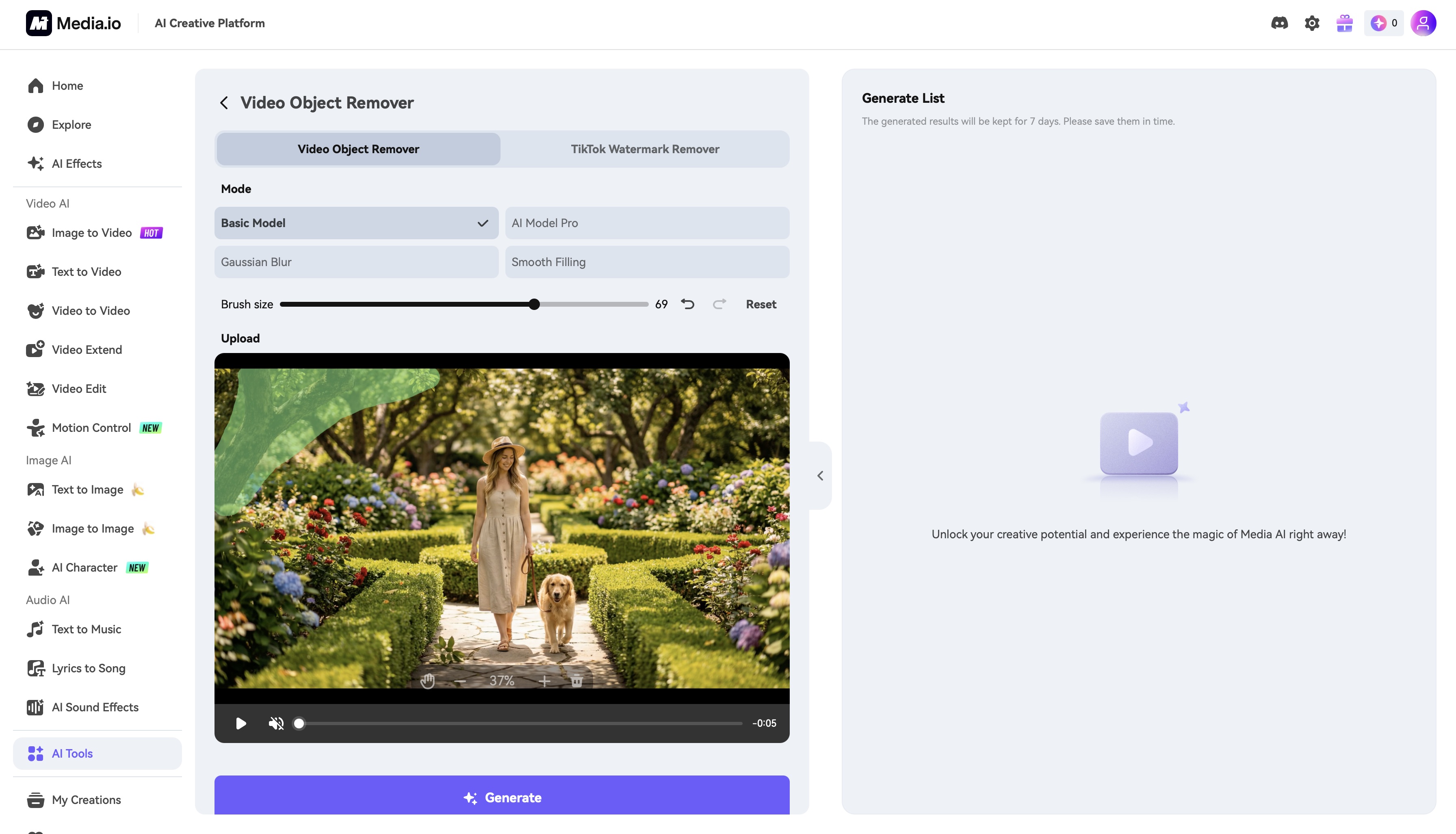 Remove Object from Video with Media.io tool
With AniEraser, you can remove people, text, watermarks, objects, and even shadows by simply marking the area you want to remove. It lets you remove multiple objects at a time with an intuitive interface. The AI video tool is available across desktop, iOS, and web-based platforms.
Key Features
- The brush-based interface lets you brush multiple unwanted objects and remove them in one go.
- It supports batch processing, letting you edit multiple videos simultaneously.
- It comes with a dedicated feature to remove hardcoded captions orsoft subtitles from videos, without sacrificing the quality or scene composition.
- It supports customizable brush sizes for precise object selection.
Pros
- Purpose-built for object removal
- Can handle and edit moving objects quite well
Cons
- Restricted advanced video editing features
- Works well with simpler scenes
Pricing
- The free plan comes with 3 daily check-in credits.
- The standard plan costs around $7.99/month with 200 credits/month.
- The premium plan costs around $13.99/month with 600 credits/month.
5. RunwayML
RunwayML is a comprehensive AI video generation platform with incredible video editing capabilities. The platform is quite famous among professional filmmakers, creators, and even animators. AI platform for creatives and pros, with strong object removal and inpainting features that work with both static and moving elements.
Key Features
- Runway ML comes with a dedicated inpainting tool that lets you draw a mask over the unwanted object, and the AI removes and replaces it with acurately generated background.
- The platform offers dedicated apps to remove object from video using a brush-based interface.
- Runway ML allows you to create keyframes for accurate object tracking and manipulation.
- It offers a dedicated in-context video editing model, ‘Runway Aleph’, that can transform your footage using text-based prompts.
Pros
- Works well with both static and moving objects.
- Comes with improved integration with creative workflows
Cons
- Complex shots might result in ghosting and artefacts.
- Higher resolution exports require a premium plan.
Pricing
- The free plan comes with 125 one-time credits and watermarked videos.
- The standard plan costs around $12/month with 625 credits/month.
- The pro plan costs around $28/month with 2250 credits/month.
Recommended read: Runway AI Pricing
6. Adobe Premiere Pro (Content-Aware Fill)
Adobe remains the industry standard when it comes to video editing. Adobe Premiere Pro with AI-powered context-aware fill feature is a revolutionary tool for professional video editors, studios, and creators.
Key Features
- The context-aware fill feature via After Effects lets you remove moving objects, replace textures, and blend edge pixels to eliminate static imperfections.
- The Object Mask tool lets you hover over the unwanted object, tracks it movements, and automatically select and remove it.
- The Roto Brush tool helps you isolate complex moving objects and replace them.
- It also features a ‘dust and scratch effect’ to remove lens flare, dust, or minor distractions by blurring the area.
- The Clone Stamp tool enables you to paint over the unwanted area bycopying pixels from another part of the frame.
Pros
- Studio-quality results
- Incredible for advanced VFX editing
Cons
- Steep learning curve
- Unstable and frequent upgrades might disrupt the video workflows.
Pricing
- The single app plan costs around $22.99/month.
- The all apps plan costs around $59/month with 20+ apps.
- The student/teacher plan costs around $24.99/month with all apps.
- The business plan osts aorund $99.99/month per license.
7. DaVinci Resolve (AI Tools)
Probably one of the only AI tools that has been used for post-production editing of Hollywood movies like Avatar, Deadpool 2, and other studio films. It comes with an optional paid studio and offers precise contextual fills and object removal capabilities.
Key Features
- DaVinci Resolve offers a dedicated studio tool in the color page for object removal effects. It lets you add a mask to the unwanted object and fill the area with background data.
- The IntelliTrack AI tool helps you to track the moving object precisely.
- The Patch Replacer tool lets you clone background elements by patching one part of the video with another.
- It also offers a manual rotoscoping tool for complex moving objects, while ensuring precise removal.
Pros
- The free version comes with many editing features.
- Offer, video editing, color grading, VFX, and audio design in one place
Cons
- Can be overwhelming for beginner-level editors.
- Requires robust hardware and setup.
Pricing
- The free version comes with no watermarked content and advanced editing tools.
- The DaVinci Resolve Studio costs around $295 with neural engine, 4K, higher fps, 3D rendering, and advanced effects. It is a one-time purchase with activation on up to 2 machines.
8. Wondershare Filmora
Wondershare Filmora is another one of the most popular and commonly used AI video object removal tools with a drag-and-drop user interface. It works with erasing static objects, text, watermarks, and in the latest version, it supports moving object removal.
Key Features
- Wondershare Filmora offers Smart Brush and Magic Box tools that let you select the unwanted elements using a brush or a selection box to cover the target object.
- It tracks the moving object across different frames and removes it with accuracy.
- The ‘AI Portrait Cutout’ feature lets you isolate the individuals from the background and replace them with some other character or remove them completely.
- The ‘AI Face Mosaic’ feature detects the faces and blurs them to hide identities and protect privacy.
Pros
- Comes with refinement tools to adjust andclean up edges
- Good balance of power and simplicity
Cons
- Less control than professional-grade tools
- Works best on shorter clips.
Pricing
- The annual subscription costs around $49.99 with access to all features and 1GB cloud storage.
- The perpetual license costs around $79.99, a one-time purchase with 1000 credits.
- The cross-platform plan costs around 69.99/year.
9. Unscreen Pro / Unscreen AI
Unscreen’s focus is on background and object elimination using powerful machine learning models, particularly where the object does not overlap too heavily with the main subject.
Key Features
- The Unscreen Pro video object removal tool isolates the foreground subject from the background and removes the objects without requiring any manual rotoscoping.
- The tool supports higher resolution videos, including full HD and 4K exports.
- It doesn’t add watermarks to the edited video, making it ideal for commercial uses.
- Unscreen Pro offers API access for integration with apps and certain plugins for Adobe workflows.
Pros
- Supports format versatility
- Faster and more efficient video editing
Cons
- Can struggle to remove object from video with complex scenes.
- Doesn’t support advanced video editing features
Pricing
- The pay-as-you-go costs around $4.99 per minute.
- The plus plan costs around $9.99/month with unlimited videos and no watermarks.
- The pro plan costs around $99/month with 10,000 credits and 4K support.
10. HitPaw
HitPaw video object removal tool comes with selection tool to remove or replace backgrounds and objects in the video. The AI video tool lets you remove moving objects with automtated tracking system. It supports both Mac and Windows. According to many users, it takes only 3 seconds to process most video editing tasks.
Key Features
- HitPaw comes with a Magic Selection Brush that lets you select the unwanted object and removes with precision.
- It lets you remove and update backgrounds and fine-tune the area with selection adjustment.
- It features instant previews and lets you preview the video before exporting.
- It supports multiple video formats, including MP4 and MOV.
Pros
- Very easy to use
- Great for quick edits
Cons
- Doesn’t work well with heavy or complex scenes
Pricing
- The one-month license costs around $69.99
- The one-year license costs around $99.99
- The perpetual license costs around $109.99, one time price
How to Choose the Right AI Object Removal Tool
By workflow type
- You want the fastest result with minimal setup → ImagineArt (prompt-based, no manual selection)
- You need pixel-level precision for complex scenes → RunwayML or DaVinci Resolve
- You're editing on mobile → CapCut
- You're removing subtitles or captions at scale → AniEraser (batch processing)
- You need professional broadcast-quality output → Adobe Premiere Pro or DaVinci Resolve Studio
By budget
- Free → CapCut (free tier), DaVinci Resolve (free version, no watermark), AniEraser (3 daily credits), ImagineArt (daily credits)
- Under $15/month → AniEraser ($7.99), RunwayML Standard ($12), Fotor Pro ($8.99), ImagineArt ($9)
- Professional one-time → DaVinci Resolve Studio ($295 lifetime license, no subscription)
Quick use-case picks
- Watermark removal → ImagineArt or AniEraser -Removing a person from background → ImagineArt or RunwayML
- Removing equipment (boom mic, rig) → ImagineArt (prompt-based is faster for static equipment)
- Complex moving objects in busy scenes → RunwayML or Adobe Premiere Pro
- Budget-free professional editing → DaVinci Resolve
A Final Thought
Import your video, guide the AI about the distraction, and watch it vanish. That stranger in the backgroud, the clutter ruining your shot, or the watermark you completely forgot about — gone within a few seconds. No complicated editing timelines, no expertise needed, let AI do all the heavy-lifting while you export distraction-free and polished videos.
Frequently Asked Questions (FAQs)
On ImagineArt Video Object Removal app, you can upload your video, write a prompt describing the object that you want erase, select the desired aspect ratio, and generate. The AI will instantly remove the unwanted object while preserving the quality of your video.
Yes, you can remove a watermark from video using an AI video editing tool. The AI treats the watermarks as unwanted objects and can easily remove them. Also, keep in mind that some free AI video object removal tools add their watermarks when videos are exported.
ImagineArt AI Video Object Removal app takes a couple of minutes to process and remove unwanted objects. The processing time depends on the video length, video resolution, server load, and complexity of the selected object.
Yes, ImagineArt AI Video Object Removal app can easily detect and seamlessly remove moving objects from your footage. The AI tracks the motion of the object across the frames before removing it so that the rest of the elements remain the same without impacting the scene composition or quality.
ImagineArt offers a free tier with daily credits — no payment details required. CapCut is free with full object removal on the free plan. DaVinci Resolve's free version includes IntelliTrack and Patch Replacer with no watermark on exports. AniEraser provides 3 daily check-in credits on the free plan. RunwayML's free tier watermarks exports.
Yes, selectively. Fotor supports 4K input and output. Unscreen Pro supports 4K exports. RunwayML Pro and Adobe Premiere Pro handle 4K professionally. ImagineArt processes standard and high-definition footage — check the current resolution cap in platform settings for 4K workflows.
Tooba Siddiqui
Tooba Siddiqui is a content marketer with a strong focus on AI trends and product innovation. She explores generative AI with a keen eye. At ImagineArt, she develops marketing content that translates cutting-edge innovation into engaging, search-driven narratives for the right audience.