
Tooba Siddiqui
February 11, 2026 • Updated July 6, 2026
10 mins Read
You finally capture the perfect video. The lighting is right. The framing is clean. Your subject is on point.
And then… someone casually walks through the frame.
- A stranger in the background.
- A passerby crossing your product shoot.
- A pedestrian stepping into your real estate walkthrough.
- A tourist you didn’t notice while recording a travel video,
your perfect shot is in short, ruined.
Traditionally, it meant only one thing: reshooting.
Or worse: sit for long hours and manually edit, rotoscope, and try to mask the person frame by frame in complicated editing software.
Today, AI has completely changed this.
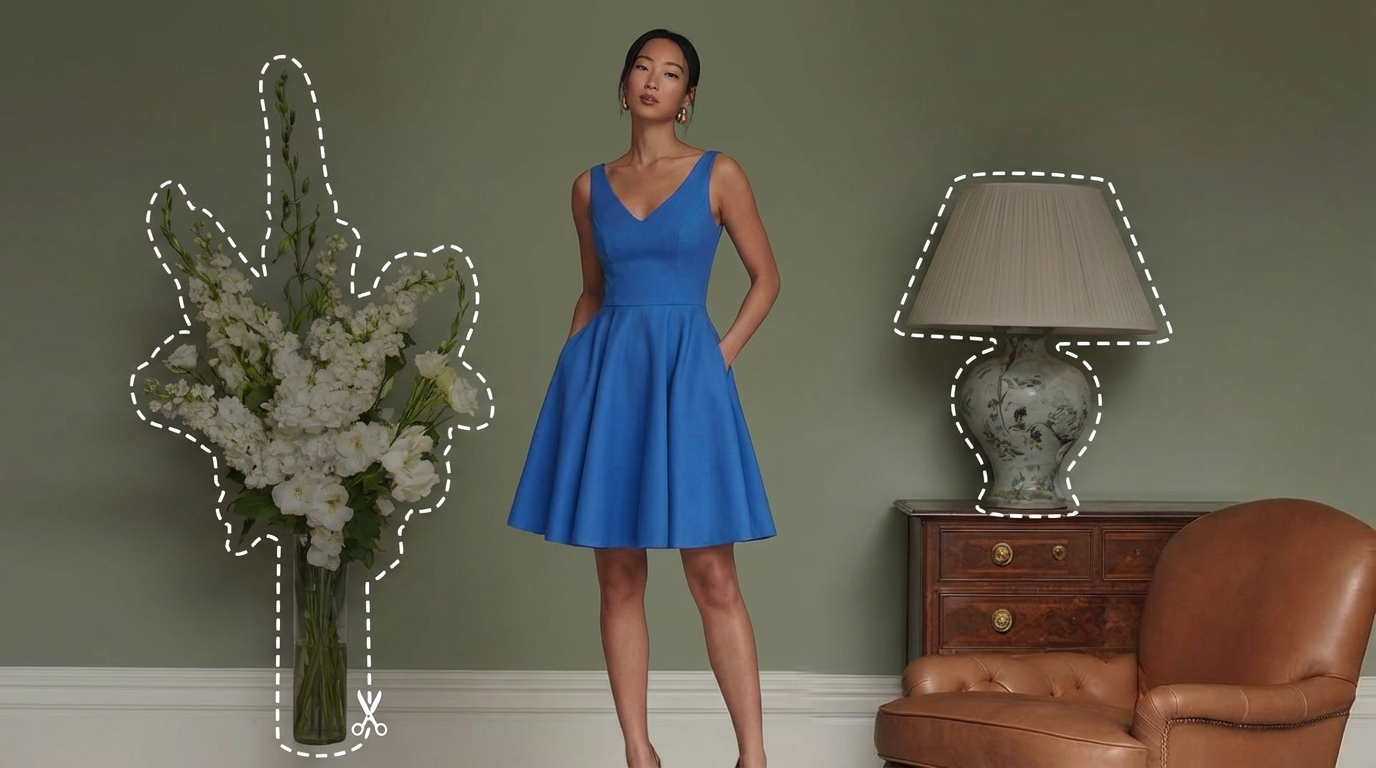
You no longer need advanced editing skills or expensive post-production workflows to clean your footage. With AI Video Object Removal and AI Video Object Replace tools, you can remove a person from your video in minutes, even if they’re moving, yet the background will intelligently reconstruct as if they were never there.
Step-by-Step: Remove Person from Video Using ImagineArt
With ImagineArt AI Video Object Removal app, you can erase any object, person, or even shadows and improve the visual quality of your videos. You can even create your own videos using ImagineArt AI Video Generator. Here’s how you can remove object from video with AI:
Step 1: Upload Your Video
Go to ImagineArt website, click on the ‘ImagineArt apps’ and select the ‘video editing’ category on the Apps page. Upload your video on ImagineArt Video Object Removal app.
For accurate results:
- Use well-lit videos
- Avoid using extremely shaky videos.
- Make sure the person to be removed is clearly visible from the background.
ImagineArt supports all video formats, including MP4, AVI, MOV, and more.
Step 2: Add Prompt to Remove Person from Video
Once your video is uploaded, mention the person you want to erase from your video. Describe the person in detail. Add an AI video prompt to remove someone from the frame by adding details about their position, appearance, or outfit to guide AI about who must be removed. Select the required aspect ratio for the generated video from the dropdown menu.
Step 3: Apply AI Video Object Removal
Click on the ‘Generate’ button and let AI analyze the footage. The AI tracks the person and removes them from the video while filling in the background intelligently. The speed of removing object from video depends on the video length, server load, video resolution, and object complexity. The final result is usually generated within a few minutes.
Step 4: Preview
Once generated, view it closely and look for:
- Any faint outlines of the removed person
- Edges that should never be smoothed
- Complex areas that should be edited once again
You can rerun the video object removal process, refine your prompt, or further edit the video using the ImagineArt AI video editor for high precision.
Step 5: Replace Instead of Just Remove (Recommended for Complex Scenes)
In scenes with crowds, moving backgrounds, or complex textures, removing a person can leave a visible reconstruction artifact — the AI fills the gap but the result may not match the surrounding background perfectly.
ImagineArt's Video Object Replace tool solves this: rather than leaving empty space for the AI to reconstruct, you actively replace the removed area with a clean background, a blurred scene, a branded element, or a new object. This produces cleaner results in difficult scenes and gives you creative control over what replaces the person — not just what disappears.
Use standard removal (Steps 1–4) for simple scenes with clear backgrounds. Switch to Object Replace when:
- The background behind the person is complex or patterned
- The person is moving across a dynamic scene
- You want to substitute something specific in place of the removed subject
Step 6: Export
Export your video in high quality. Your footage is now free from unwanted people and distractions and ready for social media posting, marketing and promotional usage, or professional purposes.
Recommended read: How to Remove Object from Video
Why Should You Remove a Person from a Video?
Before we move ahead with the ‘how,’ it is important to know why removing a person from video is crucial for your video content. Such situations are quite common and can happen to anyone, be it creators, marketing professionals, or even a casual traveler capturing the memorable moments in their camera.
Background Distraction
People walking in the background take away all the attention from your main subject, making your content look chaotic. The casual activity of people in the background in product videos pulls away the focus from your item; in vlogs, they clutter and fill in the frame; and in marketing content, they highlight the unprofessionalism of your content creation.
A clean frame and distraction-free shot help the viewer focus on the core message or product, without being diverted by random movement or activity behind.
Privacy and Permissions
While recording content in public, you might unintentionally capture people. Or you might end up filming their personal and intimate moment. Often, while conducting a public survey, people behave inappropriately, which can raise ethical concerns about your content.
Removing unwanted people from video and editing out unnecessary footage keeps your content legible for commercial and social use, while ensuring privacy protection.
Better Storytelling
Every element, frame, and second of your video should support the story you are trying to tell. The text should highlight the key aspects, the music should amplify the emotional tone, the visuals should set the right mood, and the overall video should seem purposeful.
Leaving an unrelated person in the frame breaks the narrative flow and adds to visual noise. Removing such aspects keeps your narrative focused and makes your storytelling intentional.
Repurposing Content and Flexibility
When producing video content in bulk, effective and strategic content repurposing can be quite crucial. You can reuse a social media platform for ads or shorten and enhance your lengthy tutorial to create promotional content. However, an unwanted object in the video can limit how you can reuse the footage.
Removing unwanted objects from video, including people, can make your clip easy to repurpose for versatile use cases.
Professional Visual Quality
For industries like real estate, e-commerce, education, and corporate marketing, clean visuals matter. Background distractions instantly lower the perceived quality of your production.
Removing people instantly upgrades the professionalism of your video.
Video Editing Tips Before Object Removal
AI Video Object Removal app works best when the uploaded video is shot smartly.
Film with Clean Backgrounds
Crowded and cluttered backgrounds make scene reconstruction harder. Simpler scenes and less busy backgrounds give better results.
Ensure Camera Stability
If you are shooting with the purpose of posting online, use tripods to film the scene. Shooting with shaky hands adds motion blur and makes object and subject tracking harder.
Avoid Motion Blur
Fast camera movements like pans, zooms, and rapid tracking shots can create blur trails that can confuse AI.
Use Contrast
If the person you want to remove stands out clearly from the background, removal becomes more precise.
Keep Original Footage
Make sure you always have your original footage saved on your system before editing it. Sometimes, extensive video editing can degrade the video quality; having the original file ensures you have the actual source to refer to. Also, it lets you compare the accuracy of AI video object removal and see how edits affect the scene, helping you refine your workflow.
Use Transitions
There’s a chance that even after AI video object removal, the footage still has minor inconsistencies. Using transitions lets you mask the subtle visual shifts and smoothens the change from one frame to another. A quick fade, dissolve, or a rapid zoom can make the scene more natural.
Advanced Tips: Beyond AI Video Object Removal
Blend Backgrounds for Realism
After a person is removed, even the best AI can sometimes leave slight inconsistencies in the background, such as variations in lighting, color, or texture. To make the edit seamless, try blending the background using gradients, soft light adjustments, or subtle blur. By blending the background, you create a uniform look that feels natural.
Example: In a real estate walkthrough, after removing a passerby from a hallway, a light gradient over the floor or wall area can make it appear as if the person was never there, keeping the scene cohesive.
Include Ambient Elements
Sometimes, a clean background can look too artificial after removal, especially in dynamic environments like busy streets, cafes, or a travel vlog of a touristy location. Adding ambient elements such as a faint blur, slight motion haze, or texture overlays can merge the edited area naturally with the rest of the frame. Such AI reconstruction gives the video a consistent, polished feel.
Example: In a vlog recorded at a busy marketplace, after removing people walking in the background, a soft motion blur on the distant background or a slight vignette can make the edit nearly invisible.
Replace Instead of Delete
Instead of leaving an empty space where the person was, consider replacing the removed subject with something intentional using ImagineArt Video Object Replace. You can replace it with a branded product, a different background element, or even a subtle object that improves the scene composition.
It’s perfect for situations where the original background is complex or too noticeable after removal, and helps maintain visual integrity. However, be intentional with AI video object replacement. The main idea is to make your clip more engaging and polished, not to fill up the space left behind.
Examples:
- In an e-commerce product shoot, if a person is removed from a scene, you could replace them with a branded logo, a blurred background, or another object that enhances the storytelling.
- In travel vlogs, a passerby can be replaced with a decorative element, like a plant, sculpture, or animated overlay, keeping the scene lively without distractions.
Recommended read: AI Video Editing Tips for Beginners and Pros
Mistakes to Avoid When Removing People
- Selecting too large an area will confuse the AI
- Ignoring motion tracking for moving subjects
- Exporting at low quality after editing
- Trying to remove multiple people at once
- Not checking the entire timeline after processing.
Want to remove a person or object from your video?
A single unwanted person in your video no longer means wasted footage, reshoots, or hours of editing. With AI tools to remove object from video, you get cleaner visuals, creative flexibility, professional quality, and faster workflows.
The next time someone walks into your perfect shot, let AI handle it.
Frequently Asked Questions
Yes, ImagineArt AI Video Object Removal app leverage motion tracking technology that follows the person across the frame. This means even if someone is walking, running, or performing actions in the shot, the AI can detect and remove them seamlessly.
When you remove object from video, the app reconstructs the background using advanced inpainting techniques that match lighting, textures, and perspective. This ensures that the final video maintains the same visual quality as the original.
Yes, you can. Simply remove object from video and instead of leaving empty space, replace it with another element using ImagineArt Video Object Replace app. Swap the removed person with branded product, decorative object, or even a different person.
Yes, ImagineArt AI Video Object Removal app is designed to be user-friendly and requires no advanced editing skills. With simple clicks and intuitive tools, beginners can remove or replace objects in videos without dealing with complicated masking, keyframes, or video editing software.
Yes, but process each person separately rather than all at once. Attempting to remove multiple overlapping subjects simultaneously reduces accuracy. Start with the most prominent person, preview the result, then process secondary subjects in separate passes. For heavily crowded scenes — a busy street, a public event — crop-and-reframe or background replacement will produce cleaner results than person-by-person removal.
For personal use, behind-the-scenes cleanup, and content where you own the footage — yes. For commercial content, removing identifiable individuals captured without their consent is advisable regardless of legal jurisdiction. For footage where a person's image has commercial value (a talent, a brand ambassador), verify your licensing terms before removal and redistribution. ImagineArt's processing is private and outputs are not shared publicly by the platform.
Tooba Siddiqui
Tooba Siddiqui is a content marketer with a strong focus on AI trends and product innovation. She explores generative AI with a keen eye. At ImagineArt, she develops marketing content that translates cutting-edge innovation into engaging, search-driven narratives for the right audience.