
Zahida Misher
November 3, 2026 • Updated November 3, 2026
9 mins Read
Every group photo is missing someone. Usually it's whoever held the camera. Learning how to add a person to a photo is easy. Making them look like they were there is the part most guides skip.
Pasted people give themselves away with wrong-side light, no shadow and a head a size too big. Below are four ways in (while you shoot, on an iPhone, in Photoshop and with an AI prompt) and a five-point check that works on all of them. If the photo also needs a stranger removed or a sky fixed, our guide to how to edit photos with AI covers those edits.
What makes an added person look real?
An added person looks real when they share the original photo's light, shadow, scale, camera angle and texture. Adobe built its Harmonize tool to match color, lighting, shadows and tone for exactly this reason.
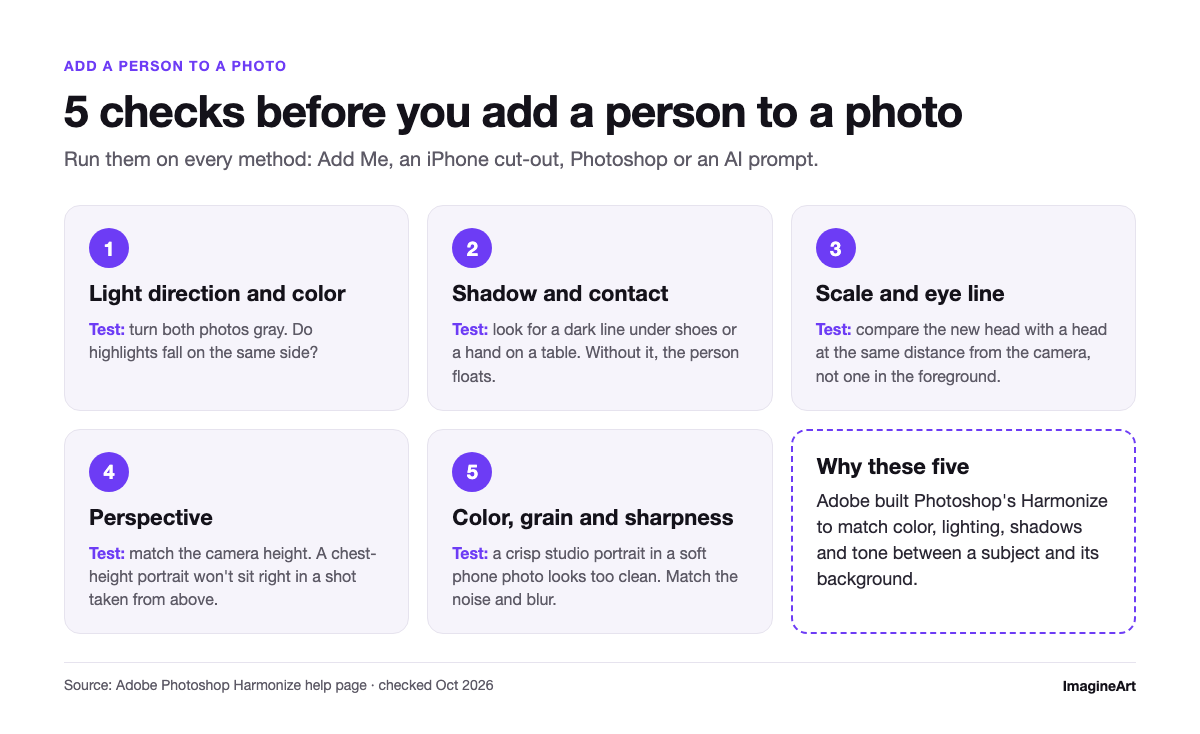 Checklist of five things to match when adding a person to a photo: light, shadow, scale, perspective and grain
- Light direction and color. Turn both photos gray: do highlights fall on the same side?
- Shadow and contact. Look for a dark line under shoes or a hand on a table. Without it, the person floats.
- Scale and eye line. Compare the new head with a head at the same distance from the camera, not with someone in the foreground.
- Perspective. A portrait shot at chest height won't sit right in a group shot taken from above. Match the camera height.
- Color, grain and sharpness. A crisp studio portrait in a soft phone photo looks too clean. Match the noise and blur too.
If the whole frame looks off after a merge, you can also relight the merged photo as one image instead of fixing the newcomer alone.
How to add a person to a photo while you shoot
On a Pixel 9 or later, including the Pixel 9 Pro Fold, Google's Add Me guide describes a two-shot trick:
- Tap Add Me in the camera's photo mode carousel.
- Take the group photo, leaving a space for yourself.
- Swap places with someone so they capture a second photo with you in the group.
- The camera stitches the two versions together.
It has limits. In TechRadar's Add Me test, Lance Ulanoff found it takes no more than two photos per shot, works only with people (not objects, and seemingly not pets) and has no timer, though his two-person result was "essentially perfect". In the Tom's Guide Pixel 9 review, Tom Pritchard found it worked mostly as advertised in about a minute, but it missed a dog in the first shot and guided the photographer onto the dog's spot, removing him. The dog was not consulted.
How to add someone to a picture on iPhone
An iPhone cuts a person out with one long press; placing them happens in another app. Apple's guide to lift a subject on iPhone covers Photos, Safari and Quick Look:
- Open the photo of the person you want to add.
- Touch and hold them to lift them from the background.
- Tap Copy (or Copy Subject), drag the cut-out into another app, or tap Add Sticker.
- Paste it over the group photo in an editor that lets you move and resize it, or upload the original to an AI editor (method four).
That's how to add someone to a picture with nothing but your phone, and the quickest answer to how to put someone in a picture. The catch: a cut-out keeps the light it was shot in. Pick a source whose light roughly matches.
How to add someone to a photo in Photoshop
Photoshop 2026 adds a one-click blend. Here's how to add someone to a photo with Photoshop's Harmonize, following Adobe's steps:
- Open the group photo and bring the person in with File > Place Embedded.
- Keep the person on a pixel layer, not a Smart Object, text or adjustment layer.
- Choose Remove Background in the Contextual Task Bar.
- Move and scale them into place.
- Click Harmonize and pick the variation that blends best.
Adobe says Harmonize, powered by Firefly, matches the subject's color, lighting, shadows and tone to the background. Digital Camera World's Hillary K. Grigonis notes it generates three options on the first run and appears only when a pixel layer is selected.
The manual fallback takes three moves. Scale with Free Transform against someone at the same depth. Paint a soft contact shadow on a Multiply layer. Add a little noise to match the grain. If the space around the newcomer needs a new background, generative fill handles that gap.
How to add a person to a photo with AI
In ImagineArt you can add people with AI by describing where they go, how big they are and what stays untouched. Its Add & Swap feature is built to match lighting and shadows on whatever you add, and our test below shows how that holds up with a person. There are no masks to draw, layers to manage or selection tools to learn, which makes it the simplest answer to how to edit someone into a picture in this guide.
- Upload the group photo (JPG, PNG or WEBP, up to 30MB).
- Add the person's photo as a second reference, or describe a person if nobody specifically needs to appear.
- Prompt with position, direction, light and what must not change.
- Generate and run the five checks.
For two upload slots, the AI image combiner merges a person photo with a scene and matches light, depth and colors.
Nano Banana Pro is the editor's default, and ImagineArt's page credits it with consistent faces and new elements that match lighting, shadows and perspective. Need several people or a stack of reference photos? Seedream 4.5 is listed for multi-reference editing, and Qwen Image 2.1 takes up to 10 in the image tool's edit mode.
Our test: merging two photos
We ran this edit in ImagineArt, starting from two fictional sources generated with Nano Banana Pro: three friends at a park picnic table with an empty seat on the right and sun from the left, and a full-length shot of a man in a green knit sweater against a gray wall. (ImagineArt's moderation blocked our first wording of both source prompts, so we rephrased them.)
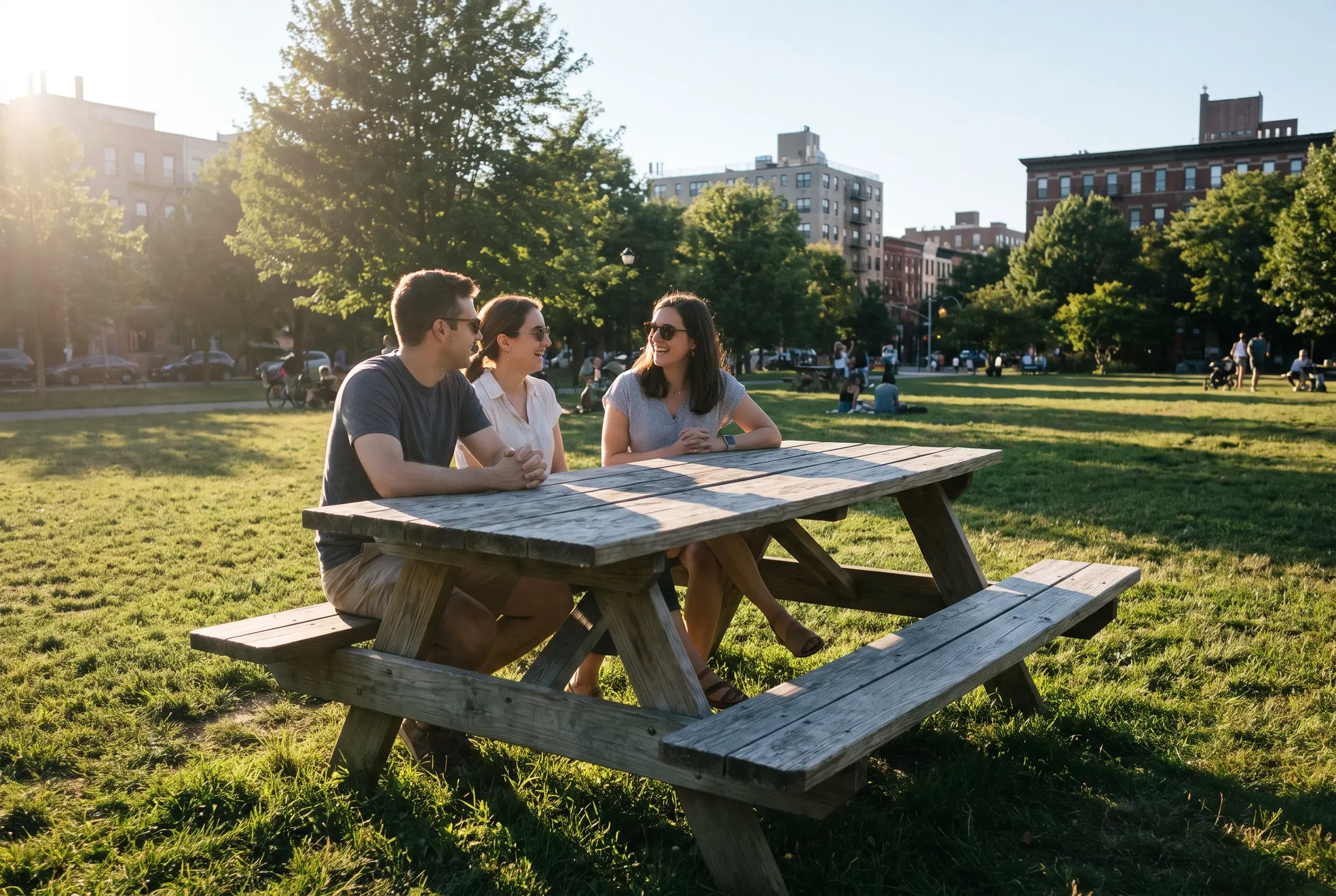 Three friends at a park picnic table with an empty bench seat
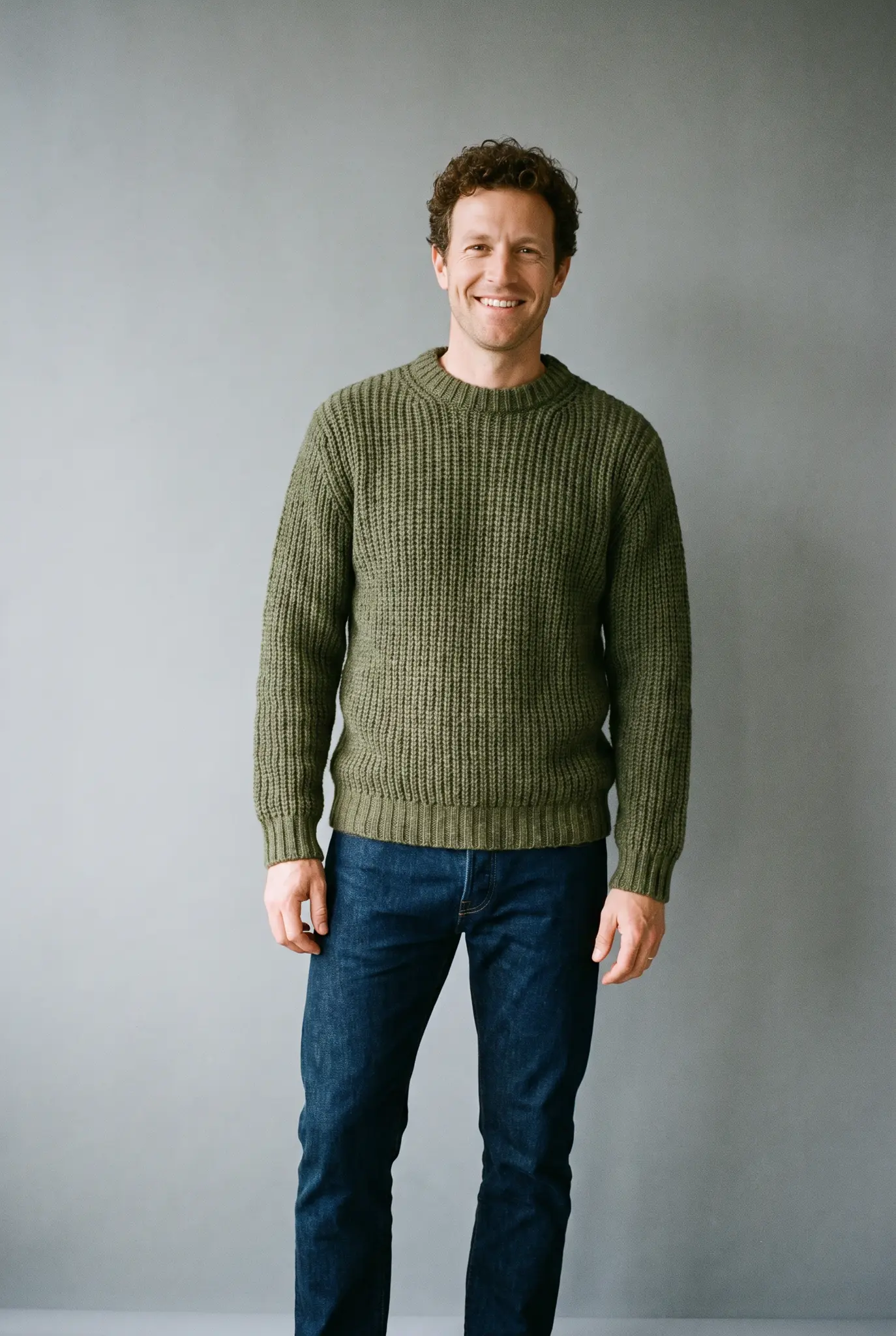 Portrait of a man in a green sweater against a gray wall
Both went in as references:
Add the man from the second image to the first photo, sitting on the empty bench at the right end of the table, facing the group. Match the afternoon sunlight coming from the left, give him a shadow on the bench and grass like the others, and keep his size in line with the people at the table. Keep the three friends, the table and the background exactly the same.
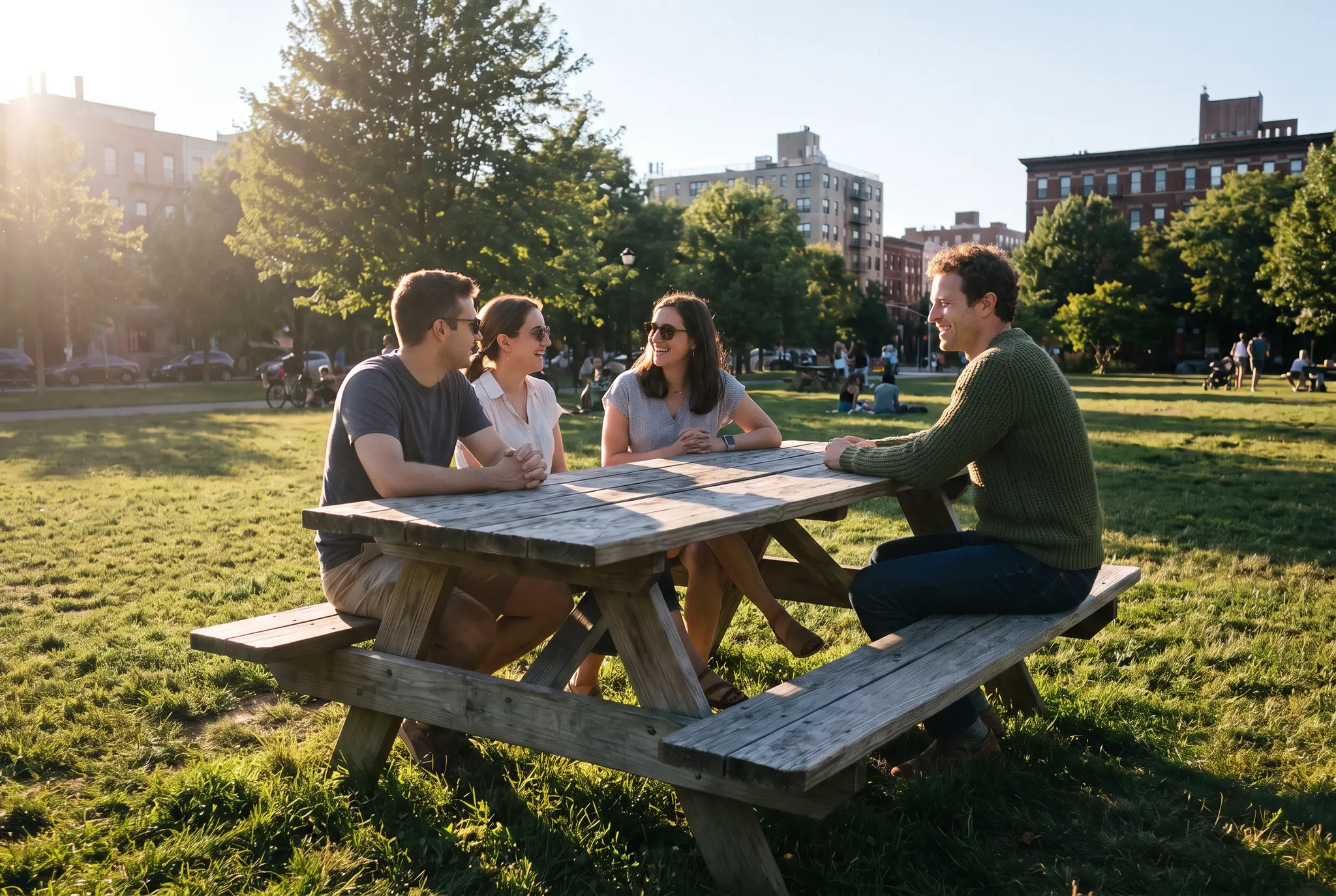 Same picnic photo with the man added on the bench, lit by the same afternoon sun
It worked. He sits at the right end facing the group, with the source's curly hair and green sweater, at a scale that matches the friends, and warm side light replaces his gray studio light. The flaw: the editor redrew the frame slightly, so the table and friends shifted. It's a redraw, not a pixel-exact paste, so keep your original.
Adding someone who isn't in any photo
No second photo? On the same scene we described a stranger instead:
Add an adult woman with a red scarf standing behind the bench on the right, smiling at the group, lit by the same afternoon sun from the left, with her shadow on the grass. Keep the three friends, the table and the background exactly the same.
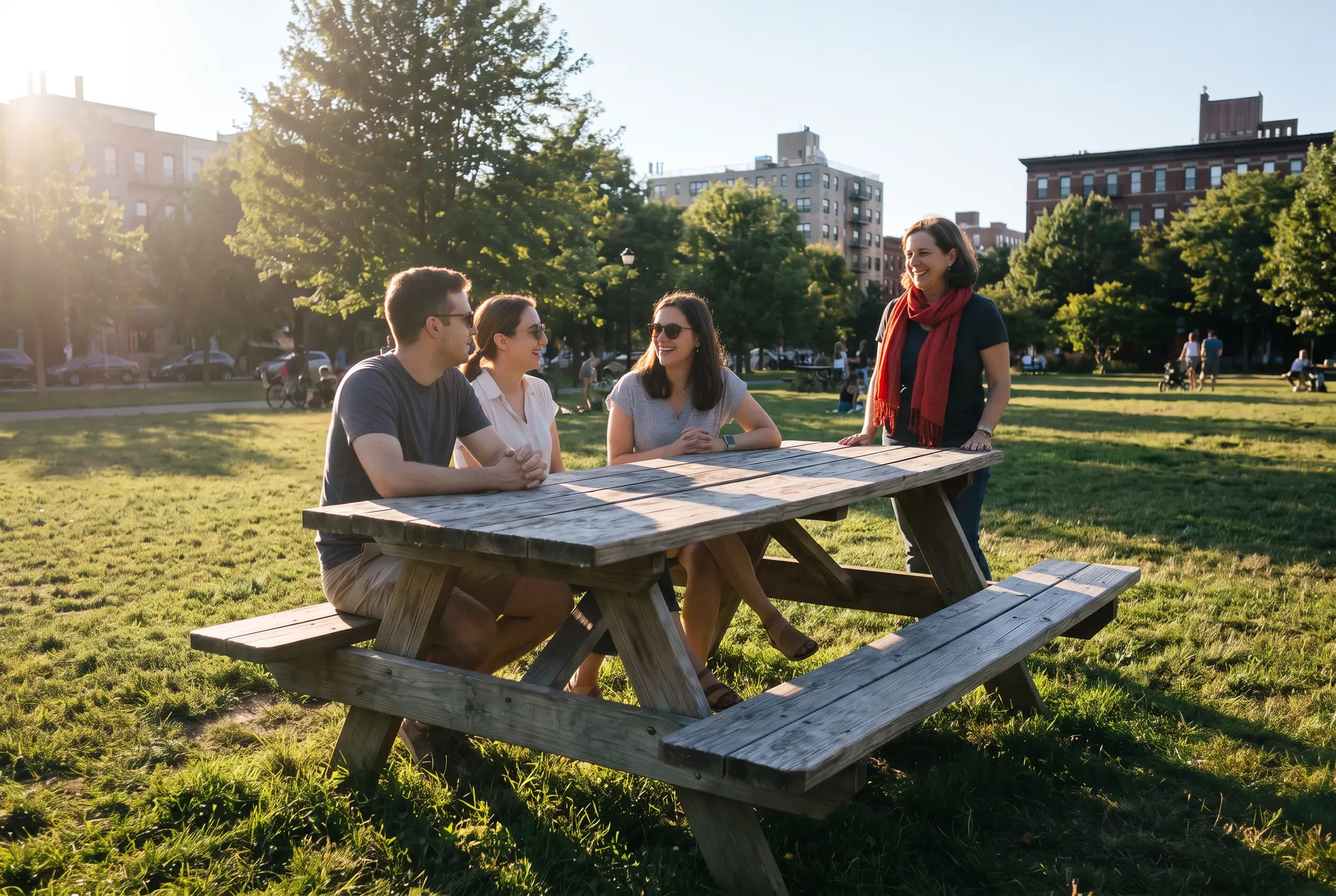 Picnic photo with a woman in a red scarf added standing behind the bench
A woman in a red scarf and dark jacket now stands at the right end of the table looking at the group, sized to fit the seated friends, with the sun on the same side. The frame came back wider and the friends moved slightly, though they still read as the same people.
Prompts that work
- Seated: "Add the woman from the second image in the empty chair on the left, turned toward the table, lit by the window behind her. Keep everyone else and the room exactly the same."
- Group edge: "Add the man from the second image at the right end of the back row, matching the flash lighting and the height of the people beside him. Keep every face unchanged."
- Background figure: "Add an adult walking a bicycle along the far path, small in the frame, in the same overcast light. Keep the couple in front exactly the same."
ImagineArt has a free plan; premium models such as the one we tested may need a paid plan (see current plan limits).
Should you add someone who wasn't there?
For memories, jokes between friends and personal projects, yes, as long as the person (or their family, for someone who has died) agrees. Don't use it to fake an event, an alibi or a relationship, and don't present the result as a record of something that happened.
ImagineArt blocks edits meant to mislead people about a real person, explicit edits of real people and anything involving minors. If you share a composite publicly, say it's edited. Content Credentials can carry that note with the file, built on C2PA, the open standard for recording how media was made and edited. For a memorial photo, keep the untouched original beside the edit.
Bring them to the table
Shooting everyone together still beats any fix, and Pixel's Add Me makes that a two-shot job. After the fact, an iPhone cut-out is fastest, Photoshop's Harmonize gives you the most control, and an AI prompt handles light and scale for you, though our tests show it redraws the frame a little. Whichever route you take, five checks decide whether anyone believes it: light, shadow, scale, angle and grain.
Want the reverse edit? Our guide to remove someone from a picture deals with photobombers.
Got a scene with an empty seat and a portrait to fill it? Drop both into the AI image combiner and hold the result up to the five checks.
Frequently asked questions
How do I add someone into an existing photo for free?
Lifting a subject in iPhone Photos costs nothing, and on a Pixel 9 or later, Add Me is built into the camera. ImagineArt has a free plan for the AI route, but premium models such as the one we tested may need a paid plan, so check the subscription page first.
How do I add a person to a picture on my iPhone?
Touch and hold the person in Photos, tap Copy or Copy Subject, then paste the cut-out over the other photo in an editor.
Can I add a family member who has passed away?
Yes, with the family's agreement. Choose a source photo whose light and angle are close to the group shot, run the five checks, and keep the unedited original. Never present the composite as a photo that was really taken.
Can I swap one person for another instead?
Yes. You can replace a person with ImagineArt's AI Image Replace by describing who should stand there, for example "change the person to a business professional".
Zahida Misher
Exploring how AI transforms marketing, I help businesses unlock growth and future-proof their presence.