Kamran Arshad
November 12, 2026 • Updated November 13, 2026
22 mins Read
GPT Image 2.6 in one minute
GPT Image 2.6 is OpenAI's newest image generation and editing model, released on November 4, 2026. It comes in two versions: Flare, built for speed, and Sunburst, built to hold details through edit after edit. Compared with GPT Image 2.5, it generates about 50% faster, makes looping GIFs, exports SVG vectors and lets you circle the exact spot you want changed.
We put both versions through six real design jobs on ImagineArt, from a dense overnight-radio poster to a cassette label edit. Below you'll find what changed, which version to pick, what each image really costs, how the benchmarks actually read, and prompts you can copy.
What's new in GPT Image 2.6 compared to 2.5
GPT Image 2.6 is less about prettier pictures and more about speed, motion and control. Here's what changed.
| GPT Image 2.5 | GPT Image 2.6 | |
|---|---|---|
| Speed | Baseline | About 50% faster; Flare as little as 6 s at low quality |
| Looping GIFs | No | Yes, 2 to 16 frames |
| SVG export | No | Yes, for logos, icons and flat graphics |
| Markup edits in the API | Available in ChatGPT | Also in the API, on 2.5 and 2.6 |
| Complexity setting | No | Yes: low, medium or high planning |
| Price per token | $8 in / $30 out per 1M image tokens | Same |
| Cost per image at low quality | About $0.006 (third-party measurement) | About $0.025 at 1024 x 1024 |
| Batch API (half price) | Supported | Not supported |
Four changes matter most in day-to-day work.
Faster generation
OpenAI says images generate about 50% faster than on 2.5. In our runs on ImagineArt, Flare returned two 2K posters at High quality in under half a minute.
Looping GIFs
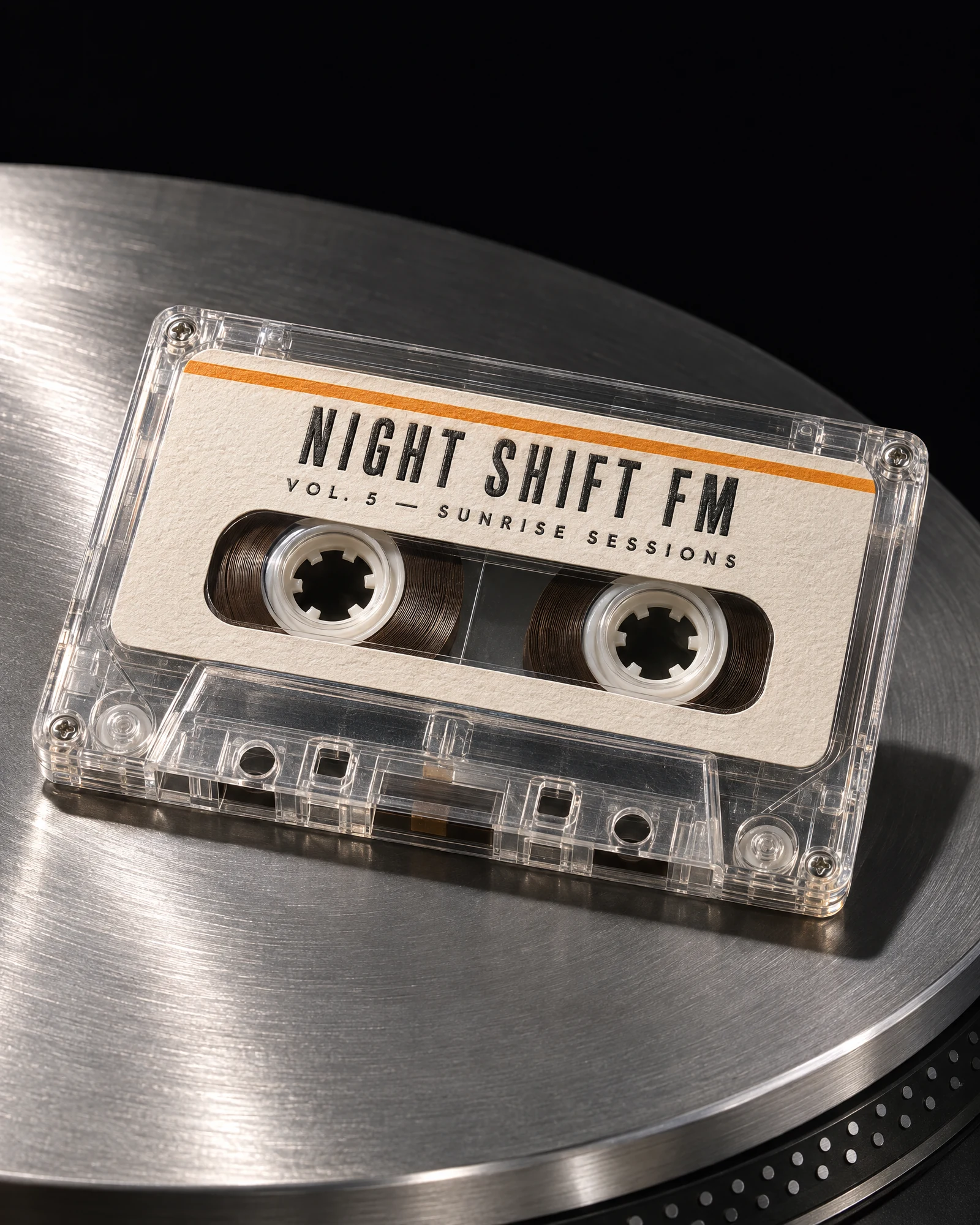
GPT Image 2.6 turns a prompt or a finished still into a short looping GIF: steam rising off a cup, a mascot waving, light sliding across a bottle. 2.5 stopped at stills. The loop in the GIF section below is built from the P18 cassette photograph, and it is the test that matters for a broadcast brand: if the tape moves but the letterpress label does not, the loop is usable.
SVG vector export
SVG export gives you clean paths you can open in Figma or Illustrator, instead of a picture of a logo that blurs when it's enlarged. P11 is written for exactly that path: two flat colours, no gradients, no photographic texture, nothing an autotracer has to guess at.
Markup edits
Markup edits let you draw on the image, such as a circle around a label, and describe what should change there. Sunburst then edits that spot and holds the rest of the frame steady. P07 and P08 are the pair that tests it on a printed cassette label, where drift shows up fastest because the type is small, flat and close to the frame edge.
One thing that didn't change: per-token prices. But 2.6 uses more tokens per image at low and medium quality, so cheap drafts cost more than they did on 2.5. The pricing section below has the numbers.
Flare vs Sunburst: which version to pick
Both versions make stills, GIFs and edits, and both cost the same per token. The difference is how fast they work and how firmly they hold your details.
| Flare | Sunburst | |
|---|---|---|
| Built for | Fast drafts and iteration | Final assets and long edit rounds |
| OpenAI's description | "Image generation and editing for fast iteration" | "Image generation and editing for detailed visual work" |
| Speed | Fastest; as little as 6 s at low quality | Slower; a third-party test timed it at 2.2 to 3.2 times Flare |
| Strongest at | Posters, social graphics, logos, infographics | Product shots, labels, faces, multi-round edits |
| Edit consistency | Good for a few rounds | Holds characters, products and brand details across rounds at medium or high quality |
| Pick it when | You're exploring ten directions | You've picked one and it has to be right |
Our rule after testing: draft on Flare, finish on Sunburst. Flare is quick enough to try several layouts before you commit to one. Once a direction is chosen, Sunburst is the safer choice for anything that will go through several rounds of edits, because that's where small drifts in a logo, a label or a face add up.
The prompt set on this page is split along that line on purpose. Every poster, graphic and logo is a Flare job. Every photograph, label edit and the GIF frames run on Sunburst.
Six jobs we tested on ImagineArt
We ran GPT Image 2.6 on ImagineArt on November 11 and 12, 2026, at 2K and High quality with the prompt enhancer off. Each prompt ran once, with two variations per prompt in the app. That's a practical field test, not a lab benchmark, so treat the results as a guide to what to expect.
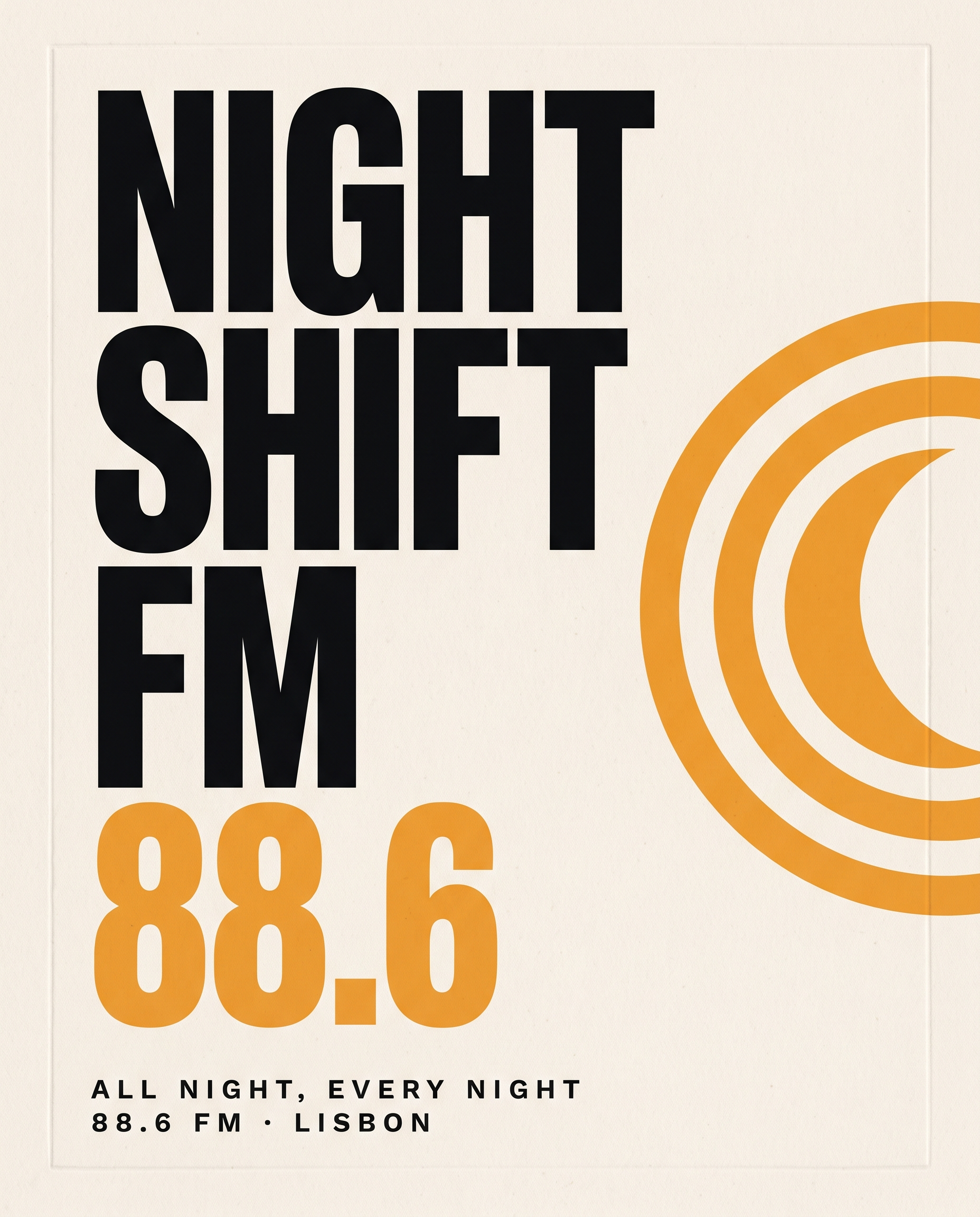
Test 1 a: A dense poster with four lines of type (Flare)
 A dense poster with four lines of type
What we checked: spelling of every line, the count of lines in the stack, and whether the frequency line stayed separate from the name.
Result: both variations set the name on exactly four lines and spelled the tagline and the frequency line exactly as written. This is the inverse of the failure we hit on 2.5. There, a prompt asked for a three-line stack and supplied two words, and the model invented a third line to fill the hole. Here the count in the prompt and the count of supplied strings match, and nothing is invented. The lesson: if you ask for a number of lines, supply that many lines of text, or the model will fill the gap itself.
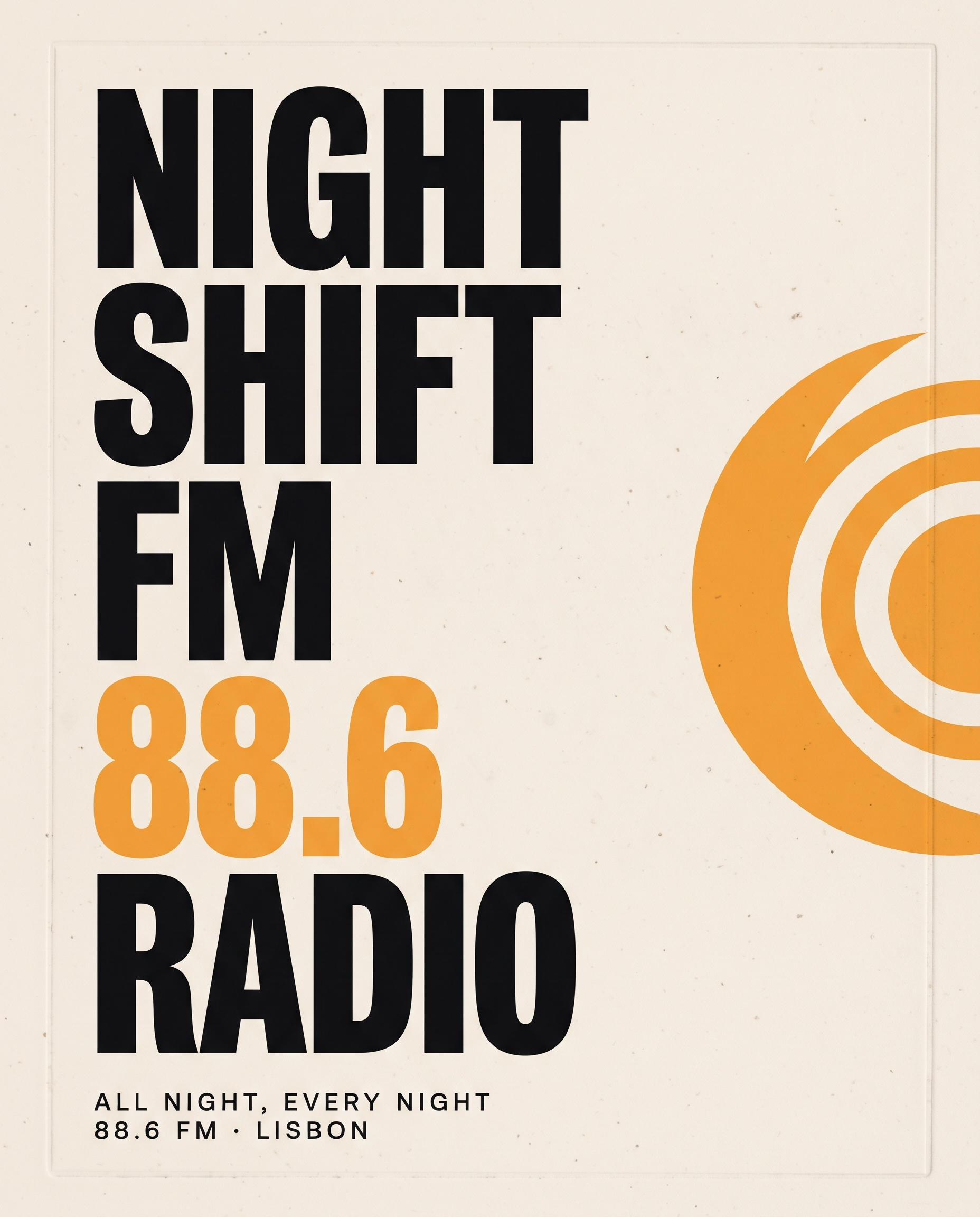
Test 1b: The same prompt asking for one line more (Flare)
 The same prompt asking for one line more
What we checked: what the model does with the missing fifth line.
Result: it invented one, in the house style, rather than leaving the stack short. That is the defect to watch for, reproduced on demand. The pair is worth keeping on the page because the failure is invisible when it happens, and the only way to catch it is to count the lines against the prompt.
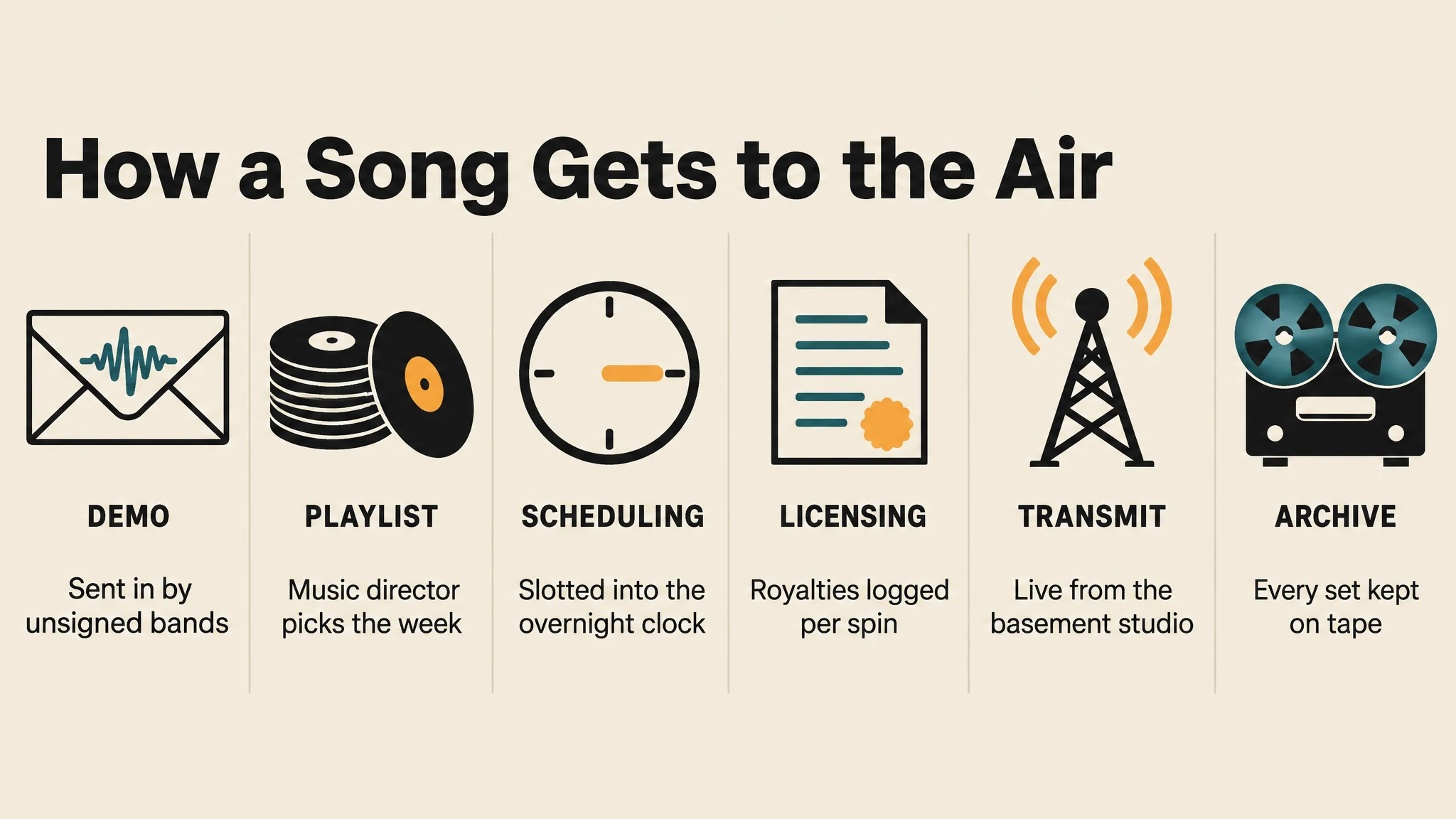
Test 2: An infographic with six labeled stages (Flare)
 Six-stage infographic
What we checked: the title, the six stage labels, the six captions, icon placement and caption readability.
Result: the title and all six stage labels came out correctly, in order, each with a matching icon, and the captions were legible at full size. Two things did the work here. Every caption was supplied, so there was nothing for the model to write, and the palette was given as four hex values rather than as "earth tones", which is the instruction that produces six columns of six slightly different muds. As with any model, proofread small text before you publish it.
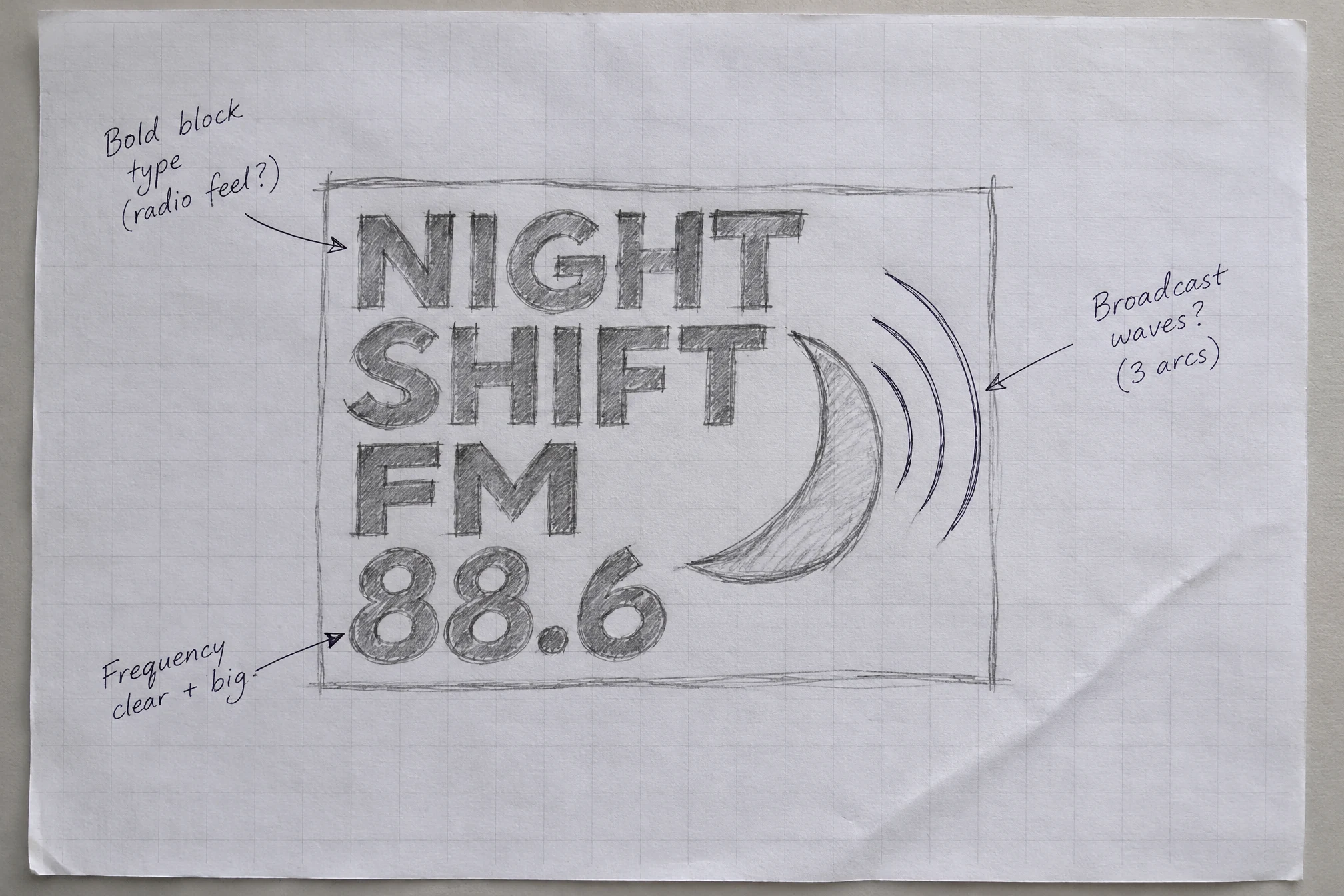
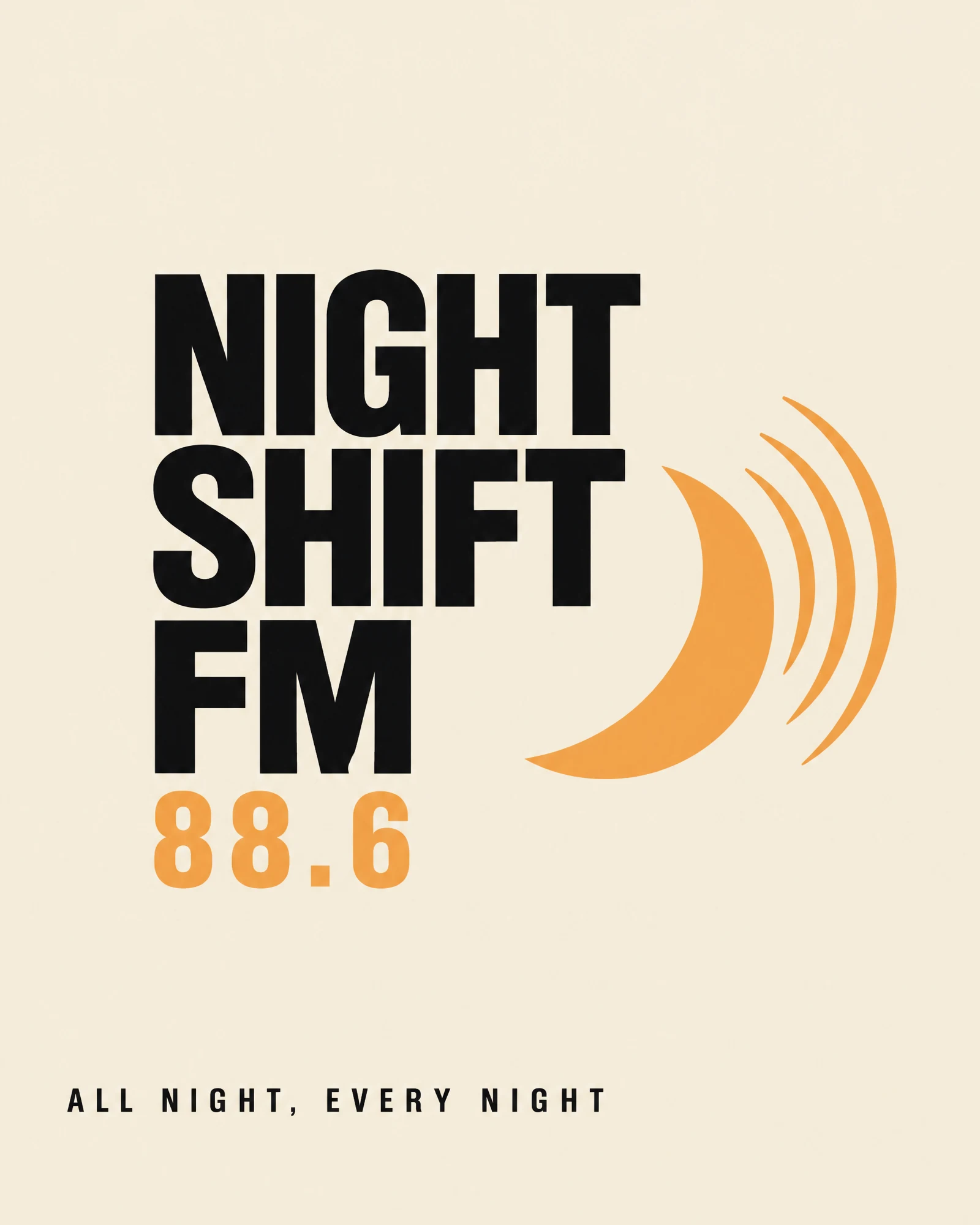
Test 3: From pencil sketch to finished poster (Flare, image input)
 Input: pencil layout sketch
 Output: finished poster from the sketch
What we checked: whether the layout survived, and whether typed text replaced the sketch's scribbles.
Result: the finished poster kept the sketch's layout, the four-line block, the mark at the right edge, and the margin notes were gone. Small typed text replaced handwriting cleanly because the prompt named what to delete rather than asking the model to tidy up. Naming the pencil rectangle and the arrows explicitly is the part people skip, and it is the part that leaves ghosts.
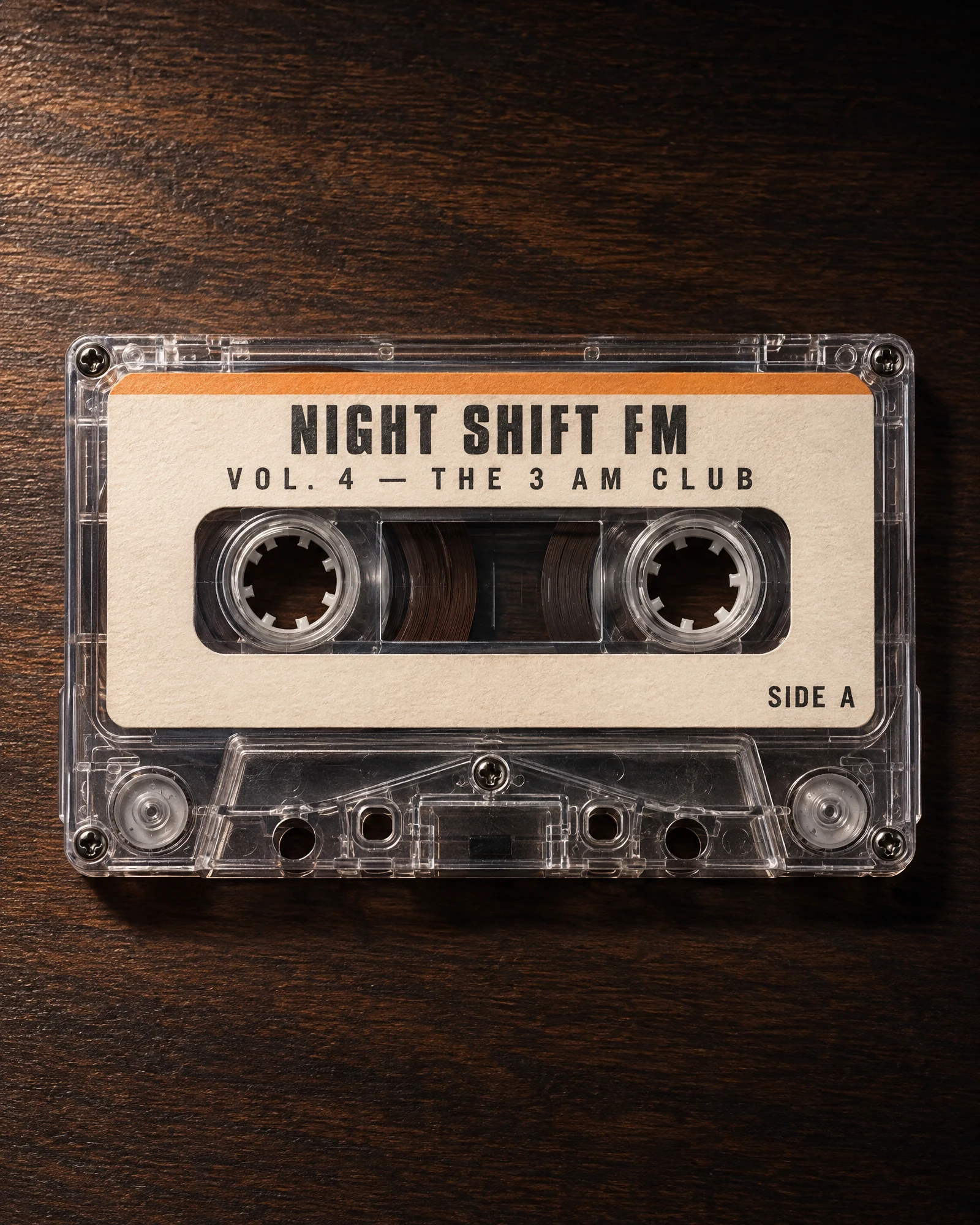
Test 4: Change one label line, keep everything else (Sunburst, markup edit)
We drew a red circle around the printed label on the cassette photo made earlier with 2.6, then asked for new label text.
 Input: cassette label before the edit
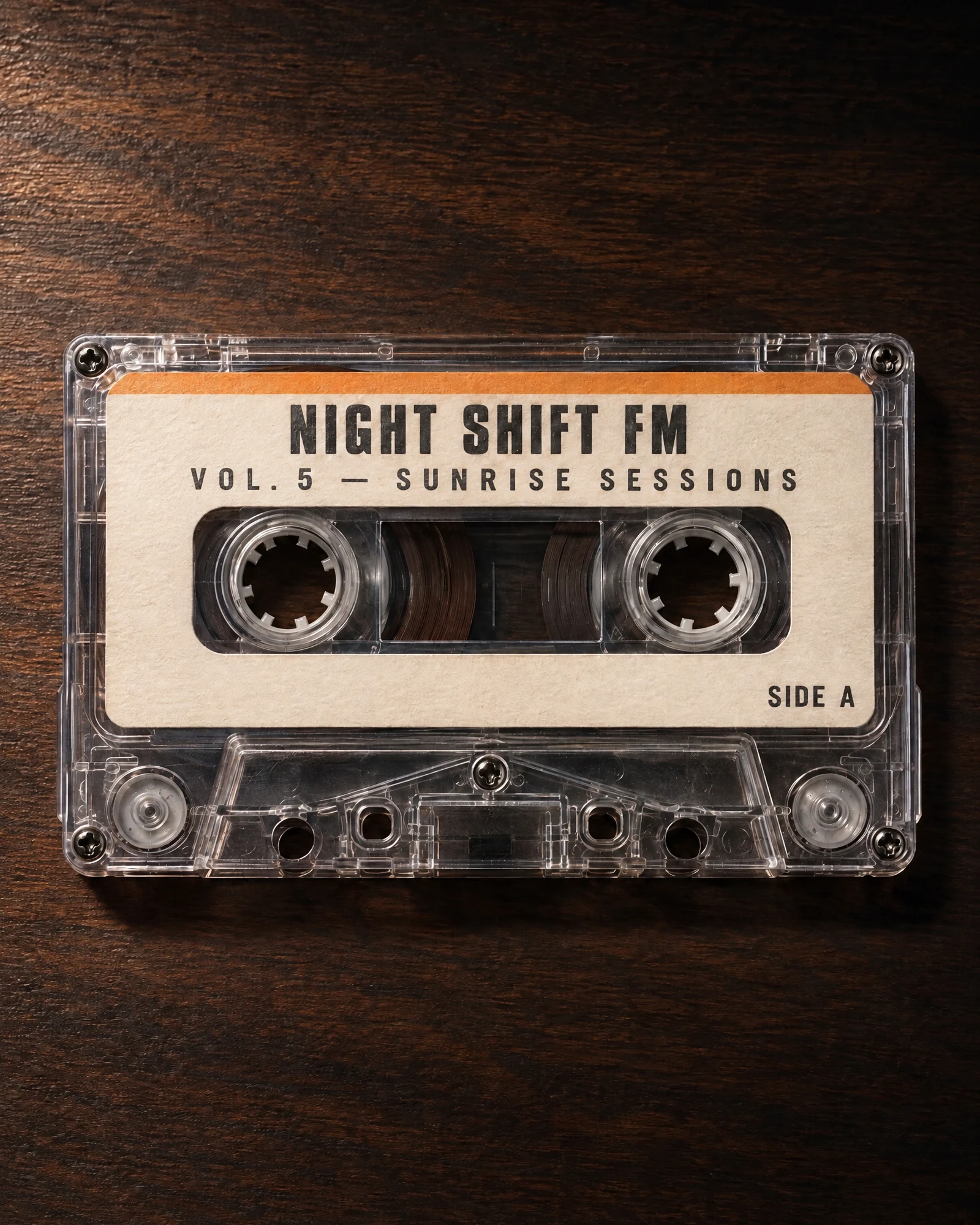 Output: label changed with a markup edit
What we checked: the new text, the letterpress impression, and anything outside the circle.
Result: the label read "VOL. 5 — SUNRISE SESSIONS" in the same letterspaced caps, and the red circle was removed. The shell, spools and tape wound edge looked unchanged side by side. The rule that made it hold: name what must not change as a list of objects, not as a promise. "Keep everything else the same" is a wish. "The shell, the spools, the wound tape, the stripe, the desk grain" is an instruction, and complexity set to low is what stops the model from re-planning the parts you did not mention.
Test 5: One product in three scenes (Sunburst)
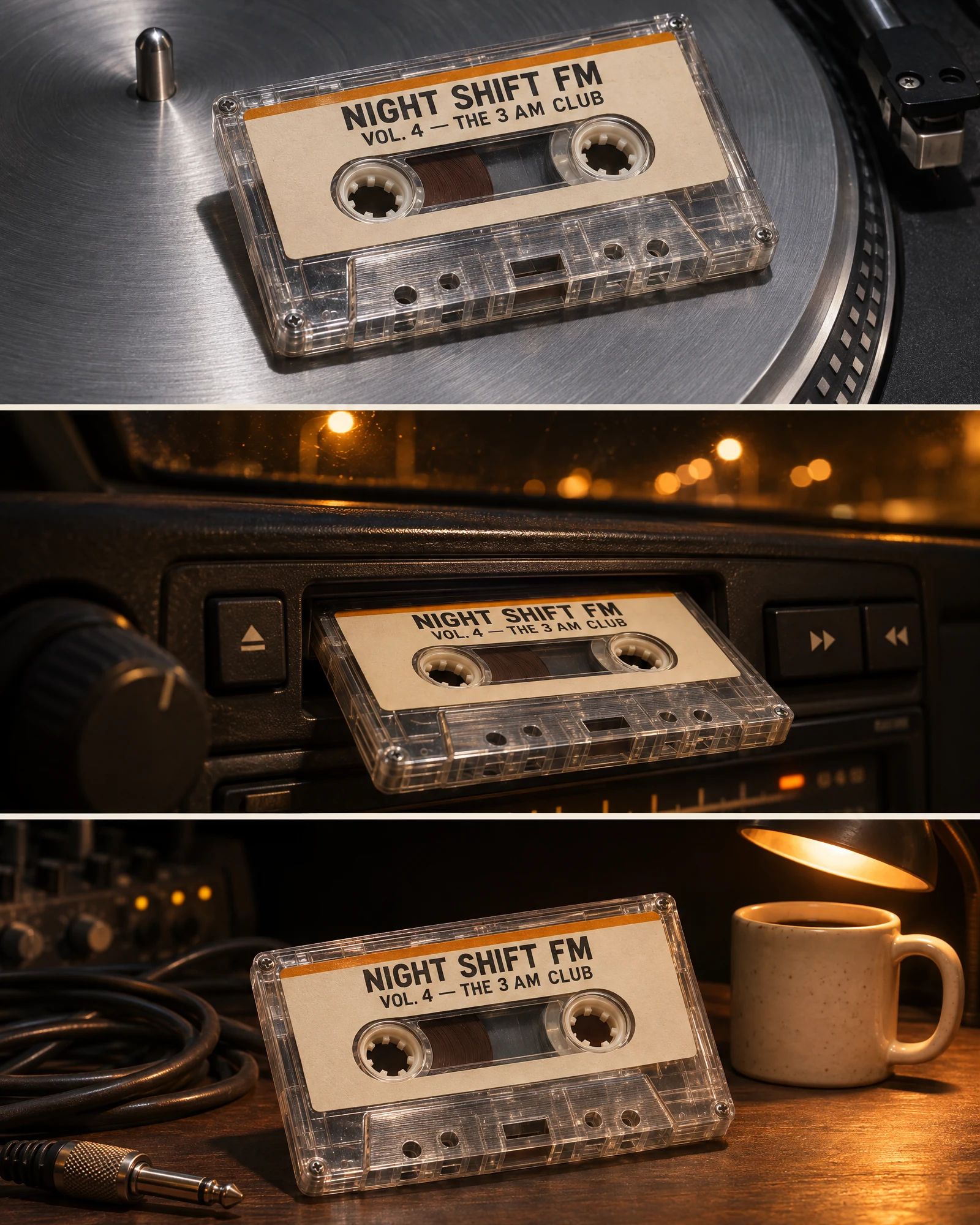 One cassette in three scenes
What we checked: whether the cassette stayed the same across very different light.
Result: the shell, label text, amber stripe and spool positions held in all three panels, while the reflections and colour temperature changed with each scene. Note that this was one image with three panels. Keeping a product identical across separate generations takes reference images. For clothing, AI Fashion Studio keeps the same model and garment across every shot.
Test 6: From napkin sketch to logo (Flare, image input)
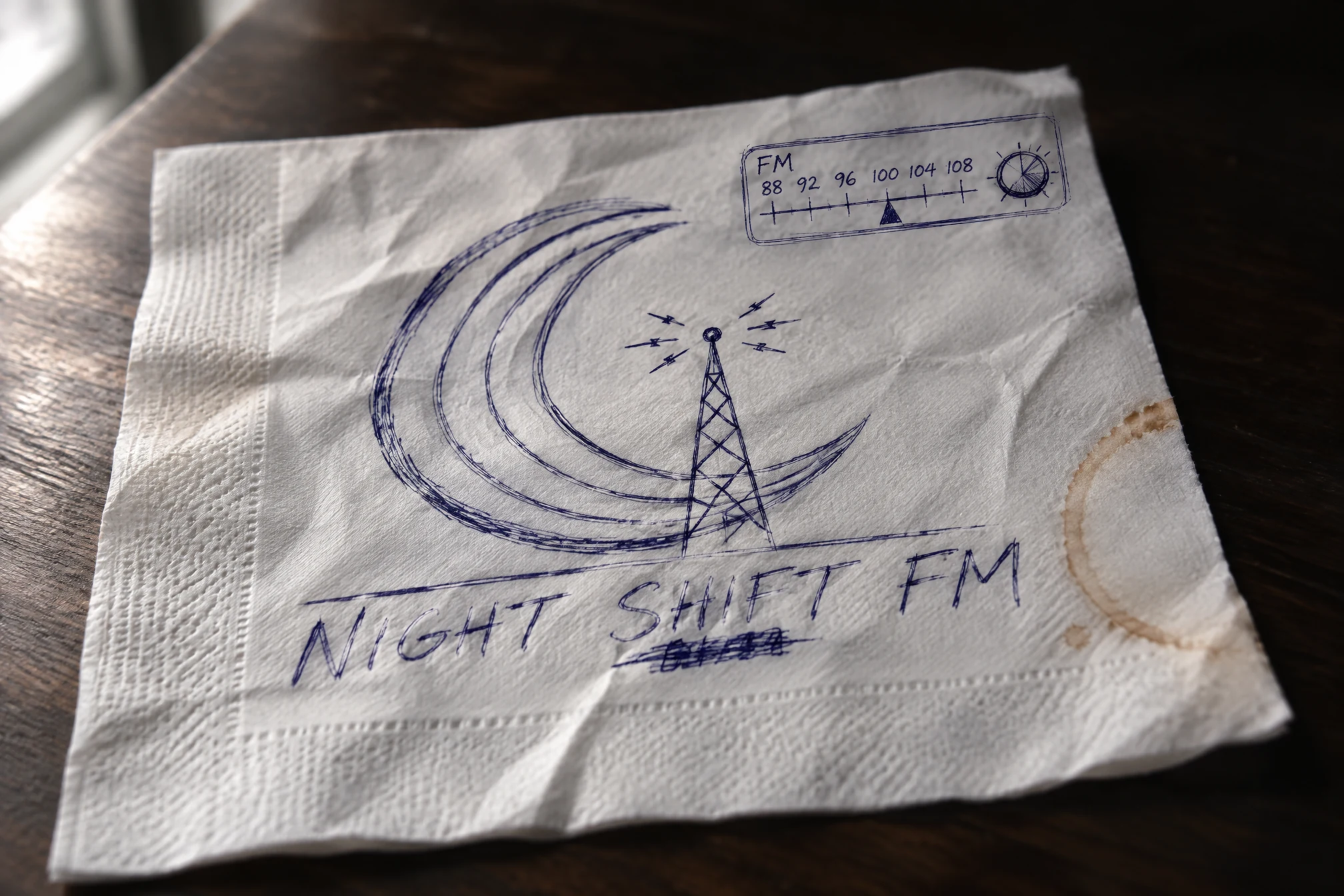 Input: napkin sketch
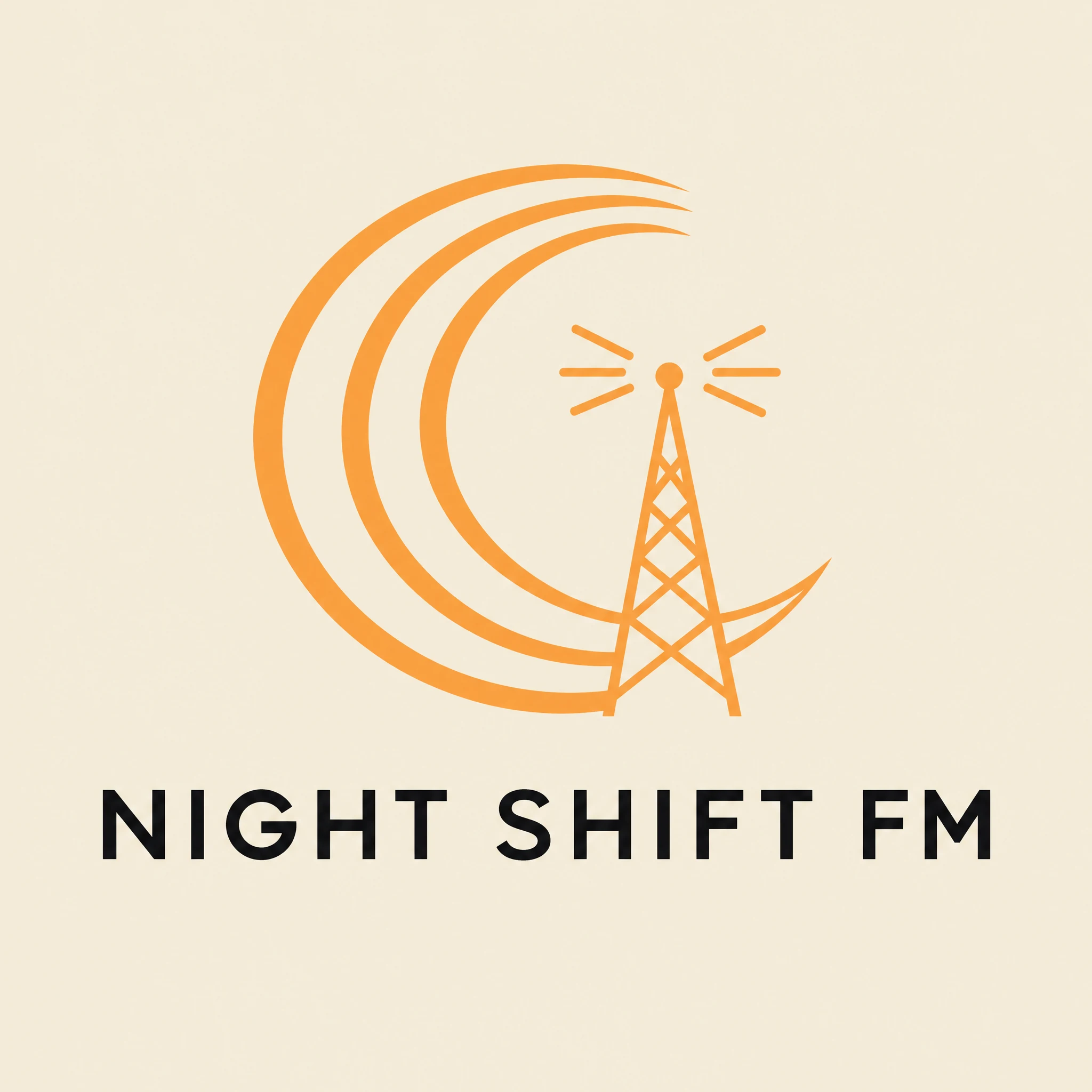 Output: logo from the napkin sketch
What we checked: whether the concept survived, the two-colour limit and the wordmark.
Result: the moon-and-mast idea from the napkin survived, in two flat colours, with "NIGHT SHIFT FM" spelled correctly. One surprise from a related run: with the background left on auto, two of our logo and sticker images came back as transparent PNGs, which look black in some viewers. If you need a solid background, set the background option to opaque. This is also the prompt to export as SVG, since the arcs are simple curves with no gradients to approximate.
What the six tests tell you
| Job | Version | Verdict |
|---|---|---|
| Dense poster type | Flare | Every line spelled right; give it exactly the lines you want |
| Infographic labels | Flare | Title and six labels right; proofread small captions |
| Sketch to poster | Flare | Layout kept, typed text used exactly |
| Label edit with markup | Sunburst | Only the circled label changed |
| One product, three scenes | Sunburst | Cassette held its details across scenes |
| Napkin to logo | Flare | Concept and wordmark kept; watch the background setting |
How GPT Image 2.6 GIFs work
A GPT Image 2.6 GIF is a short loop built from a handful of frames, not a video. You describe a scene, or start from a still image, and say what should move. These are the limits OpenAI publishes.
| Setting | Range | Default |
|---|---|---|
| Frames | 2 to 16 | 9 |
| Time per frame | 20 to 2,000 ms | 200 ms |
| Loop length at the default | 9 frames x 200 ms | 1.8 seconds |
| Frame size | Auto, or a custom size in multiples of 16 px | Auto |
| Starting point | A text prompt, or a still image as the first input |
The number of frames and their size share one pixel budget, so more frames means smaller frames. Some sites quote 3 to 30 frames; OpenAI's guide says 2 to 16.
The loops that come out cleanest follow the same few rules.
- Ask for one movement. Rising steam, a blink, a wave or a light sweep works better than a whole scene in motion.
- Fix the camera. Write "fixed camera" or "the camera does not move", or the framing can drift between frames.
- Say what stays still. "The bottle, cap and background stay perfectly still" is as important as what moves.
- Ask for a seamless loop. Say the last frame should flow back into the first.
- Keep text out of moving areas. Letters can wobble from frame to frame.
- Start from a finished still when the look matters. Animating an approved product shot keeps the product exactly as signed off.
The loop figure
 12-frame loop made by GPT Image 2.6
Check — scrub the loop twice. A pop at the join means the spools rotated past a full cycle; slow them and re-run. The label sits still while the tape moves, which is deliberate: letters near a moving area will wobble, so no type goes in the animated part of the frame.
GIFs go through stricter safety checks than stills, because movement can make a harmless frame read differently. If a GIF prompt is refused, simplify the movement.
SVG export and transparent backgrounds
SVG: logos and icons that scale to any size
An SVG is a vector file: shapes and paths instead of pixels, so it stays sharp on a favicon or a six-meter banner and opens straight in Figma or Illustrator. GPT Image 2.6 makes one in two steps. First the image model renders a picture of your design. Then a second, authoring model writes that picture as SVG code.
That process has practical consequences.
- SVG works best for logos, icons, stickers and flat illustrations. Photoreal scenes don't translate into clean vectors.
- Very detailed scenes can produce heavy files or time out, so keep designs simple.
- You create an SVG from a text prompt. You can't upload an SVG to edit, and the edit tools don't output SVG.
- The file is static: no scripts, no external links and no embedded pixel images.
- In the API you pay for both steps, so an SVG costs more than the same design as a PNG.
Transparent backgrounds
GPT Image 2.6 can output a subject on a transparent background as a PNG or WebP, which is ideal for product cutouts, stickers and mascots you'll place onto other designs. Check the background setting before you generate. In our tests, leaving it on auto sometimes returned a transparent PNG when we wanted a solid background, so set it to opaque or transparent on purpose.
Markup edits and the complexity setting
Markup edits: circle it, change it
A markup edit is a drawing on top of your image that shows the model where to work. You circle a label, sketch an arrow or scribble over an object, then describe the change in words. The model uses your marks to find the spot, and the prompt to decide what to do there.
Three tips make markup edits reliable.
- Mark generously. A circle slightly larger than the target works better than a tight outline.
- Say what must not change. List the things outside the mark that should stay put, as in our cassette test.
- Use Sunburst at medium or high quality when the rest of the image must stay identical.
In the API, the markup is a transparent PNG the same size as your image, sent alongside it. It can't be combined with a mask, and it costs nothing extra.
Complexity: how much the model plans
Complexity is a new setting that controls how much planning the model does before it draws. It's separate from quality, which controls detail and fidelity.
| Complexity | Use it for |
|---|---|
| Low | Most edits: swap a colour, change a label line, remove an object |
| Medium | Scenes with several elements |
| High (the API default) | Busy layouts, infographics and scenes with many constraints |
OpenAI recommends low complexity for most edits, because higher planning adds time and can introduce changes you didn't ask for. Complexity has no extra charge.
GPT Image 2.6 pricing and real cost per image
On ImagineArt
Your first few images on ImagineArt are free, and GPT Image 2.6 is free and unlimited on certain plans. The credit cost of each generation shows in the app before you generate, and the pricing page lists which plans include unlimited use.
In the OpenAI API
Flare and Sunburst cost the same per token, and those rates are unchanged from GPT Image 2.5.
| Token type | Price per 1M tokens |
|---|---|
| Text input | $5.00 |
| Cached text input | $1.25 |
| Image input | $8.00 |
| Cached image input | $2.00 |
| Image output | $30.00 |
What changes is how many tokens each image uses. OpenAI's own cost calculator gives these output costs for one square 1024 x 1024 image on GPT Image 2.6.
| Quality | Output cost per image | At 2048 x 2048 |
|---|---|---|
| Low | $0.025 | $0.050 |
| Medium | $0.044 | |
| High | $0.053 | $0.107 |
| Xhigh | $0.094 | |
| Max | $0.211 | $0.428 |
For comparison, a third-party test measured GPT Image 2.5 at about $0.006 at low quality, $0.013 at medium and $0.053 at high for the same size. So a high-quality image costs about the same on both versions, but a low-quality draft costs roughly four times more on 2.6. GIFs and SVGs cost more again: a GIF is several frames in one request, and an SVG pays for both the render and the vector-writing step.
This is also why the prompt set on this page is structured the way it is. The six cheap jobs, the posters, the infographic, the logo and both sketch inputs, are Flare at high, not Sunburst at max. The five expensive ones, the three product photographs, the portrait, the edit pair and the GIF, are where Sunburst earns its extra time.
When to stay on GPT Image 2.5
GPT Image 2.5 is still the better choice in a few situations.
- High-volume cheap drafts at low or medium quality, where 2.5 costs a fraction of 2.6.
- Batch jobs. The Batch API gives 50% off on 2.5 and isn't available for 2.6.
- Apps built on OpenAI's Responses or Chat Completions APIs. GPT Image 2.6 works only through the image generation and edit endpoints.
- Workflows already tuned to 2.5's look, where you don't need GIFs, SVG or the extra speed.
For everything else, especially posters, product edits and anything that needs to move or scale, 2.6 is the upgrade. GPT Image 2.5 stays available on ImagineArt.
GPT Image 2.6 benchmarks, read honestly
The two main public leaderboards disagree about GPT Image 2.6, and the reason matters.
| Leaderboard | GPT Image 2.6 Sunburst | GPT Image 2.5 Sunburst | GPT Image 2.6 Flare | GPT Image 2.5 Flare |
|---|---|---|---|---|
| Arena, text to image (preliminary, Nov 8) | 1406 | 1429 | 1383 | 1400 |
| Arena, image edit (preliminary, Nov 8) | 1477 | 1520 | 1460 | 1484 |
| Artificial Analysis, text to image (all at max quality) | 1262 | 1230 | 1227 | 1211 |
On Arena, where people vote between two images, 2.6 currently sits below 2.5. But the 2.6 entries are tested at medium quality and have only about 2,500 to 2,700 votes each, against more than 57,000 for 2.5, so their scores can still move by more than 10 points either way. On Artificial Analysis, where every model runs at max quality, 2.6 Sunburst ranks first, ahead of 2.5 Sunburst.
The fair reading: picture quality is roughly on par with 2.5 and depends on the quality setting you use. What 2.6 clearly adds is speed, GIFs, SVG and more control over edits. Treat any headline that says 2.6 "tops every leaderboard" with caution.
How to use GPT Image 2.6 on ImagineArt
You can go from prompt to finished image in a few minutes in ImagineArt's AI image generator.
- Open the ImagineArt image page and pick GPT Image 2.6 Flare or GPT Image 2.6 Sunburst in the model picker.
- Choose your settings: aspect ratio (1:1, 4:5, 3:4, 2:3, 9:16, 4:3, 3:2, 16:9 or 21:9), resolution (1K, 2K or 4K), quality (low to max) and background (auto, transparent or opaque).
- Turn the prompt enhancer off if you want the model to follow your prompt word for word, as in our tests.
- Type your prompt, or press + to attach an image you want to edit or animate.
- Pick the output: a still, a looping GIF or an SVG.
- Generate, then download the result or send it to Edit, Animate or Upscale for the next step. A finished portrait can also become a talking presenter in AI Avatar Studio.
GPT Image 2.6 prompts to copy
Every prompt below produced the matching figure on this page. Swap in your own subject and keep the structure: subject, setting, light, style, then exact text in quotes. Each one carries its ratio, version, quality and complexity, because those change the result as much as the words do.
Posters and graphics (Flare)
Prompt 1: “Risograph gig poster for a weekly club night, vertical 4:5, three inks on bone paper (#EFE9DC) with visible tooth and slight ink squash. Lettering: "THE 3 AM CLUB" set in two stacked lines, "THE 3 AM" above "CLUB", in chunky misregistered riso caps, amber (#F2A03D) overprinted with deep teal (#123C3C), halftone dots visible along the letter edges. Below the lettering, a hand-drawn crescent moon cut into three arcs, drawn as one loose continuous line in deep teal, with three short radiating dashes to its right. Bottom edge, one line in small letterspaced caps reading exactly "FRIDAYS · 01:00 · 88.6 FM". Registration error of 2 to 3 mm, edge bleed, uneven ink density, 8% margins. No other text, no date beyond the one line, no price, no logo, no watermark, no paper mockup, no hands, no border.”
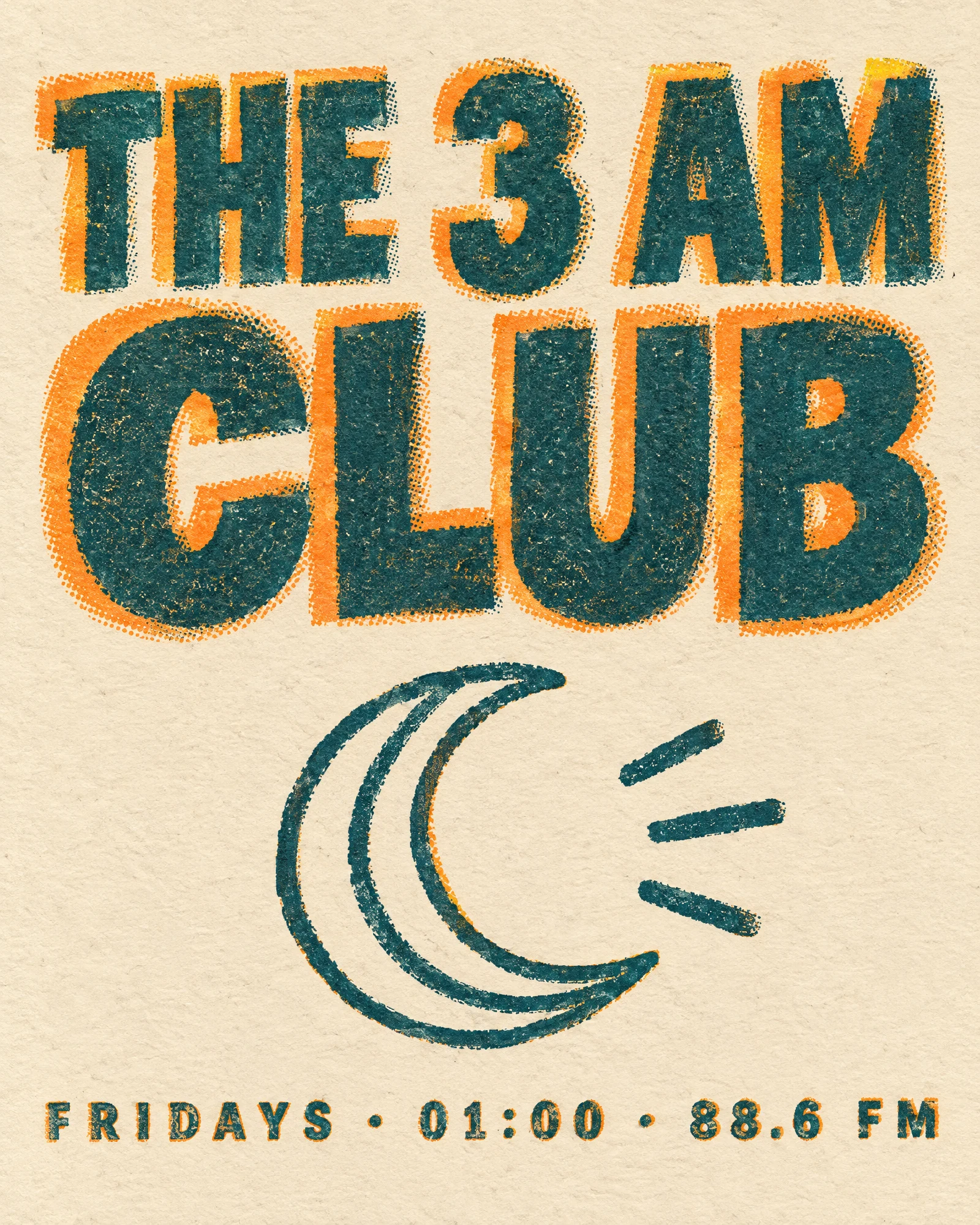 Risograph club-night poster
Prompt 2: “Broadcast schedule graphic, horizontal 16:9, flat vector, on near-black (#0E0E10). Top left, in bone white, a title reading exactly "TONIGHT ON 88.6" in a crisp grotesque, with a small amber crescent-and-arcs mark to its left. Below it, a five-row grid. Each row holds a time on the left in amber monospace, a show name in bone white semibold, and a one-word genre tag on the right in deep teal (#123C3C) reversed out of a solid block. Rows, top to bottom, reading exactly: "21:00" / "DUB PLATE HOUR" / "DUB"; "23:00" / "TAPE ROOM" / "ARCHIVE"; "01:00" / "THE 3 AM CLUB" / "HOUSE"; "03:00" / "SLOW FREQUENCIES" / "AMBIENT"; "05:00" / "SUNRISE SESSIONS" / "SOUL". 1px hairlines in charcoal separating the rows, 8% margins, flat colour only. No other text, no presenters, no photographs, no sponsor logos, no watermark, no border.”
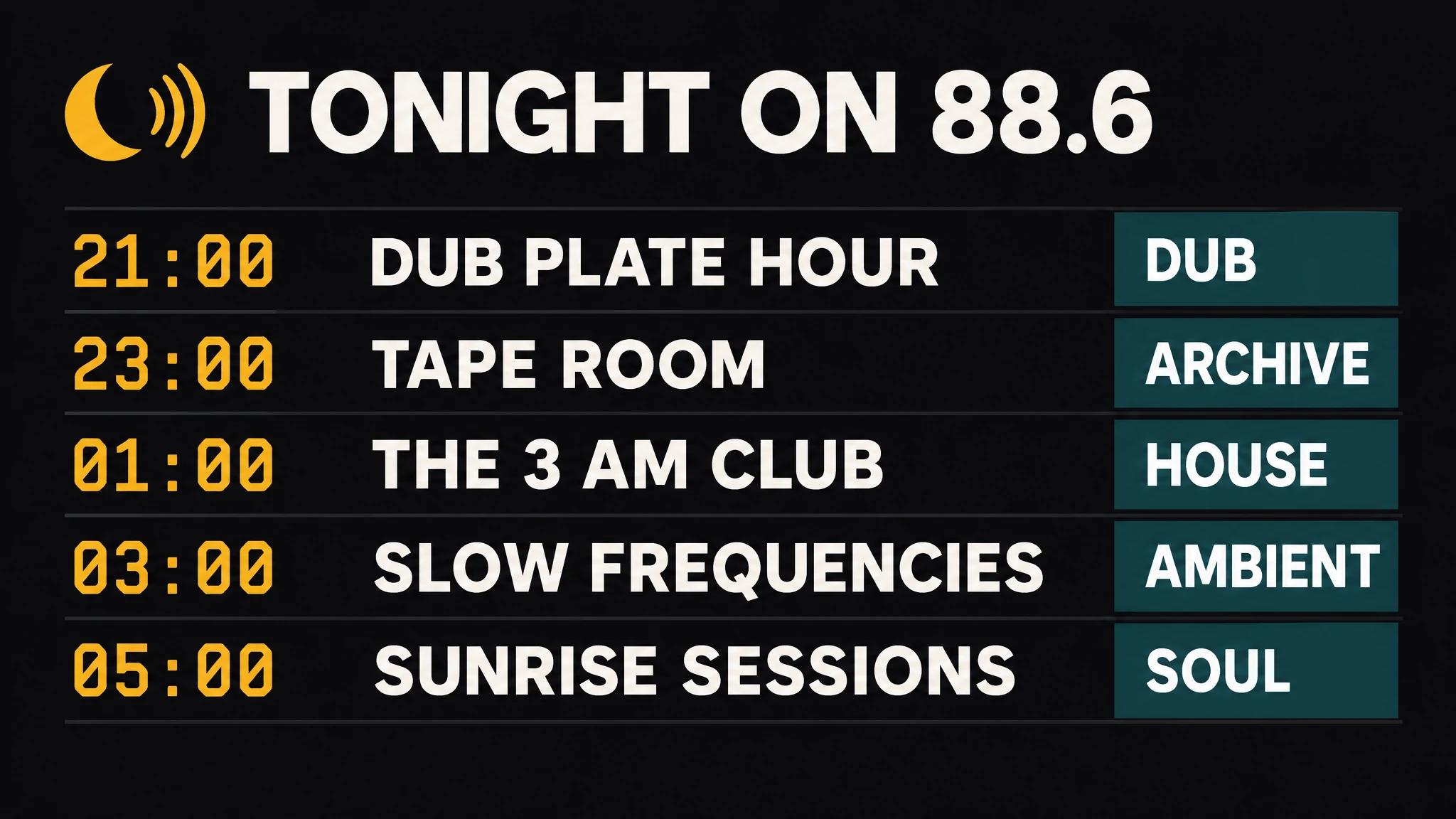 Overnight schedule graphic
Prompt 3: “A sheet of six die-cut stickers in a 3 x 2 grid, on transparent background, each sticker with a chunky bone-white border of equal weight and one thin soft shadow. Stickers, in order: a compact cassette with two visible spools; a crescent moon cut into three arcs; a bone ceramic mug with a steam curl; a radio tuning dial with a needle; a sleepy owl head in oversized headphones; a tile reading "88.6" in condensed caps. Flat vector, palette limited to ink (#0E0E10), amber (#F2A03D) and bone (#EFE9DC), one uniform line weight across all six, no gradients, no embroidery. No text beyond the "88.6" tile, no watermark, no outer border.”
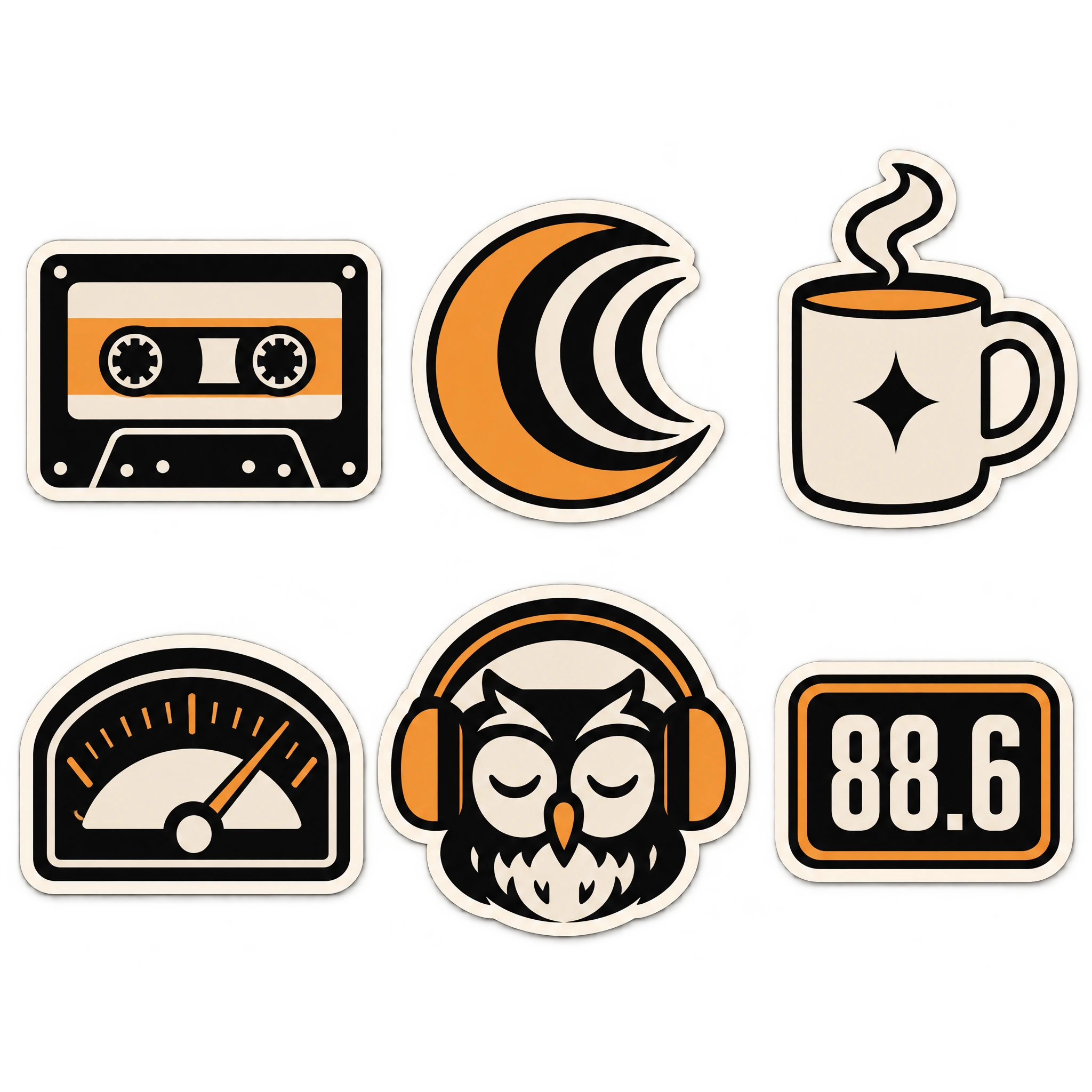 Sticker sheet on a transparent background
Prompt 4: “The same overnight radio poster as P02, re-cropped for a social post, vertical 4:5, on the same bone uncoated stock (#EFE9DC). The four-line name stack "NIGHT", "SHIFT", "FM", "88.6" now sits top-left and fills about 70% of the frame height, the frequency line smaller, letterspaced and amber (#F2A03D). The flat amber crescent-and-arcs mark sits bottom right, fully inside the frame with an 8% margin, so nothing is cropped. Two lines bottom left, letterspaced small caps, reading exactly "ALL NIGHT, EVERY NIGHT" and beneath it "88.6 FM · LISBON". Strict grid, flat ink on paper, no gradients, no shadows. The only text on the image is: NIGHT, SHIFT, FM, 88.6, ALL NIGHT, EVERY NIGHT, 88.6 FM · LISBON. No other text, no watermark, no signature, no mockup frame, no border, no vignette.”
Note — the cover and the social crop are two prompts, not one image resized. Regenerating at the target ratio is what keeps the mark inside the frame and the bottom margin intact; cropping a 16:9 banner to 4:5 cuts the frequency line off at the kerning.
Logos (Flare, good candidates for SVG)
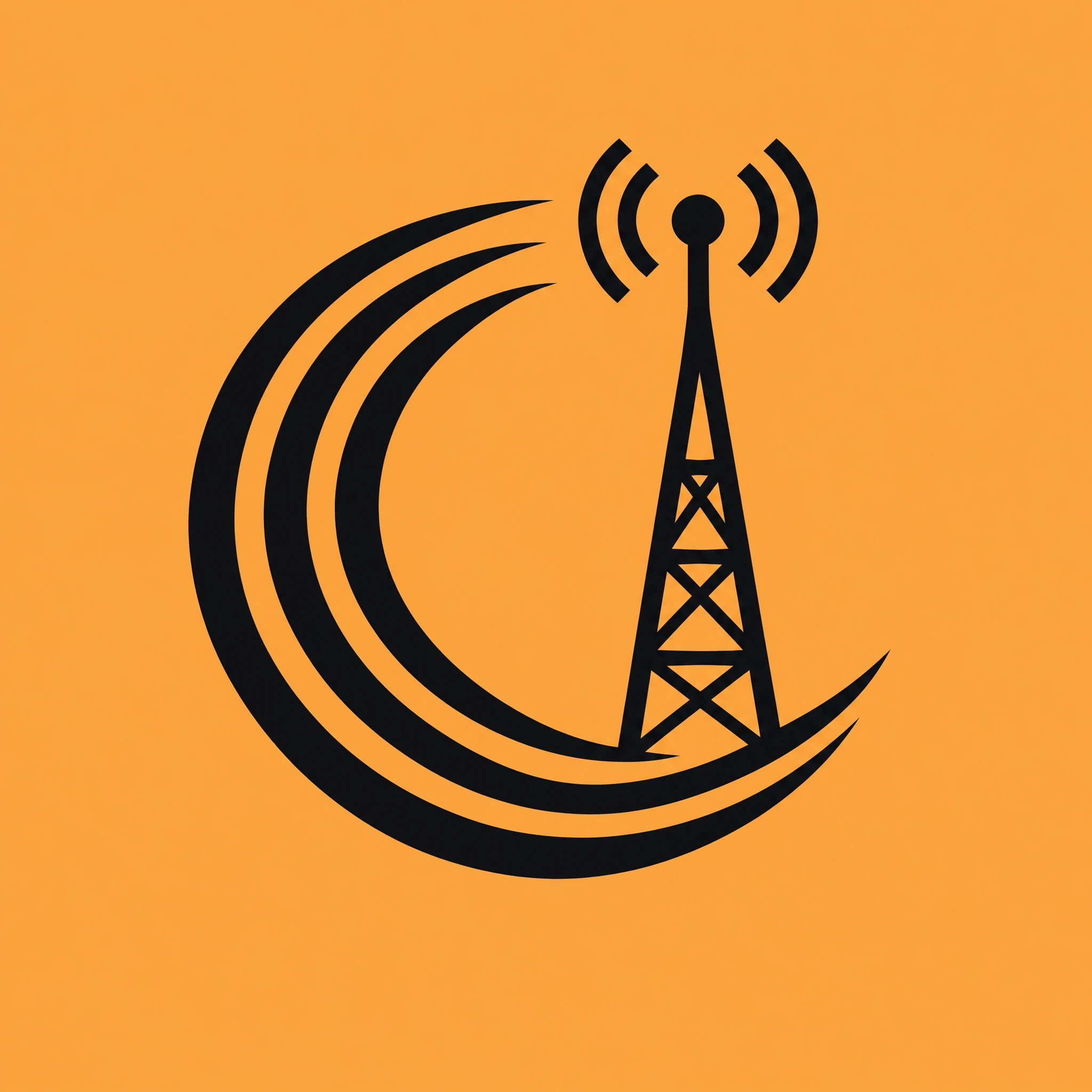
Prompt: “Flat vector app icon on a plain amber field (#F2A03D). The station mark only: a crescent moon built from three concentric arcs, with a slim transmission mast rising through the gap on the right, drawn in near-black (#0E0E10), geometric, one uniform stroke weight, centred with even margins on all four sides. Exactly two colours. No wordmark, no outline, no gradient, no shadow, no texture, no rounded-square mask, no watermark.”
 App icon, mark only
Note: the mark-only version exists because an icon has to survive at 32px. If the arcs close up at small sizes, thicken the stroke in the prompt rather than exporting a bigger file.
Products and portraits (Sunburst)
Prompt 1: “Studio product photograph, vertical 4:5. A clear-shell compact cassette with a bone paper label lying on a brushed aluminium turntable platter, shot from a low three-quarter angle with a 100mm macro at f/8. The label is letterpress-printed: "NIGHT SHIFT FM" in condensed caps, and beneath it "VOL. 5 — SUNRISE SESSIONS" in smaller letterspaced caps. A thin amber (#F2A03D) stripe runs along the top edge of the label. The shell is transparent, showing wound tape and two spools. One hard key from the upper left at 40 degrees raking across the platter, a soft fill from the right, a crisp contact shadow under the shell, the background falling to near black (#0E0E10). Photoreal, no hands, no props, no text beyond the label, no watermark, no border, no vignette.”
 Cassette product shot
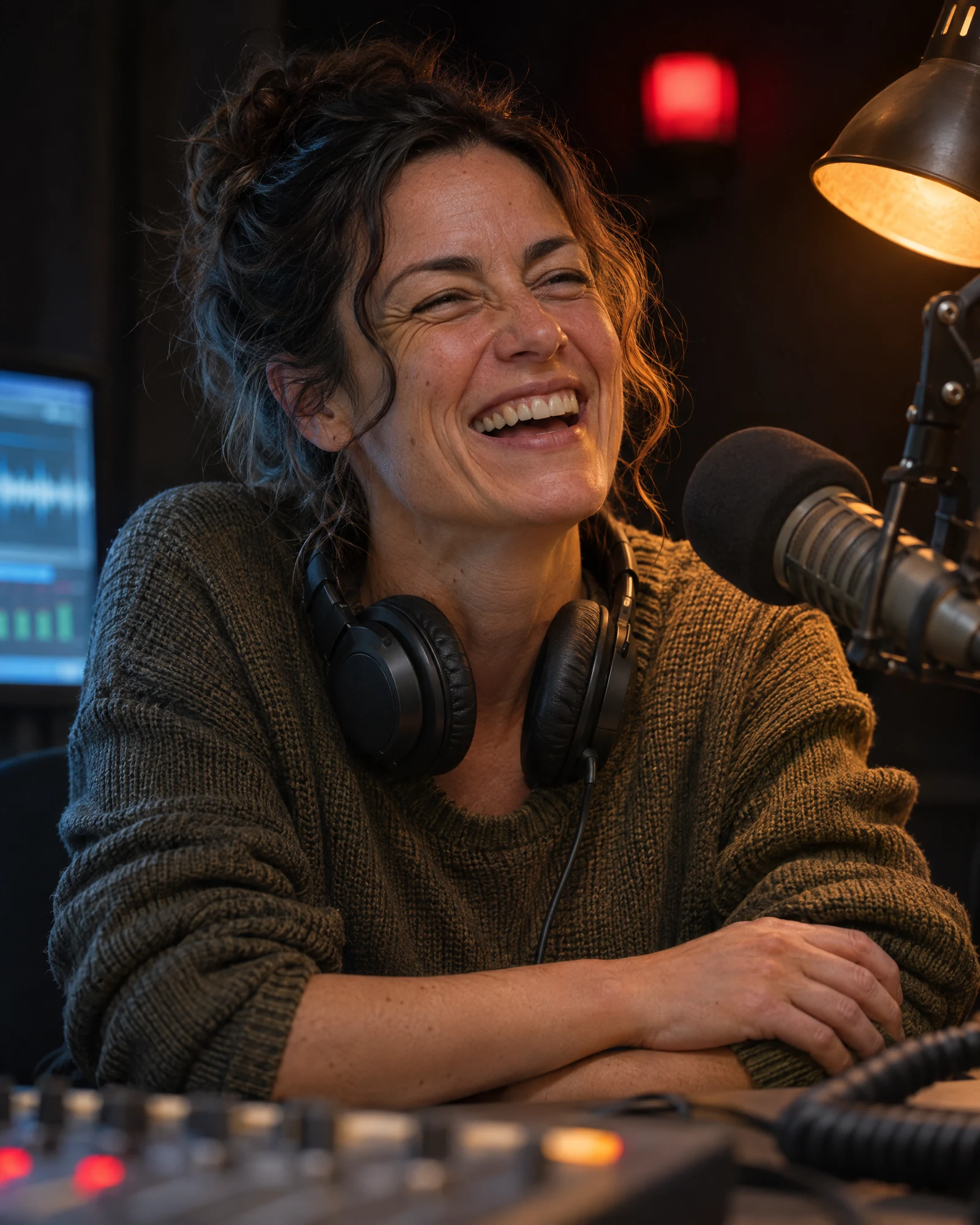
Prompt 2: “Documentary portrait, vertical 4:5. A woman in her late thirties, headphones around her neck, sitting at a radio studio desk at three in the morning, mid-laugh with her eyes creased. Lighting: one warm amber desk lamp from the right at 30 degrees, a cool monitor glow from the left as fill, the room falling to near black behind her. A small red on-air lamp is visible out of focus in the background. Shot on a 50mm at f/2, subject sharp from lash line to collar, the mixing desk and coiled cables falling into soft focus. Real skin: visible pores, fine lines, no smoothing, no gloss, no makeup sheen. Natural colour with the amber key reading warm against the cool fill. No text, no watermark, no logo, no border, no heavy vignette.”
 Studio portrait at 3 a.m.
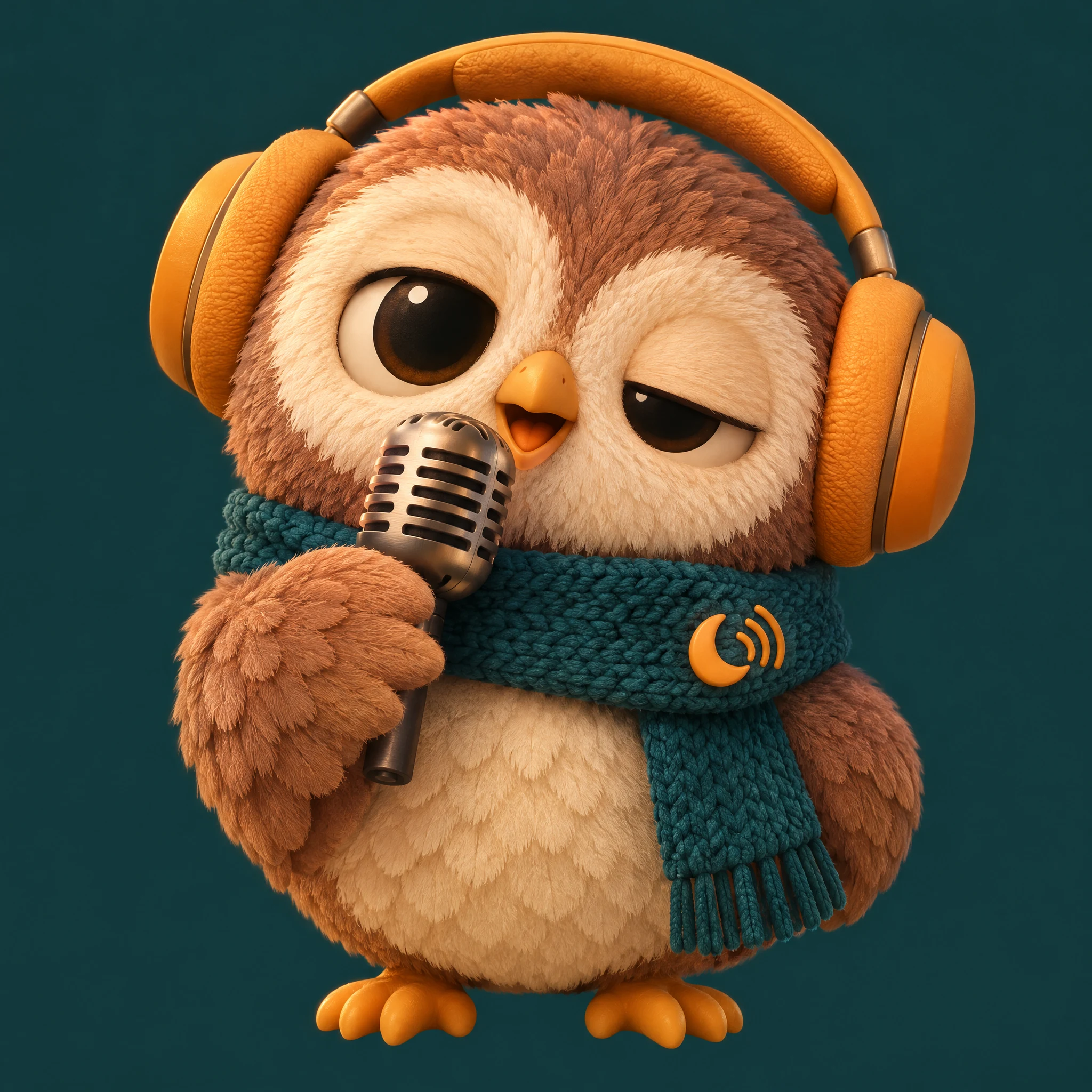
Prompt 3: “Soft 3D toy render, square. A round, sleepy owl mascot in oversized amber headphones, standing upright, one wing raised holding a small vintage microphone at beak height, head tilted slightly, one eye half closed. Materials: dense short feather texture with soft subsurface scattering, matte plastic eyes with one specular dot each, brushed metal on the microphone grille. Wearing a deep teal (#123C3C) scarf with visible stitch scale and one loose end. A small amber crescent-and-arcs badge on the scarf. Deep teal background (#123C3C), seamless, one soft key from the upper left and gentle bounce from below, no floor plane. Charming and simple, toy-like proportions, big head, small body. No text, no logo, no shadow on a floor, no watermark, no border.”
 Owl mascot render
A few habits make any of these work better.
- Put exact text in quotes, and give every line you want on the page.
- Name the light: "one hard key from the upper left at 40 degrees", "flat overcast seaside light".
- Say what must stay the same when you edit.
- Draft on Flare at low or medium quality, then re-run the winner on Sunburst at high.
GPT Image 2.6 limitations
GPT Image 2.6 is a strong upgrade, but it has limits worth knowing before you plan a project around it.
- Cheap drafts cost more. At low quality, an image costs about four times as much as on 2.5.
- No Batch API and no Responses or Chat Completions support, so some existing OpenAI integrations can't switch yet.
- GIFs are short. Sixteen frames at most, with smaller frames as you add more, so they suit loops rather than scenes. For full scenes with camera moves, take the still into an AI video generator.
- SVG suits simple designs. Detailed or photoreal images don't vectorize cleanly.
- 4K is experimental. OpenAI marks sizes above 2560 x 1440 as experimental.
- Small text still needs proofreading, especially captions and fine print.
- OpenAI doesn't publish a reference-image limit. Third-party sites quote different numbers, so test with your own references.
- High complexity can over-edit. For simple edits, keep complexity low.
- The benchmarks are early. Arena's 2.6 scores rest on a few thousand votes and will move.
Frequently Asked Questions
What is GPT Image 2.6?
GPT Image 2.6 is OpenAI's image generation and editing model, released on November 4, 2026. It comes in two versions, Flare for speed and Sunburst for detail, and adds looping GIFs, SVG export and markup edits to what GPT Image 2.5 could do.
What's the difference between GPT Image 2.6 Flare and Sunburst?
Flare is the fast version, best for drafts, posters, social graphics and logos. Sunburst is slower but holds details through repeated edits, so it suits product shots, labels and final assets. Both cost the same per token.
Is GPT Image 2.6 better than GPT Image 2.5?
It's faster and does more: GIFs, SVG export and markup edits. Picture quality is roughly on par, and the leaderboards currently disagree on which version looks better. Stay on 2.5 for cheap low-quality drafts or Batch jobs.
Is GPT Image 2.6 free on ImagineArt?
Yes, to start. Your first few images on ImagineArt are free, and GPT Image 2.6 is free and unlimited on certain plans. See the ImagineArt pricing page for which plans include unlimited use.
How much does GPT Image 2.6 cost per image in the API?
For a 1024 x 1024 image, OpenAI's calculator gives about $0.025 at low quality, $0.044 at medium, $0.053 at high and $0.211 at max. Token rates are the same for Flare and Sunburst.
Can GPT Image 2.6 make GIFs?
Yes. Describe a scene or start from a still, say what should move, and it returns a seamless loop of 2 to 16 frames. It works best with one clear movement and a fixed camera.
Can GPT Image 2.6 create SVG files?
Yes. It renders your design, then writes it as an SVG vector file that stays sharp at any size and opens in Figma or Illustrator. SVG works best for logos, icons and flat illustrations.
Can I edit my own photos with GPT Image 2.6?
Yes. Upload an image, mark the area you want changed and describe the change. For edits where a product or face must stay identical, use Sunburst at medium or high quality.
Kamran Arshad
Kamran Arshad is a full-stack marketer and growth strategist for Gen AI and B2B SaaS companies.