
Zahida Misher
November 11, 2026 • Updated November 11, 2026
17 mins Read
The dinner was great. The photo of it was orange, grainy and leaning left like it had also had the wine. Closing that gap is the whole job of the best photo editing apps, and in 2026 they split into four camps: Adobe Lightroom for full control, Snapseed if you won't pay a cent, your phone's own Photos app for quick AI cleanup, and a prompt editor like ImagineArt for fixes you'd rather describe than drag.
Below: one table with an AI-features column and an iPhone/Android split, the line each free tier draws, and ten app write-ups built on what named testers found. If you're new to editing, our guide on how to edit photos covers the basics first.
The best photo editing apps at a glance
Ten apps, one screen, and a column most roundups skip. The free-plan column says what you get before the paywall. The AI column lists what each vendor names on its own listing or pricing page.
| App | Best for | Free plan | Cheapest paid, as of November 2026 | AI features | iPhone | Android |
|---|---|---|---|---|---|---|
| Adobe Lightroom | Full control | Core editing; masks, healing, RAW need Premium | Premium from US$19.99 a year (40GB, App Store); Lightroom plan US$11.99 a month, annual (Adobe) | Generative Remove, Masking, Lens Blur | Yes | Yes |
| Snapseed | Free editing | The whole app, no ads or watermarks | Nothing to buy | Smart Masking | Yes | Yes |
| ImagineArt | Edits described in words | Free plan; limits on the plans page | See current plans | Prompt edits, object and background removal, restore, colorize | App and browser | App and browser |
| Google Photos | Free AI cleanup | Free, 15 GB storage | n/a | Magic Eraser, Unblur, Portrait Light | Yes | Yes |
| Apple Photos | Built-in iPhone edits | Built in | n/a | Clean Up on Apple Intelligence-capable iPhones | Yes | No |
| Picsart | AI effects for social | Free app with ads | US$10.50 a month, billed yearly | AI background and object remover, AI effects | Yes | Yes |
| Photoshop Express | One-tap fixes | Free; advanced healing is Premium | In-app Premium options US$2.99 to US$34.99 (App Store) | Object removal (Premium), cutouts | Yes | Yes |
| VSCO | Film-look presets | 15 presets, standard editor | US$4.99 a month, billed annually | AI Remove, AI Prompt, AI Denoise (paid) | Yes | Starter only |
| Canva | Photos into posts | Up to 20 AI uses a month | US$144 a year Pro | Background remover, Magic tools | Yes | Yes |
| Photoroom | Product photos | 25 exports a week, 100 a month | US$7.50 a month, billed yearly | Background remover, AI Backgrounds, AI Expand | Yes | Yes |
Prices in US dollars, as of November 2026, read on November 09 from vendor sites and the US App Store. VSCO's plans page says Pro is available on iOS and desktop only.
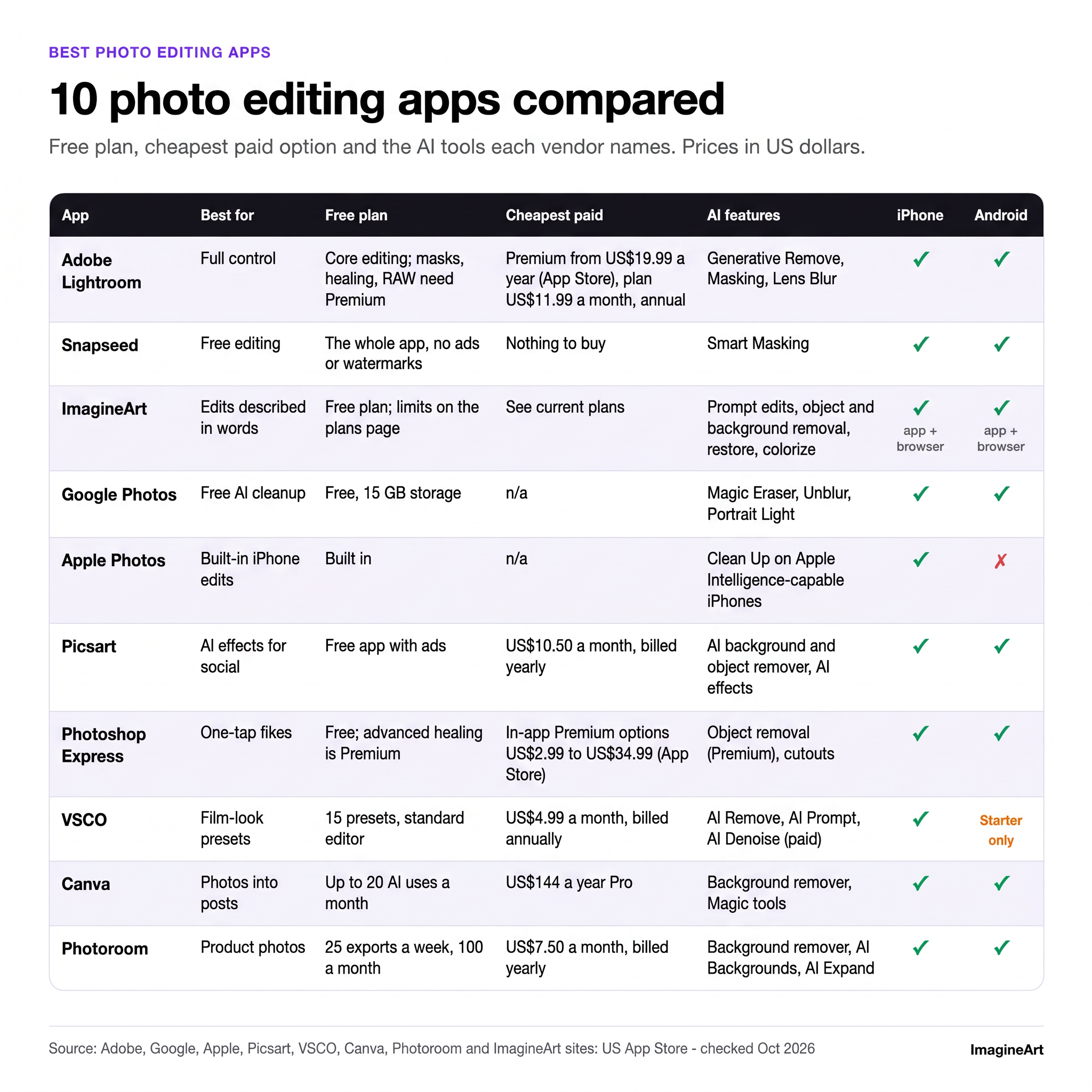 Table comparing 10 photo editing apps for iPhone and Android by free plan, price and AI features as of November 2026
Which is the best photo editing app?
The best photo editing app for most people is Adobe Lightroom if you'll pay and Snapseed if you won't. Lightroom appears on all five ranking guides we read and is Wirecutter's upgrade pick; Snapseed is Wirecutter's top pick and costs nothing. PCMag's favorite, though, is Google Photos.
Those reviewers aren't dodging the question. They're answering different ones. Lightroom wins in depth: curves, color grading, presets, masks and RAW, synced to a computer. Snapseed wins on value. Google Photos wins on effort: PCMag's mobile picks gave it 4.5 out of 5 and an Editors' Choice for strong AI cleanup in an ad-free app.
So pick by what bugs you. Color and light: Lightroom or Snapseed. A stranger in the background: try your built-in Photos app. A change no slider can make: that's prompt editing.
The 10 best photo editing apps, reviewed
Each entry covers what the app is for, what a named reviewer found, the trade-offs, the free version and the price as of November 2026, with a link to the official listing.
1. Adobe Lightroom: best overall for control
Lightroom is the closest thing to a desktop editor that fits in your pocket: exposure, curves, presets and selective edits. Adobe's help pages say Premium adds Masking, Lens Blur and Generative Remove to the free core editor, and Adobe's credits FAQ says Generative Remove uses no generative credits.
What reviewers found: Wirecutter's 2026 guide rated Lightroom's generative removal the best it tested and noted you need an Adobe account even for free use. Zapier's roundup called the free plan "shockingly great", curves and saved presets included, but found Adobe's pricing confusing. Per Themframes, edits synced from a MacBook to an iPhone instantly, and the app ran on a five-year-old iPhone without stalls.
- Pros: the deepest manual controls here; reusable presets; strong AI removal; sync across phone, desktop and web.
- Cons: Amateur Photographer's 2026 roundup says the free tier lacks perspective correction, the healing brush, AI masks and sync, and free users can't edit RAW.
- Free plan: core editing with curves and presets.
- Price, as of November 2026: the US App Store lists Premium from US$19.99 a year (40GB) or US$49.99 a year with 100GB of storage; Adobe's plans page lists the Lightroom plan at US$11.99 a month on an annual plan.
- Platforms: iPhone, iPad and Android. Lightroom on the App Store.
2. Snapseed: best free photo editing app
Snapseed is the best free photo editing app for anyone who wants real tools without a subscription nag. Google's listing promises no subscriptions, purchases, ads or watermarks. There's no paid tier, so nothing is held back.
It's also less old-school than its reputation. The listing now names Smart Masking (one-tap subject or background selection), batch editing, film simulations in Snapseed Camera and RAW support.
What reviewers found: Wirecutter's 2026 guide ran 15 apps on the same sample image on an iPhone 17, a Pixel 8 Pro and an iPad mini, and made Snapseed the top pick. The same guide flags a weak healing tool and no auto-saved edit history.
- Pros: genuinely free; RAW support; Smart Masking; batch edits; 4.9 stars from 30K App Store ratings and over 100 million Play downloads.
- Cons: weak healing for object removal; no edit history to step back through.
- Free plan: the whole app.
- Platforms: iPhone and Android. Snapseed on the App Store.
3. ImagineArt: best for AI edits you describe in words
ImagineArt skips the sliders. You upload a photo and type the change: "remove the man in the red t-shirt", "brighten this and lose the orange cast". The editor page puts it plainly: "There are no masks to draw, layers to manage or selection tools to learn." It runs on Nano Banana Pro by default, with 12 other image models to switch to.
On a phone there are two ways in. The app "AI Image Generator: ImagineArt" shows 10M+ downloads and 4.2 stars from 442K reviews on Google Play, and the App Store version rates 4.4 from 5.2K ratings (iOS 18.2 or later). Its App Store listing names an AI photo editor, background removal, old-photo restoration and colorizing, AI headshots and product photography. ImagineArt's homepage counts 30M+ people creating on the platform.
Or skip the install: ImagineArt's AI photo editor app also runs in your phone's browser, and the page says it works on Android and iPhone with nothing to download.
- Pros: edits sliders can't do (remove, add or restyle by description); runs in a phone browser; one-task tools like the AI object remover.
- Cons: no exposure or curve sliders in the prompt editor, no layers, no RAW (uploads are JPG, PNG or WEBP up to 30MB). Each edit regenerates the image, so check faces and fine detail at full size. The Android app contains ads.
- Free plan: ImagineArt has a free plan; check the current plan limits before a big batch.
- Platforms: iPhone, Android and any phone browser. ImagineArt on Google Play and ImagineArt on the App Store.
For faded family prints, the dedicated tool to restore old photos is a better start than a general prompt.
Test 1: removing a passer-by
We ran this edit in ImagineArt on a generated harbor photo: a woman on the promenade, a man in a red t-shirt walking behind her. The prompt asked to remove him, fill the space with the matching promenade, railing and boats, and keep her exactly as she was.
 Phone travel photo with a man in red walking behind the subject
 The same travel photo with the passer-by removed
He was removed cleanly, the promenade and café awnings filled in, and her face, hat, dress, ice cream and the framing didn't change. Two flaws, though. Because the prompt said "railing", the model added a metal railing along the quay that the original never had.
The orange date stamp from the source also carried straight through. Lesson: describe only what should fill the gap, and never name an object you don't want added. With real photos, remove people only from shots you have the right to edit, and not to misrepresent who was there.
Test 2: rescuing a dark restaurant photo
Next, a generated dinner shot: pasta, red wine, heavy orange bulb light, underexposed, grainy and slightly tilted. One prompt asked for four fixes: brighter exposure, no orange cast, less grain and a level horizon, with the food, glasses, table and framing kept.
 Dark, orange-tinted phone photo of pasta and wine on a restaurant table
 The same dinner photo brighter and less orange, with the warm cast still visible
This one half-landed. It's brighter and less orange (average RGB moved from 97/54/22 to 117/81/53 on our measurement), the plates read paler and the scene stayed put. But the warm bulb cast is clearly still there and the tilt looks unchanged.
Four fixes in one sentence was too much. Run them one at a time, or do white balance in Snapseed or Lightroom, where a slider is the right tool. For light that needs rebuilding, ImagineArt's Relight tool is the next one to try.
Test 3: a film look by prompt
We first tried this on a generated portrait, but moderation blocked that version twice, so we recast the scene without a person. The source became a crisp, saturated seaside photo (railing, striped umbrella, turquoise sea) with a prompt for a warm 35mm film look: faded blacks, soft warm highlights, gentle grain, muted greens and blues.
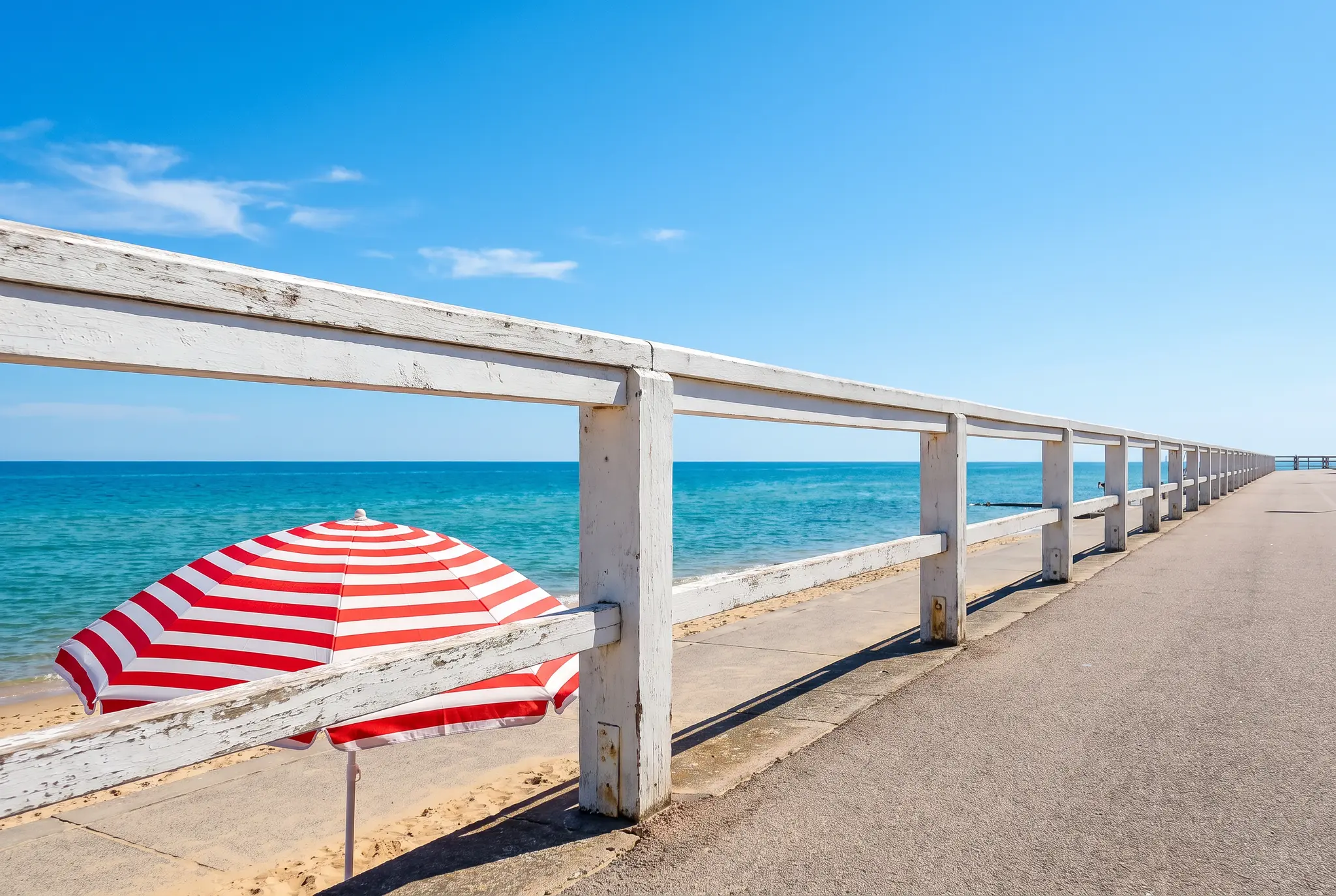 Crisp, saturated phone photo of a seaside promenade with a striped umbrella
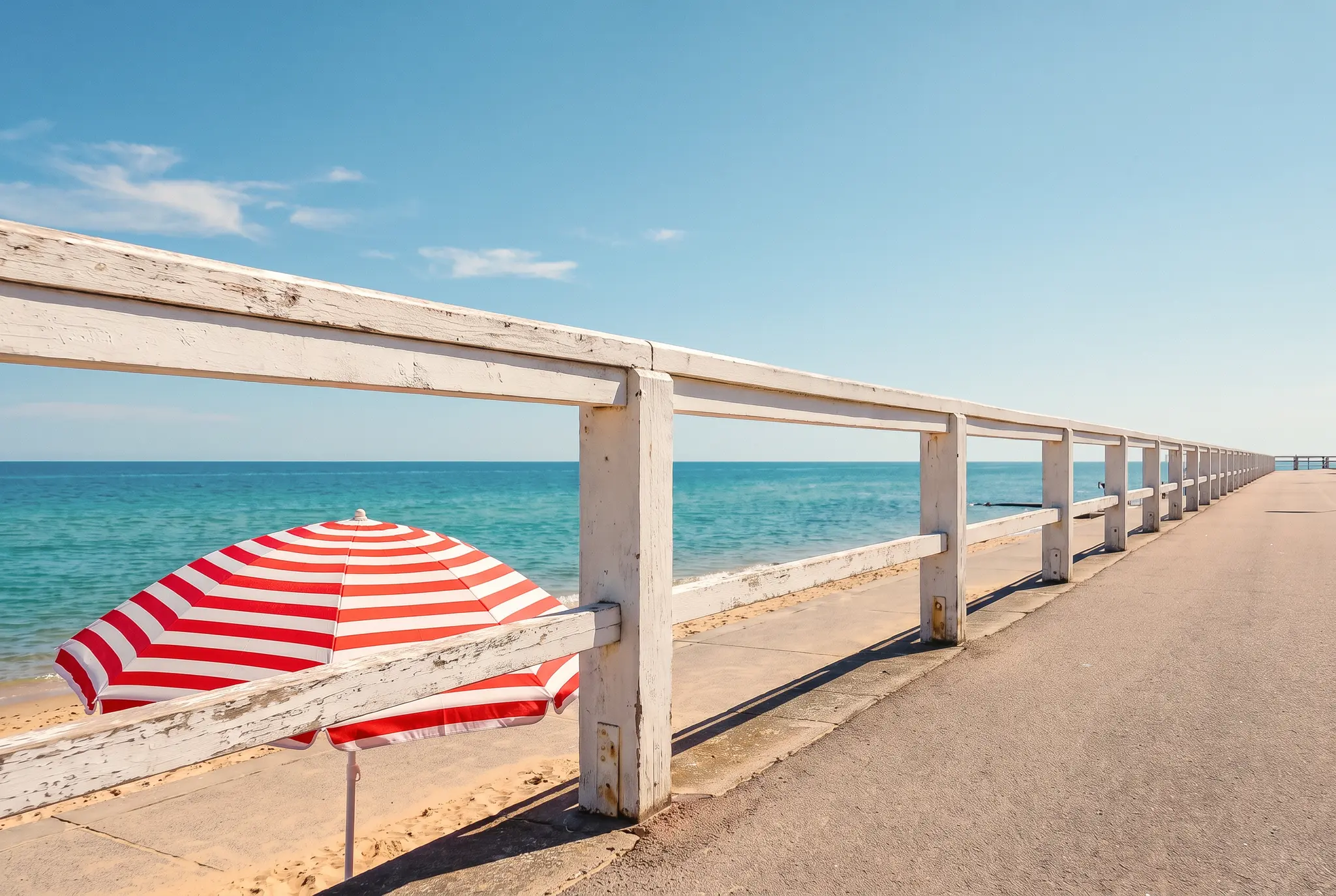 The same seaside photo slightly warmer and softer after a film-look prompt
The result is subtle: a little warmer and softer, scene unchanged, and at web size it reads like a mild warm filter. The grain we asked for isn't visible even at 2048 pixels. VSCO presets or Snapseed's film simulations give a stronger, repeatable look. Prompts earn their place when no preset has the look you want.
4. Google Photos: best free AI cleanup on Android
Google Photos is free and, per PCMag, ad-free, which makes it the best photo editor for Android if you want AI cleanup without paying. Its Play listing names Magic Eraser for distractions, Unblur for soft shots and Portrait Light for faces, plus 15 GB of storage per Google account. Google's help page limits conversational editing through Ask Photos to users 18 and over, in select countries.
What reviewers found: PCMag gave it 4.5 out of 5 and an Editors' Choice for strong AI cleanup with no ads, but noted there's no step-by-step undo. Wirecutter found Magic Eraser often beat Snapseed's healing tool, while staying at surface-level edits.
- Pros: free and ad-free (PCMag); Magic Eraser often beat Snapseed's healing (Wirecutter); also on iPhone and the web.
- Cons: features depend on your phone. Google Photos editing help says most tools need Android 8.0 or later and 3 GB of RAM, and parts of Portrait Light and the improved Unblur need 4 GB.
- Free plan: the full editor, within those device limits.
- Platforms: Android, iPhone and web.
5. Apple Photos: best built-in editor on iPhone
Before you download the best photo editing app for iPhone, open the one you already have. Apple Photos covers everyday light, color and crop fixes with capable automatic corrections (PCMag), and on Apple Intelligence-capable iPhones adds Clean Up for removing distracting objects.
The catch is hardware. Apple's Clean Up guide lists iPhone 16 models and iPhone 15 Pro and Pro Max on iOS 18.1 or later. Older iPhones keep the regular editor without Clean Up.
What reviewers found: PCMag rated Apple Photos 4 out of 5 for its auto-corrections and flagged that it's Apple-only. Wirecutter found Clean Up, like Magic Eraser, often beat Snapseed's healing, though neither goes past surface fixes.
- Pros: free; nothing to install; Clean Up often beat Snapseed's healing (Wirecutter).
- Cons: Clean Up needs an Apple Intelligence-capable iPhone; no Android version.
- Platforms: iPhone, iPad and Mac.
6. Picsart: best for AI effects and social edits
Stickers, cutouts and loud effects: if that's where your photos are headed, Picsart is the app. Its listings name AI background and object removers and AI effects, and the Play listing shows 1B+ downloads.
What reviewers found: Wirecutter said Picsart had some of the best AI tools in its test, including one that turned a stoic face into a convincing smile. That changes a person's expression, so use it on your own photos or with the person's OK.
- Pros: AI tools Wirecutter ranked among the best it tested; on phone and web.
- Cons: the free app contains ads; the pricing page shows yearly-billed prices, and regional prices can differ.
- Price, as of November 2026: picsart.com lists Pro at US$10.50 a month, billed yearly.
- Platforms: iPhone, Android and web. Picsart on the App Store.
7. Photoshop Express: best for one-tap fixes from Adobe
Photoshop Express is Adobe's lighter phone app: filters, quick corrections and cutouts. Adobe's page says it's free to download with free automatic cutouts, while advanced healing ("remove unwanted objects with smart corrections") needs Premium.
What reviewers found: Wirecutter ranked it a close second to Picsart for AI tricks.
- Pros: friendly fixes; free cutouts; Adobe's healing on Premium; 4.7 stars from 742K App Store ratings.
- Cons: the object removal most people want is paid; the App Store lists several Premium options without saying which period each covers.
- Price, as of November 2026: the US App Store lists in-app Premium options from US$2.99 to US$34.99.
- Platforms: iPhone and Android. Photoshop Express on the App Store.
8. VSCO: best for film-look presets
VSCO built its name on presets that look like film stock, and that's still the reason to install it. The free Starter tier gives you 15 presets and the standard editor; VSCO's plans page puts AI Remove, AI Prompt, AI Upscale and AI Denoise on paid tiers.
What reviewers found: Zapier noted the free plan has only 15 filters. Wirecutter was harsher, calling the app a "confusing jumble" with its AI paywalled.
- Pros: a consistent, recognizable look; strong presets; a free 7-day Pro trial.
- Cons: a thin free tier; VSCO's plans page says Pro is available on iOS and desktop only.
- Price, as of November 2026: Pro is US$4.99 a month billed annually, or US$12.99 billed monthly.
- Platforms: Pro on iPhone and desktop; Starter in the VSCO app.
Presets are the shortcut to a feed that looks planned. Our guide to edit photos for Instagram shows how to keep that look consistent.
9. Canva: best for turning photos into posts
A good photo still needs a headline before it turns into a story slide, flyer or thumbnail, and that's Canva's job. On the photo side it has a background remover and Magic tools. Of the reviews we cite, only Amateur Photographer covers Canva, as a quick in-browser editor, so this entry leans on Canva's own pricing page.
The free plan is generous with templates and tight with AI. Canva's pricing page says Free includes up to 20 uses of Standard or Premium AI tools, pooled and reset monthly.
- Pros: photo to finish post in one app; phone, web and desktop.
- Cons: 20 AI uses a month on free; shallower photo controls than Lightroom or Snapseed.
- Price, as of November 2026: Canva's pricing page lists Pro at US$144 a year for one person.
- Platforms: iPhone, Android, web and desktop. Canva on the App Store.
If you mostly need design with a bit of photo work, our roundup of Canva alternatives compares the field.
10. Photoroom: best for product photos on your phone
You've shot a mug on the kitchen counter and the listing needs it on a clean background by tonight. That's Photoroom's job: it cuts the item out, drops it on a clean or AI-generated background and can widen the frame with AI Expand.
What reviewers found: TechRadar's Steve Paris found its AI tools work very well on product shots, and warned that credits can run out fast.
- Pros: fast cutouts; AI Backgrounds; batch editing.
- Cons: Photoroom's help page caps free exports at 25 a week and 100 a month; heavy AI use burns credits.
- Price, as of November 2026: Photoroom's pricing page lists Pro at US$7.50 a month, billed yearly, with a free trial.
- Platforms: iPhone, Android and web. Photoroom on the App Store.
For an occasional clean cutout, ImagineArt's background remover runs in the browser.
Honorable mention: Facetune handles portrait retouching (Smooth, Reshape, Vanish and AI headshots) and is free with ads and in-app purchases. Retouch your own face freely; ask before you reshape anyone else's.
Which photo editor is 100% free?
Snapseed is the only app on this list you download that's fully free: no ads, subscriptions, purchases or watermarks. Apple Photos and Google Photos are free too, since they come with your phone, though their AI tools depend on your model. The rest of the best photo editing apps on this list are freemium.
Where each paywall sits:
- Lightroom: Amateur Photographer says the free tier lacks AI masks, the healing brush, perspective correction, sync and RAW editing.
- VSCO: Starter stops at 15 presets.
- Canva: up to 20 Standard or Premium AI uses a month.
- Photoroom: 25 exports a week, 100 a month.
- ImagineArt: a free plan exists; check its limits on the plans page rather than an old screenshot.
- Snapseed: nothing held back.
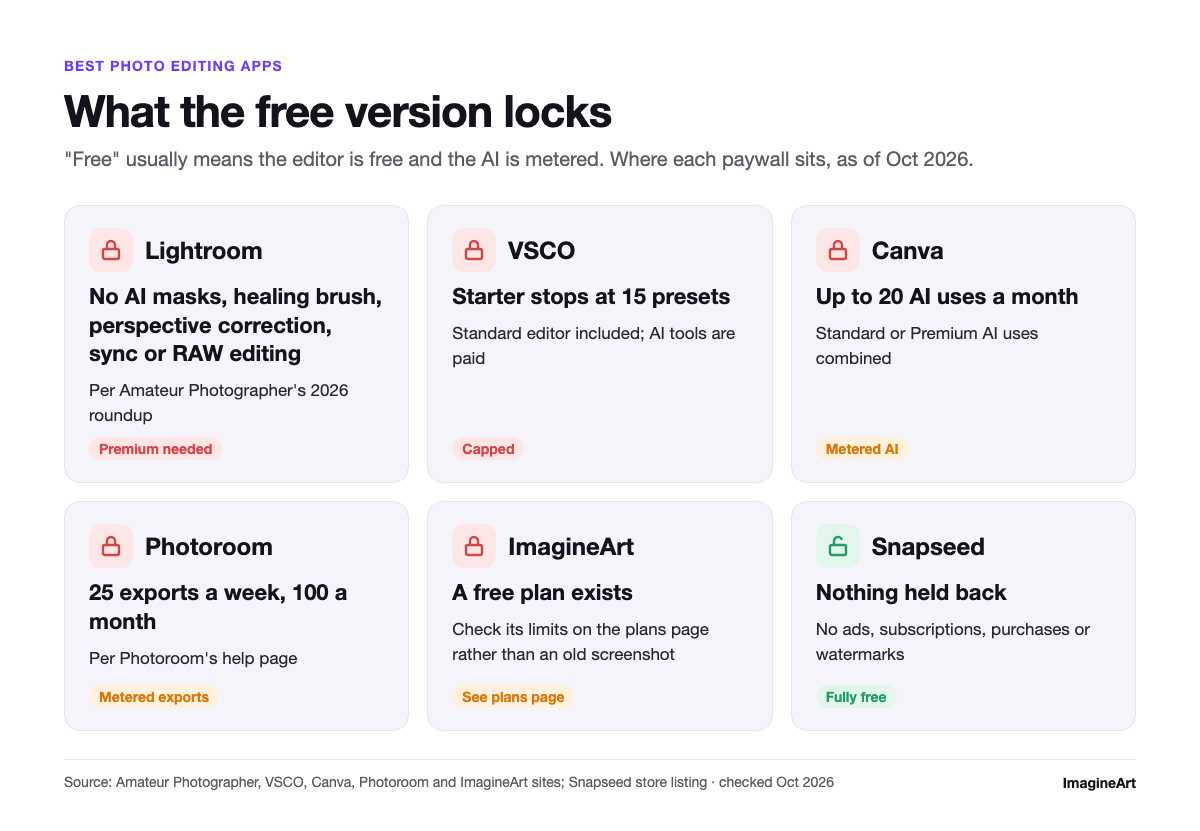 Cheat sheet of what the free versions of six photo editing apps leave out
"Free" usually means the editor is free and the AI is metered. If AI removal is why you're shopping, try your phone's built-in eraser first.
What do professional photographers use to edit photos?
On phones, professional photographers mostly use Lightroom mobile, because edits and presets sync with the desktop. On computers, Themframes names Lightroom and Capture One for RAW work. Per Themframes, which tested desktop editors on 500 RAW files, Lightroom mobile picked up MacBook edits on an iPhone instantly.
The phone side is about continuity: cull and grade on the train, finish on a big screen with the same presets. That's why Lightroom's free tier skipping RAW matters most to photographers.
How Lightroom and Photoshop split the work is its own post: see Lightroom vs Photoshop.
For AI-first tools on a laptop, our list of the best AI photo editors covers the desktop and web tools this phone list leaves out.
How to pick a photo editing app
Four checks narrow ten apps to one or two:
- Decide whether you'll pay. If not, Snapseed plus your built-in Photos app covers most edits. If yes, read what the free tier holds back first.
- Check your platform. Apple Photos is Apple-only, Clean Up needs an Apple Intelligence-capable iPhone, Google's tools depend on RAM, and VSCO Pro isn't on Android.
- Name the AI you need. For removal, Lightroom's Generative Remove, Apple's Clean Up and Google's Magic Eraser all have reviewer backing. For edits you'd describe in a sentence (swap the sky, add an object, change the mood), use a prompt editor like ImagineArt.
- Ask whether you shoot RAW. Snapseed handles RAW free; Lightroom needs Premium for it (Amateur Photographer). ImagineArt takes JPG, PNG and WEBP.
When a classic tool is better: white balance, exposure and straightening are precise slider jobs, and our low-light test got them only partly right by prompt.
If clearing people out of shots is your main job, our walkthrough on how to remove someone from a picture compares the methods.
Hitting the limits of Google's eraser? Our guide to Magic Eraser alternatives covers options for any phone.
How we picked these apps
We started with the apps that appear most across the five pages ranking for "best photo editing apps" (Wirecutter, Zapier, PCMag, Amateur Photographer and Themframes): Lightroom, Snapseed, Google Photos, Apple Photos and VSCO. We added Picsart, Photoshop Express, Canva and Photoroom for AI and social edits, and ImagineArt for prompt editing.
Prices came from vendor pages and the US App Store on November 09, 2026. Findings about other apps come from the reviews named in each entry. Our three edits ran in ImagineArt on generated fictional photos, misses included.
The short version
For control, Lightroom. For free, Snapseed. For quick cleanup, the Photos app already on your phone, if your model supports its AI tools. Read the free-plan column before you subscribe, because that's where these apps make their money.
Our own tests drew a clear line around prompt editing. Removing a passer-by worked well. Fixing light and color in one go half-worked, and a film look came out mild. Use sliders for precision and prompts for changes you can't drag into place.
When your next photo needs something no slider can reach, describe it to the ImagineArt AI image editor and check the result at full size.
Frequently asked questions
What is the #1 free editing app?
Snapseed. Wirecutter made it the top pick in its 2026 guide, and Google's listing says it has no subscriptions, purchases, ads or watermarks. Its healing tool is weak, so pair it with your phone's built-in AI eraser for object removal.
Is Lightroom mobile free?
Partly. The free version covers core editing with curves and presets. Adobe's help page puts Masking, Lens Blur and Generative Remove in Premium, and Amateur Photographer notes free users can't edit RAW files. You'll need an Adobe account either way.
Is Snapseed still free, and does it have AI now?
Yes to both. The current App Store listing still says no subscriptions, purchases, ads or watermarks, and it now names Smart Masking, which picks out a subject or background in one tap. Smart Masking selects; it doesn't generate new pixels. For removal there's the healing tool, which Wirecutter found weak.
Can I edit photos with AI on my phone for free?
Yes, within limits. Google Photos includes Magic Eraser and Unblur if your phone meets its RAM requirements, Apple's Clean Up works on Apple Intelligence-capable iPhones, and ImagineArt has a free plan for prompt edits in its app or browser editor. Check each one's limits before a big batch.
Zahida Misher
Exploring how AI transforms marketing, I help businesses unlock growth and future-proof their presence.