Umaima Shah
June 16, 2026 • Updated June 17, 2026
20 mins Read
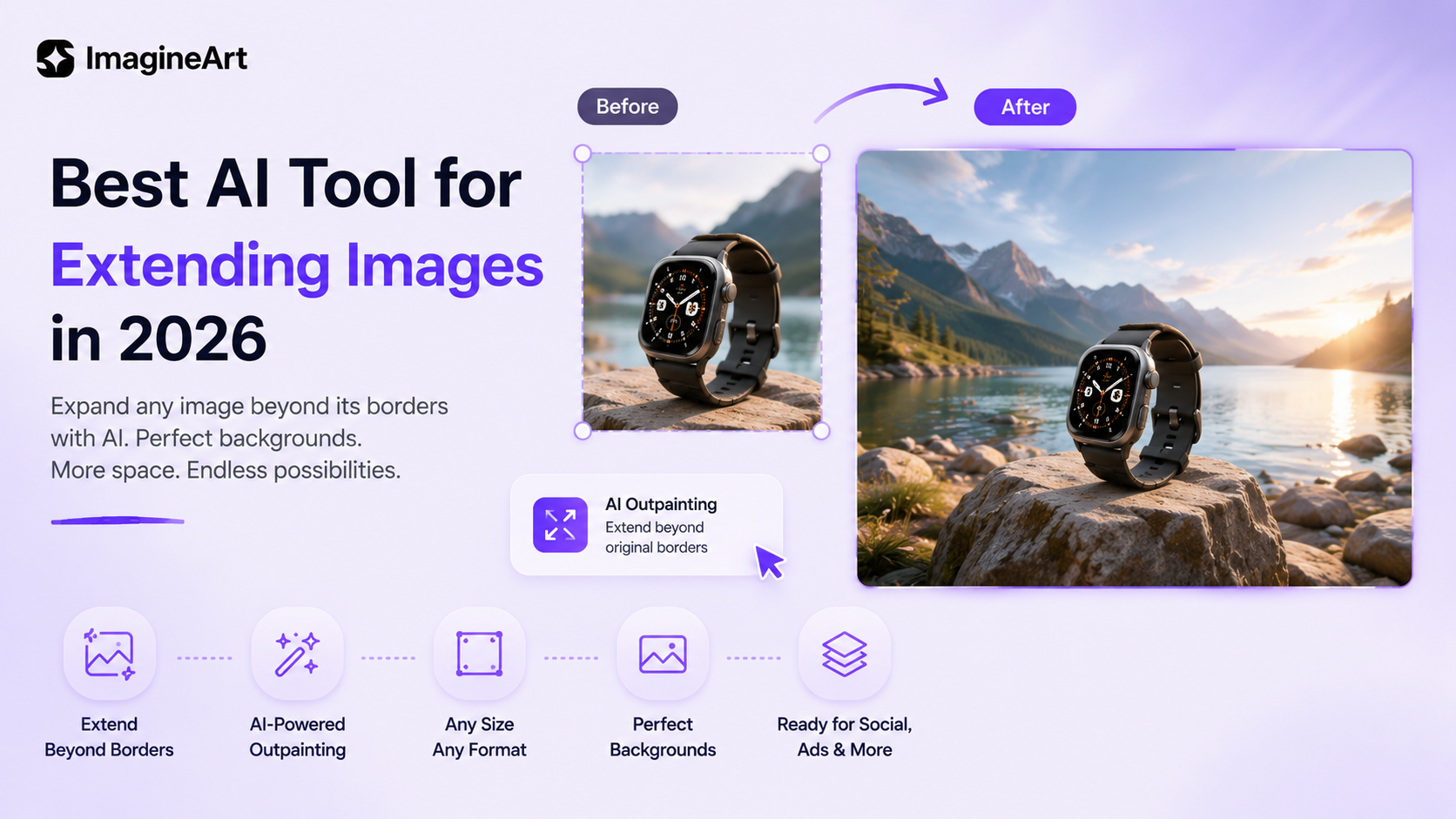
Getting the perfect image is only half the challenge. Even great photos often need to be resized, expanded, or reformatted for different platforms, which is why AI tools for extending images have become essential for creators, marketers, designers, and ecommerce brands.
Instead of cropping important details or rebuilding visuals from scratch, these tools use AI image outpainting to generate new content beyond the original image boundaries. The best AI image extension tools can expand backgrounds, preserve lighting and perspective, and create extra space for text, product placements, thumbnails, banners, social media posts, and ad creatives.
In this guide, we'll compare the best AI tools for extending images, evaluating image quality, editing controls, ease of use, and pricing to help you find the right solution for your workflow.
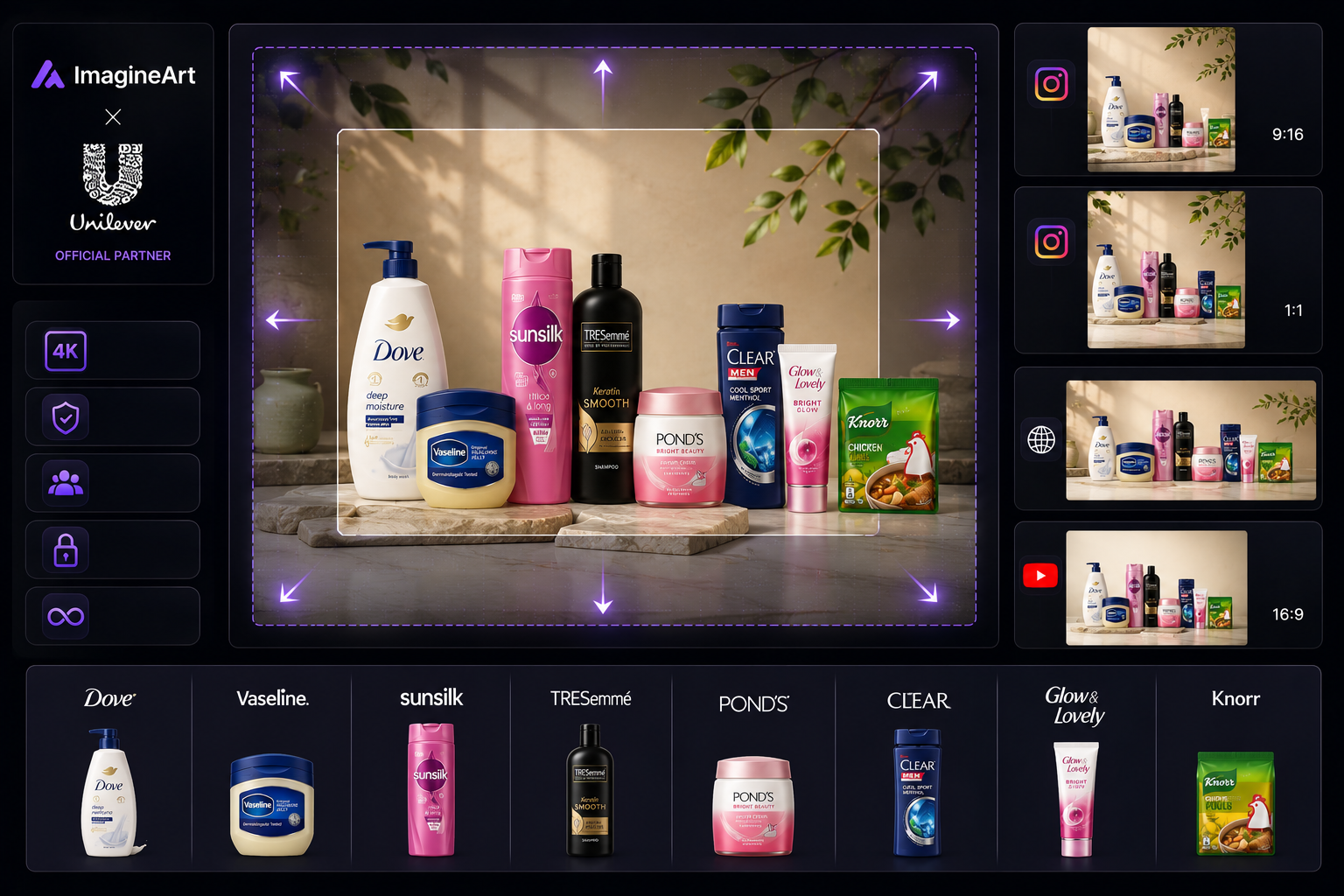 Image Extender by brand
Best AI Tools for Extending Images
Here is how I have compiled this list of the best AI tools for extending images, also called AI image outpainting tools:
- Image extension quality: The tool should expand backgrounds without stretching, warping, or damaging the subject.
- Prompt control: A good AI tool for extending images should let users guide what appears in the new space.
- Aspect ratios: The tool should support common formats like square, vertical, wide, and banner-style layouts.
- Editing support: Extra features like background cleanup, image replacement, upscaling, and object editing matter after expansion.
- Use case fit: Product photos, social posts, ecommerce images, posters, portraits, and thumbnails need different results.
- Pricing and value: The tool should give enough quality, exports, and control for the cost.
So, let’s start.
1. ImagineArt AI Image Editor
ImagineArt AI Image Editor is the strongest pick if you want one AI tool for extending images, editing the frame, rebuilding backgrounds, and preparing visuals for real content use.
It works well for creators, marketers, designers, ecommerce teams, and social media managers who need more than a quick uncrop.
You can upload an image and use text prompts to describe what you want changed. That makes it useful when the image needs new space, a cleaner background, object adjustments, product placement, or a more polished visual direction.
ImagineArt fits product photos, social posts, campaign assets, portraits, banners, thumbnails, and ad visuals because it can handle both creative edits and practical fixes.
Use it when your image is cropped too tightly, your product needs more breathing room, your background needs repair, or your visual needs a new composition for a different format.
It is also useful when you want to create an image first, edit it, and then prepare it for another format. That matters for blogs, ads, ecommerce pages, landing pages, and social campaigns where one image often needs several versions.
Use ImagineArt AI Image Editor when you want to extend image edges, clean the frame, swap backgrounds, add objects, or fix a visual before publishing.
ImagineArt AI Image Replace can also support this workflow when the expanded frame needs a specific object, prop, or visual element changed after the main edit.
For creators building full campaigns, ImagineArt Workflow helps connect image generation, editing, upscaling, and output variations inside one process.
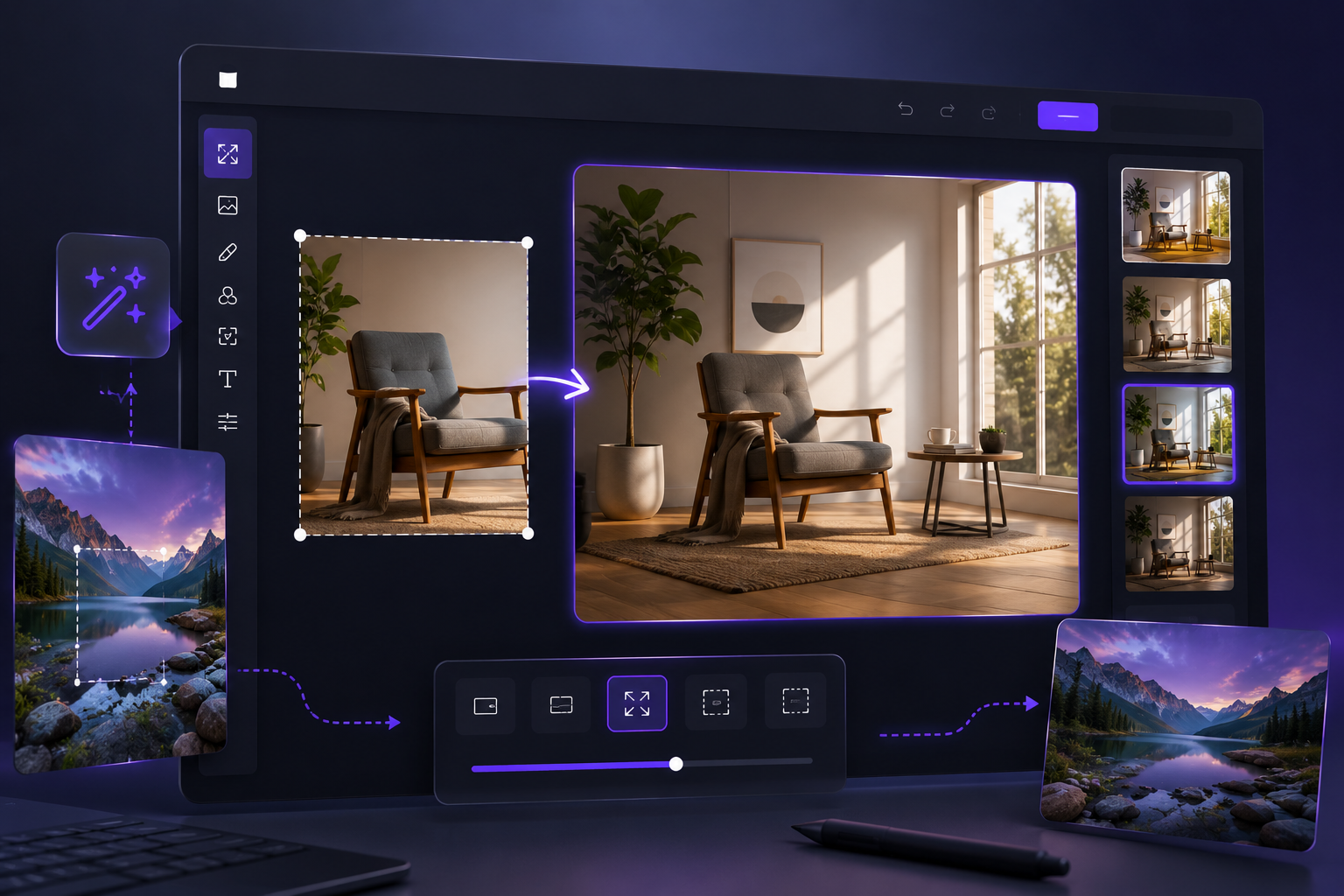
ImagineArt Outpaint lets you extend any image beyond its original borders using AI. You upload an image, select the area you want to expand, and the tool generates new background content that matches the lighting, tone, and style of the original. It supports text prompts so you can guide what appears in the extended area, making it useful for product photos, social banners, campaign visuals, and portraits that need more breathing room or a different aspect ratio.
ImagineArt Pricing
ImagineArt comes with 50 free tokens every day, so creators can test lightweight image extension, basic image editing, retouches, and quick visual fixes for free.
Paid plans start at $15/month, which makes ImagineArt a strong value for creators who need image generation, image editing, video creation, background cleanup, product visuals, and campaign-ready creative in one workspace.
Choose ImagineArt when you need an AI image outpainting and image extension tool that also supports editing, background cleanup, product visuals, social content, and campaign-ready creative.
 ImagineArt's AI Image Extender
2. Adobe Firefly Generative Expand
Adobe Firefly Generative Expand is one of the strongest AI tools for extending images inside a professional editing workflow.
It works especially well for designers, photographers, and creative teams that already use Photoshop or Adobe tools.
The main benefit is control. You can expand the canvas, guide the missing areas, and keep working inside a layered editing environment.
This makes Adobe useful for campaign images, polished photography, editorial visuals, banners, posters, and high-control brand assets.
It is a strong option when the image needs careful finishing after extension. A photographer can extend a background, adjust the crop, clean details, and keep editing without moving to another platform.
The tradeoff is that Adobe may feel heavier for users who only need quick social resizing or simple background expansion.
Choose Adobe when you need professional editing depth, layer control, and a more traditional design workflow around the AI result.
For creators who want model-led editing inside the ImagineArt ecosystem, ImagineArt Nano Banana 2 can support advanced image generation and editing experiments before the final layout stage.
Adobe Firefly Pricing
Adobe Firefly has a free option. Paid Firefly plans start at US$9.99/month for Firefly Standard.
Firefly Pro costs US$19.99/month. Firefly Pro Plus is regularly US$49.99/month, and Firefly Premium is regularly US$199.99/month. Choose Adobe when you need professional editing depth, layer control, and a more traditional design workflow.
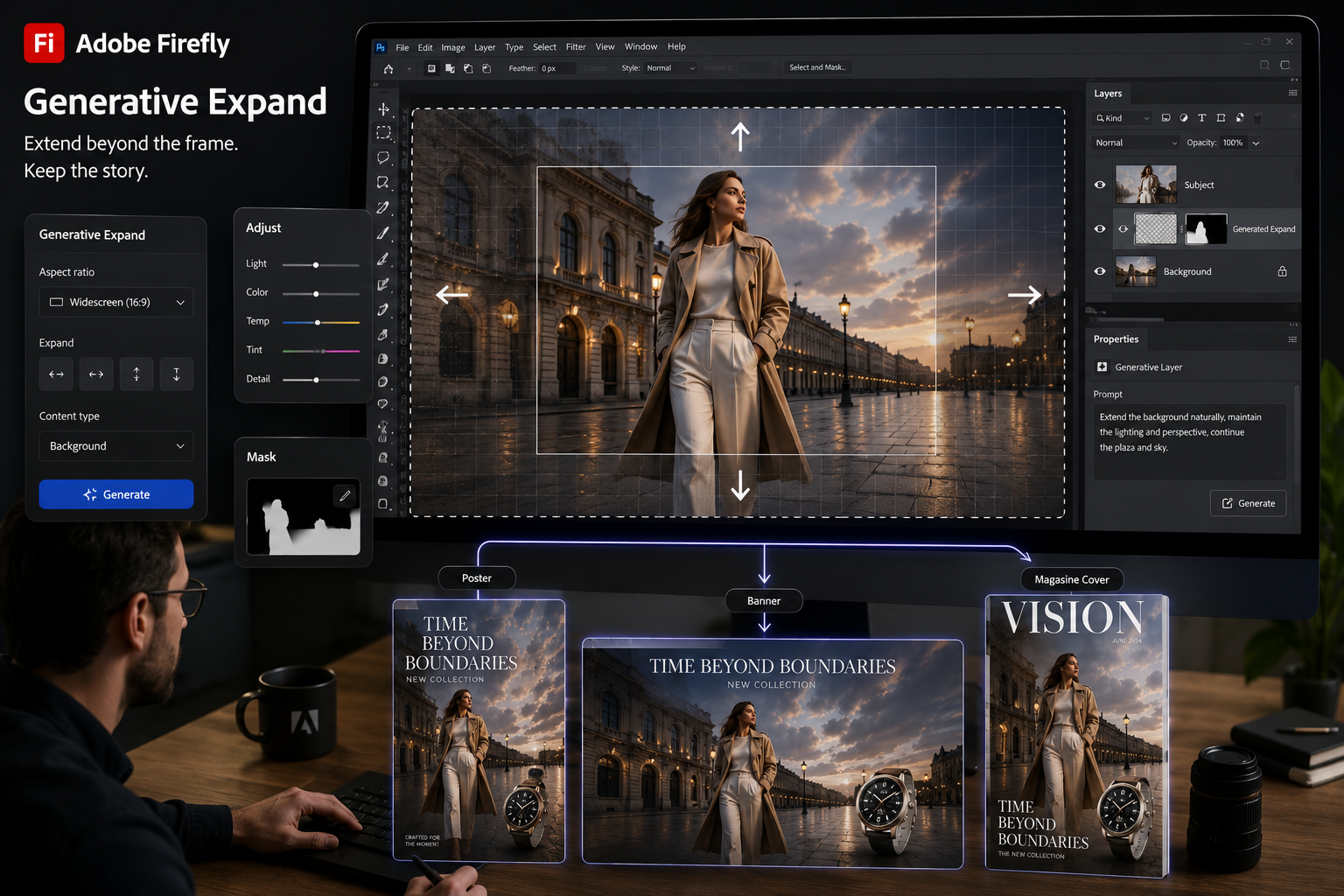 Adobe Generative AI Expand
3. Fotor AI Image Extender
Fotor AI Image Extender is a strong option for users who want a direct online tool for uncropping and outpainting images. It fits social media creators, small businesses, product sellers, and casual users who need fast image expansion without a complex editing setup.
Fotor works well for turning images into different aspect ratios, creating more background, expanding product photos, and resizing visuals for social posts or banners.
The tool is useful when you have a good image but need it to fit another layout.
For example, a square image can become a vertical post, a tight product image can gain more space, and a cropped photo can get a wider frame.
Fotor is a practical AI tool for extending images when speed and ease matter more than advanced editing control. Choose it for fast uncropping, simple layout fixes, and everyday image resizing.
Fotor Pricing
Fotor's pricing includes a free Basic plan, as well as Pro ($3.33/month), Pro+ ($5.24/month), and Max ($11.19/month).
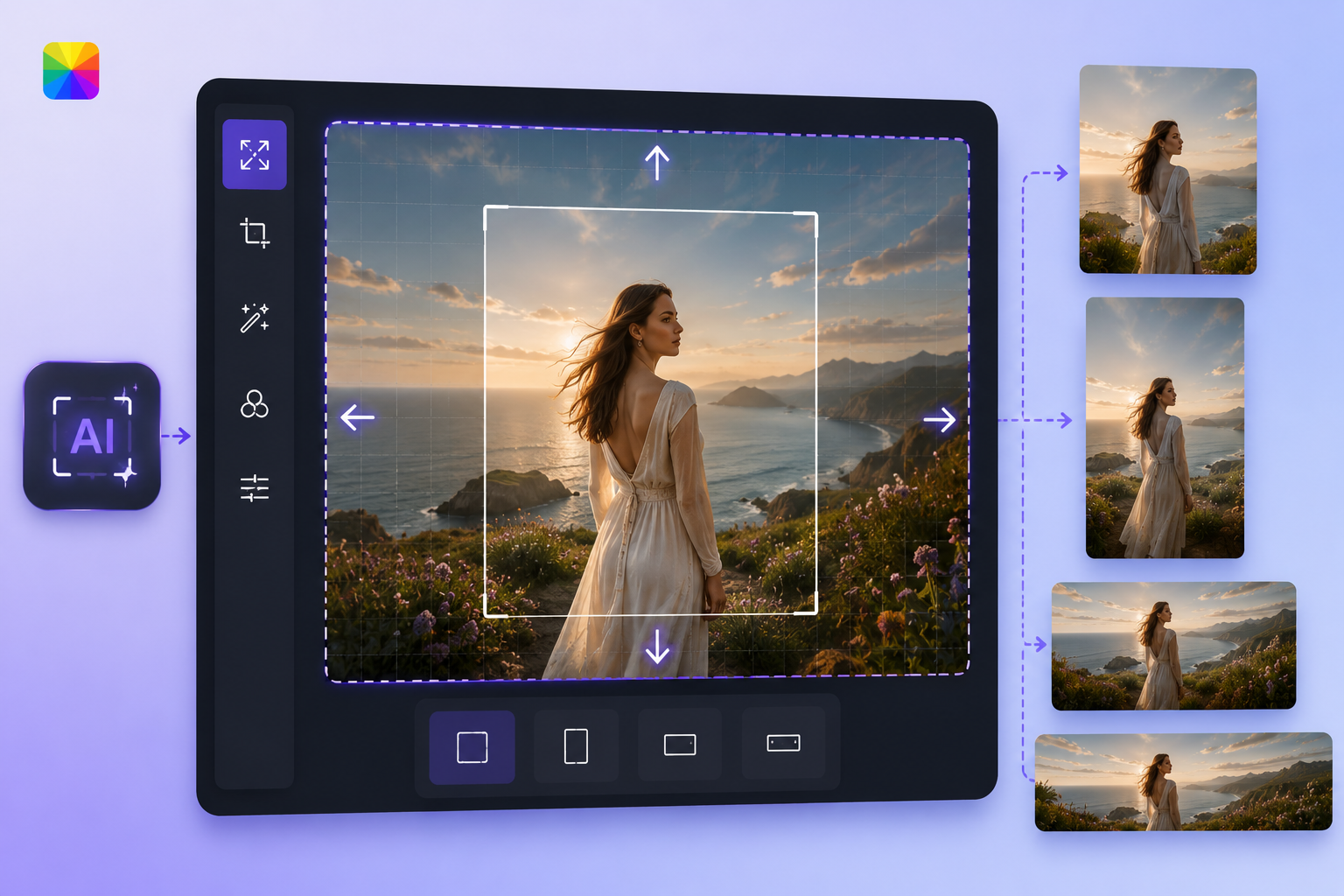 FOTOR AI Image Extender 2026
4. Canva Magic Expand
Canva Magic Expand is useful for people who already design inside Canva. It works well when you need to fix a cropped image inside a social post, presentation, poster, thumbnail, or brand layout.
The main value is convenience. You can expand an image while building the rest of the design in the same workspace.
Canva fits marketers, creators, teachers, small businesses, and non-designers who want image expansion as part of a larger design project.
It is not the deepest AI tool for extending images, but it works well for common layout problems.
A tight image can become a better Instagram post, story slide, presentation cover, or banner when the extension creates clean space around the subject.
Choose Canva Magic Expand when you need a fast design fix and do not want to leave your Canva project.
Canva Pricing
Canva has a free plan. Canva Pro is commonly listed at $15/month for individual users, or $120/year when billed annually.
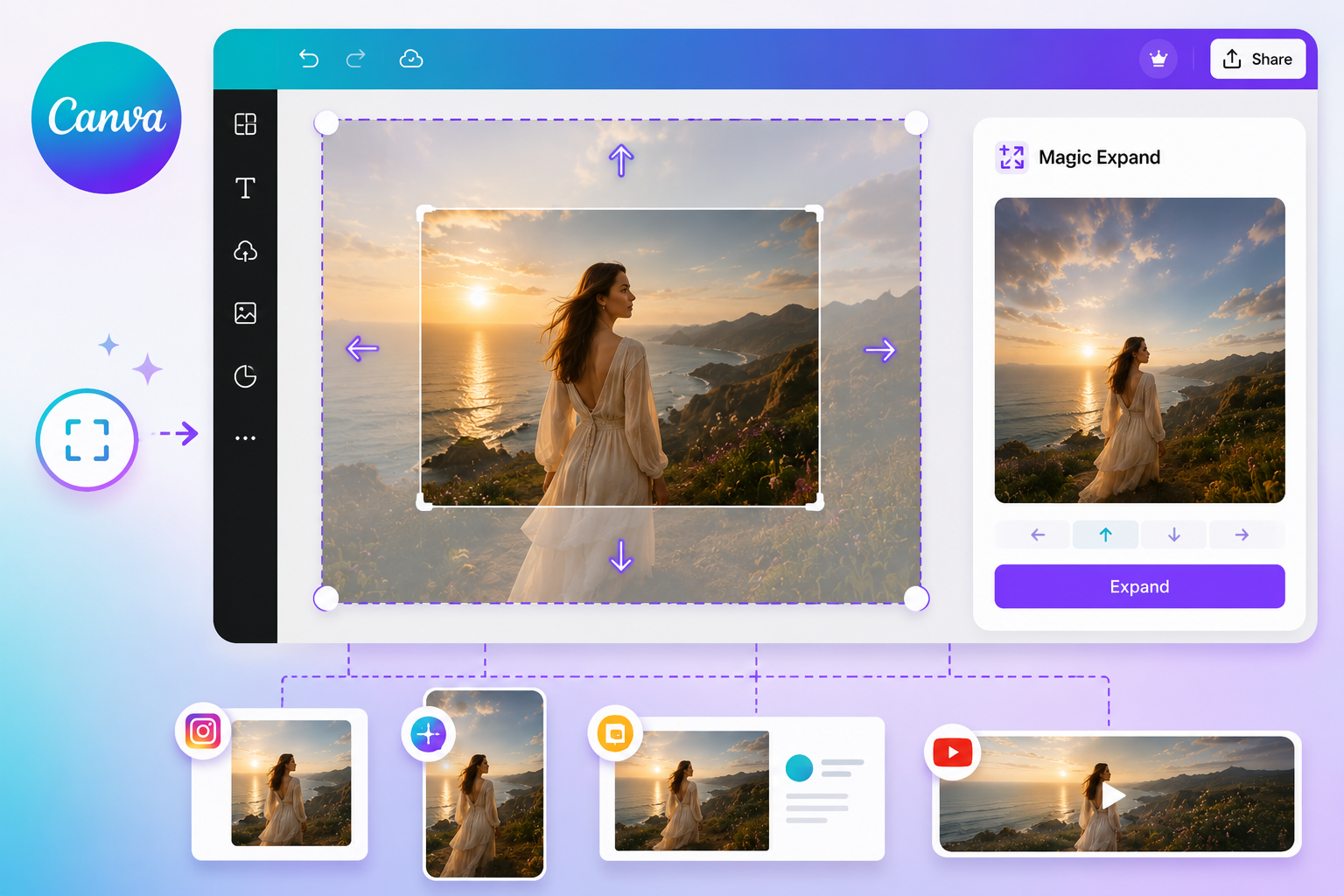 Canva Magic Expand.png
5. GPT Image 2.0
GPT Image 2.0 is a strong option for users who want image extension and image editing inside the same workflow.
It can expand images beyond their original borders while following prompts that describe the new scene, background, lighting, and composition.
This makes it useful for marketers, designers, content creators, bloggers, and social media teams who need more control over the final result.
GPT Image 2.0 works well for:
- Social media graphics
- Blog covers
- Marketing visuals
- Website banners
- Creative projects
- Product imagery
The model can continue backgrounds, create new visual elements, and adapt the image for different aspect ratios without relying on simple stretching or cropping.
Choose GPT Image 2.0 when you want image extension combined with strong prompt-based editing and generation capabilities. ImagineArt GPT Image 2 is useful for users who want prompt-led image generation and editing before building final layouts for posts, covers, or ads.
GPT Image 2.0 Pricing
GPT Image 2 does not have separate image-generation plans. It is included within ChatGPT Plus ($20/month), ChatGPT Pro ($200/month), and OpenAI's API pricing for developers. Access limits depend on the subscription tier rather than dedicated image-generation plans.
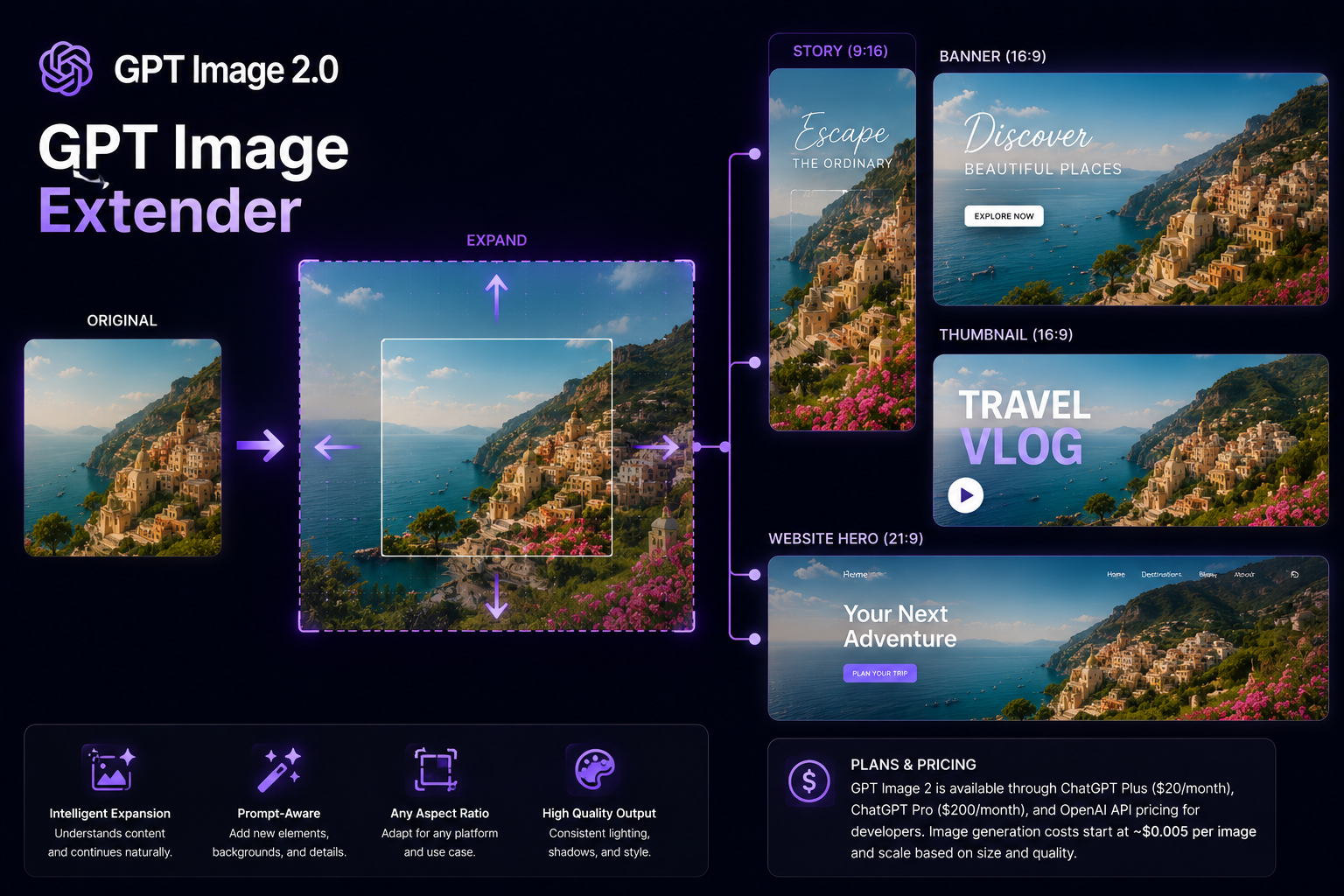 GPT Image Extender 2.0
6. OpenArt AI Image Extender
OpenArt AI Image Extender is a good option for creators who want a general image expansion tool with creative flexibility. It works for artists, marketers, designers, and social creators who want to expand images for creative projects, campaigns, profile visuals, or website layouts.
OpenArt is useful when you want to test different versions of an expanded image and guide the result with prompts.
It can work for marketing images, digital art, social media visuals, and creative outpainting where the final look does not need to stay strictly photographic.
This makes it more flexible than a basic uncrop tool.
Choose OpenArt when you want a creative AI tool for extending images and plan to experiment with prompts, styles, and multiple outputs.
ImagineArt Flux 2 is another useful option when the project needs high-quality prompt interpretation and polished image generation before final extension or editing.
OpenArt Pricing
OpenArt paid plans start at $14/seat/month for Essential. Advanced costs $29/seat/month, Infinite costs $56/seat/month, and Wonder costs $240/seat/month.
The pricing page also shows lower monthly equivalents when billed annually.
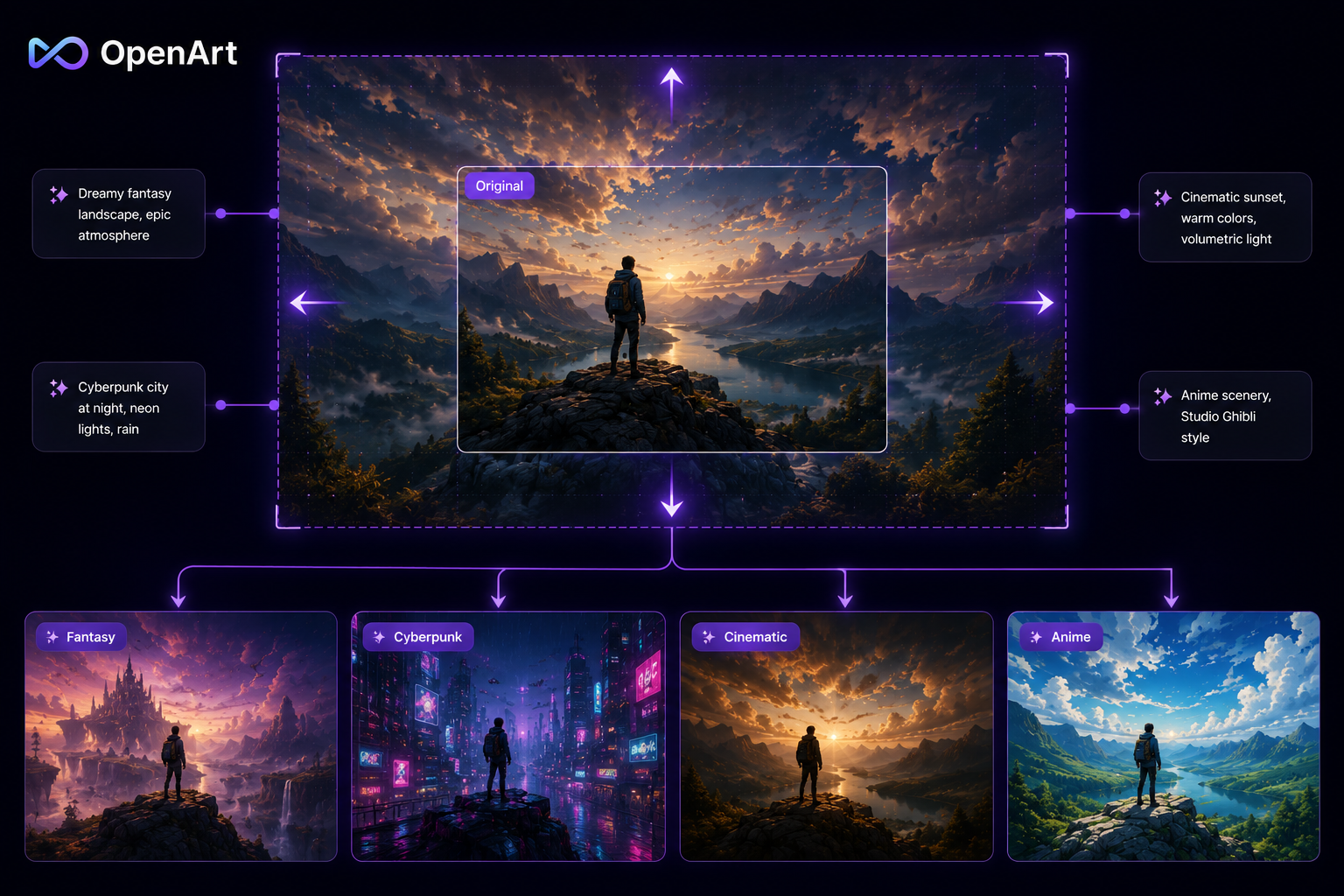 OpenArt AI Image Expander
7. Clipdrop Uncrop
Clipdrop Uncrop is a simple tool for expanding an image beyond its original frame.
It works well when you need a quick uncrop without opening a full editing platform. The tool is useful for creators, designers, and marketers who need more background around an image, a better crop, or extra space for a design layout.
Clipdrop is especially helpful for fast fixes.
You may use it when a subject is too close to the edge, a product needs more space, or a visual needs a wider format. It does not try to replace a full image editor. Its strength is direct image expansion.
Clipdrop Pricing
Clipdrop has a Free plan with limited daily access to tools like Uncrop, background removal, cleanup, relight, text remover, and upscaling.
Clipdrop also lists a Pro plan for higher daily limits and high-resolution tools. Check the current pricing page for the latest plan rates and billing options.
Choose Clipdrop Uncrop when you want a quick AI outpainting tool for simple composition fixes.
8. Picsart AI Image Extender
Picsart AI Image Extender works well for creators who already use Picsart for social media content, design edits, and mobile-first visuals. It fits users who need a quick way to expand images for posts, profile content, stories, thumbnails, and simple marketing assets.
Picsart is strong for creative edits because it sits inside a broader editing and design platform. You can extend an image, add effects, use templates, adjust the design, and prepare content for social channels.
This makes it practical for creators who want speed and style options in one place. It may not be the best choice for high-end photography or strict product accuracy, but it works well for social-first editing.
Choose Picsart when the image extension is one step inside a wider content edit.
Picsart Pricing
Picsart has a free option. Picsart Pro is listed at $15/month, or $10.5/month when billed yearly. Picsart Ultra is listed at $45/month, or $31.66/month when billed yearly per seat.
9. Kapwing AI Image Extender
Kapwing AI Image Extender is useful for creators and teams that work across images, videos, and social content. It fits YouTubers, marketers, content teams, educators, and social media managers who need quick resizing and image expansion for platform formats.
Kapwing works well when you need to turn one image into several content assets.
A thumbnail may need more space for text. A portrait may need a wider background for a video frame. A square visual may need to become vertical for short-form content.
The benefit is that the image extension sits close to the video and content editing tools.
Choose Kapwing when you need an AI tool for extending images as part of a broader content production workflow.
Kapwing Pricing
Kapwing has a free plan. Kapwing Pro costs $24/month when billed monthly, or $16/month when billed annually. Kapwing Business costs $64/month when billed monthly, or $50/month when billed annually.
10. Pixelcut AI Image Extender
Pixelcut AI Image Extender is a useful option for product images, ecommerce content, and simple marketing visuals.
It fits online sellers, small brands, creators, and marketplace users who need fast visual edits without complex design tools.
Pixelcut is practical when a product image needs more background, better spacing, or a cleaner layout for ads and sales pages.
It can also help with social posts and branded visuals where the product needs to sit inside a cleaner frame.
The tool is strongest when the image extension job is simple and product-led.
Choose Pixelcut when you need fast product image expansion and do not want a full professional editing workflow.
Pixelcut Pricing
Pixelcut has a free plan. Pixelcut Pro costs $10/month, or $8/month when billed yearly. Pixelcut Business costs $30/month, or $24/month when billed yearly.
11. Recraft
Recraft is a strong option for design-led image work, especially when the image extension connects to brand assets, graphics, vectors, or campaign visuals.
It is not only about uncropping a photo. It is better suited for designers who care about controlled visual systems.
Use ImagineArt Recraft V4 when you want design-focused image generation, vector graphics, brand consistency, text rendering, mockups, and production-ready visual assets.
Recraft fits posters, illustrations, brand graphics, product visuals, design systems, and layouts where the extended image needs to match a strong graphic direction.
It can be useful when you are not only expanding a photo but rebuilding the surrounding design language.
Choose Recraft when the final image needs to look designed, not only enlarged.
Recraft Pricing
Recraft has flexible plans for creators and teams. Check the current pricing page for the latest plan rates and billing options.
12. Runway
Runway is better known for AI video, but it can also fit workflows where image extension connects to motion, storyboards, or visual production. It works for creators who need images as part of a video or campaign sequence.
Runway is useful when the still image will become part of a moving scene, a concept frame, a visual sequence, or a creative production workflow. It is not the simplest option if you only need to uncrop one image.
But if your extended image is part of a larger video idea, Runway can fit the process better than basic online extenders. Choose Runway when image expansion connects to video generation, motion design, or cinematic production.
ImagineArt Runway Gen 4.5 fits this path when still images need to move into cinematic video generation after the visual frame is prepared.
Runway Pricing
Runway has a free plan. Standard is listed at $12/user/month, Pro at $28/user/month, and Max at $76/user/month, with those prices billed annually.
Enterprise pricing is custom.
Choose Runway when image expansion connects to video generation, motion design, or cinematic production.
What Does an AI Tool for Extending Images Do?
An AI tool for extending images adds new visual space beyond the original image borders.
You may also see this called image extension, image expansion, uncropping, generative expand, or outpainting.
The goal is to make the image larger without stretching, warping, or repeating pixels.
A normal resize tool changes the size of the existing image. An AI image extender creates new content around the edges.
For example, it can turn a square product photo into a wide banner by generating more background on the left and right. Or a close portrait into a vertical social post by adding more room above the head or below the shoulders. It can also help when you need space for text, logos, CTA buttons, or design elements.
A good AI tool for extending images should read the original lighting, texture, shadows, perspective, subject position, and background style before creating the new areas.
This is where tool quality matters. Poor image extension can create strange edges, repeated patterns, broken shadows, or backgrounds that do not match the original photo.
ImagineArt AI Image Generator also helps when you need to create a stronger starting image before extending, editing, or rebuilding the frame for another layout.
How to Choose an AI Tool for Extending Images
The best AI tool for extending images depends on what kind of image you are trying to fix. A photographer may need natural skies, walls, floors, and landscapes.
An ecommerce brand may need product consistency, shadows, and clean backgrounds. A designer may need space for text, posters, social layouts, or ad formats. A creator may need quick uncropping for Instagram, TikTok, YouTube, Pinterest, or thumbnails.
Before choosing a tool, check how it handles these areas:
- Background consistency
- Edge blending
- Subject preservation
- Lighting and shadows
- Aspect ratio control
- Prompt control
- Regeneration options
- Export quality
- Commercial use
- Batch editing
- Background cleanup
- Upscaling support
Do not choose only by speed. Fast image extension helps, but the final image still needs to look usable.
A weak tool may fill the frame quickly but damage the subject, distort the product, or create a background that looks fake.
A better tool gives you enough control to guide the extension. You should be able to tell the AI what the new area should contain, what to avoid, and how the final image should feel.
For marketing work, also check whether the tool fits your wider creative process. You may need to extend the image, remove the background, upscale the result, turn it into an ad, or create more variations later.
ImagineArt Workflow works well when image extension sits inside a repeatable process for campaigns, social posts, product visuals, and creative variants.
AI Tools for Extending Images by Use Case
Different users need image extensions for different reasons. A social creator may need a better crop. A product team may need accurate spacing around an item. A designer may need negative space for text. A photographer may need the background to continue naturally.
The right AI tool for extending images should fit the final use, not only the edit itself.
For Social Media Posts
For social media, image extension usually solves aspect ratio problems. You may need to turn a square image into a vertical story, a portrait into a feed post, or a horizontal image into a Pinterest pin.
ImagineArt, Canva, Picsart, Kapwing, and Fotor work well for this use case.
The key is to keep the subject clear and avoid filling the new space with distracting details. Social visuals often need empty space for captions, stickers, product names, or CTA text. A good extension gives the design room to breathe without making the original image look fake.
ImagineArt AI Image Combiner can also help when a social creative needs an extended image to work with another product shot, background, or campaign visual.
For Product Photos
Product photos need more care because the product must stay accurate. The AI should not change the shape, color, texture, label, or size of the product. It should only create more room around the item.
ImagineArt, Photoroom, Pixelcut, and Fotor work well for product image expansion.
Before expanding the frame, clean the product shot if the background distracts from the item. Then extend the image around the product with a prompt that describes the surface, shadow, and background clearly.
For example:
“Extend the background into a clean beige studio surface with soft shadows. Keep the product unchanged.”
That gives the tool a focused job.
ImagineArt AI Product Video Generator also fits product workflows where the extended image later becomes a product demo, reveal, or short campaign video.
For Posters and Banners
Posters and banners often need more negative space than the original image provides. A photo that works as a square post may feel crowded on a website hero, event poster, blog cover, or ad banner.
For this use case, choose tools that handle wide aspect ratios and clean text space well.
ImagineArt, Adobe, Canva, Recraft, and OpenArt are strong options.
ImagineArt Imagen V3 can support poster and banner workflows when you need a polished generated base image before extending or adapting the layout.
For Photography
Photographers need natural results. The extended area should match the original scene, lighting, lens feel, perspective, shadows, and depth.
Adobe, ImagineArt, Fotor, OpenArt, and Clipdrop can work well depending on the photo.
Landscape photos often need clean sky, water, grass, walls, or floors. Portraits need more care because AI can distort hair, shoulders, hands, clothing, or facial edges if the crop is too close.
For E-commerce Catalogs
E-commerce catalogs need consistency across product pages, ads, and marketplace listings.
This section is different from a simple product photo extension because the goal is not only one good image. The goal is a repeatable look across many SKUs.
A product may need square images for one platform, vertical images for ads, and wide images for banners. The prompt style, background tone, shadow direction, and spacing should stay consistent across the full set.
ImagineArt, Photoroom, Pixelcut, and Fotor fit this workflow.
For larger product sets, use one clear prompt structure across images.
For YouTube Thumbnails
YouTube thumbnails need space for faces, objects, large text, and visual contrast. A tight image often fails because the subject fills the whole frame and leaves no room for title text.
Extend the background on the side where the text will appear. Keep the new area simple because busy AI-generated details can make the thumbnail harder to read.A good thumbnail extension should make the subject stronger, not compete with it.
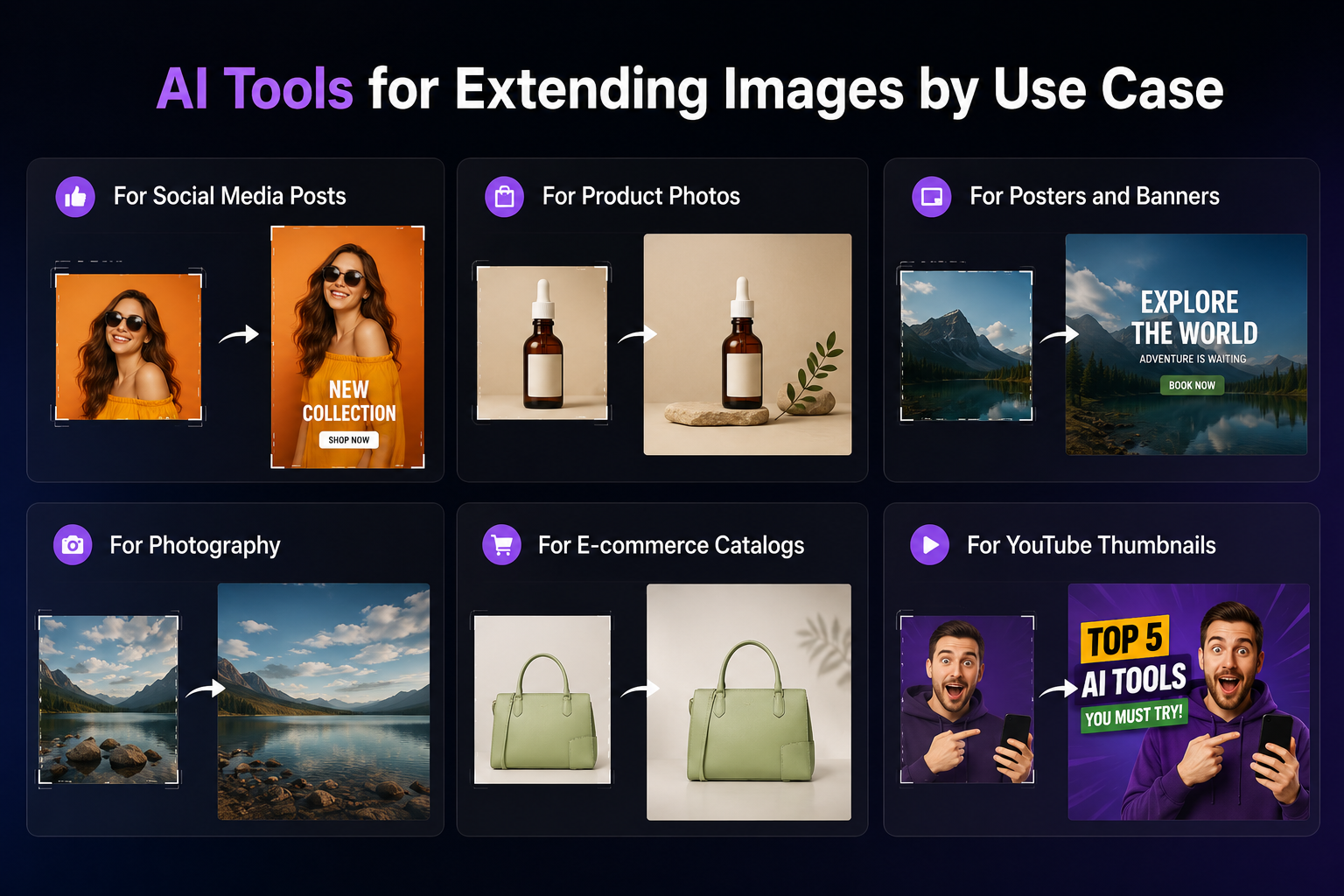 AI TOOLS IMAGE EXTENDERS USE CASES
Create or Extend Your Image With ImagineArt
Use ImagineArt as your AI tool for extending images when your visual needs more space, a cleaner frame, or a better layout. Upload your image, expand the background, fix tight crops, and create versions for posts, banners, thumbnails, product pages, and ads.
You can also create a new image first, then edit, extend, and resize it for the format you need.
Frequently Asked Questions
ImagineArt is the best AI tool for extending images if you want image expansion, prompt-based editing, background cleanup, upscaling, and visual preparation in one workflow. Adobe is strong for professional editors. Fotor and Clipdrop work well for quick uncropping. Canva is useful for simple design layouts. Photoroom and Pixelcut are strong for product images. The best choice depends on your use case, such as social posts, product photos, banners, portraits, or campaign visuals.
Yes, an AI tool for extending images can expand a photo without stretching it, but the final quality depends on the source image, tool quality, prompt, and output resolution. Use a clear original image, expand only as much as needed, and check the new edges closely. If the expanded image looks soft, upscale the result before publishing.
AI outpainting is the technique behind many image extension tools. It generates new content outside the original image boundaries. An AI tool for extending images uses outpainting to make a photo wider, taller, less cropped, or better suited for another layout. In simple terms, outpainting is the method, and image extension is the use case.
Yes, an AI tool for extending images can uncrop a photo by creating new areas around the original frame. It cannot recover the exact original photo data unless that information exists in the file, but it can generate a believable continuation. This works well for backgrounds, skies, walls, floors, product scenes, and simple portrait framing.
ImagineArt, Photoroom, Pixelcut, and Fotor are strong choices for product photos. The best tool should keep the product unchanged while adding clean space around it. Use prompts that protect the product details, such as: "Extend the clean white studio background. Keep the product shape, label, color, and shadow unchanged."
Canva, Picsart, Kapwing, Fotor, and ImagineArt work well for social media. Choose Canva or Picsart for fast design edits. Choose Kapwing if the image will support video or thumbnail content. Choose ImagineArt if you want more control over the extension, background, subject, and final polish.
Yes, some AI tools for extending images offer free credits, free trials, or limited free exports. Free plans can work for testing, but they may limit resolution, watermarks, download quality, generation volume, or commercial use. Check the current plan details before using a free image extender for client work, ecommerce, or paid ads.
Yes, extending backgrounds is one of the strongest use cases. AI can expand walls, skies, floors, studio backdrops, nature scenes, product surfaces, and simple interiors. The best results happen when the original background has a clear pattern, texture, or visual logic that AI can continue.
Yes, but portraits need more care than backgrounds or product photos. The tool should keep the face, hair, skin tone, clothing, and body shape unchanged. Avoid expanding too close to facial features or hands if the tool starts distorting them. For portraits, ask the AI to extend the background first and keep the person unchanged.
Yes, image extension is useful when you need space for headlines, product names, offers, buttons, or logos. This works well for banners, posters, thumbnails, ads, landing pages, and social media covers. Extend the image in the direction where the text will sit, and keep that area simple so the copy stays readable.
Umaima Shah
Umaima Shah is a creative content strategist specializing in AI tools, image generation, and emerging technologies. She focuses on translating complex platforms into clear, practical insights for creators, designers, and product teams