
Syed Anas Hussain
May 15, 2026 • Updated May 18, 2026
9 mins Read
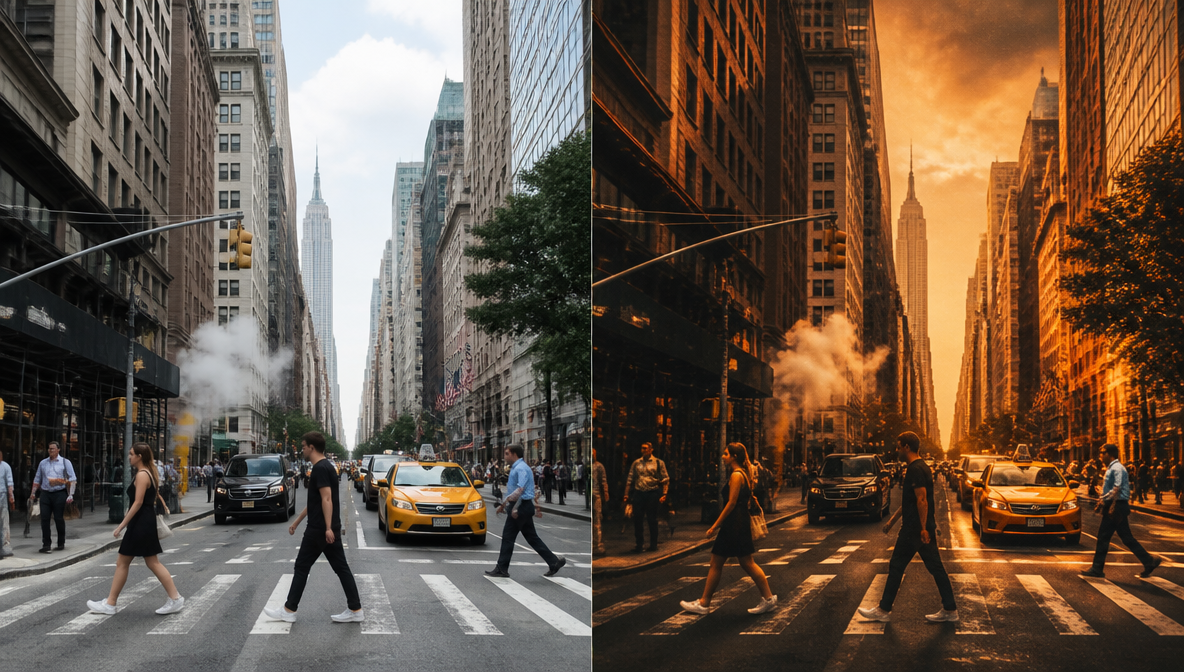
Your photo is fine. But what if it looked like it was shot on a Leica in 1974? Or graded by a Hollywood colorist? Or reimagined in a flat-design illustration style? That's what AI style transfer does — and it's no longer a research lab novelty. ImagineArt 2.0 Edit brings photo style transfer AI directly to content creators, with text-prompt editing, reference-image matching, and 2K resolution output. No editing degree required.
What Is AI Style Transfer — And Why Does It Actually Work?
AI style transfer is the process of applying the visual aesthetic of one image — its colour palette, texture, brushwork, or cinematic mood — to a different photograph using machine learning, producing results that look natural rather than artificially overlaid. The model separates an image's content (subjects, shapes, composition) from its style (colours, textures, tonal relationships), then re-renders the original content through a completely different visual language.
The underlying mechanism involves neural networks trained on millions of images. These models learn to separate a photo's structure from its surface aesthetic. Once those two layers are disentangled, the model can re-render the original content through the lens of a completely different visual language — whether that's a specific film stock, a painterly style, or a cinematic colour grade.
That's the technical part. What matters for creators is the outcome: you can take an ordinary photo of a city street and come out the other side with something that looks like a Wim Wenders still. You can turn a product shot into something that belongs in an editorial spread. You can make a corporate headshot feel warm and filmic in under a minute.
The Difference Between a Filter and a True Style Transfer
Filters are static. They apply a fixed mathematical transformation — boost the warm tones, crush the shadows, add grain. They're predictable, and they're the same for every image.
True AI style transfer is generative. The model reads the image, understands its content, and makes intelligent decisions about how the target style should be applied to that specific image. That means lighting adjusts contextually. Colour relationships are preserved. The texture feels appropriate to the subject matter. It's not a preset — it's a reinterpretation.
What ImagineArt 2.0 Edit Can Do (And Why It's Different)
ImagineArt 2.0 Edit is ImagineArt's dedicated AI photo editing model — and the most realistic, finest-finish model in the ImagineArt lineup. It's purpose-built for editing real photographs: applying styles, shifting moods, replacing backgrounds, and making selective region changes with the kind of quality that makes outputs actually usable, not just impressive in demos. Available free with no credit card required, it's the most capable photo editing tool ImagineArt has released to date.
Where earlier AI photo changers struggle with edge quality, lighting consistency, or skin tones, ImagineArt 2.0 Edit was engineered to handle all of these with precision.
And because it's part of the broader ImagineArt ecosystem, everything you create here feeds into your other workflows. Your edited image can go straight into the ImagineArt Image Studio for further creative work.
Style Transfer from Text Prompts
Type what you want. That's the entire interface. Describe the aesthetic you're going for — "cinematic film noir with harsh shadows," "warm golden hour editorial," "flat-design illustration, muted palette" — and ImagineArt 2.0 Edit interprets the description and applies it to your photo.
This text-to-style approach means you don't need a reference image. You don't need to know the technical name of a colour grading technique. You just describe what you're seeing in your head, and the model figures out how to get your photo there.
Style Transfer from Reference Images
Got a photo you love the look of? Upload it as a reference and ImagineArt 2.0 Edit will extract its visual style — its specific colour relationships, contrast ratio, mood, and texture — and apply it to your photo.
This is particularly useful for brand consistency. If your content has a house aesthetic that you've already established in one image, you can propagate that look across an entire batch of photos without manually matching settings.
Inpainting: Style Just the Parts That Matter
Inpainting is the ability to brush-select any specific region of an image and apply a change to that area alone, leaving the rest of the photo untouched. ImagineArt 2.0 Edit's inpainting capability lets you change just the background to a sunset scene, swap the clothing style in a portrait without touching the face, or give a product shot a new surface material without altering the product itself. Not every style transformation needs to be global — and this feature makes selective edits genuinely practical.
How to Use AI Style Transfer on ImagineArt — Step by Step
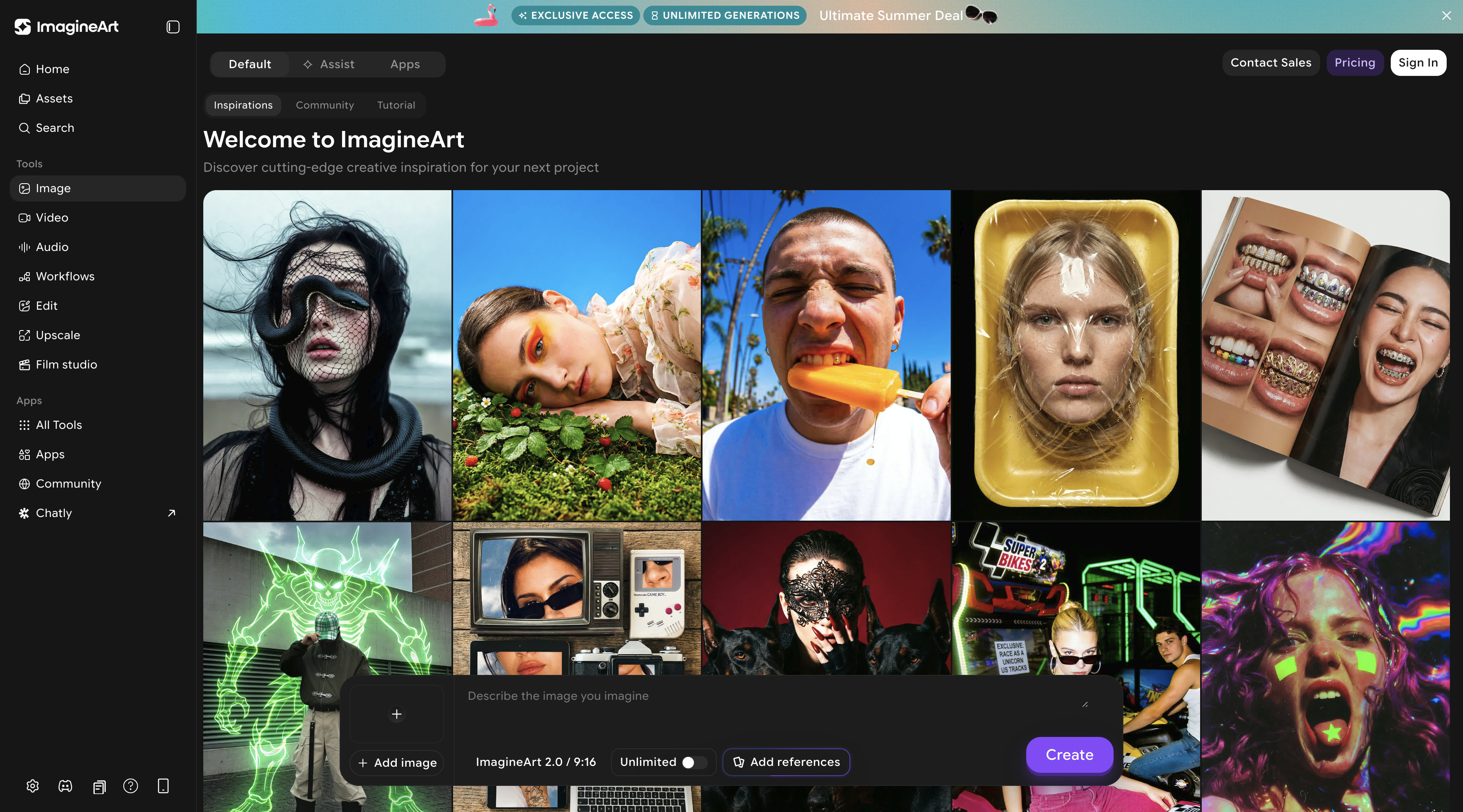
- Go to imagine.art/image. ImagineArt 2.0 Edit is available on the free plan — no credit card required. Sign in or create your account.
- Upload your photo. Drag and drop or browse your files. ImagineArt 2.0 Edit works with standard image formats. Your photo becomes the content layer the model will preserve.
- Choose your style approach. You have two routes: (a) type a text prompt describing the style you want, or (b) upload a reference image whose aesthetic you want to extract.
- Write your style prompt (if using text). Be specific. "Warm golden-hour film look, slight grain, desaturated shadows" will give you a better result than "vintage." Think in terms of lighting, colour temperature, texture, and mood.
- Use inpainting for selective changes (optional). If you only want to transform part of the image, use the brush tool to select that region and describe the change for that area alone.
- Set quality to High for 2K output. ImagineArt 2.0 Edit supports 2K resolution output at High quality — select this before generating if you need print or high-resolution digital files.
- Generate and compare. Hit generate. The model processes your image and returns the styled version. Compare against your original and iterate with a new prompt if you want to refine.
- Download or continue editing. Save your result or take it further — background replacement with automatic lighting adjustment, additional colour grading, or export for your content workflow.
Which Photo Styles Work Best for Content Creators?
ImagineArt 2.0 Edit handles a wide range of aesthetic transformations — but some styles deliver particularly strong results for content and social media work.
Film and Cinematic Looks
Cinematic grading is one of the most requested AI photo makeover styles among content creators, and ImagineArt 2.0 Edit handles it cleanly. Think of the colour science behind major film productions — teal-and-orange blockbusters, cold Scandinavian crime dramas, warm Italian neorealist films. These are achievable through text description alone.
Pro tip: Reference a specific film or director in your prompt ("grade this like a Terrence Malick film, golden hour, soft halation") for more targeted results.
For creators building cinematic content, the full feature set at ImagineArt includes tools that extend these looks into video — useful if you want visual consistency across your entire output.
Vintage and Colour-Graded Aesthetics
Vintage styles — expired Kodak film stocks, analogue light leaks, faded Polaroid-style processing — are consistently popular on social media and in brand photography. ImagineArt 2.0 Edit can apply these convincingly because it understands the full visual language of each era, not just a colour curve.
Specific prompts that perform well: "expired 35mm film with pushed grain," "1980s fashion magazine scan, halftone texture," "Polaroid instant, faded green shadows."
Mood Transformation for Social Content
Sometimes a photo is compositionally strong but tonally wrong. Too cold for a warm brand. Too flat for an energetic campaign. ImagineArt 2.0 Edit's mood transformation lets you shift the emotional register of an image without altering the content — same subjects, same composition, completely different feeling.
This is where the photo style transfer AI capability shines for social media managers who need consistent brand mood across a feed without reshooting.
Is ImagineArt a Good AI Photo Changer for Social Media?
ImagineArt 2.0 Edit is an effective AI photo changer for social media content because it combines high-quality output, 2K resolution, and free plan access in a workflow that takes minutes rather than hours. Upload your photo, describe your style, generate, and download — no layer-based editing interface, no steep learning curve, no subscription required to start.
For social media managers, the reference-image style matching feature is particularly practical — one reference image sets the aesthetic standard for an entire series. Upload one photo that captures your brand aesthetic, and apply that exact look consistently across every image in your campaign.
ImagineArt also offers a dedicated AI image generator for moments when you need to create from scratch rather than edit existing photos — giving you a complete image workflow in one place.
Frequently Asked Questions
AI style transfer in photography is the process of applying the visual aesthetic — colour palette, texture, mood, or film look — of a reference style to an existing photograph using machine learning. Unlike static filters, AI style transfer makes contextually intelligent changes based on the specific content of your image, so results look natural rather than artificially overlaid.
ImagineArt 2.0 Edit lets you do AI style transfer on any photo for free with no credit card required. Go to imagine.art/image, upload your photo, write a text prompt describing the style you want (or upload a reference image), and generate. The model applies your chosen aesthetic and outputs up to 2K resolution.
A filter applies a fixed mathematical transformation identically to every image. AI style transfer uses a neural network to intelligently re-render your image's aesthetic — adjusting lighting, colour relationships, and texture in ways that are contextually appropriate to the specific photo, not just a universal preset layered on top.
Yes. ImagineArt 2.0 Edit's inpainting feature lets you brush-select any region of your photo and apply a style change to that area only. You can transform a background, change the material of an object, or shift the mood of a specific zone without affecting the rest of the image.
ImagineArt 2.0 Edit supports up to 2K resolution output when set to High quality. This makes the styled photos suitable for professional use, print, and high-resolution digital platforms — not just social media previews.
Yes. The reference-image style matching is particularly valuable for brand work — upload one reference image and ImagineArt 2.0 Edit extracts its visual DNA to apply consistently across multiple photos. This supports brand aesthetic consistency without manual colour grading for every image.
ImagineArt 2.0 Edit is available on ImagineArt's free plan with no credit card required. It offers text-prompt style transfer, reference-image style matching, inpainting, background replacement with automatic lighting adjustment, and 2K resolution output — all accessible without a paid subscription to start.
Conclusion: The Easiest Way to Transform Your Photos' Visual Identity
Style used to require either expensive gear, expensive software, or expensive people. AI style transfer collapses that gap. Whether you're building a consistent visual identity for a brand, experimenting with cinematic looks for your content, or just want to see what your portraits look like in a different era — ImagineArt 2.0 Edit gives you the tools to do it fast.
The combination of text-prompt editing, reference-image style matching, inpainting, and 2K resolution output makes ImagineArt 2.0 Edit more capable than most general AI photo changers. And because it's built as a dedicated editing model — not a generation model retrofitted for editing — the quality shows in every output. Start with one photo. Write one prompt. See what changes in 2026.
Syed Anas Hussain
Syed Anas Hussain is a computer scientist blending technical knowledge with marketing expertise and a growing passion for AI innovation. Curious by nature, he dives into new AI sciences and emerging trends to produce thoughtful, research-led content. At ImagineArt, he helps audiences make sense of AI and unlock its value through clear, practical storytelling.