Canva Finishing
Generates the artwork, then builds it into a Canva design with real text layers you can still edit.
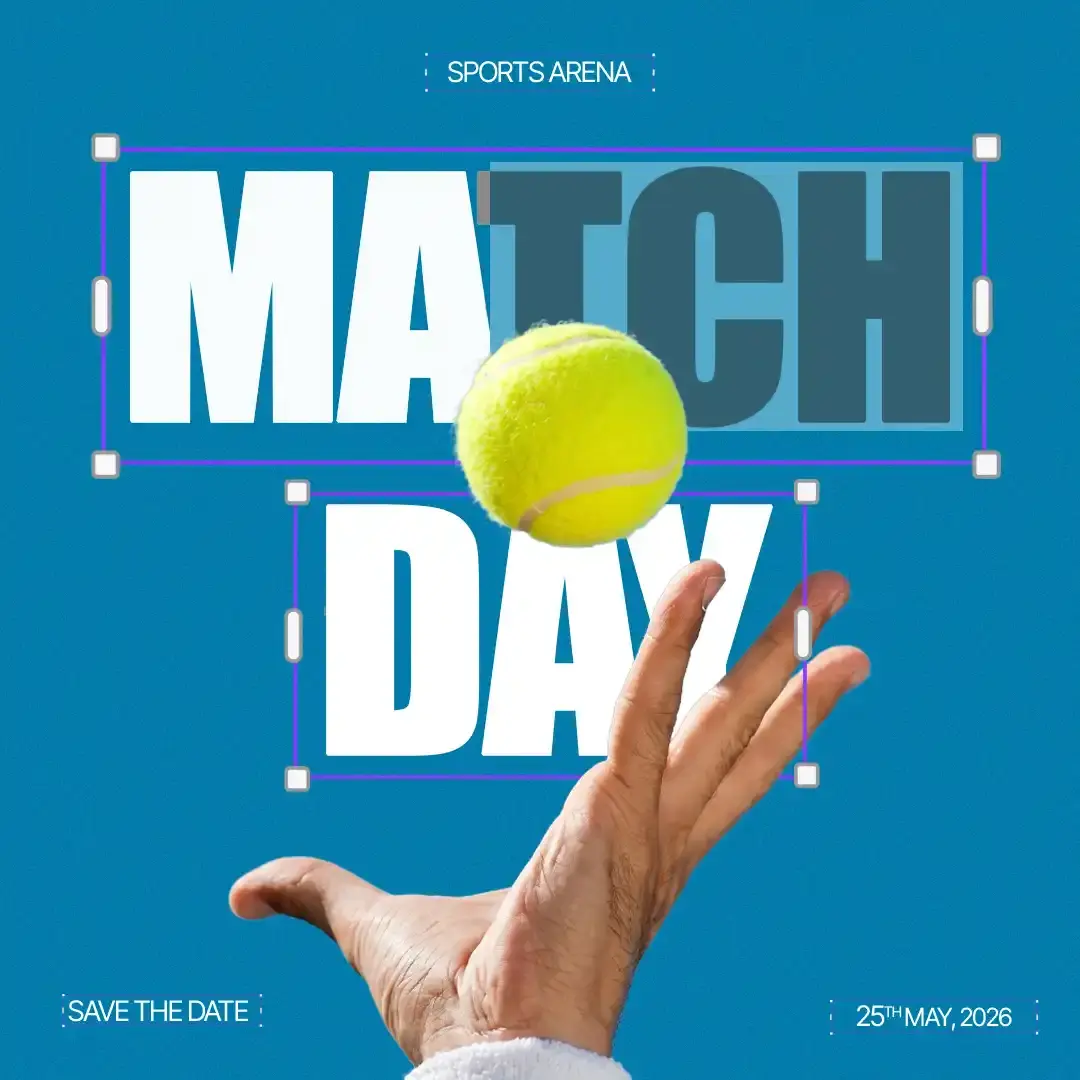
Editable Canva Post
Reference attached
@ImagineArt /canva Generate the artwork and build it into an editable Canva post with my headline and logo. Reference: [Reference](https://cdn-imagine.vyro.ai/imagine-one/edit-modes/magic-text.mp4) Skill: [Canva Finishing](https://www.imagine.art/gpt-astra/skills/canva) Plugin: [Install ImagineArt](https://chatgpt.com/plugins/plugin_asdk_app_6a97af93ebc88191961039f177688fa9) If the ImagineArt plugin is not installed, install it from the link above before continuing.
 Try in ChatGPT
7 Ways To Open This One.
- Editable Canva PostGenerate the artwork and build it into an editable Canva post with my headline and logo./canva
- Resize For Every ChannelResize that design for story, feed and a wide banner, keeping the layout intact./resize
- Swap The CopyChange only the headline on this design to the new offer./headline
- Export At Full QualityRender and download the current Canva design./export-design
- Class FlyerA class flyer with date, time and price as real text layers I can edit./canva
- Cafe Menu InsertA one-page A5 menu insert for my cafe, editable./canva
- Print And Web VersionsGive me a print and a web version of this design./resize
- 01
Install The Plugin
Open ImagineArt in the ChatGPT plugin directory and connect your imagine.art account. There is no API key to generate, store or rotate.
- 02
Send One Of The Briefs
Every brief below opens ChatGPT with the message already typed. Read it, edit it, send it.
- 03
Get The Files Back
Images, video and audio land in the thread as they finish. Chain them in the same session: generate, upscale, cut out, animate.