
Tooba Siddiqui
November 28, 2025 • Updated July 13, 2026
12 mins Read
Ever played with a jigsaw puzzle? Designing a UX design is somewhat similar to that, except you don't have the final image and the pieces remain constant. A great UX design requires countless hours, multitudes of tweaks, typographic perfection, and then adding in the dilemma of how much the corners of your buttons should be rounded. Or, you can just toss around a few visuals, text, and buttons, and call it a day, if a good UX design isn’t your target.
According to Nielsen Norman Group, 7.5% of 1 million AI conversations were related to UX, placing UX among the top 5 occupations in terms of AI-conversation volume. The shift isn't about replacing design judgment. It's about removing the gap between a clear design intent and a testable visual.
What is AI UX Design?
With AI, you can create complicated designs, basic mockups, and finally rid yourself of innumerable revisions. AI UI/UX design tools can automate redundant and repetitive tasks, without compromising the quality of the final output. It can even create complete layouts, multiple elements, and prototypes, without any back-and-forth.
Benefits of AI UI/UX Design
- AI UI/UX design tools can produce different and diverse variations of a design, accelerating the designing and prototyping process. It can also handle multiple revisions in less time than manual updates.
- With AI UX design tools, you can tailor each design element to match the user and audience preferences, creating a personalized user experience that resonates with them.
- Leveraging AI tools lets you optimize UX design for enhancing accessibility, user experience, usability, and overall user satisfaction.
- AI models like Nano Banana Pro ensure consistency throughout the design, from color palette and visual styles to textual legibility.
Why Use Nano Banana Pro for UI/UX Design?
Nano Banana Pro is a Google state-of-the-art AI image model with capabilities to generate and edit images accurately. The model features incredible text rendering abilities coupled with real-world knowledge, prompt understanding, and intent interpretation.
1. Layout Creation
With Nano Banana Pro, you can create personalized layouts, guiding the model about logos, color palettes, graphics, typography, brand personality, and more. The AI image model even allows for quick edits using the image-to-image capabilities. Or you can add multiple (up to 14) reference images and create one cohesive layout.
2. Real-World Knowledge and Localization
The AI image model is equipped with a powerful Google search base, enabling it to correctly predict and understand multiple languages and cultural aspects. The model ensures the generated design aligns with the global audience, while letting you translate text in any language.
3. Wireframes and Prototyping
With Nano Banana Pro, you can use reference images, hand-drawn sketches, or detailed prompts to create components and layouts. You can even try out different themes and design systems to produce design variations.
4. Creative Control
Nano Banana Pro comes with extensive image editing features. The AI image editor lets you define and refine composition, color grading, placement of elements, and more with pixel-level control. You can align each element with the brand voice and aesthetics, and the AI image editor will make sure your visual remains appealing, text stays legible, and design maintains its consistency.
Recommended read: Nano Banana Pro Overview
How Nano Banana Pro Compares for UI/UX Design
Most AI UI/UX design tools fall into two categories: dedicated design platforms (Figma AI, UX Pilot, Uizard) that integrate into existing design workflows but require design software familiarity, and general-purpose image generators that produce visuals but struggle with interface-specific fidelity — text rendering, layout structure, and component consistency.
Nano Banana Pro sits in a third position: a high-fidelity generative model with specific strengths for UI work — accurate text rendering, multi-reference image support (up to 14 reference images per generation), and layout control through detailed prompts — accessible through a browser with no software installation.
| Tool | Input Method | Figma Export | Text Rendering | Reference Images | Free Tier |
|---|---|---|---|---|---|
| Nano Banana Pro (ImagineArt) | Text prompt + reference images | No (export as image) | High fidelity | Up to 14 | Yes — 100 credits/day |
| Figma AI / Figma Make | Text prompt | Yes — editable layers | High | Via design system | Limited free tier |
| UX Pilot | Text prompt + sketch | Yes — Figma export | Medium | No | Yes — limited |
| Visily | Text prompt + screenshot | Yes — Figma export | Medium | Via screenshot | Yes — free forever |
| Uizard | Text prompt + sketch | Yes | Medium | Via screenshot | Yes — limited |
| Banani | Text prompt | Yes — Figma + code | Medium | No | ~170 generations/month |
Where Nano Banana Pro leads: Photorealistic visual fidelity for marketing interfaces, event materials, and brand-heavy UI. Strong text rendering. Multi-reference image workflow for style consistency across a design system.
Where dedicated tools lead: Figma export, component-level editability, and design system integration for production handoff. If your output needs to go directly into a development workflow as editable components, Figma AI or Banani fit that need better.
The strongest workflow: Use Nano Banana Pro for concept exploration, client presentations, and high-fidelity visual mockups. Export to Figma for component-level editing and developer handoff.
How to Use Nano Banana Pro for UI/UX Design on ImagineArt
Having said that, let’s see how you can actually generate a layout design using Nano Banana Pro:
Step 1: Log in to ImagineArt
Type in your account credentials and log in ImagineArt, or you can use your Google account to sign in. If you don’t have an ImagineArt account, sign up now and avail 100 free credits. Once you are logged in, head on to ImagineArt AI image generator.
Step 2: Enter Your Prompt
On ImagineArt AI image generator, you will have to select ‘Nano Banana Pro’ from the model selection. Type in the prompt for your layout design, mention the elements you want to add, define the color theme, set the element placements, and add the text you want to integrate. Pick out the right aspect ratios and number of generations for AI UX design.
Step 3: AI Layout Generation
The AI layout creation will take a minute, and the generated result will include all the desired elements and text. Nano Banana Pro, as an AI UX design tool, saves you the time and effort you would otherwise spend on frustrating over minor tweaks.
Step 4: Download
If the generated result meets your design requirements, download it in any format you prefer. ImagineArt AI image generator ensures the generated outputs remain compatible with different image-sharing and social media platforms.
Step 5: AI Image Editing (Optional)
In case the created layout doesn’t quite match your vision, you can simply upload it as an image reference for Nano Banana Pro, mention the edits, and regenerate the results. The AI image model can handle both minor and drastic changes without introducing any visual artefacts.
Prompt Templates for AI UX Design
UI/UX Designs for App Screens
- AI UX design for mobile app for traveling
Create a clean, user-friendly interface with a vibrant, high-resolution hero image of a scenic destination at sunrise (mountains, beaches, or cityscapes). The top navigation bar should feature minimalist icons for home, search, profile, and notifications, with a soft transparent background. Below, display a 3-column grid of destination cards, each with rounded corners, showcasing iconic travel spots. Include minimalist icons (heart, location pin) on the cards for user interaction, with subtle drop shadows for depth. Use a pastel color palette (soft teal, coral, peach) for the UI, creating a calm, welcoming vibe. Ensure a flat design style with smooth curves in the buttons and icons. The typography should be clean, sans-serif, with a balanced contrast for headings and body text.
**Key Design Elements: **
- Hero section: Full-width image of a travel destination at sunrise, soft overlay for text visibility.
- 3-column destination cards with rounded corners, minimalist icons, subtle drop shadows.
- Top navigation bar with icons for home, search, profile, notifications.
- Pastel color palette: soft teal, coral, warm peach with plenty of white space.
- Typography: clean sans-serif fonts with varied weights for headings and body text.
Resolution: 4K, mobile aspect ratio (16:9 or 18:9).
**Style & Mood: **
- Peaceful, inviting, and vibrant. A sense of openness and exploration with minimalist and flat design elements.
**Lighting & Textures: **
- Matte surfaces, soft gradients for depth.
- Warm, ambient lighting on the hero image contrasting with cooler UI elements.
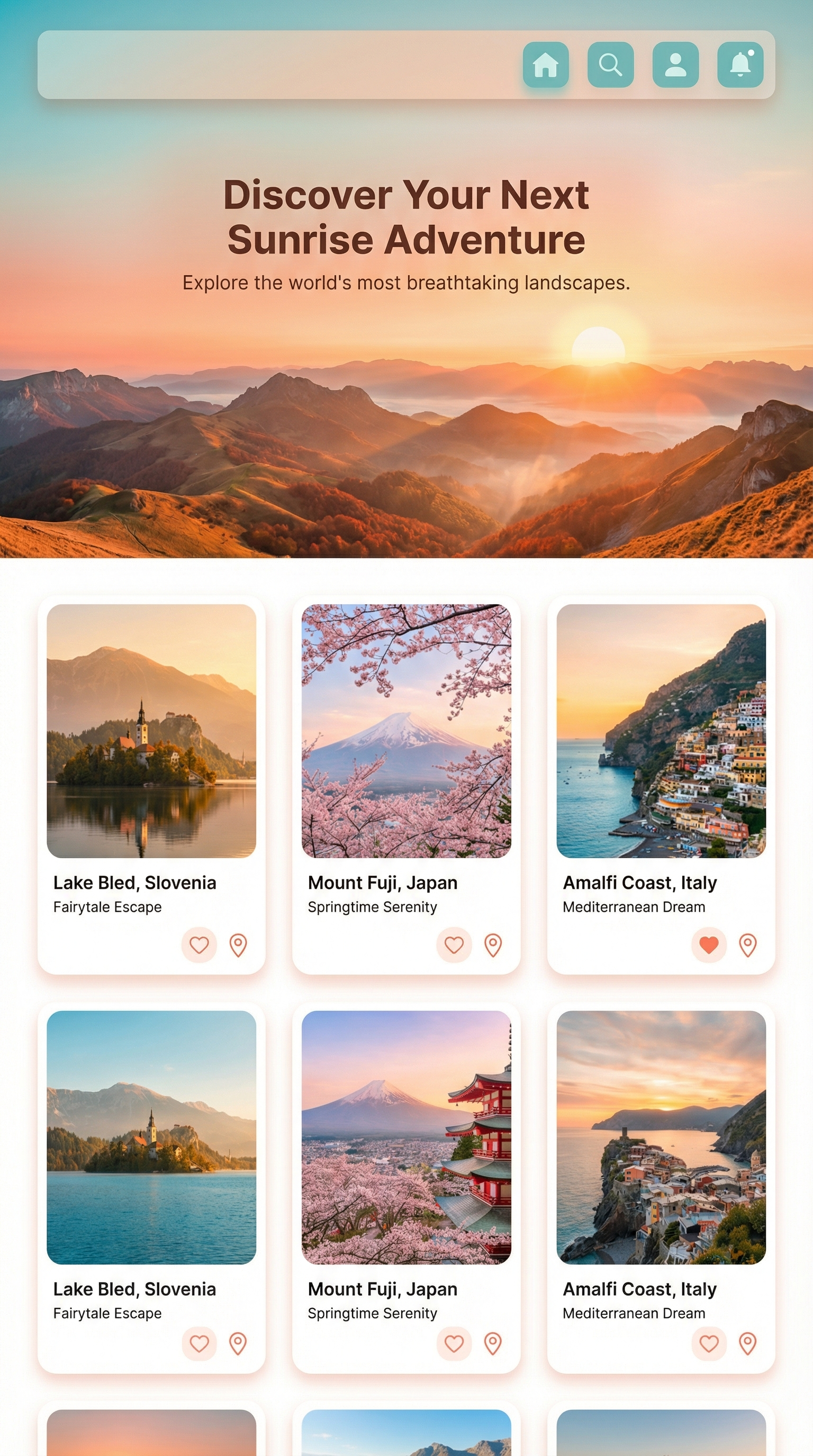 Generated by Nano Banana Pro on ImagineArt
- Finance app dashboard AI UI design
Use a deep navy-black background with accent colors in neon mint and soft orange for the charts and key data highlights. The top header should feature the user’s name and avatar, placed cleanly to the left. Below, design a 3-panel layout:
- Summary Balances Panel: Display key account balances with large, bold numbers, including icons for checking, savings, and investments.
- Recent Transactions Panel: List recent transactions with a simple icon for each transaction type (e.g., payment, deposit) and corresponding amounts.
- Analytics Chart Panel: Include a sleek, interactive chart showing spending trends or account growth, using neon mint and soft orange lines or bars.
**Typography & UI Elements: **
- Use modern, sans-serif fonts for clarity (e.g., Inter, Roboto, or Helvetica).
- Clean, flat icons for transactions, with consistent spacing and minimal design.
- Keep the interface crisp and vector-style, ensuring clear readability and a polished look.
Resolution: 1080×1920 px, mobile aspect ratio (portrait). Clean, sharp edges, no blurry visuals.
**Style & Mood: **
- Sleek, modern, and minimalistic. Focus on readability and easy navigation with a high-tech, premium feel.
- Emphasize data clarity and user-centered design with a dark, professional theme and vibrant chart accents.
Lighting & Textures:
- Matte black background with soft neon gradients and smooth lighting effects on the charts.
- Use subtle highlights on key UI elements to create depth and contrast without overwhelming the design.
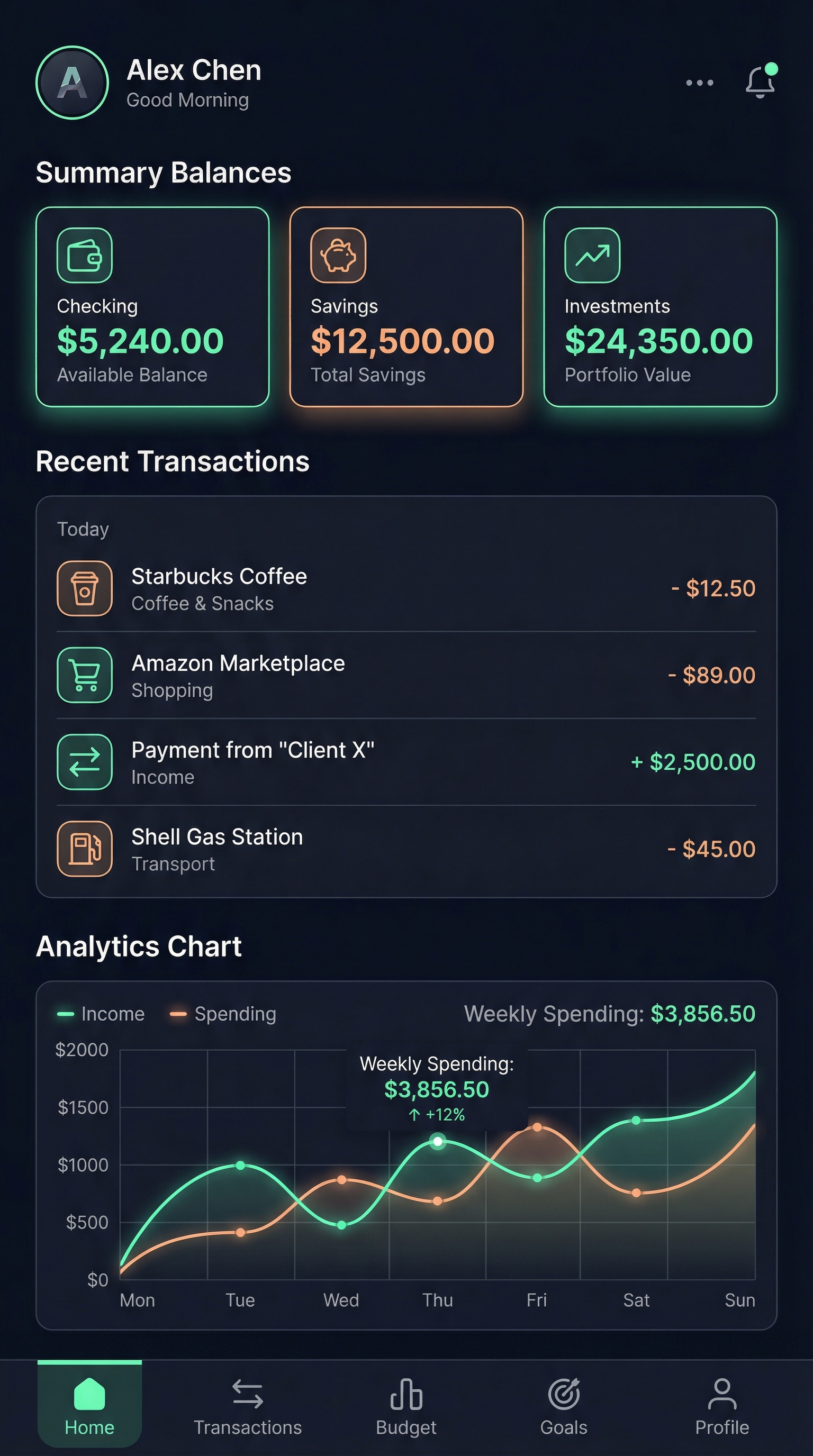 Generated by Nano Banana Pro on ImagineArt
UI/UX Designs for Website
Use a minimalistic layout with ample white space, focusing on ease of navigation. The homepage should feature a full-width hero section with a bold headline and a contrasting CTA button that stands out. Below, create a 3-panel grid for featured services/products, each with large icons and brief text descriptions. The layout should be simple, balanced, and easy to scan.
UI Elements:
- Navigation Bar: Top placement with logo on the left, and menu items (Home, About, Services, Contact) on the right. Use a light or transparent background with flat design.
- Hero Section: Full-width image reflecting the brand’s identity (e.g., tech devices or abstract patterns), with a prominent CTA button.
- Services Grid: Three equal-sized panels with intuitive icons and descriptions. Include hover effects (e.g., color changes or subtle animations).
- Footer: Links to social media, contact, and legal notices.
Typography & UI:
- Use clean, sans-serif fonts (e.g., Lato, Montserrat, Open Sans). Headings should be bold and larger for hierarchy.
- Consistent, rounded buttons with clear hover effects (e.g., color change or subtle shadow).
- Simple, recognizable icons for services.
Resolution: 1920x1080 px, responsive web design with mobile-first approach. Ensure flexibility across devices.
Style & Mood:
Sleek, modern, professional, with a clean, high-tech vibe. Minimalist with flat design principles, keeping the layout visually engaging but not overcrowded. Add subtle animations for interactivity (e.g., button or icon hover).
Color Palette:
- Primary: White, light gray, neon blue (for CTA buttons), dark slate gray (for text/icons).
- Secondary: Light teal or vibrant orange for interactive elements.
Lighting & Textures:
Smooth gradients for the hero image, matte surfaces with subtle shading, and soft glow effects for CTA buttons.
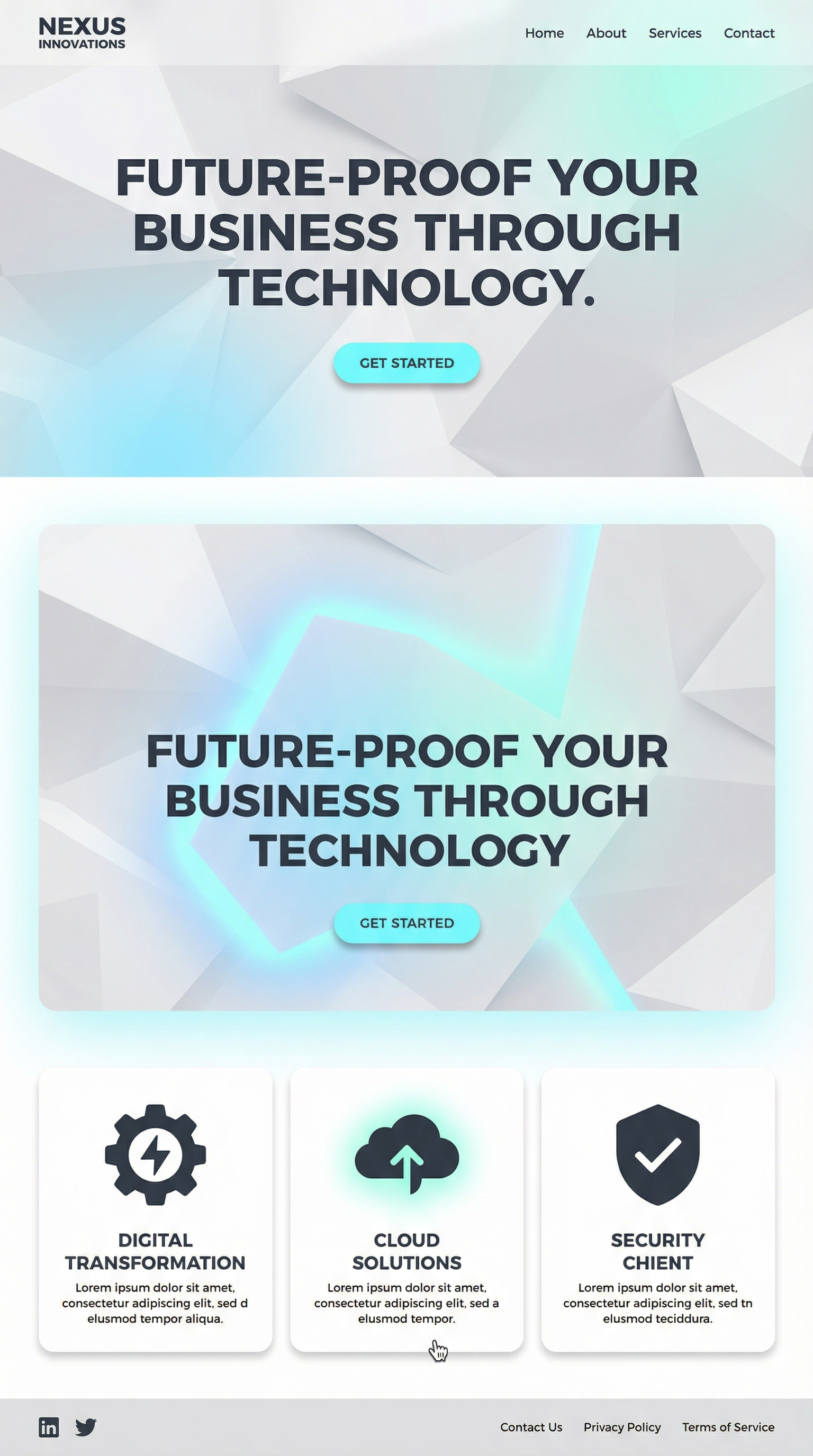 Generated by Nano Banana Pro on ImagineArt
Marketing and Promotional Materials
-
Event poster
Design a movie-poster style graphic for a horror-themed Halloween event. Use a dark moody background (storm clouds, silhouette of a haunted schoolhouse), dramatic red and blue lighting, bold vintage horror typography at the top, include a spooky mist swirling around a central figure holding a walkie-talkie in a denim jacket, cinematic lighting, film-grain texture, 4K resolution.
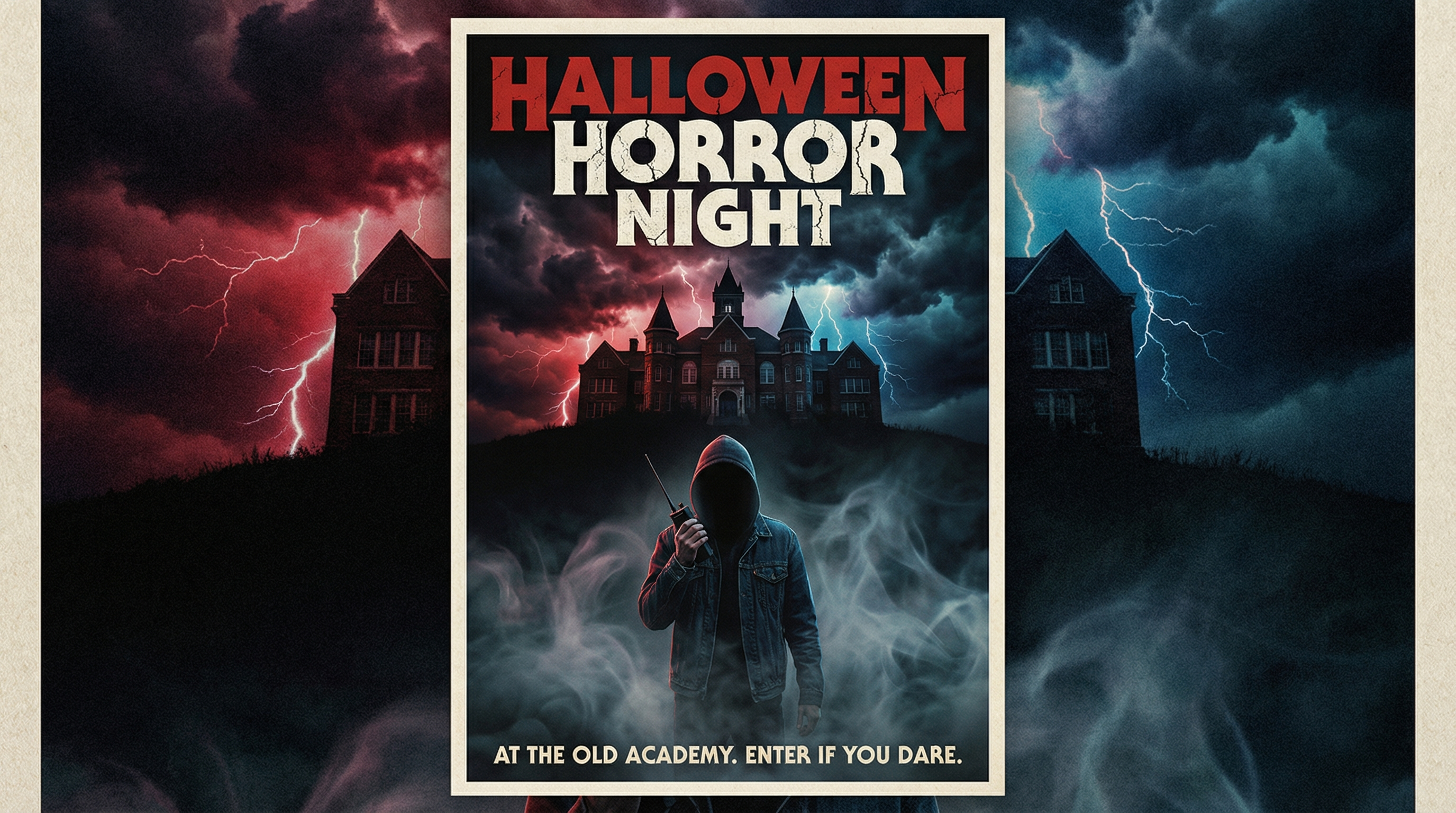 Generated by Nano Banana Pro on ImagineArt
-
App launch banner
Create a wide web banner announcing the launch of a new sci-fi–inspired mobile app called “NeonChronos.” Use an electric-blue and fiery-orange color palette with luminous geometric shapes in the background. Incorporate floating light particles and sleek futuristic sans-serif typography. Add a glossy, 3D-style call-to-action button labeled “Download Now.” The final banner should be high-contrast and sized at 1920×1080 px.
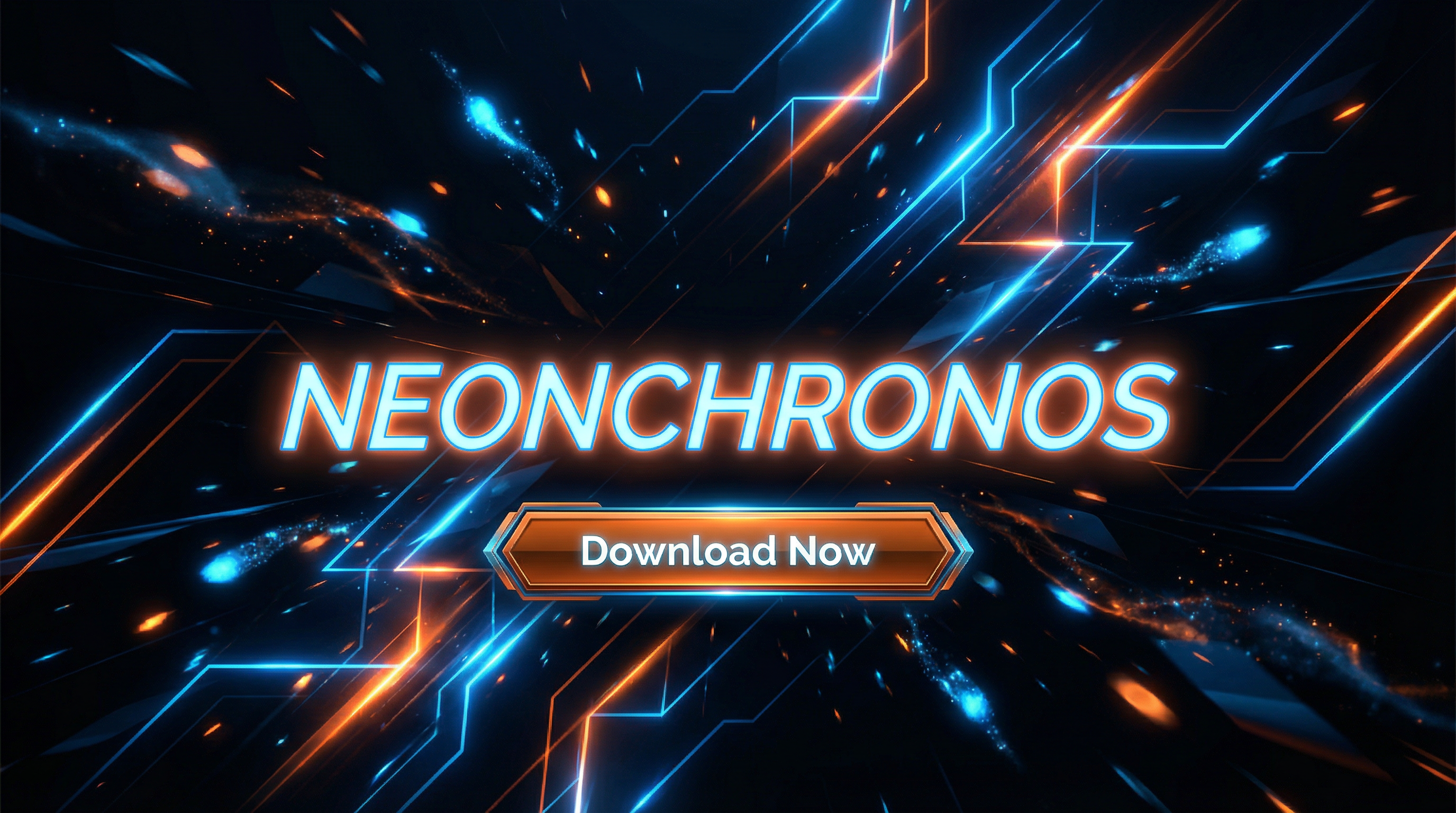 Generated by Nano Banana Pro on ImagineArt
Ready to improve your design workflow?
AI hasn't made UX design easier by reducing what designers do — it's made it faster by eliminating the gap between a clear design intent and a testable visual. The prompt templates above produce presentation-ready UI in under a minute. The step-by-step workflow above works whether you're designing your first app screen or your fiftieth.
ImagineArt's Nano Banana Pro is free to try — 100 credits refresh daily, no subscription required to start. Paid plans from $9/month for production-volume use.
Want to know more about Nano Banana use cases? Read: 24 Use Cases of Nano Banana | Create Infographics with Nano Banana Pro
Frequently Asked Questions
What is AI UI/UX design?
AI UI/UX design is the use of generative AI models to create wireframes, app screen mockups, web interfaces, dashboards, and marketing materials from text prompts or reference images — replacing manual layout work with AI-generated visual output. The designer provides intent through a prompt (layout structure, color palette, typography, content), and the AI generates a high-fidelity visual ready for review, iteration, or client presentation.
Can AI generate UI/UX designs from a text prompt?
Yes. Tools like Nano Banana Pro on ImagineArt, Figma Make, UX Pilot, and Visily all accept text prompts and generate interface designs from them. The quality of the output depends on prompt specificity: describing layout structure, component positioning, color palette, typography style, and resolution produces significantly better results than a generic request. The prompt templates in this guide are structured for exactly this level of detail.
What is the best free AI UI/UX design generator?
Figma AI offers the most integration for teams already using Figma — it generates designs as editable layers within your existing workflow. For standalone generation without Figma, ImagineArt's Nano Banana Pro gives 100 free daily credits covering app screens, dashboards, web interfaces, and marketing materials, with no software installation. Banani offers approximately 170 free wireframe generations per month with Figma export. Visily's free tier is permanent and includes screenshot-to-wireframe conversion.
Can I use AI-generated UI designs for client presentations?
Yes — AI-generated UI designs are production-appropriate for client presentations, pitch decks, concept approvals, and early-stage design reviews. They communicate visual direction, layout intent, and brand application effectively before committing to full design system buildout. Most teams use AI-generated mockups through the concept and approval phase, then move to Figma for component-level production assets.
How do I create a mobile app design with AI?
Upload a reference image or enter a detailed prompt specifying: the app's purpose, screen type (home screen, dashboard, onboarding), color palette, navigation structure, component layout (grid, card-based, list-based), and resolution (1080×1920 for mobile). The prompt templates in the "UI/UX Designs for App Screens" section of this guide include complete examples for a travel app and finance dashboard that can be adapted for any app category.
What makes a good AI UI design prompt?
Effective UI design prompts include five elements: screen type and purpose (mobile app home screen, SaaS dashboard), color palette (specific hex values or named palette — "deep navy, neon mint, soft orange"), layout structure (three-panel grid, full-width hero, card-based feed), typography guidance (modern sans-serif, bold headings, legibility priority), and technical specifications (resolution, aspect ratio, design style — minimalist, editorial, high-contrast). Vague prompts like "design a mobile app" produce generic results; the detailed prompt templates in this guide consistently produce presentation-ready output.
Tooba Siddiqui
Tooba Siddiqui is a content marketer with a strong focus on AI trends and product innovation. She explores generative AI with a keen eye. At ImagineArt, she develops marketing content that translates cutting-edge innovation into engaging, search-driven narratives for the right audience.