
Umaima Shah
January 13, 2026 • Updated July 15, 2026
12 mins Read
Most creative AI tools give you one box: type a prompt, get one output, start over for the next step. A node based workflow works differently. Instead of a single prompt-and-response loop, you build a visual pipeline where each step, a prompt, a model, an image, a video, connects to the next one, and the whole chain can be rerun, adjusted, and reused. This guide covers what a node based workflow actually is, how ImagineArt implements it, and how to build one from scratch.
What Is a Node Based Workflow Tool
A node based workflow tool helps teams automate and manage multi-step creative processes using artificial intelligence. Instead of relying on single prompts or manual steps, a node based workflow connects prompts, models, and outputs into structured pipelines that generate images and videos through defined, connected stages.
How ImagineArt Uses a Node Based Workflow System
ImagineArt uses a node based workflow system to build multi-step pipelines for image, video, and app generation. You start with a simple idea and guide the process using prompts across connected nodes, whether that's the AI image generator, the AI video generator, or a specific model like Seedance 2.0 or Kling 3.0 plugged directly into a node. This structure supports collaboration, iterative creation, and organized creative production from concept to final output.
Benefits of Using a Node Based Workflow Tool
A node based workflow earns its place in a creative process by solving four specific problems that single-prompt tools don't: collaboration, repetition, creative range, and flexibility.
1. Efficient Collaboration
Enterprise teams can collaborate in real time, leaving comments at each step of the workflow. This helps with smoother communication, faster decision-making, and a more efficient creative process, keeping everyone aligned and productive throughout the project.
2. Time-Saving Automation
With a node based workflow, repetitive tasks are automated. You can generate high-quality content with minimal effort by simply inputting your ideas into nodes. Workflows now generate thumbnails automatically during the production run. This approach helps teams build the best workflow for recurring creative tasks rather than recreating the process each time.
3. Enhanced Creativity
The ability to experiment with multiple input and output types, and multiple models, provides creative freedom. Mix media types or dynamically adjust visuals using tools like the AI Image Editor or Motion Control inside a node, and you can explore more possibilities, ultimately leading to more innovative and unique results.
4. Customizability
A node based workflow gives you flexibility over the entire ideation process. Start a campaign with an image inspiration or an idea and use a prompt, then follow along in the creative process. Whether you're creating a product campaign or a personal creative project, you can customize your node based workflow to match your goals and vision.
Key Features of AI Workflows
Eight features make ImagineArt's node based workflow system flexible enough for both simple pipelines and complex, multi-model production runs.
1. Empty Canvas
Start with a blank slate to input your idea into a node, giving you the freedom to create from scratch. The open-ended structure lets you explore and develop your concepts without constraints, making it ideal for creative professionals looking for complete control over their work.
2. Multi-Step Process
Move seamlessly through the creative process, from text or image inputs to generating visuals, videos, and apps. This flow makes it easy to transition between different formats while maintaining consistency across various creative outputs, streamlining the production process.
3. Collaboration
Team members can comment and provide real-time feedback within the workflows, improving communication and making the review process smoother. This collaborative aspect helps keep everyone on the same page, reducing bottlenecks and ensuring the project stays on track.
4. Duplicating Workflows
Replicate workflows effortlessly to save time on similar projects. This feature helps maintain consistency and reduces the need to start from scratch, enabling you to reuse successful workflows and focus on creativity rather than recreating the same setup.
5. Multiple Inputs and Outputs
ImagineArt Workflows handle a wide range of creative inputs and outputs, from text and images to videos and apps. This versatility enables complex, multidimensional projects that integrate diverse creative elements, such as animation, image editing, and interactive app development, within a unified workflow.
6. Documentation and Support
Access in-depth documentation and support to guide you through the platform’s features and advanced functionalities. Whether you’re a beginner or an expert, the comprehensive resources ensure you can fully leverage the potential of ImagineArt Workflows to meet your creative needs.
7. Image Generation Capabilities
Transform images into dynamic videos with the advanced image-to-video feature inside a node based workflow. This capability offers endless possibilities, turning static images into engaging visual narratives, ideal for social media campaigns, product demonstrations, and other content that requires both still and moving elements.
8. Video Generation Capabilities
Take video creation further with AI video generation, motion transfer, and video extension features inside the AI Video Editor. These tools add realistic movement to visuals or extend video content beyond its original length, enabling more detailed storytelling and greater creative flexibility across your video projects.
Two new capabilities now make video production inside a node based workflow even more powerful:
- Edit Video in Context Menu: You can now edit video outputs directly from the context menu without leaving the workflow canvas. Right-click any video output node and access editing options inline, trimming, adjusting, and refining clips without breaking your workflow to open a separate editor.
- Video Referencing Support in Video Node: The video node now supports video referencing, letting you use an existing video as a reference input directly inside the node. Feed a reference clip into your video generation step to guide the style, motion direction, pacing, or visual identity of the generated output.
9. Thumbnail Support in Workflow Generations
A node based workflow now generates thumbnails automatically alongside your creative outputs. Every generation run produces a visual thumbnail preview so you can instantly identify, compare, and select outputs without opening each asset individually.
Use Cases of an AI Workflow Tool
Six use cases show up most often across teams already running a node based workflow in production, from fast-turnaround social content to full brand asset libraries.
1. Social Media Campaigns
Easily create engaging and shareable content for social media, transforming your images into videos and animations. Using pre-made workflows, you can efficiently generate content that aligns with brand guidelines and resonates with your audience, helping you stay on top of trends and boost engagement.
 Workflow automation guarantees organized work.
2. Creative Production
Streamline the process of developing product designs and marketing materials. A node based workflow on ImagineArt enables content at scale with quick iteration and creative exploration, helping you produce professional-grade content for promotional campaigns, visual assets for websites, and digital collateral for brand marketing.
3. Visualization
Generate high-quality visual assets for presentations, pitch decks, or branding projects. A node based workflow makes it easy to transform abstract ideas into visually appealing assets, offering a clear, cohesive way to communicate your concepts to clients or stakeholders through images, videos, and other visuals.
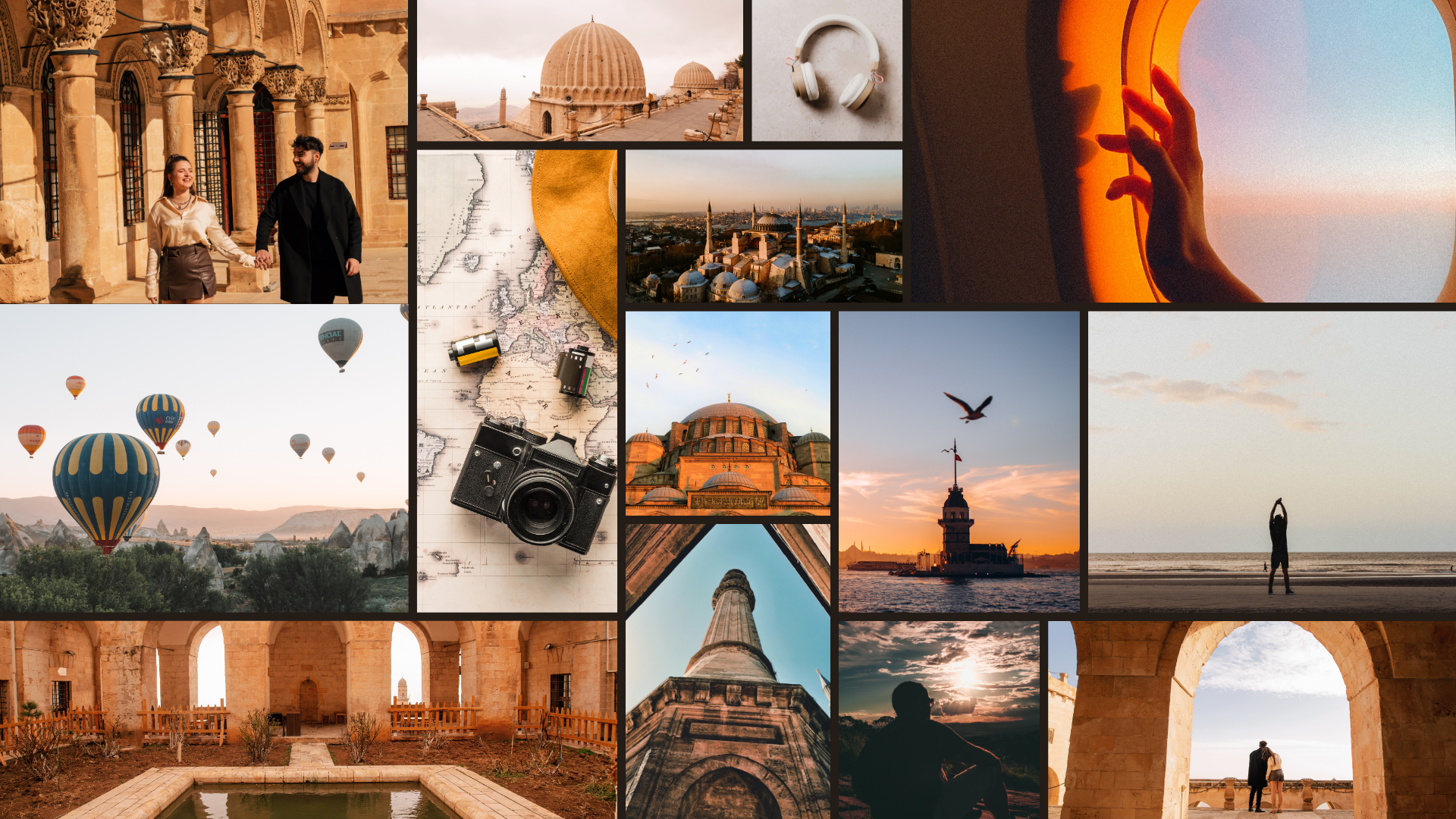 Workflow automation streamlines execution and improves output reliability.
4. Storyboards & Moodboards
Create engaging storyboards and moodboards for client presentations or internal brainstorming. With ImagineArt workflows, you can map out visual ideas, experiment with styles, and present your vision clearly, making it easier to align teams and stakeholders on creative direction.
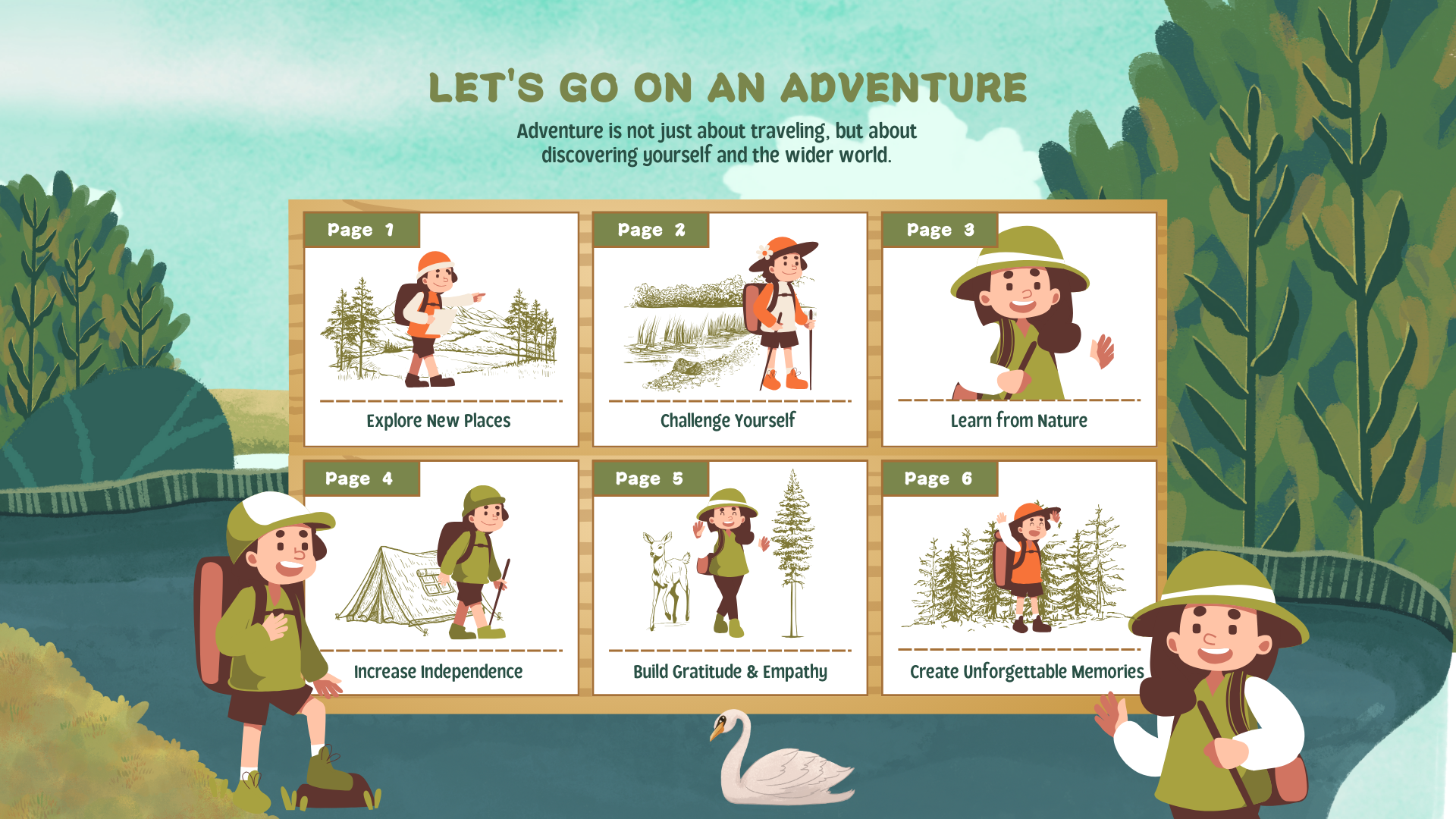 Keep style and structure consistent across outputs.
5. Brand Homework
Efficiently build and maintain brand assets using predefined templates inside a node based workflow. This use case ensures your brand's visuals stay consistent across all materials, from social media posts to marketing campaigns, saving time on design work while maintaining brand integrity across all touchpoints.
6. E-commerce & Product Design
Workflows like Product Photoshoot and Virtual Try-On are ideal for showcasing products in various settings. These node based workflow templates help businesses create realistic, high-quality images and product experiences using tools like the AI Product Video Maker, enabling customers to visualize products with ease, whether online or in a physical store environment.
How to Create A Workflow
A basic workflow follows a linear structure. Designing the best AI workflow means defining each step clearly so the process can be reused and refined without rebuilding it.
Step 1: Start with an Empty Canvas
Start with a blank slate and input your idea into a node — giving you complete freedom to build from scratch. ImagineArt recently launched a new Canvas UI that makes the workflow building experience cleaner, faster, and more intuitive. You can add nodes in two ways:
- Double-click anywhere on the canvas
- Or press Ctrl + K (Windows) or Cmd + K (Mac)
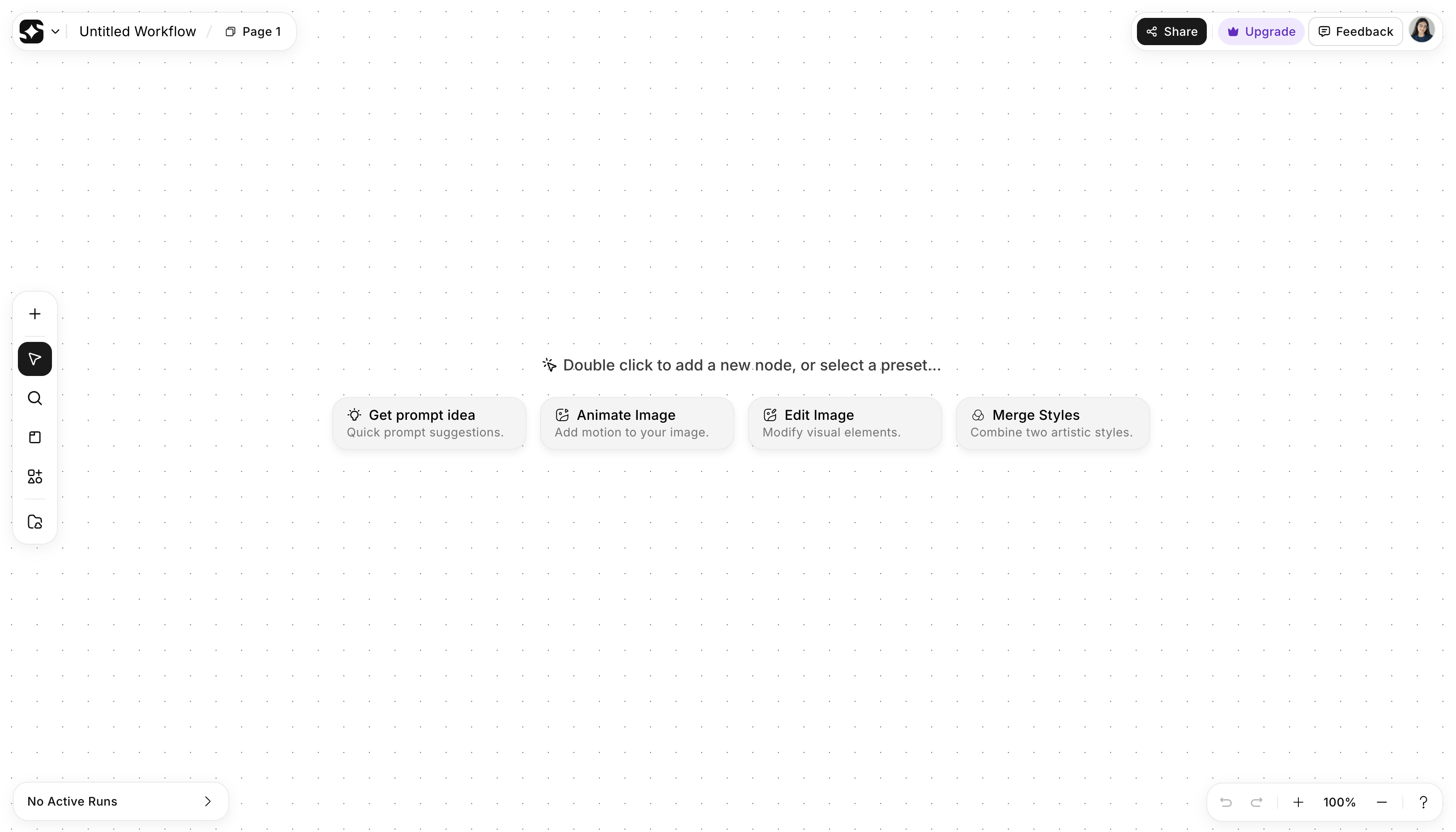 This canvas is the main workspace where you visually build workflows by placing and connecting nodes.
Step 2: Add Nodes
- Double-click anywhere on the canvas to add a node
- Or press Ctrl + K (Windows) / Cmd + K (Mac) to search
- Select nodes by type (text, image, video) or by model name
Text input areas are now draggable across the canvas — simply click and drag any text input field to reposition it wherever it fits best within your workflow layout. This makes organising complex multi-node pipelines significantly cleaner, especially when working with large canvases where input areas previously overlapped with connected nodes.
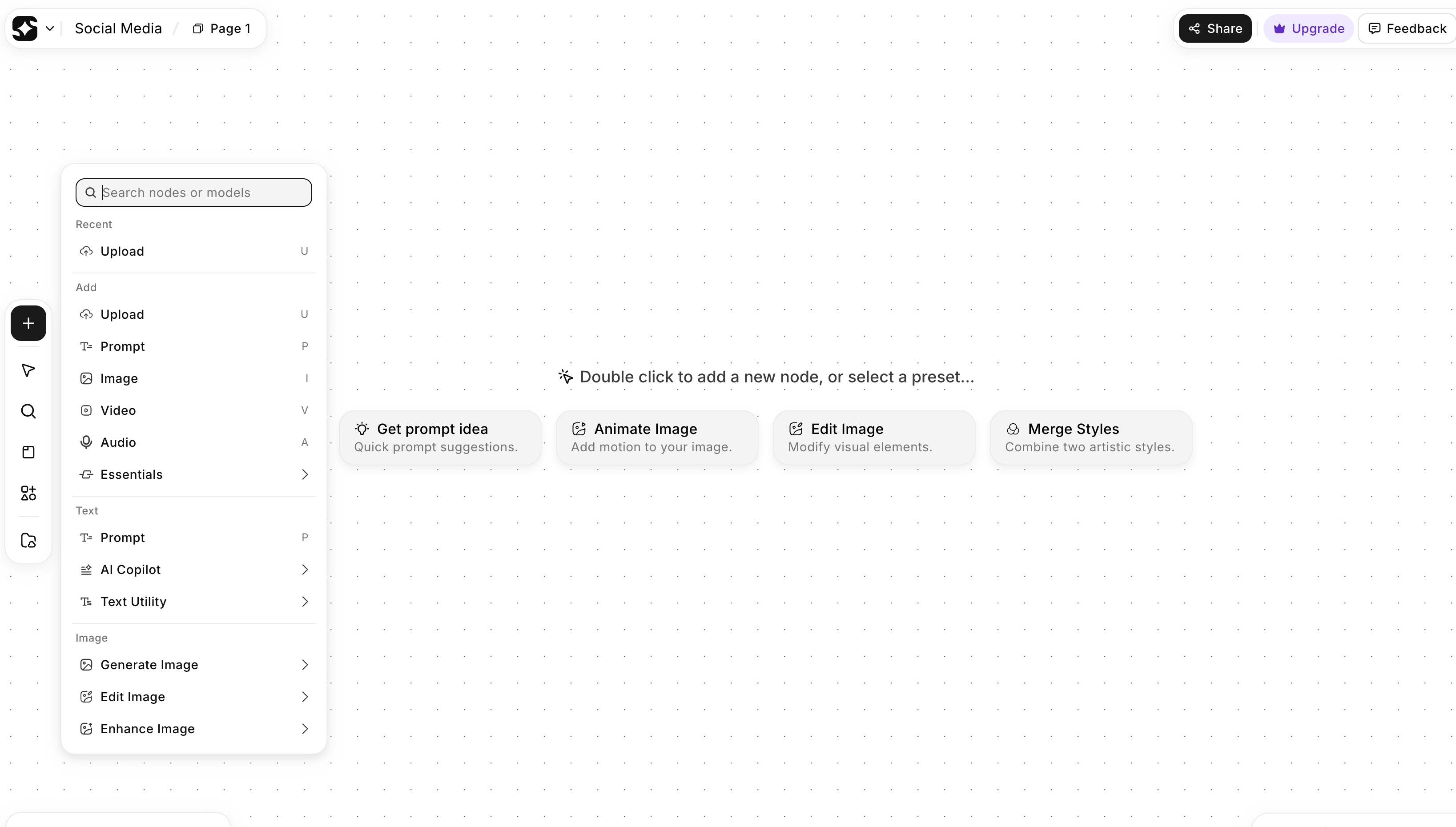 On ImagineArt, you select and add nodes from this panel to build your workflow on the canvas.
Step 3: Connect Nodes
- Drag from the output of one node to the input of another
- Connect nodes from left to right
- Blue lines pass text data
- Orange lines pass image data
Connections define execution order.
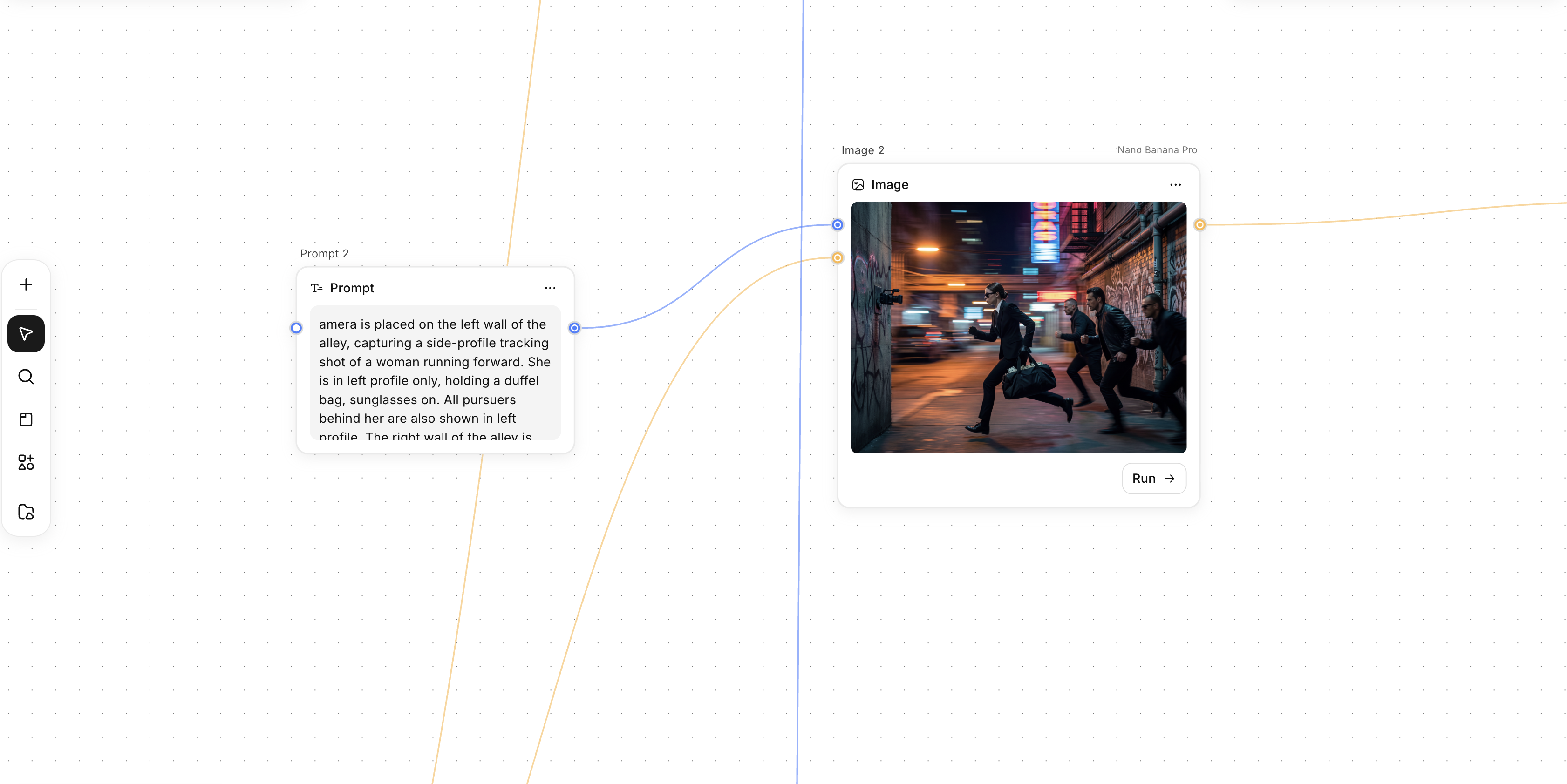 The connection sends the prompt’s instructions into the image node, controlling what the model generates.
Step 4: Run the Workflow
- Click Run on a node to execute it
- Or select multiple nodes and run them together
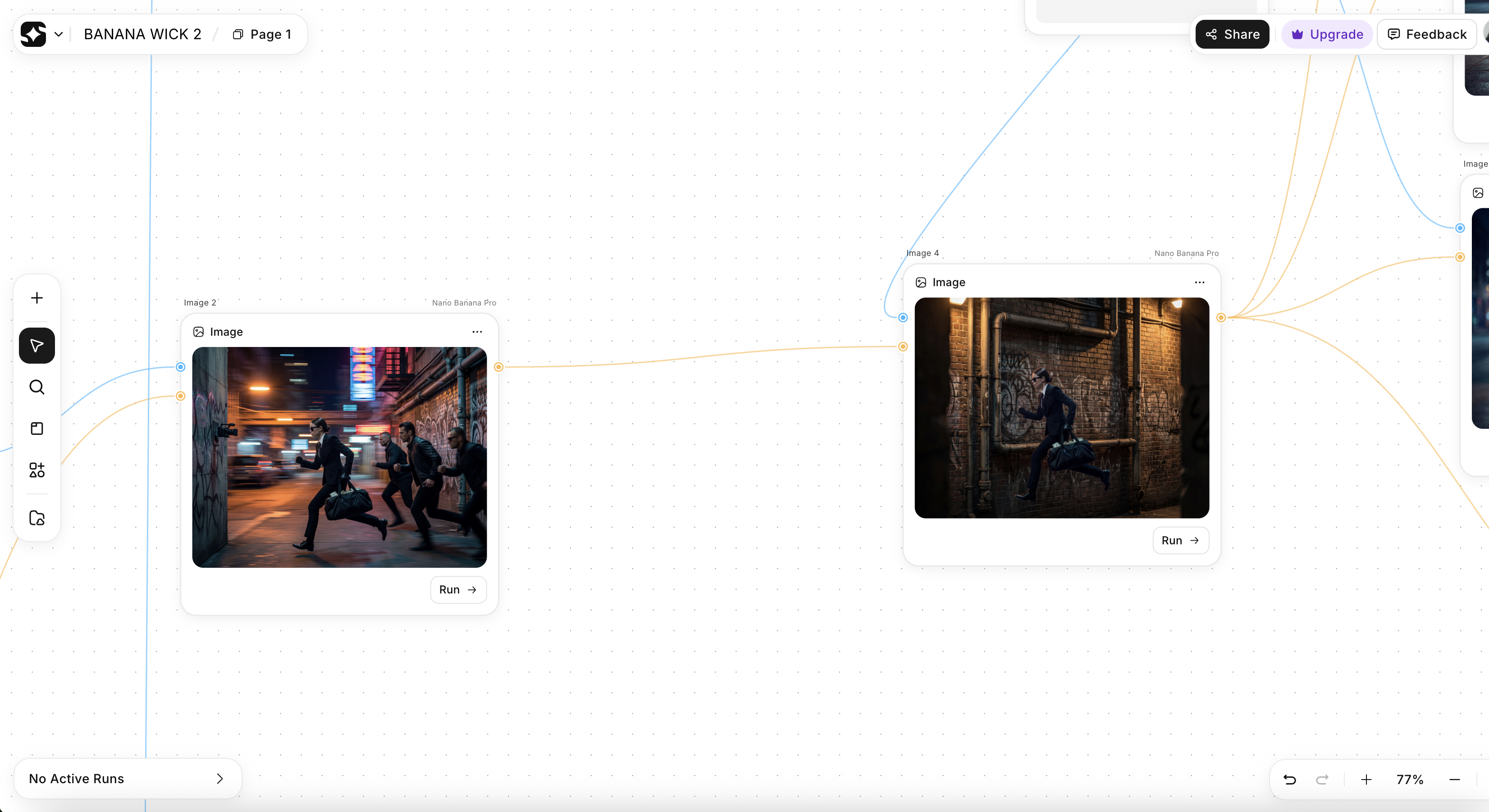 Workflow in Execution
Step 5: Review Outputs
- View results in the output node
- Check the generation quality
- Inspect outputs in the right panel
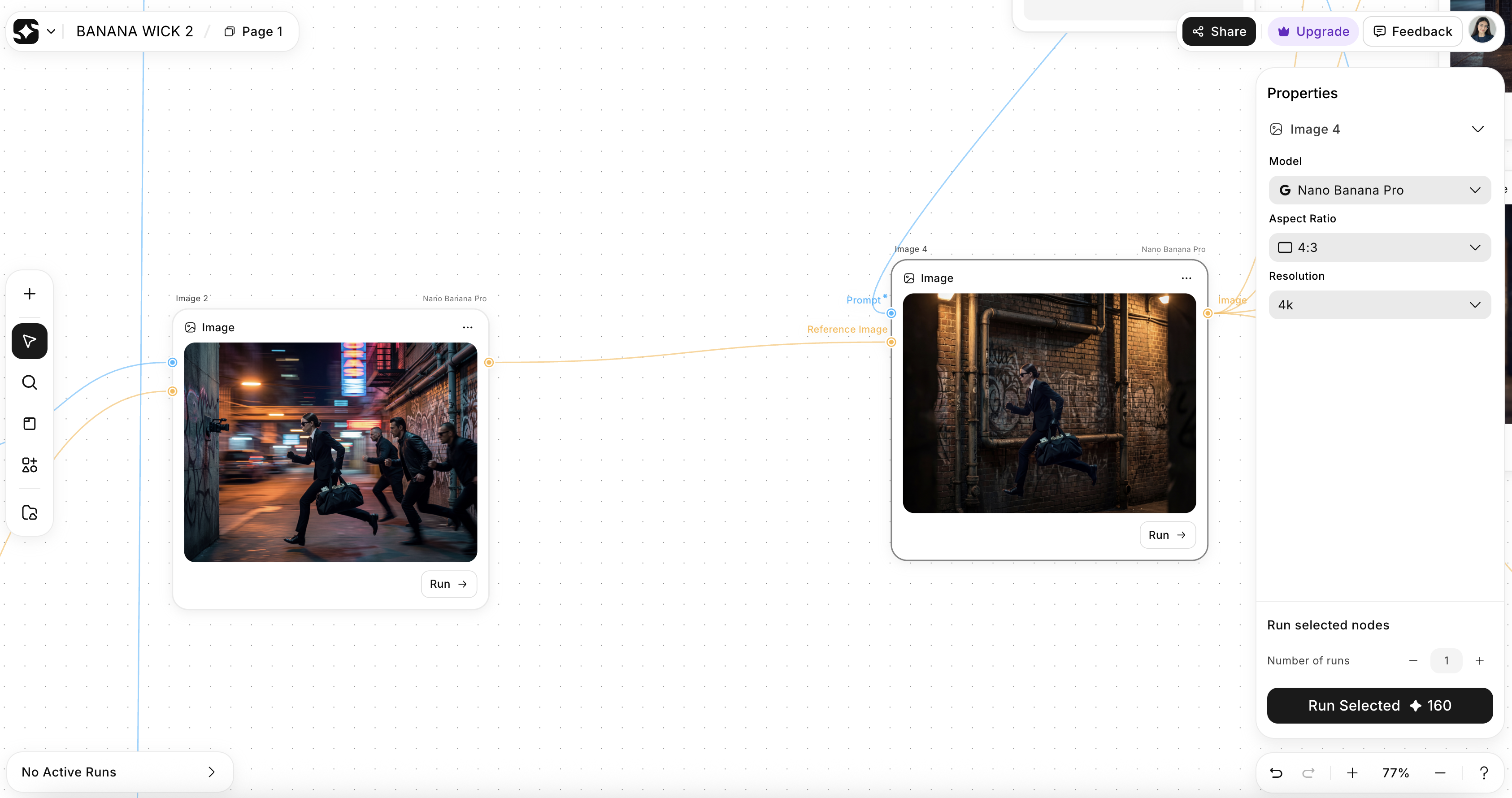 You can Review Output
Step 6: Adjust Inputs and Rerun
- Change values in input nodes
- Rerun the workflow without rebuilding it
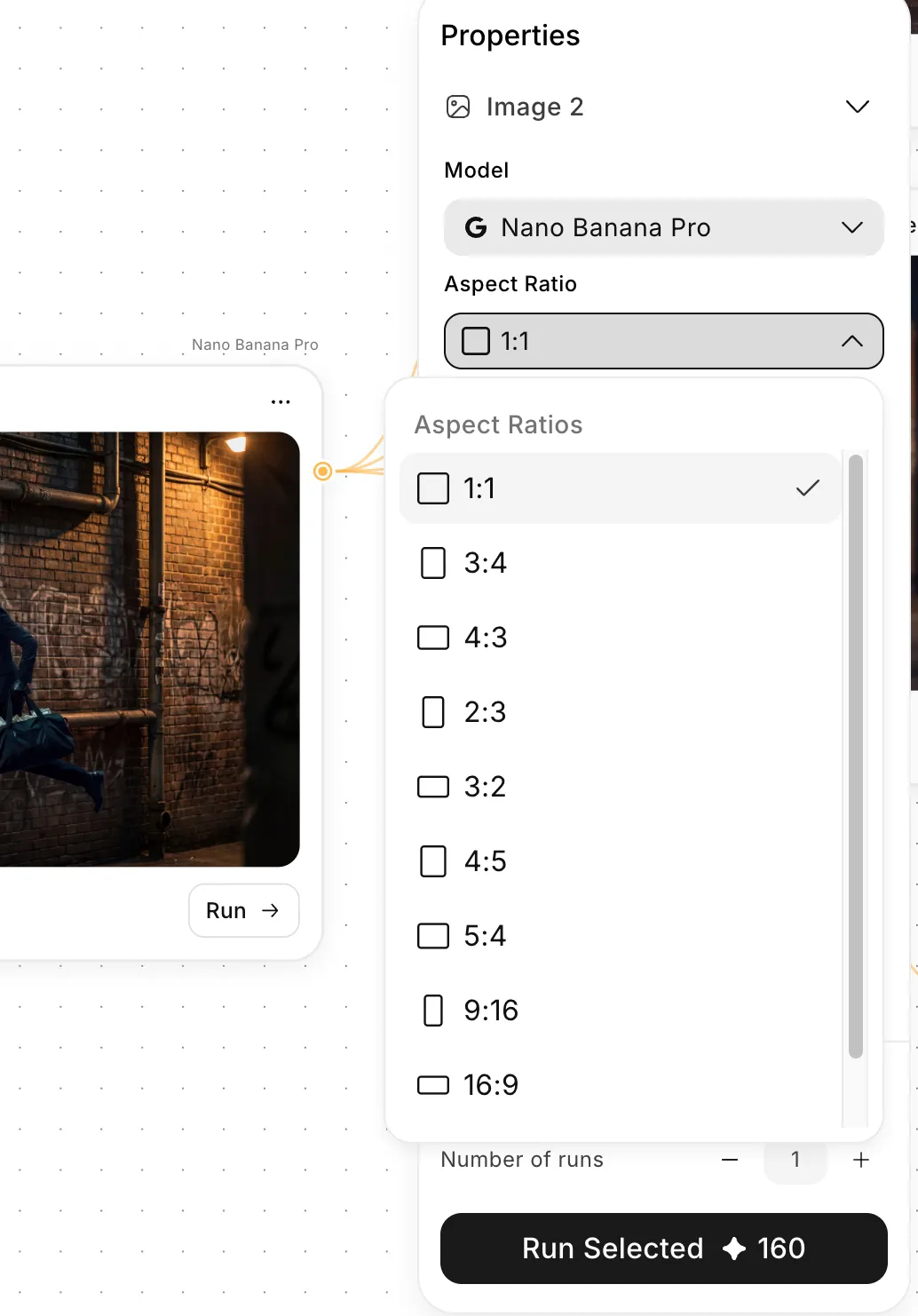 You can adjust inputs and rerun workflow from this panel
AI Workflow Templates
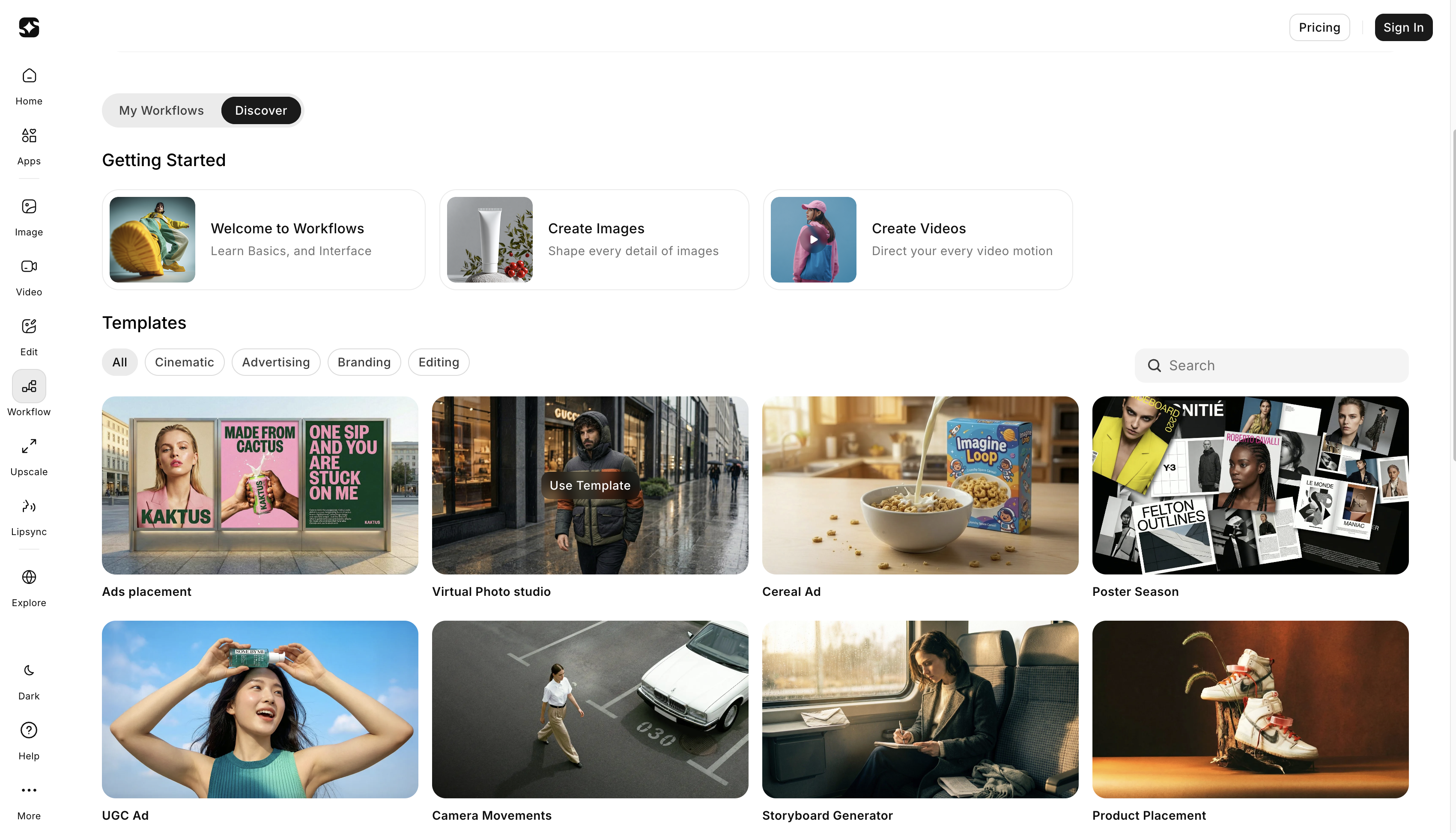 Workflow automation guarantees timeliness, organized work and consistency across assets.
1. Ad Creatives and Variants
This template is perfect for optimizing ad campaigns by integrating dynamic visuals and content that resonate with your target audience. It simplifies the creative process for creating impactful ads, saving time while ensuring the right visuals are in place to boost engagement and conversion rates.
2. Product Photoshoot
Effortlessly generate high-quality, professional product images for e-commerce or marketing campaigns. This template streamlines the creation of visually consistent product photos, eliminating complex setup and ensuring a polished final result every time, ready to showcase your products in the best light.
3. Photo Composer
With this template, you can seamlessly combine multiple image elements into one cohesive design. It’s ideal for creating visually compelling compositions, such as promotional graphics or social media posts, by integrating various visual elements to enhance the overall aesthetic appeal.
4. Camera Angle Ideation
Experiment with different perspectives and camera angles to discover fresh, creative directions for your visuals. This template helps generate new ideas for your projects, offering flexibility in how you present your subjects and scenes, which is especially useful for creative shoots and visual storytelling.
5. Virtual Try-On
This template provides a realistic simulation of product try-ons, making it perfect for fashion and retail industries. Users can virtually showcase how products, such as clothing or accessories, will look on a model or customer, enhancing the shopping experience and improving product visualization.
Workflow Capabilities
Utility and Helper Nodes
Utility nodes support image editing tasks and manage workflow logic rather than content generation, helping keep workflows organized and scalable.
Image Splitter Node
The Image Splitter Node is a new utility node that splits a single image output into multiple defined segments within the workflow. Instead of manually cropping or exporting individual sections of a generated image, the Image Splitter Node handles it automatically inside the pipeline
Prompt Combining
These nodes combine multiple text inputs into a single structured prompt, enabling modular prompt construction without repetition.
Text Formatting
Text formatting nodes ensure consistent structure, separators, and variable placement, improving reliability across runs.
Reusable Logic Blocks
Reusable logic blocks share logic across workflows. Updating a single block automatically updates all dependent workflows, reducing maintenance effort.
Prompting Guide for ImagineArt Workflow Templates
ImagineArt workflow templates give you a structured way to move from idea to output without having to rebuild each step. You work inside nodes. Each node needs a clear, scoped prompt. Strong prompts keep the workflow stable and reusable.
Example Workflow: Product Campaign
Node 1: Campaign Brief (Text)
- Purpose: Set the core goal and audience
- Prompt
- Product launch campaign: new product name
- Target audience — who it’s for
- Visual mood — sleek, bold, premium
- Color direction — product colors + supporting palette
Node 2: Product Photoshoot
- Type: Image
- Input: Text from Node 1
- Prompt
- Studio product image
- Clean, neutral background
- Sharp lighting highlights product features
- Minimal shadows
Node 3: Secondary Angles
- Type: Image
- Input: Output from Node 2
- Prompt
- Close-up shot of key feature
- 3/4 product angle
- Background same as the main shot
- Maintain consistent lighting
Node 4: Lifestyle Context
- Type: Image
- Input: Text from Node 1
- Prompt
- Product in a real-life setting
- Casual but upscale environment
- Natural lighting
- People using the product (optional)
Node 5: Image to Video
- Type: Video
- Input: Best image from Node 2 or 3
- Prompt
- Slow reveal movement
- Subtle zoom
- Keep focus on the product
- Background still
Limitations and Considerations
- Workflows require upfront planning and take time to learn, especially for complex setups.
- Initial setup takes longer than using single prompts.
- Batch execution uses more credits, so planning helps control costs.
Future of Node Based Workflow Tools with ImagineArt
As the creative industry continues to evolve, ImagineArt is at the forefront of adapting to new demands. As a node based workflow tool, ImagineArt supports scalable creative production across teams and projects. Many businesses compare enterprise-level AI systems with integrated creative platforms used across teams to decide which tools support collaboration, scale, and long-term production needs rather than isolated creative tasks.
With enhanced automation, deeper AI integrations, and cutting-edge tools, ImagineArt empowers you to stay ahead of the curve.
Now is the perfect time to explore the future of node based workflows and start transforming your ideas into reality. Get started with ImagineArt Business and elevate your creative process to new heights.
Frequently Asked Questions
What is a node based workflow tool?
A node based workflow tool connects prompts, models, and outputs into structured pipelines for image and video creation, rather than relying on a single prompt-and-response step. ImagineArt is built around this approach.
How does a node based workflow work?
A node based workflow organizes tasks into connected steps that run in sequence. ImagineArt lets you connect these steps visually on a canvas, making it easier to control how data flows from one node to the next.
How can I integrate AI tools into a node based workflow?
ImagineArt lets you integrate AI tools by assigning them to different nodes in a workflow. You can combine image generation, video creation, and media transformations into a single structured pipeline that runs from input to final output.
What are some of the best tools for node based workflow optimization?
Creative-focused platforms such as ImagineArt, Runway, and Zapier AI help optimize node based workflows for image generation, video creation, and content production.
What are the main use cases for a node based workflow?
Common use cases include social media content creation, product visualization, storyboards, moodboards, and brand asset production.
How is a node based workflow different from single-prompt AI tools?
A node based workflow is built around multi-step pipelines, allowing users to control each stage of the process and reuse the same workflow structure across multiple creative projects, rather than starting from a blank prompt each time.
Umaima Shah
Umaima Shah is a creative content strategist specializing in AI tools, image generation, and emerging technologies. She focuses on translating complex platforms into clear, practical insights for creators, designers, and product teams