

Syed Anas Hussain
May 21, 2026 • Updated May 21, 2026
8 mins Read
The first time I tried making a multi-scene film in ImagineArt Film Studio, every individual clip looked cinematic. When I assembled them, my lead character had three completely different faces across five shots. That was the moment I actually learned what the References panel was for — and once I understood it, consistency stopped being the frustrating part and became the most satisfying part of the whole workflow.
Why AI Video Loses Consistency Between Shots
To keep characters consistent, you first need to understand why they drift. ImagineArt AI Film Studio produces each video clip by interpreting your prompt and any reference inputs you provide. Without a concrete visual reference anchoring the character — a specific face, specific clothing, a specific build — the engine generates the best version of your description it can. That description might be "a young woman in a red coat," and it will produce a young woman in a red coat. But the exact features, the exact shade, the exact proportions will vary shot to shot unless you give the engine something specific to hold onto.
This is why the References panel exists. It is not a nice-to-have. It is the mechanism for telling Film Studio: this is the person — match this across every shot you generate.
The References Panel: What It Does
The References panel lives on the right side of the Film Studio workspace. Three tabs:
- Images — character faces, product shots, environment photos
- Videos — motion style and visual continuity references
- Audio — sound references for the audio production stage
For character consistency, the Images tab is the main tool. Before generating a single video clip, upload reference images of the character you want to appear across scenes. The more specific the reference, the more locked-in the output.
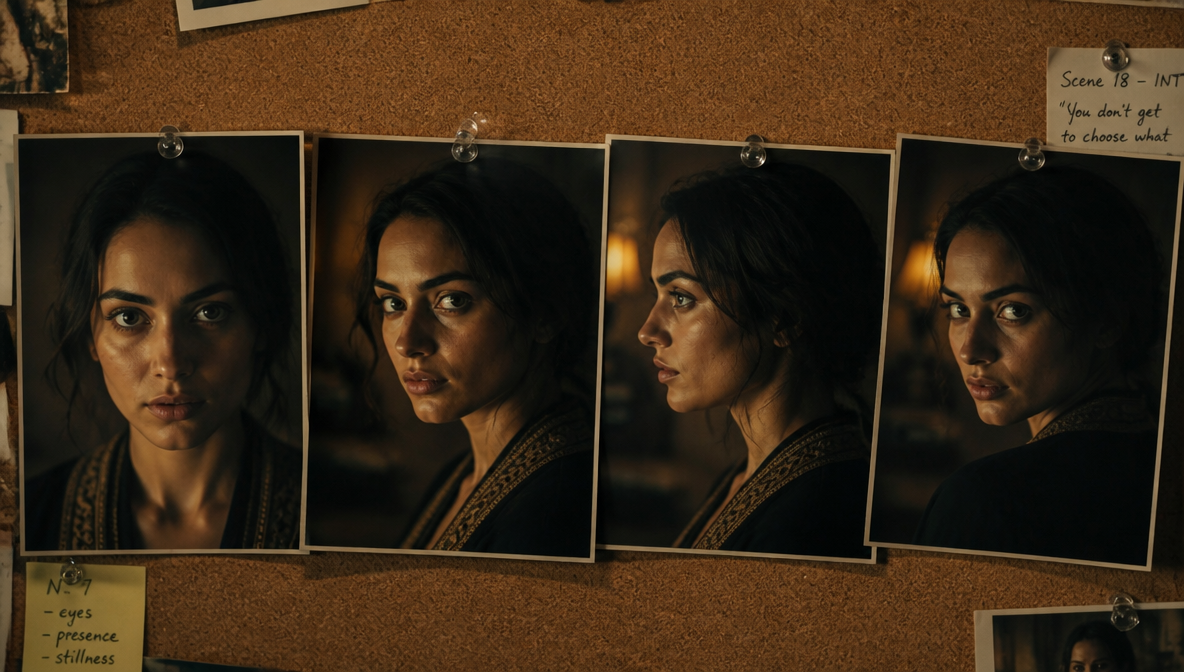
Here is the workflow I follow on every multi-scene project now:
Step 1: Generate your character reference in the Image tab first.
Use the Image tab to generate a reference portrait — front-facing, neutral expression, the exact look you want for this character. Generate 2–3 variations and pick the strongest. This takes minutes and saves hours of inconsistent output later.
Step 2: Upload the reference to the Images tab in the References panel.
Once you have your character reference, upload it to the References panel Images tab before generating any video clips. It is now available as a reference input throughout the entire project.
Step 3: Use the reference image as a Start Frame in Create Video.
In the Create Video tab, attach your reference image as the Start Frame for every clip featuring this character. This gives the generation engine a concrete visual target for the opening frame of the clip — anchored to the reference, not re-interpreted from text.
Step 4: Keep Genre and Movement consistent across shots in the same scene.
Genre sets the cinematic aesthetic. Movement sets the kinetic character. If Shot 1 is Documentary + Slow drift and Shot 2 is Action + Kinetic push, they will look like two different films even if the character reference is locked. Set Genre and Movement intentionally per scene, not per shot.
The Start Frame Technique — My Single Biggest Consistency Unlock
When I first started using Film Studio, I wrote prompts without attaching any Start Frame. The generation engine was working from text alone — and while the outputs were often beautiful, they were also variable. The same character prompt produced noticeably different faces on every generation pass.
The shift came when I started generating reference images in the Image tab first, then using those images as Start Frames in Create Video. The consistency improvement was immediate. The engine had a visual anchor rather than a text description to interpret.
For multi-scene films, I treat the Image tab as a mandatory first step now, not optional. Always:
- Image tab → generate reference frames for characters and key environments
- References panel → upload the strongest references
- Create Video tab → attach as Start Frame before generating each clip
The how to use Film Studio guide covers the full step-by-step workflow — but the Image tab → Start Frame sequence is the single lever that changed my output quality most.
Camera Controls and Consistency: The Detail Most People Miss
Here is something I did not fully appreciate until I had been using Film Studio for a while: the Camera controls in the Image tab are part of the consistency toolkit too.
When you generate reference images, you set:
- Select Camera — the camera type producing the shot
- Select Lens — the focal length character (wide, normal, telephoto)
- Focal Length — field of view and subject compression
- Aperture — depth of field (wide aperture = shallow depth, blurred background)
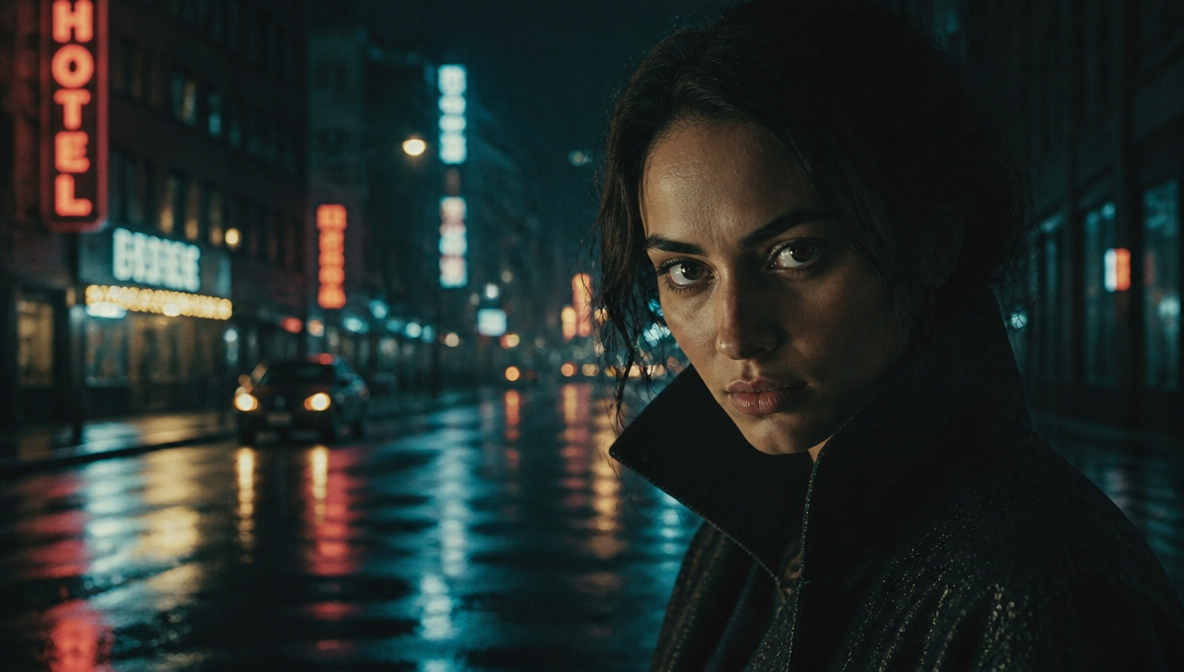
If I generate a character reference at 85mm with a wide aperture, that becomes the optical signature of that character in my film. When I use that image as a Start Frame and carry similar camera language into my Create Video prompt, the engine produces output with a consistent visual signature — the same soft background compression, the same intimate framing.
Inconsistent camera settings across reference images is one of the quieter consistency killers. Lock your camera settings per scene the same way you lock Genre and Movement.
The Images tab handles character and environment references. The Videos tab handles motion and tonal consistency across scenes.
If I generate a strong clip in Scene 1 and want Scene 3 to feel like it belongs in the same film, I upload the Scene 1 clip to the Videos tab as a style reference. The engine uses it as a tonal anchor — the visual rhythm, the motion character, the color temperature all carry through.
Character references lock the subject. Video references lock the world. Both matter for a film that holds together across multiple scenes.
To understand why the engine responds to these inputs the way it does, the how AI cinema works guide explains the mechanics of how prompts and references translate into cinematic output.
A Consistency Checklist for Every Multi-Scene Project
After a lot of trial and error, here is what I run through before generating any shot:
Before generating any clip:
- Generate character references in Image tab
- Upload strongest references to References panel Images tab
- Set Camera controls (lens, focal length, aperture) that will stay consistent across the project
- Set Genre for this scene
- Set Movement for this scene
For each clip in Create Video:
- Attach Start Frame (character reference image)
- Confirm Genre matches the rest of the scene's shots
- Confirm Movement matches unless intentionally different
- Prompt describes action and motion — not appearance (Start Frame handles appearance)
After generating:
- Does this character match the reference?
- Does this clip feel like it belongs in the same film as the others?
- If not — is the issue the prompt, the Start Frame, or the Genre/Movement settings?
This becomes instinctive quickly. For the prompt structure that pairs well with this consistency workflow, the AI film prompts guide covers genre-specific prompt formulas in depth.
Frequently Asked Questions
Use ImagineArt Film Studio's References panel — upload a character reference image to the Images tab before generating any clips, then attach that image as a Start Frame in the Create Video tab. This gives the generation engine a concrete visual anchor for every clip instead of interpreting your character from text alone.
The References panel is on the right side of the Film Studio workspace with three tabs: Images (for character and environment references), Videos (for motion style references), and Audio (for sound references). Upload reference assets here before generating clips — they're available across all tabs in the project.
A Start Frame is a reference image you attach in the Create Video tab that tells the generation engine what the opening frame should look like. Attaching your character reference as a Start Frame anchors the character's appearance at the start of every clip, dramatically improving consistency across shots.
Without a visual reference, the generation engine interprets your character from text alone — each generation pass produces its best version of that description, and variations compound across shots. Fix: generate a character reference in the Image tab, upload it to the References panel, and use it as a Start Frame in every clip featuring that character.
Not directly — Genre controls the cinematic aesthetic, not character appearance. But inconsistent Genre settings across shots will make your film feel incoherent even if character references are locked. Keep Genre consistent within a scene to maintain tonal and visual cohesion alongside your character references.
One strong reference is enough to start. I typically generate 2–3 variations in the Image tab — front-facing portrait, 3/4 view, and a scene-specific framing — and upload the strongest one. More angular coverage gives the engine more to work with when generating clips at different camera positions.
Yes. The Videos tab in the References panel accepts clip references for motion style and visual continuity. Upload a clip from Scene 1 as a reference for Scene 3 to give the engine a tonal anchor. Video references handle feel and motion character; image references handle subject appearance.
Once You Get This Right, Everything Else Clicks
Consistency is what separates a collection of AI clips from an AI film. When the character looks the same in Shot 1 and Shot 7, when the world feels cohesive across scenes, and when the tone is controlled rather than random, that is when the project starts feeling like something real. The References panel, start frame technique, and the genre lock are the directorial controls that make Film Studio a film production tool rather than a clip generator.
Syed Anas Hussain
Syed Anas Hussain is a computer scientist blending technical knowledge with marketing expertise and a growing passion for AI innovation. Curious by nature, he dives into new AI sciences and emerging trends to produce thoughtful, research-led content. At ImagineArt, he helps audiences make sense of AI and unlock its value through clear, practical storytelling.