Grok image generator on ImagineArt
Now on ImagineArt
xAI's Grok Imagine image model, with frames from wide banners to tall phone screens.
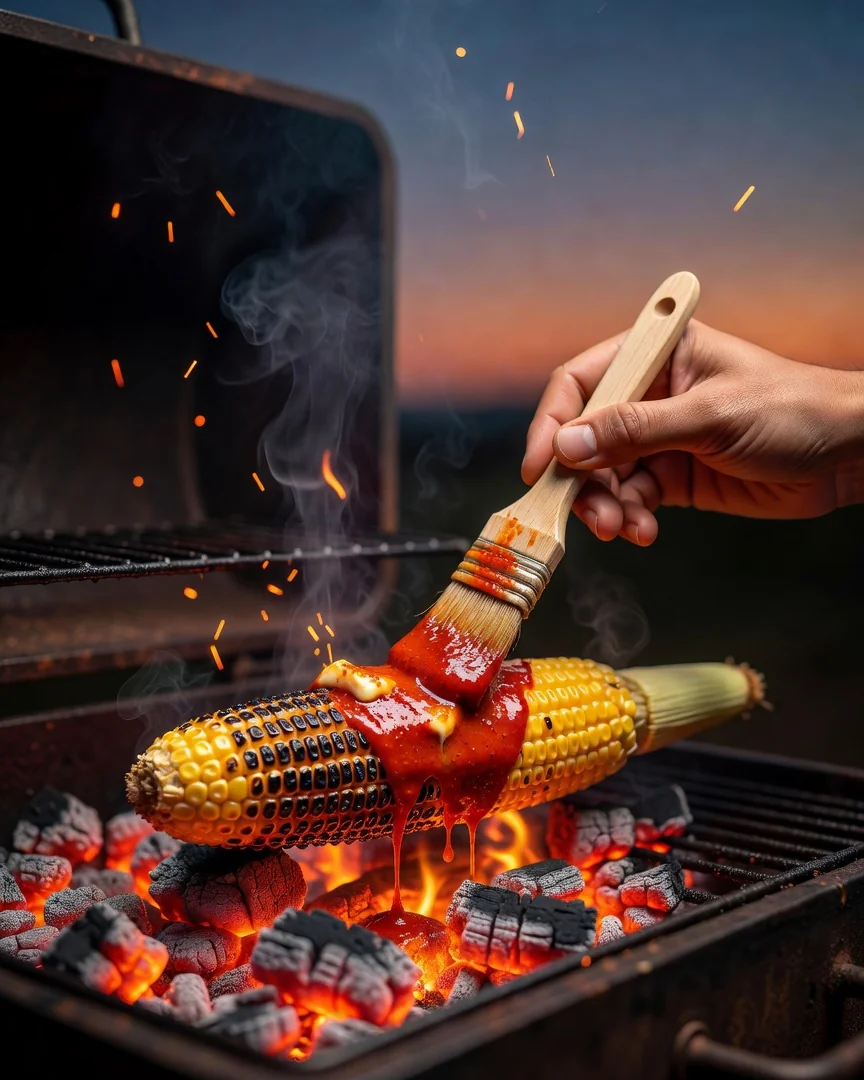
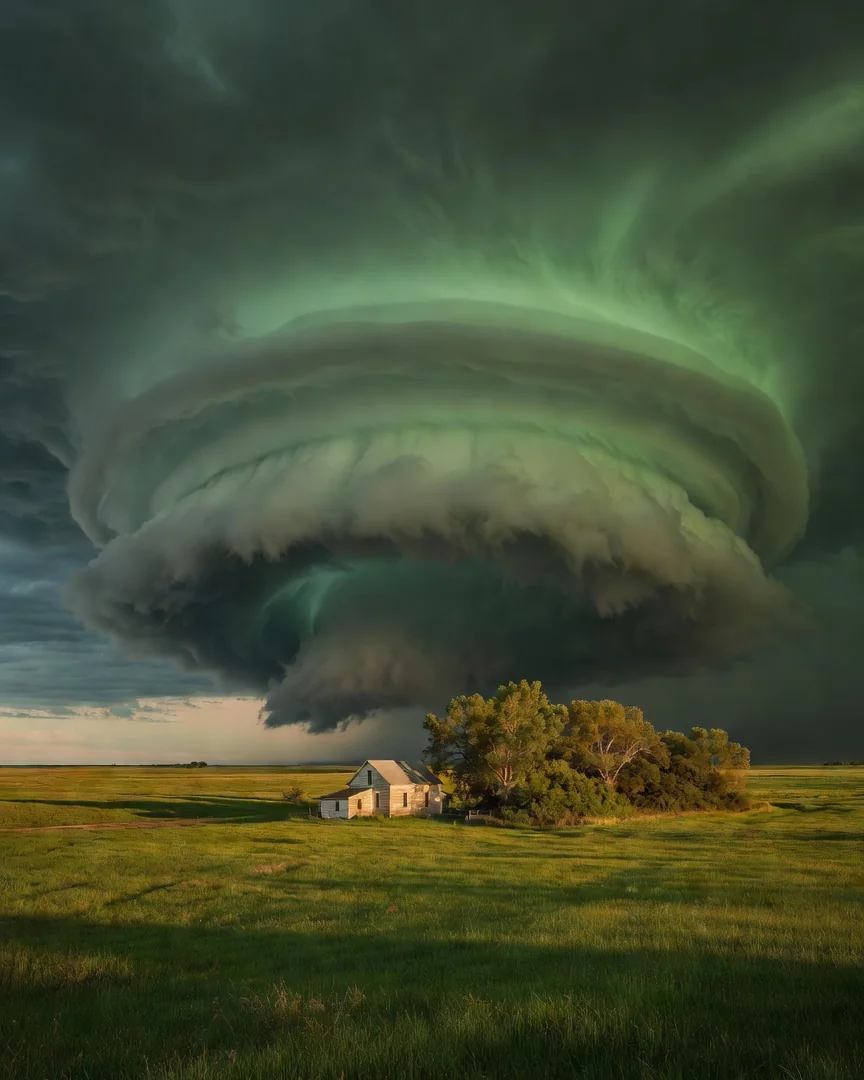
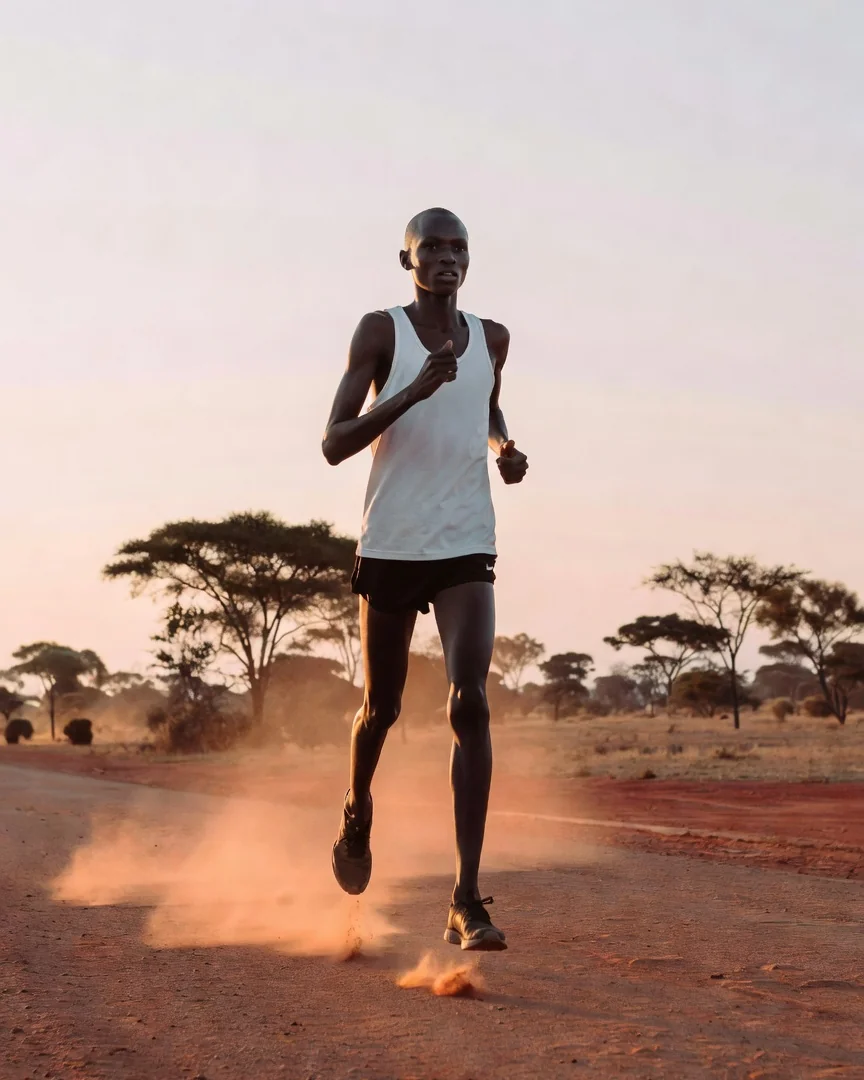
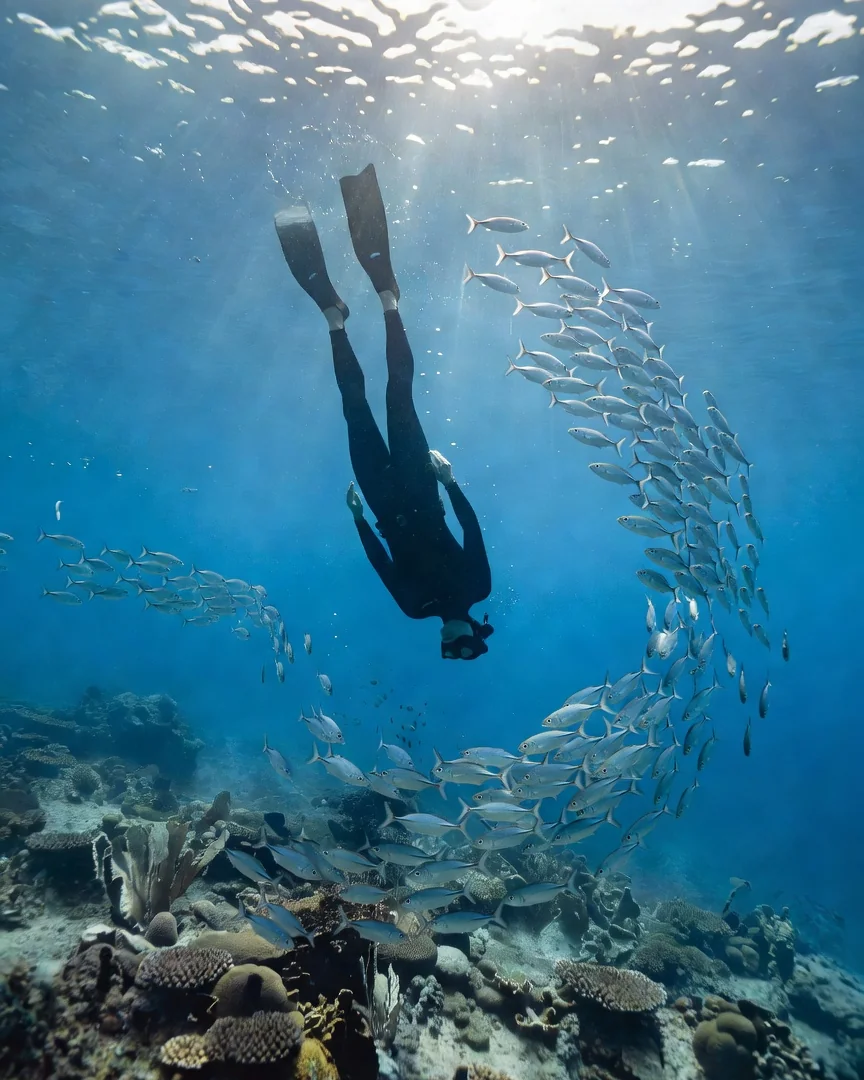
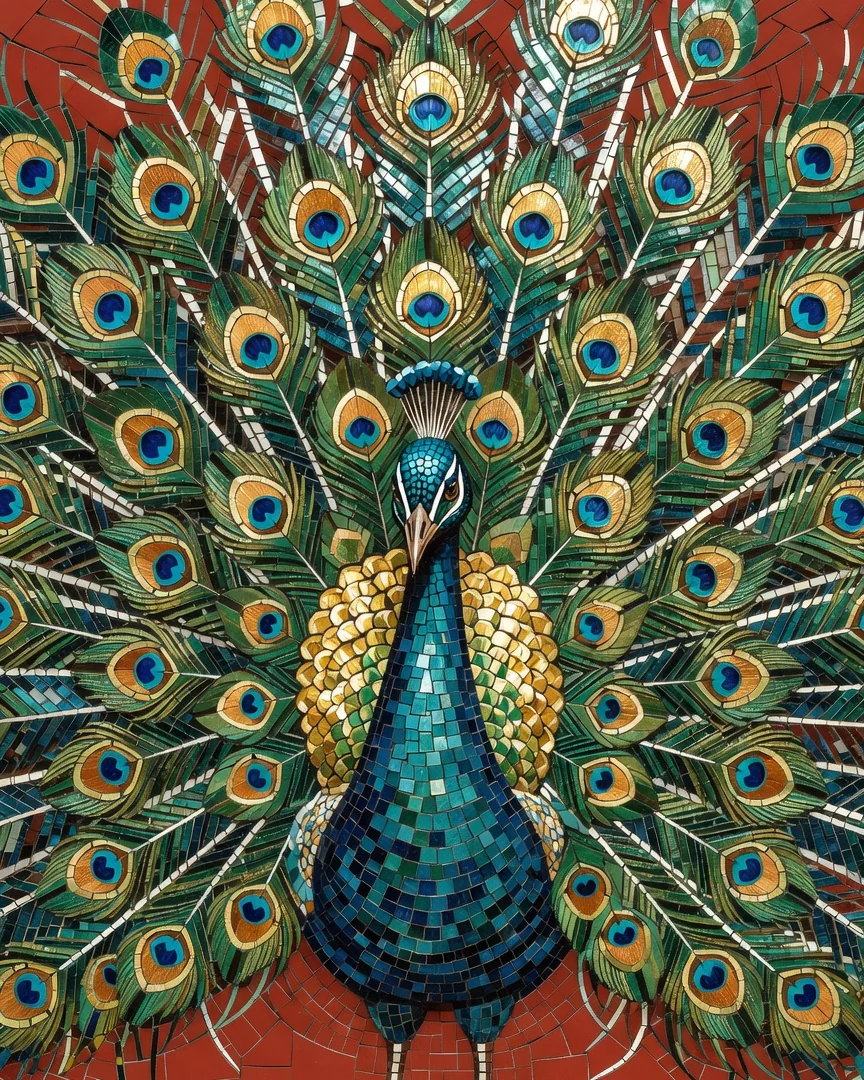
See Grok Imagine Image in action
Prompts to try first
Real prompts, run through Grok Imagine Image. Copy one and swap in your own subject.
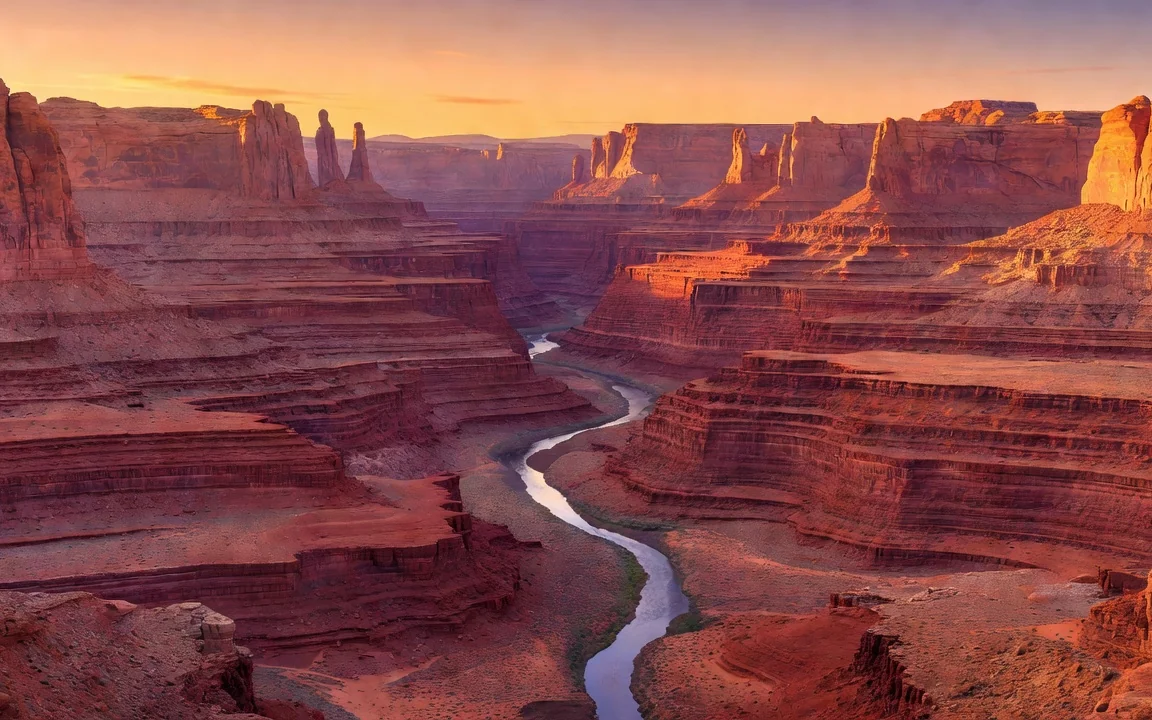
2:1: a panorama of a desert canyon at sunset, layered red rock walls and a thin river below.
Try prompt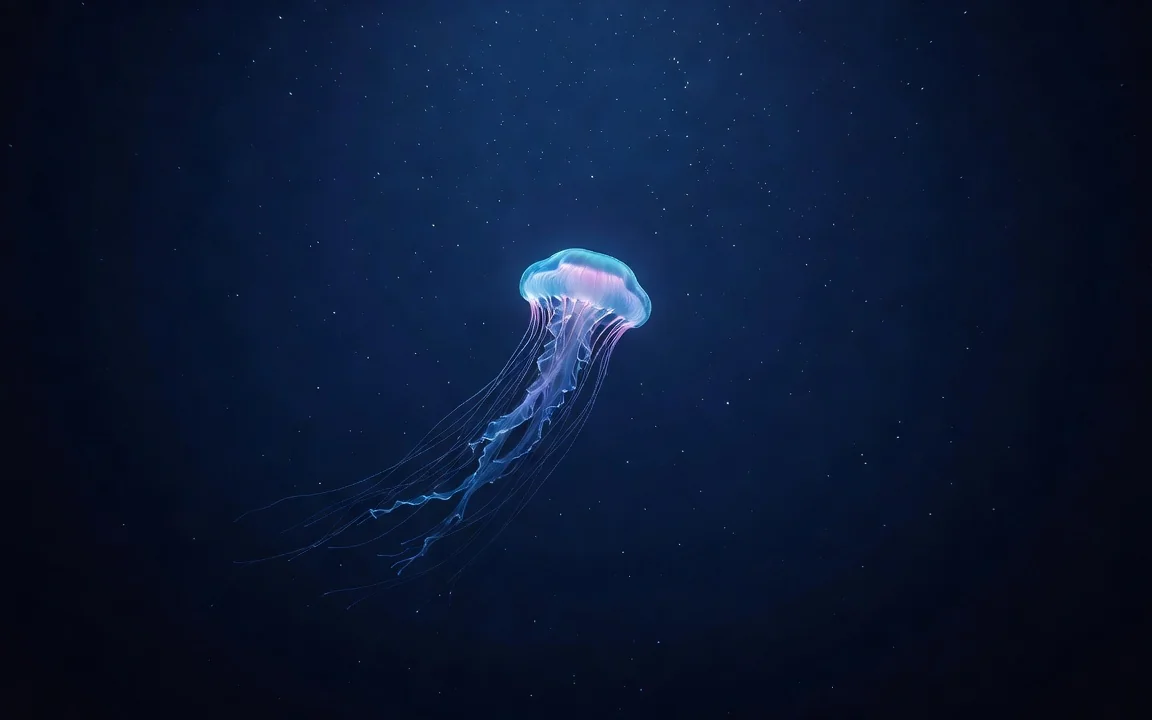
9:20: a phone wallpaper of a single jellyfish glowing in deep blue water.
Try prompt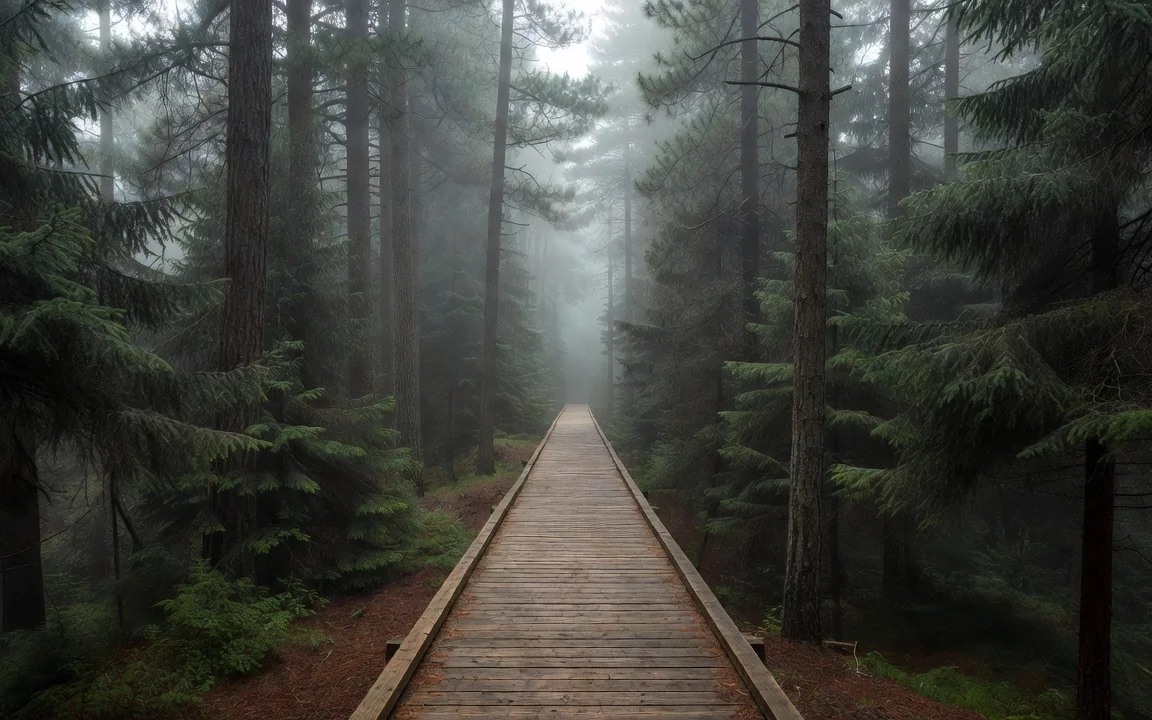
20:9: a website banner of a misty pine forest with a wooden boardwalk running through it.
Try prompt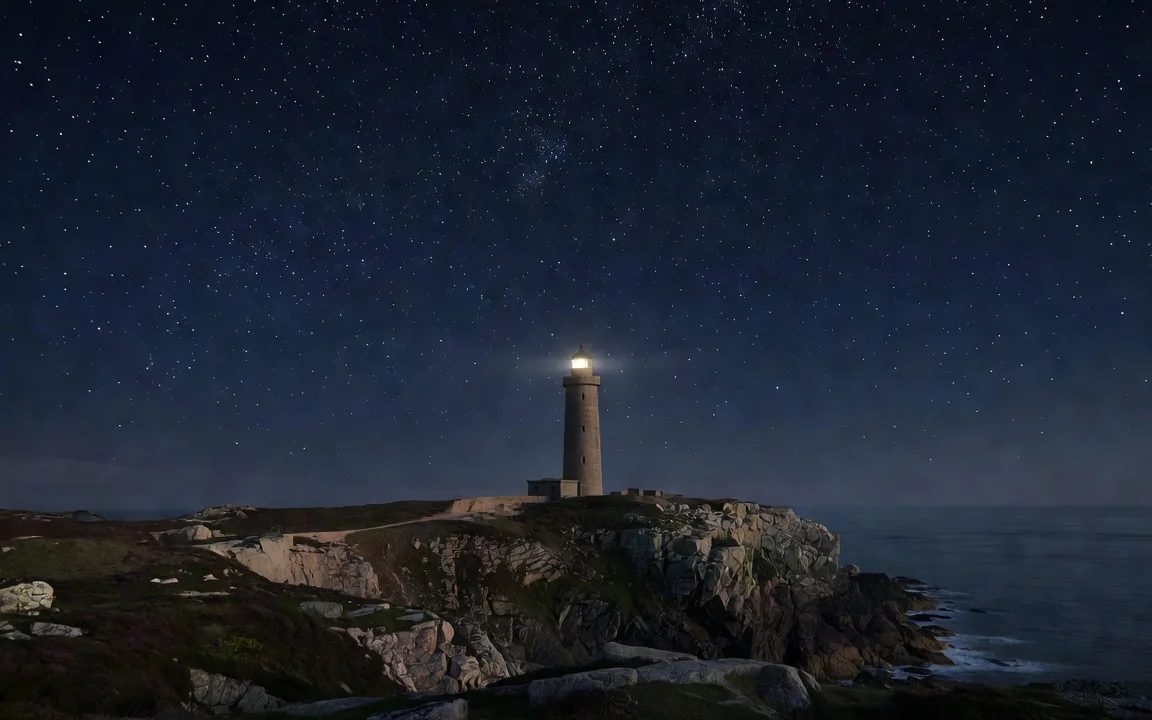
1:2: a tall poster of a lighthouse on a cliff with stars above it.
Try prompt2:1: a panorama of a desert canyon at sunset, layered red rock walls and a thin river below.
Try prompt9:20: a phone wallpaper of a single jellyfish glowing in deep blue water.
Try prompt20:9: a website banner of a misty pine forest with a wooden boardwalk running through it.
Try prompt1:2: a tall poster of a lighthouse on a cliff with stars above it.
Try prompt2:1: a panorama of a desert canyon at sunset, layered red rock walls and a thin river below.
Try prompt9:20: a phone wallpaper of a single jellyfish glowing in deep blue water.
Try prompt20:9: a website banner of a misty pine forest with a wooden boardwalk running through it.
Try prompt1:2: a tall poster of a lighthouse on a cliff with stars above it.
Try prompt2:1: a panorama of a desert canyon at sunset, layered red rock walls and a thin river below.
Try prompt9:20: a phone wallpaper of a single jellyfish glowing in deep blue water.
Try prompt20:9: a website banner of a misty pine forest with a wooden boardwalk running through it.
Try prompt1:2: a tall poster of a lighthouse on a cliff with stars above it.
Try prompt2:1: a panorama of a desert canyon at sunset, layered red rock walls and a thin river below.
Try prompt9:20: a phone wallpaper of a single jellyfish glowing in deep blue water.
Try prompt20:9: a website banner of a misty pine forest with a wooden boardwalk running through it.
Try prompt1:2: a tall poster of a lighthouse on a cliff with stars above it.
Try prompt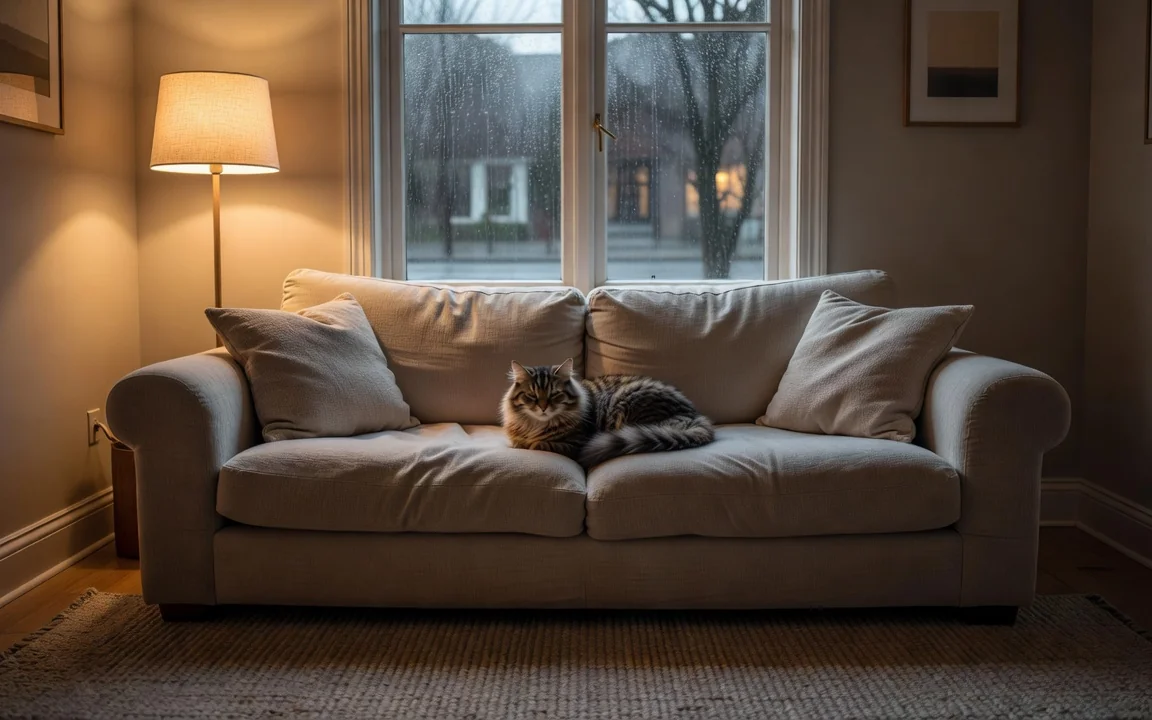
16:9: a cozy living room on a rainy evening, lamp light and a cat on the sofa.
Try prompt
9:16: a story frame of a coffee cup on a café table, steam rising, warm tones.
Try prompt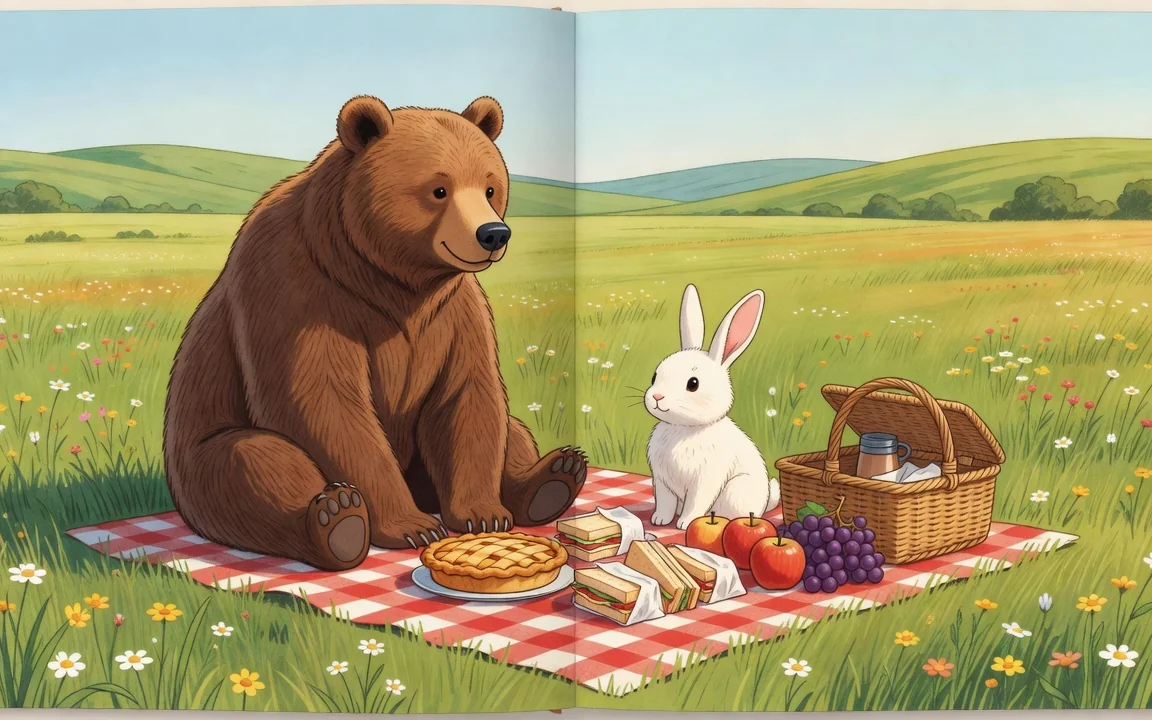
4:3: a children's book page of a bear having a picnic with a rabbit.
Try prompt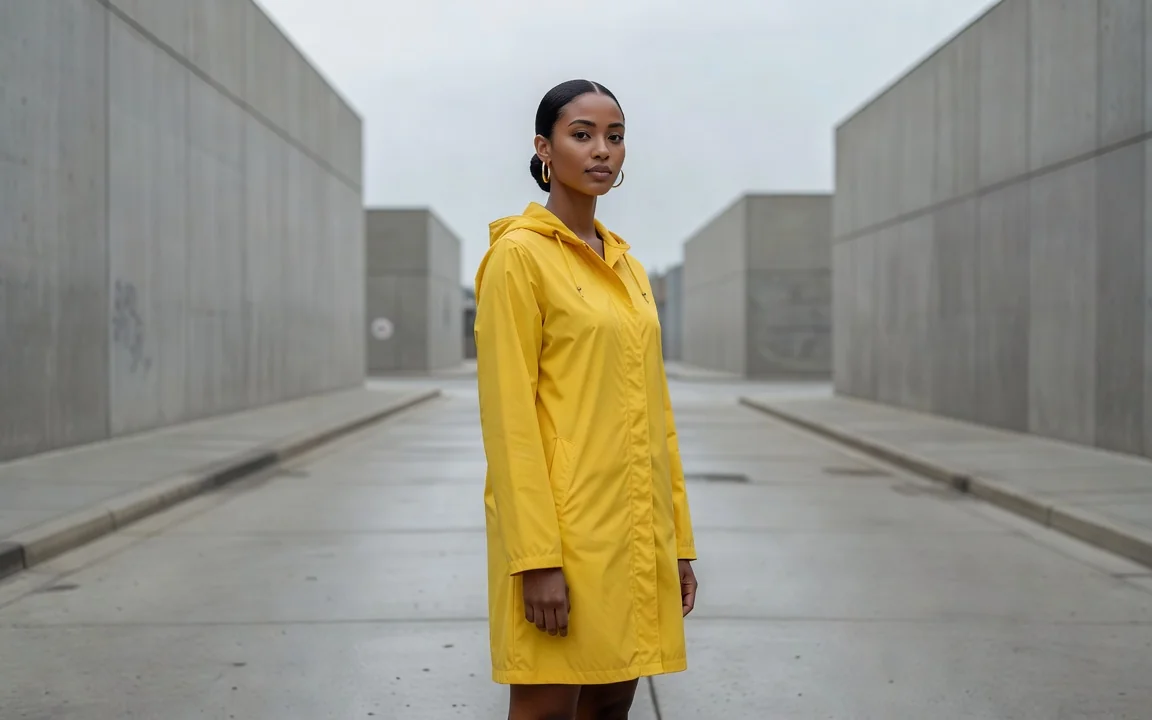
2:3: a fashion portrait of a woman in a yellow raincoat on a gray city street.
Try prompt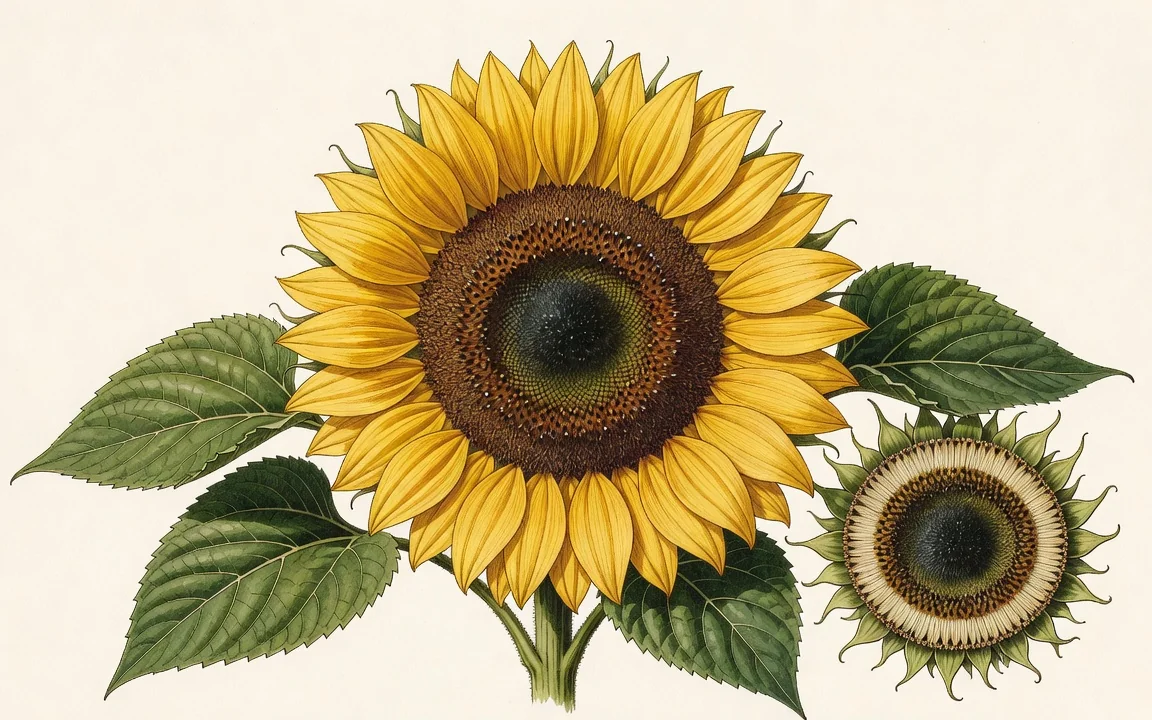
3:4: a botanical illustration of a sunflower with its leaves and seeds.
Try prompt2:1: a panorama of a desert canyon at sunset, layered red rock walls and a thin river below.
Try prompt9:20: a phone wallpaper of a single jellyfish glowing in deep blue water.
Try prompt20:9: a website banner of a misty pine forest with a wooden boardwalk running through it.
Try prompt1:2: a tall poster of a lighthouse on a cliff with stars above it.
Try prompt16:9: a cozy living room on a rainy evening, lamp light and a cat on the sofa.
Try prompt9:16: a story frame of a coffee cup on a café table, steam rising, warm tones.
Try prompt4:3: a children's book page of a bear having a picnic with a rabbit.
Try prompt2:3: a fashion portrait of a woman in a yellow raincoat on a gray city street.
Try prompt3:4: a botanical illustration of a sunflower with its leaves and seeds.
Try prompt2:1: a panorama of a desert canyon at sunset, layered red rock walls and a thin river below.
Try prompt9:20: a phone wallpaper of a single jellyfish glowing in deep blue water.
Try prompt20:9: a website banner of a misty pine forest with a wooden boardwalk running through it.
Try prompt1:2: a tall poster of a lighthouse on a cliff with stars above it.
Try prompt16:9: a cozy living room on a rainy evening, lamp light and a cat on the sofa.
Try prompt9:16: a story frame of a coffee cup on a café table, steam rising, warm tones.
Try prompt4:3: a children's book page of a bear having a picnic with a rabbit.
Try prompt2:3: a fashion portrait of a woman in a yellow raincoat on a gray city street.
Try prompt3:4: a botanical illustration of a sunflower with its leaves and seeds.
Try prompt2:1: a panorama of a desert canyon at sunset, layered red rock walls and a thin river below.
Try prompt9:20: a phone wallpaper of a single jellyfish glowing in deep blue water.
Try prompt20:9: a website banner of a misty pine forest with a wooden boardwalk running through it.
Try prompt1:2: a tall poster of a lighthouse on a cliff with stars above it.
Try prompt16:9: a cozy living room on a rainy evening, lamp light and a cat on the sofa.
Try prompt9:16: a story frame of a coffee cup on a café table, steam rising, warm tones.
Try prompt4:3: a children's book page of a bear having a picnic with a rabbit.
Try prompt2:3: a fashion portrait of a woman in a yellow raincoat on a gray city street.
Try prompt3:4: a botanical illustration of a sunflower with its leaves and seeds.
Try prompt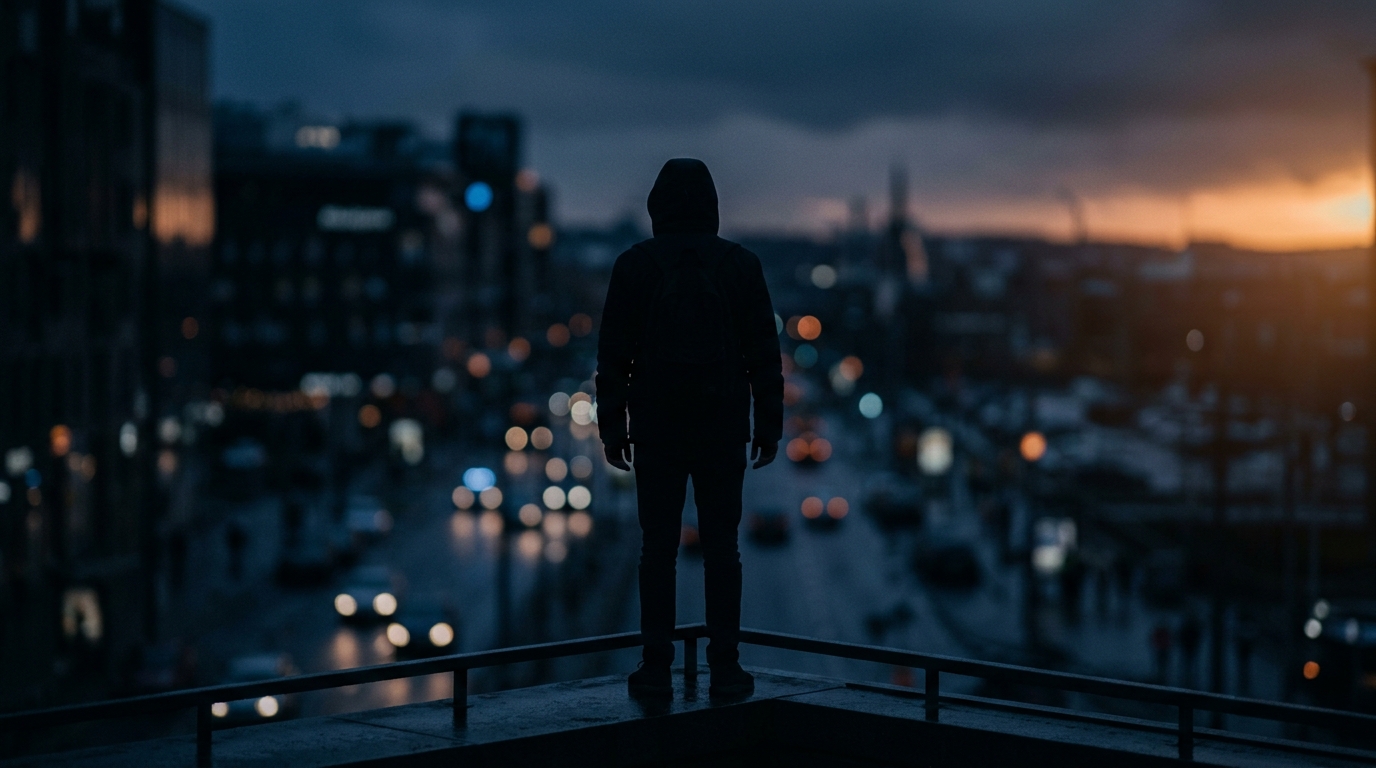
Try Grok Imagine Image on ImagineArt
Use the Grok image generator on ImagineArt: xAI's Grok Imagine image model makes images in 11 shapes, from 20:9 banners to 9:20 phone screens, and edits photos.
Step 1
Open the image tool and pick xAI Grok Imagine.
Step 2
Choose the shape first. Pick one of 11 aspect ratios for text-to-image, from 20:9 wide to 9:20 tall.
Step 3
Write the prompt. Describe the subject, the setting and the light.
Step 4
Edit if you need to. Switch to edit mode and add 1 to 3 images to change. Edit mode has no ratio picker, so the 11 shapes apply to text-to-image.
Wide frames for banners and panoramas
The image tool offers 2:1 and 20:9 alongside 16:9, so a Grok image can fill a website header, a YouTube banner or, after upscaling, a wide print without cropping a square.
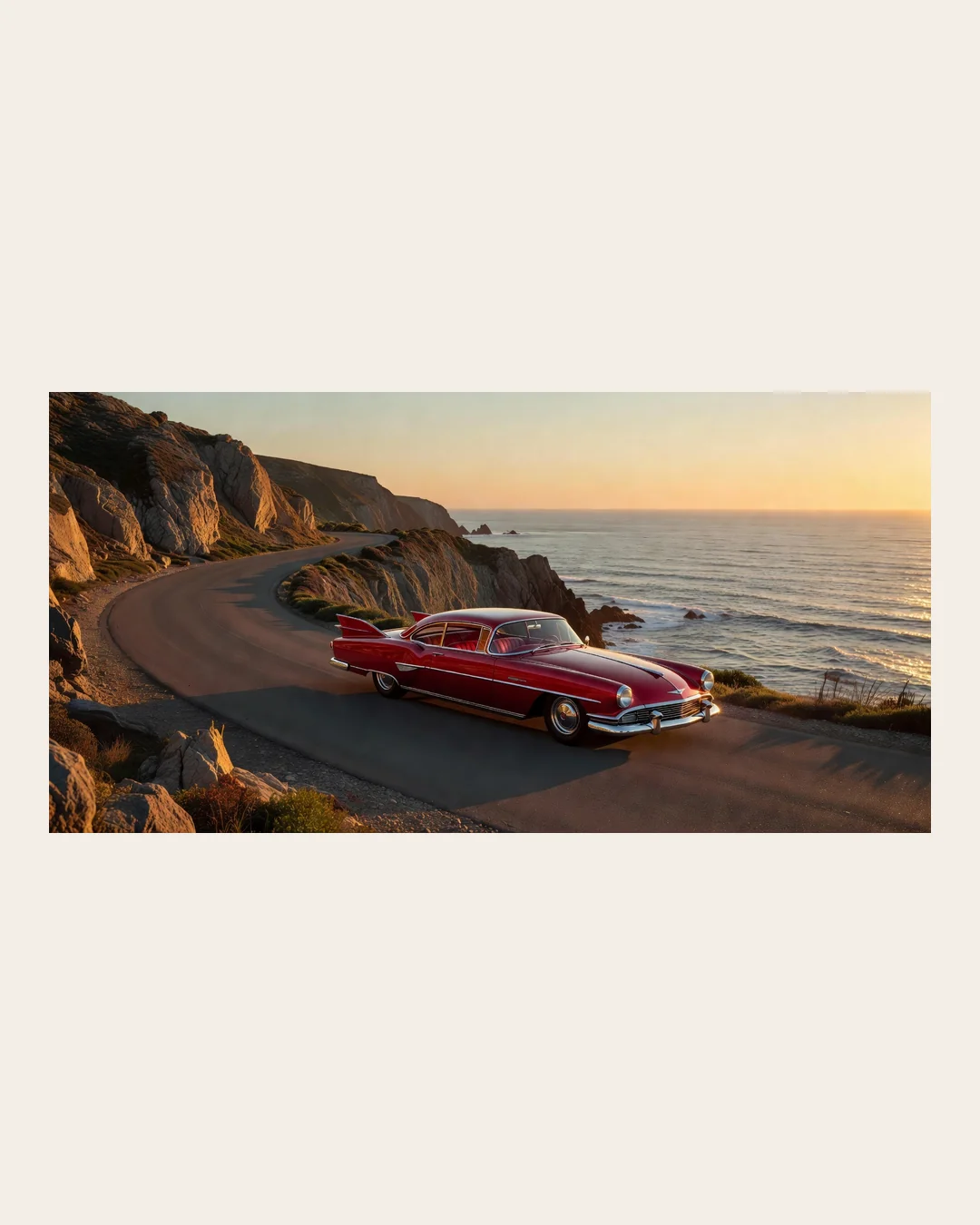
A wide panorama of a coastal road at golden hour, cliffs on the left, the ocean on the right, a red vintage car driving toward the horizon, long soft shadows.
Try prompt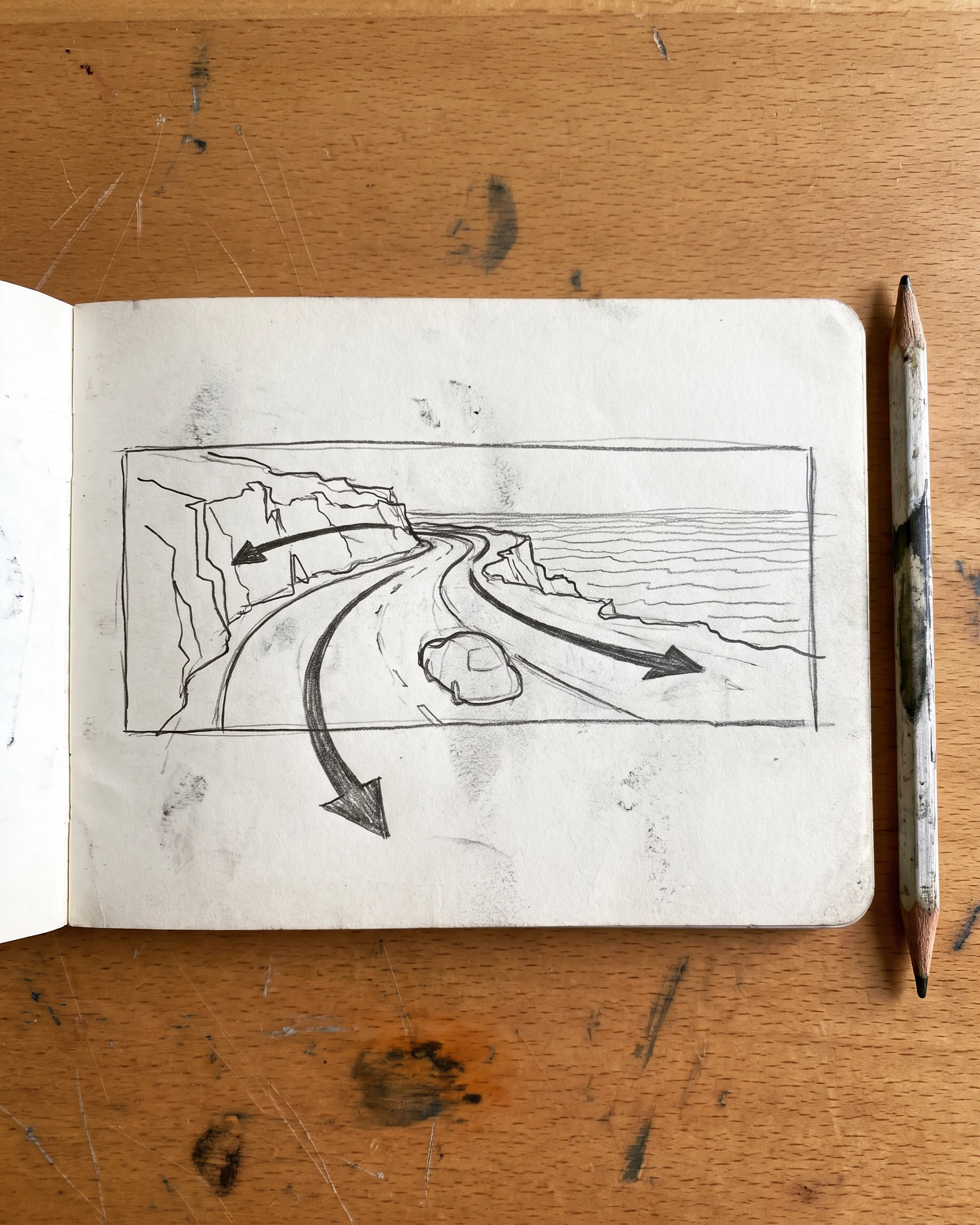
Tall frames for phones and stories
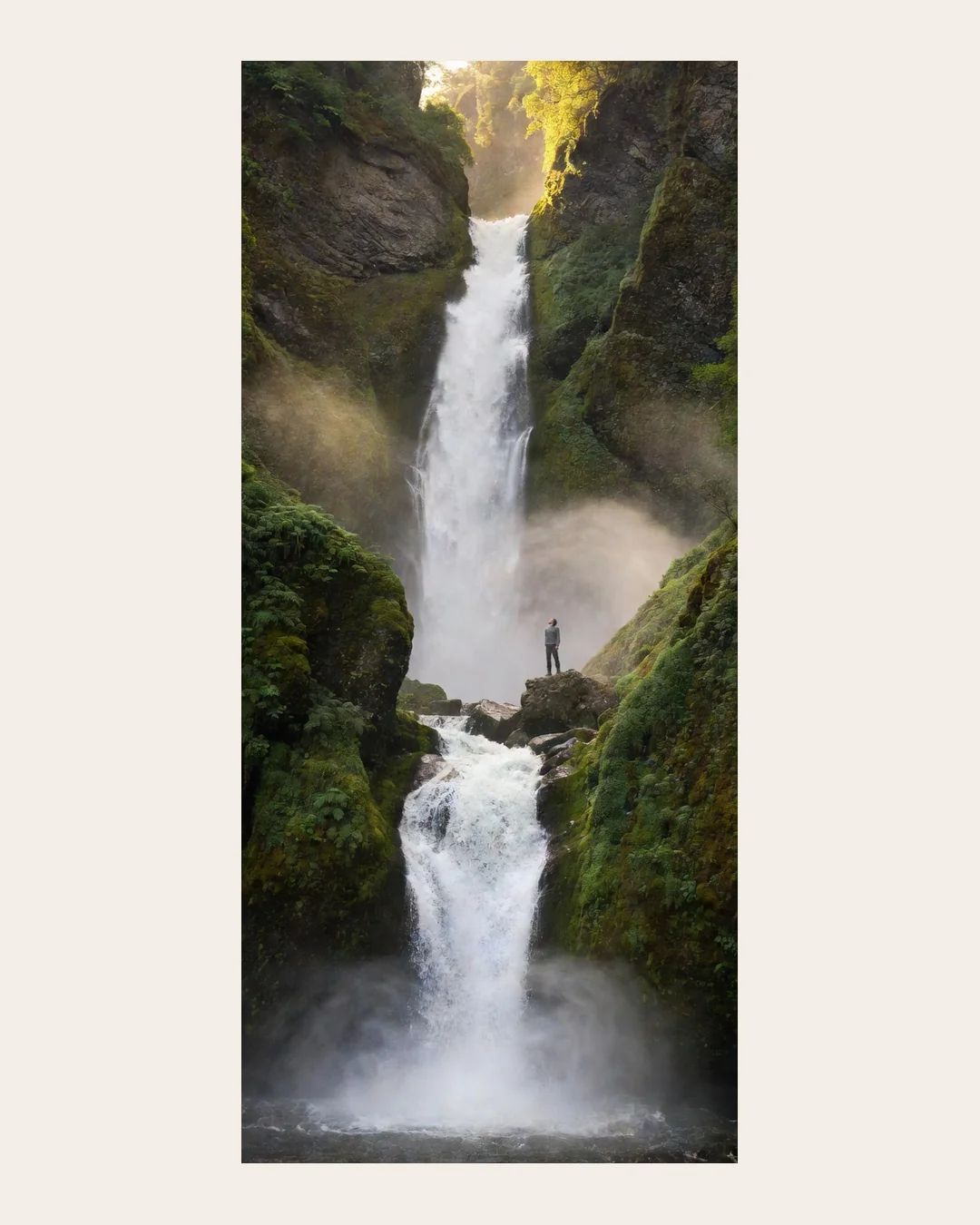
At the other end, 9:20 and 1:2 fit phone wallpapers and tall posters, and Workflow's xAI Grok Image node adds 9:19.5 for full-screen phone shapes.
A tall phone wallpaper of a waterfall falling through a narrow green gorge, mist at the bottom, a tiny hiker on a rock for scale, morning light from above.
Try prompt
Quick edits from your photos
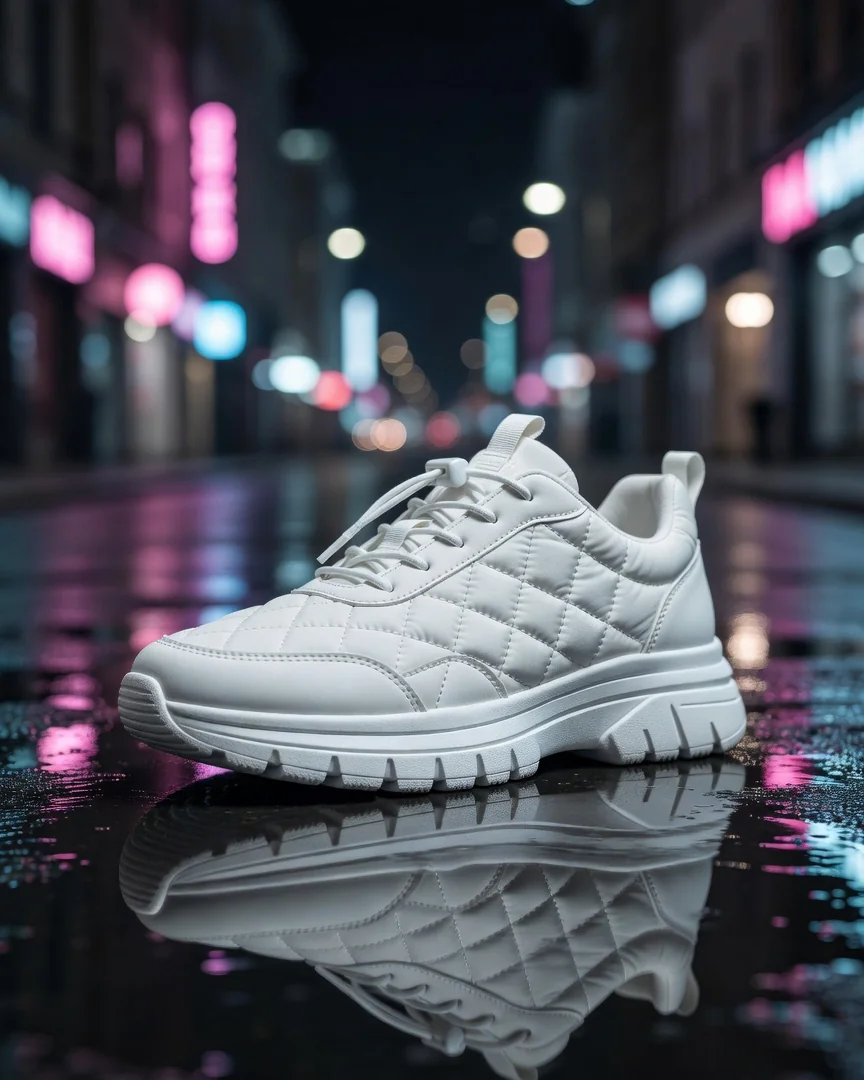
In edit mode, the image tool takes 1 to 3 images. Keep each Grok image edit to one clear change: a new background, a new color, or one added object.
Edit this photo of a white sneaker on a wooden floor: place it on a wet city street at night with neon reflections, and keep the shoe exactly as it is.
Try prompt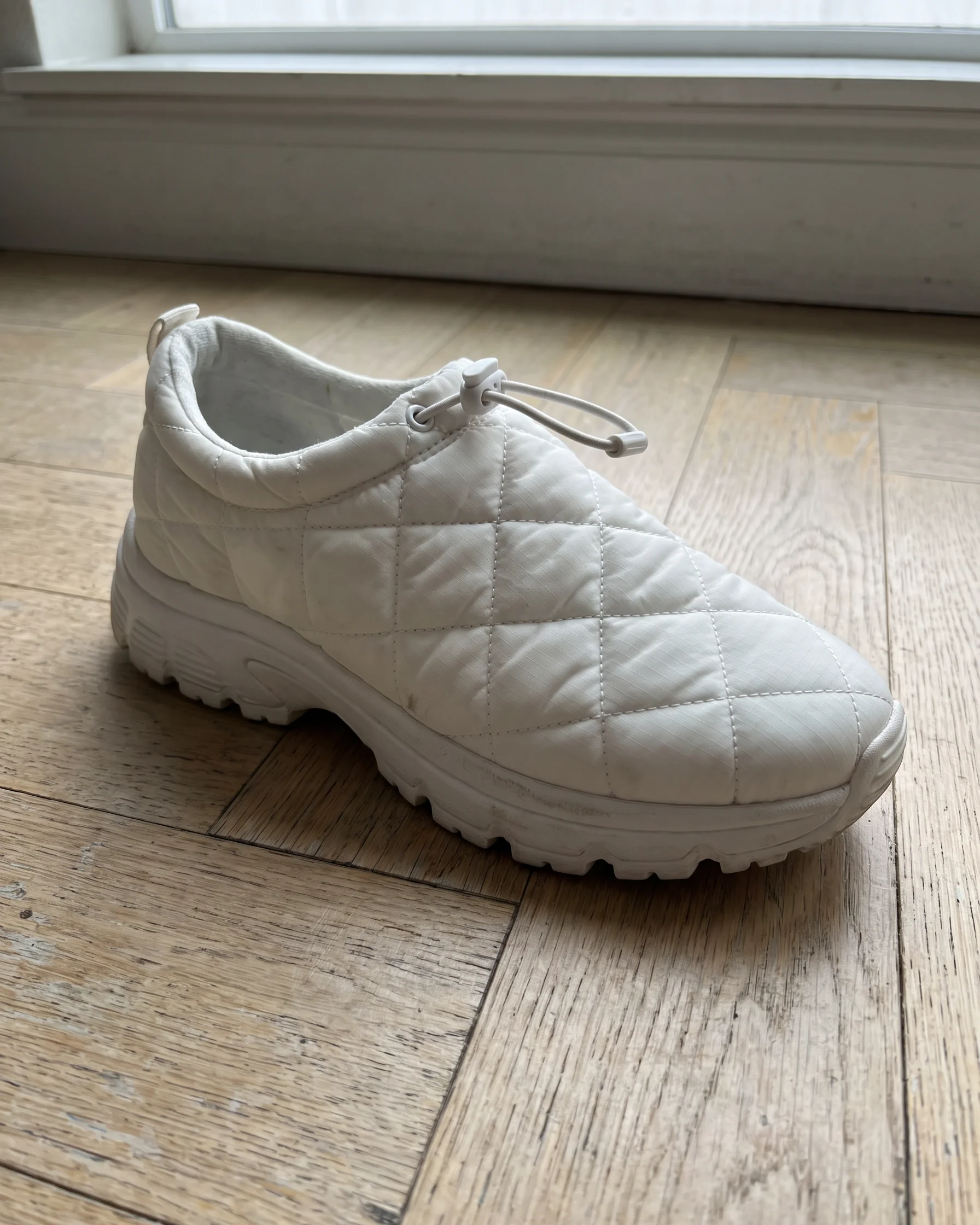
From still to moving picture
ImagineArt's video tool runs two xAI video models, xAI Grok 1.5 and xAI Grok Video, that can start from an image. Make the still here, then use it as the start frame of a clip.
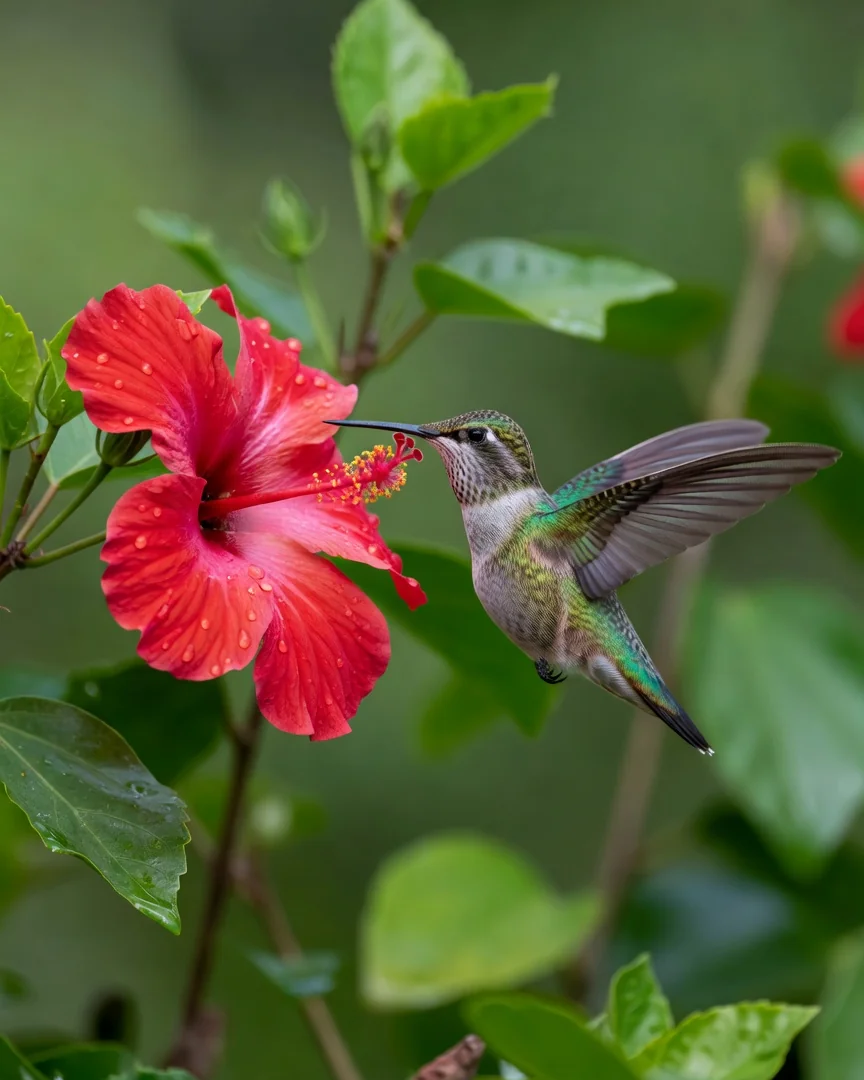
A close-up of a hummingbird hovering beside a red hibiscus flower, wings frozen mid-beat, droplets on the petals, soft green garden behind.
Try prompt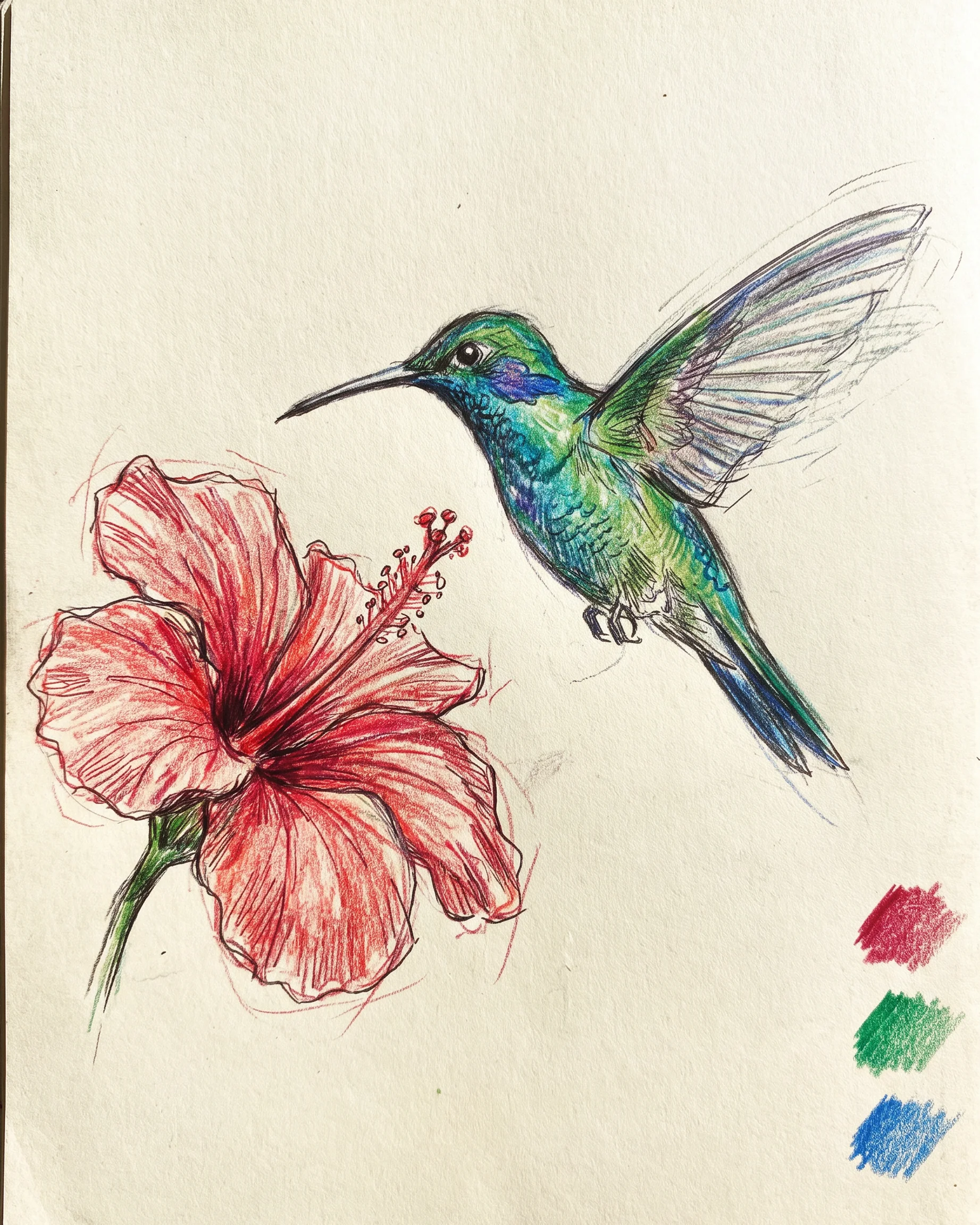
Use the Grok image generator on ImagineArt: xAI's Grok Imagine image model makes images in 11 shapes, from 20:9 banners to 9:20 phone screens, and edits photos.
Try Grok Imagine
Website headers that fit
A small business can make a 20:9 header image of its storefront street or product range that fills the top of the homepage, instead of stretching a square photo.
Phone wallpapers for a fan community
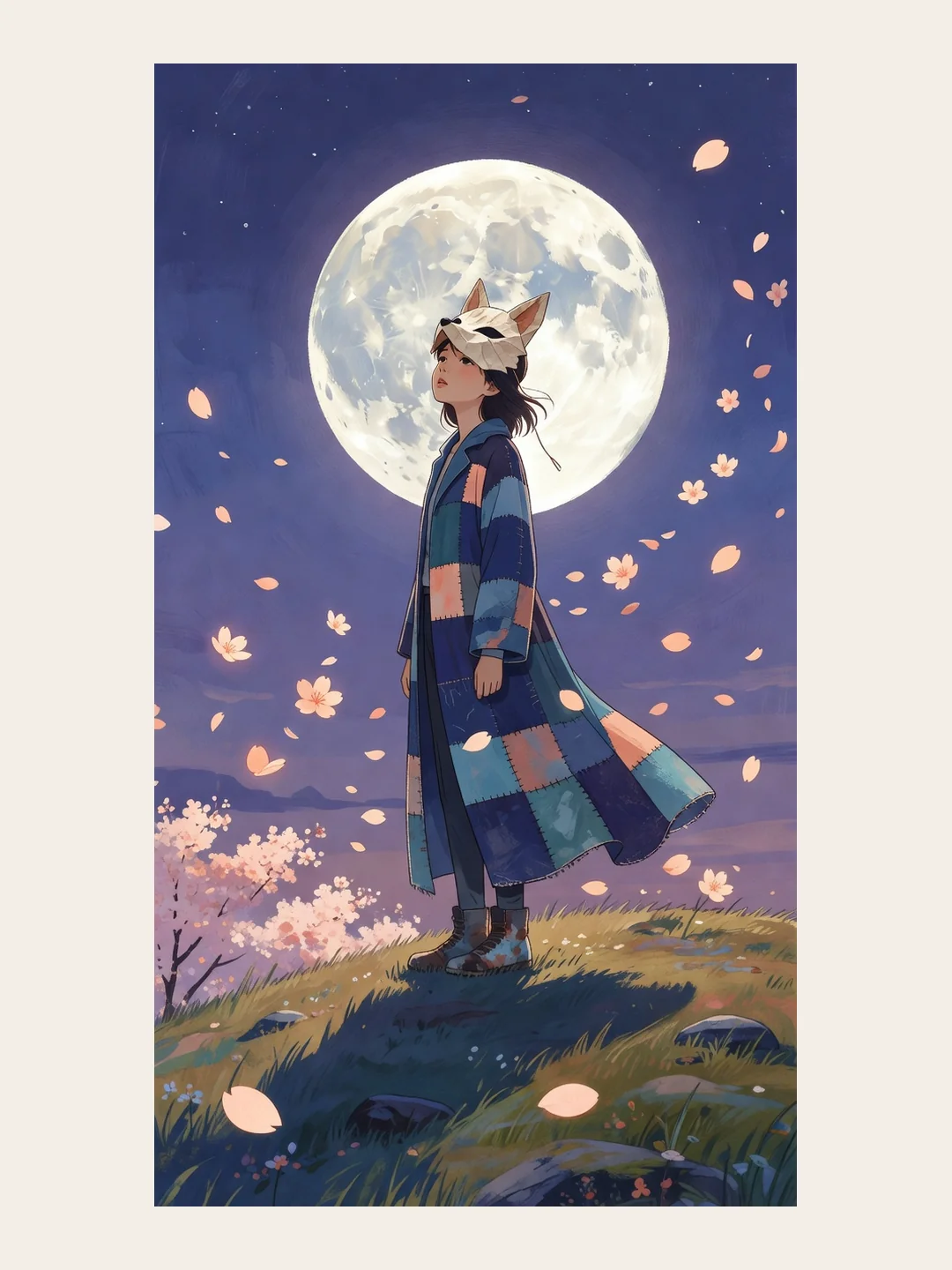
A game or music community can design 9:20 wallpapers in a shared style, a new character or album theme each time, and share a fresh one each week for members' phones.
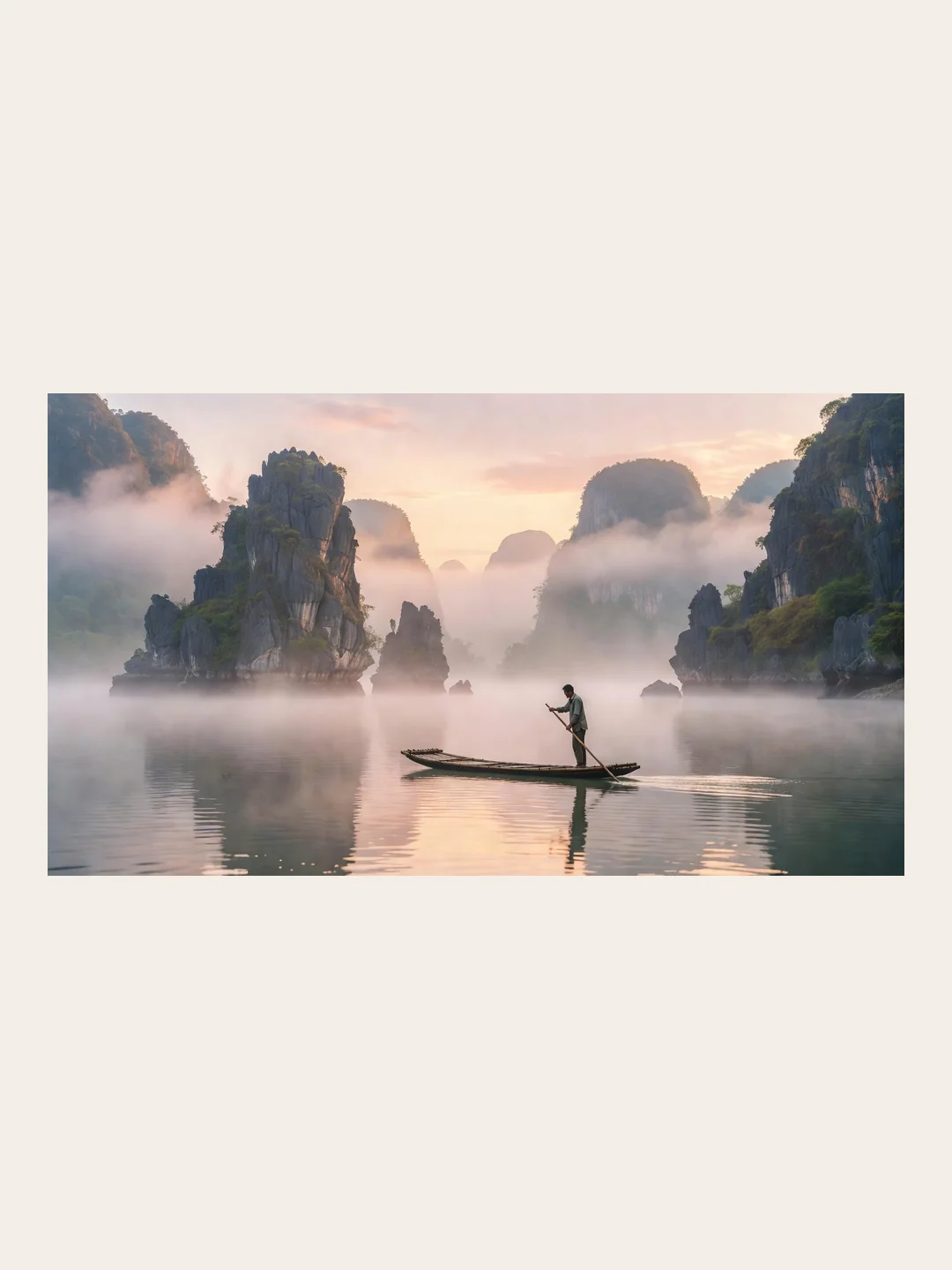
Panoramic travel art
A travel blogger can make 2:1 panoramas of places they've written about, a fjord or a rice terrace, as wide opening images for each post.
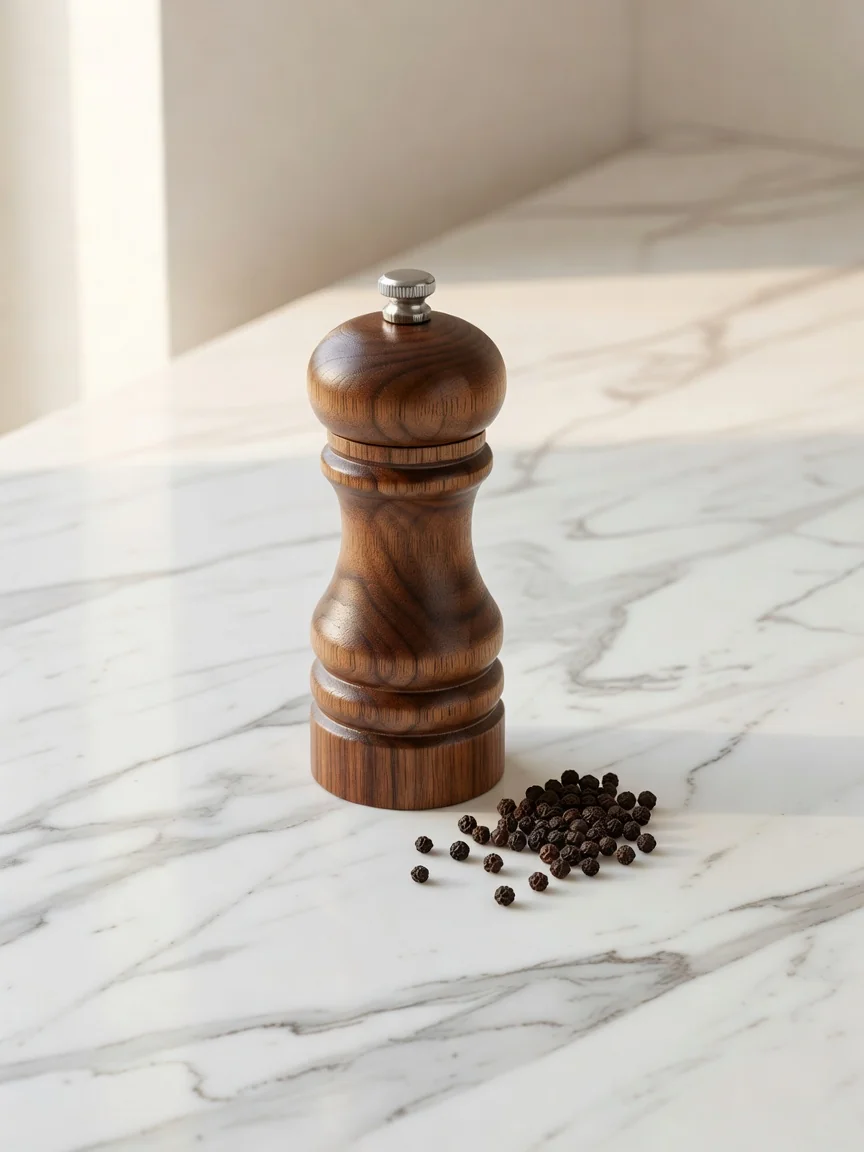
Product shots on new backgrounds
An online seller can upload a product photo and use one edit to place it on a marble counter or a beach towel, then check that the product still looks like the real one.
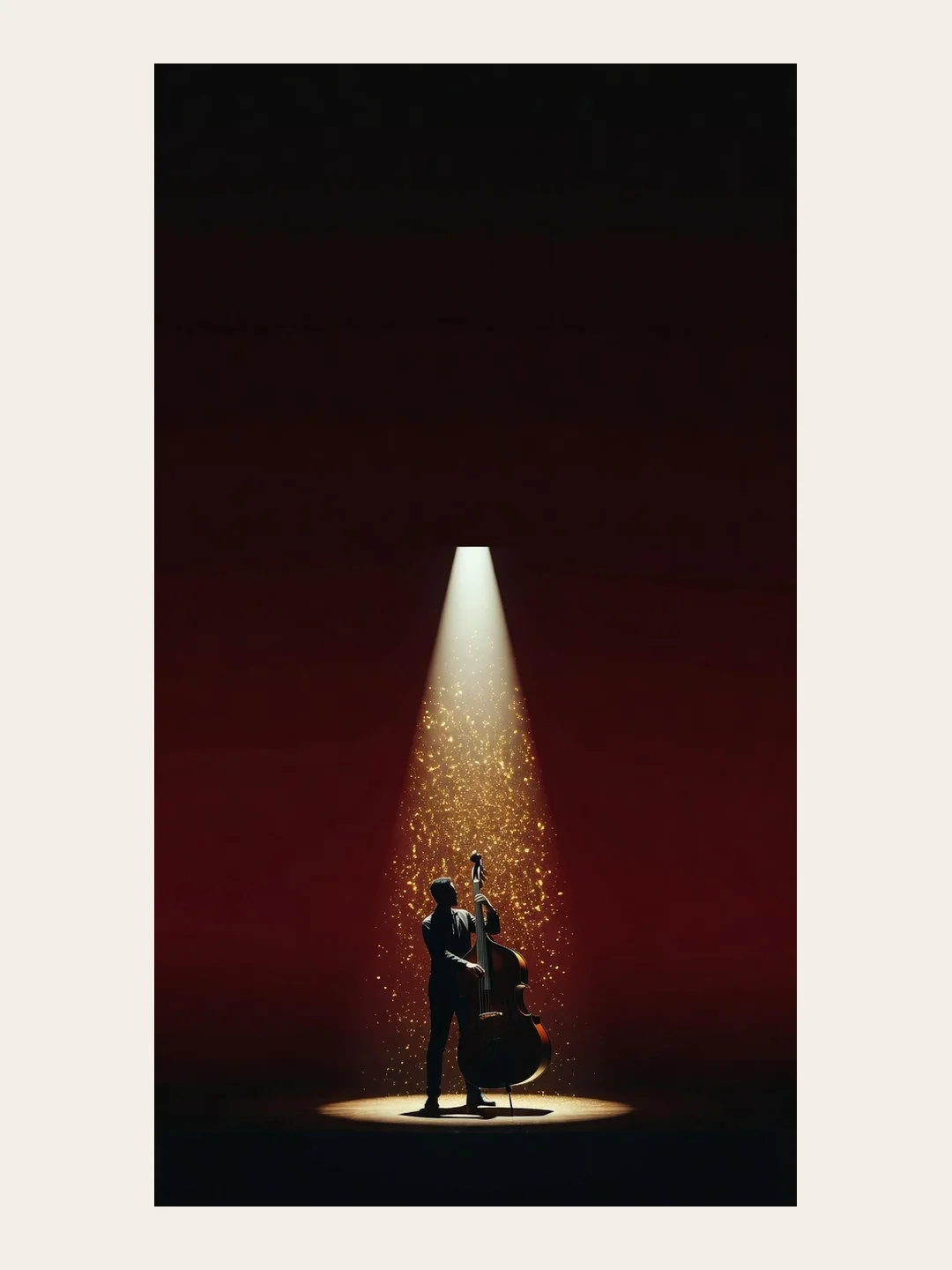
Tall event posters
A local venue can create a 1:2 poster image for a concert night and add the band names and date in Image Studio afterwards.
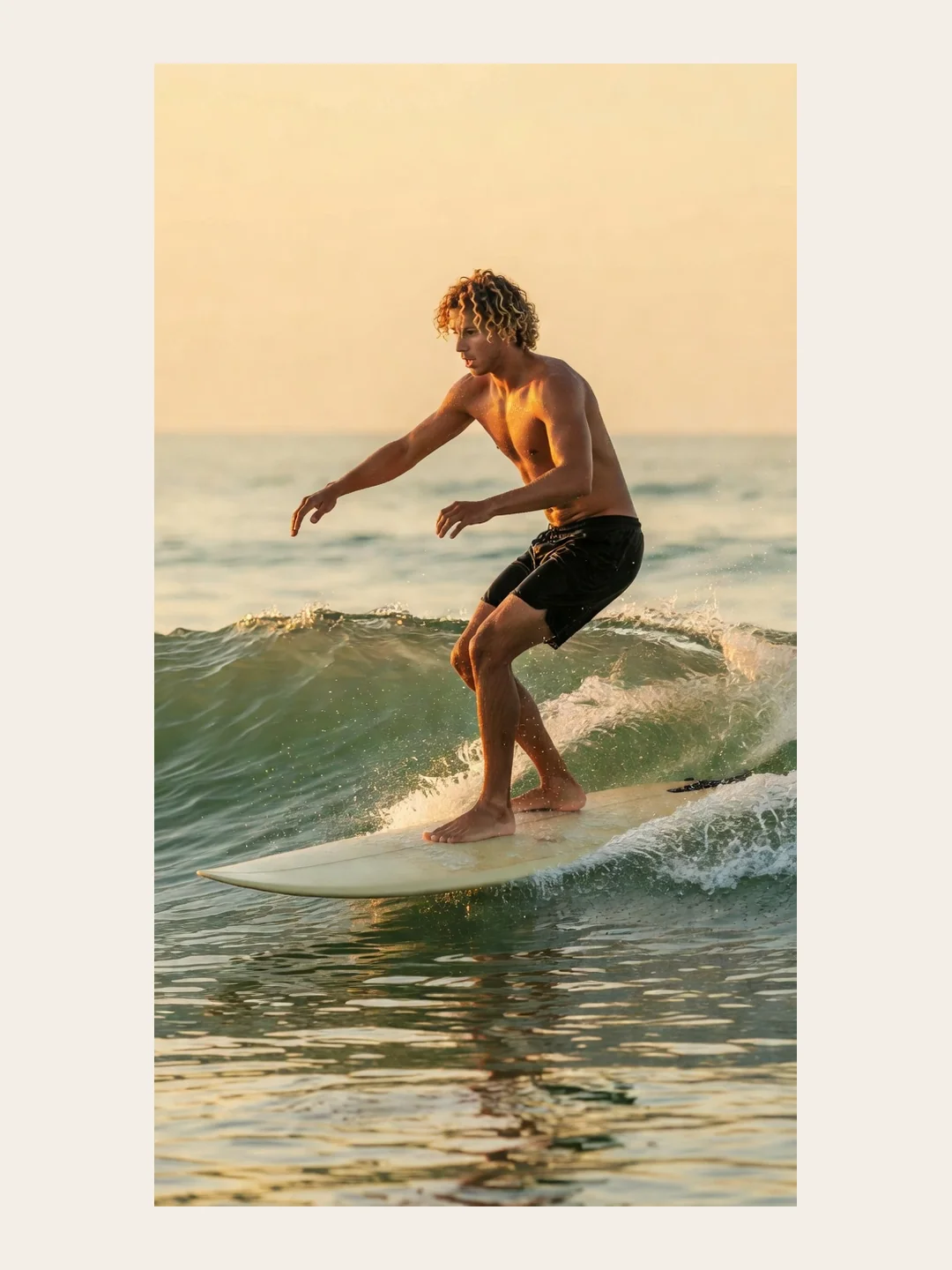
Stills that become clips
A creator can make a 9:16 still with Grok Imagine, such as a surfer on a wave, then animate it with xAI Grok 1.5 in ImagineArt's video tool for a short vertical clip.
Website headers that fit
A small business can make a 20:9 header image of its storefront street or product range that fills the top of the homepage, instead of stretching a square photo.
Phone wallpapers for a fan community
A game or music community can design 9:20 wallpapers in a shared style, a new character or album theme each time, and share a fresh one each week for members' phones.
Panoramic travel art
A travel blogger can make 2:1 panoramas of places they've written about, a fjord or a rice terrace, as wide opening images for each post.
Product shots on new backgrounds
An online seller can upload a product photo and use one edit to place it on a marble counter or a beach towel, then check that the product still looks like the real one.
Tall event posters
A local venue can create a 1:2 poster image for a concert night and add the band names and date in Image Studio afterwards.
Stills that become clips
A creator can make a 9:16 still with Grok Imagine, such as a surfer on a wave, then animate it with xAI Grok 1.5 in ImagineArt's video tool for a short vertical clip.
Reviews
What creators are saying
Real ratings, pulled live from Trustpilot, not hand-picked quotes.

"Imagine.art is hands down one of the best AI image generators I have used lately. The results are consistently high-quality, and the prompt accuracy is fantastic."
"The most important feature I like is face consistency. You can generate a face and use it across hundreds of images with very good accuracy."
"I love the image generation and have been using it to create some great tee shirt designs. The monthly cost is minimal compared to the benefits."
"ImagineArt has been a game changer for creating visuals that fit my brand quickly."
Plans
Simple pricing, no surprises
See exactly what a generation costs on your plan.
Free
USD 0 · per creator / month, billed annually
3000 credits / month
- 100 Daily credits
- In-house models only
- 36k credits per year
- 1 Fast Image concurrency
Basic
For newcomers taking their first steps
3K credits / month
- Up to ~97 video generations / month
- Up to ~600 image generations / month
- 10 image models · 9 video models
- 4 concurrent image generations
- General commercial terms
Ultimate
Peak performance for pros
16K credits / month
- Up to ~530 video generations / month
- Up to ~3.2k image generations / month
- All styles and models, including Kling 2.6 Pro and Seedance 1.5 Pro
- Everything in Standard, unlimited
- General commercial terms
Trusted by creative teams, designers and marketers.
Compare every plan and buy credit packs →FAQs
- What is the Grok image generator on ImagineArt?
- It's xAI's Grok Imagine image model, listed as xAI Grok Imagine in the image tool and xAI Grok Image in Workflow. It makes images from text and, in the image tool, edits from 1 to 3 of your photos. xAI says generated images are subject to its content policy review.
- Is this Grok Imagine Image 2.0?
- ImagineArt doesn't name the version. xAI released Grok Imagine Image 2.0 on August 7, 2026, with editing from up to five images. ImagineArt's image tool takes up to three, so this page doesn't claim any 2.0 feature.
- How does Grok's image model rank?
- It depends on the version. On Artificial Analysis, checked October 14, 2026, xAI's Grok Imagine image entries ranged from the top 5 to around 30th for text-to-image. Because ImagineArt doesn't name its version, we don't give it a single rank.
- What's the difference between the image tool and the Workflow node?
- The image tool's xAI Grok Imagine creates images in 11 aspect ratios and edits from 1 to 3 of your images. Workflow's xAI Grok Image only creates, in about 30 seconds per image by ImagineArt's estimate, in 13 aspect ratios including 19.5:9 and 9:19.5, and you can chain it with other steps.
- Can I turn the images into video?
- Yes, on ImagineArt you can use a still as the start of a clip with xAI Grok 1.5 or another image-to-video model in the video tool. Choose 9:16 or 16:9 for the still if you know the clip's shape.
- Is the Grok image generator free, and what sizes can I pick?
- The pricing page names ImagineArt 1.0 Lite and Flux Dev as the models free credits cover. It doesn't name this Grok AI image generator, so check your plan. The image tool outputs at 1K, with 11 shapes for text-to-image, and Workflow's node offers 13.
Resources

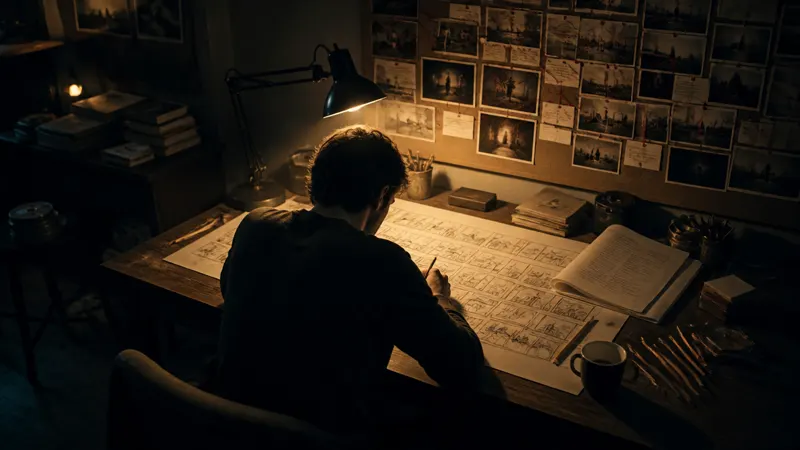
Pick the shape, then the picture
Choose the frame your image has to fill, and let the Grok image generator make it.