
Tooba Siddiqui
May 4, 2026 • Updated July 10, 2026
12 mins Read
Recording voiceovers is the part of video production most creators dread. One background noise, one stumbled line, and you are starting over. ImagineArt Audio Studio skips the recording entirely — type your script, generate the voice, sync it to your video with Lipsync Studio. No microphone. No re-takes. No separate editor.
What Is an AI Voiceover?
An AI voiceover is a voice track generated from written text using neural text-to-speech technology, a deep learning system trained on real human voice recordings to produce natural, human-sounding speech. You type a script, select a voice, and the AI generates the audio, no recording equipment, no voice actor, no studio required.
Under the hood, a few things happen automatically that used to take manual effort in a recording booth:
- Natural pacing and intonation are generated from the text itself, punctuation, sentence structure, and even capitalization influence how the AI pauses, stresses words, and shifts tone, without you manually marking up the script.
- Consistent vocal quality across the entire output, no fatigue, no vocal strain, no difference between a line recorded first thing in the morning versus one recorded after ten takes.
- Instant regeneration, if a line needs to change, you edit the text and regenerate that segment, rather than booking a new recording session or re-recording an entire take to fix one sentence.
- Multiple voice options from a single script, the same text can be run through different voices, accents, or tones to test what fits your video best, something that would mean hiring multiple voice actors in a traditional workflow.
Output quality has advanced significantly. A 2025 industry report found that 65% of respondents could no longer distinguish AI-generated narration from human recordings in e-learning content specifically, a sign of how far neural TTS has closed the gap with studio recordings in at least that format.
Types of AI Voiceover
Most creators use "AI voiceover" to mean any AI-generated voice. In practice there are four distinct types — each with different use cases and technical requirements.
Text-to-Speech (TTS)
The most common type. You provide a written script, select a voice from a pre-built library, and the platform generates the audio. The voice is not yours — it is a model voice trained on a large dataset of real human speech. TTS is the fastest option for narration, explainers, product demos, and any content where a consistent, controlled voice works. ImagineArt Audio Studio neural TTS library covers multiple languages, accents, and speaking styles with controls for speed, pitch, and pause length.
Also read: What is Neural TTS
AI Voice Cloning
Voice cloning trains a model specifically on your voice recordings. Upload 1–3 minutes of your own speech and the platform builds a custom voice model — output that sounds like you, not a generic AI voice. Use it to narrate unlimited scripts in your own voice without recording sessions. Best for YouTubers, course creators, and branded content where voice identity matters. ImagineArt AI voice cloning is built directly into Audio Studio — no separate tool or subscription required.
Also read: AI Voice Cloning Guide
Real-Time Voice Changing
A different category entirely. Real-time voice changers alter your live voice during recording or streaming — you speak and the AI transforms the output in real time. Unlike TTS or voice cloning, this requires a microphone and active speaking. It is used primarily for gaming, live streaming, and privacy use cases, not video narration production.
Multilingual AI Dubbing
AI dubbing replaces an existing audio track with a generated voice in a different language. Translate your script, select a voice in the target language, generate a replacement audio track, and sync it to the original video. No separate voice talent per language, no additional recording session, no extra production cost per market.
Also read: AI Dubbing Guide
How to Add AI Voiceover to Video on ImagineArt: A Step-by-Step Guide
Here’s a breakdown of how to add AI voiceover to video, without a microphone, recording setup, or an audio editing software.
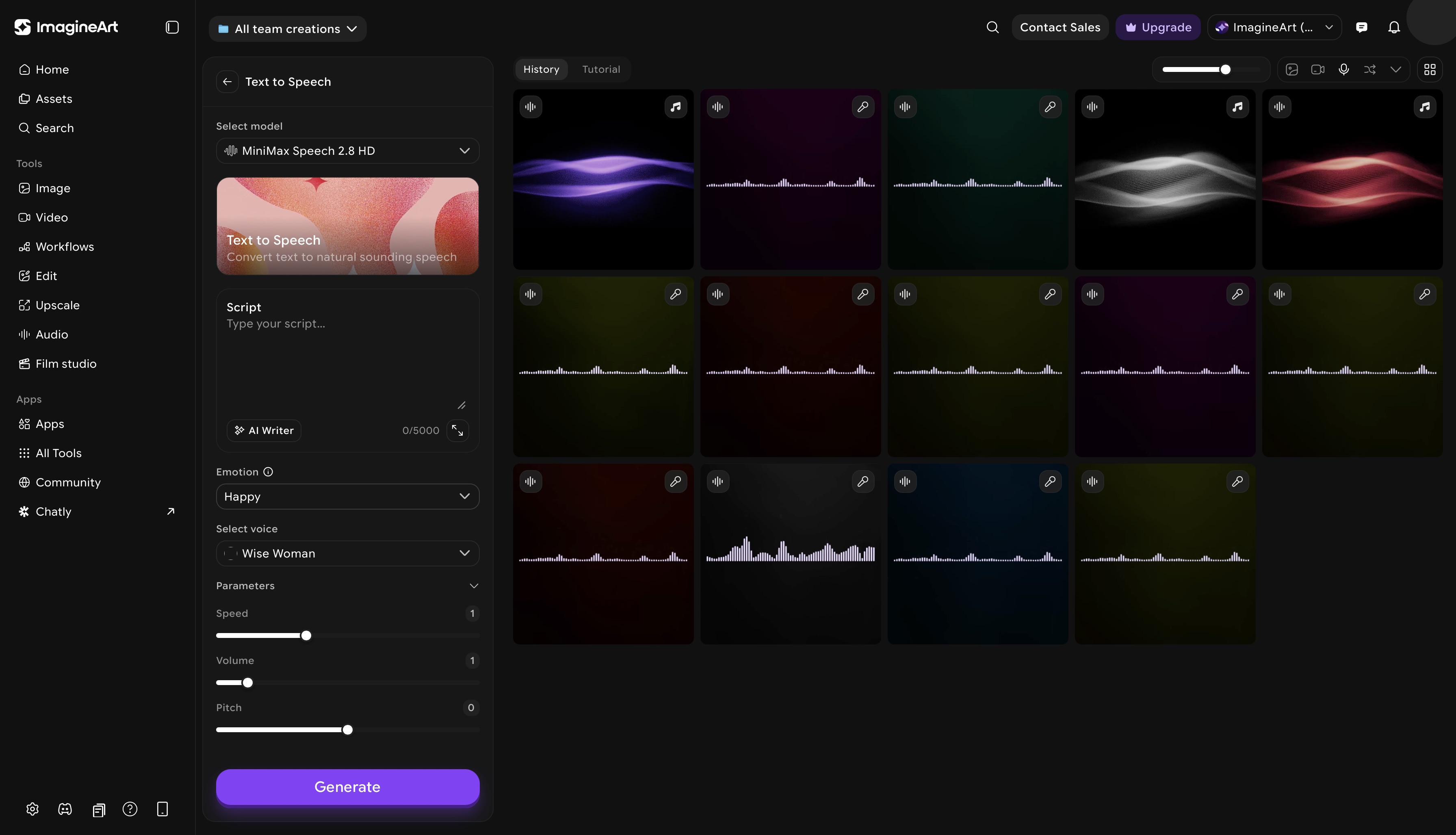 ImagineArt text to speech dashboard
Step 1: Open ImagineArt Audio Studio
Go to ImagineArt Audio Studio. You will see three modes — Text to Speech, Voice Cloning, and AI Music. Select Text to Speech for standard AI voiceover generation. If you want the voiceover to sound like your own voice or one of your favorite celebrities, select AI voice cloning instead.
Step 2: Paste Your Script
Paste your script into the input field. Before generating, review it for punctuation — commas create brief pauses, periods create longer ones, and missing punctuation causes sentences to run together without natural breathing room.
Step 3: Choose Your Voice
Browse the voice library and filter by language, accent, multilingual abilities, and speaking style. Do not choose based on the preview clip alone — preview samples use short, generic sentences that most voices handle well. Your script may include phrasing or sentence structures where a specific voice underperforms. Generate a short test clip from a real paragraph of your script before committing to a voice for the full production.
Step 4: Adjust Speed, Emotion, and Pitch Settings
Set speaking speed to match your video's pacing requirements. A voice set to 150 words per minute will produce longer audio from the same script than one at 130 WPM, so adjust before generating the full script, not after discovering the audio runs over. For e-learning content, go slightly slower than default to give viewers processing time. For short-form social content, go slightly faster to match the viewing pace.
Step 5: Generate Your Voiceover
Click Generate. ImagineArt text to speech processes your script and produces the voiceover in seconds. Generation happens line by line, and you can begin reviewing earlier segments while the rest processes rather than waiting for the full output.
Step 6: Preview and Refine
Listen to the full output against your script. Check for mispronounced words, unnatural pacing on specific lines, and tone consistency across the full audio. If a line sounds off, use the per-line regeneration option to regenerate that segment individually — adjust speed or pitch for the problem line specifically. Only regenerate the full script if multiple lines need fixing.
Step 7: Export Your Audio
Export as MP3 or WAV. Choose WAV if you plan to do further audio editing after export, as it preserves full quality with no compression. Choose MP3 at a minimum of 192kbps if you are syncing directly to video without additional processing. Lower bitrates produce audible artefacts that are obvious against high-quality video, particularly on headphones.
Step 8: Sync AI Voiceover to Video with ImagineArt Lipsync Studio
Open ImagineArt Lipsync Studio. Upload your audio file alongwith video description, reference image, or create a video with ImagineArt AI Video Generator. ImagineArt Lipsync Studio automatically syncs the audio to the video, including lip movement matching for talking head and avatar videos. Preview the output, make any timing adjustments, and export your finished video. You can further refine audio-synchronized video in the built-in ImagineArt AI Video Editor.
Tips for Matching Voice Timing to Video Cuts
- Trim silence from the start and end of your audio file. Most AI voiceover generators add a brief pause before the first word and after the last. Syncing without trimming makes the audio feel misaligned from the opening second.
- Use punctuation to control pacing in your script. Commas create brief pauses; periods create longer ones. Adjust punctuation and regenerate rather than editing the exported audio file.
- Regenerate problem lines individually. If one line sounds rushed or off-pace, regenerate just that segment with adjusted speed settings — do not regenerate the entire script.
- Align sentence breaks to visual cuts. Structure your script so sentences end at the same point as visual cuts — it creates natural rhythm between narration and visuals without manual audio editing.
- Use Lipsync Studio's sync controls for fine adjustment. For lip-synced videos, small timing offsets are adjustable within the platform — no external editor needed to correct a half-second drift.
How to Choose the Right AI Voice for Your Video
- Match voice style to content type. Conversational for vlogs and social content; authoritative for explainers and product demos; warm and measured for e-learning. A mismatched tone reduces engagement regardless of how well the script is written.
- Test on your actual script, not the preview sample. Voice previews use short, generic sentences that every voice handles well. Your script may include specific phrasing, technical terms, or sentence structures where a particular voice underperforms — always generate a test clip from a real paragraph before committing to a full production.
- Match language and accent to your audience. ImagineArt Audio Studio supports multiple languages and regional accents. A voice that sounds local to your target viewer consistently outperforms a generic neutral accent, particularly for e-learning and market-specific content.
- Check speaking speed against your video length. A voice at 150 words per minute produces longer audio from the same script than one at 130 WPM. Adjust speed settings before generating the full script, not after discovering the audio runs three seconds over.
- Use SSML for brand names and technical terms. If your script includes product names, acronyms, or unusual words, SSML controls let you override the default pronunciation at the character level — useful for any content where mispronounced terms undermine credibility.
AI Voiceover by Use Case
The right AI voice can significantly influence how your message is received. Different content types require different tones, pacing, and delivery styles. Below are the most effective AI voiceover recommendations for common UGC use cases, helping you create content that feels more natural, engaging, and persuasive.
YouTube Videos
For long-form YouTube content, AI voiceover removes two friction points simultaneously: the recording bottleneck and inconsistent audio quality across episodes. ImagineArt Audio Studio's neural TTS produces clean, consistent audio that YouTube's speech recognition processes reliably — better auto-captions mean better accessibility and stronger keyword indexing for search.
Workflow: generate narration in Audio Studio → export → import into the ImagineArt AI Video Editor to align with specific cuts → export. For talking head or avatar-style videos, route through Lipsync Studio instead of the Video Editor for automatic lip sync.
E-Learning and Educational Content
E-learning content updates frequently — a product changes, a policy is revised, a module needs a new section. With AI voiceover, you update the script, regenerate the affected segment, and replace the audio without rebooking a voice actor or re-recording an instructor.
Set speaking speed slightly slower than default for instructional content — learners need processing time between steps.
Also read: How to Make Educational Videos with AI
Product Demos and Ads
Product demo narration needs to match the exact pacing of on-screen actions — a button click, a UI transition, a feature reveal. Use the ImagineArt AI Video Editor to sync the audio to each action point manually rather than relying on automatic sync. Commercial rights are included on all paid ImagineArt plans — confirm your specific plan covers paid advertising before client delivery.
Social Media and Short-Form Video
For Reels, TikTok, and YouTube Shorts, the voiceover must earn attention in the first three seconds. Script the hook as the opening line — no preamble, no intro — and set the voice speed slightly faster than default to match short-form viewing pace.
ImagineArt Lipsync Studio supports 9:16 vertical output natively. Generate your voiceover in Audio Studio, open Lipsync Studio, select vertical format, and export — no cropping or resizing required.
AI Voiceover vs Hiring a Voice Actor
| AI Voiceover (ImagineArt) | Human Voice Actor | |
|---|---|---|
| Cost | Free tier; from $9/month | $100–$500+ per project |
| Turnaround | Seconds | Hours to days |
| Revisions | Unlimited, instant | Rebooking required |
| Multilingual | Yes — same platform | Separate talent per language |
| Voice consistency | Identical every generation | Varies between sessions |
| Commercial rights | Included on paid plans | Negotiated per contract |
| Emotional nuance | High with modern neural TTS | Highest |
AI voiceover is the stronger choice for high-volume content, multilingual versions, and anything that updates frequently. As of 2026, 34% of businesses report being more inclined to use AI-generated voiceovers than the previous year, driven by production speed and reduced cost per piece of content.
Human voice actors remain the better choice for high-stakes brand campaigns where emotional nuance and perceived authenticity are central to the creative — broadcast advertising, character narration, or content where the voice is itself a brand asset.
Common Mistakes to Avoid
- Using the wrong speaking style for the content type. A corporate explainer narrated in a casual conversational voice, or a personal vlog delivered in a flat authoritative tone, creates a mismatch that reduces retention. Set the voice style before generating — not after reviewing the output.
- Not trimming silence at the start and end of the audio clip. AI voiceover generators consistently add a brief pause before the first word and after the last. Import without trimming and the video feels misaligned from the opening second — one of the most common and easily avoidable issues.
- Choosing a voice from the preview sample without testing on your actual script. Preview samples use simple, generic sentences that every voice handles cleanly. Your script may include brand names, technical terminology, or sentence structures where a specific voice underperforms significantly. Test on a real paragraph first.
- Exporting at the wrong bitrate. For video use, export at a minimum of 192kbps MP3 or 44.1kHz WAV. Lower bitrates produce audible compression artefacts that stand out clearly against high-quality video, particularly on headphones.
- Regenerating the entire script when only one line sounds off. Identify the specific line, regenerate it in isolation with adjusted speed or pitch settings, and replace only that segment. Regenerating the full script wastes time and risks losing lines that already sound correct.
Ready to Add an AI Voiceover to Your Video?
ImagineArt Audio Studio gives you neural TTS, voice cloning, and AI music generation — and Lipsync Studio takes your audio straight into synced video production without switching tools. Generate your first voiceover on the free tier in under a minute.
Frequently Asked Questions
Generate your voiceover in ImagineArt Audio Studio — paste your script, choose a voice, and export as MP3 or WAV. Then sync it using ImagineArt Lipsync Studio for automatic lip sync, or the ImagineArt AI Video Editor for manual timeline control. Both options are inside ImagineArt with no external editor required.
ImagineArt Audio Studio is the strongest option for video creators because it combines neural TTS with Lipsync Studio — covering the full pipeline from script to synced video without switching platforms.
Yes. ImagineArt Audio Studio voiceovers are commercially licensed on paid plans, making them usable for monetised YouTube content. The platform supports multiple languages and accents, suitable for channels targeting international audiences.
ImagineArt Audio Studio includes a free tier with daily credits — no payment required to generate your first voiceover. Paid plans start from $9/month with commercial use rights included.
The fastest method is ImagineArt Lipsync Studio — upload your video, attach your generated audio, and it syncs automatically with lip movement matching. Alternatively, export your audio as MP3 or WAV and import it into ImagineArt timeline editor.
Yes. Commercial use is included on all paid ImagineArt plans from $9/month. Verify your specific plan terms before using generated audio in client work or paid advertising.
Tooba Siddiqui
Tooba Siddiqui is a content marketer with a strong focus on AI trends and product innovation. She explores generative AI with a keen eye. At ImagineArt, she develops marketing content that translates cutting-edge innovation into engaging, search-driven narratives for the right audience.