Syed Anas Hussain
February 23, 2026 • Updated August 7, 2026
6 mins Read
What’s the worst feeling for any creator? The photo they captured after 100 retakes isn’t ‘perfect’. You might have a clean shot otherwise but that absurd cropping, or maybe the aspect ratio wasn’t right. But you know what, outpainting your images with AI can now solve these problems.
What Is Image Outpainting?
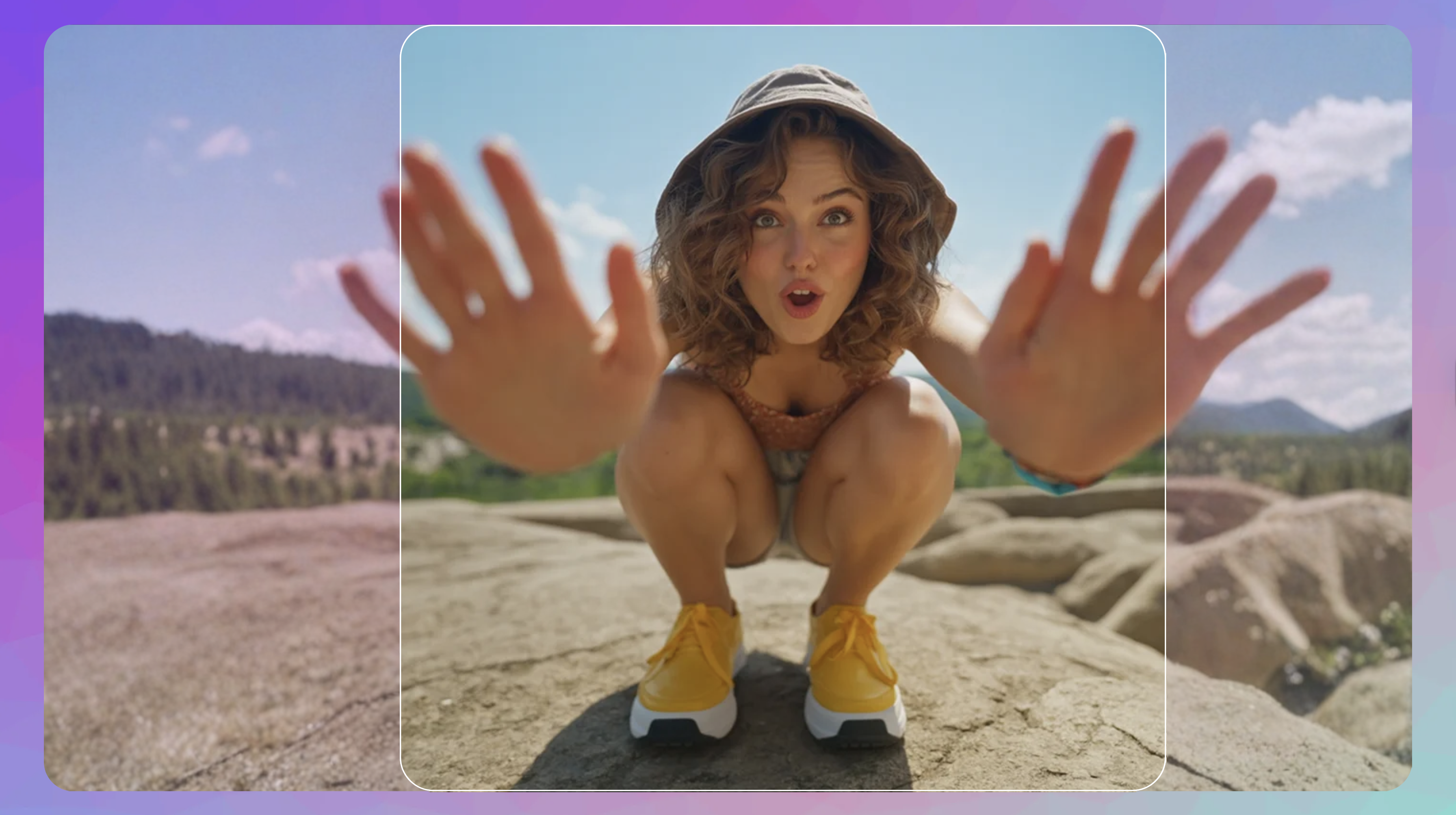
Outpainting an image is basically extending an image beyond its original border.
Let’s say you took a cutout-like close up shot of a flower but now want more background. You outpaint the image with AI and wollah, you have a garden, say, more background. It is a sort of anti-cropping: you are expanding the surroundings of your object.
But with a powerful AI image editor like ImagineArt, you can now outpaint your images in seconds.
What can you do with AI image outpaiting?
1. Canvas Extension
The tool expands the canvas around your original image, creating empty space on the sides, top, bottom, or all around.
2. Context Analysis
The AI studies the edges of your original image. It understands the colors, textures, lighting direction, horizon lines, and overall mood.
3. Content Generation
Based on that context, the AI generates new pixels in the empty space that continue the scene naturally.
4. Blending
The boundary between the original image and the generated content is smoothed out, so there is no visible seam.
5. Scene Expansion
Whatever the scene is, if your image feels tight, you can expand it and prompt the AI to get the desired scene expansion.
6. Aspect Ratio
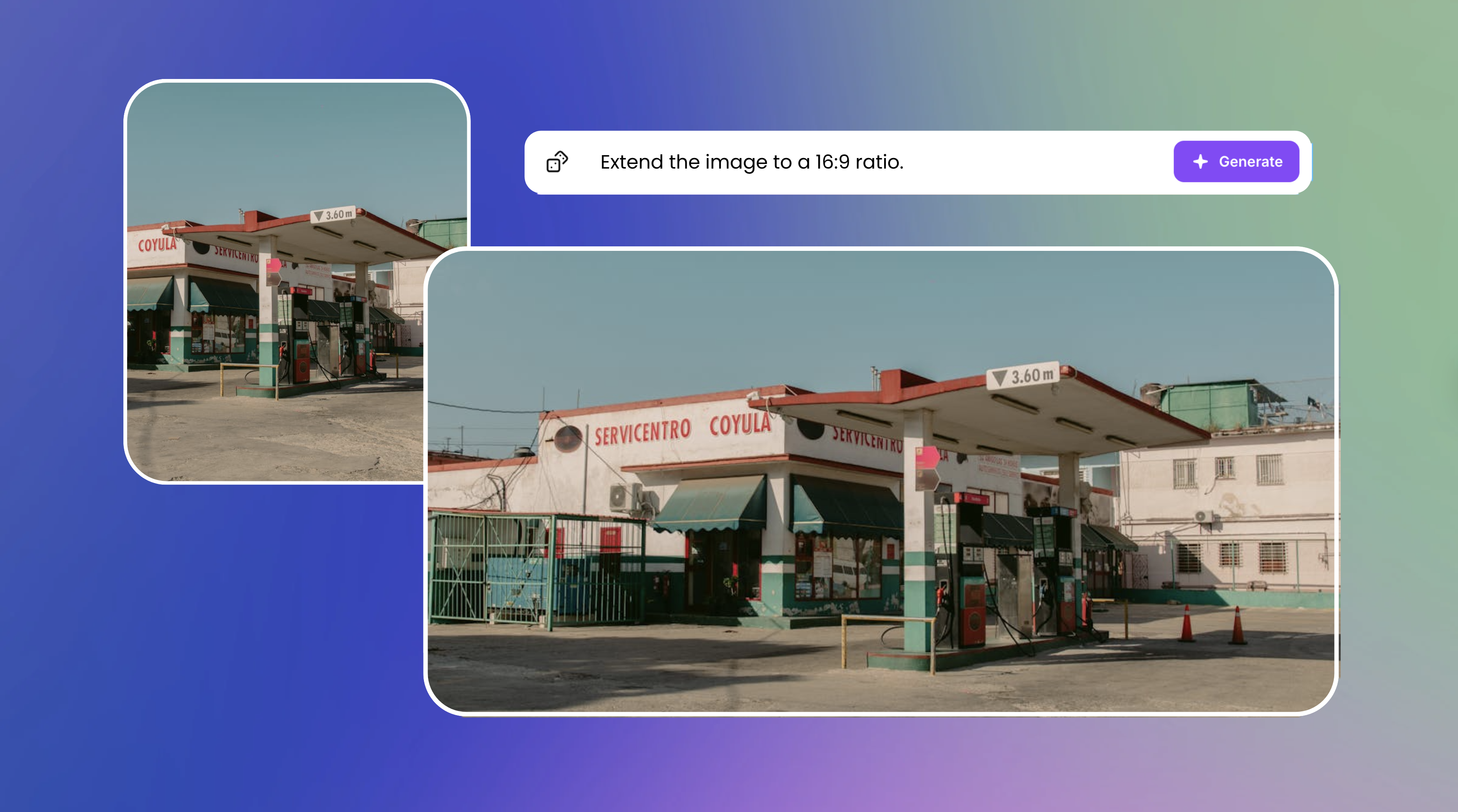
The most useful use case is aspect ratio conversion. If you have a 1:1 image and want a landscape picture, no need to reshoot. Just use an AI image editor and get your desired aspect ratio.
3-Step Process to Outpaint an Image With AI
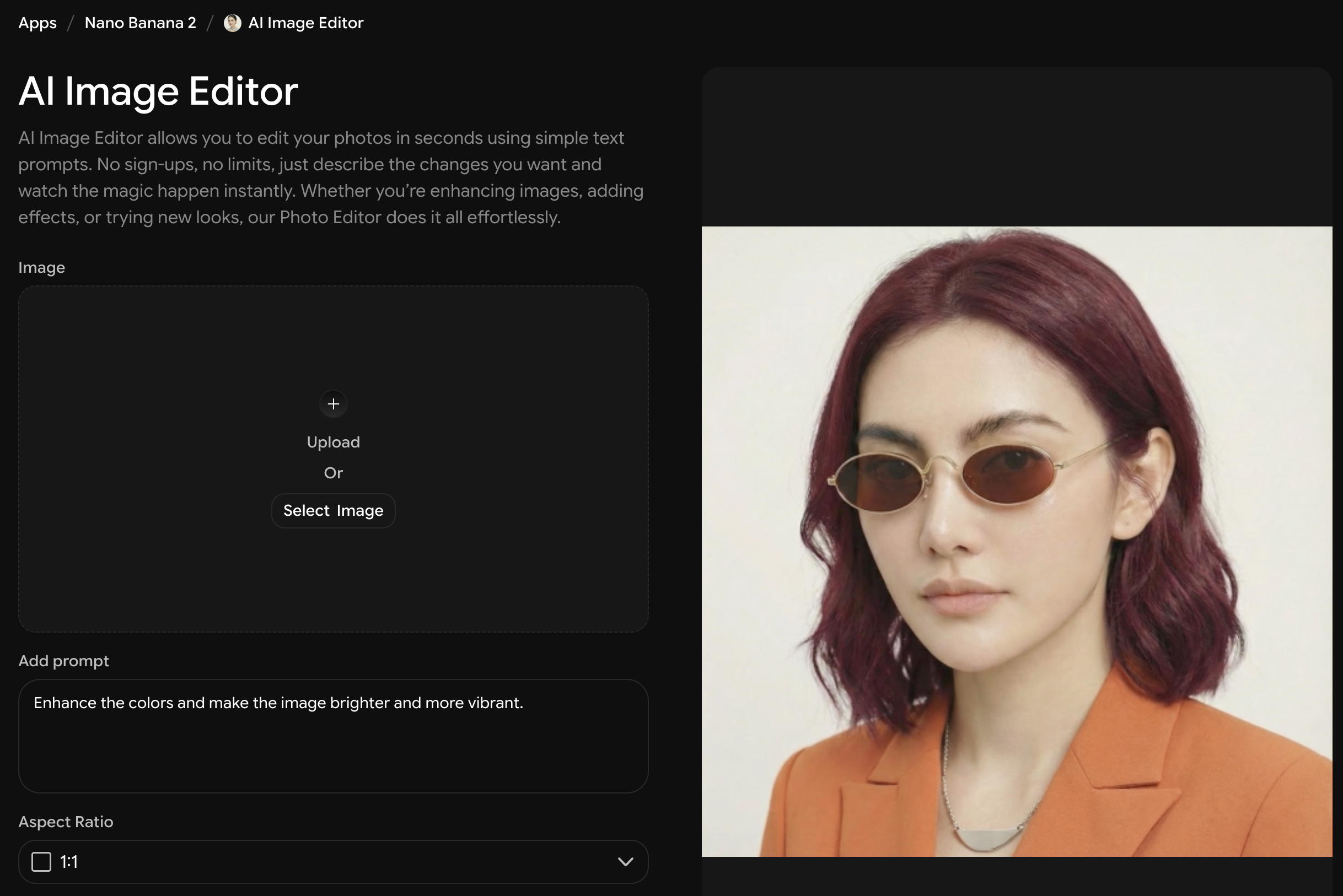
Step 1 - Choose an image outpainting tool and upload image
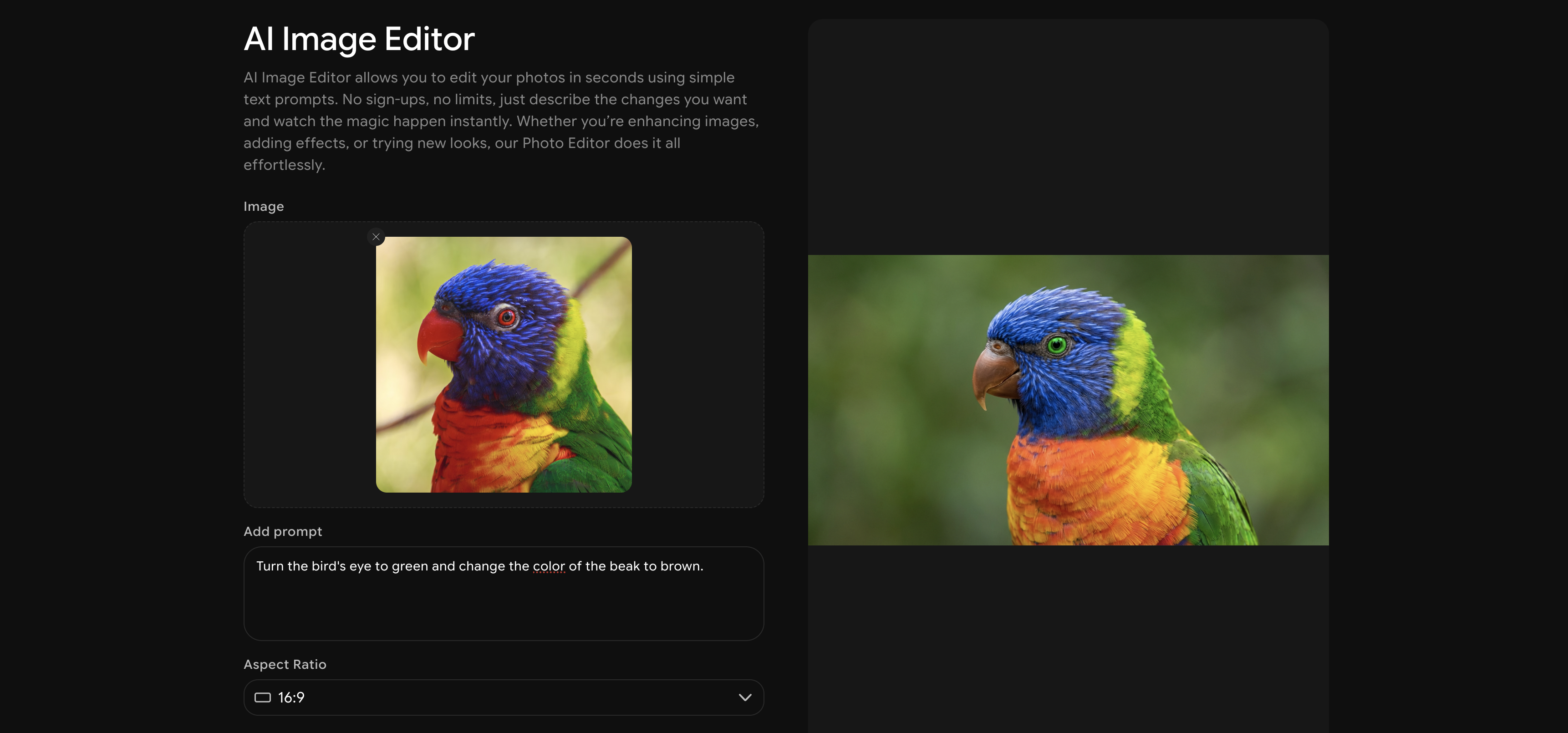
Go to imagine.art/apps and open the AI image editor to get started. You can upload image directly from your device or outpaint an image you just generated with ImagineArt.
Step 2 - Add a prompt
Type in an outpainting prompt.
For example:
- extend the image on sides (or be specific like left, right)
- extend the image on top/bottom
- Add more greenery on sides
- expand the interiors of the room with a sage green sofa
The more precise you are, the more accurate your final image will be.
Step 3 - Set an aspect ratio and generate.
Choose image aspect ratio and click generate. Then download.
Why use AI for Outpainting?
- no reshooting for the perform shot.
- change aspect ratios beautifully
- transform an image creatively
- save time and money you’d spend otherwise on reshooting or photo manipulation
Common Use Cases for AI Image Outpainting
If you have come this far. You are likely intrigued by outpainting and its capabilities. Thus, here are some use cases for which you can use AI image outpainting.
1. Scene Expansion for Storytelling
Have your subject centered but want more context in the image? Add a prompt of what you want, and change your image to fit more characters or object for better storytelling.
2. Product Photography Enhancement
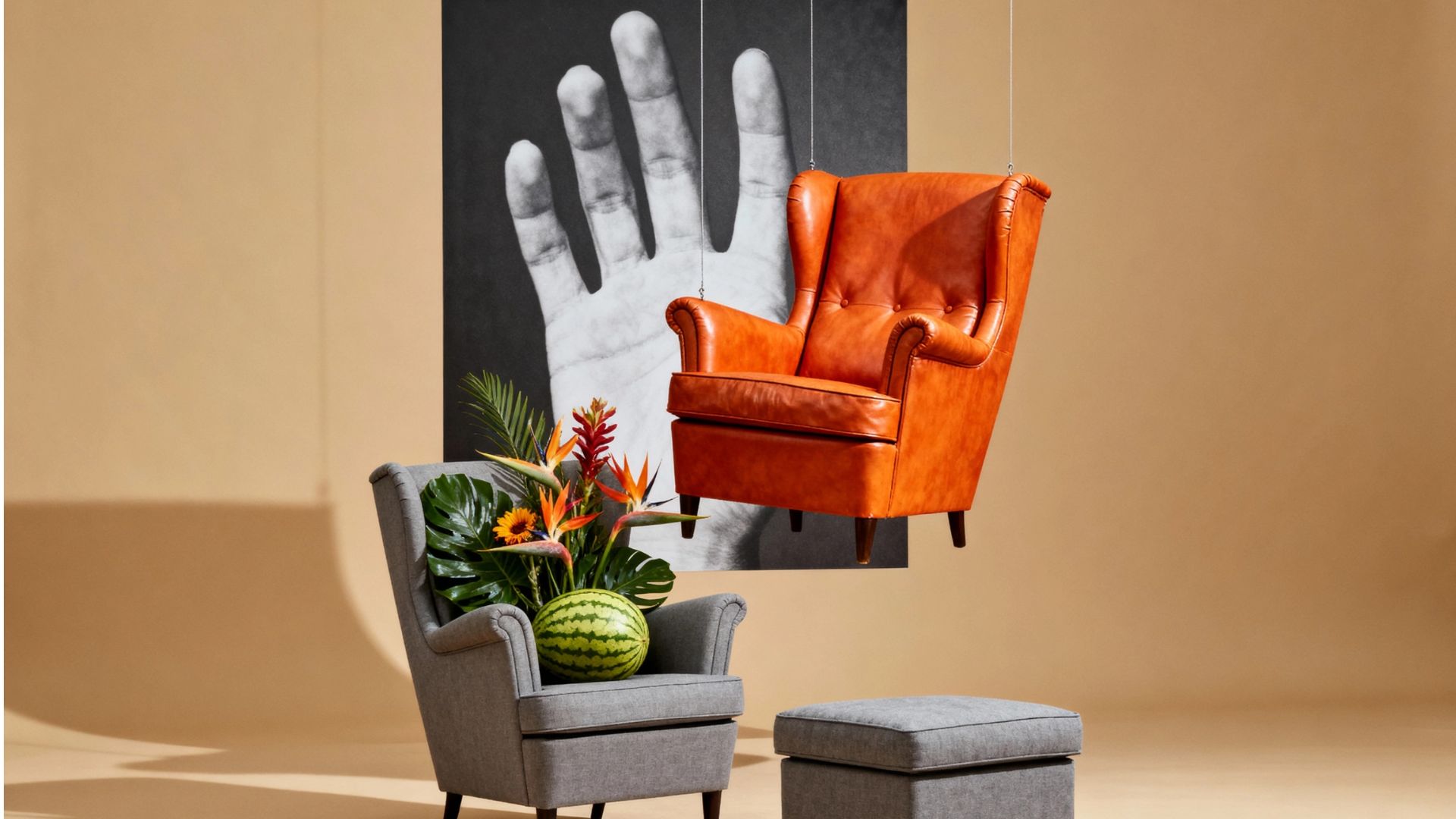
You shot a product on a clean background but now you need a lifestyle version with more environment around it. Outpainting can extend that background and add depth to the scene without needing a complete reshoot.
3. Wallpapers and Widescreen Formats
Have a stunning portrait image that you want to turn into a desktop wallpaper? Outpainting extends it to 16:9 or ultrawide format while keeping your original shot intact at the center.
4. Film and Cinematic Framing
Cinematographers and video creators use outpainting to simulate wider shots. You can take a standard image and extend it to cinematic aspect ratios like 2.39:1. The result gives a completely different feel to the visual.
5. Artwork and Illustration Expansion
If you have a piece of digital art or illustration that you want to extend into a larger canvas, outpainting is a great option. AI can continue the style and aesthetic of the original piece with surprising accuracy.
Outpainting Image Ideas and Examples
Here are some real creative applications to inspire you.
Portrait Photography
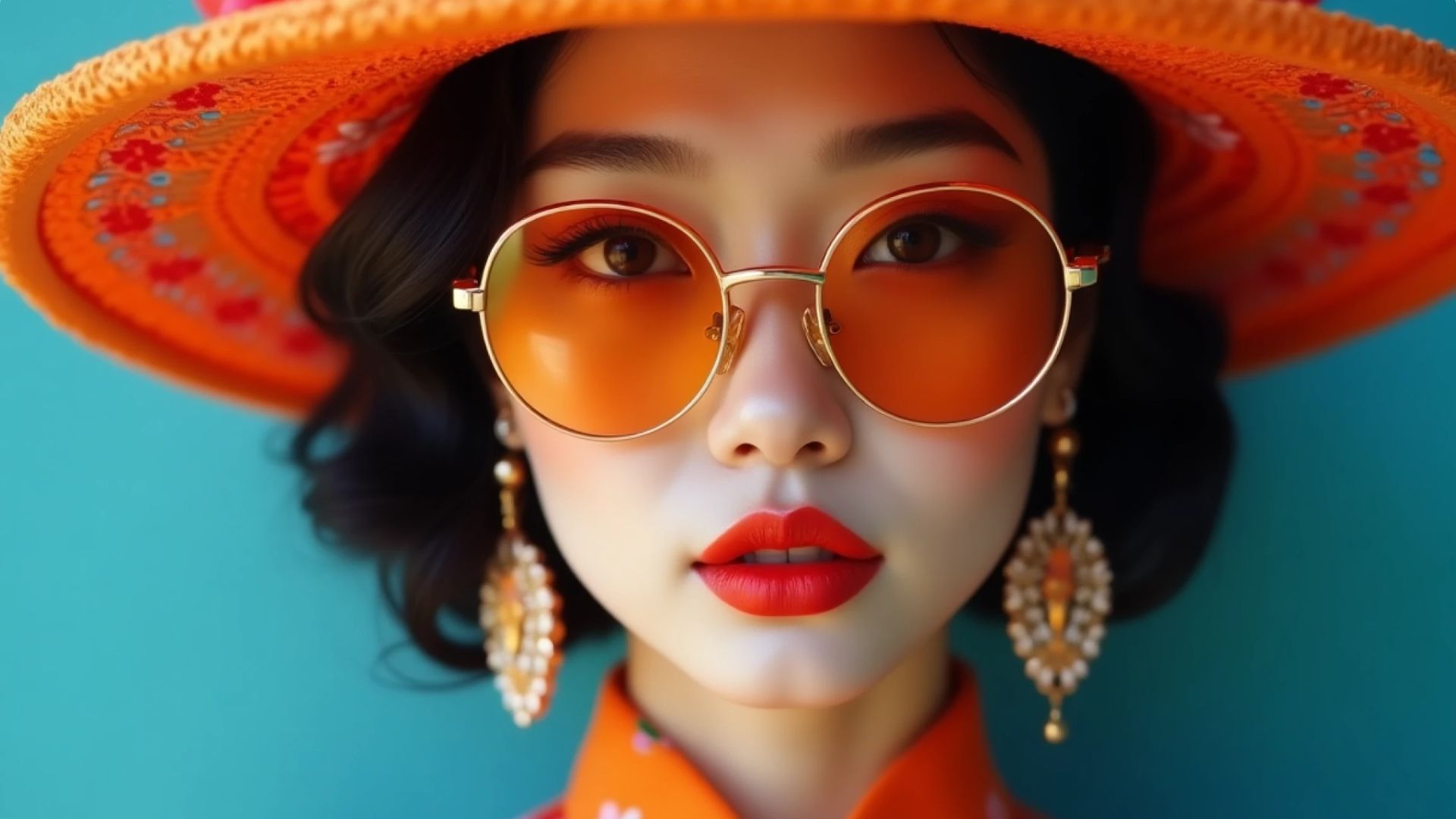
Imagine starting with a tight headshot taken in a studio. With AI outpainting, you can expand that frame into a full-body portrait and even build an environment around the subject. The person stays sharp and natural, while the background grows seamlessly. It feels less like editing and more like extending reality.
Travel Blogging
Travel bloggers often capture beautiful moments in tight spaces — narrow alleys, small cafés, crowded viewpoints. With outpainting, you can extend the scene outward and reveal more of the environment. The image suddenly tells a bigger story about the location. It transforms a simple snapshot into a cinematic travel visual.
Product Photography
Many brands conduct product photography on plain backgrounds for flexibility. But instead of organizing an entirely new styled shoot, you can outpaint the image into a fully designed setting. A sofa can be placed inside a modern living room. A coffee mug can sit on a cozy kitchen table. It saves time while elevating presentation.
Graphic Designing
Designers working on book covers, posters, or packaging often need extra space for layout elements. Instead of redesigning everything, you can outpaint the original artwork to create a full wraparound spread. This keeps the visual consistent while giving you more working room for typography and branding.
Social Media Posts
Social platforms require multiple formats - square, vertical, landscape, banners. Instead of recreating content for each size, you can outpaint a single image into different dimensions. One core visual becomes an entire campaign asset set. It’s efficient, consistent, and incredibly practical.
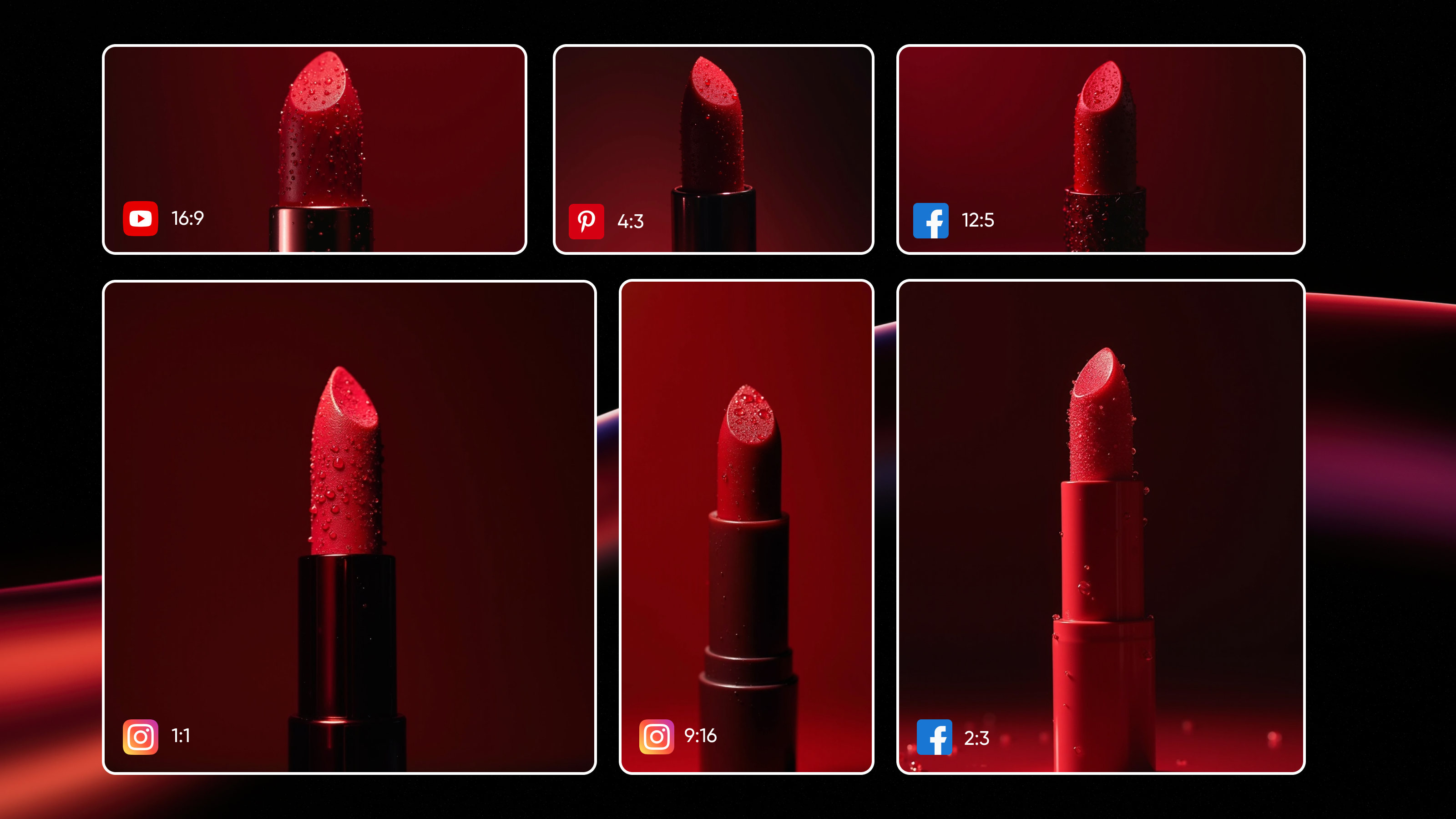
These are just starting points. Once you start using AI outpainting, you will find your own creative applications very naturally.
Outpainting Image Tips and Tricks
Want the best results for your outpainted image? Follow these tips and tricks.
Start with a Strong Original Image
The quality of outpainting is directly tied to the quality of the original. Ensure that you upload the best quality picture for the same quality output.
Expand in Multiple Passes
If you need a large expansion, do not do it all at once. Always expand your pictures in small increments. This produces much cleaner and more consistent results.
Use Prompts Even When They Feel Obvious
Even if the extension direction seems obvious from the image context, write a prompt anyway. It removes uncertainty and gives the AI a clear direction to work towards.
Match the Aspect Ratio to Your Use Case
Before you start, know exactly what aspect ratio you need. This saves time and avoids unnecessary re-editing later.
Review at Full Resolution Before Exporting
Always zoom into 100 percent before downloading. What looks seamless at a small size can have visible issues when you zoom in. Catching it before export saves you from having to redo the work.
Mistakes to Avoid When Outpainting Images with AI
If you want perfect results every time. Here are some mistakes that you should avoid.
- Never Expand to much at once. Expand in increments.
- Review Lighting mismatch, expand from light source to get better results.
- Never skip the prompt. Be specific to get the best results.
- Uploading Low Quality Image will result in errors and low quality output. Ensure to use High Quality visuals.
- Don’t export before reviewing. Always review your images in full resolution.
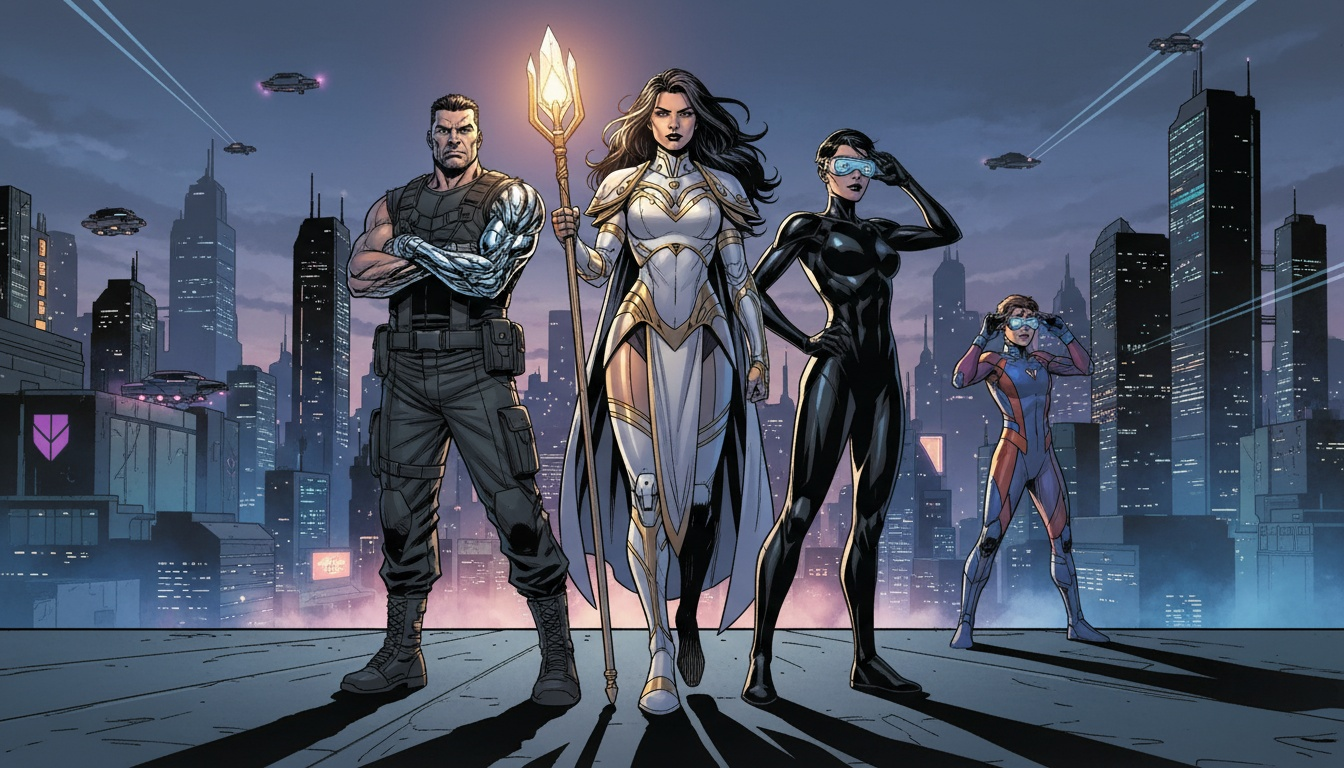
Outpaint your images with ImagineArt
Stop letting tight frames limit your creative vision. With ImagineArt’s Image Editor, you can intelligently extend backgrounds, restore missing details, and reimagine compositions in seconds. Turn constrained visuals into fully realized scenes — without starting over.
Syed Anas Hussain
Syed Anas Hussain is a computer scientist blending technical knowledge with marketing expertise and a growing passion for AI innovation. Curious by nature, he dives into new AI sciences and emerging trends to produce thoughtful, research-led content. At ImagineArt, he helps audiences make sense of AI and unlock its value through clear, practical storytelling.