
Saba Sohail
December 5, 2025 • Updated March 12, 2026
15 mins Read
Kling O1 Image is one of the easiest, most intuitive, and most prompt-adherent AI image generators with editing capabilities available today. With powerful generation and editing abilities: from photo colorization to style transfer, vintage effects, HD restoration, material changes, and precise beauty or body edits — it can transform images with minimal prompting. Even with simple instructions, it delivers clean, consistent, and highly flexible outputs.
But to truly unlock the full creative power of Kling O1 Image, you need well-structured prompts. A clear framework helps Kling understand your intent, maintain consistency, and execute visual changes with precision.
This prompt guide walks you through:
- how to write effective Kling O1 prompts, even for advanced edits
- 65+ ready-to-use prompts across 10 major image transformation use cases
How to write Kling O1 Image Prompts
Here are 6 tips on writing the best prompts for Kling O1 Image generation and editing workflows:
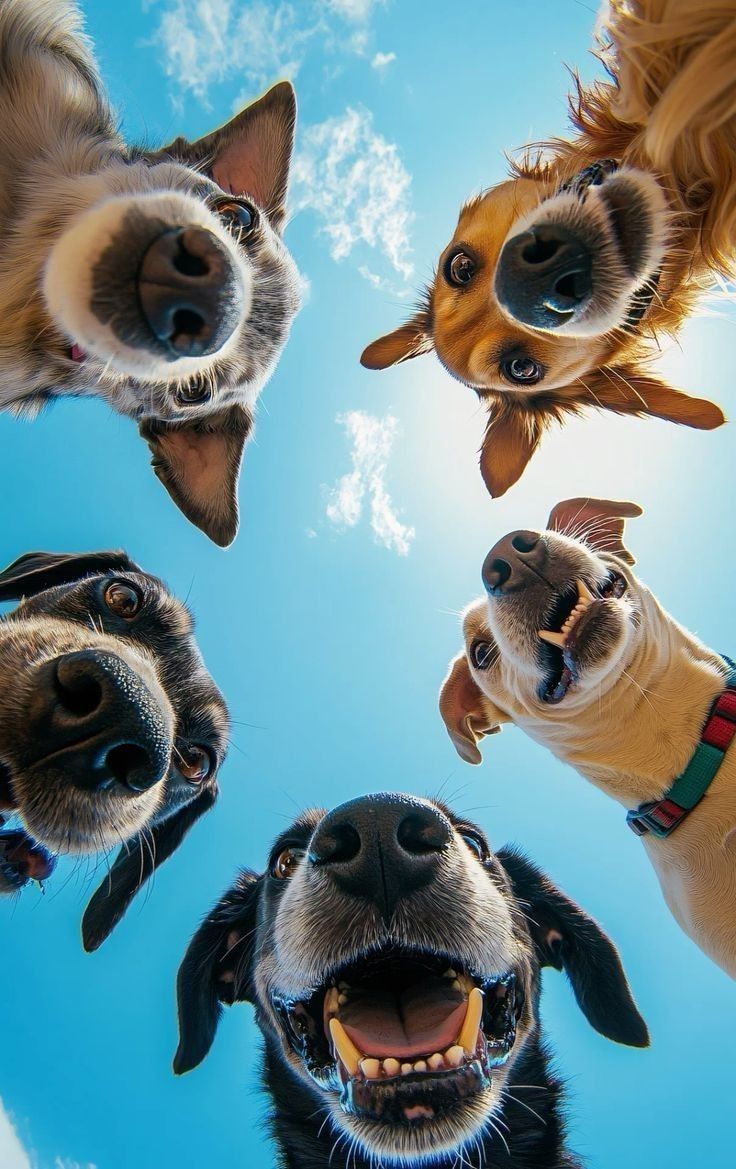 Image Editing with Multiple References
-
Start with one-line intent + style
Begin the prompt with a single clear sentence that states the goal and the visual style: e.g. “Colorize a 1920s family portrait with natural film tones” or “Generate a dreamy forest-fairytale portrait in French vintage style.” This orients the model immediately and reduces ambiguous outputs.
-
Specify the subject & exact changes (editing: reference the source)
-
For generation: describe the subject’s age, ethnicity, clothing, pose, and expression (e.g., “young South Asian woman, braided hair, soft smile, sitting on a white floral chair”).
For editing: explicitly reference the input image and the element to change: “From Image A: replace the dog with the man from Image B, keep head proportions, maintain lighting.” Always name the layer/element you want edited (background, hair, jacket, label).
-
Use camera + lighting language to lock the look
Add focal length, aperture, and light direction to control depth and mood: “50mm, f/2.0, warm window key left + cool rim right, soft cinematic grain.” For motion or blur, include shutter speed (e.g., “1/30s for subtle motion trails”).
-
Call out textures, materials, and technical constraints
Tell the model how things should feel: skin porosity, fabric weave, metal polish, glass reflections, film grain, or readable typography. Include dos and don’ts: e.g., “fine skin pores, natural freckles; avoid plastic sheen; keep label text legible; no extra limbs.” For edits, optionally give an edit strength: “subtle retouch (30% strength)”.
-
Deliverable & safety/consistency rules
End with output constraints and preservation rules: resolution/aspect (e.g., “8K, vertical poster 4:5”), identity preservation (“maintain facial likeness”), and format choices. For multi-step edits, request variants: “produce 3 variations: soft, medium, strong”. If editing a real person, remind to follow consent/ethics (e.g., “only edit images with permission”).
Quick examples you can copy:
- Generation: “Generate a vintage colorized family portrait — natural film palette, 85mm f/2, warm window light, fine film grain, ultra-real skin tones, 3:4 aspect.”
- Edit (style transfer): “Apply painterly Van Gogh style to Image A, preserve faces and composition, vivid impasto texture, maintain original lighting direction.”
- Edit (material swap): “Swap cotton jacket in Image A for polished brown leather; keep seams and fit; add satin sheen; subtle reflections; 50% edit strength.”
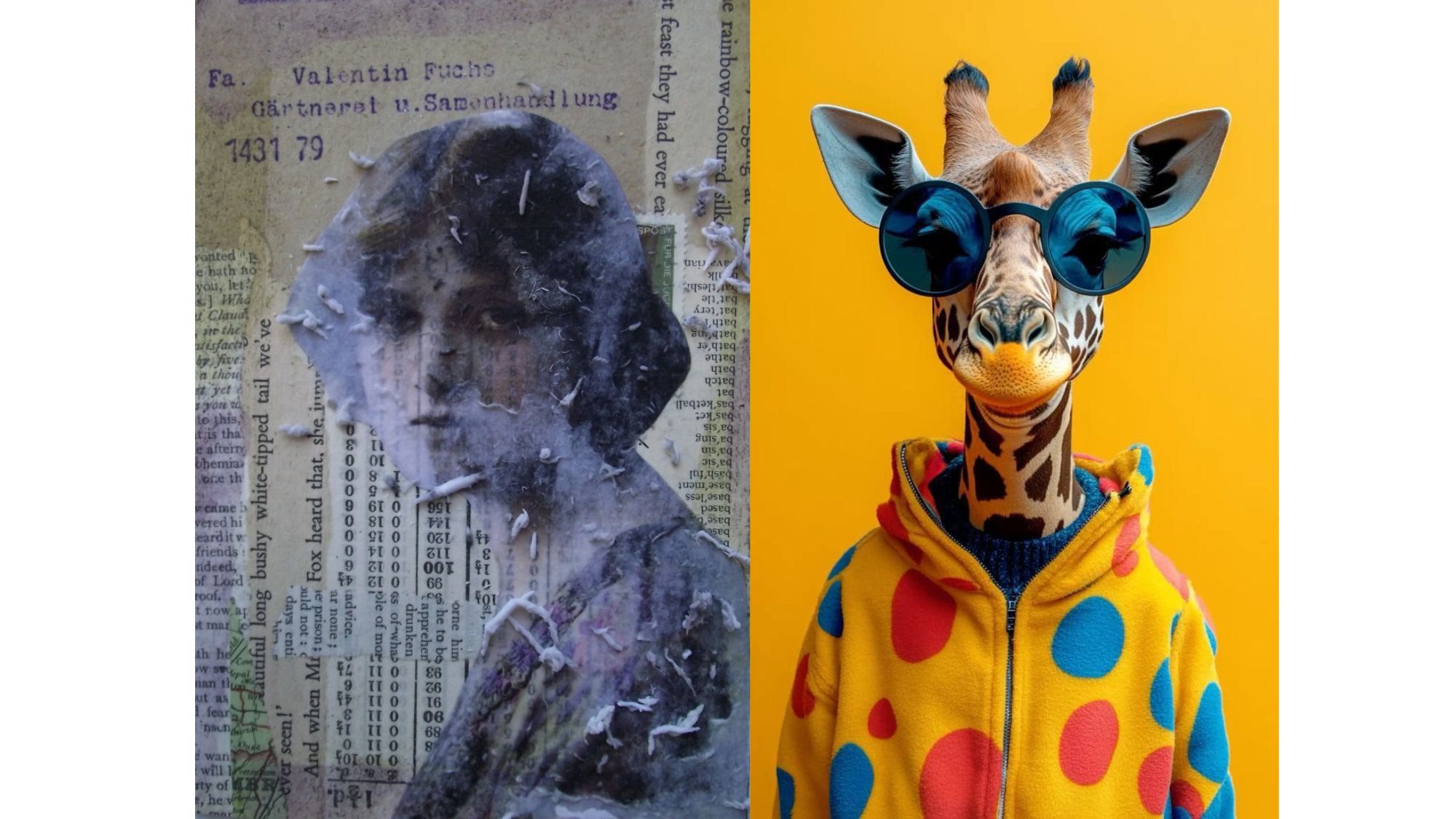
65+ Ready-Made Prompts for Kling O1 Image
Portrait Photoshoot
Kling O1 Image excels at portrait photography tasks by enhancing skin texture, lighting, and depth while keeping faces naturally consistent. Its editing-first workflow lets you refine poses, adjust expressions, recolor tones, or restyle the environment without overhauling identity.
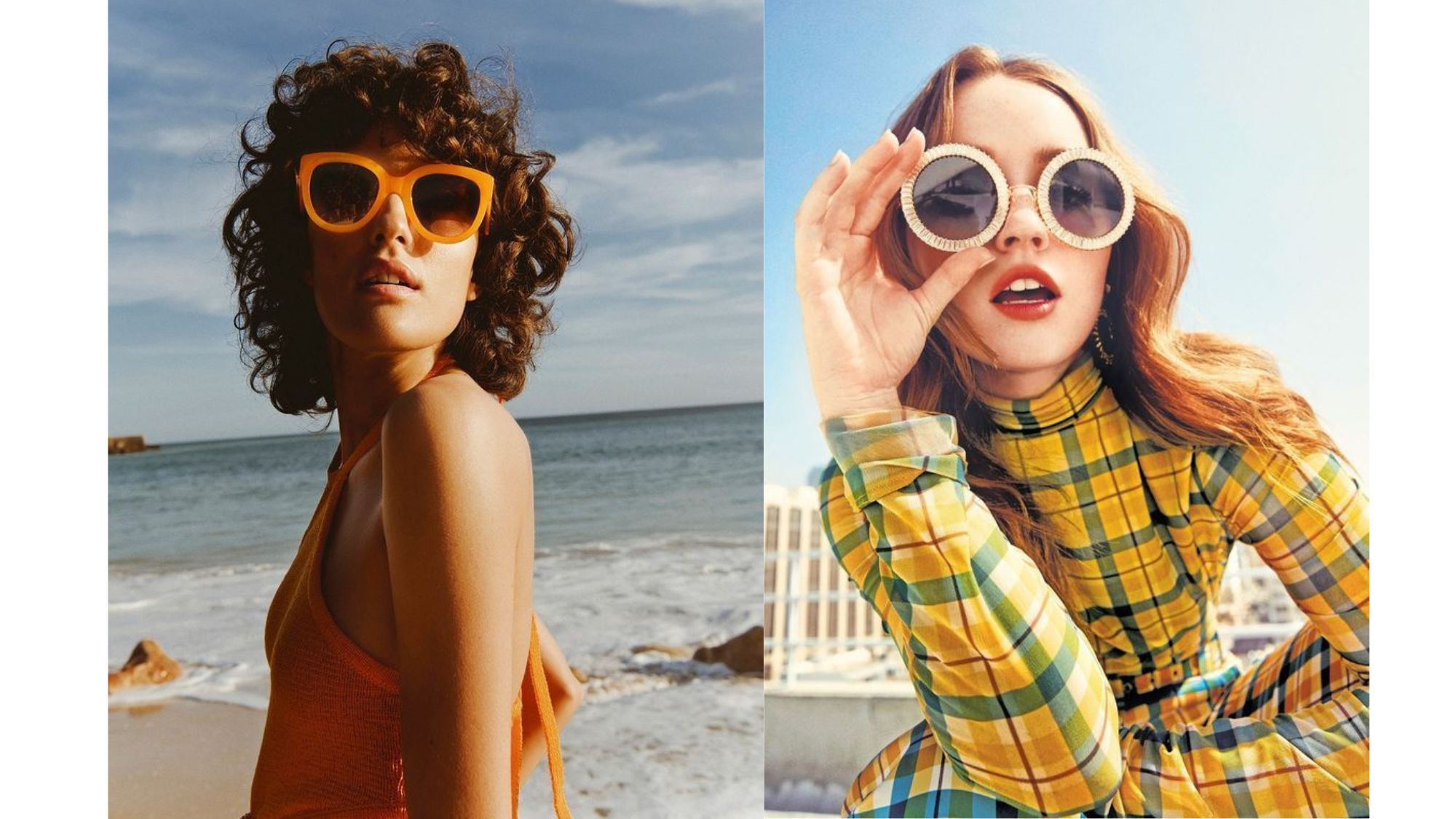 Portraits
- High-end beauty portrait of a woman with soft matte skin, natural freckles, and glossy peach lips. Adjust lighting to soft diffused daylight from the left, creating a gentle gradient shadow on the right cheek. Enhance micro-details of eyelashes and brows; keep color palette warm beige, honey gold, and rose peach. Clean studio background, premium magazine-quality finish.
- Portrait of a young man standing under late-afternoon sunlight, warm rim light outlining the hair and shoulders. Enhance skin texture, deepen shadows under the jawline, and add subtle film grain. Slight breeze moving the shirt collar; blurred greenery background with cinematic bokeh. Soft, moody, atmospheric tone.
- Natural lifestyle portrait of a woman holding a cup of coffee near a window, warm indoor lighting, soft highlights on cheeks, gentle falloff on hair. Add realism in hand texture, fabric folds, and reflections on the mug. Cozy morning vibe with neutral browns, cream tones, and soft blur outside the window.
- Studio portrait of a model wearing a structured black blazer, sharp jawline lighting, and clean white backdrop. Accentuate symmetry, refine skin texture, and polish stray hairs. Add subtle cool-toned shadow behind subject for depth. Crisp, modern, high-fashion energy.
- Soft, finely detailed makeup with a porcelain-like glow, her skin smooth and luminous under the gentle afternoon light. She gazes toward the camera with blushing rose cheeks and a delicate, glassy highlight across her nose. Her hair is styled in loose braids swept back, tied with pale lavender ribbons. She sits gracefully on an antique cream chair with subtle botanical embroidery, holding a crystal vase filled with pastel peonies. Through the rustic wooden window, blooming garden roses in white, blush, and lilac spill into the frame. The golden light brushes her face and hair, creating glowing strands and a dreamy, romantic French countryside ambiance with cinematic film softness.
Product Photo Editing
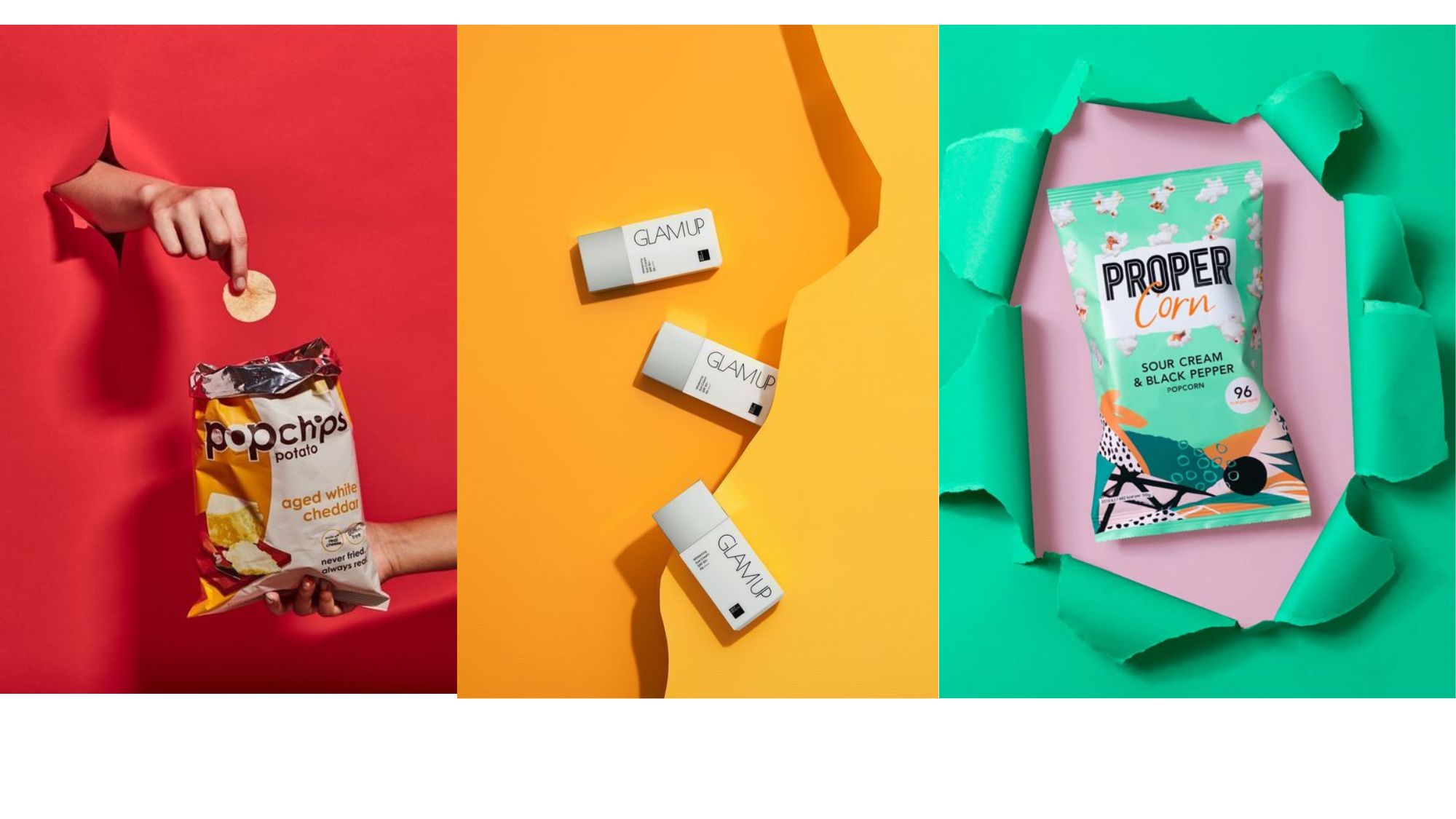 Product Photos
-
Close-up of a silver wristwatch with black leather strap on a reflective marble surface. Enhance metal polish and leather grain texture, sharpen engraved numerals, and adjust highlights for realistic shine. Add subtle soft shadows to anchor the watch, with a balanced warm key light from the top-left and cool rim light from the right. Maintain color accuracy for silver, black, and subtle metallic reflections. Cinematic, professional product photography style.
-
Transparent glass perfume bottle with golden cap placed on a soft velvet surface. Remove any smudges or fingerprints, enhance glass reflections and liquid clarity, and deepen the golden hue of the cap. Apply soft diffused lighting from front-left, subtle rim lighting, and minimal ambient shadows for elegance. Ensure background remains smooth and slightly blurred to emphasize the bottle. Photorealistic, high-end advertising aesthetic.
-
White leather sneakers on wooden floor. Highlight stitching, texture, and material details, remove scuff marks, enhance sole grip pattern, and refine laces to appear crisp and clean. Add natural window light from left with soft fill from right, subtle shadows for depth. Retain accurate color tones with glossy highlights on leather and matte finish on rubber sole. Lifestyle product shot ready for e-commerce.
-
Black wireless earbuds on a reflective white surface. Remove dust, enhance smooth plastic finish, and emphasize metallic accents. Adjust reflections and shadows to make edges and contours crisp. Apply soft, neutral key lighting and cool fill light to maintain professional studio look. Ensure the final image shows every curve and texture sharply for catalog use.
-
Lipstick tube with vibrant red shade placed upright on a mirrored surface. Remove minor scratches, enhance metallic sheen on the cap, intensify color of the lipstick tip, and sharpen embossed logo. Lighting: soft warm key from top-left, gentle fill from front, subtle rim from back for depth. Keep reflections subtle, bokeh background soft, photorealistic, suitable for marketing visuals.
Photo Colorization Prompts
Photo colorization breathes life into black-and-white or sepia images, restoring them with realistic color tones. This feature is perfect for turning vintage or historical photos into modern, vibrant visuals, while maintaining a natural look that enhances their authenticity and emotional appeal.
- Colorize this black-and-white portrait with natural skin tones and soft warm lighting.
- Add realistic color to the vintage family photo while keeping fabric textures intact.
- Convert this sepia street scene into a full-color daytime shot with accurate sky blue and greenery.
- Colorize this old film frame using muted 1960s color palettes.
- Add lifelike color to this wedding photo, maintaining shadows and dress details.
- Restore this historical building image using soft sandstone, realistic brick reds, and sky gradients.
- Convert this monochrome landscape into a natural warm sunrise palette with rich greens and yellows.
- Add natural earth-toned colors to this old farmhouse photo without oversaturation.
- Turn this faded photo into a colorful modern portrait with balanced skin gradients.
- Colorize this WW2 archival image in neutral, realistic tones while keeping fabric textures sharp.
Style Transfer
Style transfer allows users to transfer the artistic style of one image onto another, enabling seamless integration of different aesthetics. Whether applying a painterly style to a photograph or mimicking the look of famous artists, this feature offers endless creative possibilities, making it ideal for projects that require unique, artistic designs.
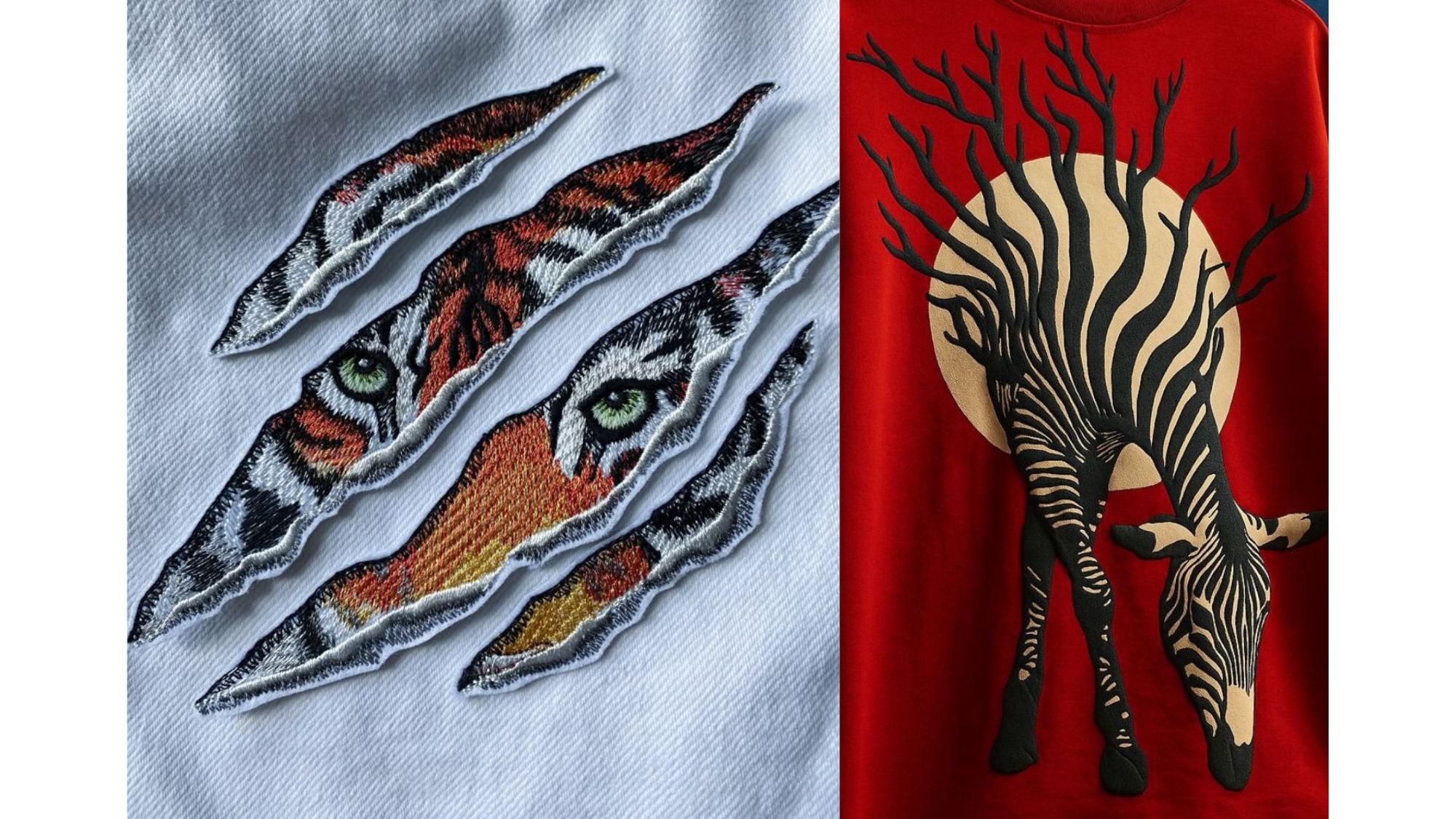 Style Transfer
- A quiet nighttime portrait of a man standing on a balcony, city lights below.
- Apply a Van Gogh “Starry Night” style transfer: swirling cobalt-blue sky, thick impasto strokes, spiraling moonlight, and textured strokes wrapping around the silhouette. His coat subtly adopts Van Gogh’s directional brushwork, with vibrant yellows and electric blues illuminating its folds. Skin retains realistic detail, but shadows carry an expressive painterly rhythm. The entire scene pulses with emotional turbulence, bold color contrast, and star-lit motion.
- Transfer the watercolor style from Image 2 onto the landscape in Image 1.
- An elegant woman sits beside a sunlit pond, her soft linen dress dyed with delicate pastels. Apply a full Claude Monet water-garden style transfer: dissolving brushstrokes, shimmering water ripples, hazy lily pads, and dreamy impressionist color bloom. Her skin glows with subtle peach highlights, hair gently tousled by the breeze. The background melts into strokes of turquoise, lavender, and warm gold, capturing Monet’s fluid luminosity. Light dances across her profile, turning the scene into a living painting with textured pigment and soft atmospheric haze.
- A serene studio portrait of a woman in a cream kimono-inspired dress. Apply a Ukiyo-e woodblock print style transfer: flat yet elegant color planes, delicate line-work outlining facial contours, subtle gradient shading, and textured washi-paper grain. Her braided bun and soft makeup maintain realism while adopting the crisp stylized execution of Edo-period prints. Background becomes a muted beige with minimal decorative motifs — cherry blossoms, flowing waves — rendered in traditional blue and vermillion inks. The result blends modern portrait clarity with classical Japanese print aesthetics.
- Apply a cinematic teal-orange style to this street photo.
- Turn this portrait into a Studio Ghibli-style painting with soft pastels.
- Apply the oil painting texture from reference Image B onto the still-life setup in Image A.
- Add cyberpunk neon-style lighting to this nighttime alley shot.
- Apply impressionist light patterns to this beach photo while keeping silhouettes crisp.
- Transfer the pixel-art game style in Image 2 to the character in Image 1.
- Convert this family picture into a charcoal sketch look.
- Apply a glossy magazine editorial color-grading style to this fashion portrait.
Vintage
The vintage effect introduces a nostalgic feel to modern images, replicating the look of old-school film photography. By adding film grain, light leaks, and faded colors, this feature helps create a timeless, retro atmosphere, perfect for art projects, social media campaigns, and product photography with a classic appeal.
- Add vintage film grain and faded colors to this modern portrait.
- Apply 1980s Kodak film tones to this travel photo.
- Make this digital street shot look like a 1970s analog snapshot with warm brown tint.
- Add subtle light leaks and soft haze around the edges.
- Convert this high-res image into a 1990s disposable camera look.
- Create a Polaroid-style vintage frame with desaturated pastel colors.
- Add a retro cinematic green-brown palette to this couple’s photo.
- Add texture like aged photo paper to this still-life setup.
- Turn this product image into a 1950s advertisement style.
- Make this portrait look like an old album contact print with soft blur.
Remove Watermark
With Kling O1’s watermark removal tool, you can clean up images by removing unwanted logos or text, ensuring your visuals are free from distractions. This feature is crucial for restoring old photos, preparing promotional content, or cleaning up stock images for professional use, providing a polished, refined result.
- Remove the logo from the product bottle while preserving reflections.
- Clean the watermark on the shirt without damaging fabric texture.
- Remove the brand mark on the wall and restore the brick pattern.
- Delete the timestamp and fill the missing area with natural skin gradient.
- Remove the watermark across the center and regenerate smooth water ripples.
Graffiti
Adding graffiti to images can infuse them with an urban, street-art vibe. Kling O1’s graffiti feature enables you to effortlessly integrate graffiti elements into your photos, perfect for fashion brands, music videos, or marketing campaigns targeting younger, trend-conscious audiences.
- Add a bold graffiti tag on the brick wall behind the model.
- Paint neon-blue graffiti letters on the skateboard.
- Add stylized street-art wings behind the character.
- Integrate red spray-style graffiti along the sidewalk edge.
- Add a simple bubble graffiti tag on the garage door.
- Add colorful doodle graffiti across the concrete floor, keeping lighting consistent.
- Create a graffiti-style heart behind the couple.
- Add grunge graffiti arrows and symbols around the subject.
- Add black-and-white street-art typography on the wall behind the product.
- Add stylized cartoon graffiti figures on the city background.
Body Shape Adjustment
Body shape adjustment offers precise control over a subject's physical appearance, allowing for subtle modifications in body proportions, posture, or silhouette. This feature is useful for fashion, fitness, and advertising, ensuring that images align with brand aesthetics or conceptual goals, while maintaining a natural and flattering look.
- Slightly adjust waistline while keeping clothing natural.
- Smooth posture so the model stands straighter without distortion.
- Subtly enhance shoulder symmetry while maintaining anatomy.
- Reduce arm width slightly, keeping shadows intact.
- Lengthen legs by 5% for a fashion-style portrait.
- Adjust body contour to appear more balanced without over-editing.
- Slightly refine jawline to improve symmetry while keeping realism.
- Slim the silhouette subtly for a commercial fashion shot.
- Enhance back curvature for a natural standing pose.
- Broaden chest slightly for a fitness-style photo.
Reverse Mapping – Input Image to X-ray Image
Reverse mapping enables a fascinating transformation, turning an ordinary image into an X-ray-like version. This feature is useful for educational content, medical visualizations, or conceptual art, as it allows users to see through objects or explore underlying structures in a visually compelling way.
- Convert this object into an X-ray visualization showing inner structure.
- Generate an X-ray version of the hand, keeping bone structure simplified.
- Turn this shoe into a transparent X-ray style showing laces and sole layers.
- Create an X-ray look for this flower, revealing petal structure.
- Turn this still-life fruit photo into an X-ray biological illustration.
- Generate a stylized X-ray version of a camera, showing internal geometry.
- Apply X-ray filter to this portrait, highlighting skull silhouette.
- Convert this toy car into an X-ray rendering with visible gears.
- Generate X-ray style fish illustration from the reference photo.
- Turn this watch photo into a transparent X-ray version showcasing internal parts.
HD Restoration
HD restoration enhances low-resolution or blurry images, bringing out finer details and improving clarity. This feature is especially beneficial for working with old photographs, archival content, or images with insufficient resolution, so very detail is sharp and visible for professional-quality results.
- Sharpen and enhance this blurry portrait while preserving skin texture.
- Restore this low-res image into a crisp HD version with clean edges.
- Bring back details in this old family photo without adding noise.
- Increase clarity in this landscape and enhance color accuracy.
- Restore this pixelated photo into a clean, high-quality image.
- Fix motion blur and sharpen facial features naturally.
- Recover fine hair strands and eye details from the noisy image.
- Enhance old document photo with clear readable text.
- Reconstruct missing details in the damaged areas.
- Upgrade this 360p image into a clean 4K-style version.
Material Modification
Material modification lets users change the texture and material properties of objects within images. From transforming a fabric into leather or marble into wood, this feature is perfect for product design, architecture visualization, and digital art, offering high flexibility in image manipulation and design.
- A cinematic portrait of a woman posing beside a moss-covered stone wall. Modify the texture of her matte cotton dress into luxurious iridescent silk: fluid sheen, smooth highlights, shimmering gradients that shift between pearl white, soft lavender, and moonlit blue. Folds should reflect light naturally, catching subtle glow on each curve. Maintain overall garment design and silhouette, but update material realism with crisp silk texture, soft specular highlights, and elegant drape.
- Turn the wooden chair into a glossy black metal chair.
- Change the fabric shirt into a leather texture while preserving seams.
- Convert the plastic bottle into a frosted glass bottle.
- Transform the table surface into polished marble.
- Change the sneaker material from mesh to suede.
- Turn the ceramic mug into stainless steel.
- Change the sofa texture to velvet with soft folds.
- Convert the bag material from canvas to premium leather.
- Make the statue look like carved wood instead of stone.
- Change the jacket fabric to metallic foil texture.
Beauty Enhancements and Hairstyle Changes
Kling O1’s beauty enhancements smooth skin, remove blemishes, and adjust facial features for flawless portraits. Users can also change hairstyles, offering full customization for fashion, beauty, and photography projects. These features ensure that images are polished, enhancing aesthetic appeal while maintaining a natural look.
- A close-up editorial portrait of a South Asian woman framed in soft window daylight. Enhance beauty subtly and naturally: smooth fine lines, even skin tone, refine pores, brighten under-eye area, and add a gentle satin glow to cheeks. Retain realistic skin texture with micro-detail preserved. Add a soft rose tint to lips, subtle mascara lift, and slight eyebrow symmetry correction. Overall mood: clean, modern, ultra-fresh beauty photography with high-end magazine polish.
- A mid-shot portrait of a young woman sitting beside a sheer white curtain. Change hairstyle from shoulder-length waves to a glossy Korean-style lob: straight, silky, lightly curved ends, middle-parted with delicate face-framing strands. Add subtle volume at the roots and a healthy, reflective shine. Preserve all skin texture, makeup, and outfit details. Lighting remains soft and diffused, giving a dreamy pastel editorial mood.
- Smooth skin lightly while keeping pores natural.
- Remove dark circles and even out skin tone.
- Add soft, warm portrait glow to the face.
- Change hairstyle to long straight hair with natural shine.
- Add bangs while keeping hairline natural.
- Slightly brighten eyes and enhance iris detail.
- Remove blemishes while maintaining texture.
- Change hair color to soft caramel brown.
- Add subtle makeup enhancement with nude tones.
- Convert hairstyle to a short wavy bob with volume.
Ready to create with Kling O1 Image?
With this prompt guide, you now have a structured approach to write better prompts for Kling O1 Image. The next step? ImagineArt is giving Kling O1 Image free for the launch week. So, what are you waiting for? Create your heart out and edit the way you love. Happy creating with ImagineArt!
Saba Sohail
Saba Sohail is a Generative Engine Optimization and SaaS marketing specialist working in automation, product research and user acquisition. She strongly focuses on AI-powered speed, scale and structure for B2C and B2B teams. At ImagineArt, she develops use cases of AI Creative Suite for creative agencies and product marketing teams.