
Syed Anas Hussain
January 29, 2026 • Updated August 17, 2026
14 mins Read
As a computer scientist deeply embedded in the tech world, I’ve witnessed the evolution of workplace collaboration firsthand. I remember the days of clunky email chains and the chaotic scramble to find the latest version of a file. It was a digital mess that cost us more than just time.
The enterprise landscape in 2026 has moved far beyond simple "chat and task" apps. Today, we are in the era of Agentic Collaboration - where tools don’t just host your data; they actively help you create, automate, and secure it. If your team is still juggling 20 different tabs, you aren't just losing time; you’re losing your competitive edge.
This guide is my breakdown of the best enterprise collaboration tools, categorized by their specialized strengths. We'll explore the top contenders, I'll give you my honest take on their features, pros, and cons, and ultimately, we'll crown a winner for each category. Let's dive in and build a truly centralized workflow for 2026.
1. Team Communication & Messaging
In the enterprise, "messaging" is no longer just about sending texts. It now includes AI-summarized threads, real-time translation, and integrated workflows. These tools are the central nervous system of any modern collaborative enterprise.
Slack
 Slack.png
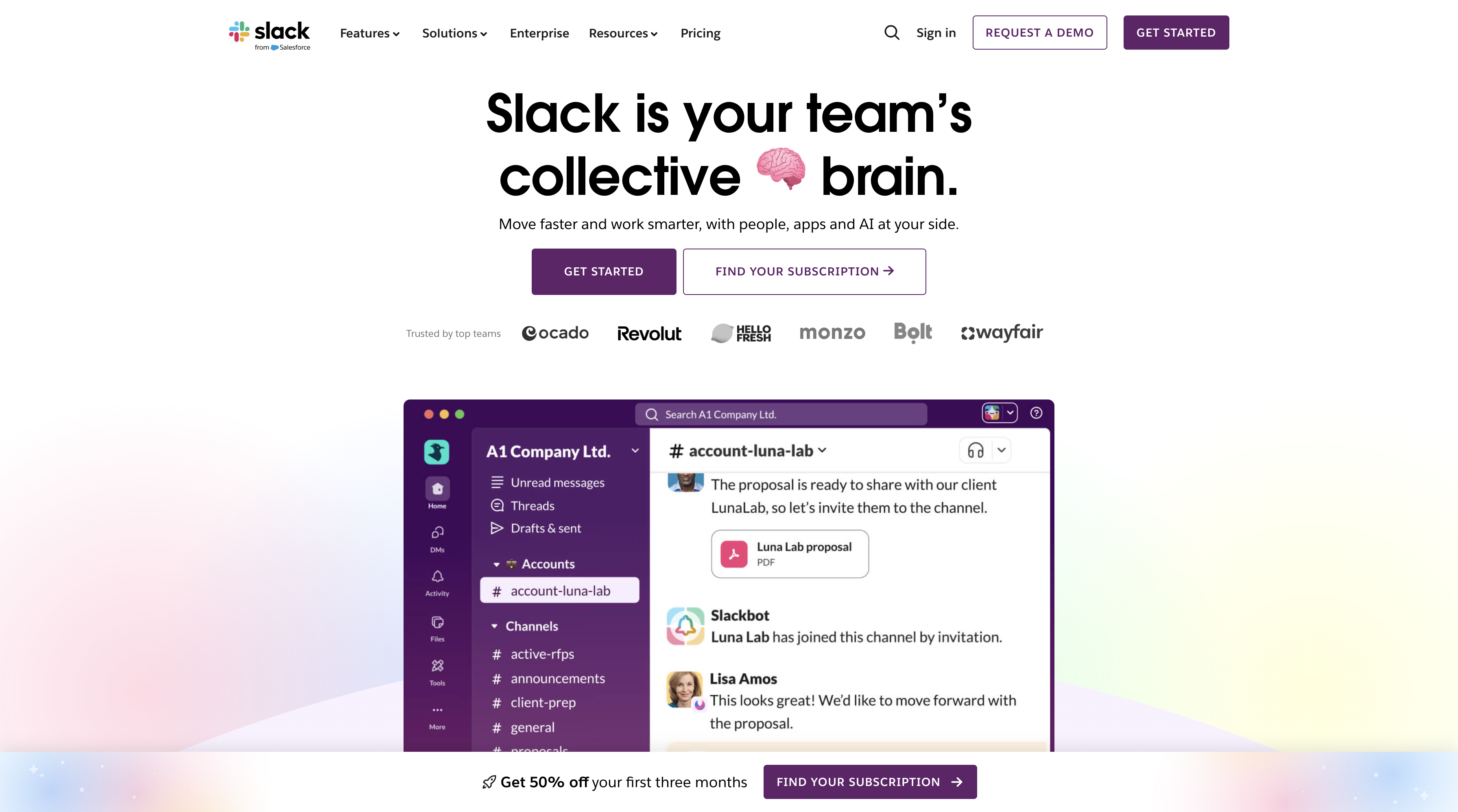
For years, Slack has been my go-to recommendation for teams that need a powerful, integration-first communication hub. It’s the gold standard for a reason. In 2026, its "Agent Force" feature is a game-changer, allowing you to deploy custom AI bots that turn conversations into action.
Slack.png
For years, Slack has been my go-to recommendation for teams that need a powerful, integration-first communication hub. It’s the gold standard for a reason. In 2026, its "Agent Force" feature is a game-changer, allowing you to deploy custom AI bots that turn conversations into action.
- Pros
- Unmatched ecosystem of app integrations.
- Powerful and highly effective search functionality.
- Clean, intuitive interface that users love.
- Cons
- Can create constant, distracting notifications.
- Higher-tier plans can be very expensive.
Microsoft Teams
 Teams.png
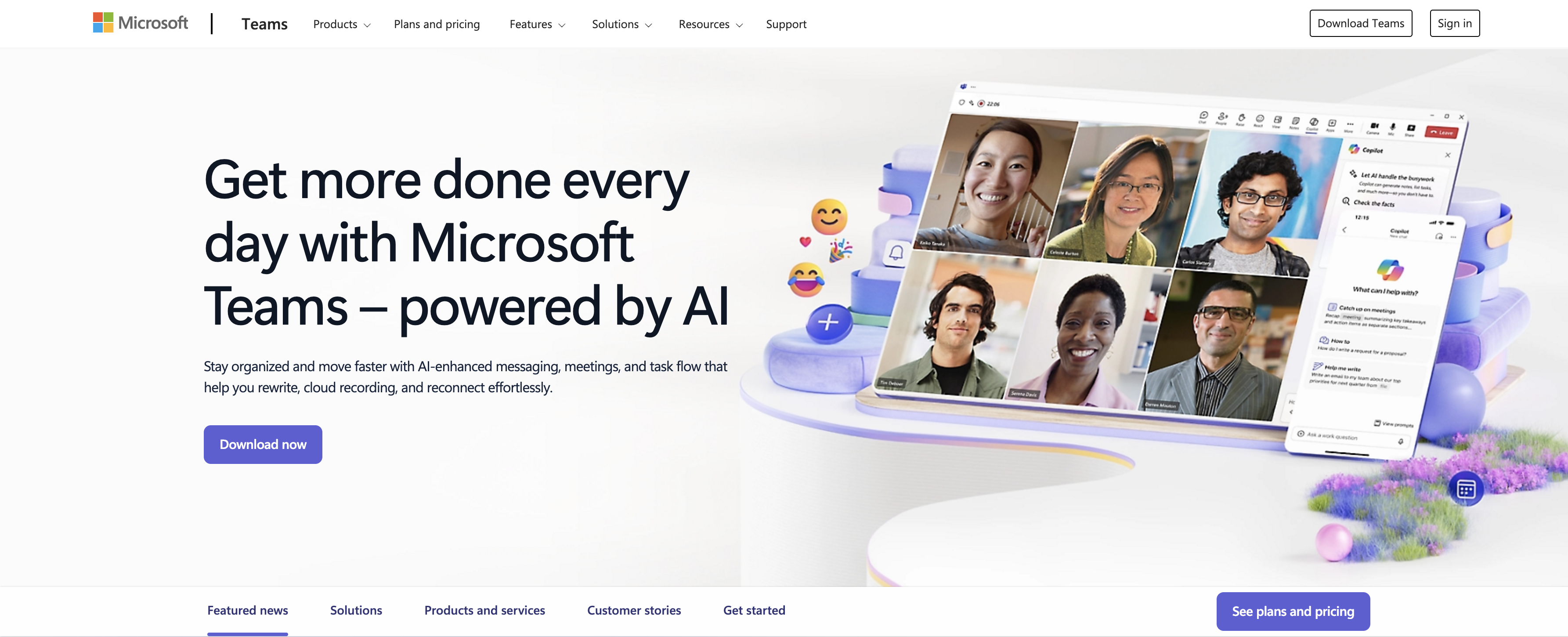
If your organization is already invested in the Microsoft 365 ecosystem, Teams is the logical and powerful choice. I've seen it transform workflows in M365-native companies. Its deep integration with Copilot makes it a powerhouse for summarizing meetings or co-authoring documents.
Teams.png
If your organization is already invested in the Microsoft 365 ecosystem, Teams is the logical and powerful choice. I've seen it transform workflows in M365-native companies. Its deep integration with Copilot makes it a powerhouse for summarizing meetings or co-authoring documents.
- Pros
- Cost-effective, as it's bundled with M365.
- Seamless transition between chat, video, and files.
- Inherits Microsoft's top-tier enterprise security.
- Cons
- Interface can feel cluttered and less intuitive.
- Less effective with non-Microsoft tools.
Zoom Chat
 Zoom.png
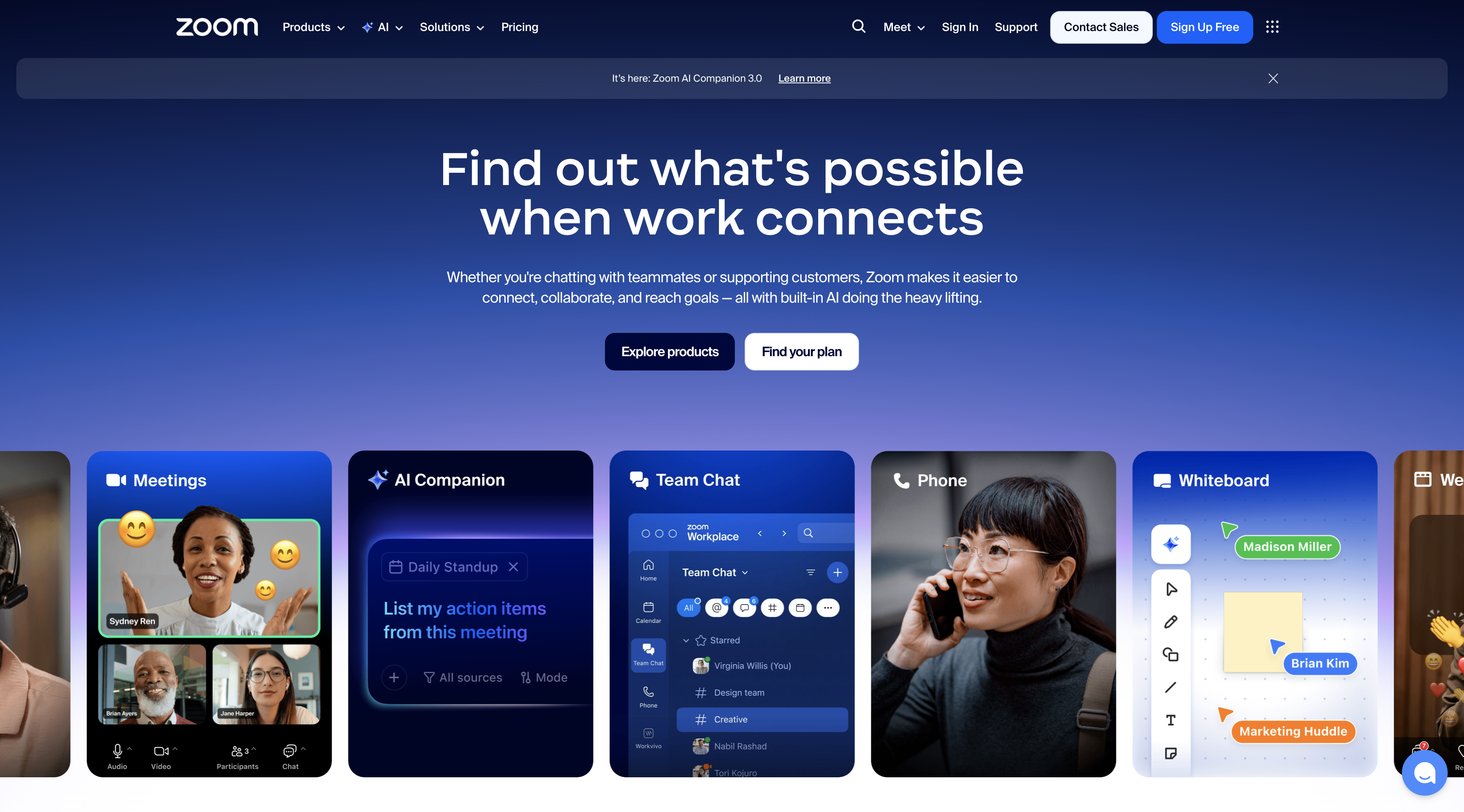
I've watched Zoom evolve from a pure video conferencing app to a legitimate collaboration hub. For teams that live on video calls, its chat function is a natural extension. The "Zoom AI Companion," now included in most paid plans, adds significant value by summarizing chats and meetings.
Zoom.png
I've watched Zoom evolve from a pure video conferencing app to a legitimate collaboration hub. For teams that live on video calls, its chat function is a natural extension. The "Zoom AI Companion," now included in most paid plans, adds significant value by summarizing chats and meetings.
- Pros
- Leverages Zoom's best-in-class video stability.
- Familiar and intuitive for millions of users.
- Offers a unified platform for communication.
- Cons
- Document collaboration features are less mature.
- Fewer deep integrations than its competitors.
Webex Teams
 Webex.png
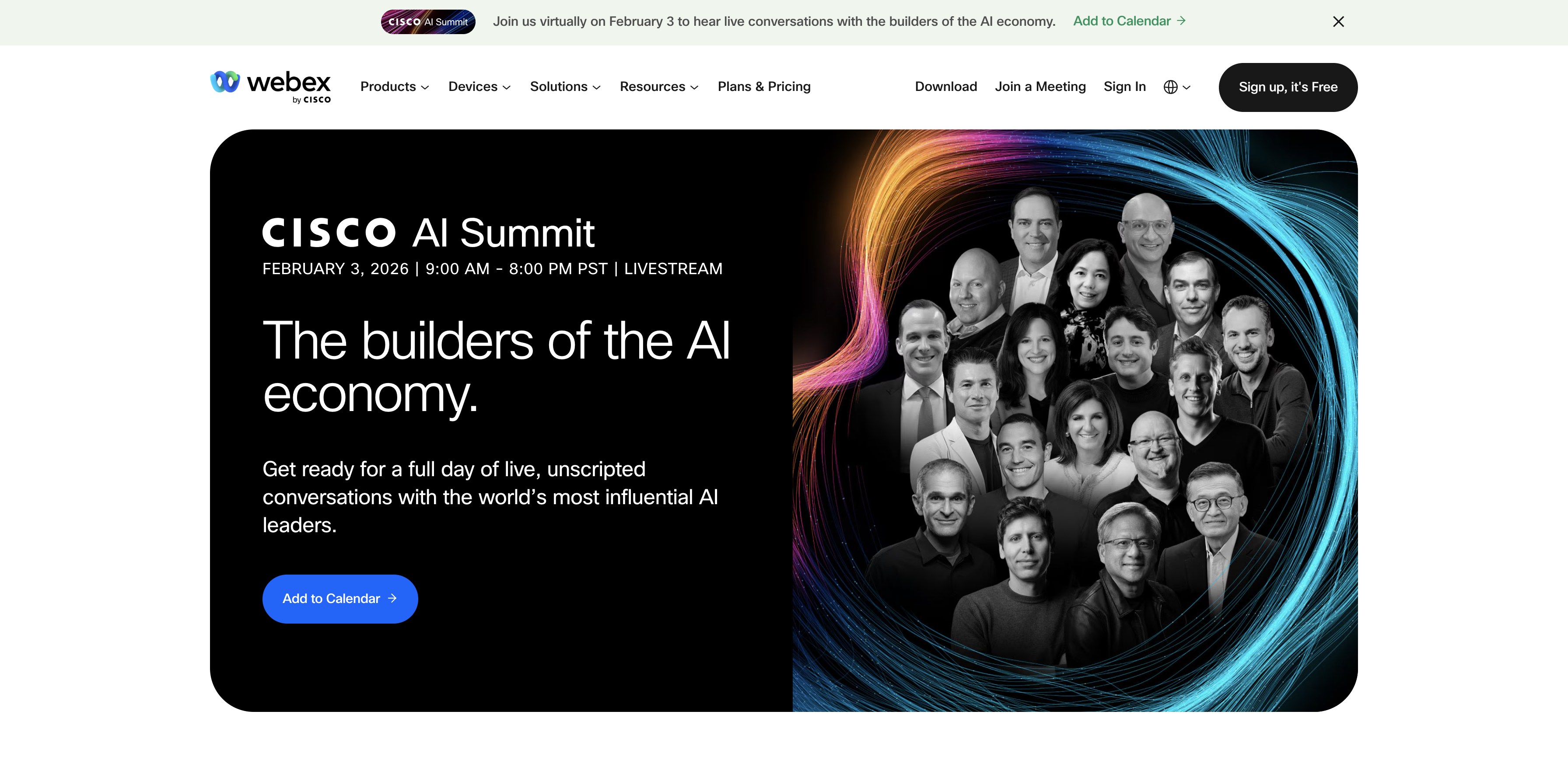
When I consult for clients in finance, government, or healthcare, Webex is always on the shortlist. Its reputation is built on a foundation of security and reliability, offering end-to-end encryption that meets the strictest compliance standards.
Webex.png
When I consult for clients in finance, government, or healthcare, Webex is always on the shortlist. Its reputation is built on a foundation of security and reliability, offering end-to-end encryption that meets the strictest compliance standards.
- Pros
- Provides top-tier security for regulated industries.
- Seamless integration with Webex hardware devices.
- Single app for calling, messaging, meetings.
- Cons
- Interface can feel less modern than rivals.
- Smaller user base means fewer resources.
Flock
 Flock.png
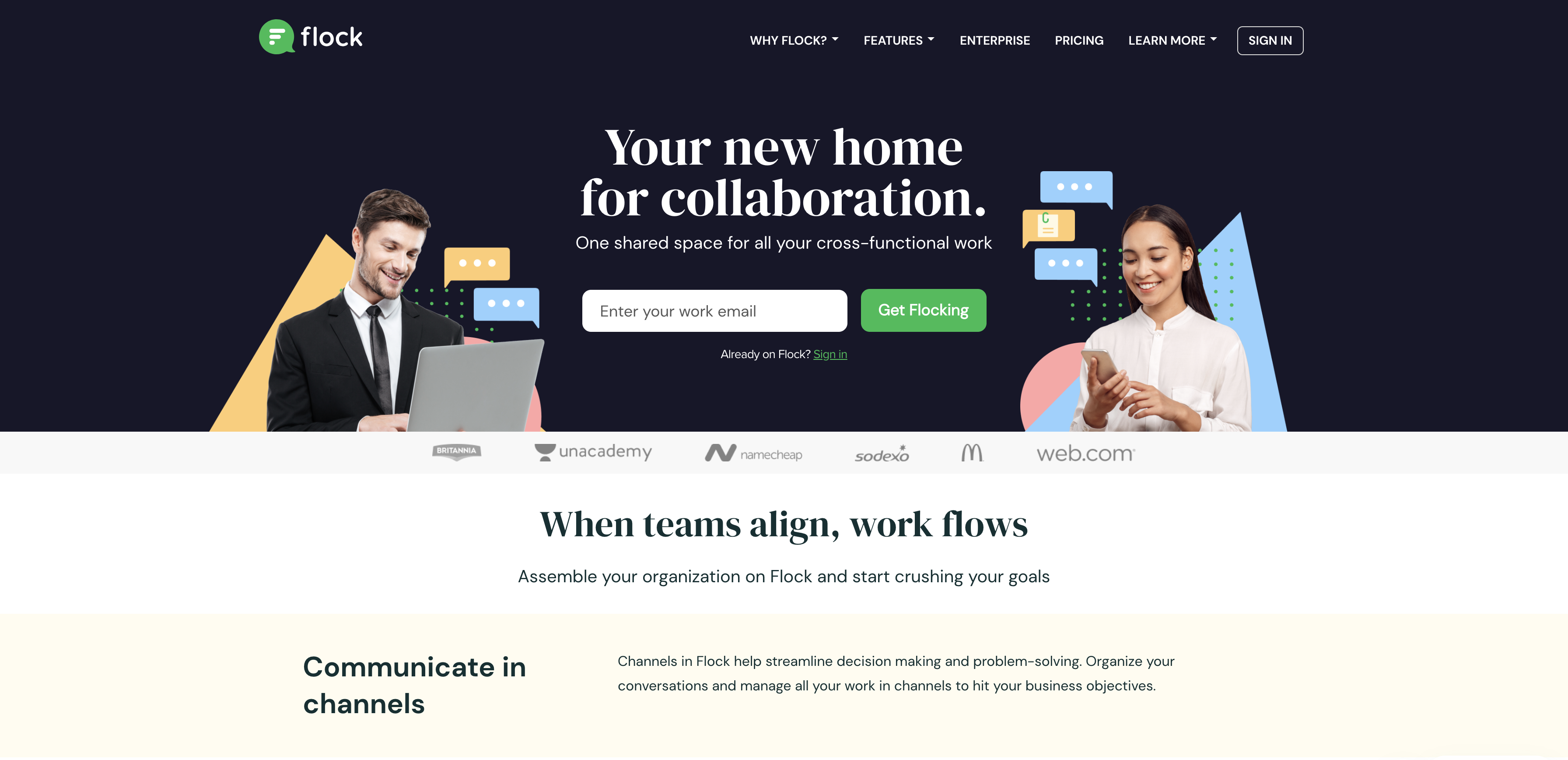
I often recommend Flock to smaller, agile teams or startups that find Slack's feature set and price tag to be overkill. It’s a zippy, lightweight alternative that covers all the essentials of team communication without the bloat.
Flock.png
I often recommend Flock to smaller, agile teams or startups that find Slack's feature set and price tag to be overkill. It’s a zippy, lightweight alternative that covers all the essentials of team communication without the bloat.
- Pros
- Significantly more affordable than other options.
- Clean, uncluttered, and very fast interface.
- Includes useful built-in productivity tools.
- Cons
- Much smaller library of app integrations.
- Lacks advanced enterprise admin controls.
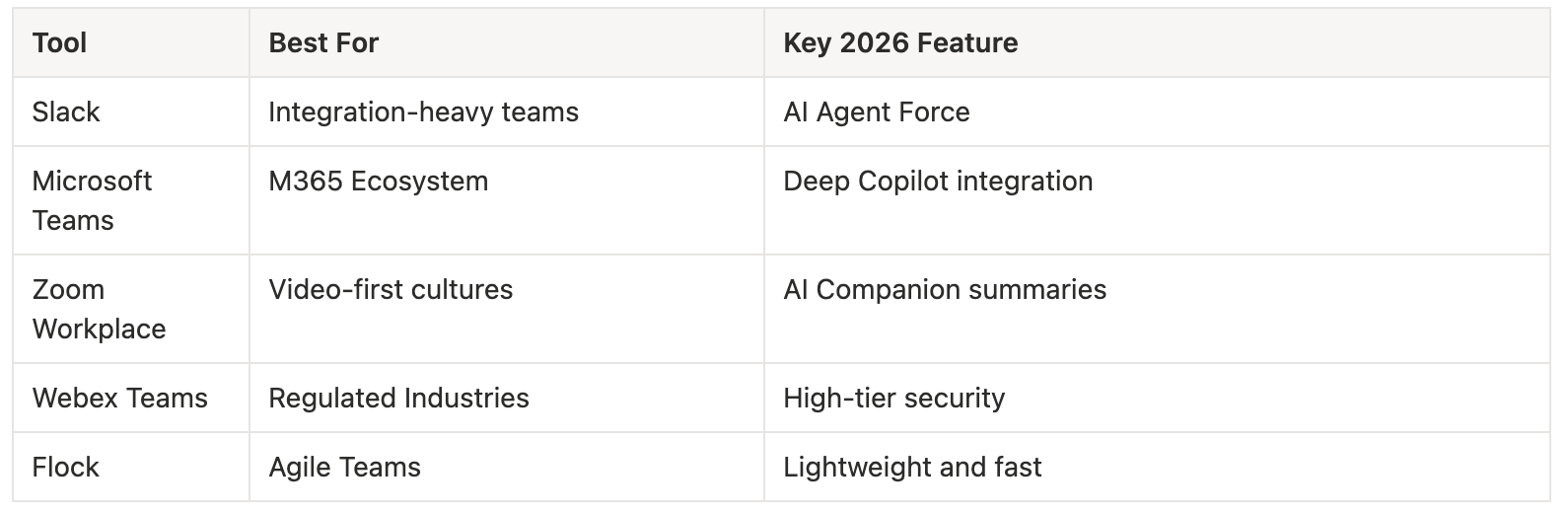
Comparison - Team Communication
 Comparison Table - Team Communication
2. Project & Task Management
The best tools in this category have moved beyond simple to-do lists. They now focus on "Workload Intelligence"—using AI to predict bottlenecks, balance team capacity, and connect daily work to strategic business outcomes.
Asana
 Asana.png
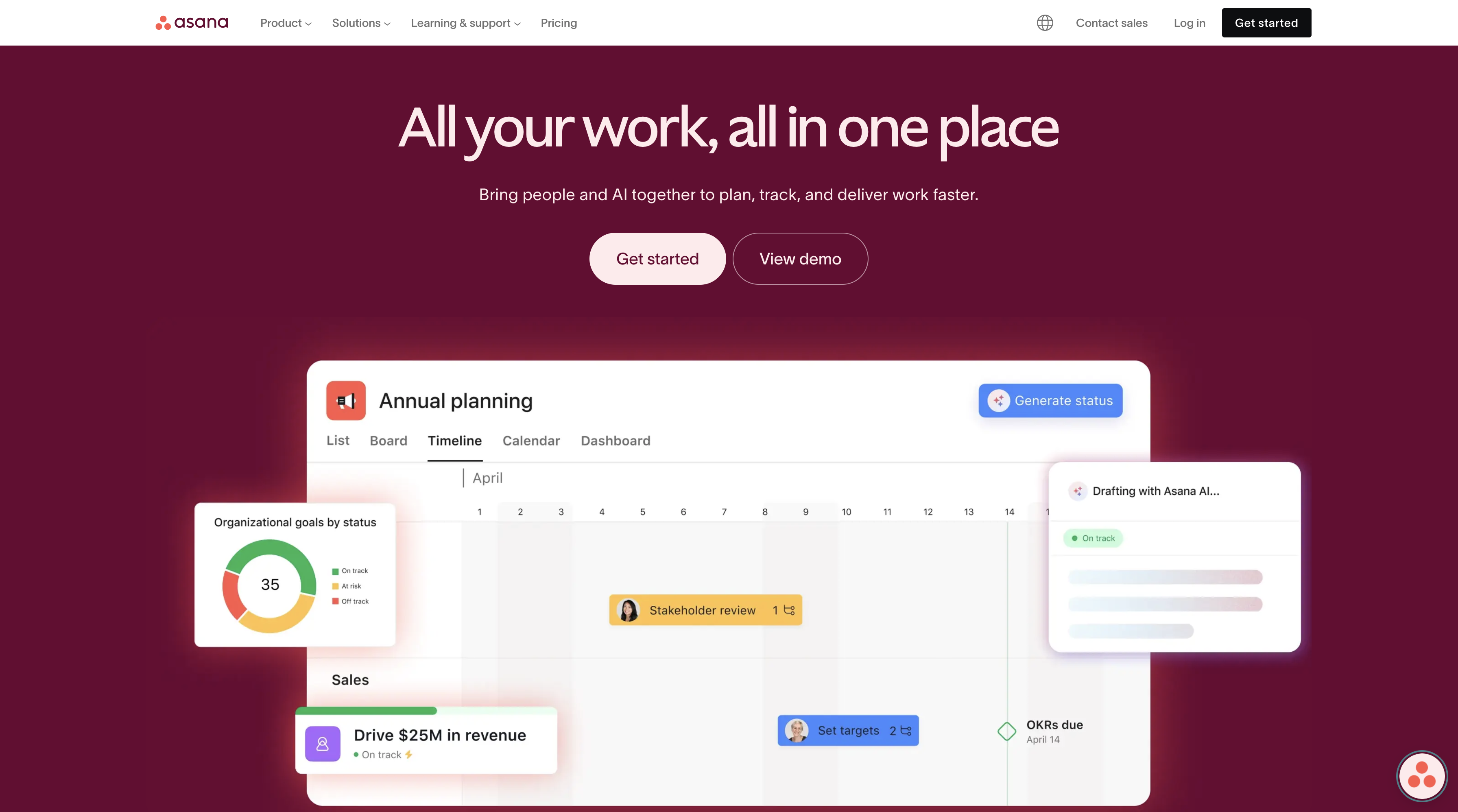
From a design perspective, I find Asana to be one of the most elegant and user-friendly PM tools. It truly excels at providing clarity, showing how day-to-day tasks connect to larger, strategic company goals. Their "Smart Workflows" automate task dependencies based on real-time team capacity.
Asana.png
From a design perspective, I find Asana to be one of the most elegant and user-friendly PM tools. It truly excels at providing clarity, showing how day-to-day tasks connect to larger, strategic company goals. Their "Smart Workflows" automate task dependencies based on real-time team capacity.
- Pros
- Beautiful, intuitive design drives user adoption.
- Excellent for high-level, cross-functional visibility.
- Multiple views cater to different work styles.
- Cons
- Best features are locked behind expensive plans.
- Can feel too rigid for custom workflows.
Monday .com
 Monday.com.png
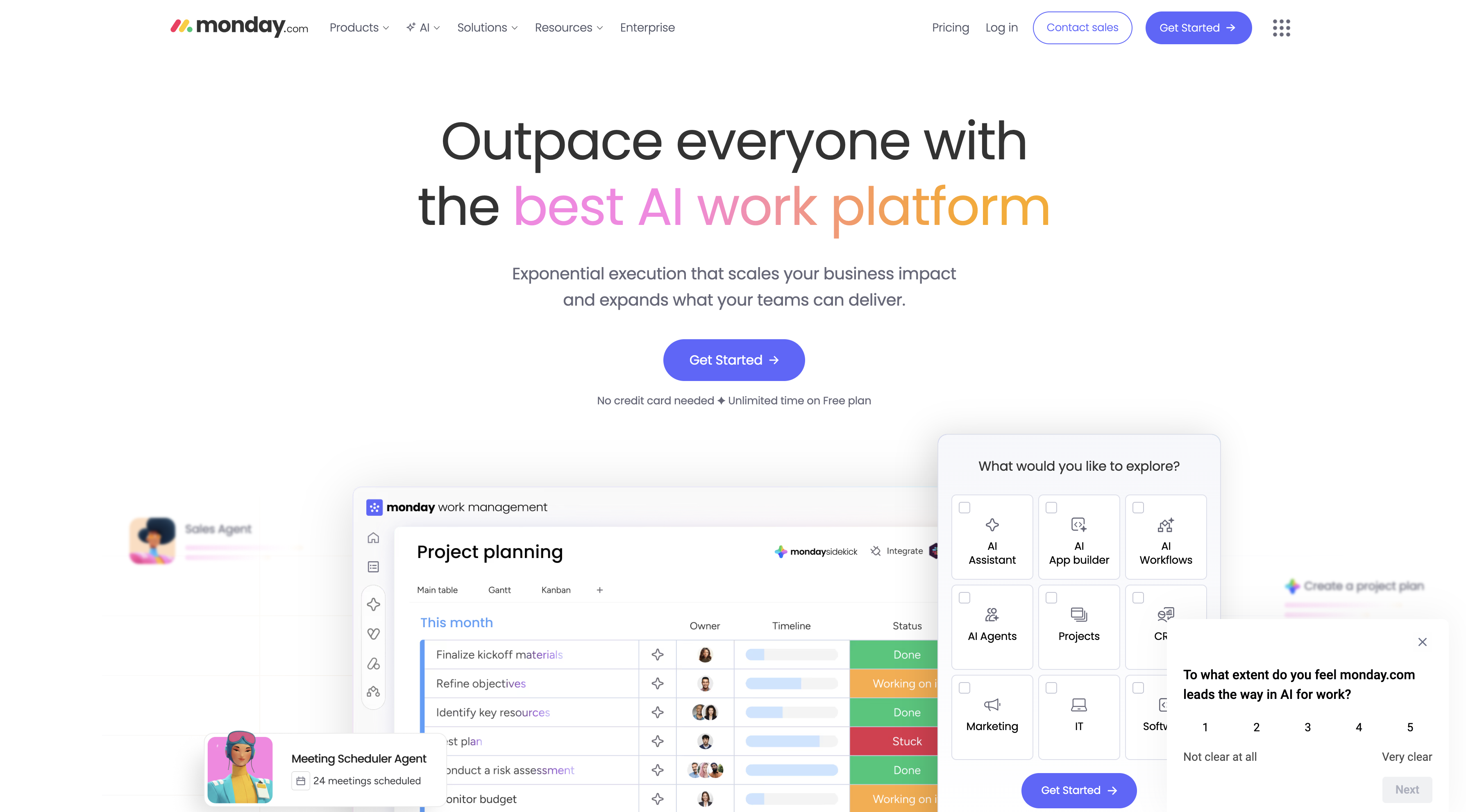
I describe Monday .com less as a project management tool and more as a "Work OS." It's a highly flexible platform where you can essentially build your own applications for anything from CRM and HR to software development. Its visual and customizable nature is its greatest strength.
Monday.com.png
I describe Monday .com less as a project management tool and more as a "Work OS." It's a highly flexible platform where you can essentially build your own applications for anything from CRM and HR to software development. Its visual and customizable nature is its greatest strength.
- Pros
- Extremely flexible and visually customizable.
- Dashboards are great for stakeholder reporting.
- Powerful automations are easy to set up.
- Cons
- Initial setup can be complex and overwhelming.
- Per-user pricing gets expensive as teams grow.
Jira
 Jira.png
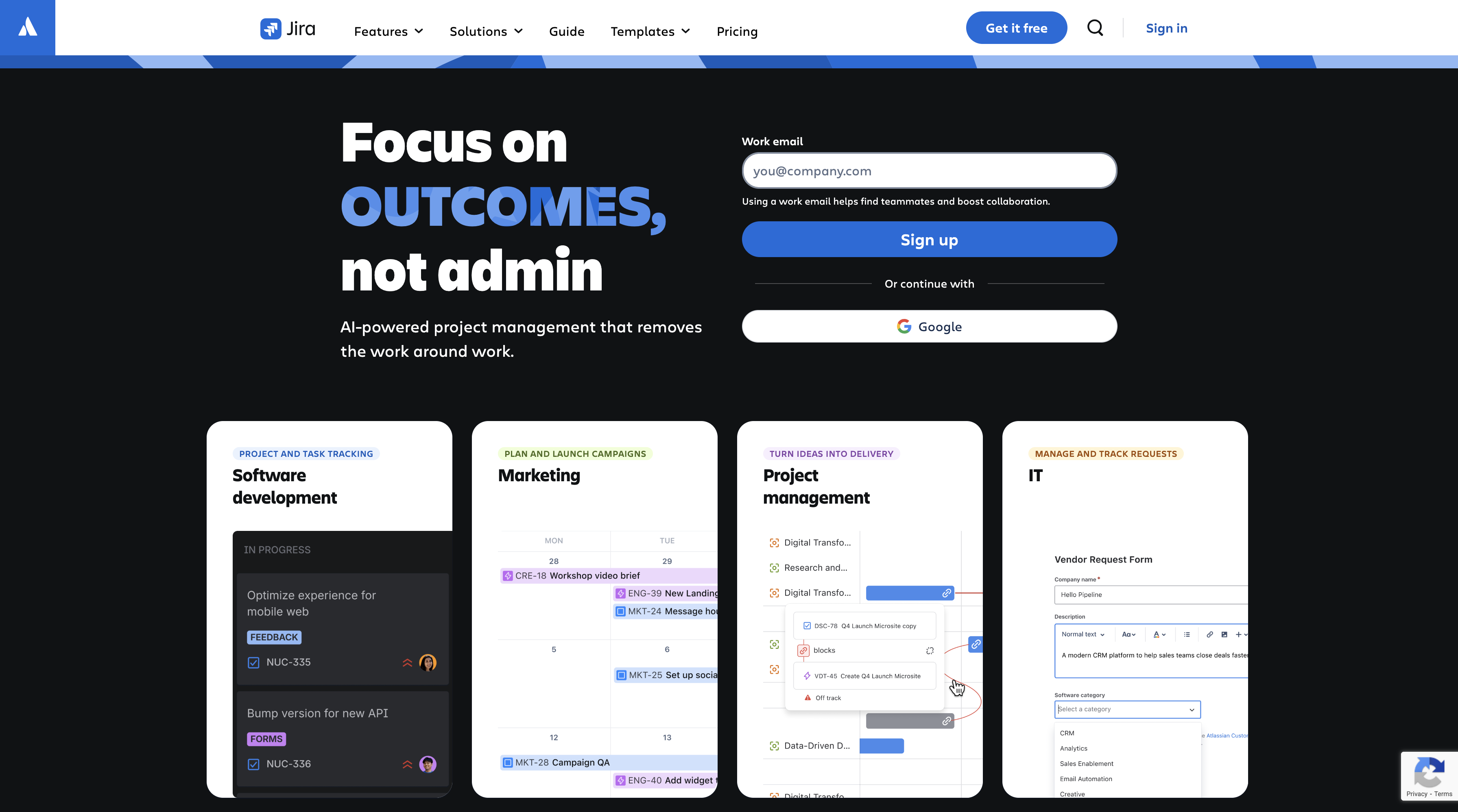
In the world of software development, Jira is the undisputed king. As a computer scientist, I've used it on countless projects. It is purpose-built for the methodologies that drive tech teams. In 2026, Jira’s AI has become a true partner, capable of auto-writing user stories and suggesting code reviewers.
Jira.png
In the world of software development, Jira is the undisputed king. As a computer scientist, I've used it on countless projects. It is purpose-built for the methodologies that drive tech teams. In 2026, Jira’s AI has become a true partner, capable of auto-writing user stories and suggesting code reviewers.
- Pros
- Perfectly tailored for Agile, Scrum, and Kanban.
- Powerful reporting for development-specific metrics.
- Integrates seamlessly with the Atlassian suite.
- Cons
- Steep learning curve for non-technical teams.
- Interface can feel cluttered and complex.
Wrike
 Wrike.png
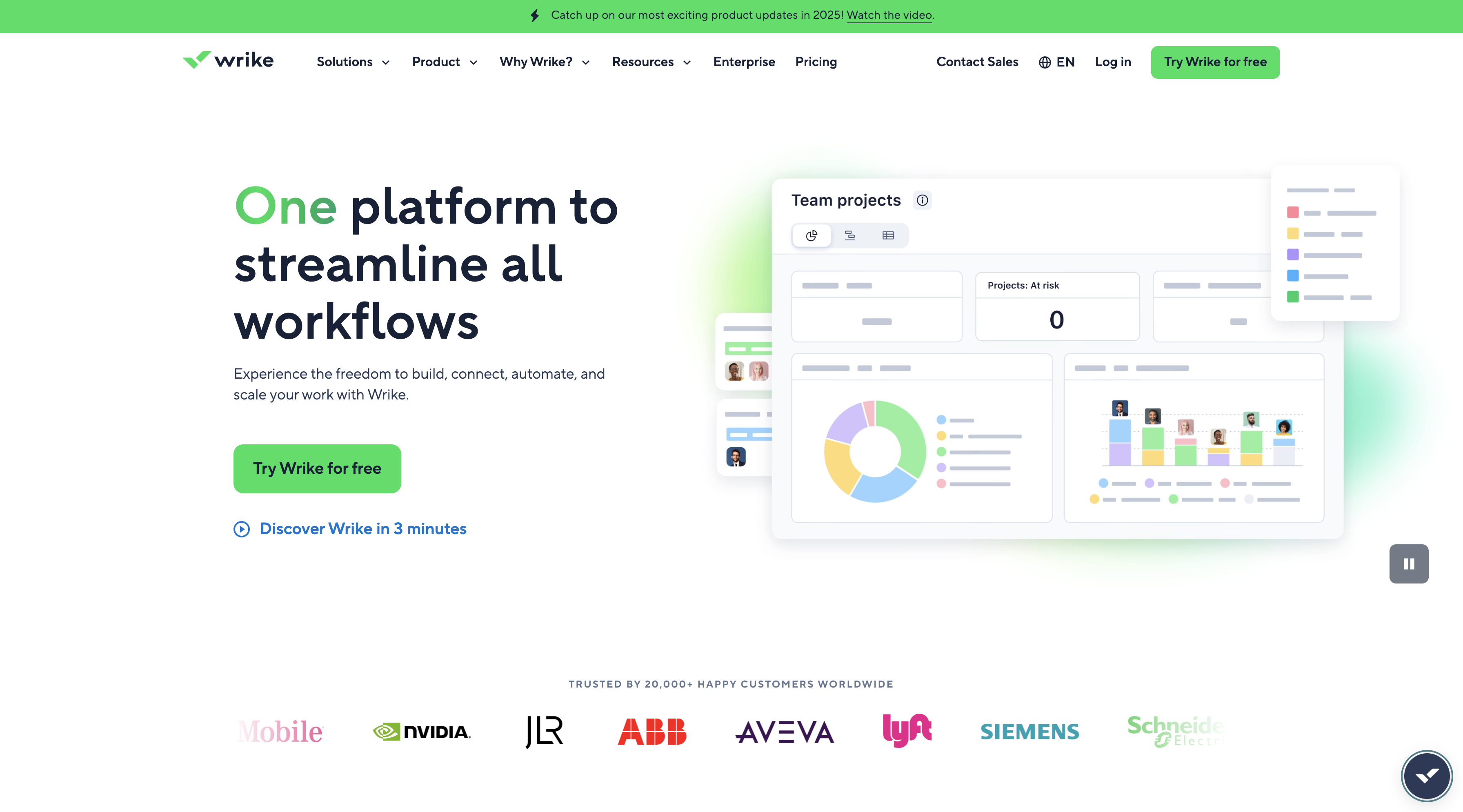
When I work with large marketing departments or professional services teams, Wrike is a top contender. It is built to handle high-volume, complex projects and has a strong focus on resource management and time tracking, which is critical for those teams.
Wrike.png
When I work with large marketing departments or professional services teams, Wrike is a top contender. It is built to handle high-volume, complex projects and has a strong focus on resource management and time tracking, which is critical for those teams.
- Pros
- Great for managing complex, high-volume work.
- Excellent proofing and approval tools for creatives.
- Robust features for managing team resources.
- Cons
- Interface feels a bit dated compared to rivals.
- Can be expensive for enterprise-level features.
Smartsheet
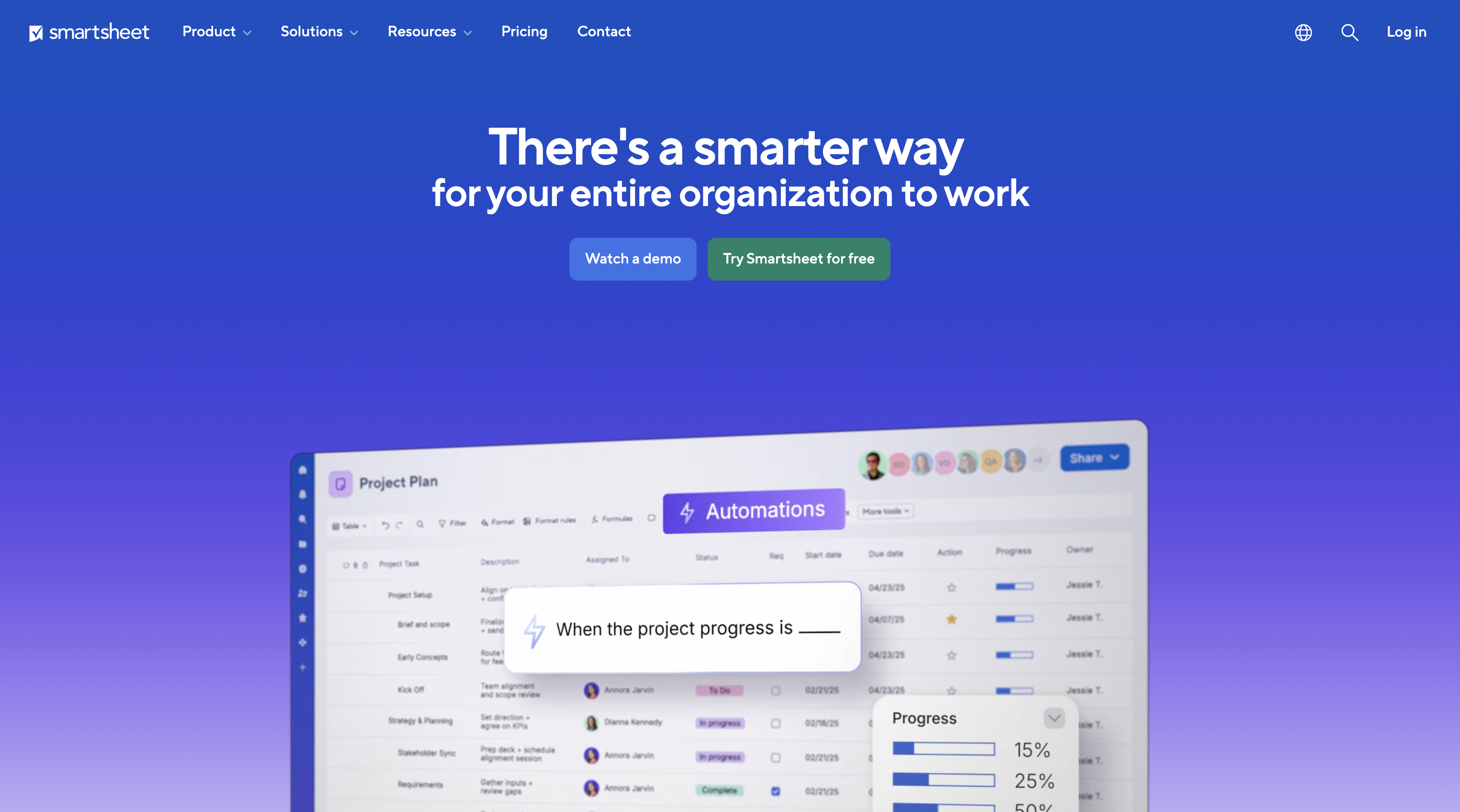 Smartsheet.png
I always say Smartsheet is for the professional who loves the power and familiarity of Excel but needs the collaborative features of a modern PM tool. It brilliantly merges the grid-like interface of a spreadsheet with the functionality of a project management platform.
Smartsheet.png
I always say Smartsheet is for the professional who loves the power and familiarity of Excel but needs the collaborative features of a modern PM tool. It brilliantly merges the grid-like interface of a spreadsheet with the functionality of a project management platform.
- Pros
- Familiar spreadsheet interface is easy to adopt.
- Powerful automation and reporting capabilities.
- Highly scalable for enterprise-wide use.
- Cons
- Core interface may not suit visual thinkers.
- Less focused on team communication features.
Comparison - Project & Task Management
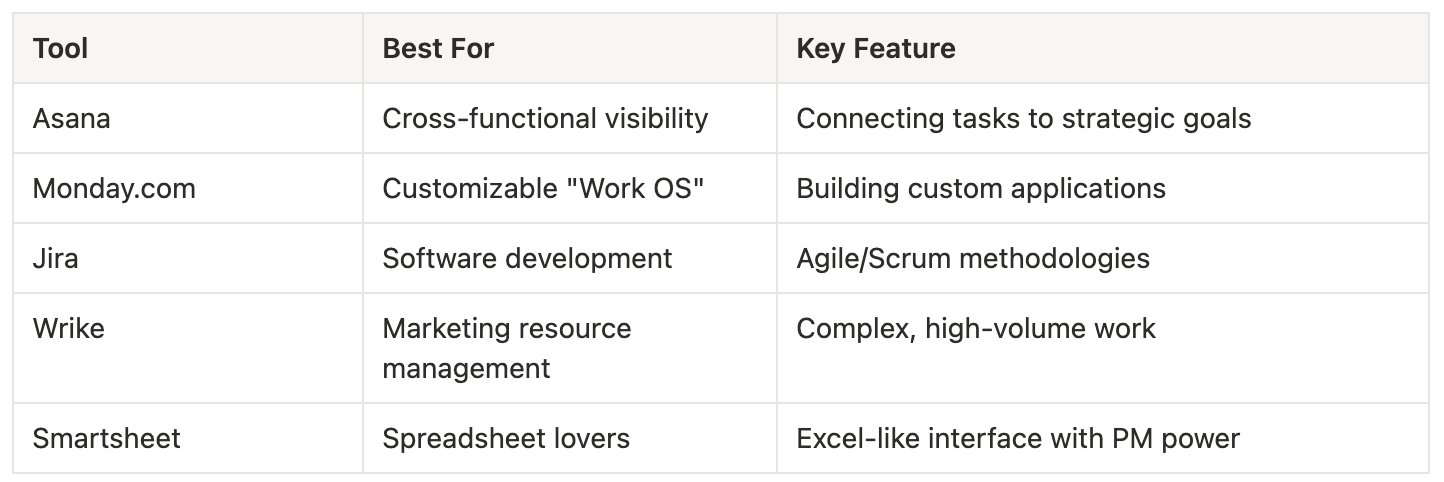 Comparison Table - Project & Task Management
3. Document Collaboration & Cloud Storage
Centralizing "truth" is the ultimate goal here. These tools are the bedrock of modern knowledge management, ensuring everyone is working from the most up-to-date information.
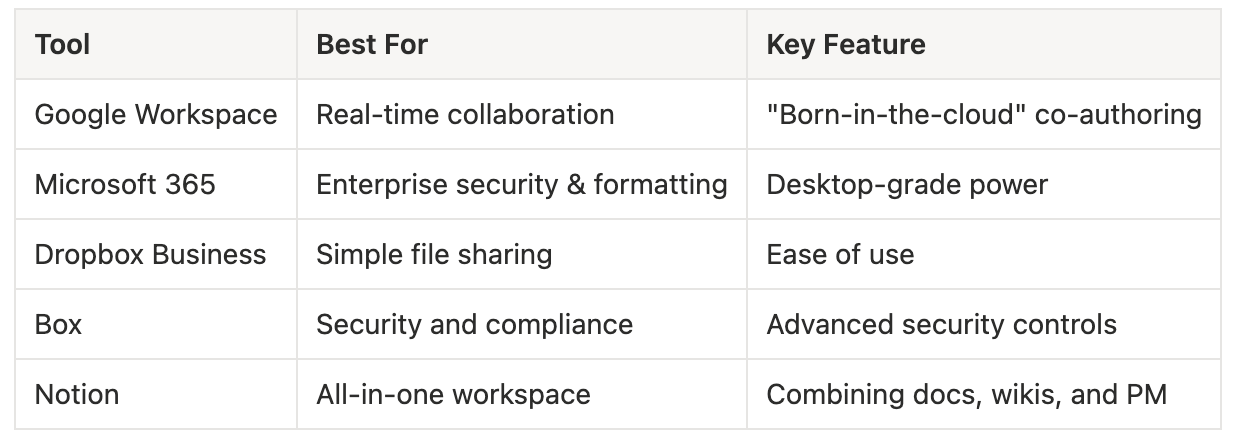
Google Workspace
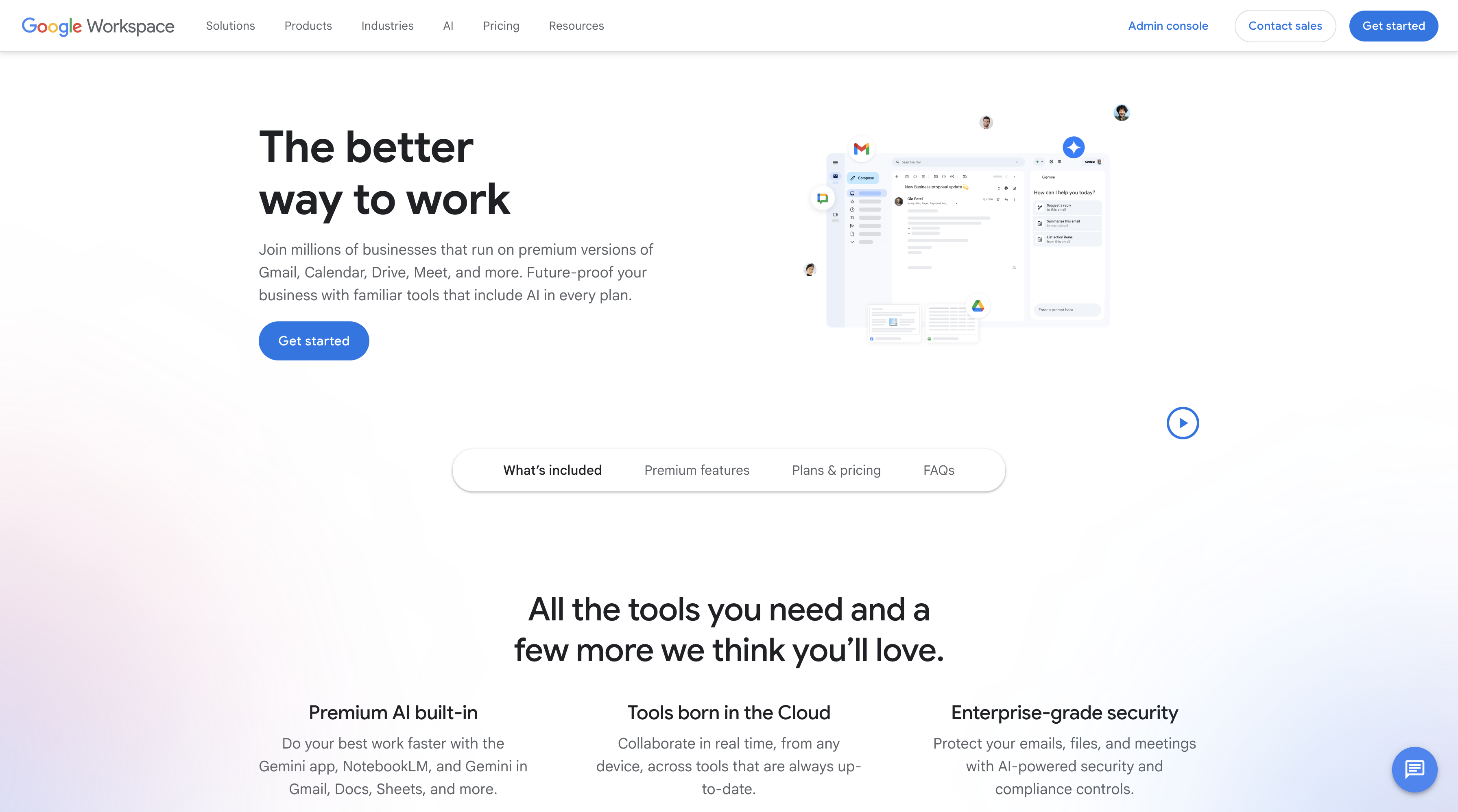 Google Workspace.png
In my experience, nothing beats Google Workspace for pure, real-time, "born-in-the-cloud" collaboration. It was built for this from day one. The integration of Gemini AI into Docs and Sheets for instant data analysis and content generation is incredibly powerful.
Google Workspace.png
In my experience, nothing beats Google Workspace for pure, real-time, "born-in-the-cloud" collaboration. It was built for this from day one. The integration of Gemini AI into Docs and Sheets for instant data analysis and content generation is incredibly powerful.
- Pros
- Fastest, most seamless real-time co-authoring.
- Simple, intuitive, and very easy to use.
- Strong search capabilities across all apps.
- Cons
- Offline functionality still lags behind desktop apps.
- Advanced formatting can be less robust.
Microsoft 365
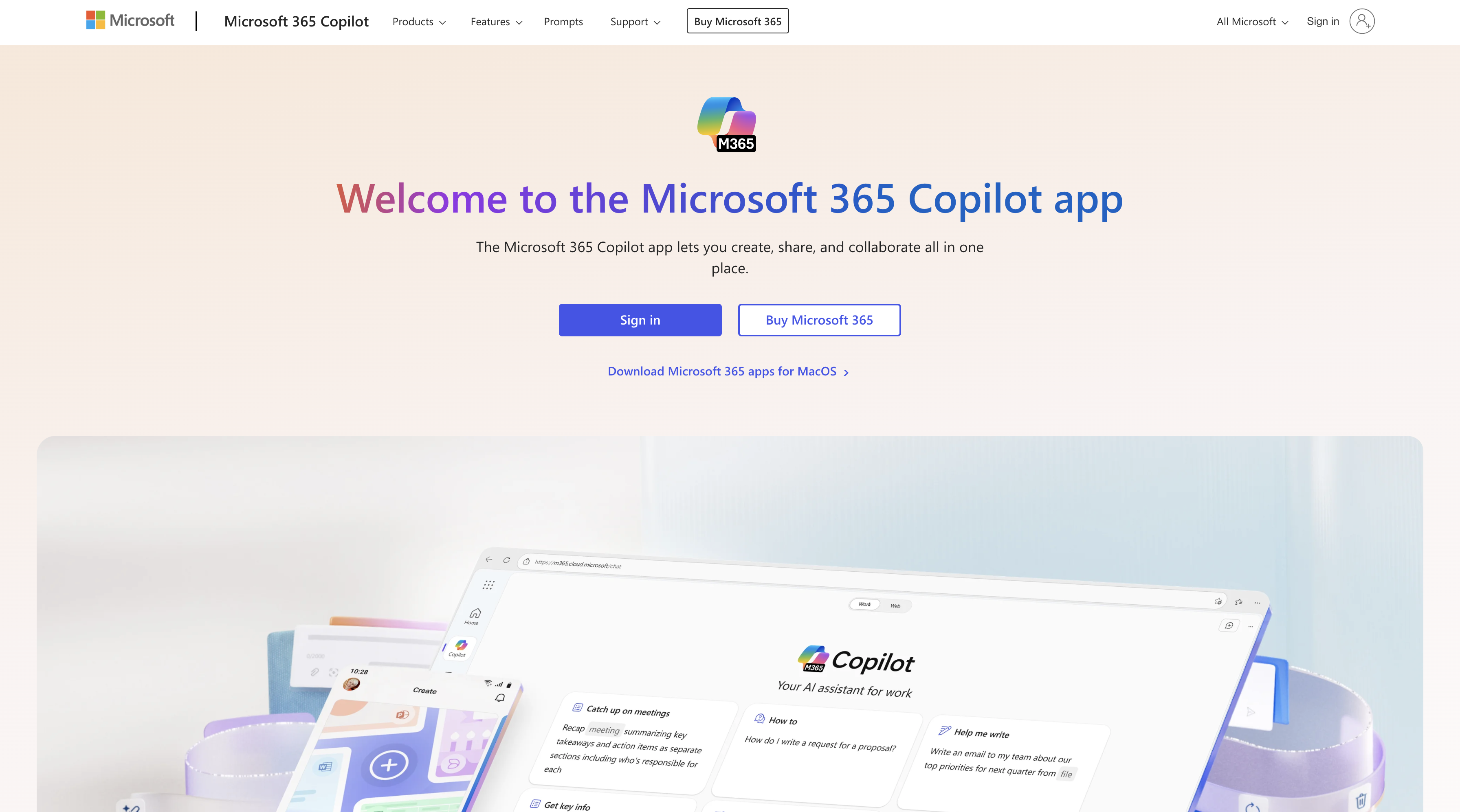 Microsoft 365.png
For enterprises that demand desktop-grade power, especially with massive Excel spreadsheets and complex Word documents, M365 is the secure standard. It's the choice for organizations where compliance and advanced formatting are non-negotiable.
Microsoft 365.png
For enterprises that demand desktop-grade power, especially with massive Excel spreadsheets and complex Word documents, M365 is the secure standard. It's the choice for organizations where compliance and advanced formatting are non-negotiable.
- Pros
- Offers unparalleled desktop application power.
- Industry-leading security and compliance controls.
- Familiar interface for billions of users.
- Cons
- Real-time web collaboration can feel slower.
- OneDrive syncing can occasionally cause issues.
Dropbox Business
 Dropbox Business.png
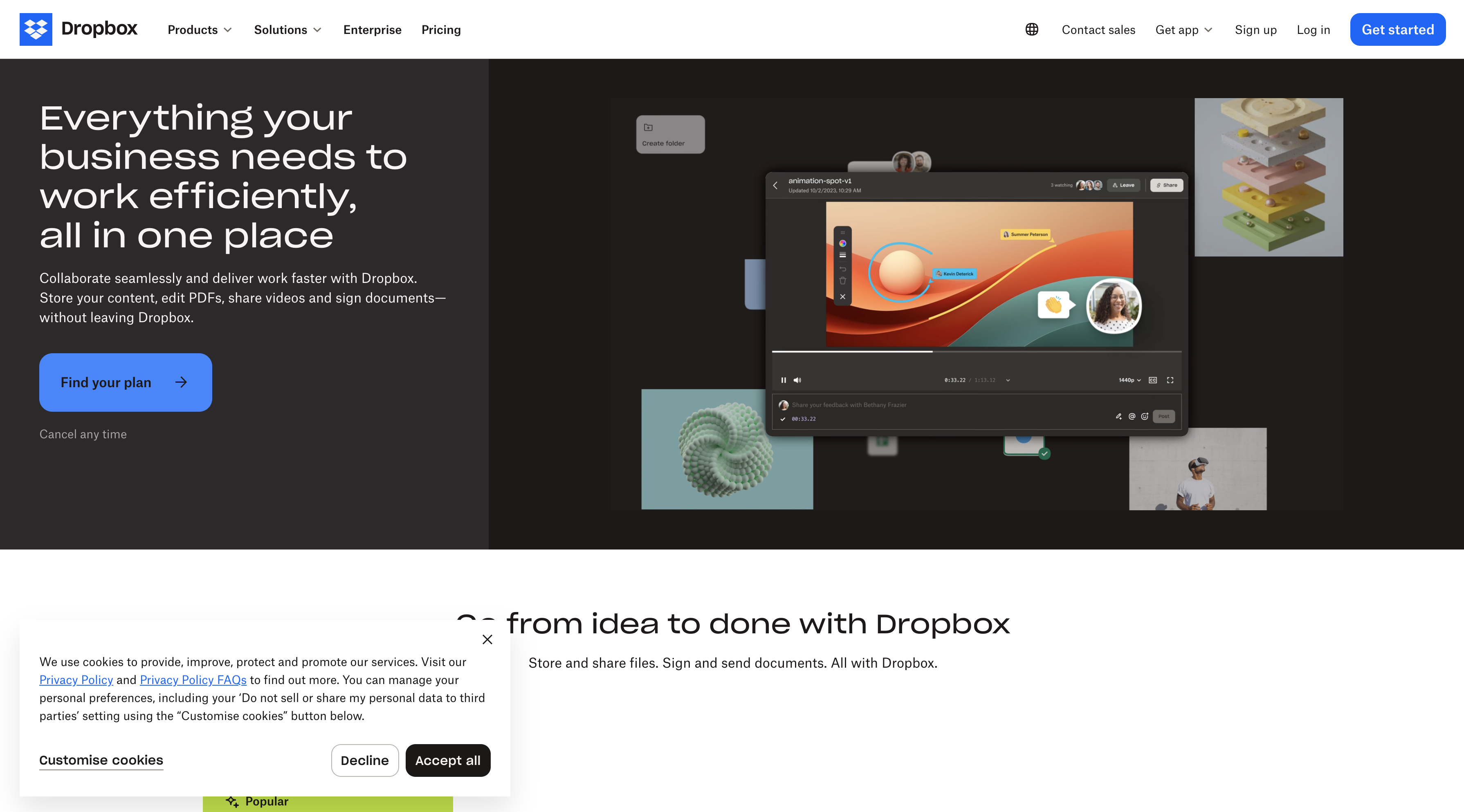
Dropbox pioneered cloud file storage for the masses, and it has evolved into a solid collaboration tool. I find its strength lies in its simplicity and reliability for storing and sharing files, especially large media assets.
Dropbox Business.png
Dropbox pioneered cloud file storage for the masses, and it has evolved into a solid collaboration tool. I find its strength lies in its simplicity and reliability for storing and sharing files, especially large media assets.
- Pros
- Extremely simple and reliable for file sharing.
- Excellent performance for syncing large files.
- Clean interface with minimal user friction.
- Cons
- Native document editing is less integrated.
- Can be more expensive for storage alone.
Box
 Box.png
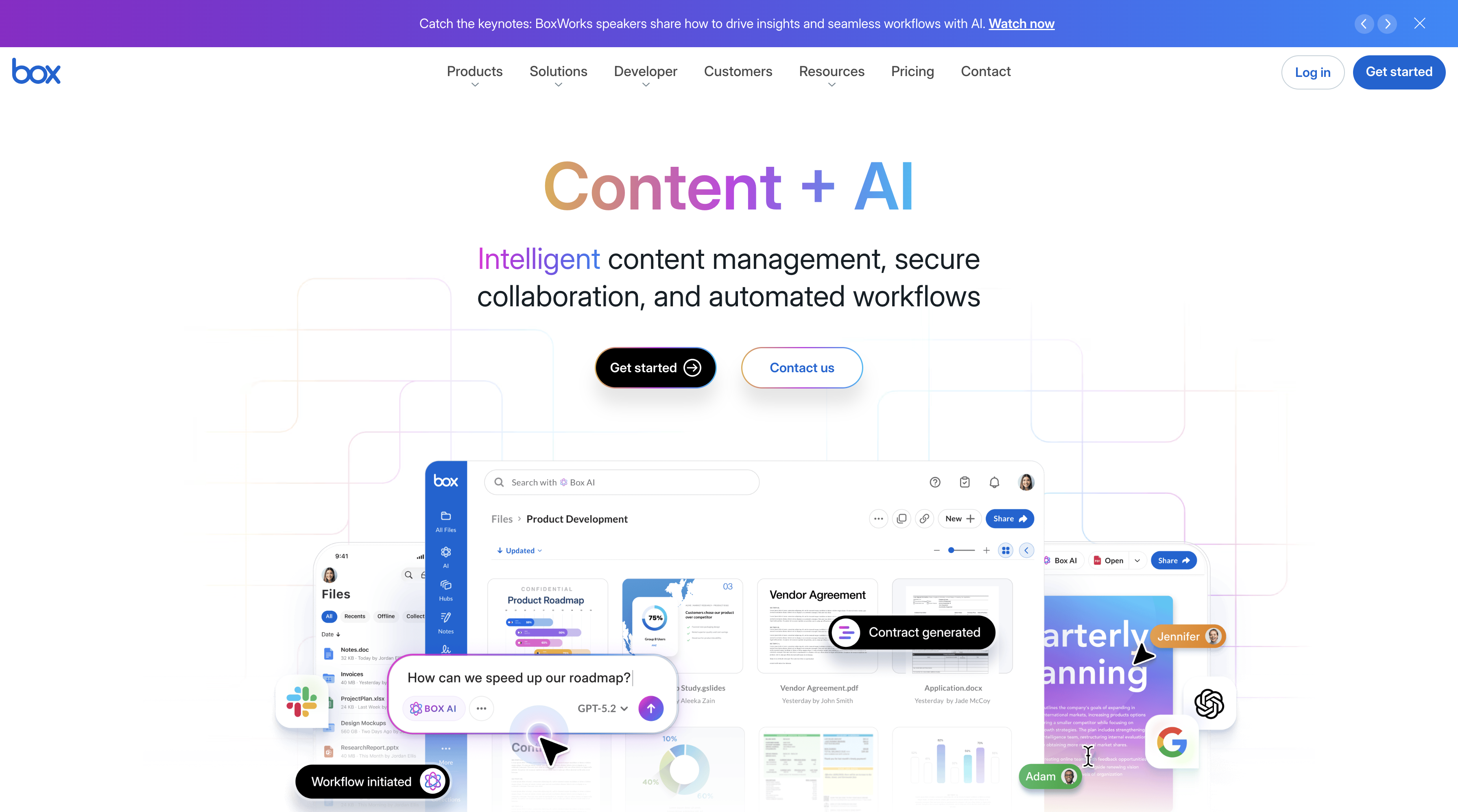
I think of Box as the enterprise-first version of Dropbox. It was built from the ground up with a focus on security, governance, and workflow automation, making it a favorite in industries like legal and financial services.
Box.png
I think of Box as the enterprise-first version of Dropbox. It was built from the ground up with a focus on security, governance, and workflow automation, making it a favorite in industries like legal and financial services.
- Pros
- Superior, granular security and compliance features.
- Strong workflow automation capabilities (Box Relay).
- Platform-neutral and integrates with many tools.
- Cons
- Can be more expensive than other options.
- User interface is functional but less modern.
Notion
 Notion.png
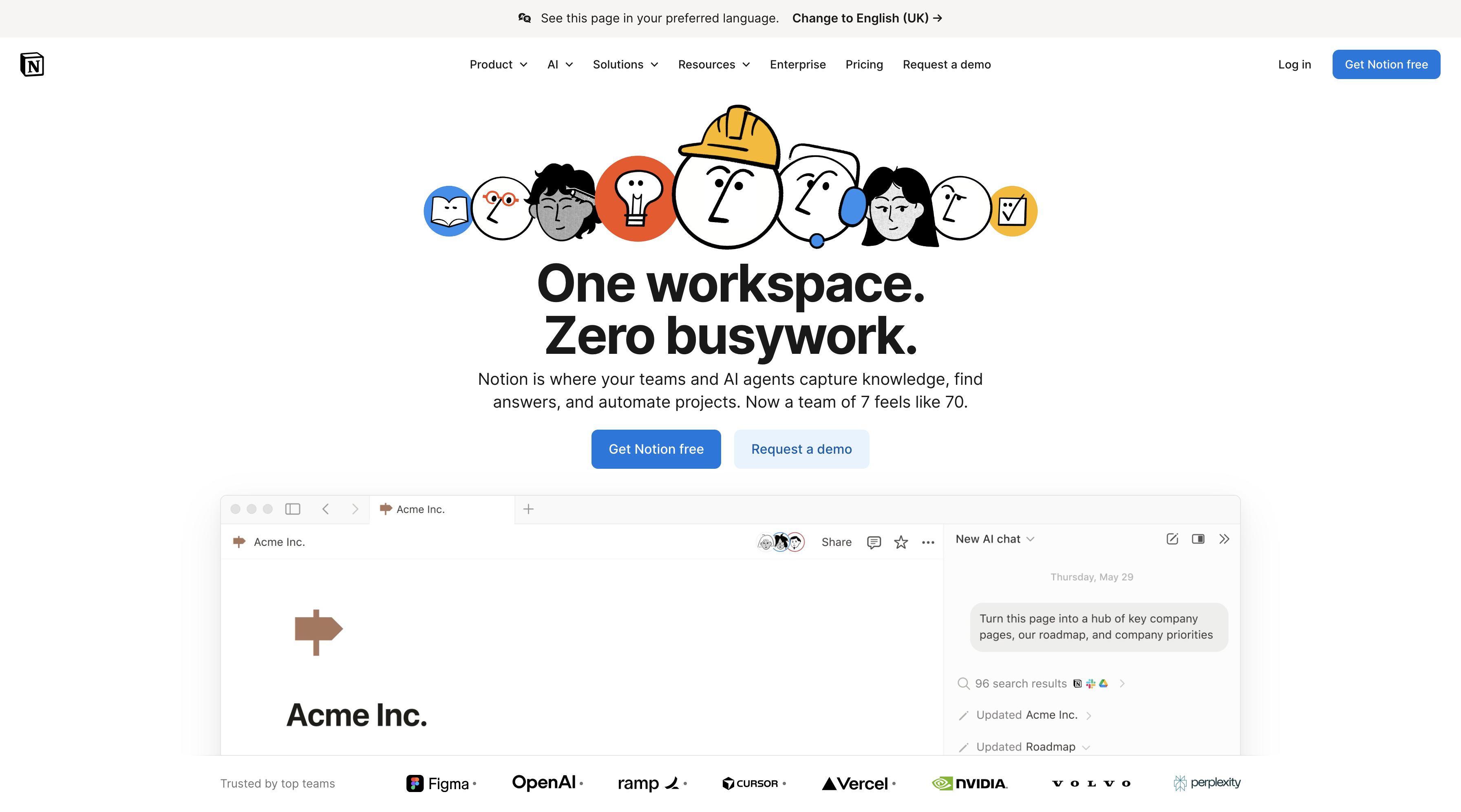
Notion is the wildcard I've come to love. It's an "all-in-one" workspace that elegantly combines documents, wikis, and light project management. For teams looking to replace their old, clunky intranet and multiple other apps, it's a uniquely flexible and aesthetic solution.
Notion.png
Notion is the wildcard I've come to love. It's an "all-in-one" workspace that elegantly combines documents, wikis, and light project management. For teams looking to replace their old, clunky intranet and multiple other apps, it's a uniquely flexible and aesthetic solution.
- Pros
- Extremely flexible and aesthetically pleasing.
- Combines documents, wikis, and databases.
- Great for building a central knowledge base.
- Cons
- Can become very disorganized without governance.
- Lacks features of dedicated PM tools.
Comparison - Document Collaboration & Cloud Storage
 Comparison Table - Document Collaboration & Cloud Storage
4. Creative & Design Collaboration
Creative teams have always had unique needs, but today that includes handling high-resolution assets and leveraging Generative AI that respects strict brand guidelines. This is where the real innovation is happening.
ImagineArt Business
 ImagineArt Business.png
Now, when it comes to creative collaboration, my top recommendation for 2026 is ImagineArt Business. It has claimed the #1 spot because it's no longer just an image generator; it's a full-scale Generative AI Suite designed for the enterprise. Its "Ideate Studio" allows my teams to brainstorm on a real-time canvas where AI agents turn simple text prompts into high-fidelity visuals instantly. It's a paradigm shift.
ImagineArt Business.png
Now, when it comes to creative collaboration, my top recommendation for 2026 is ImagineArt Business. It has claimed the #1 spot because it's no longer just an image generator; it's a full-scale Generative AI Suite designed for the enterprise. Its "Ideate Studio" allows my teams to brainstorm on a real-time canvas where AI agents turn simple text prompts into high-fidelity visuals instantly. It's a paradigm shift.
- Key Features
- Nano Banana Model: State-of-the-art multimodal AI for text-to-image/video.
- Enterprise Workflows: Automate repetitive design tasks (e.g., generating 100 ad variations in minutes).
- Security: SOC2 Type II compliance ensures your proprietary brand data is never used to train public models.
- Connected AI Chat: links Gmail, Slack, Drive and Notion into one thread, so the agent works from your team’s real project context instead of a pasted summary.
- Pros
- Replaces over 20 disparate design tools.
- Built-in brand kits ensure consistency.
- Enables up to 5x faster production cycles.
- Cons
- Requires a new mindset for creative teams.
- Best for ideation, less for pixel-perfect edits.
Figma
 Figma.png
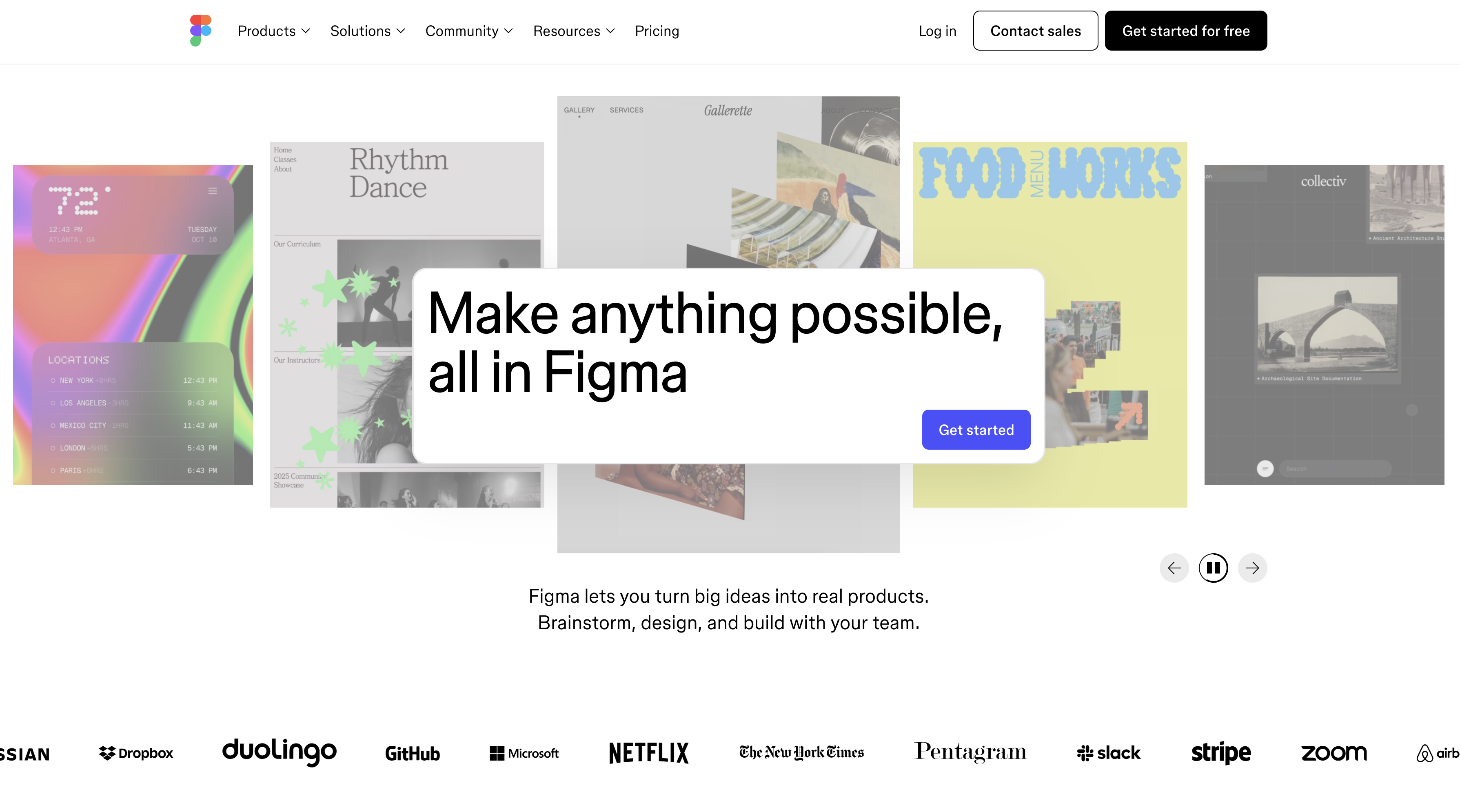
For UI/UX design, Figma is the undisputed industry standard. I use it, my teams use it, everyone uses it. Its real-time collaboration is flawless, and features like Dev Mode have become absolutely essential for a smooth handoff from design to engineering.
Figma.png
For UI/UX design, Figma is the undisputed industry standard. I use it, my teams use it, everyone uses it. Its real-time collaboration is flawless, and features like Dev Mode have become absolutely essential for a smooth handoff from design to engineering.
- Pros
- The gold standard for UI/UX design collaboration.
- Vast library of community plugins and files.
- Excellent for creating interactive prototypes.
- Cons
- Requires a constant, stable internet connection.
- Not suitable for print or video editing.
Adobe Creative Cloud for Teams
 Adobe Creative Cloud.png
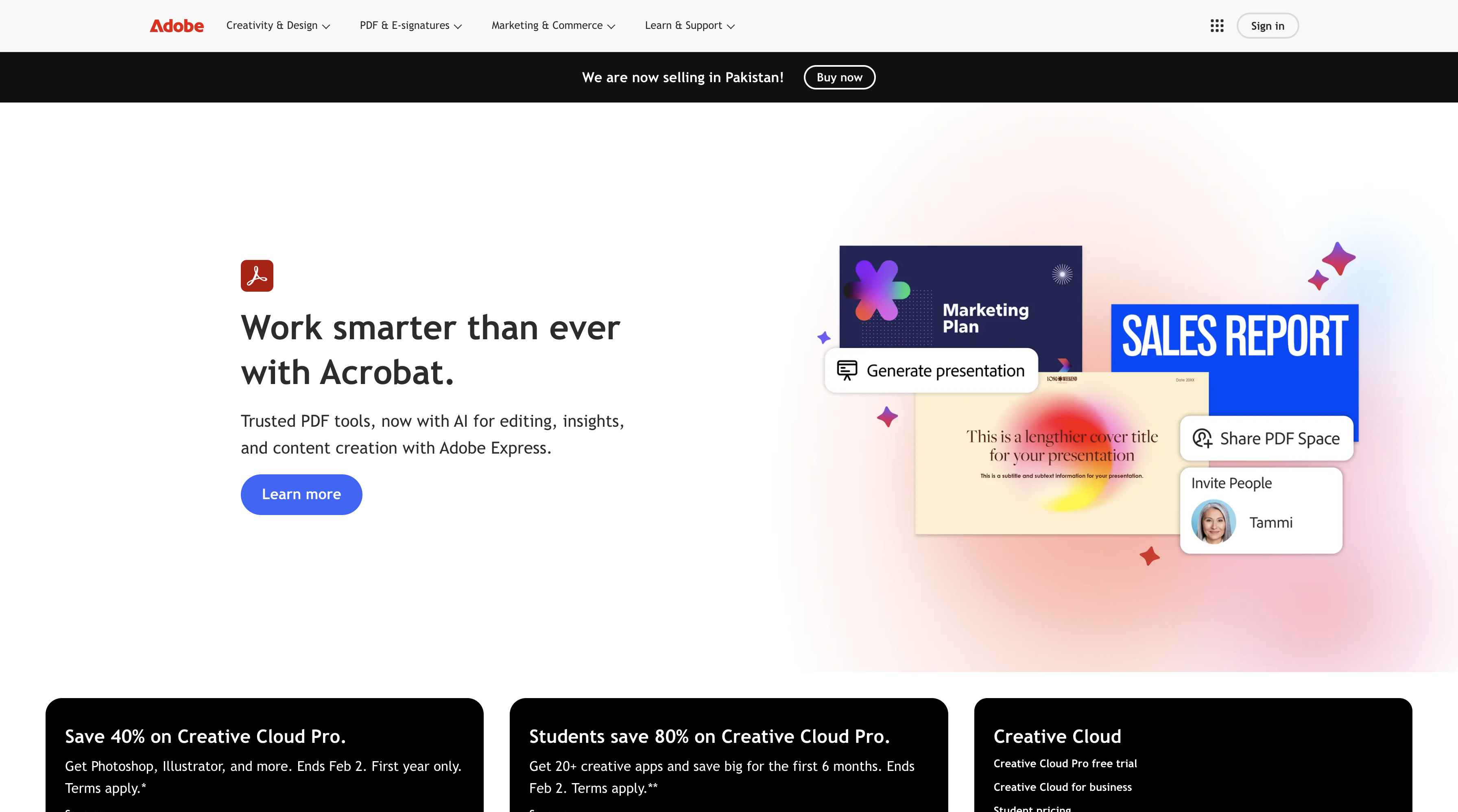
For professional photographers, video editors, and graphic designers, Adobe Creative Cloud remains the heavyweight champion. The sheer power of apps like Photoshop, Premiere Pro, and After Effects is unmatched for detailed, professional-grade creative work.
Adobe Creative Cloud.png
For professional photographers, video editors, and graphic designers, Adobe Creative Cloud remains the heavyweight champion. The sheer power of apps like Photoshop, Premiere Pro, and After Effects is unmatched for detailed, professional-grade creative work.
- Pros
- The industry standard for professional creatives.
- Unmatched power and depth in its tools.
- Seamless integration between different Adobe apps.
- Cons
- Subscription model is very expensive.
- Steep learning curve for new users.
Canva for Enterprise
 Canva Enterprise.png
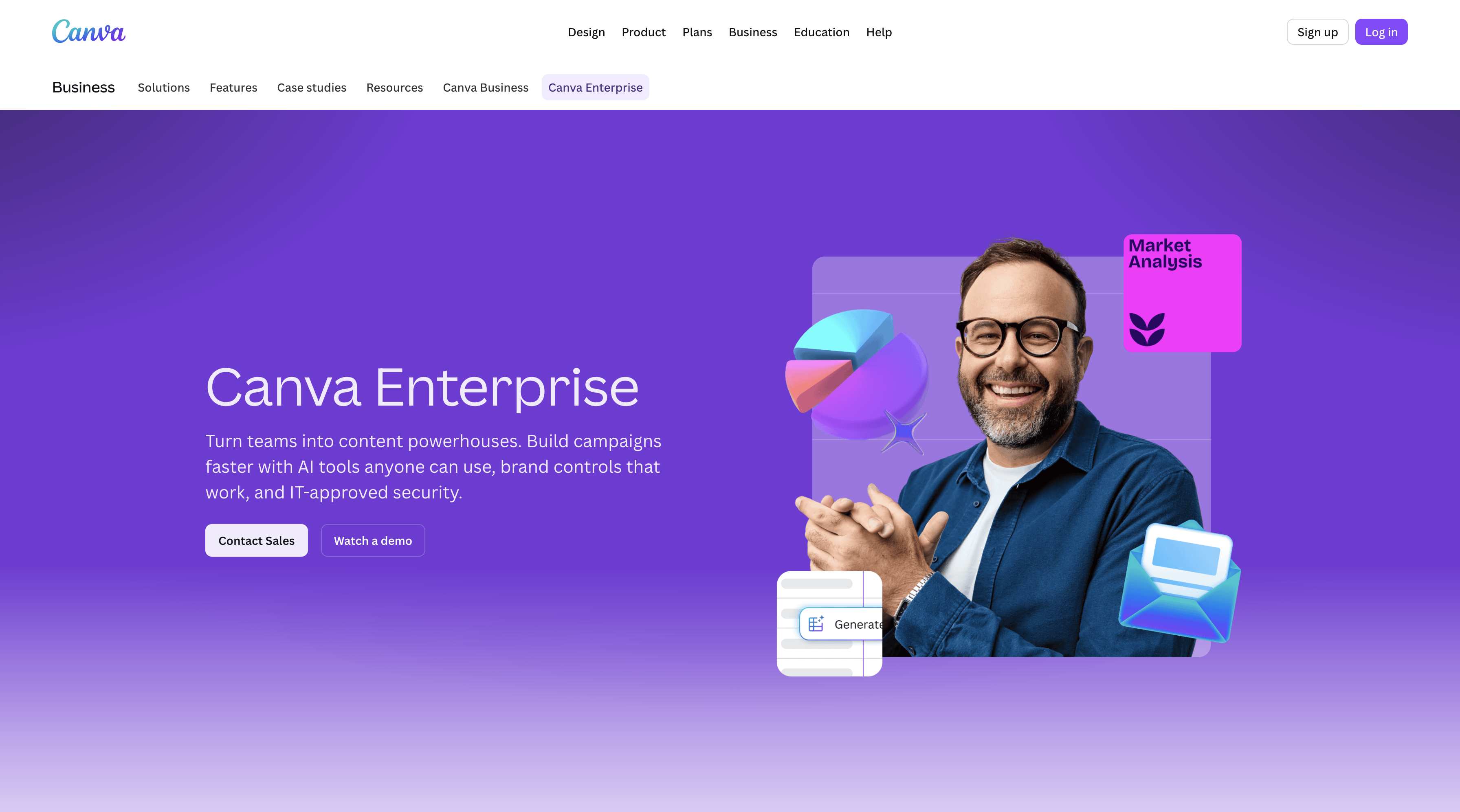
I recommend Canva to enterprise teams that need to empower their non-designers (like marketing or sales) to create on-brand content quickly. Its template-based system and brand kits make it incredibly easy to maintain visual consistency across the organization.
Canva Enterprise.png
I recommend Canva to enterprise teams that need to empower their non-designers (like marketing or sales) to create on-brand content quickly. Its template-based system and brand kits make it incredibly easy to maintain visual consistency across the organization.
- Pros
- Extremely easy for non-designers to use.
- Brand Kits help enforce brand consistency.
- Vast library of templates and stock assets.
- Cons
- Lacks the power of professional design tools.
- Creative output can sometimes look generic.
Miro
 Miro.png
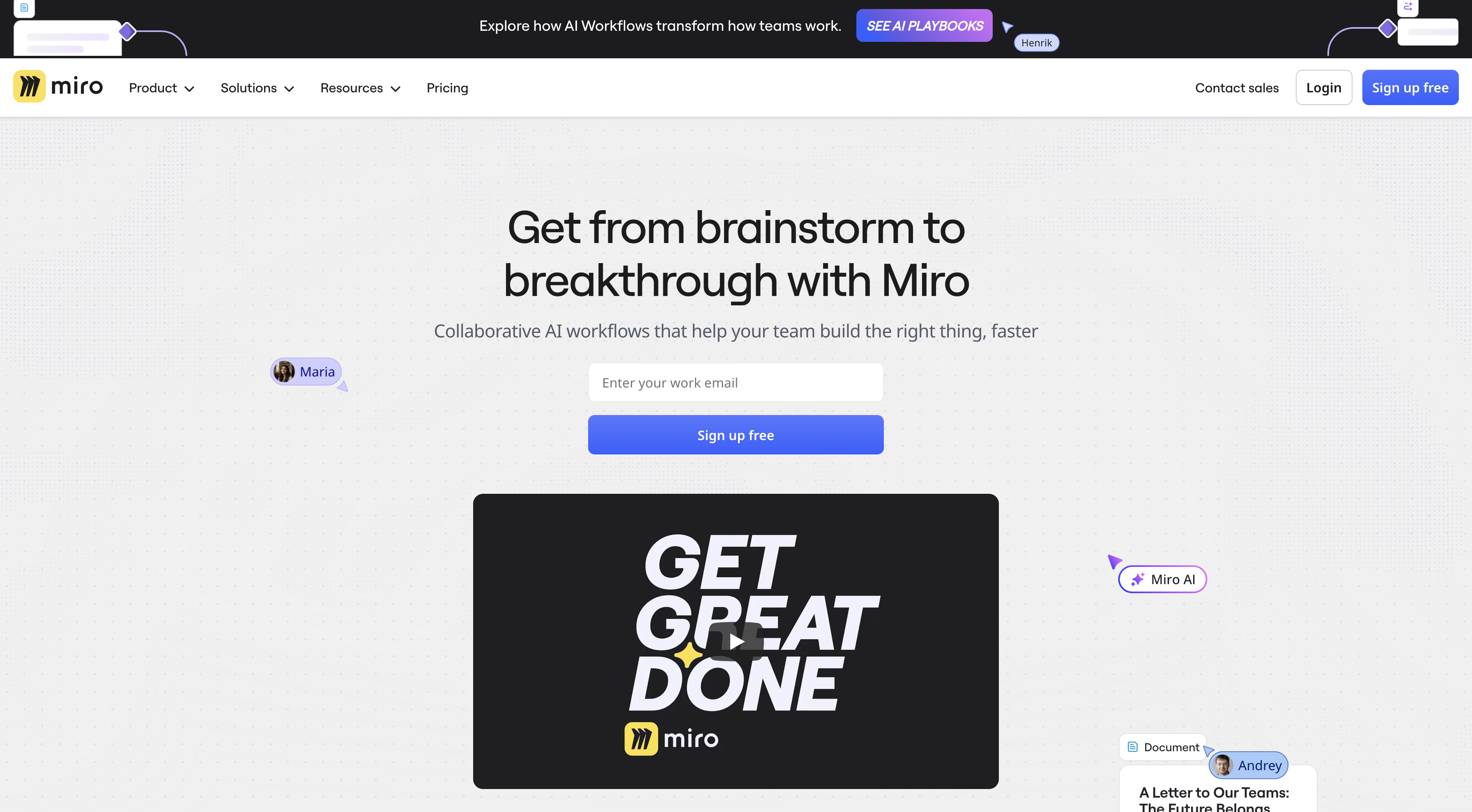
Miro is my digital "war room." It's the best visual collaboration board for mapping out complex systems, brainstorming campaign ideas, or running virtual workshops. It's an infinite canvas for your team's collective brain.
Miro.png
Miro is my digital "war room." It's the best visual collaboration board for mapping out complex systems, brainstorming campaign ideas, or running virtual workshops. It's an infinite canvas for your team's collective brain.
- Pros
- Excellent for brainstorming and visual planning.
- Huge library of useful, pre-built templates.
- Integrates well with other project tools.
- Cons
- Can feel overwhelming for very simple tasks.
- Performance can slow down on very large boards.
InVision
 inVision.png
InVision was a pioneer in the digital product design space. I see it as a strong tool for creating high-fidelity, interactive prototypes and managing the design feedback process with its Freehand digital whiteboard.
inVision.png
InVision was a pioneer in the digital product design space. I see it as a strong tool for creating high-fidelity, interactive prototypes and managing the design feedback process with its Freehand digital whiteboard.
- Pros
- Great for creating clickable, interactive prototypes.
- Strong tools for collaborative feedback on designs.
- Freehand is a solid whiteboarding tool.
- Cons
- Has lost market share to Figma recently.
- Some users report performance issues.
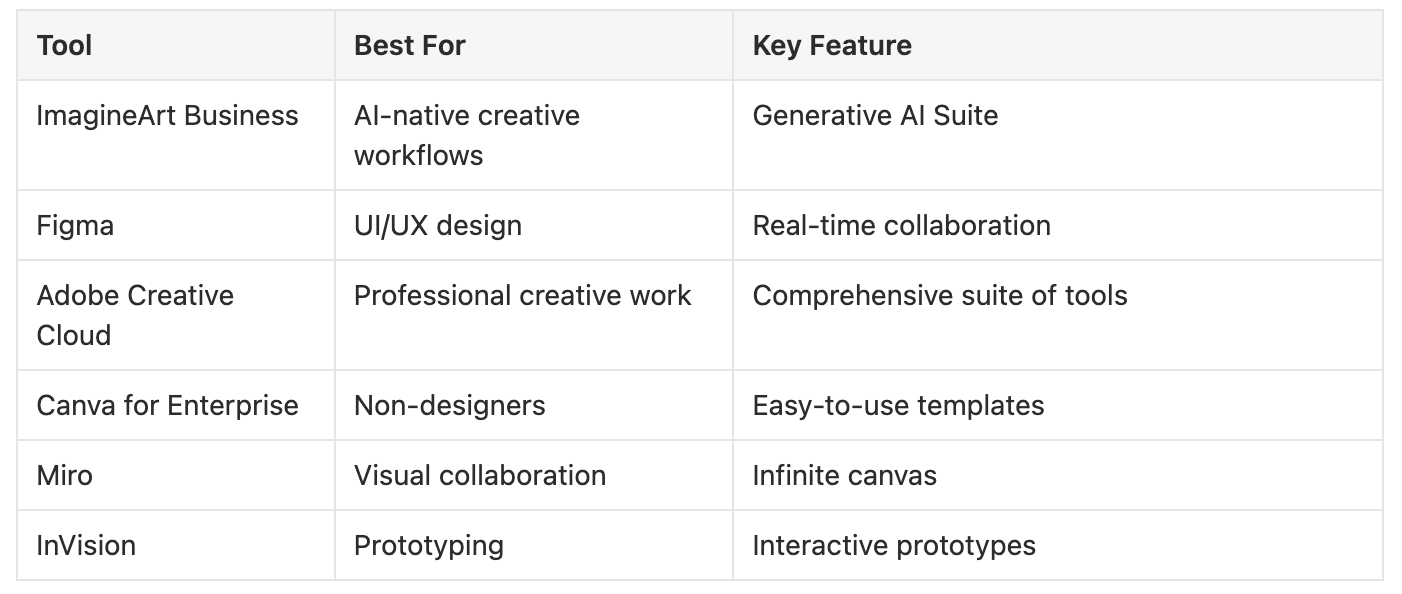
Comparison - Creative & Design Collaboration
 Comparison Table - Creative & Design Collaboration
5. Workflow Automation & Integration
These tools are the "glue" that connects your entire software stack. They are the secret to unlocking true efficiency, letting you automate the manual, repetitive tasks that drain your team's energy.
Zapier
 Zapier.png
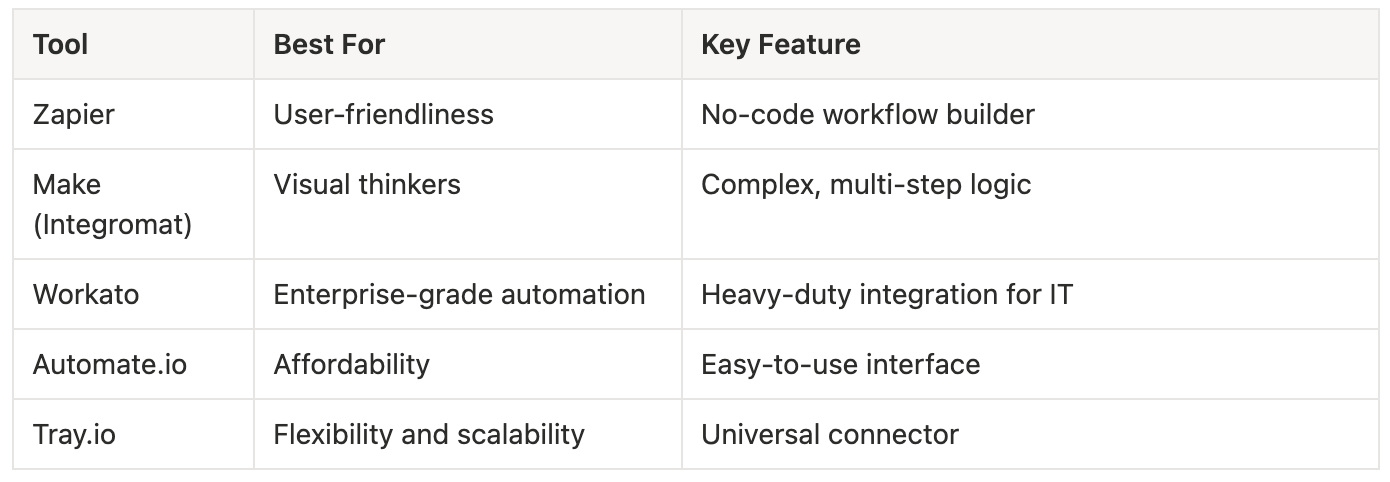
Now, when it comes to workflow automation, my number one pick has always been Zapier, and I'm not being biased. It's a software that allows almost anyone to create "Zaps"—automated workflows—that can do anything you can imagine, provided you have the apps to connect. It is referred to as one of the most user-friendly platforms for a reason. In 2026, "Zapier Central" even lets you teach AI bots to handle your workflows using natural language.
Zapier.png
Now, when it comes to workflow automation, my number one pick has always been Zapier, and I'm not being biased. It's a software that allows almost anyone to create "Zaps"—automated workflows—that can do anything you can imagine, provided you have the apps to connect. It is referred to as one of the most user-friendly platforms for a reason. In 2026, "Zapier Central" even lets you teach AI bots to handle your workflows using natural language.
- Pros
- Incredibly easy to use, no code required.
- Supports thousands of different app integrations.
- Great for empowering non-technical team members.
- Cons
- Can become very expensive at high volumes.
- Limited logic compared to developer tools.
Make (Integromat)
 Make.png
I recommend Make to users who are more visual thinkers and need to build more complex, multi-step logic than Zapier allows. Its visual, drag-and-drop interface for building scenarios is powerful and gives you a clearer picture of the data flow.
Make.png
I recommend Make to users who are more visual thinkers and need to build more complex, multi-step logic than Zapier allows. Its visual, drag-and-drop interface for building scenarios is powerful and gives you a clearer picture of the data flow.
- Pros
- Visual interface is great for complex logic.
- More flexible and powerful than Zapier.
- Often more cost-effective for complex tasks.
- Cons
- Has a steeper learning curve than Zapier.
- Fewer total app integrations are available.
Workato
 Workato.png
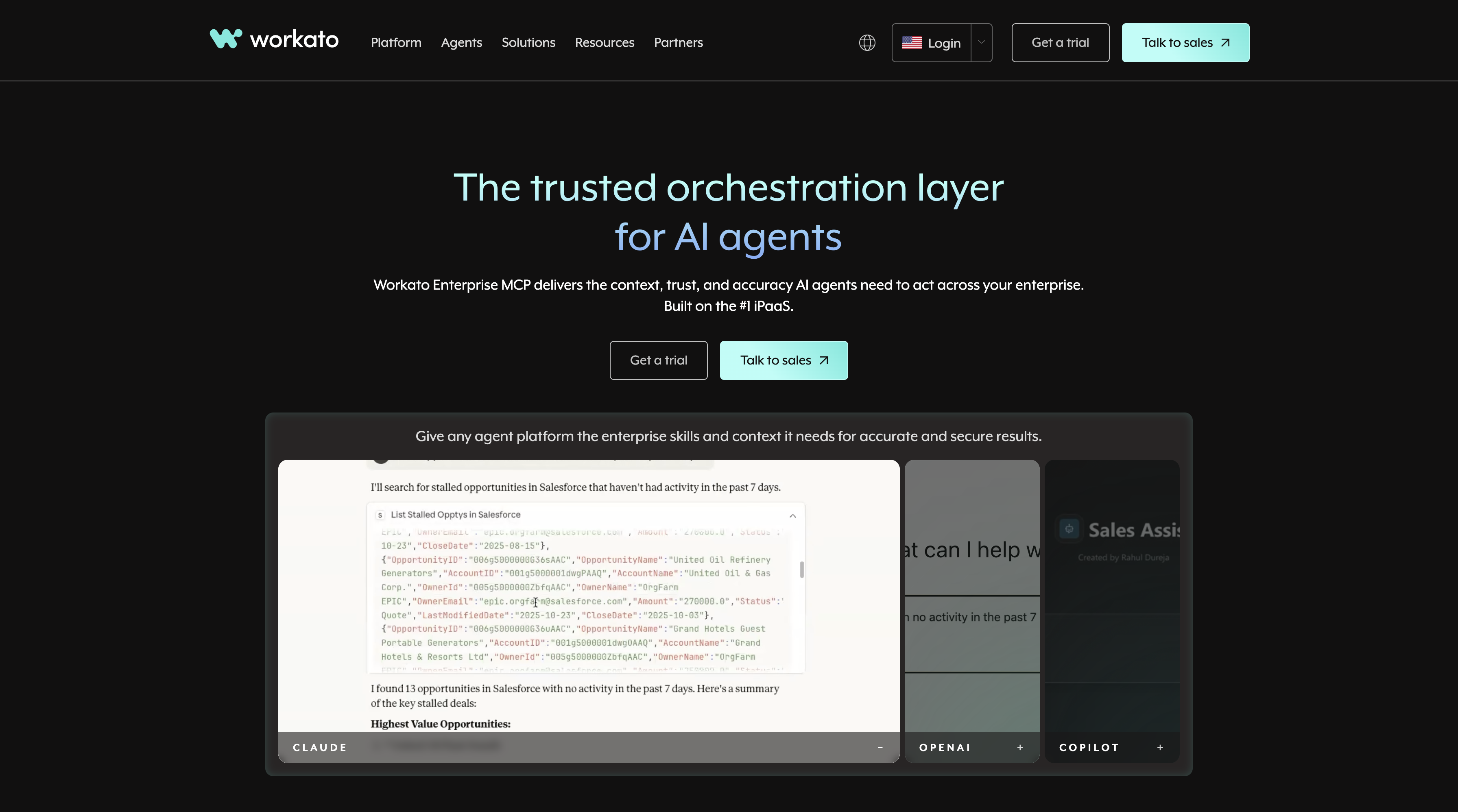
When my enterprise clients need a heavy-hitter for IT-managed, large-scale automation, I point them to Workato. It's designed for massive data scales and complex business processes, with a strong emphasis on security, governance, and compliance.
Workato.png
When my enterprise clients need a heavy-hitter for IT-managed, large-scale automation, I point them to Workato. It's designed for massive data scales and complex business processes, with a strong emphasis on security, governance, and compliance.
- Pros
- Built for enterprise-grade security and scale.
- Handles complex, mission-critical automations.
- Powerful tools for IT governance and management.
- Cons
- Requires specialized knowledge to implement.
- Much more expensive than other options.
Automate .io
I see Automate as a solid, user-friendly alternative in the automation space. It offers a simple drag-and-drop interface and is often praised for its affordability, making it a good entry point for teams just starting with automation.
- Pros
- Very easy to use and budget-friendly.
- Good for creating multi-step workflows.
- Offers a good range of popular integrations.
- Cons
- Has fewer total integrations than Zapier.
- Not as powerful for very complex logic.
Tray .io
 Tray.png
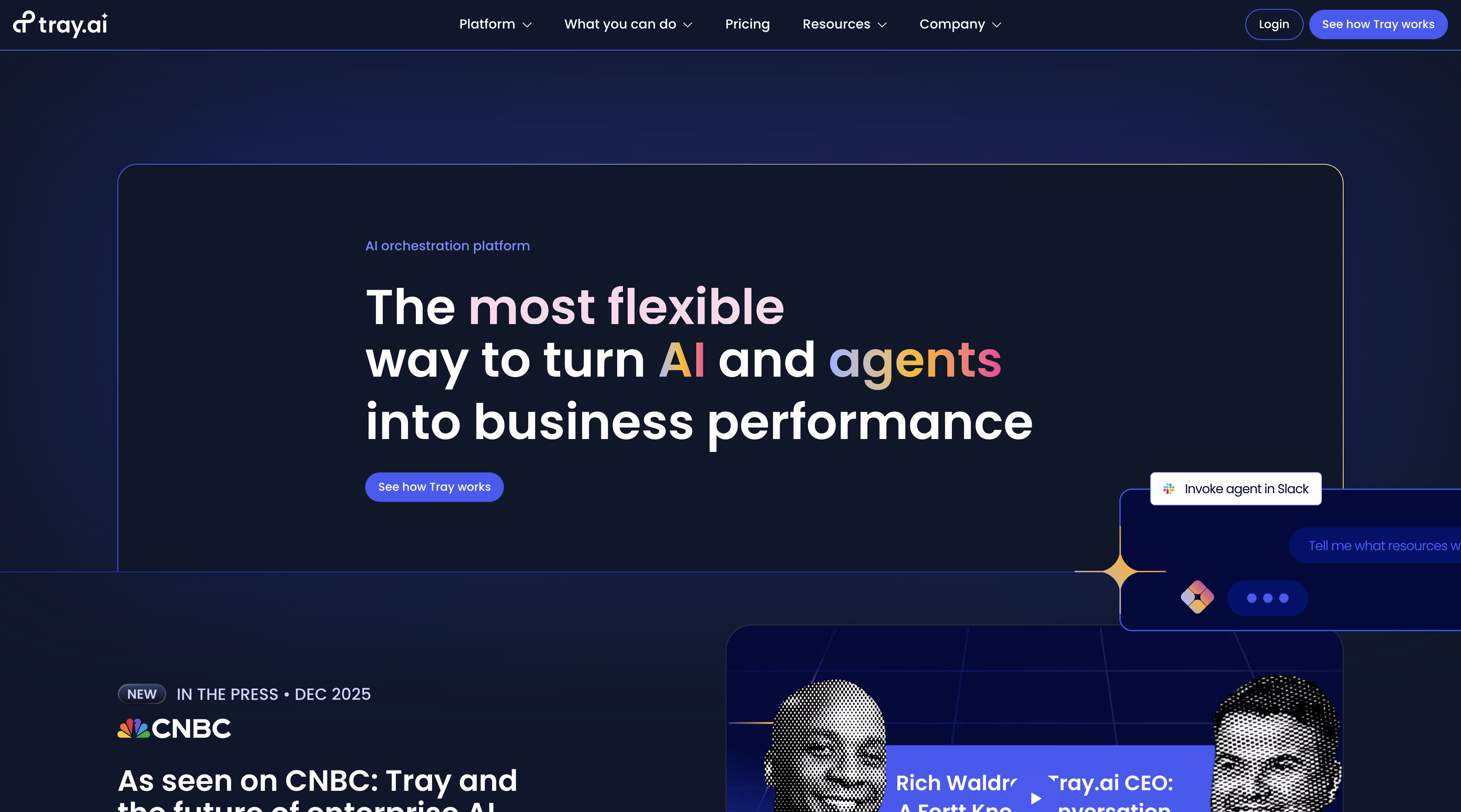
Tray sits in a sweet spot between the ease of Zapier and the power of Workato. I recommend it for teams that need more power and flexibility than a simple tool can offer, but aren't ready for a full-blown enterprise platform. Its "universal connector" is a great feature for connecting to any app with an API.
Tray.png
Tray sits in a sweet spot between the ease of Zapier and the power of Workato. I recommend it for teams that need more power and flexibility than a simple tool can offer, but aren't ready for a full-blown enterprise platform. Its "universal connector" is a great feature for connecting to any app with an API.
- Pros
- Highly flexible and scalable automation platform.
- Universal connector can access any API.
- Good balance of power and usability.
- Cons
- Can be complex for non-technical users.
- Pricing is aimed more at mid-market/enterprise.
Comparison - Workflow Automation & Integration
 Comparison - Workflow Automation & Integration
6. Video Collaboration & Whiteboarding
Sometimes a meeting needs to be more than just a grid of talking heads. It needs to be a collaborative space for ideas to grow. These tools provide the canvas for that to happen.
MURAL
 Mural.png
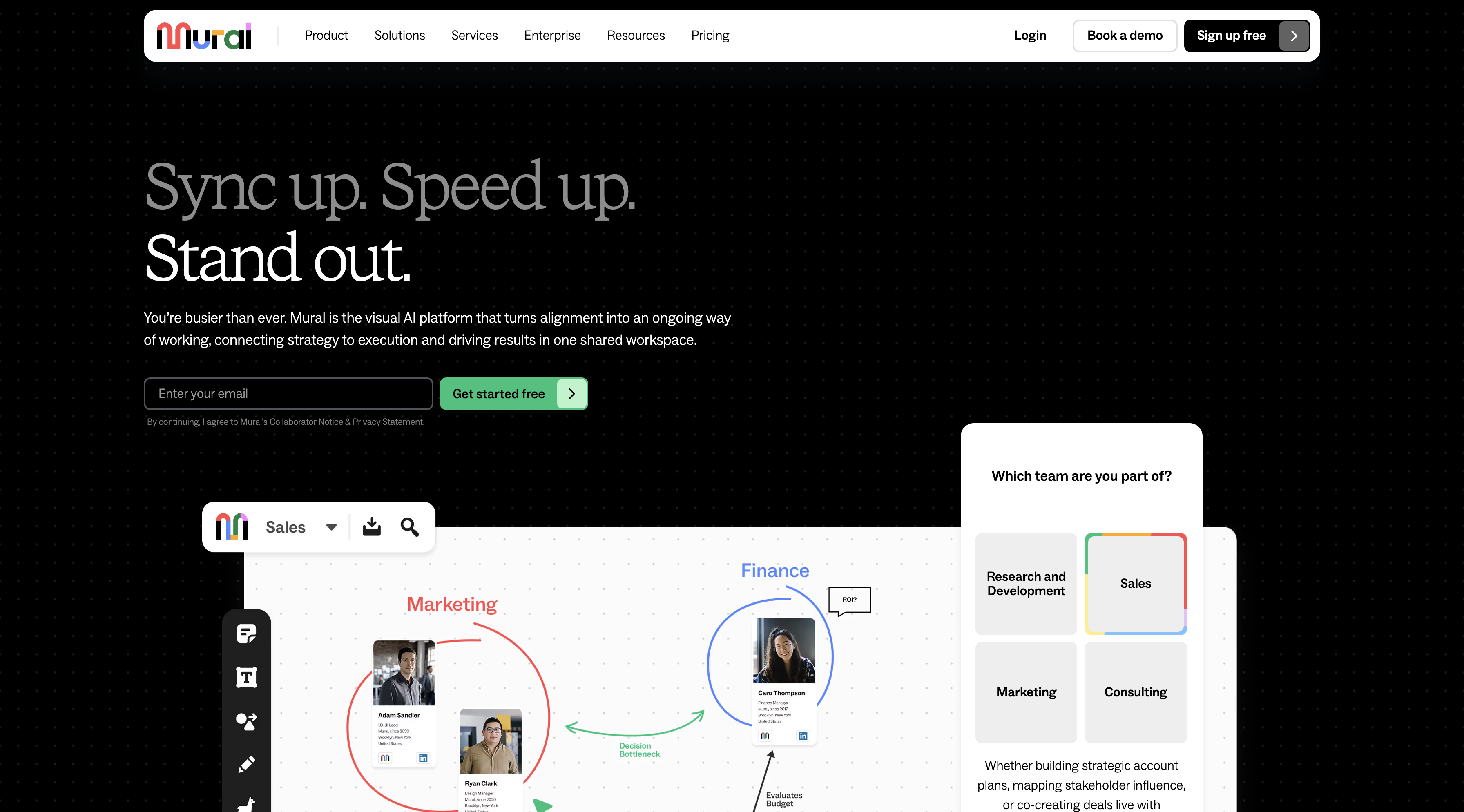
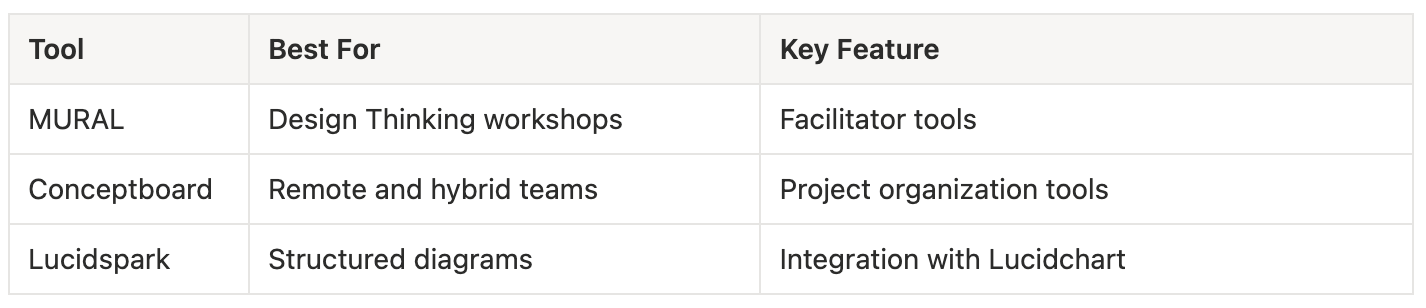
When I need to facilitate a structured "Design Thinking" workshop or an enterprise-scale brainstorming session, MURAL is my tool of choice. It is purpose-built for facilitation, with features like voting, timers, and private mode that give the host excellent control.
Mural.png
When I need to facilitate a structured "Design Thinking" workshop or an enterprise-scale brainstorming session, MURAL is my tool of choice. It is purpose-built for facilitation, with features like voting, timers, and private mode that give the host excellent control.
- Pros
- Excellent tools for guided workshop facilitation.
- Great for structured, template-based brainstorming.
- Strong focus on enterprise needs and security.
- Cons
- Can be more expensive than other options.
- Might be overkill for simple, quick brainstorms.
Conceptboard
 Conceptboard.png
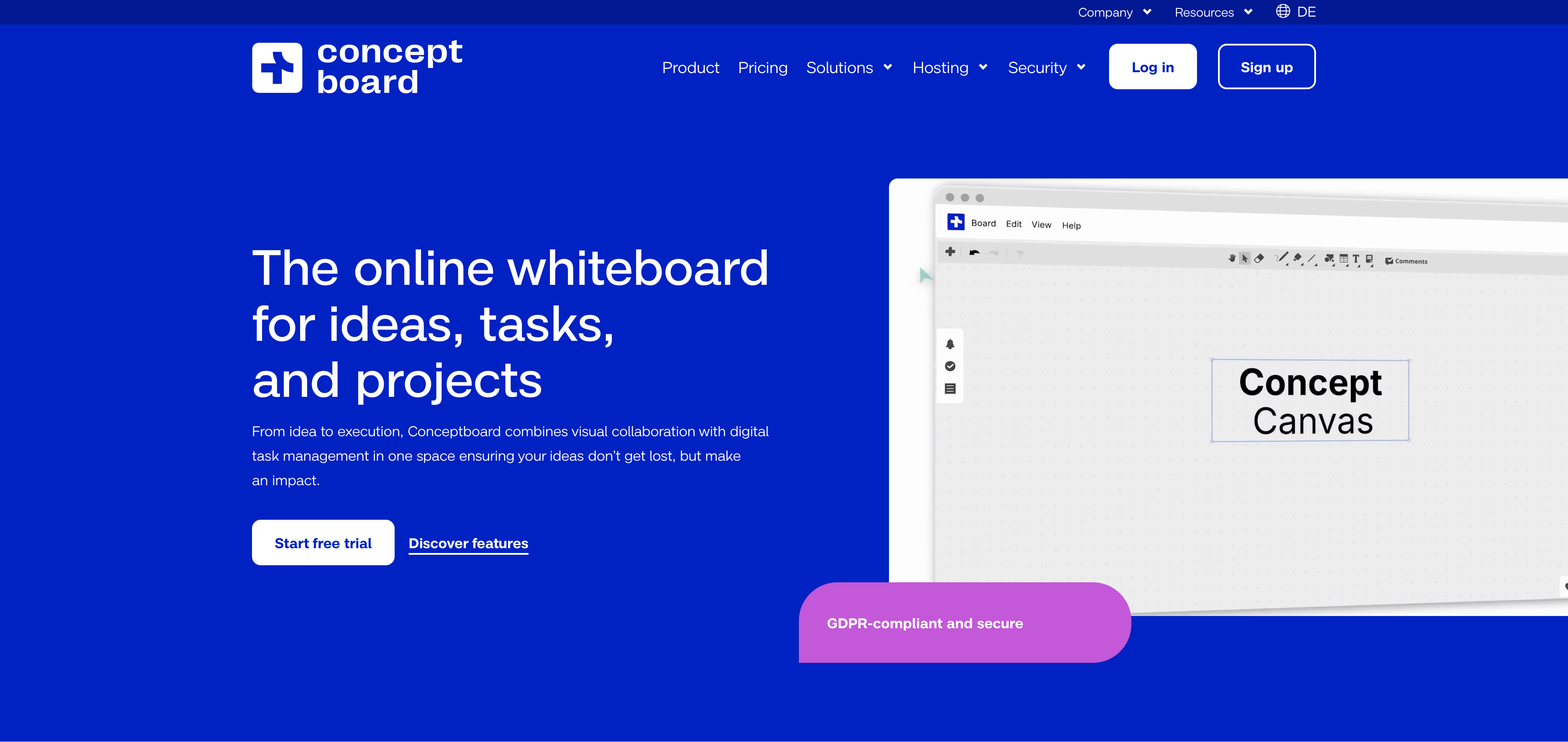
I find Conceptboard to be a really solid and versatile visual collaboration platform, especially for remote and hybrid teams that need a persistent space for their projects. It balances an infinite canvas with good project organization tools.
Conceptboard.png
I find Conceptboard to be a really solid and versatile visual collaboration platform, especially for remote and hybrid teams that need a persistent space for their projects. It balances an infinite canvas with good project organization tools.
- Pros
- Good for ongoing project visualization.
- Offers a good balance of features and usability.
- Content is organized around projects and boards.
- Cons
- The free version has significant limitations.
- Less focused on guided facilitation.
Lucidspark
 Lucidspark.png
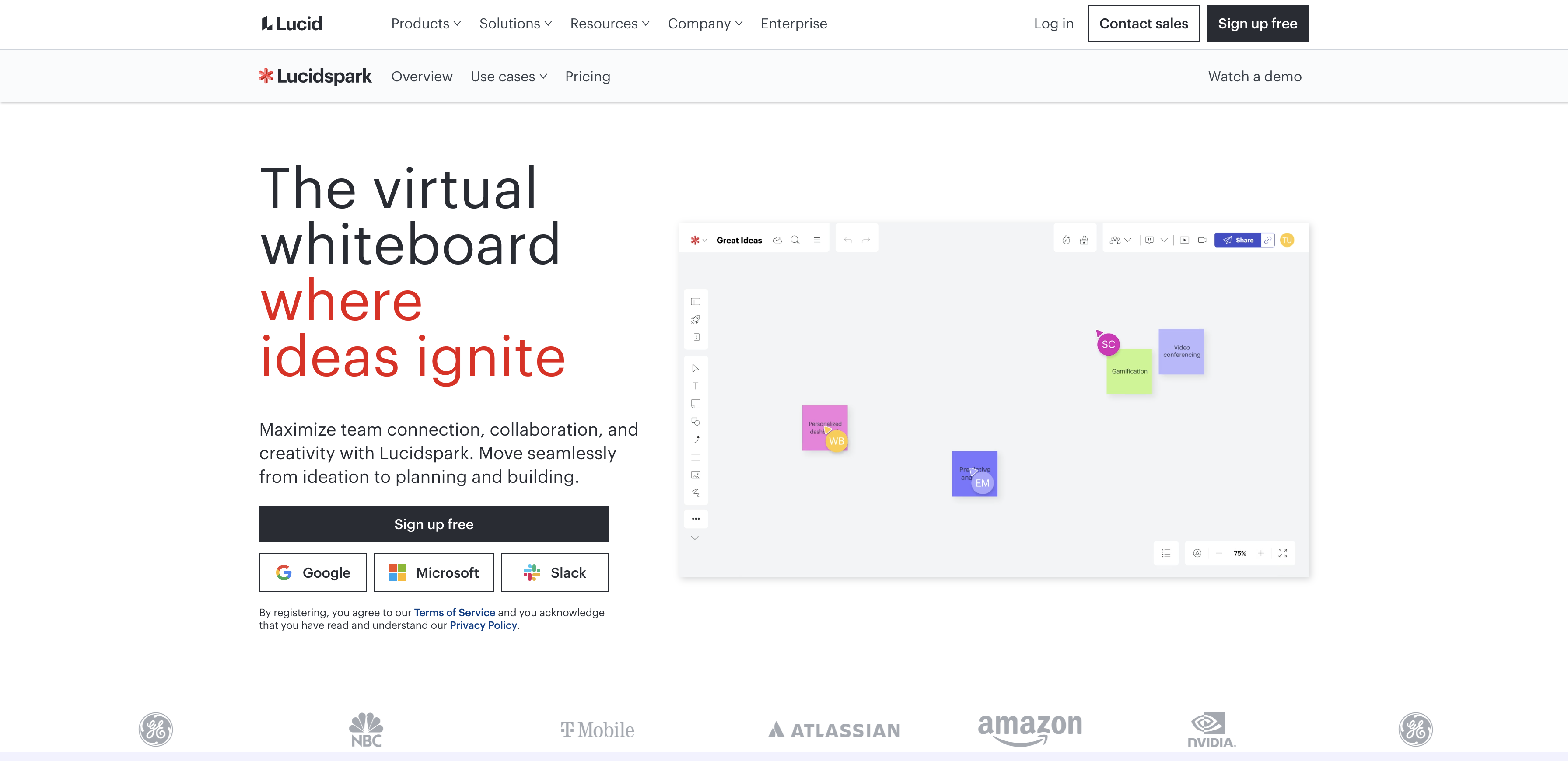
Lucidspark's superpower is its ability to turn a messy brainstorm into a structured diagram. Its seamless integration with Lucidchart is the key. I use it to start with free-form ideas and then elegantly transition them into polished flowcharts, mind maps, or architectural diagrams.
Lucidspark.png
Lucidspark's superpower is its ability to turn a messy brainstorm into a structured diagram. Its seamless integration with Lucidchart is the key. I use it to start with free-form ideas and then elegantly transition them into polished flowcharts, mind maps, or architectural diagrams.
- Pros
- Turns brainstorms into structured diagrams.
- Seamless integration with the Lucidchart diagram tool.
- Great for process visualization and documentation.
- Cons
- Some features are locked behind team plans.
- Best value is when using the full Lucid suite.
Comparison - Video Collaboration & Whiteboarding
 Comparison Table - Video Collaboration & Whiteboarding
Category Winners
After extensive use and analysis, here are my top picks for each category. These are the tools that I believe provide the most value and forward-thinking features for enterprises in 2026.
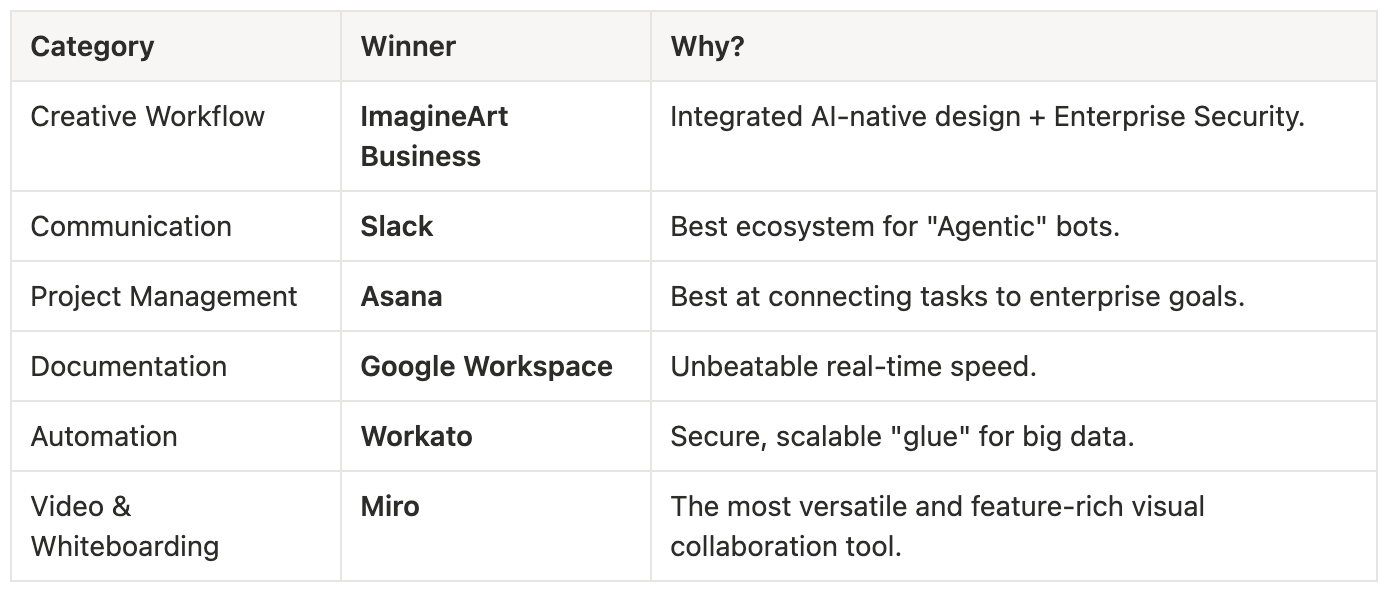 Winners Table for Each Category
Final Verdict
Choosing the right collaboration tools is not just about ticking off features on a list; it's about architecting a connected and efficient digital ecosystem for your team. The best stack for your enterprise will depend on your specific needs, team size, and existing infrastructure. By understanding the strengths of each tool and how they fit into the broader collaboration landscape, you can build a centralized workflow that empowers your team to do their best work and reclaim their competitive edge.
FAQs: Secure Enterprise Collaboration Tools
1. What makes a collaboration tool "secure" for enterprises? In 2026, security means more than just SSL. It requires SOC2 Type II compliance, AES-256 encryption, and "Data Sovereignty"—the ability to choose which region your data is stored in.
2. Can ImagineArt integrate with my existing PM tools? Yes. Through robust API support and native integrations, ImagineArt can push creative assets directly into Slack, Asana, or Monday.com, closing the gap between "concept" and "execution."
3. Is AI in these tools safe for my company’s IP? Enterprise-tier tools like ImagineArt Business and Microsoft 365 provide "private partitions," meaning the AI learns from your data to help you, but that data never leaves your secure environment.
Syed Anas Hussain
Syed Anas Hussain is a computer scientist blending technical knowledge with marketing expertise and a growing passion for AI innovation. Curious by nature, he dives into new AI sciences and emerging trends to produce thoughtful, research-led content. At ImagineArt, he helps audiences make sense of AI and unlock its value through clear, practical storytelling.