Umaima Shah
January 2, 2026 • Updated February 16, 2026
7 mins Read
WAN 2.2 is an open-source video generation model developed by Alibaba’s Tongyi Lab. The model has two main video generation features: Animate and Replace. WAN 2.2 focuses on motion consistency and frame stability throughout the video.
This blog covers:
- What is Wan 2.2?
- Key features of WAN 2.2: Animate and Replace
- How 'WAN 2.2 Animate and Replace' works
- Use cases of WAN 2.2 Animate
- Use cases of WAN 2.2 Replace
- Pricing and access options
- How to use WAN 2.2 Animate and Replace in ImagineArt
What is WAN 2.2?
WAN 2.2 is an AI video generation model that offers motion transfer, frame stability, and realistic character movement. It handles image-to-video animation and subject replacement, with a focus on stable motion and short, controlled video outputs.
Key Features of WAN 2.2 Animate
- Motion from video: Copies body movement and facial expressions from a reference video onto an image or subject.
- Animate and Replace: Brings a still character to life or swaps a subject in a video while keeping the scene intact.
- Lighting match: Adjusts the character to fit the scene’s lighting and colour.
- Stable frames: Keep shapes and movement steady from frame to frame.
What is WAN 2.2 Animate and Replace?
Wan 2.2 Animate and Replace is a feature within the WAN 2.2 video generation framework. It is used for image-to-video motion transfer, where movement from a reference video is applied to a static image or used to replace a subject in an existing video.
The system works with two inputs: a reference image and a video. The video provides body movement and facial expressions, along with the overall template, while the image offers the visual identity to animate or insert into the video.
- Wan 2.2 Animate Mode: The reference image is animated using motion extracted from the video. The output is a short video where the image follows the original motion.
- Replace Mode: The reference image replaces the original subject in the video. The background, lighting, camera movement, and motion remain unchanged. Only the subject is swapped.
Key Features of WAN 2.2: Animate and Replace
- Motion Transfer: Transfers body and facial movement from a reference video to a static image or replacement subject.
- Animate and Replace Modes – Animates a still character or replaces a subject in a video while controlling what elements remain unchanged.
- Relighting Support: Uses the Relighting LoRA module to align the character with the scene’s lighting and colour tone.
- Frame Stability – Maintains a consistent structure across frames, reducing flicker and distortion.
- Controlled Output: Focuses on short, controlled video segments where motion accuracy is important.
How Wan 2.2 Animate and Replace Works
Wan 2.2 Animate and Replace generates a video frame by frame. It does not produce the full clip in a single step. This gradual process helps maintain steady motion from start to finish.
The system takes motion cues from a reference video. It captures body and facial changes, then applies that motion to a still image or a replacement subject. Each new frame is created with the previous frame in mind, which helps avoid flicker and sudden shape changes.
To maintain visual consistency, the model employs a diffusion transformer with a Relighting LoRA module. This helps the inserted character follow the original movement while matching the scene’s lighting and colour.
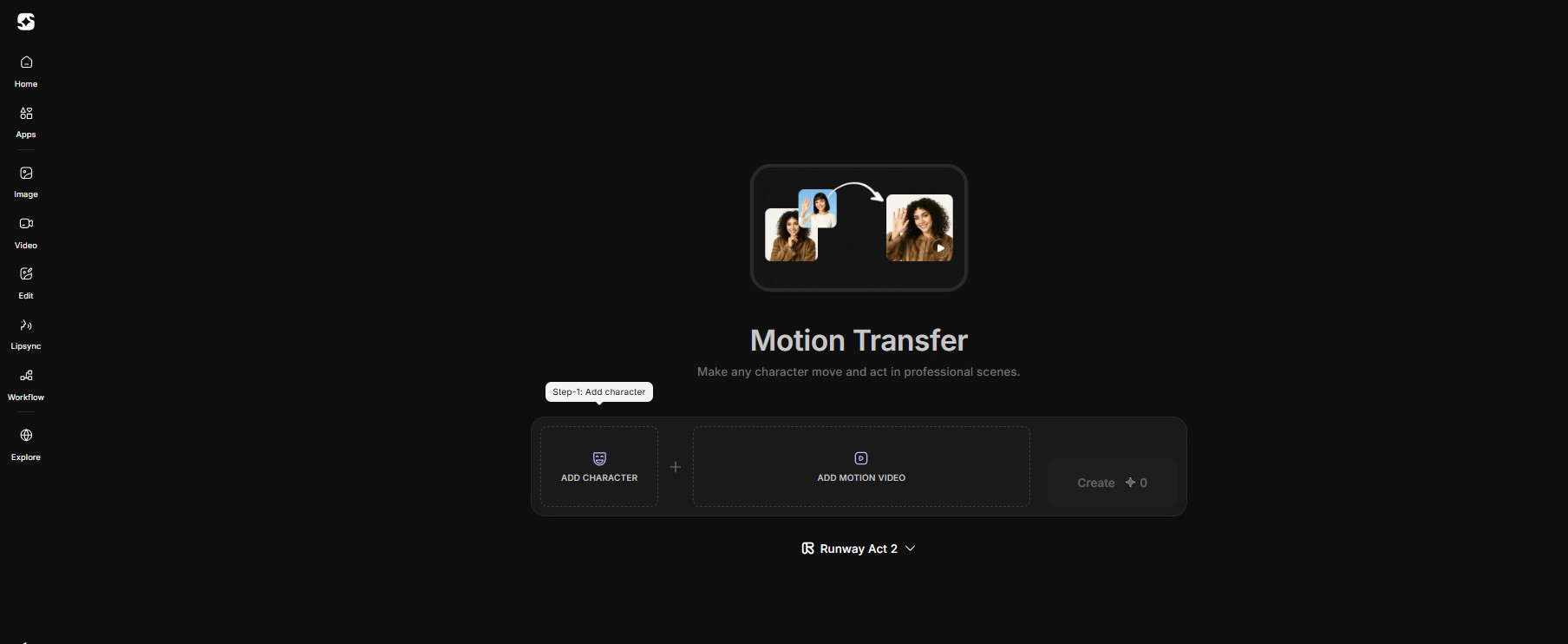 Motion Transfer on Imagine Art
How to Animate an Image in WAN 2.2
Animate mode animates a static image using motion from a reference video.
You provide:
- A reference image (the character and the scene)
- A reference video (the motion source)
The system applies video poses and expressions to your image. This creates a short animated clip in which the still image is animated according to the movement patterns from the video. The background from the original video isn’t kept in the output; only the motion information is used.
This mode works best when you want the character itself animated, and the original video scene doesn’t need to remain.
How to Replace a Subject in WAN 2.2
Replace mode swaps a person in an existing video with a different character while keeping the original scene intact.
You provide:
- A reference image (the new character)
- A video (the source scene and motion)
The background, lighting, camera movement, and original motion remain unchanged. Only the subject is replaced with the reference image. Motion from the original video drives the new character.
A relighting module adjusts the inserted character to match the scene’s lighting and colour. This helps the replacement blend into the existing video.
This mode is suited to video editing and post-production work where scene realism and motion continuity matter, and only the subject needs to change.
Start with the character image.
- Use a clear image where the face is clearly visible.
- Avoid harsh shadows and extreme angles.
- A plain background helps, but it’s not required.
Now choose a reference video.
- Make sure the person stays visible throughout the clip.
- Avoid fast cuts or sudden movements.
- Even lighting works best.
- Short clips, around 5 to 15 seconds, usually give better results.
Pros and Cons of WAN 2.2 Animate and Replace
When it comes to WAN 2.2 Animate and Replace, the model delivers reliable motion transfer, with a few limitations that affect production use.
Pros of Wan 2.2
- Accurate motion transfer
- Two distinct modes
- Lighting adaptation
- Open-source access
Cons of Wan 2.2
- No text-based editing - check Kling O1 Video for this use case.
- Limited cinematic controls
Use Cases of WAN 2.2 Animate
WAN 2.2 Animate and Replace fits well into creator and production workflows where motion transfer and subject replacement actually solve a problem, not just add effects.
User-Generated Content (UGC)
With WAN 2.2, the same character can be reused across multiple short videos on platforms like Instagram Reels, TikTok, and Shorts by simply changing the motion source. This makes it easier to produce varied content at speed.
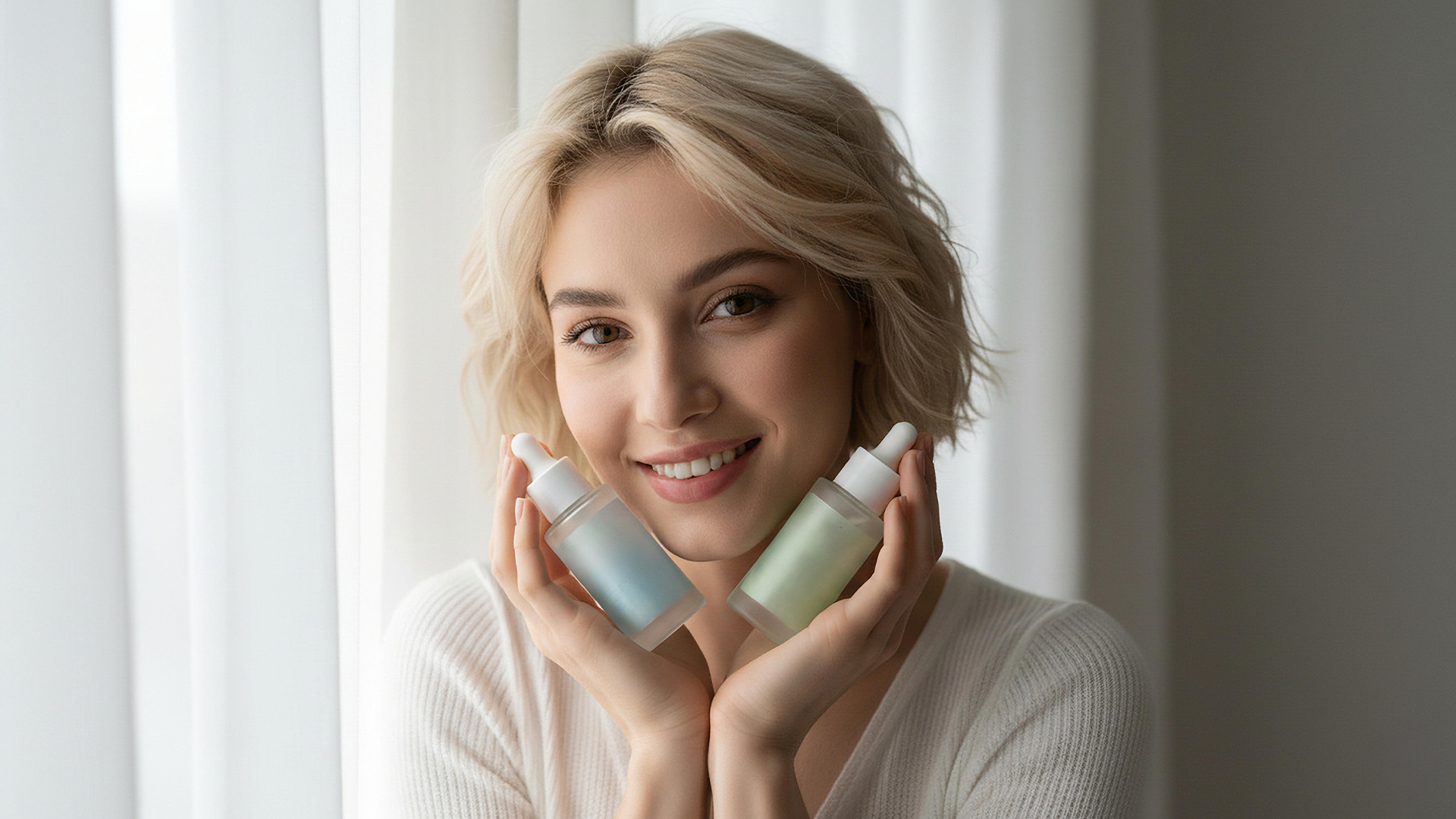 Creator holding two cosmetic serum bottles in a clean, natural-light setup.
Creators and Artists
Artists and animators can use WAN 2.2 to explore character movement early in the visual development process.
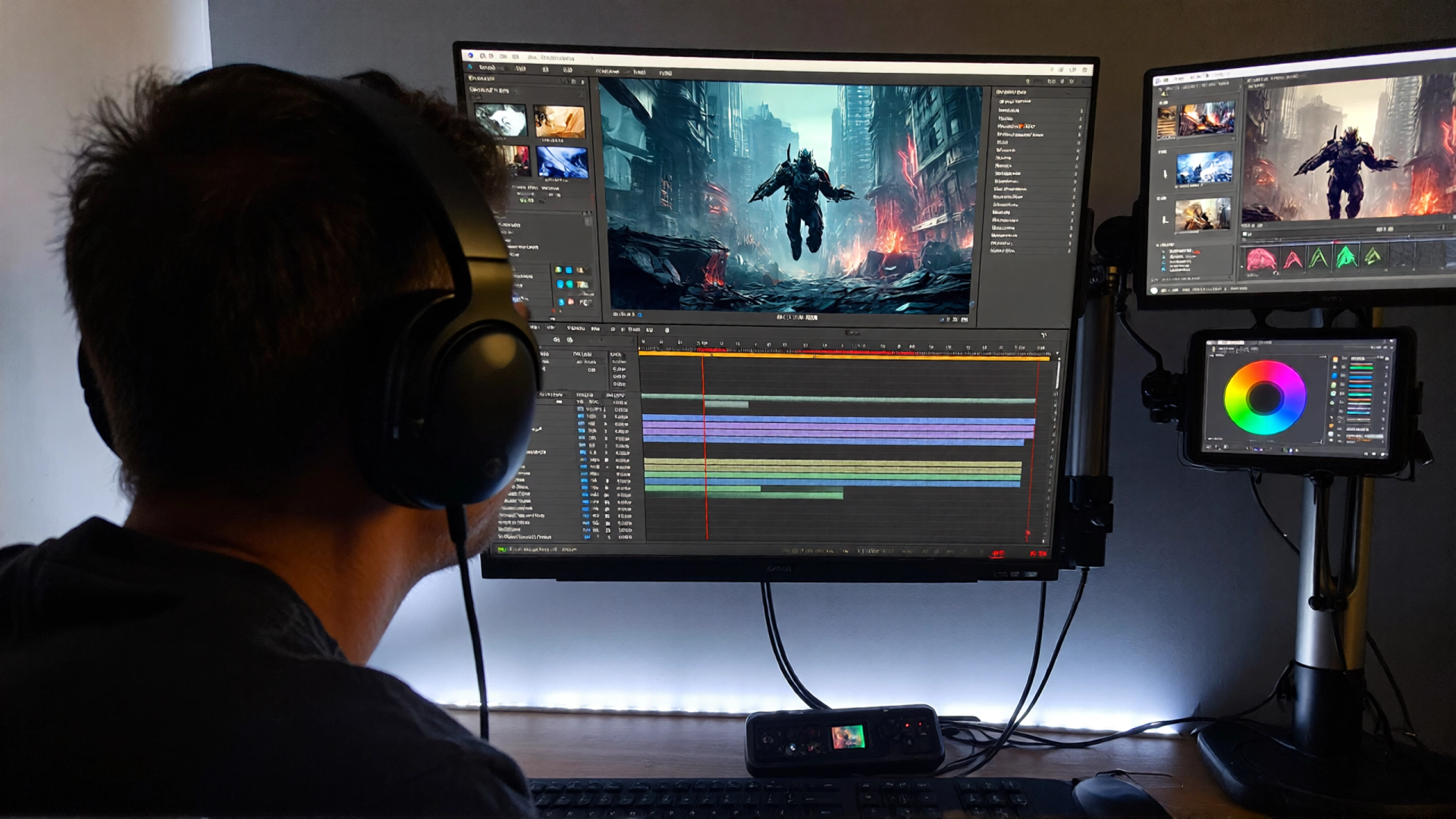 Digital creator editing a high-detail cinematic sequence on multiple screens.
Product Visuals and Branding
Brands can use WAN 2.2 to animate icons, mascots, or characters into short clips for ads and previews, without full video production.
Use Cases of WAN 2.2 Replace
Marketing and Ad Campaigns
Marketing teams can use WAN 2.2 to update campaigns by swapping actors for brand mascots without reshooting video.
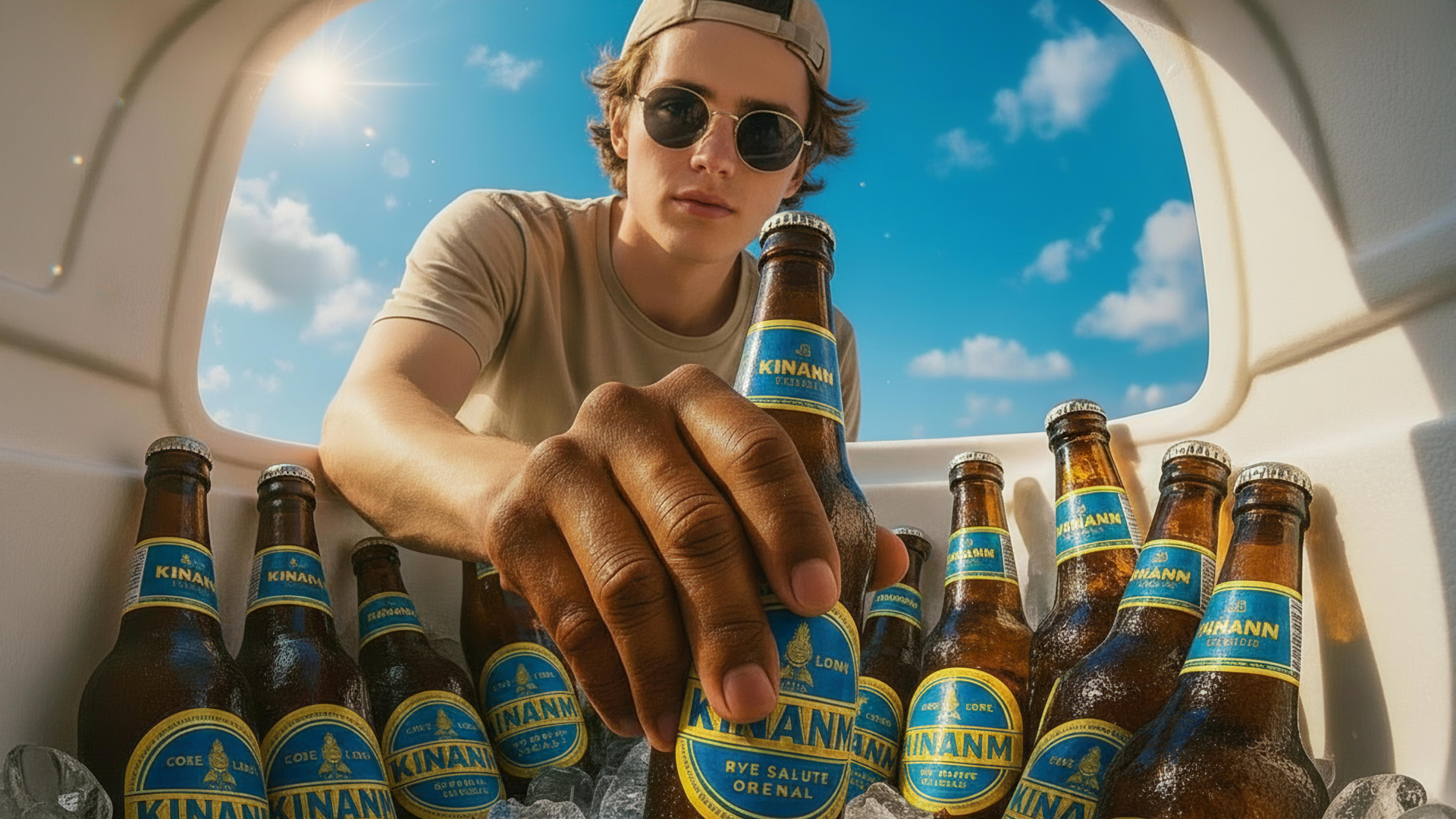 Cinematic product shot demonstrating character swap in a campaign video frame
Post-Production Editing
Editors can use Replace mode to swap characters while keeping the original scene and camera movement intact.
WAN 2.2 Animate Pricing and Access
Alibaba released WAN 2.2 Animate as an open-source model under the Apache 2.0 license. The project makes its code and weights publicly available, so you can run the model locally or integrate it into custom workflows without paying for the model itself.
- WAN 2.2 Animate is free to use as an open-source model.
- You can run it locally or in custom setups without a paid license.
- Pricing applies only to hosted platforms, not to the model itself.
How to Use WAN 2.2 Animate on ImagineArt
- Go to Imagine.art and open the Motion Transfer tool.
- Upload a reference image (the character) and a reference video (the motion source).
- Choose Animate to animate the image or Replace to swap the subject in the video.
- Select WAN 2.2 Animate as the model and adjust basic settings if needed.
- Generate the video using credits; a typical WAN 2.2 motion transfer uses around 30–65 credits per clip, depending on length and resolution.
- Download the result or iterate by changing the motion source or settings.
Use Wan 2.2 on ImagineArt
WAN 2.2 Animate provides character animation and subject replacement without manual CGI or complex production pipelines.
WAN 2.2 reduces the effort needed for character animation. Platforms like ImagineArt make this workflow easier. Moreover, If you want to explore it alongside other supported models, ImagineArt lets you test and compare workflows from a single interface.
Umaima Shah
Umaima Shah is a creative content strategist specializing in AI tools, image generation, and emerging technologies. She focuses on translating complex platforms into clear, practical insights for creators, designers, and product teams