
Syed Anas Hussain
February 23, 2026 • Updated March 6, 2026
8 mins Read
Video creation takes a lot of effort, and getting the perfect shot is key. But what if you took the perfect shot, got everything right, just to see that there is an object in the background that ruins everything? If this was 10 years ago, you would be frustrated and had to take the shot again. But today, inpainting video with AI can solve your problem. Let's see how.
What Is Video Inpainting?
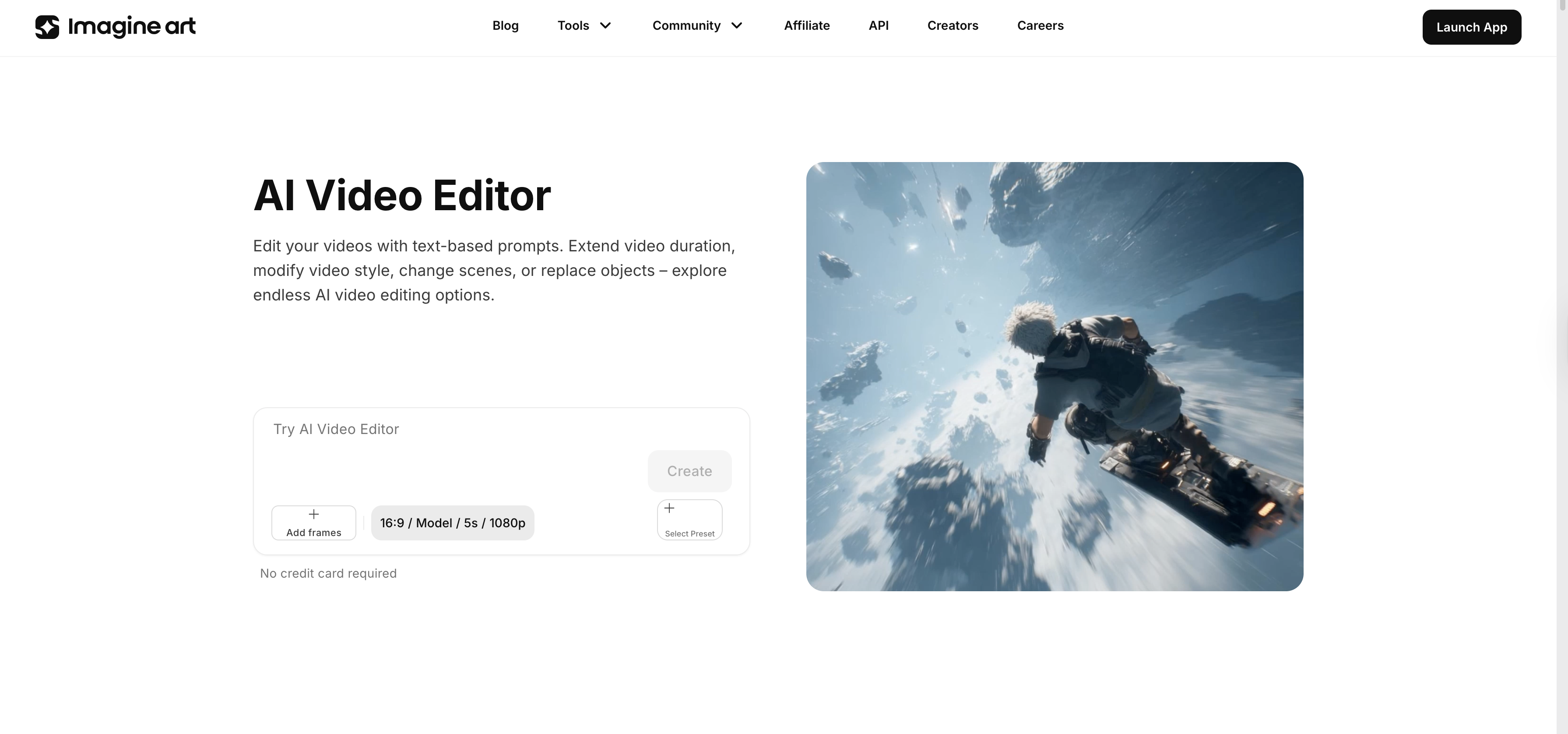
As the name suggest, it is the same concept as image inpainting, but applied to video.
You select the object or area you want removed from your footage, and the AI fills it back in with realistic content that matches the surrounding scene. And it does this across every single frame of your clip automatically.
But here's what makes video harder than images.
- With an image, you fill one frame and you're done.
- With video, the AI has to maintain that fill consistently across every frame, even when the camera is moving, the lighting is changing, or other objects in the scene are in motion.
That's the real technical challenge, and that's what modern AI video inpainting tools are specifically built to handle.
How is video inpainting with AI different from image inpainting?
With image inpainting, you mask an area once and the AI fills it. Simple. With video inpainting, that mask has to follow the object as it moves through the clip. The best AI tools handle this tracking automatically so you don't have to do it frame by frame yourself.
3-Step Process to Inpaint Video with AI
Step 1 - Choose an AI video inpainting tool and upload video
Go to imagine.art/apps and open the AI Video Editor to get started. Before you upload anything, trim your video down to just the section that needs inpainting. This step takes ten seconds but it makes the whole process significantly faster and easier to review.
Once you have the video ready, upload it to ImagineArt AI Video Editor.
Step 2 - Type in your inpainting prompt
This is the most important step. You're telling the AI exactly what needs to disappear, so be thorough about it.
Write exactly what you want to remove or replace. Cover the full object including its shadow and any reflection it creates. People miss shadows constantly, and a shadow with nothing casting it is one of the most obvious signs of a poor inpainting job.
For example:
- remove the person in background
- remove the mic stand from top corner
- replace the logo on shirt with plain fabric
- remove cables from floor
The more specific you are, the better your result will be.
Step 3 - Generate and Export
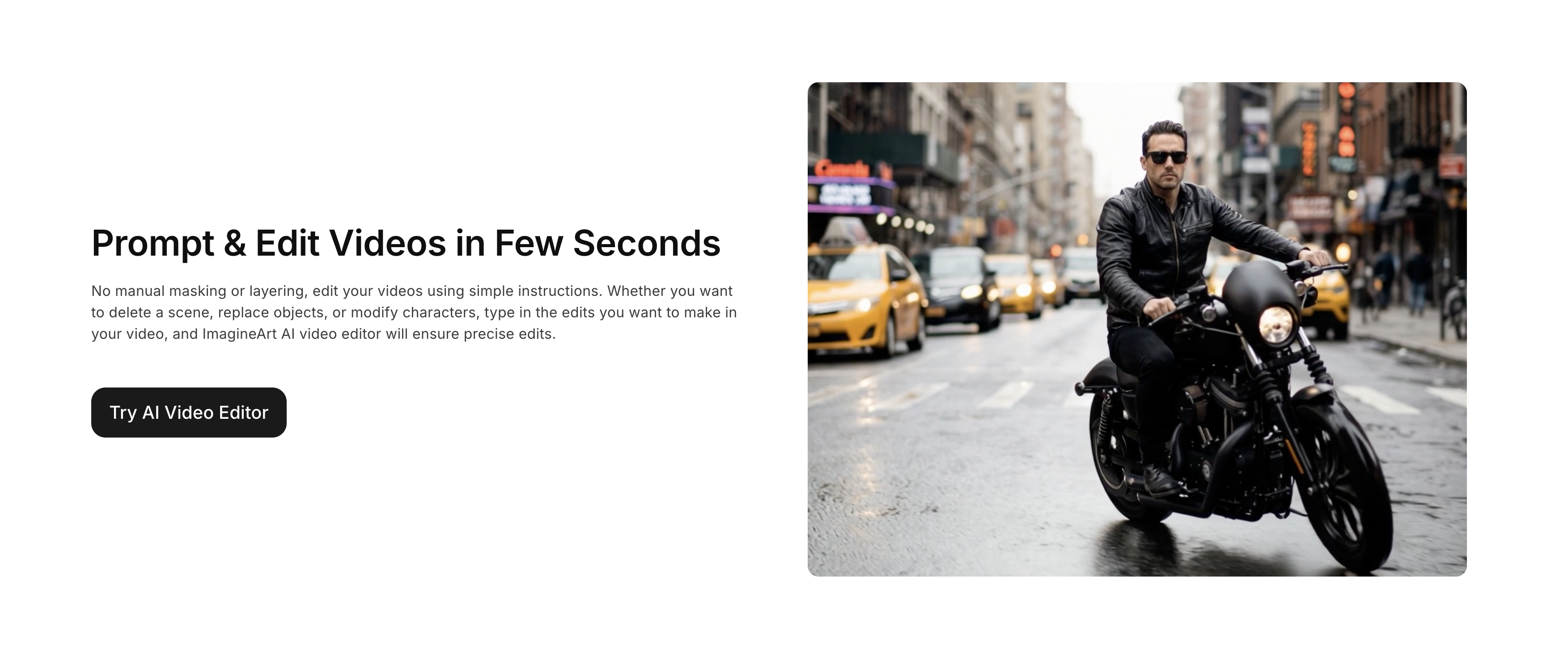
Hit generate and let the AI process your clip. When the result comes back, watch the full clip at normal playback speed first to check overall consistency. Then go back and scrub through the inpainted area frame by frame, paying extra attention to sections where the object was moving fast.
Once you're satisfied with the result, export at the same resolution and format as your original footage.
Why Use AI for Video Inpainting?
Now you might ask, can't a skilled video editor just remove objects in After Effects? Yes, they can. But manually rotoscoping an object frame by frame and then patching the background behind it is one of the most tedious tasks in all of post-production. For a five second clip, you're easily looking at a few hours of work.
AI video inpainting changes that math completely. Here's why it's worth using:
1. Time Savings That Actually Matter
What used to take hours of manual work now takes minutes. The AI handles the frame-by-frame work automatically so you can move on to everything else.
2. No Compositing Skills Needed
Traditional object removal required knowledge of rotoscoping, motion tracking, and content-aware patching. With AI, you just select the object and the tool does the rest.
3. Consistent Results Across Every Frame
AI video inpainting models are built to keep the filled area stable throughout the full clip. No flickering, no texture shifts, no random artifacts appearing mid-clip.
4. Works on Real-World Footage
You don't need a green screen or a controlled studio setup. AI inpainting works directly on whatever footage you have, shot anywhere, under any conditions.
5. Far More Affordable
Hiring a VFX artist to manually remove objects from a video clip is expensive. AI inpainting tools give you the same result at a fraction of the cost.
Common Use Cases for AI Video Inpainting
Once you know what AI video inpainting can do, you start noticing how many real situations it applies to. Here are the most common ones.
Removing Unwanted Objects from Footage
This is the number one use case. Boom mics dipping into frame, crew members visible in reflections, cables on the floor, brand logos on clothing that can't be shown, background distractions pulling focus from the subject. Instead of reshooting, you mask the object and let the AI clean it out.
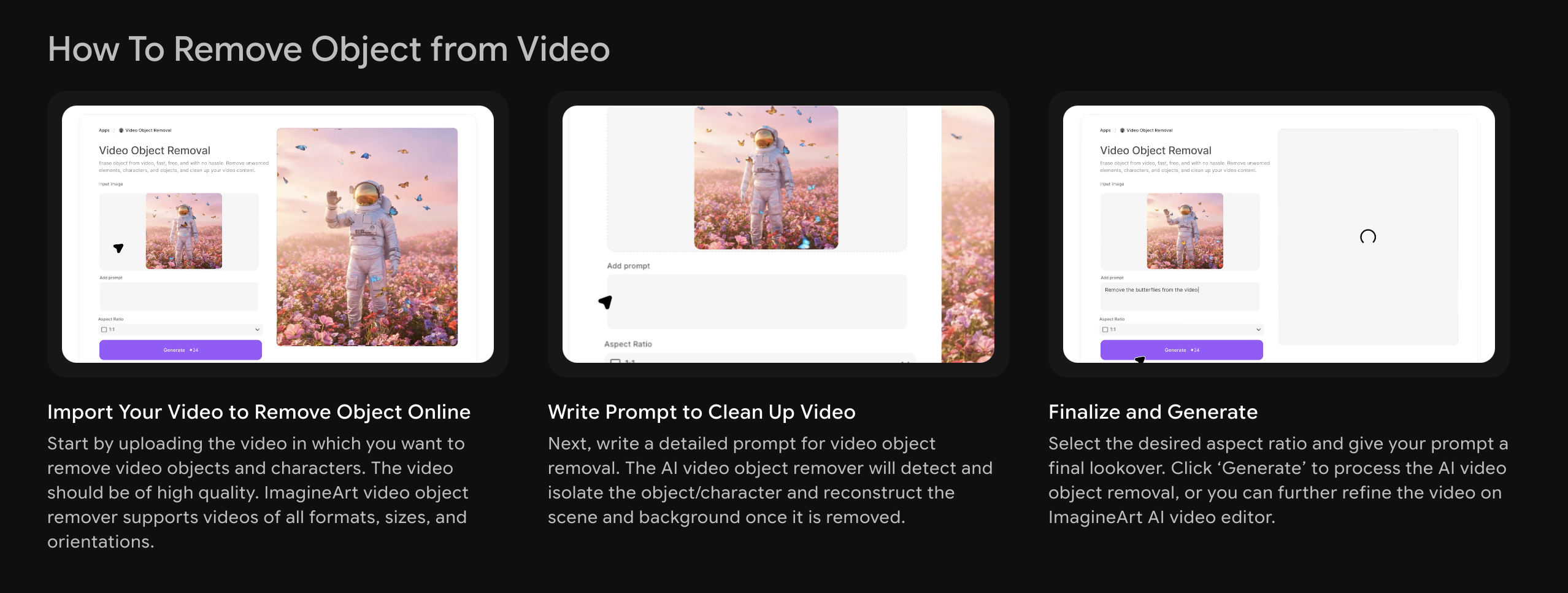
Recommended read: How to Remove Object from Video
Fixing On-Set Mistakes After the Shoot
Sometimes you only spot the problem when you're in the edit, long after the shoot has wrapped. A sticker on a prop that wasn't supposed to be there, a modern object in a period setting, a mark on someone's face that makeup missed. AI video inpainting lets you replace unwanted elements and fix and all of this in post-production without going back to set.
Logo and Watermark Removal
Removing brand logos, expired watermarks, or text overlays from background footage is a very common post-production task. Maybe a partnership fell through, or the footage was originally shot for a different campaign. AI handles this cleanly and consistently across the full clip.
Background Cleanup for Content Creators
A lot of creators don't want the hassle of green screens or virtual backgrounds. They'd rather film in their actual space and just remove whatever doesn't belong. AI video inpainting is perfect for this. You keep the natural feel of your environment and get rid of the distractions or even change video background entirely.
Archival and Restoration Work
Old footage often has scratches, dust artifacts, or frame damage that repeats throughout the clip. AI inpainting can identify and fill these systematically, restoring the footage without anyone needing to touch it frame by frame.
Portrait and Skin Retouching in Video
This one surprises most people. AI video inpainting isn't only for background objects. You can use it to remove blemishes, temporary marks, or distracting elements on a person's face or body, and it holds up consistently across the entire clip.
AI Video Inpainting Ideas and Examples
Here are some real ways people are using video inpainting in their work.
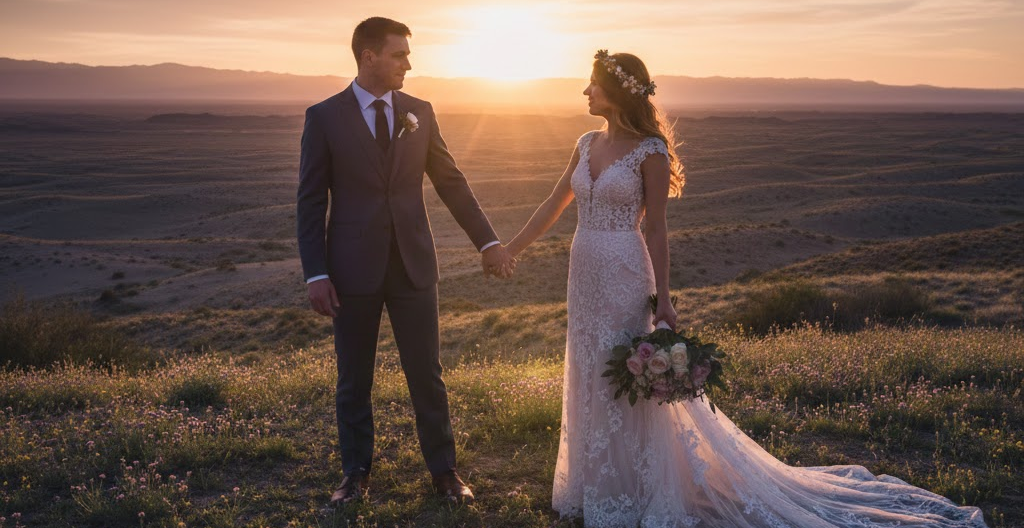
1. Wedding Videography
Wedding videographers use it to remove distracting guests or background elements that appeared during key moments. The couple gets a clean final video without anything having to be reshot. It's especially useful for ceremony footage where you can't control every person in frame.
2. Documentary Filmmaking
Documentary filmmakers use it to remove anachronistic objects from historical recreations. One wrong detail in the background, like a modern sign or piece of equipment, breaks the entire illusion. AI inpainting removes it cleanly without reshooting the scene.
3. Content Creator Videos
Content creators and YouTubers use it to clean up their filming space without rearranging furniture or setting up a green screen every time they shoot. Just film naturally and remove distractions in post. It keeps production simple and fast.
4. Brand Video Production
Brand video teams use it to remove discontinued products, outdated signage, or expired branding from footage that's otherwise still completely usable for current campaigns. This saves entire reshoot budgets while keeping the core content intact.
5. Social Media Content
Social media creators use video inpainting to remove unwanted objects, clean up backgrounds, or fix small mistakes that would otherwise ruin a perfect take. It's especially useful for vertical content where every pixel matters.
6. Product Videos
Ecommerce brands shooting product videos often need to remove props, reflections, or background elements that distract from the product itself. AI inpainting cleans these up quickly without needing multiple takes or complicated lighting setups.
AI Video Inpainting Tips and Tricks
Want better results every time? Follow these tips:
- Trim your footage first - Always cut to just the section that needs inpainting before uploading. It's faster and easier to review.
- Stabilize shaky footage - If your clip has camera shake, stabilize it first. Shaky footage makes tracking harder and results inconsistent.
- Use your highest quality source file - Compressed video loses detail the AI needs. Start from your cleanest file.
- Watch at real speed before exporting - Some issues only show up when the video is actually playing, not when scrubbing frame by frame.
- Be specific with prompts - Even simple prompts like "white wall" or "clean floor" make a huge difference in output quality.
Mistakes to Avoid When Inpainting Video with AI
Here are the most common mistakes that ruin results:
- Not masking shadows - Leaving a shadow behind after removing an object is the most obvious sign of poor inpainting. Mask everything.
- Using compressed files - Compressed video lacks the edge detail AI needs. Always upload the highest quality version you have.
- Skipping the review - Always watch the full clip before exporting. One bad frame can ruin an otherwise perfect result.
- Expecting one-click perfection - Most videos need at least one refinement pass. Build that into your workflow.
Ready to inpaint videos with AI?
What required a VFX team and hours of manual work is now possible in minutes with ImagineArt's AI Video Editor. Remove unwanted objects, fix on-set mistakes, and clean up backgrounds without reshooting a single frame.
Syed Anas Hussain
Syed Anas Hussain is a computer scientist blending technical knowledge with marketing expertise and a growing passion for AI innovation. Curious by nature, he dives into new AI sciences and emerging trends to produce thoughtful, research-led content. At ImagineArt, he helps audiences make sense of AI and unlock its value through clear, practical storytelling.