Nano Banana 2.5
ImagineArt
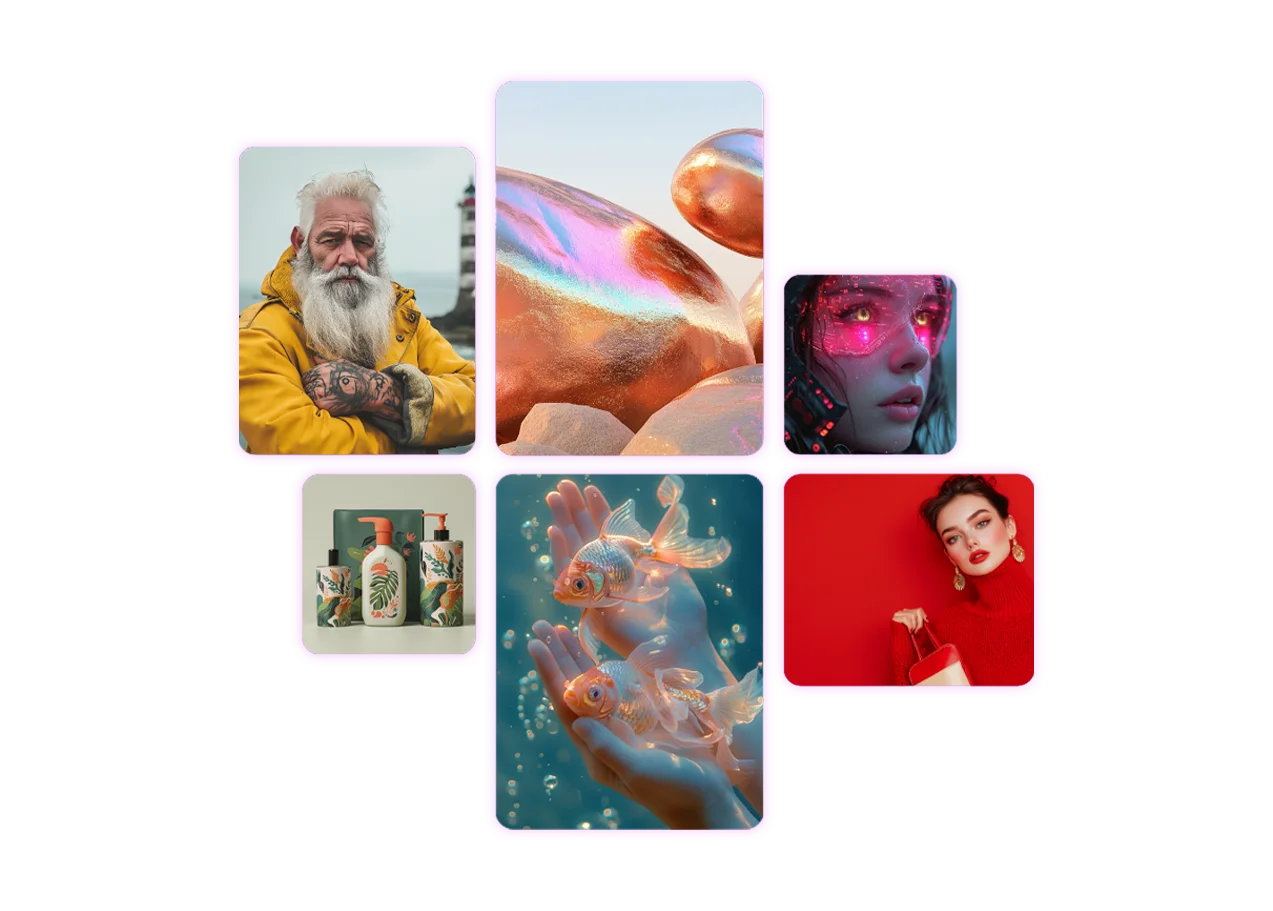
Browse the AI models behind ImagineArt, sorted by what you want to create. Pick image, video or productivity, then compare models and start generating.
Want the full list? Every ImagineArt model sits in one directory. Filter by image, video or productivity, then compare quality, speed and credit cost. The free plan includes daily credits, so you can test a model before you pay. See the pricing page for current limits.
Pick the right model
Start with the result you need, not the model name. Then test the same prompt across two or three options.
For product photography
Realism decides whether a product image sells. Shoppers notice plastic skin, warped labels and odd shadows. Start with a photorealistic model like ImagineArt 2.0 or Imagen 3. Write your prompt like a photographer: lens, lighting, surface and angle. Generate four versions, then pick the one with the cleanest edges and the most natural light. Use Inpaint to fix a single detail instead of rerolling the whole image. Upscale the winner for your store listing. If a model keeps missing your brief, switch models before you rewrite the prompt. The problem is often the model, not the wording.
Browse Image ModelsFor designers and marketers
Text inside images has always been the weak spot. Many models still garble letters, especially in headlines and logos. Choose a model known for text rendering, such as ImagineArt 2.0, when the words matter. Keep copy short. Five words render more reliably than fifteen. Describe the font style and placement in plain language, like "bold white headline, top left." If one letter comes out wrong, fix it with Magic Text instead of starting over. Test the same poster prompt on two models and compare. You'll see the difference in the first generation.
Browse Image ModelsFor filmmakers and creators
No single video model wins every shot. One handles realistic faces and dialogue well. Another produces smoother camera moves. A third renders stylized animation better. Pick based on the shot, not the brand name. For a talking scene, try a model with native audio like Grok Imagine. For a sweeping landscape, test Veo and Kling side by side with the same prompt. Keep clips short, since quality tends to drop as length grows. Image to video gives you more control over the first frame. Build a scene from several short, strong clips instead of one long generation.
Browse Video ModelsFor teams on a budget
Credits go fast when every draft runs on your most expensive model. Split your workflow in two. Use a faster, lower-cost model to explore ideas, compositions and prompts. Once you've found a direction, run the final version on a premium model. Credit cost per generation varies by model, so check it before a big batch. Test one prompt, compare the cost to the result, then scale up. This approach keeps your free daily credits useful and your paid plan stretching further. The cost of AI image generation guide breaks down where the money goes.
Browse All ModelsAnswers about ImagineArt AI models, credits, and how to pick the right model.